![side_logo.png]](/theme/site/shared/images/side_logo.png)
Write and translate talks with AI
Have AI write a first draft of a toolbox talk from one line, or fill in the Spanish and French of a talk, then check it before you keep it.
Try it free Start with Safety Evolution's Free version.
In the toolbox talk library you can ask AI to write a first draft of a talk. You can also ask it to fill in the Spanish and French of a talk you wrote in English. You always read the result first. Nothing is added to your library until you say so.
Before you start
- You need to be an owner, designate or admin.
- Writing and translating with AI is part of the Professional and Enterprise plans. On the Free plan you see a lock with Write talks with AI on Professional or Translate your own talks on Professional. Clicking it opens the plans page in a new tab.
- Your form needs a Toolbox Talk. See Add toolbox talks to a form and manage your talk library.
Write a talk with AI
- In the menu, click Company Settings, then Form Designer. Open your toolbox talk form with Edit.
- Click the Toolbox Talk in the form. Your list of talks opens on the right.
- Under the list, click Write with AI.
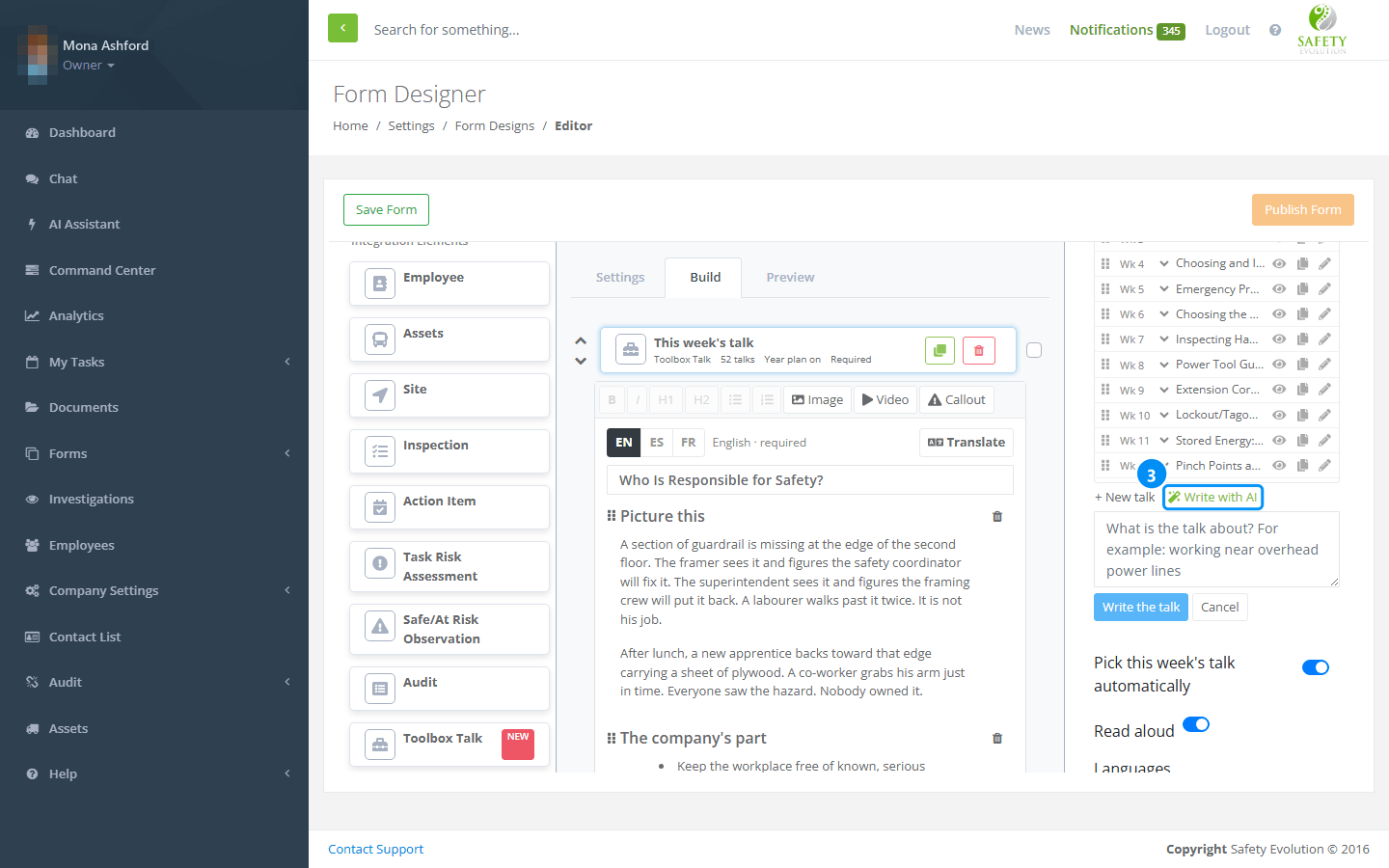
Say in one line what the talk is about. - In the box, type what the talk is about. For example "working near overhead power lines".
- Click Write the talk. It says Writing… while it works.
- The new talk opens in the editor with the line Written with AI. Review it, then add it to your library.
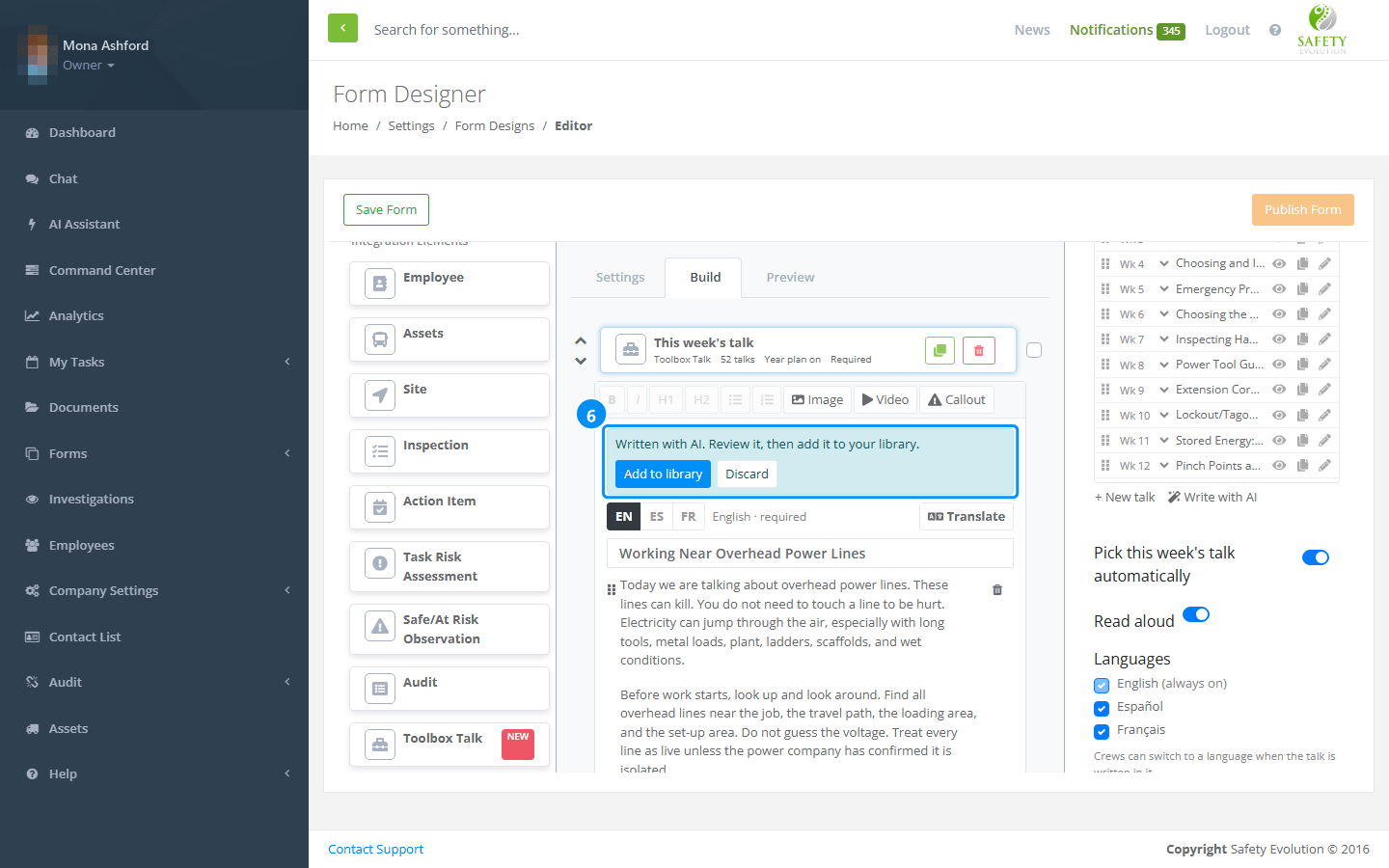
Read the talk and fix anything that is not right for your crews. - Read it. Change anything that is wrong or does not fit your work.
- Click Add to library to keep it. Or click Discard to throw it away.
- Click Save Form, then Publish Form, so crews get it.
AI writes in English. It may use up to two of your own talks as examples of your style.
Translate a talk into Spanish and French
- Open the talk in the editor. Make sure it has an English title.
- Click Translate, next to the EN ES FR buttons.
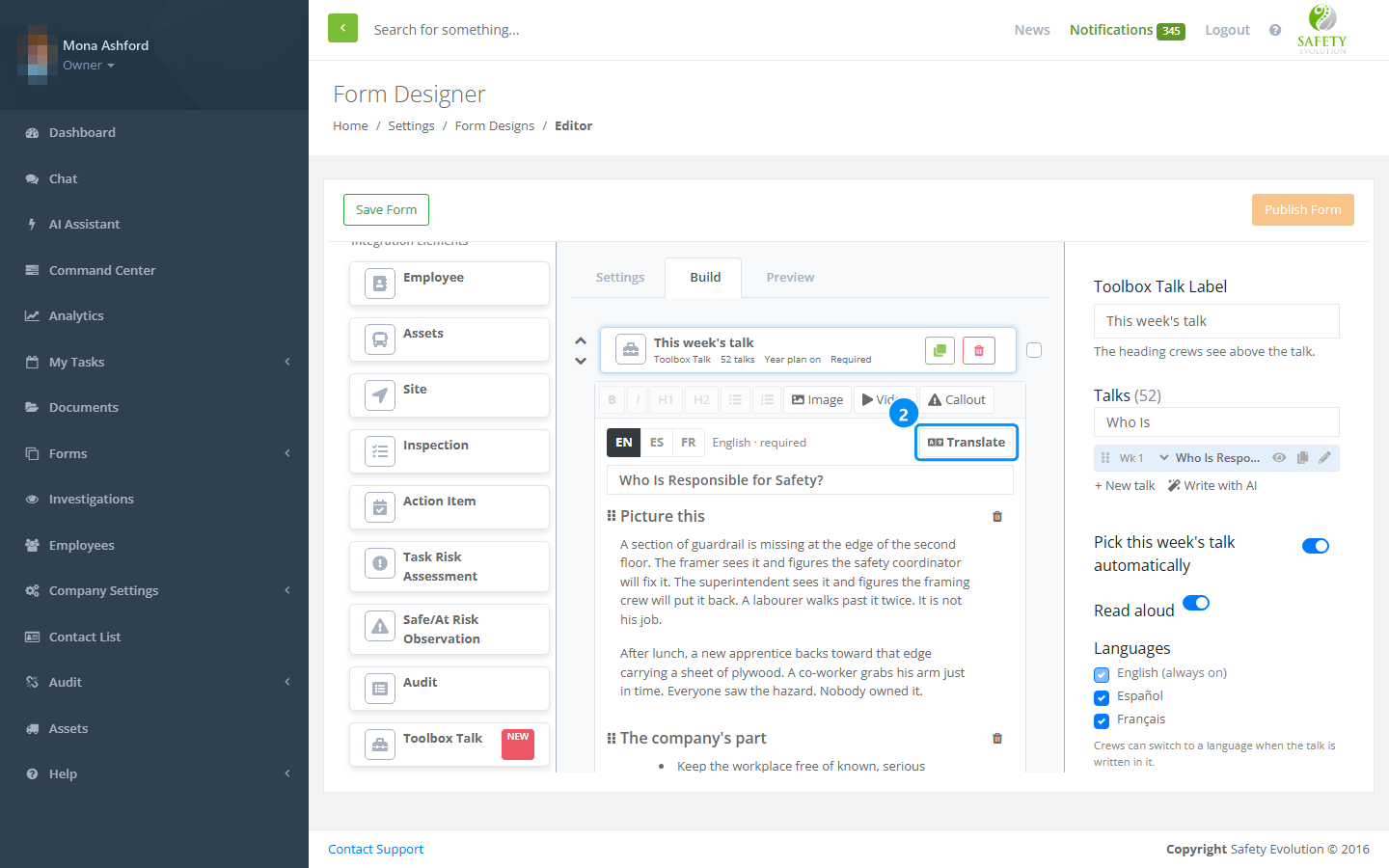
Translate fills Spanish and French from the English. - It says Translating… while it works.
- You see Spanish and French translated with AI. Review both, then keep them.
- Click ES and read the Spanish. Click FR and read the French. Fix anything that is wrong.
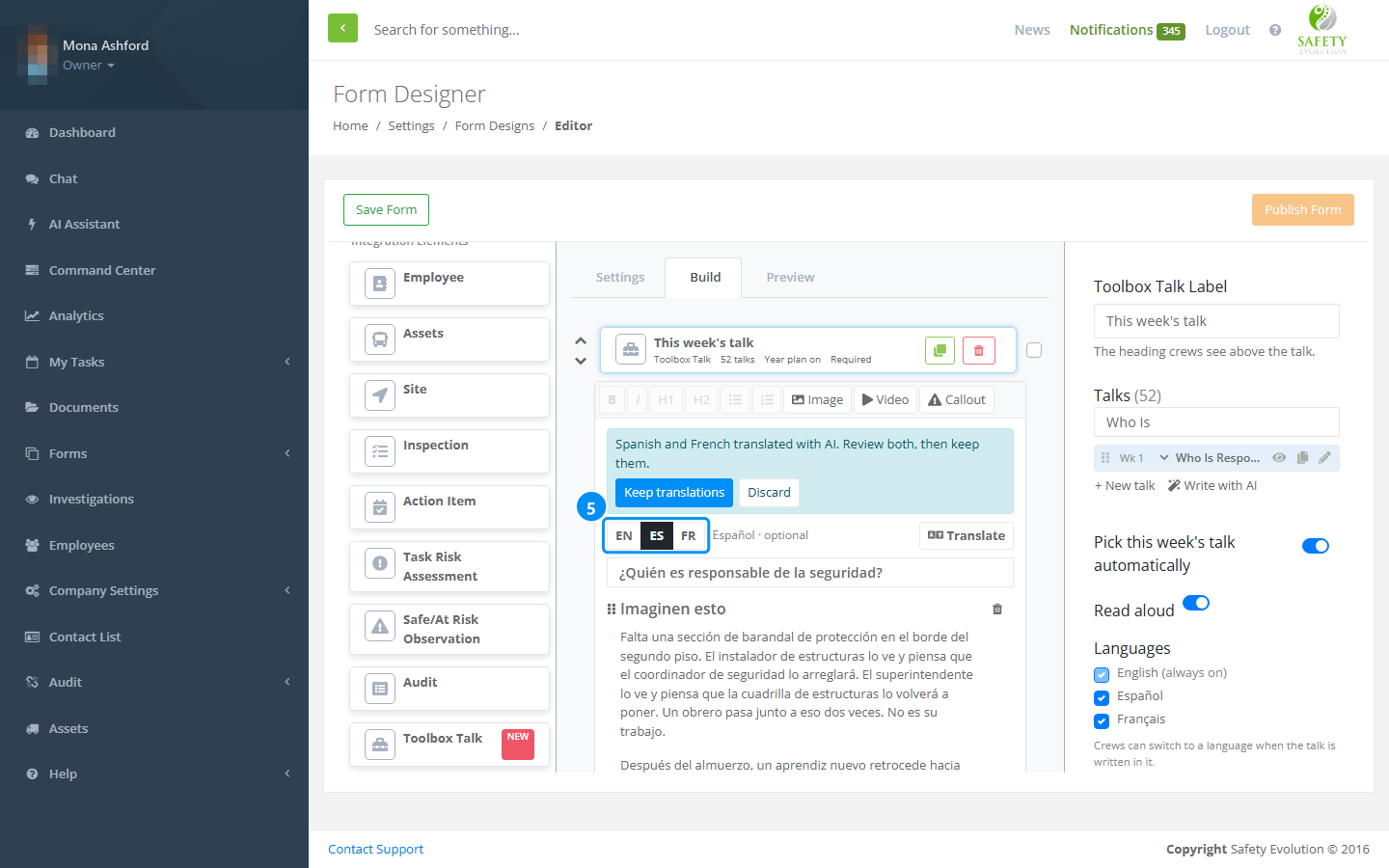
Check both languages before you keep them. - Click Keep translations. Or click Discard to go back to the talk as it was.
- Click Save Form, then Publish Form.
Crews can then switch the talk to Spanish or French on the phone, if the form allows those languages.
If your company has a Company words list (under Company Settings), Translate uses your words for your company's own terms.
If something goes wrong
- "Write with AI is unavailable right now. Try again in a few minutes." or "Translate is unavailable right now. Try again in a few minutes.": wait a few minutes and try again.
- "Your company has used Write with AI a lot this hour. Try again later." (or the same for Translate): your company hit the hourly limit. Try again later.
- "The AI could not write that talk. Try rewording your request.": say what the talk is about in a different way.
- Translate is greyed out: the talk needs an English title first.
- A red line starts with one language's name, for example "Français: Translate is unavailable right now…": that language did not translate, but the other one did. Check the one that worked and keep it, or click Translate again later.
Updated October 24, 2026