![side_logo.png]](/theme/site/shared/images/side_logo.png)
Fill in and hand in a form on the phone
Start a form in the phone app, pick your site, answer the questions, add photos and signatures, and hand it in to the office.
Try it free Start with Safety Evolution's Free version.
Most forms are filled in on the phone. You start a form, pick the site, answer the questions and hand it in. Your answers are saved on the phone as you go, so you can stop and come back later.
Before you start
- You need the Safety Evolution app and your login.
- You need to know which site you are working at.
- You can fill in a form with no signal. You need signal to hand it in. See Working with no signal.
Start a form
- Tap the Forms tab at the bottom of the screen.
- Tap Fill out a form.
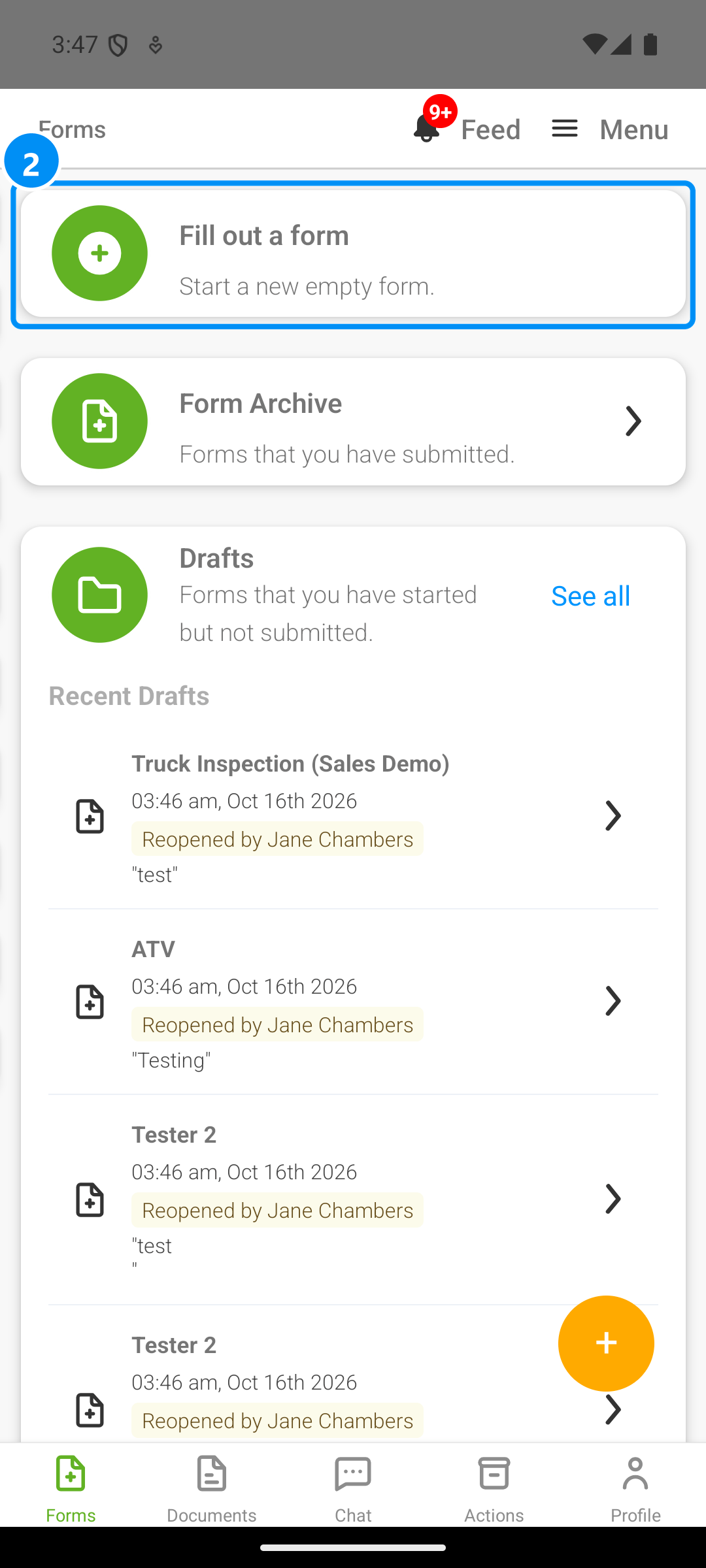
Tap Fill out a form to start a new form. - The Pick your form list opens. Tap the form you need.
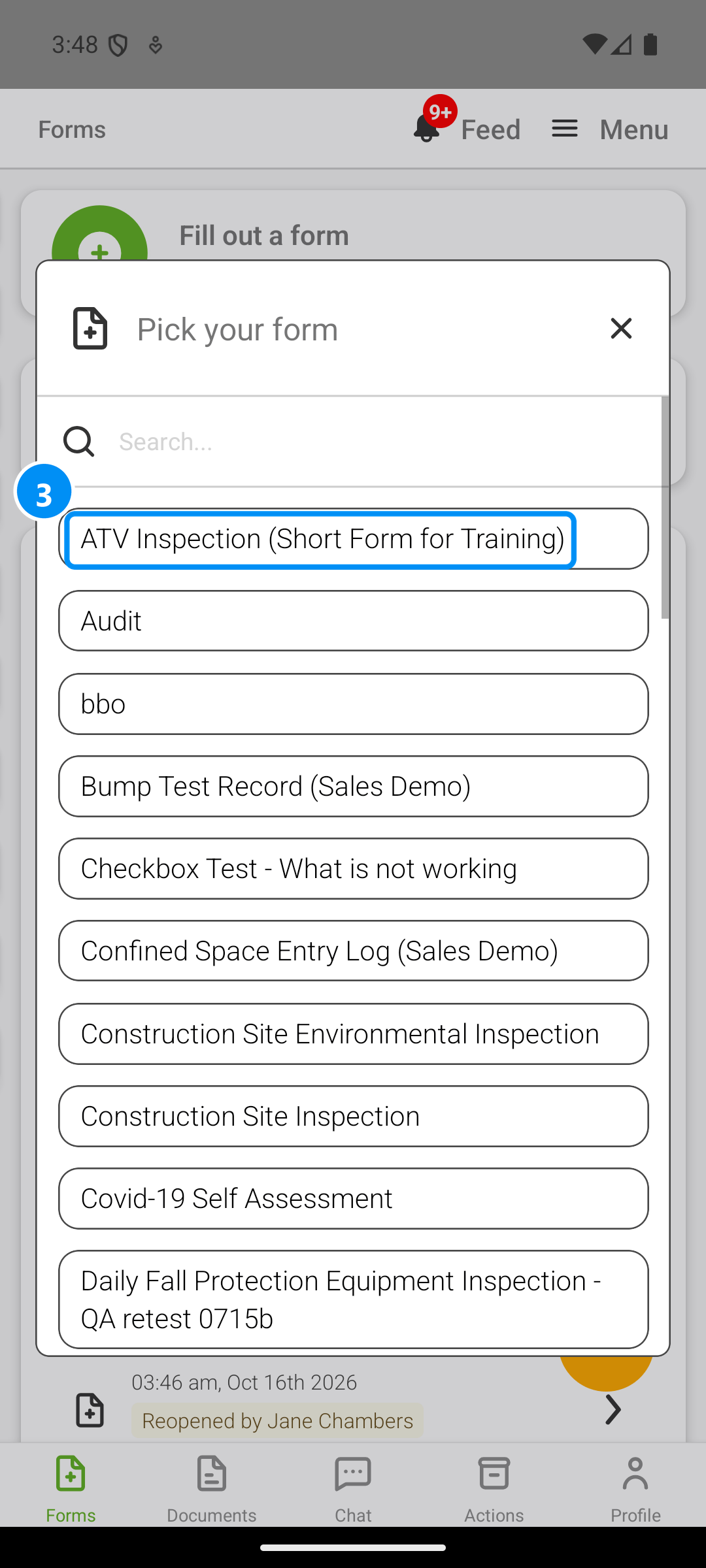
Your company's forms, in A to Z order.
Don't see your form? Pull down on the Forms screen to get the newest forms from the office. You will see "Data successfully updated."
Pick the site first
- At the top of the form, tap Select Site.
- Tap your site.
- If your form needs a place on the site, tap Select Location and pick one. If your company allows it, you can tap Add new location, type a name and tap Save.
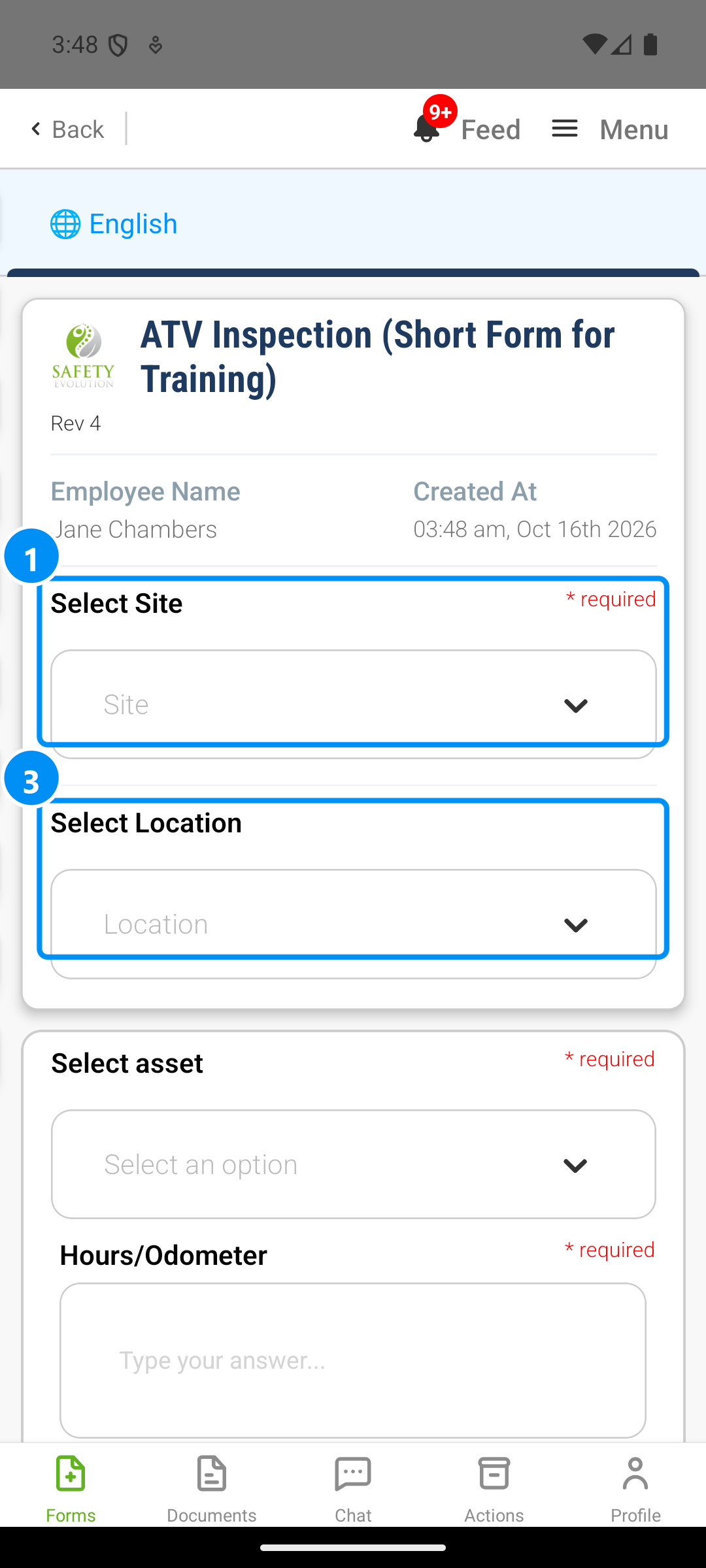
Pick the site before you answer anything else.
Why the site comes first: nothing reaches the office until a site is picked. Once you pick it, the form is saved to the office as a draft each time you answer a question (when you have signal). If your form has an inspection that finds problems, pick the site before you answer it.
Answer the questions
- Answer each question. A question marked * required must be answered before you can hand in.
- Your answers save on the phone as you go. You don't need to press save.
Add a photo or file
- Tap Add File.
- Tap Take Photo, then Take Photo again to use the camera or Choose from Library to pick a photo you already took. Or tap Upload File to pick a file from your phone. (Some questions only take video. They show Take Video.)
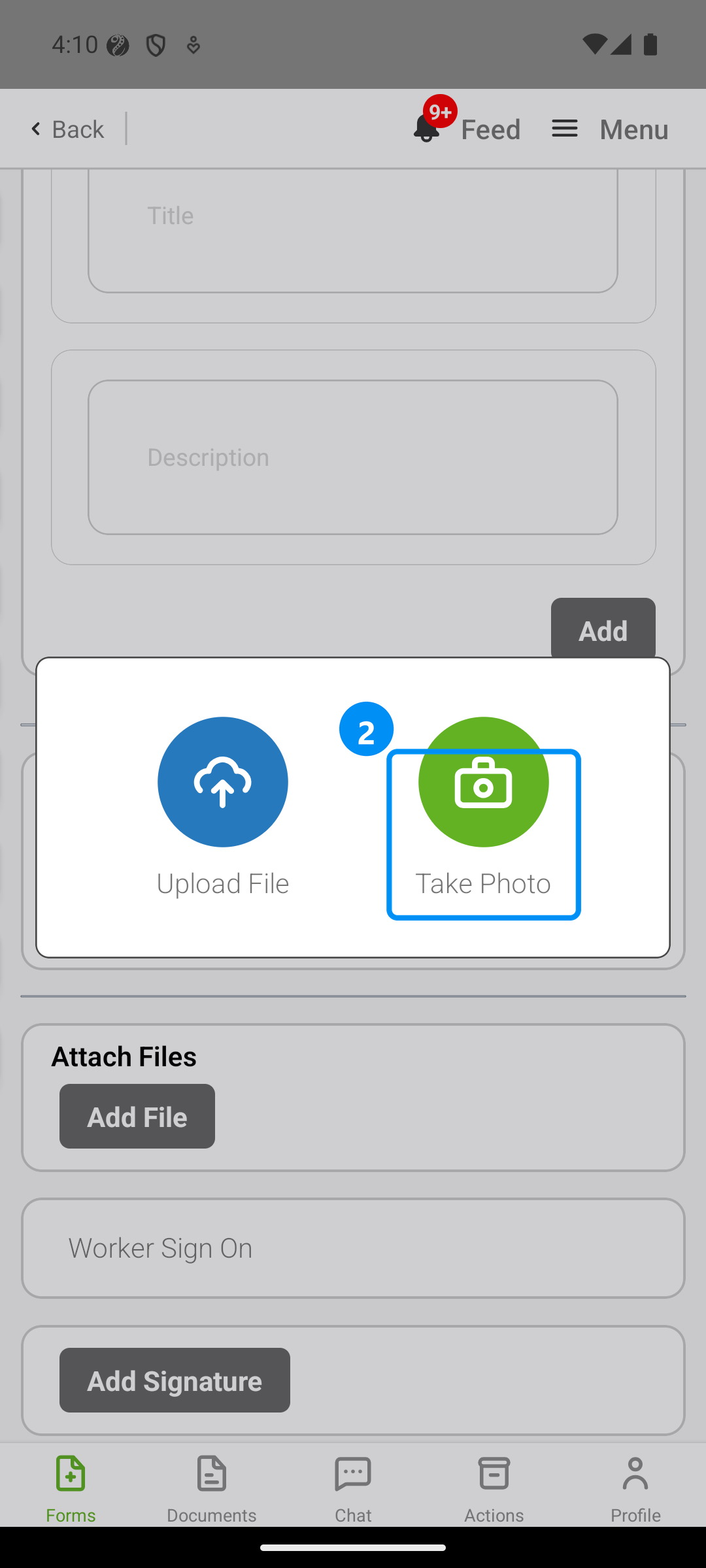
Choose how to add the picture or file. - To remove a file you added, tap the red X on it.
More about photos, videos and files, and when they upload: Add photos, videos and files to a form.
Add a signature
- Tap Add Signature.
- The window asks Who is signing? Tap Employee for someone at your company, or Thirdparty for someone from outside (a visitor or client). A form that isn't set up for people from outside shows only Employee. If you need an outside signature and don't see Thirdparty, ask the office to allow it on the form.
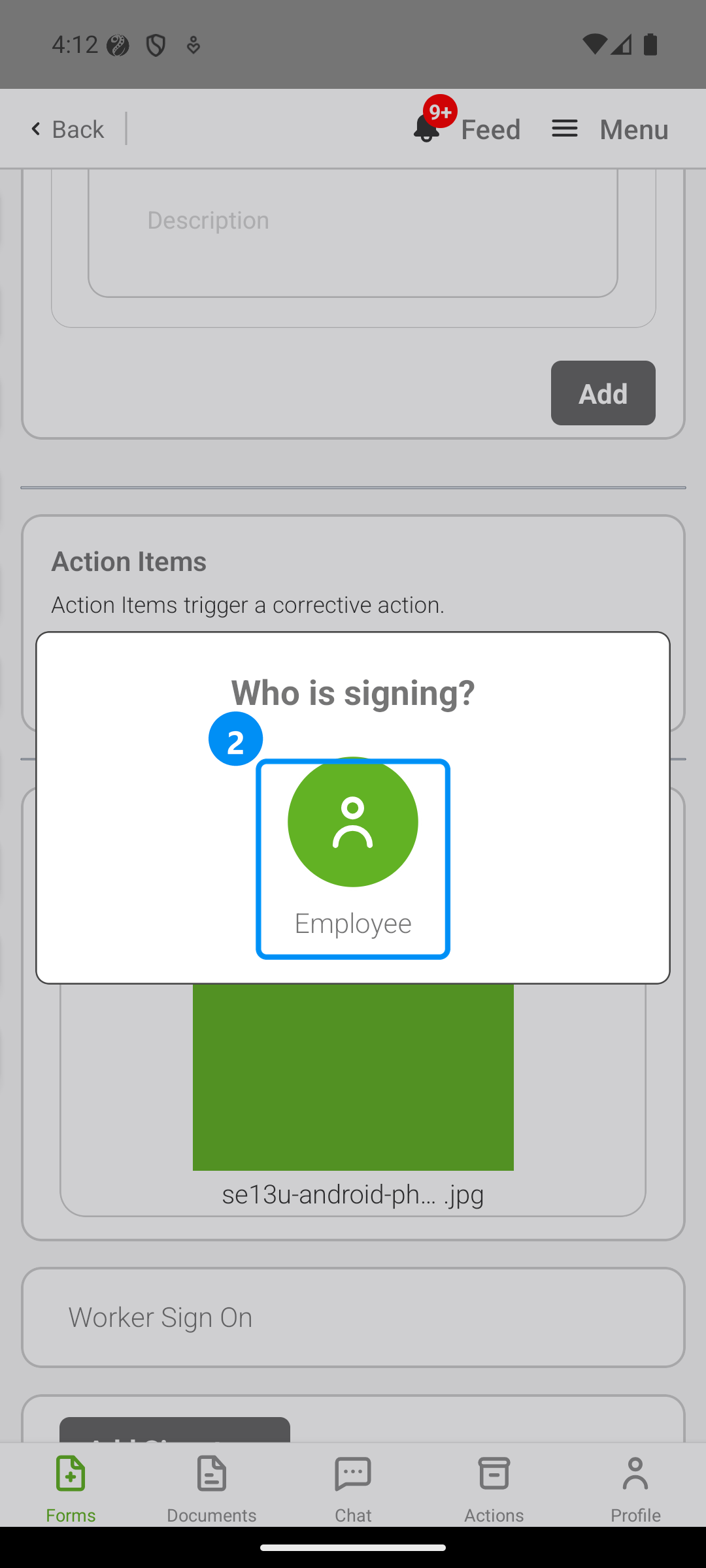
This form allows employee signatures only, so only Employee shows. - For an employee, tap Select Employee and pick the name. For a third party, type the Thirdparty Name and, if you like, the Company Name.
- Add Comments if you need to.
- The person signs with a finger in the Signature box. Tap Clear to start the signature again.
- Tap Save.
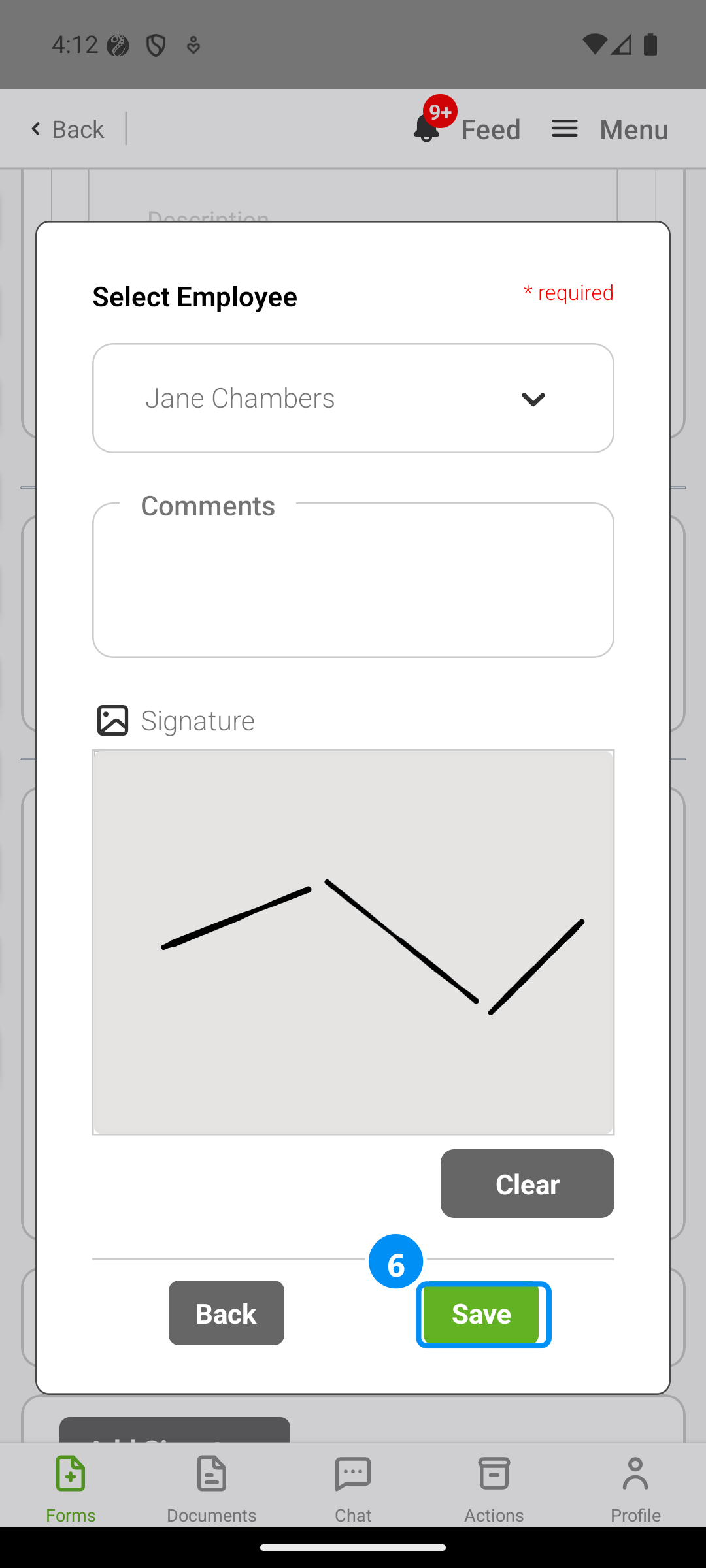
Tap Save when the signature is done.
Add an action item
Some forms have an Action Items question. An action item asks someone to fix a problem.
- Tap Add Action Item.
- Fill in the action item.
Inspections can make action items too. See Do an equipment inspection and report deficiencies.
Hand in the form
- Scroll to the bottom of the form.
- Tap Hand In.
- Wait while the phone works through the steps: Checking internet connection, Uploading Files, Submitting form. If the form was already saved to the office, Checking with the office may run after the connection check. It makes sure nobody in the office handed in, cancelled or changed the form while you had it open. If they did, the window closes and the form tells you what happened. See When the office reopens, edits, hands in or voids your form.
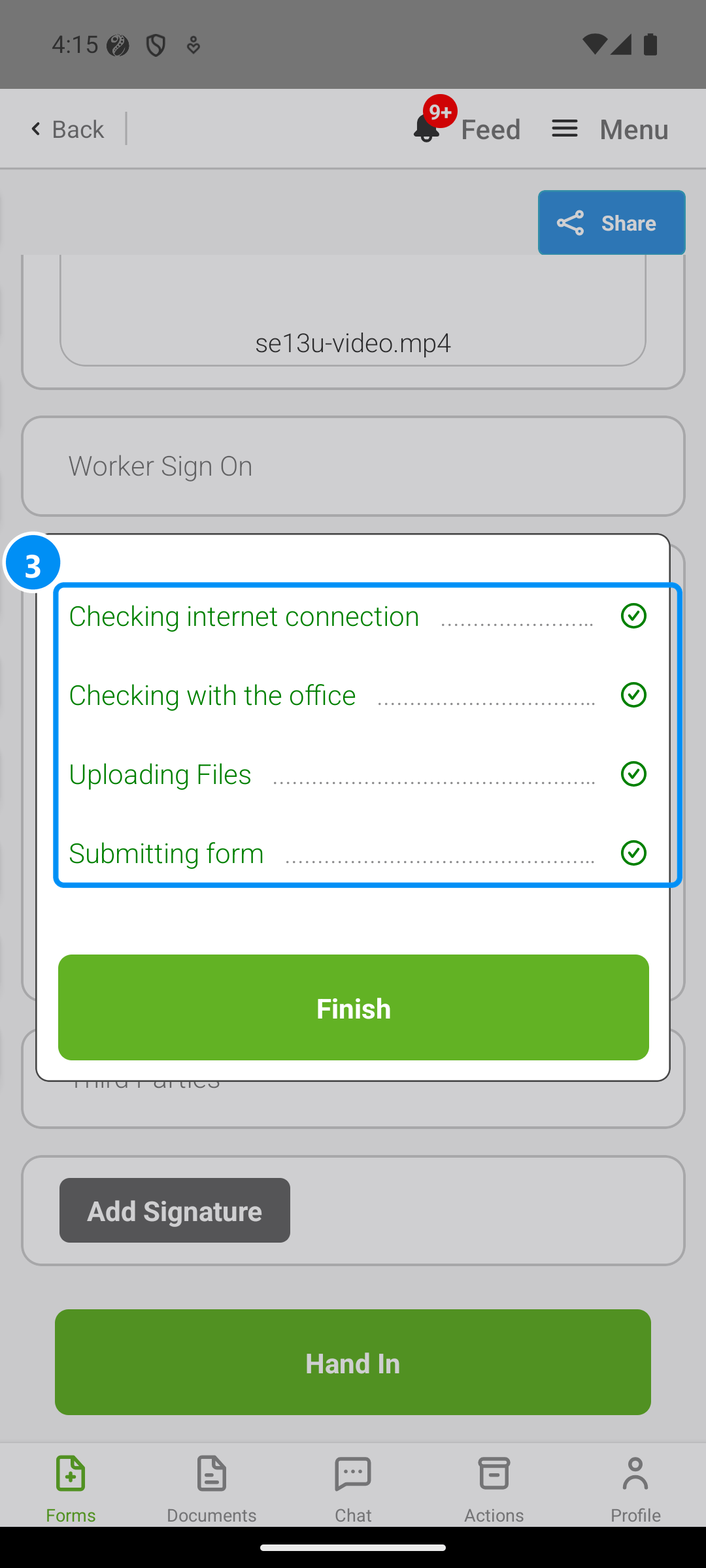
When every step is ticked, the form is with the office. - Tap Finish. You go back to the Forms screen.
Your handed-in form is now in the Form Archive. See Find your drafts and handed-in forms.
If something goes wrong
- "One or more required questions were not answered": a required question is empty, or no site is picked. Tap Cancel. The form scrolls to the site when that is what's missing. Answer it and tap Hand In again.
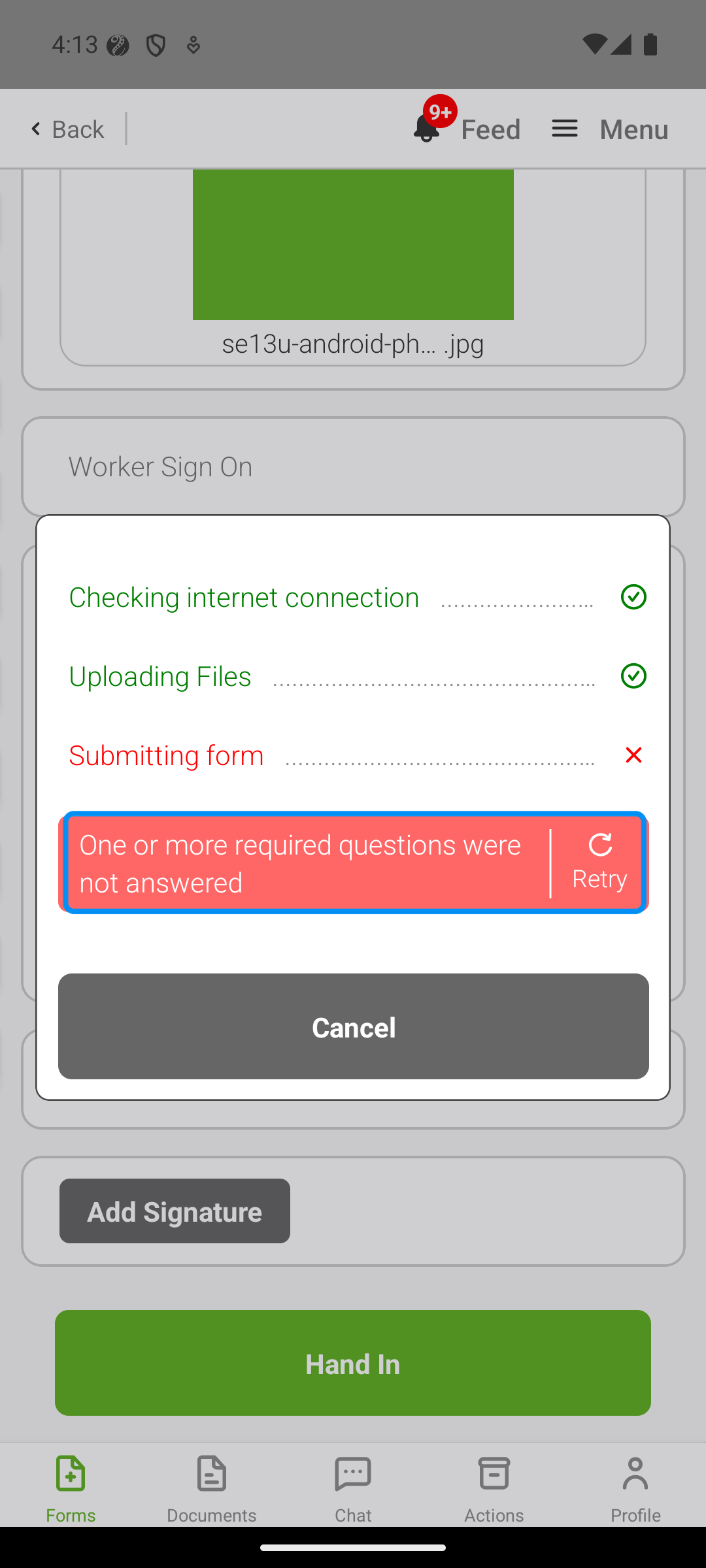
Something required is still empty. - No signal at Hand In: the first step fails. Tap Mark as submitted to keep the form ready to send, then open the Form Archive when you have signal. See Working with no signal.
- "Failed to upload file": a photo or file didn't reach the office. Tap Retry where you have good signal.
- Any other message: see Why can't I hand in? Hand-in messages and what to do.
Updated October 24, 2026