![side_logo.png]](/theme/site/shared/images/side_logo.png)
Set up the phone app: install, allow permissions and keep it up to date
Install the Safety Evolution app, get through the first download, allow the permissions it asks for, and keep your forms and the app up to date.
Try it free Start with Safety Evolution's Free version.
The Safety Evolution app is where you fill in forms, read documents, chat and fix action items in the field. This article takes you from installing it to keeping it up to date.
Before you start
- Your Safety Evolution email and password. If you are new, set up your account from your invitation email first. See Set up your account from your invitation.
- Signal or Wi-Fi. The first download needs a connection.
Install the app
- On an iPhone, open the App Store. On an Android phone, open Google Play.
- Search for Safety Evolution.
- Tap Get (iPhone) or Install (Android).
- Open the app and log in. See Log in on the web and the phone app.
The first download
The first time you log in, the app copies your company's forms, people, sites and equipment onto your phone. That is what lets you work with no signal later.
- A window opens and works through these steps. Each one gets a tick when it is done:
- Checking internet connection
- Downloading forms
- Downloading translations
- Downloading company brand
- Downloading employees
- Downloading sites
- Downloading assets
- Finishing up
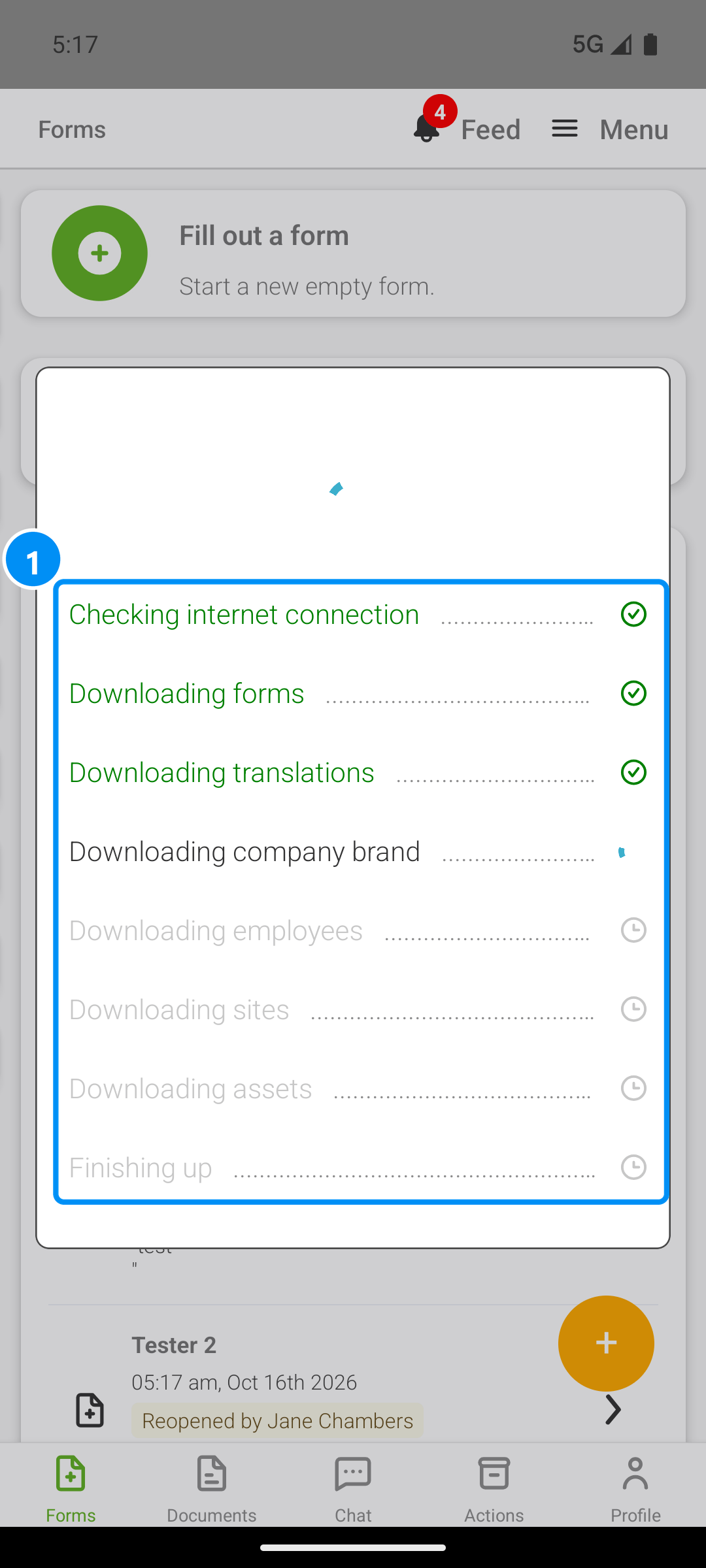
Each step gets a tick when it is done. - When every step is ticked, tap Finish. The app opens on the Forms screen.
Translations and your company's look never hold up the download. If they don't arrive, your forms open in English and in the standard look until they do.
This window runs again each time you log in on the phone.
If the download stops
The step that failed gets a red cross. A red bar under the steps says what went wrong, with a Retry button.
- Read the message in the red bar. The list under "If something goes wrong" says what each one means.
- Fix what it asks for, for example move to where you have signal.
- Tap Retry. The download starts again from the first step.
If you tap Cancel instead, the window opens again the next time you open the app. Until then your phone may be missing forms.
Allow the permissions the app asks for
Your phone asks before the app can use some parts of it. Tap Allow when it asks. Here is when each question comes up and why it matters.
| Permission | When the phone asks | What you lose if you say no |
|---|---|---|
| Notifications | Right after you log in, when the app first opens | Messages when an action item is assigned to you, when the office reopens your form, when someone sends you a chat message or asks you to sign. See Phone notifications: your Feed and push messages. |
| Camera and photos | The first time you tap Take Photo or Take Video, add a profile picture, or tap Scan QR Code on the login screen | Photos and videos on forms and action items, your profile picture, and logging in with a QR code. |
| Microphone (iPhone) | The first time you record a video with the camera | Sound on the videos you record. |
- When the notifications question shows, tap Allow.
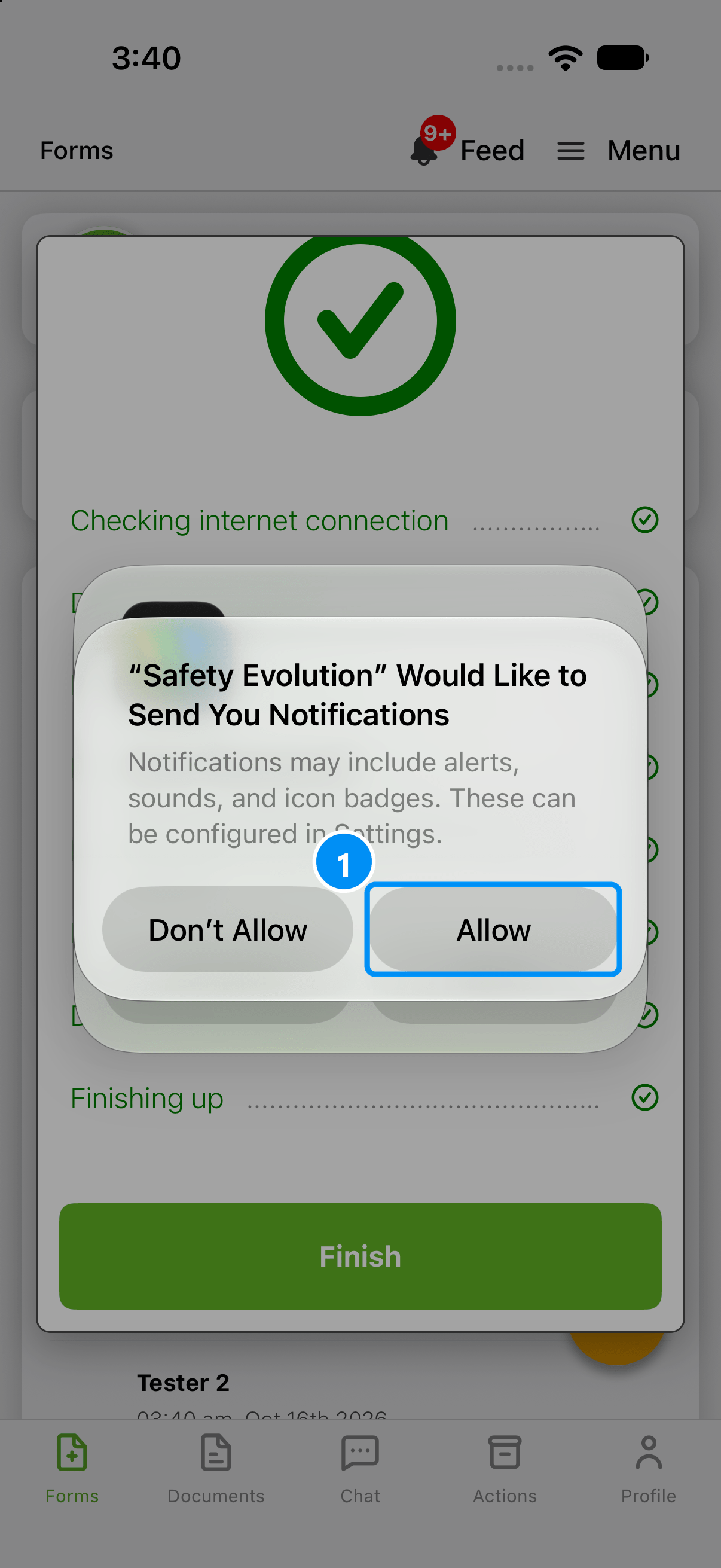
Allow notifications so you hear about sign requests and reopened forms.
The app does not use your location. On an iPhone, the app's page in Settings may still list Location. You can leave it off.
Turn a permission back on
If you said no, the app can't ask again. When you tap Take Photo you see Cannot access camera/photos and Please grant us permission via the settings app.
- Open your phone's Settings.
- iPhone: scroll down and tap Safety Evolution. Android: tap Apps, then Safety Evolution, then Permissions. The words differ a little between phones.
- Turn on Camera, Photos, Notifications or Microphone.
- Go back to the app and try again.
Keep your forms up to date
When the office publishes a new form or adds a site, your phone gets it the next time it refreshes.
- Open the Forms tab.
- Pull the screen down and let go.
- With signal, you see Data successfully updated.
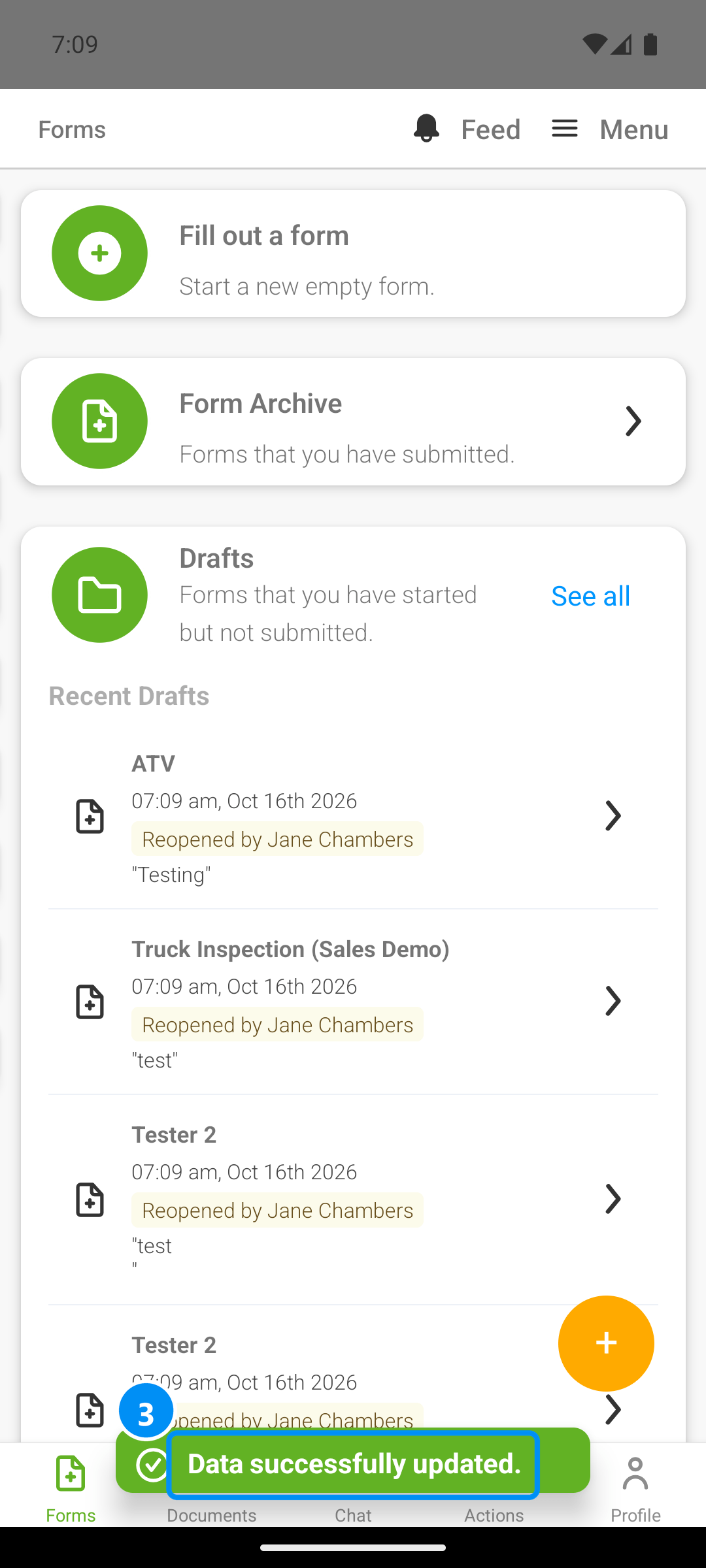
Your forms, people, sites and equipment are up to date.
With no signal, nothing happens and no message shows. Try again when you have signal. Tapping Fill out a form also checks for new forms first when you have signal.
Update the app
- When the store has a newer version, a red Update Latest Version Now button shows at the top of the Forms screen.
- Tap it. The App Store or Google Play opens on the Safety Evolution page.
- Tap Update in the store.
Tip: before you update, hand in any forms you marked as submitted with no signal. See Working with no signal.
Check which version you have
- Tap the Profile tab.
- At the bottom you see Version with the version and build number, for example "Version 6.6 (66)". Support may ask for it.
- Tap What's new in this version under it to read the release notes in your browser.
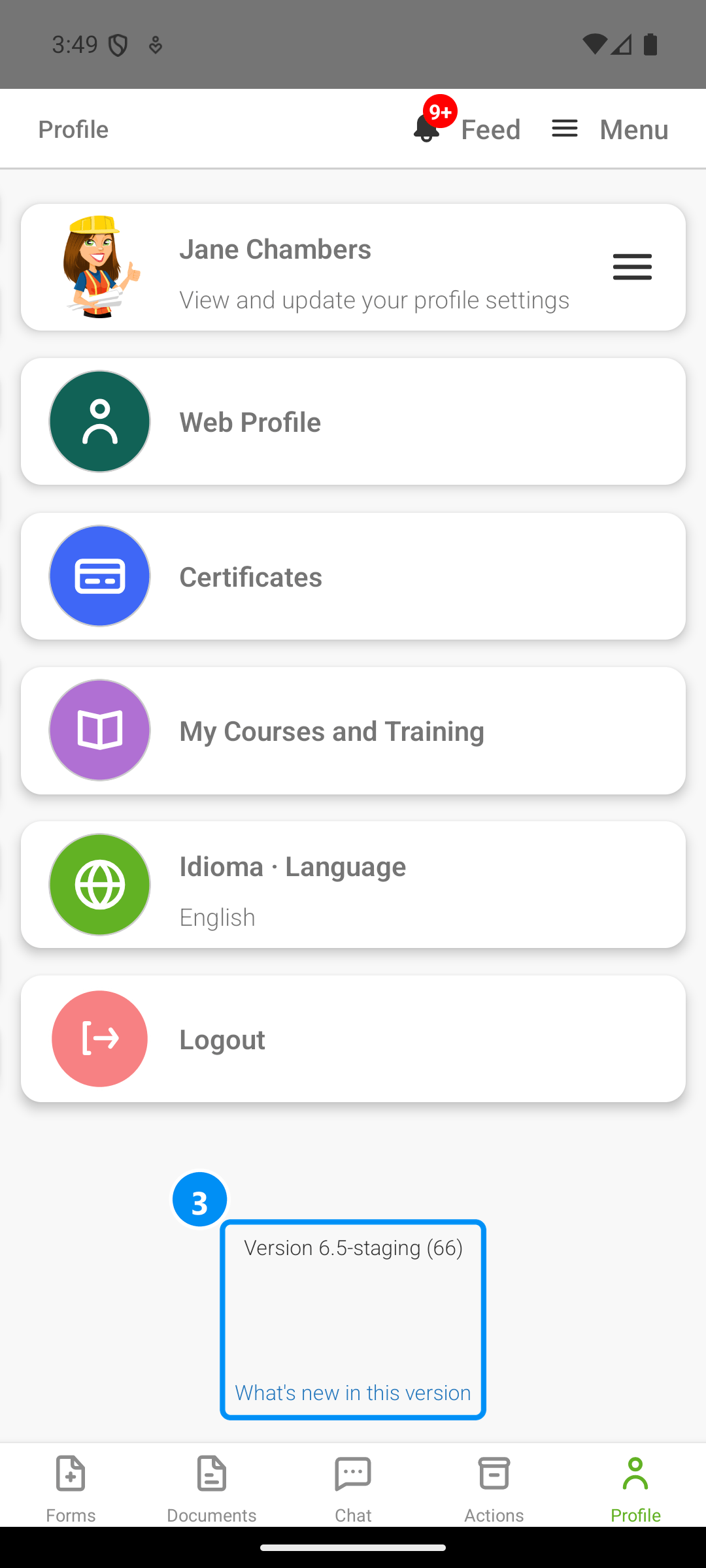
Your app version, and a link to what changed.
If something goes wrong
- "You are not connected to the internet": your phone has no signal or Wi-Fi. Check airplane mode, move to where you have signal, then tap Retry.
- "Can't reach Safety Evolution right now": your phone has a connection, but Safety Evolution did not answer within 5 seconds. A weak signal or a work Wi-Fi that blocks the app can cause this. Wait a minute, or switch between Wi-Fi and mobile data, then tap Retry.
- "Unable to retrieve data from the server.": one of the downloads did not come back. Tap Retry.
- "An unhandled error occurred": something unexpected went wrong. Tap Retry. If it keeps happening, contact support with your app version. See Get help.
- "Cannot access camera/photos": the camera or photos permission is off. Turn it back on in your phone's Settings (see above).
- A new form is missing: pull down on the Forms screen with signal. If it is still missing, ask the office whether it is published.
Updated October 24, 2026