![side_logo.png]](/theme/site/shared/images/side_logo.png)
See who signed and remove a wrong sign-on
See everyone who signed a form, who is still waiting, and remove a QR sign-on that should not be there.
Try it free Start with Safety Evolution's Free version.
Every form that people signed has a list of who signed and when. It shows people you asked to sign and people who signed by scanning a QR code. If someone signed on by QR who should not be there, it can be removed.
See who signed on the web
- In the menu on the left, click Forms, then Company Forms.
- Open the form.
- Find the Signatures box above the form.
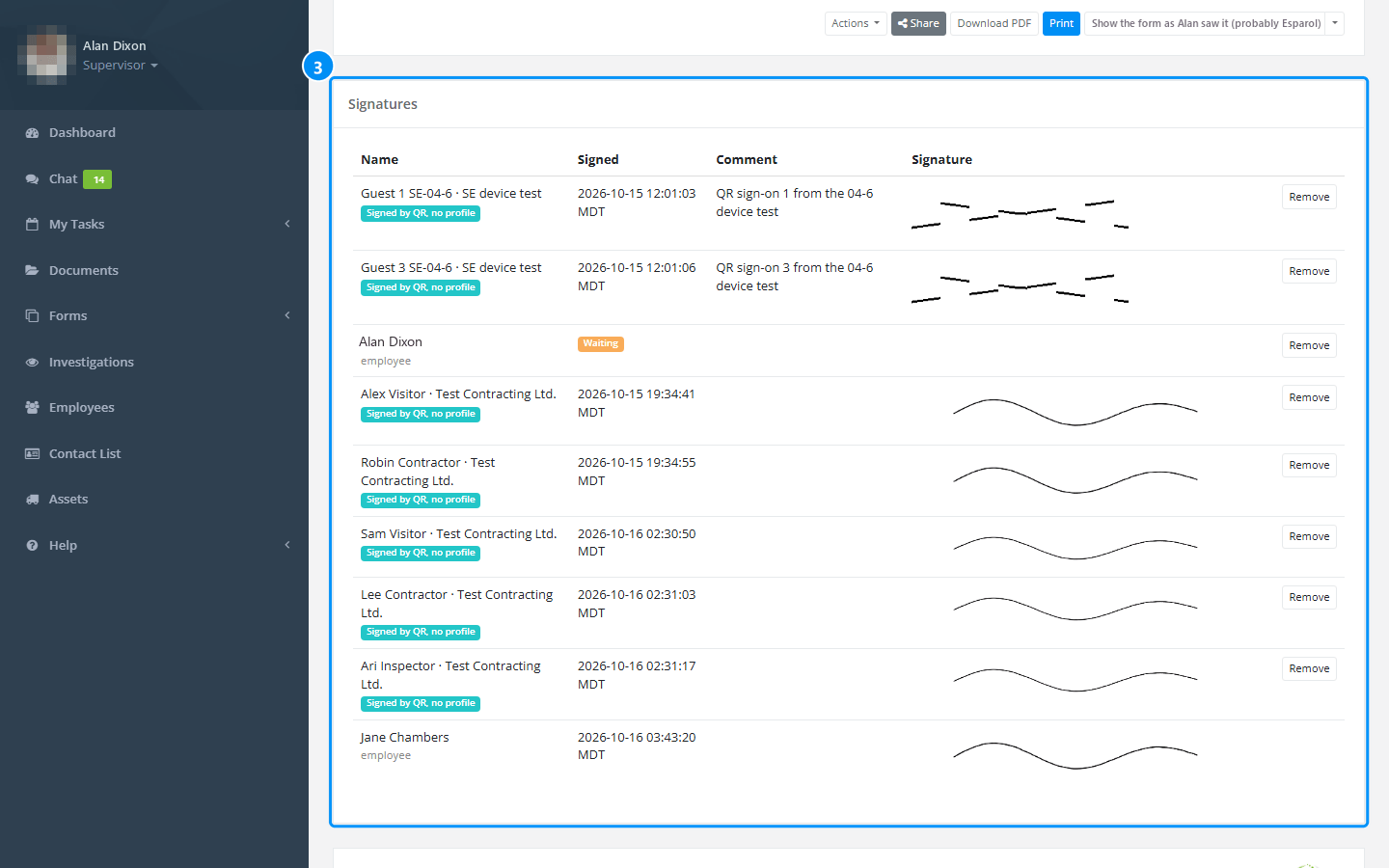
Each row shows the name, when they signed, their comment and signature. - Read the rows:
- A time under Signed means they signed.
- Waiting means they were asked but have not signed yet.
- employee under a name means the person has a login.
- Signed by QR, no profile means a guest signed by scanning a QR code. Their company shows after their name.
- A grey line that starts Reopened by means the form was changed after the sign-ons above it. Those people signed the earlier version.
See who signed on the phone
- Open the form and tap Share.
- Scroll down in the Send this form window.
- Under Signed by you see who signed and when. Under Waiting to sign you see who has not signed yet.
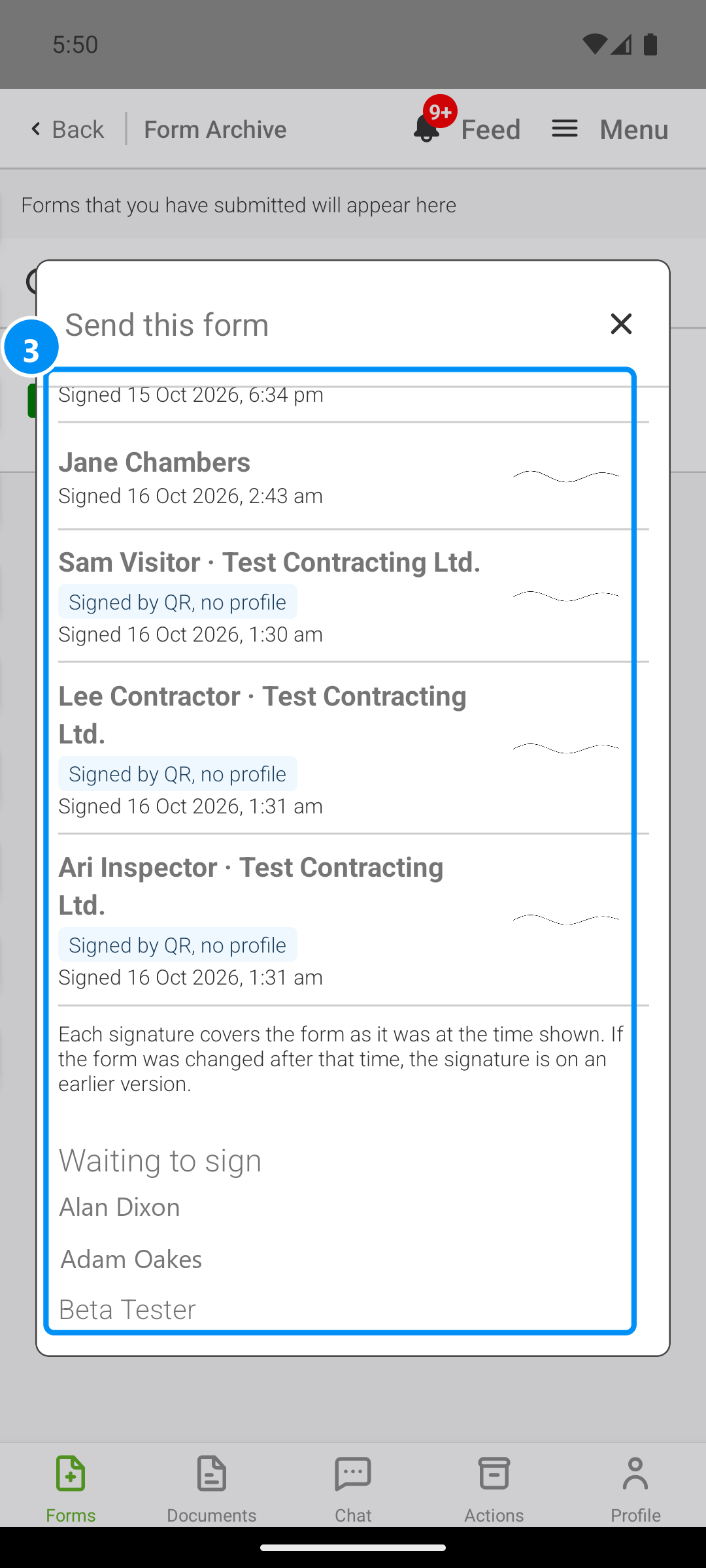
Signed people first, then who is still waiting.
Remove a wrong sign-on
You can remove only sign-ons made by scanning a QR code. A signature someone gave after you asked them to sign cannot be removed here.
Who can remove: the person who started the QR code, supervisors, and owners, designates and admins.
- On the web, open the form and find the Signatures box.
- On the wrong row, click Remove.
- The browser asks Remove the sign-on of the person. It says the form history keeps a line saying who removed it. Click OK.
- You see Sign-on removed. The row is gone from the list.
While the QR code is still open, you can also remove a guest from the Sign-on QR code window on the phone. Tap Remove on their row, then Remove again. See Sign people on at a meeting with a QR code.
See who removed a sign-on
- On the form, click Actions, then View History.
- In the Form History window, a removal shows Sign-on Removed as the Action. The comment says Removed the sign-on of and the name, with who did it and when.
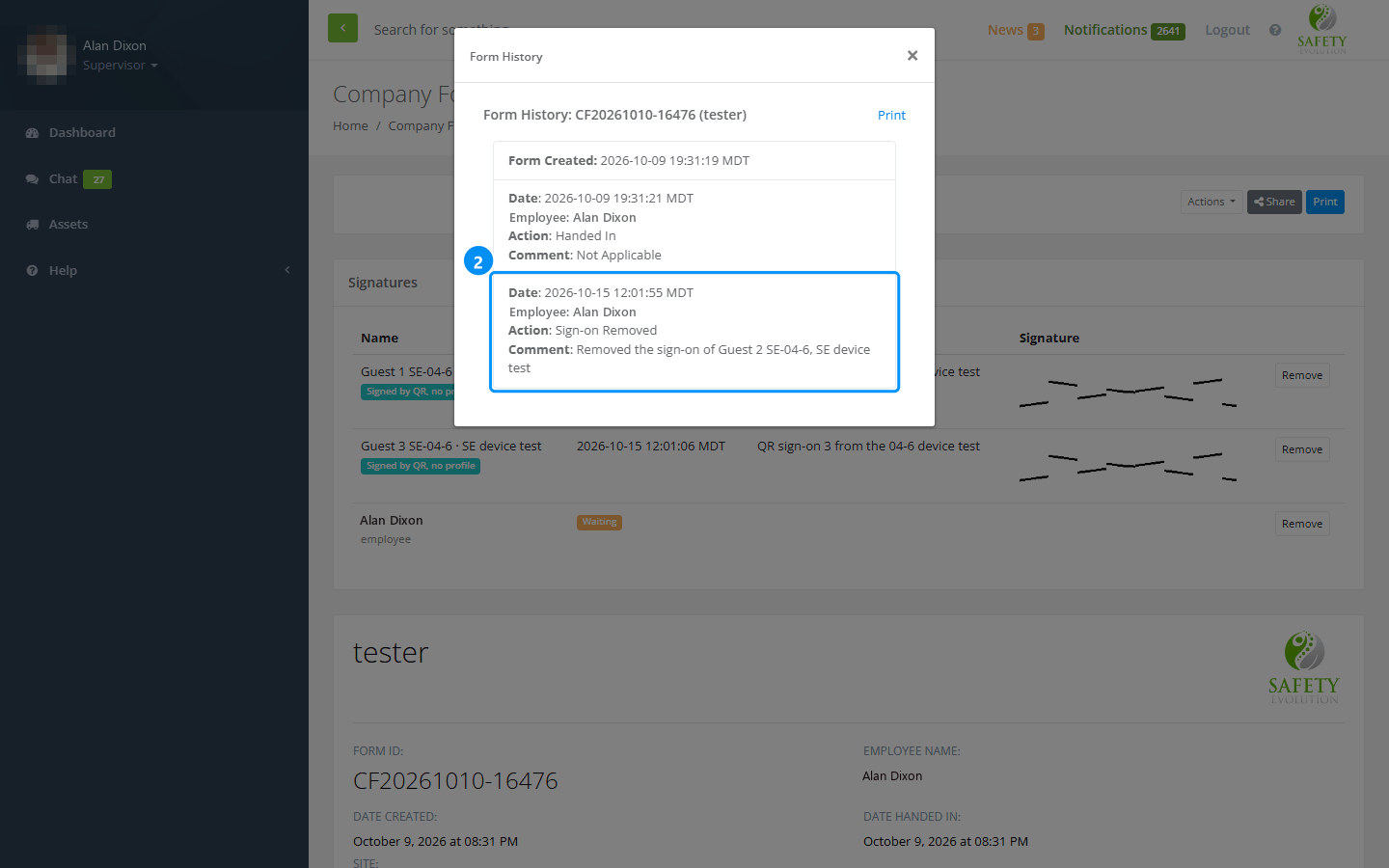
The history keeps who removed whom, and when.
In Command Center
Owners, designates and admins with Command Center see the same Signatures list when they open a form to review it. See Command Center: review handed-in forms.
Updated October 24, 2026