![side_logo.png]](/theme/site/shared/images/side_logo.png)
Command Center: review handed-in forms
Use Command Center to see which handed-in forms are complete and which need attention, then step through them one after another.
Try it free Start with Safety Evolution's Free version.
Command Center checks every handed-in form for you. It looks for missing signatures, blank sections, and problems found without an action item. You can sort the list so the forms that need attention come first, then go through them one by one.
Before you start
- For owners, designates and admins.
- Command Center is turned on per company. If it is off, the page shows Contact us to enable the Command Center. Ask us to turn it on.
Open the list
- In the left menu, click Command Center.
- Stay on the Handed-in forms tab. The number beside it is how many forms are in the list.
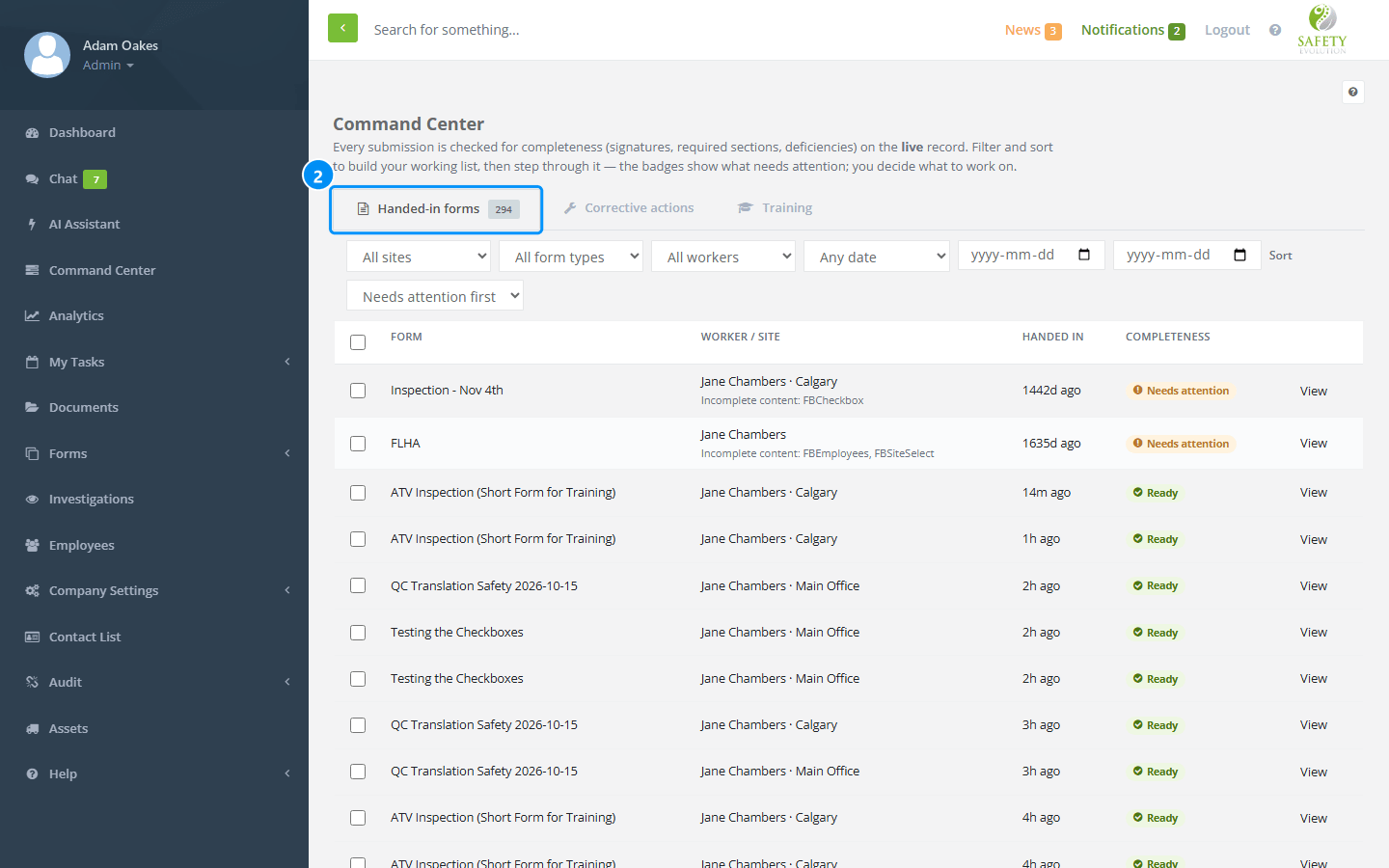
The Completeness column shows what needs your attention.
What the badges mean
- Ready: all signatures and content are there.
- Needs attention: a gap you can fix, such as a missing signature or a blank section.
- Exception: a problem was found on the form and it has no corrective action yet.
Under the worker's name, a short line says why a form was flagged.
Narrow the list
- Use the filters at the top: All sites, All form types, All workers and the date (Today, Last 7 days, Last 30 days, This month or Custom range…).
- Under Sort, pick Needs attention first to see problems at the top. You can also pick Newest first or Oldest first.
- Click Clear filters to start again.
If there are more forms than the list can show, a line tells you how many more. Narrow the dates to reach them.
Step through the forms
- Click Review (or View) at the end of a row. A panel opens.
- On the left you see what was flagged: which signatures are missing, the problems found, and the blank sections. If nothing is wrong it says No issues flagged.
- On the right you see the form itself. Below it, Signatures lists everyone who signed or was asked to sign. People who signed by QR code without a login show Signed by QR, no profile.
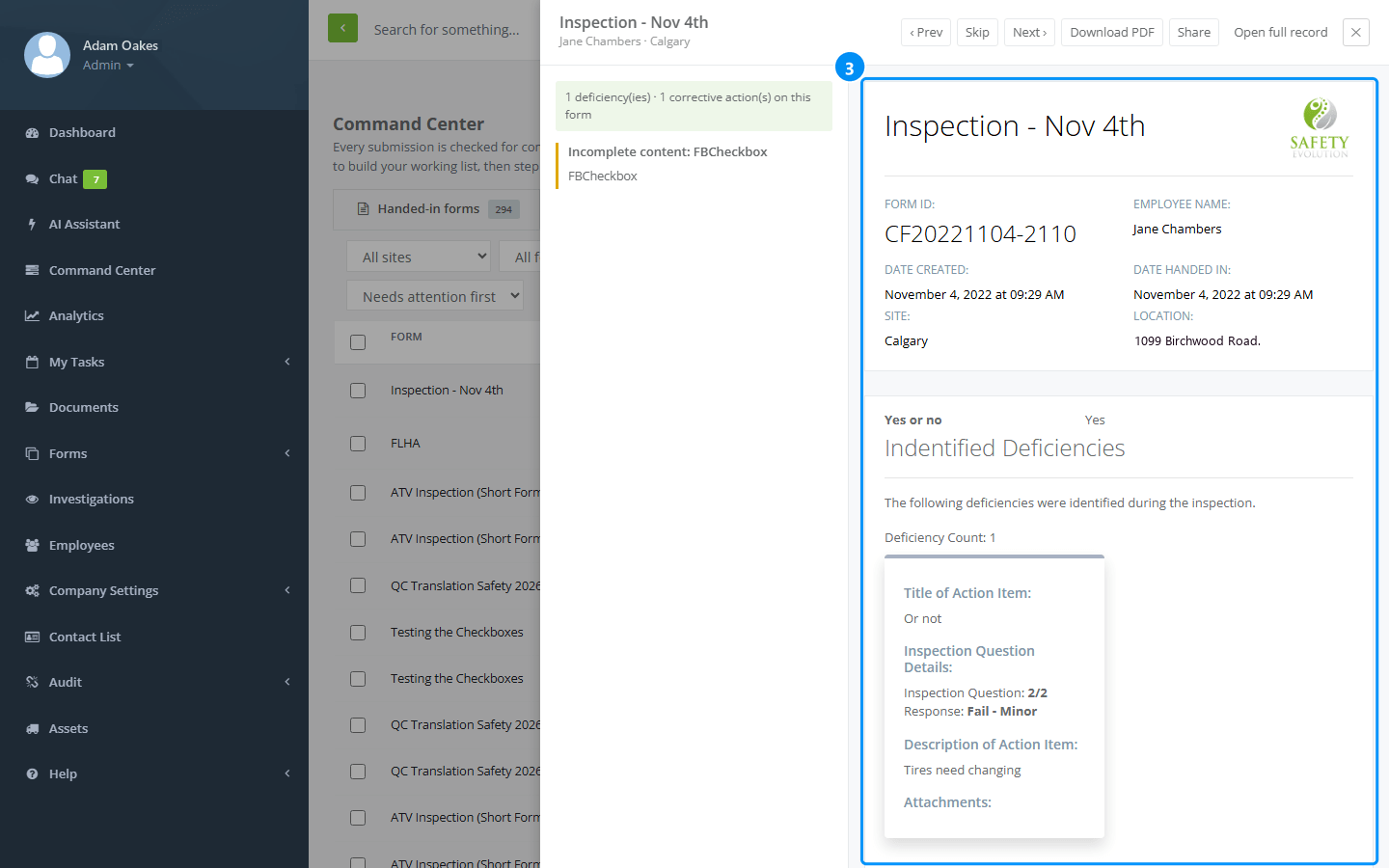
What was flagged, beside the form itself. - Click Next › to go to the next form, ‹ Prev to go back, or Skip to leave this one for later.
- To act on the form, click Open full record. There you can reopen, share or print it. See "Manage handed-in forms".
- Close the panel with ✕ or the Escape key.
Work on many forms at once
Tick forms in the list to reopen, share or ask people to sign them all at once. See "Command Center: bulk reopen, share and request signatures".
Get help on this screen
Click the ? at the top of the Command Center page to open the help for this screen in a side panel.
Updated October 24, 2026