![side_logo.png]](/theme/site/shared/images/side_logo.png)
Command Center: corrective actions in bulk
Find corrective actions by status, site, owner or due date in Command Center, and assign, date, comment on, correct, close or revert many at once.
Try it free Start with Safety Evolution's Free version.
The Corrective actions tab in Command Center lists your company's corrective actions (action items) in one place. Filter them, tick the ones you want, and act on them all at once.
Before you start
- For owners, designates and admins. Command Center must be turned on for your company. If it is off, ask us to turn it on.
- The same rules apply as for one action item. Only a supervisor of the item's site can Assign or Close. Only the person assigned can Mark corrected. Revert is for the person assigned or a site supervisor. Items you can't act on are counted as failed.
Find the corrective actions
- In the left menu, click Command Center, then the Corrective actions tab. The number on the tab is how many are open.
- Pick a status: Open, Overdue, Pending, Processing, Corrected, Closed or All.
- Narrow by site (All sites), owner (All owners) or due date (Due this month, Due in last 7 days, Overdue 7+ days or Custom due range…).
- Under Sort, pick Due date, Newest first or Oldest first. Overdue due dates are marked in the list.
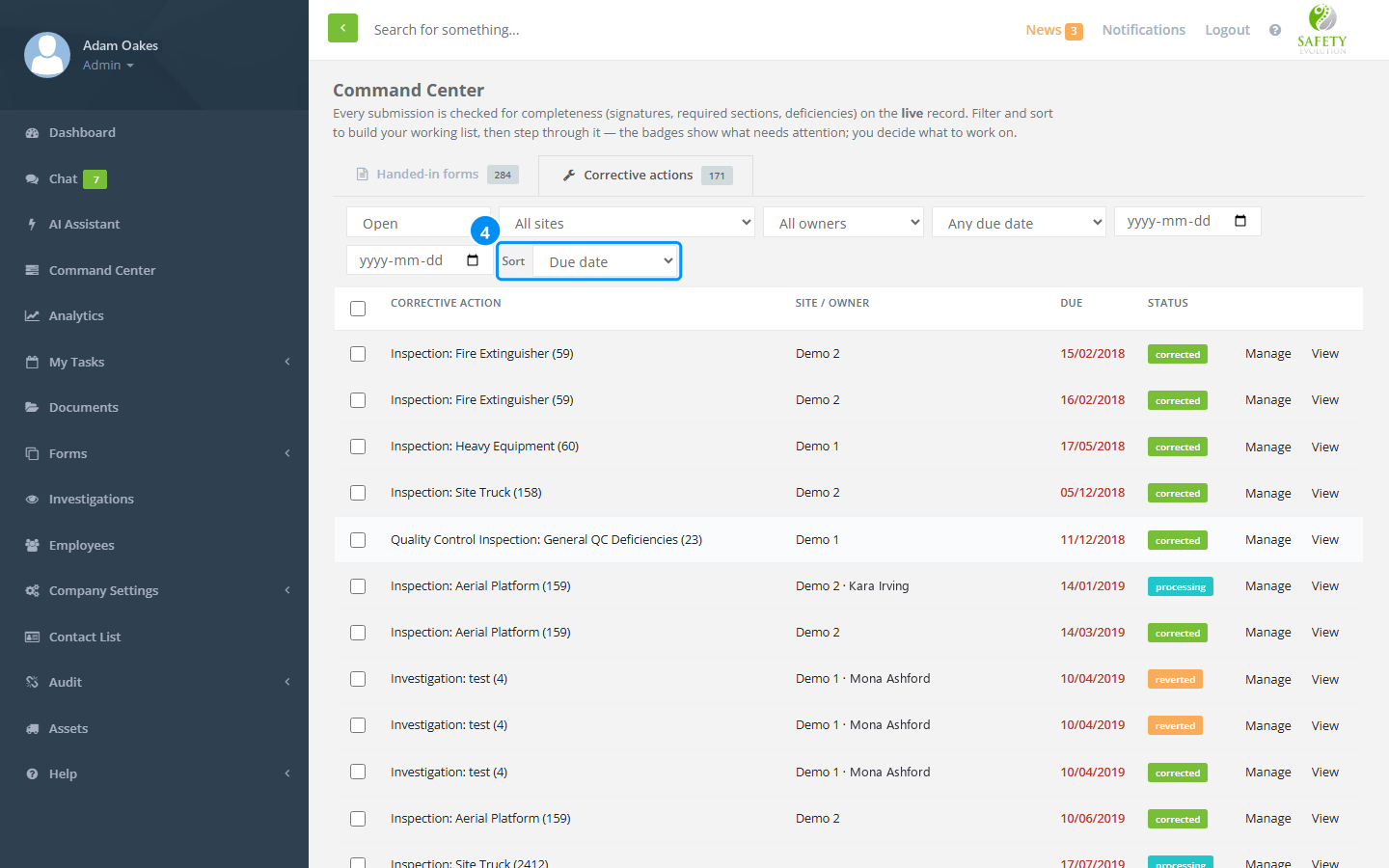
Filter by status, site, owner and due date.
Act on many at once
- Tick the box at the start of each corrective action. To tick all of them, tick the box in the header.
- A bar appears, for example 4 selected, with the actions. An action is grey when none of the ticked items can take it. Point at an action to see how many can, for example "2 of 4 can be close".
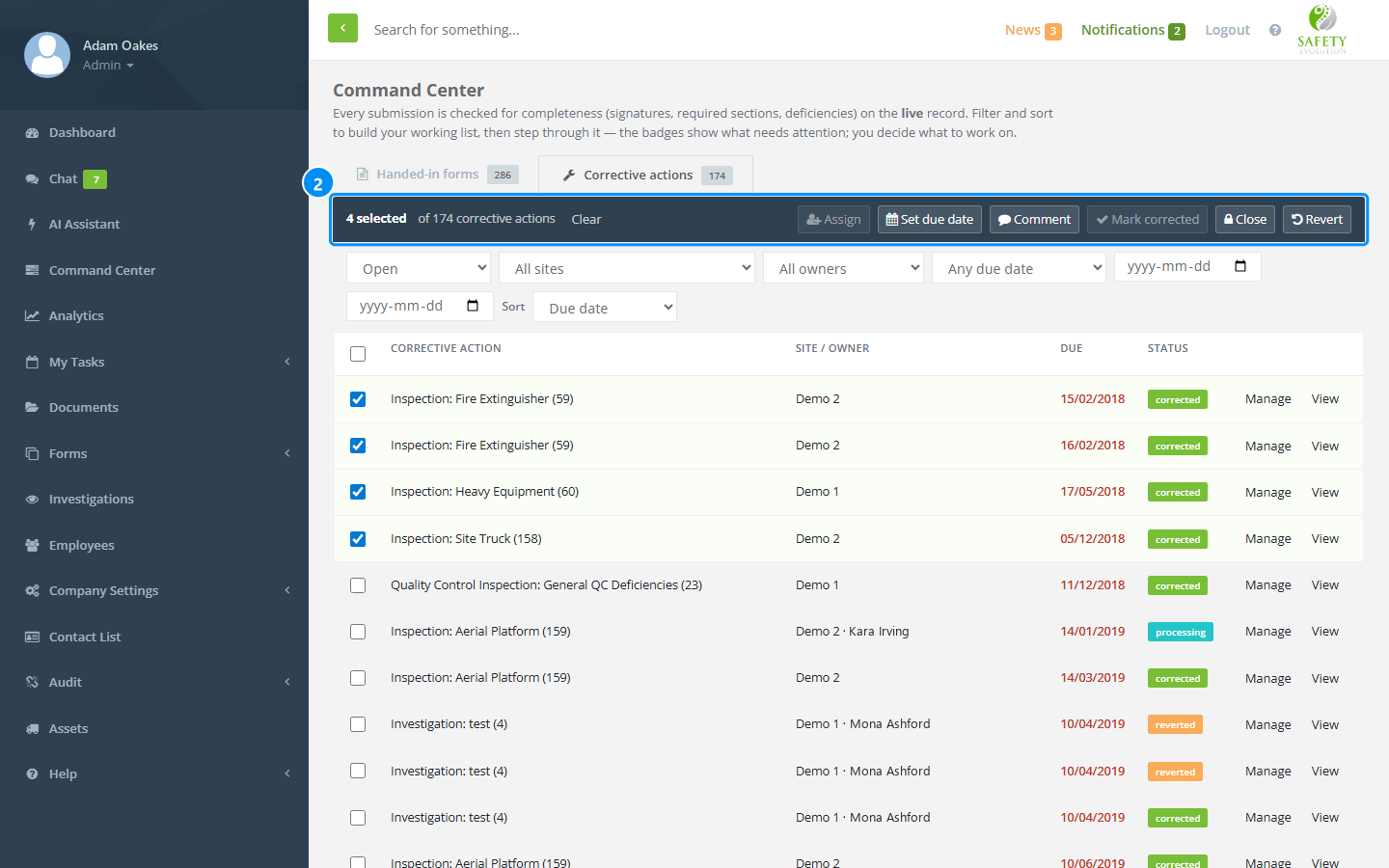
Pick one action for all the ticked items. - Pick the action:
- Assign: pick a person under Select an assignee… and click Assign.
- Set due date: pick the date and click Set due date.
- Comment: type under Add a comment… and click Comment. Closed items are skipped.
- Mark corrected, Close or Revert: these run straight away on the items that allow it.
- A line shows the progress, then how many worked, for example 3 done, 1 failed. Click Retry failed to try the failed ones again, or Dismiss to hide the line.
Click Clear in the bar to untick everything.
Work through them one at a time
- Click Manage on a row. A panel shows the Site, Assignee, Due date, Status, the Source form, Deficiencies, Comments and History.
- The buttons at the bottom are the steps you can take on this item, such as Assign, Mark corrected, Close or Revert.
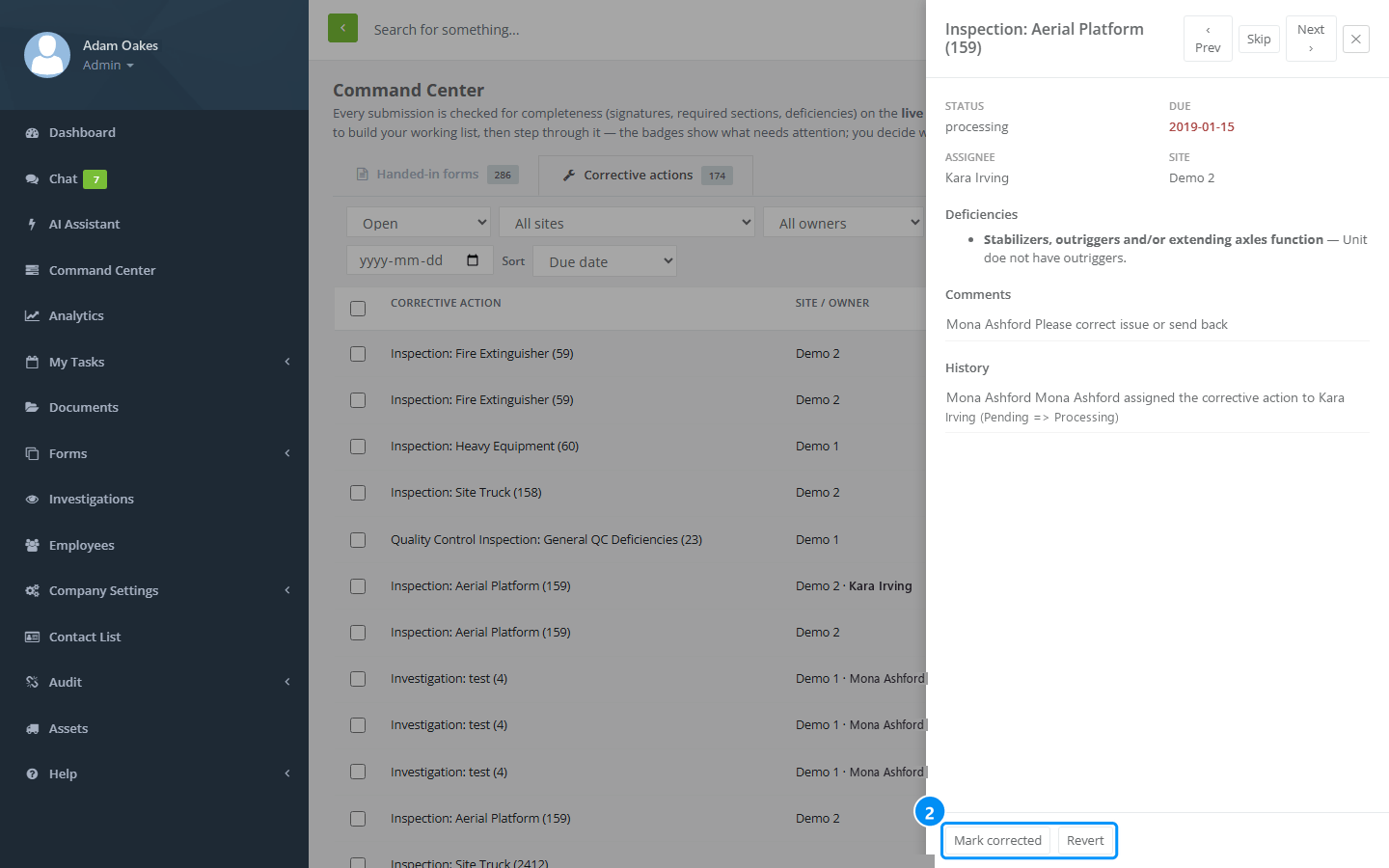
Only the steps this item allows are shown. - Use Next ›, ‹ Prev or Skip to move through the list.
- Click View on a row to open the full action item page.
For how one action item moves from Pending to Closed, see "Review, assign and close action items".
Updated October 24, 2026