![side_logo.png]](/theme/site/shared/images/side_logo.png)
Translate your forms for workers
Turn on Spanish and French for your company, choose which forms are translated, and watch the translations reach workers after you publish.
Try it free Start with Safety Evolution's Free version.
Safety Evolution can translate your forms into Spanish and French for your workers. You turn it on once. After that, every form you publish is translated and checked by Safety Evolution in the background. Workers get the English form straight away and the translations about a minute later. You never have to review a translation.
Before you start
- You need to be an owner, designate or admin.
- Translating your forms needs the Professional or Enterprise plan.
- Translation is being turned on company by company. If you don't see Languages under Company Settings, it isn't on for your company yet. Ask Safety Evolution.
Turn on translation for your company
- In the left menu, click Company Settings, then Languages.
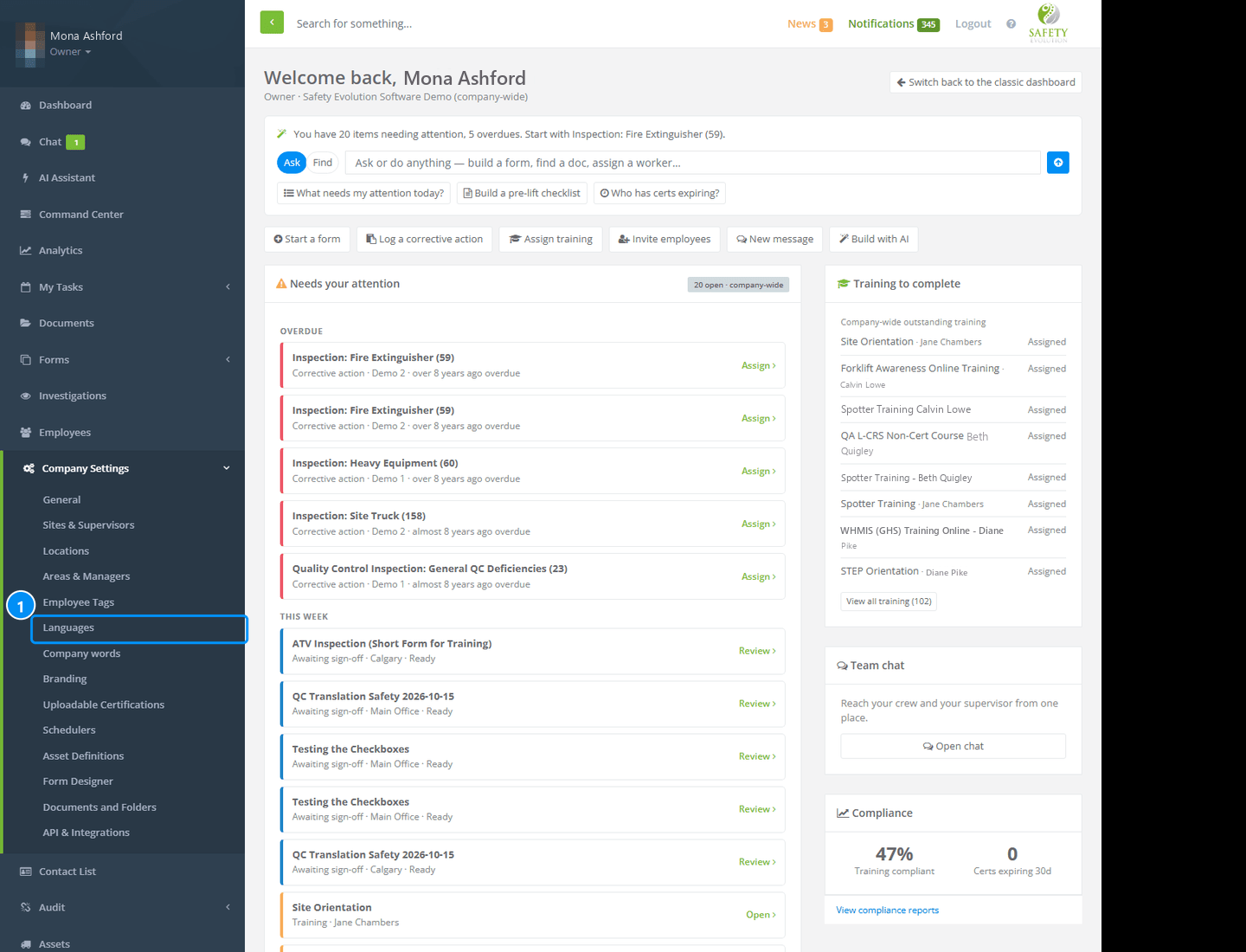
Languages is under Company Settings. - Under Translate forms, talks and documents for workers, set the switch to On.
- Under Languages, tick Español, Français or both. English is always on: it is the official record.
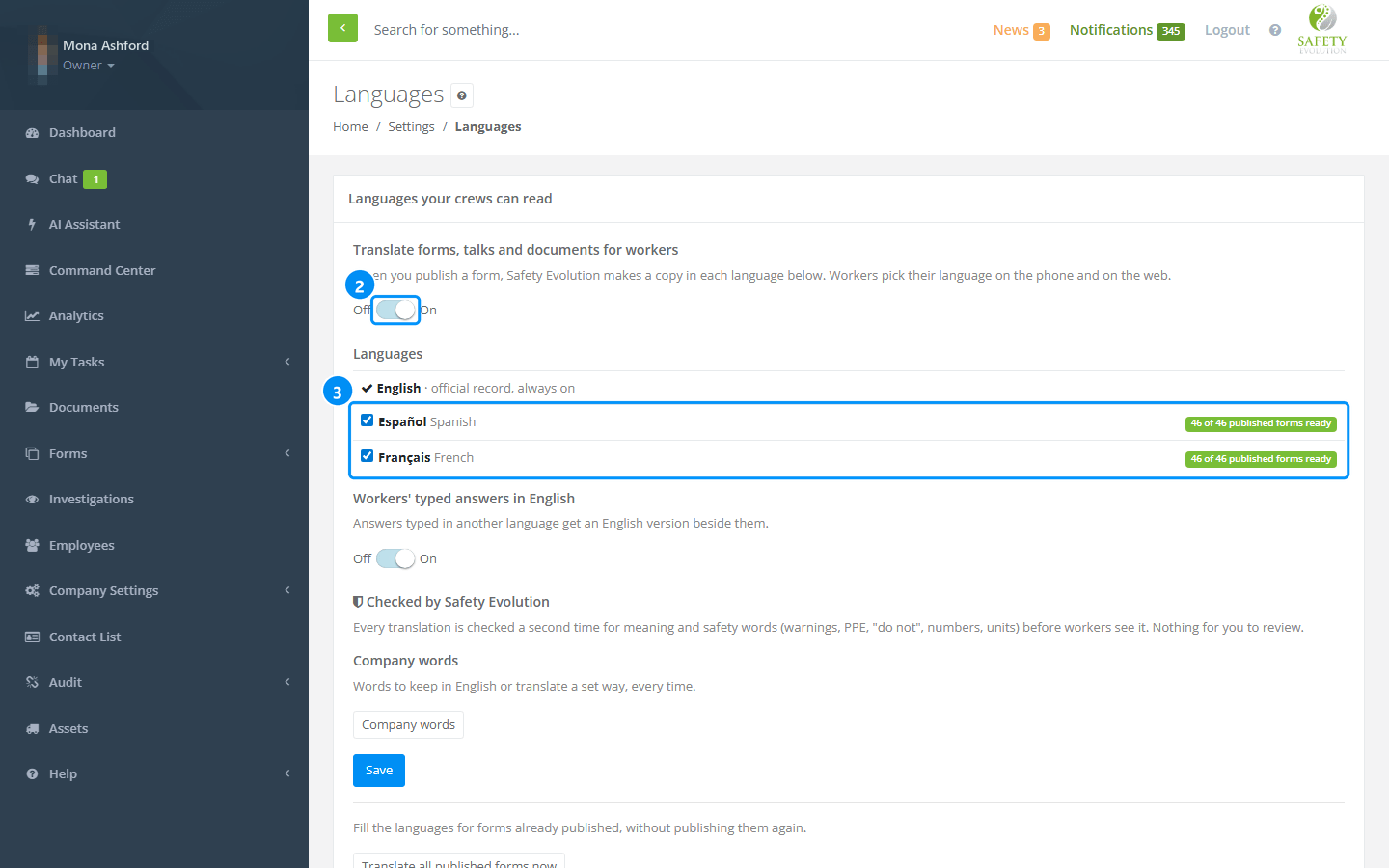
Each language shows how many of your published forms have it ready. - Click Save. You see Languages saved. Your published forms start to be translated into the languages you just turned on.
Each language shows how many published forms are ready in it, for example 12 of 15 published forms ready.
The page also shows Workers' typed answers in English, which is on to start. It adds an English version beside answers workers type in another language. See "Read workers' answers in English". The Company words button is explained in "Fix a translated word: Company words and Edit a translation".
Translate the forms you have already published
- On the Languages page, click Translate all published forms now. You don't have to publish each form again.
- You see "Translating your published forms. This can take a few minutes."
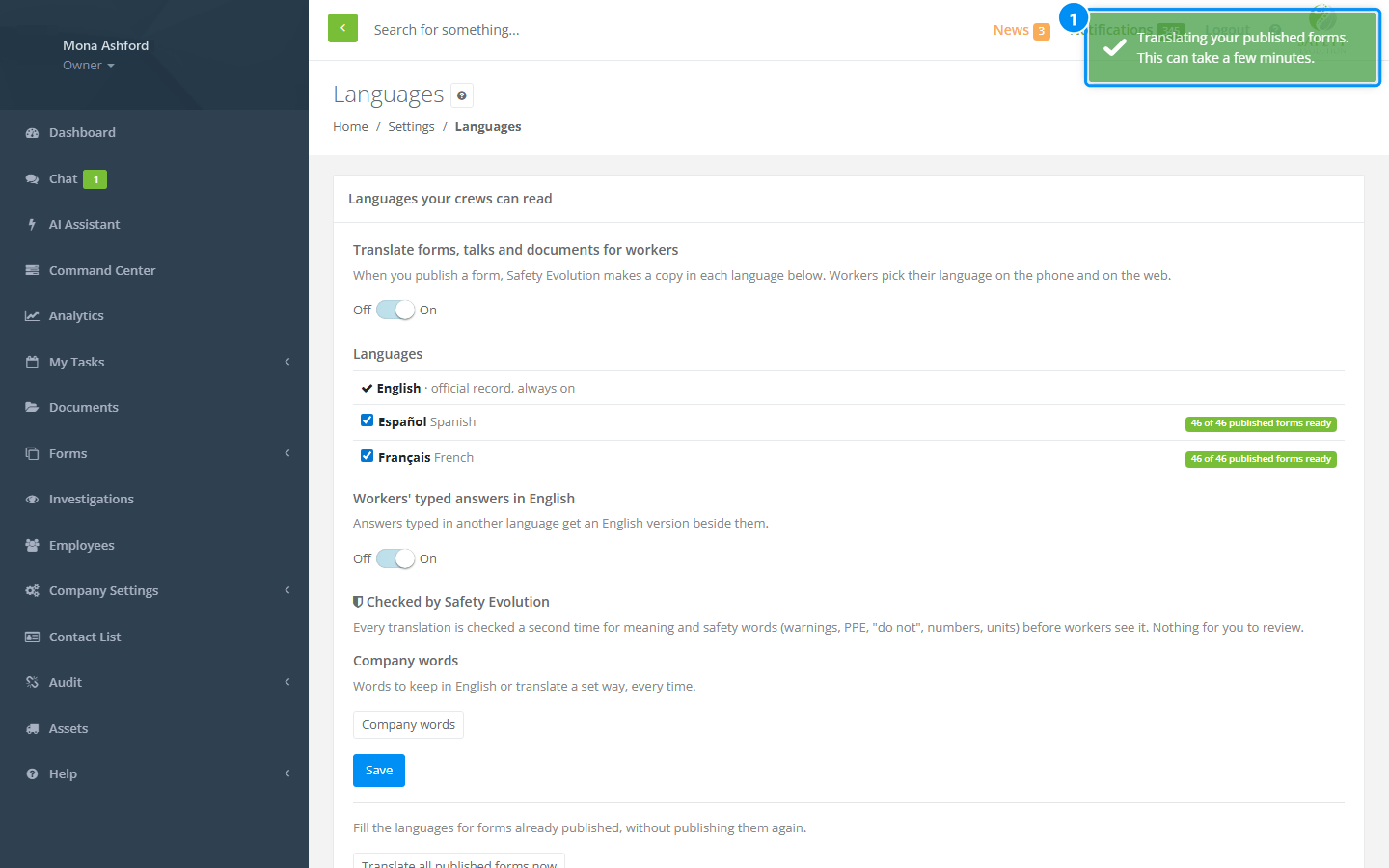
The counts go up as each form is ready.
The button is grey until translation is on, a language is ticked and you have clicked Save.
Choose the languages for one form
Every form follows your company's languages unless you change it.
- Open the form in the Form Designer and click the Settings tab.
- Under Languages, pick one:
- Company languages (your languages are in brackets, for example Company languages (Español, Français)): translate into all of them.
- English only: this form is not translated.
- Choose languages: tick only the languages you want for this form.
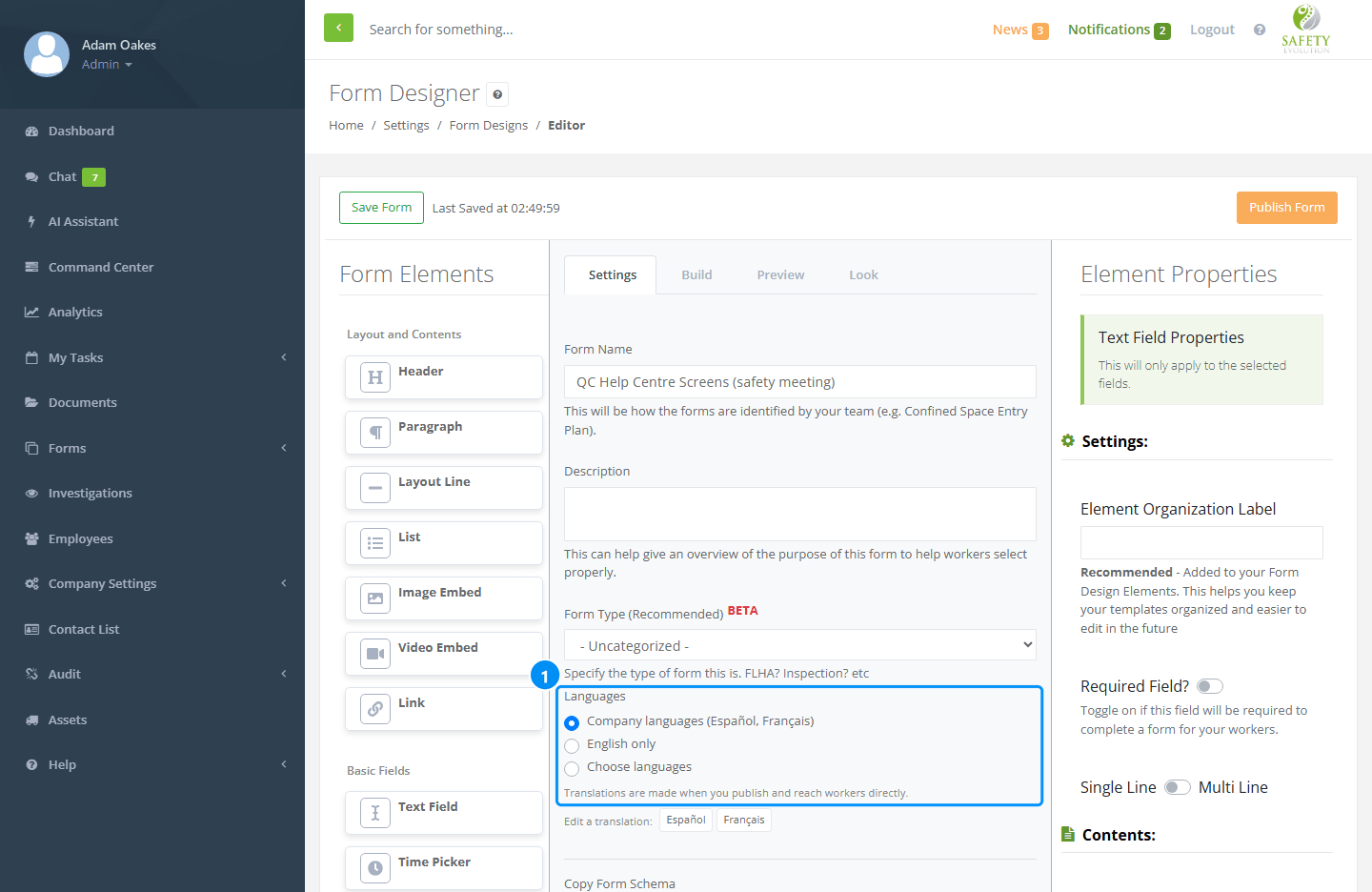
Company languages is the default. - The choice saves by itself. You see Languages saved.
- Under the setting, Edit a translation: lists a button for each of the form's languages, such as Español and Français. Use them only if you want to change a word. See "Fix a translated word: Company words and Edit a translation".
A new form must be saved before you can change its languages. Until then you see Save the form first to change its languages.
Publish and watch the translations arrive
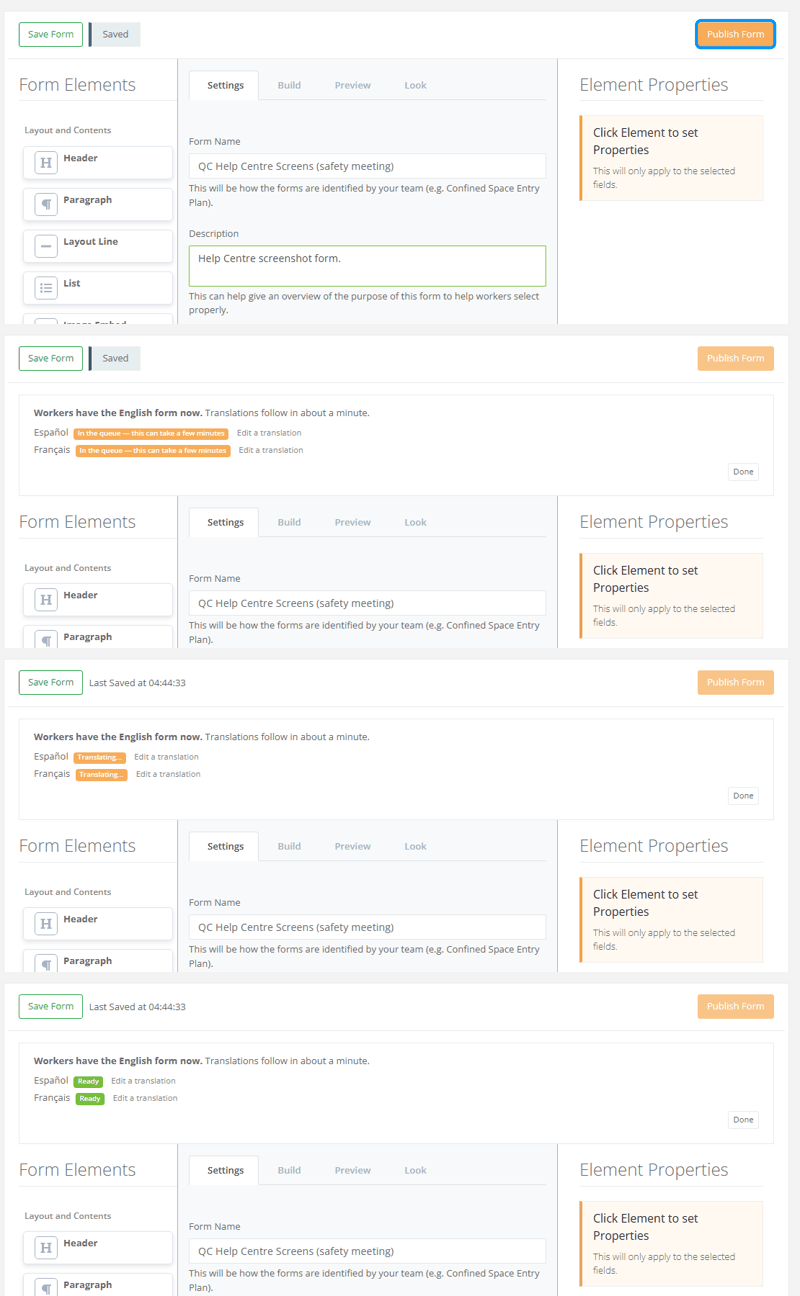
- Click Publish Form. You see Published. Workers have the English form now.
- A box opens under the toolbar: Workers have the English form now. Translations follow in about a minute. Each language has a line showing where it is:
- In the queue — this can take a few minutes
- Translating…
- Checking…: Safety Evolution is checking every line a second time.
- Ready: workers get it on the web, and phones get it on their next download.
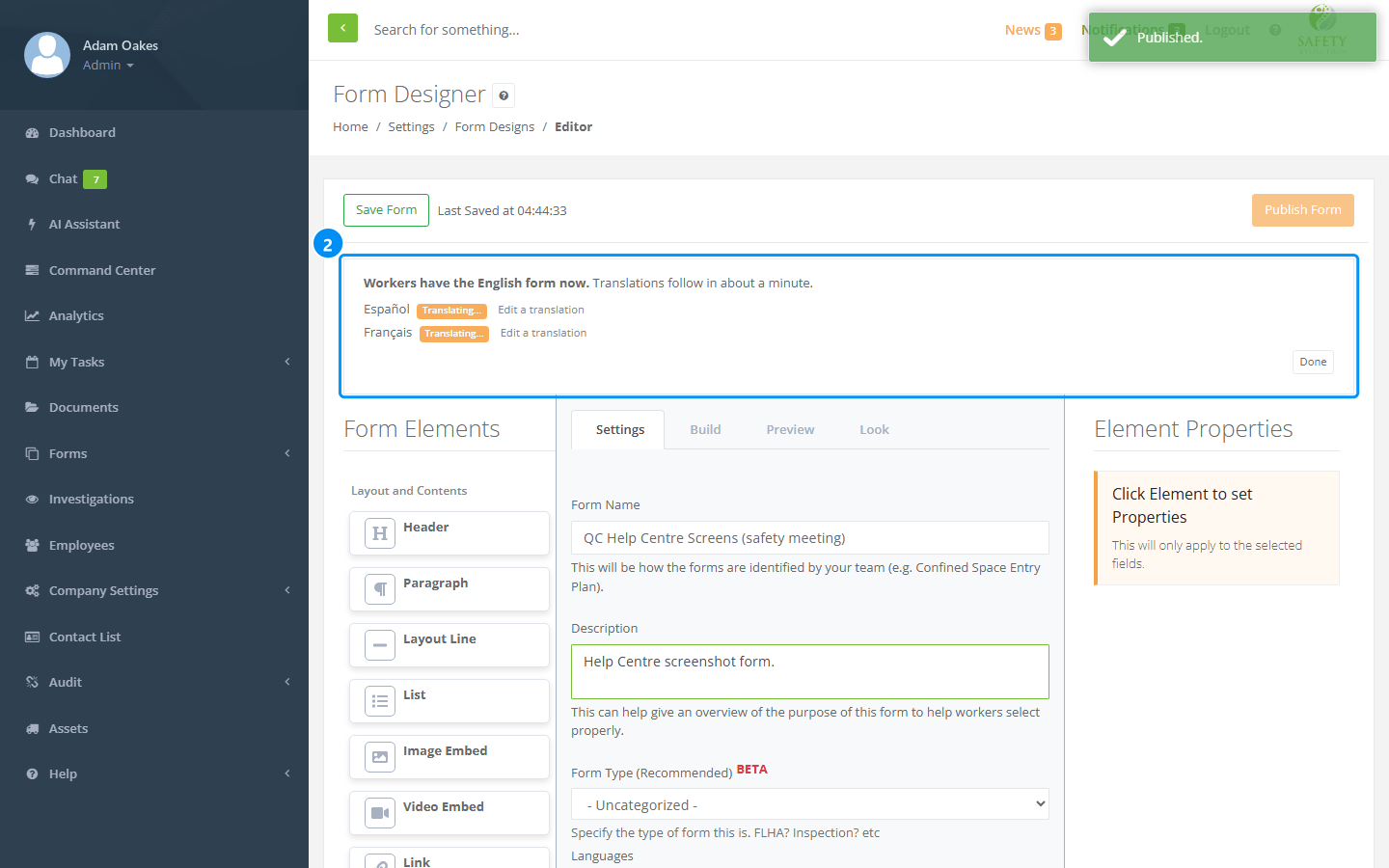
Nothing for you to do. The box updates by itself. - If a language shows Translation failed · Try again, click Try again. Workers keep the English form until it is ready.
- Each language's line also has Edit a translation, if you want to change a word. You never have to.
- Click Done to close the box. The translation carries on without it.
A language that says Ready · 2 lines kept in English is ready, but Safety Evolution's check could not confirm 2 lines. Workers see those lines in English. See "How Safety Evolution translates".
See each form's languages in the list
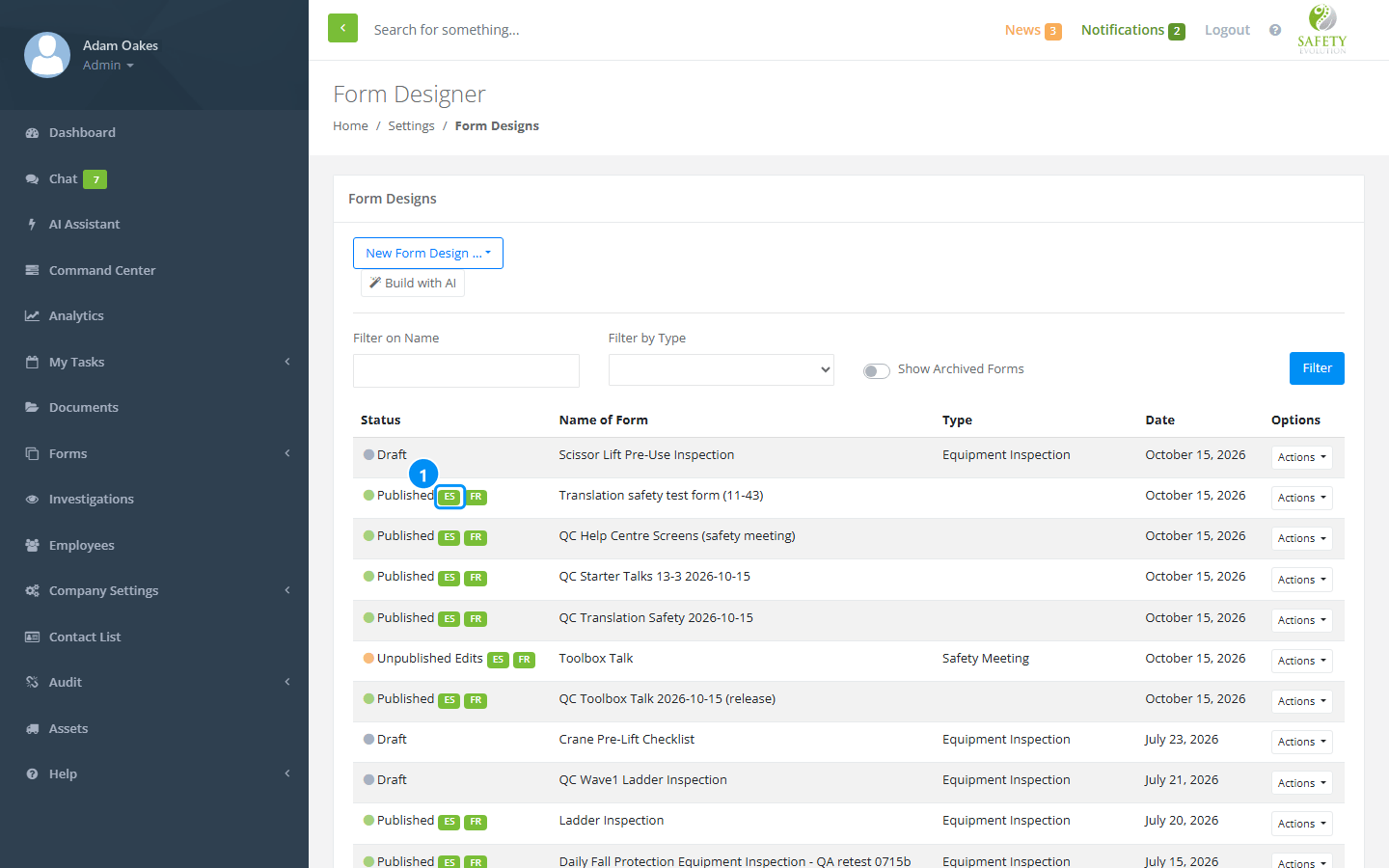
In the Form Designs list, each published form has a small badge for each language, such as ES and FR, beside its status. Point at a badge to see its state. Click a badge to open that language's Edit a translation page.
What is translated
- Translated: everything workers read on the form. That is the form's name and description, headings, text, questions, choices, list items, help text, placeholders, link text and video titles. Your own toolbox talks are translated into a language only when you haven't written that page yourself.
- Not translated: answers workers have already given, links, and text that is only numbers or codes. The 52 starter toolbox talks already come in English, Spanish and French.
When you publish a form again, only the lines whose English changed are translated again. The rest stay as they were.
If something goes wrong
- "Translating your forms for workers is in Professional. Your company is on Free.": your company is on the Free plan. Click Upgrade to Professional. On the Free plan the app's own words and the starter toolbox talks are still in Spanish and French.
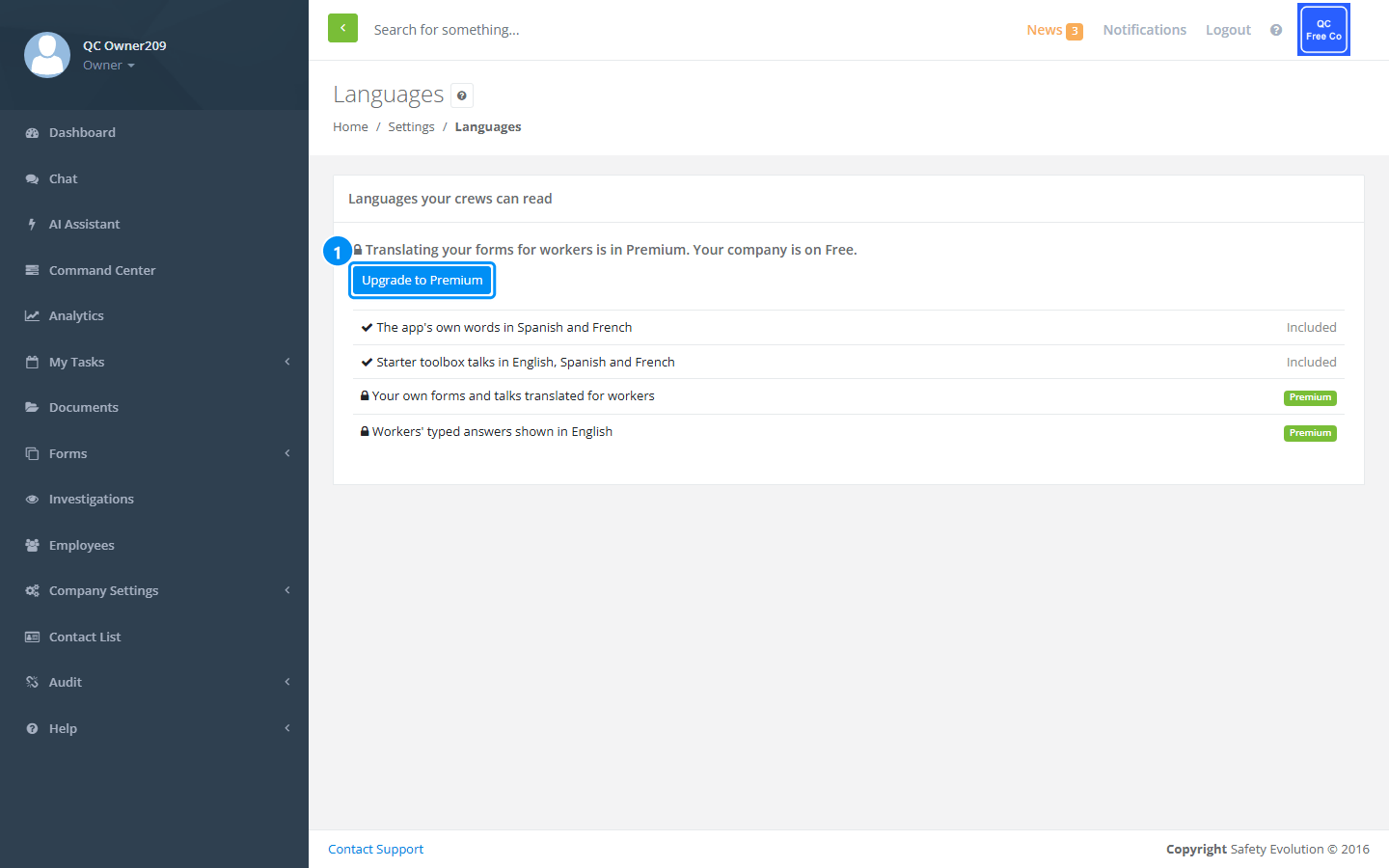
On Free, the page shows what is included and what needs Professional. - No Languages under Company Settings: translation isn't turned on for your company yet. Ask Safety Evolution.
- Translate all published forms now is grey: set the switch to On, tick a language and click Save first.
- "Save the form first to change its languages.": give the form a name so it saves, then pick its languages.
- "Languages were not saved. Try again.": check your connection and pick the setting again.
- Translation failed · Try again: click Try again. If it fails again, contact Safety Evolution support.
- "Try again failed. Reload the page and try again.": reload the page, then click Try again.
- Waiting for this hour's translation allowance: your company has translated a lot this hour. The language carries on by itself in the next hour.
Updated October 24, 2026