![side_logo.png]](/theme/site/shared/images/side_logo.png)
Log out or change phones without losing work
Send your unsent forms and finish your drafts before you log out of the phone app, switch to another company's account or move to a new phone.
Try it free Start with Safety Evolution's Free version.
Before you log out of the phone app, switch to another company's account or move to a new phone, make sure everything you started on this phone has reached the office. Logging out removes your work from this phone.
Important: logging out deletes every photo, video and file saved in the app on this phone, straight away, with no warning. A draft or an unsent form that has pictures cannot be sent after that. Treat logging out as clearing your work from this phone.
Before you start
- You need signal or Wi-Fi to send your forms.
- Your language choice stays on this phone when you log out.
Send everything before you log out
- Tap the Forms tab. If the Form Archive card shows a badge such as 1 Offline, forms you handed in with no signal are still waiting on this phone.
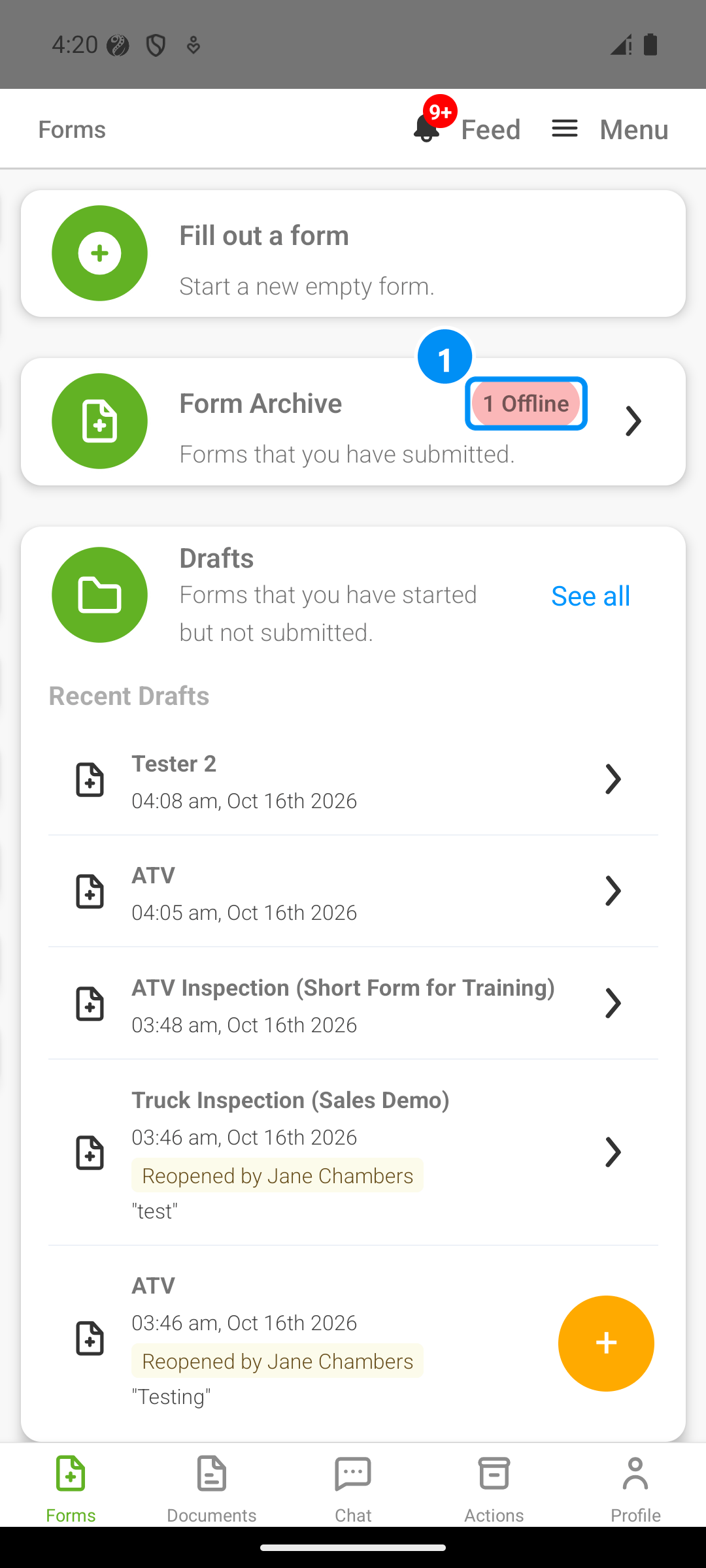
"1 Offline" means one form has not reached the office yet. - With signal, tap Form Archive. Opening it sends the waiting forms. Pull the list down to send them again if any are left.
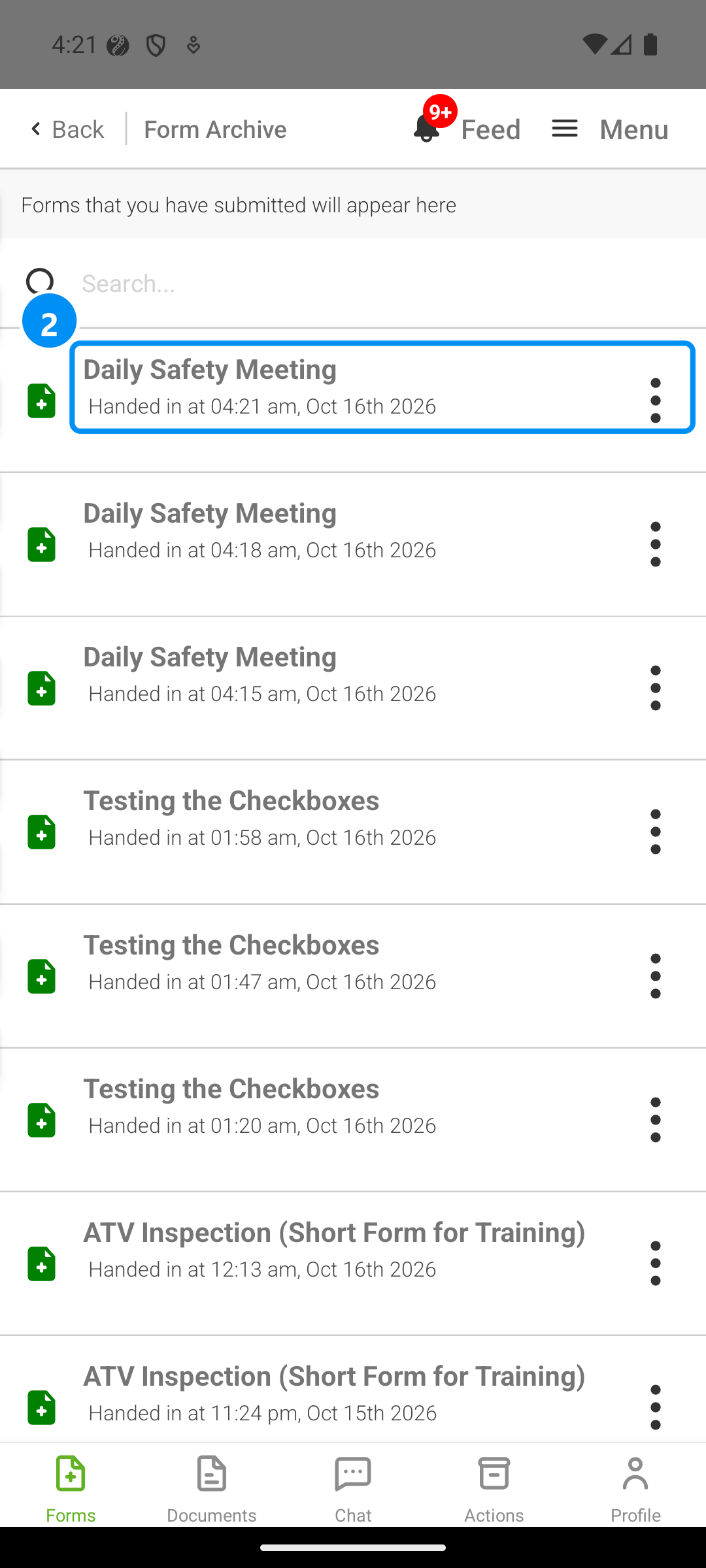
Sent forms show when they were handed in. - Go back to Forms. The Offline badge is gone when every form has been sent.
- On the Drafts card, tap See all. Drafts live only on this phone.
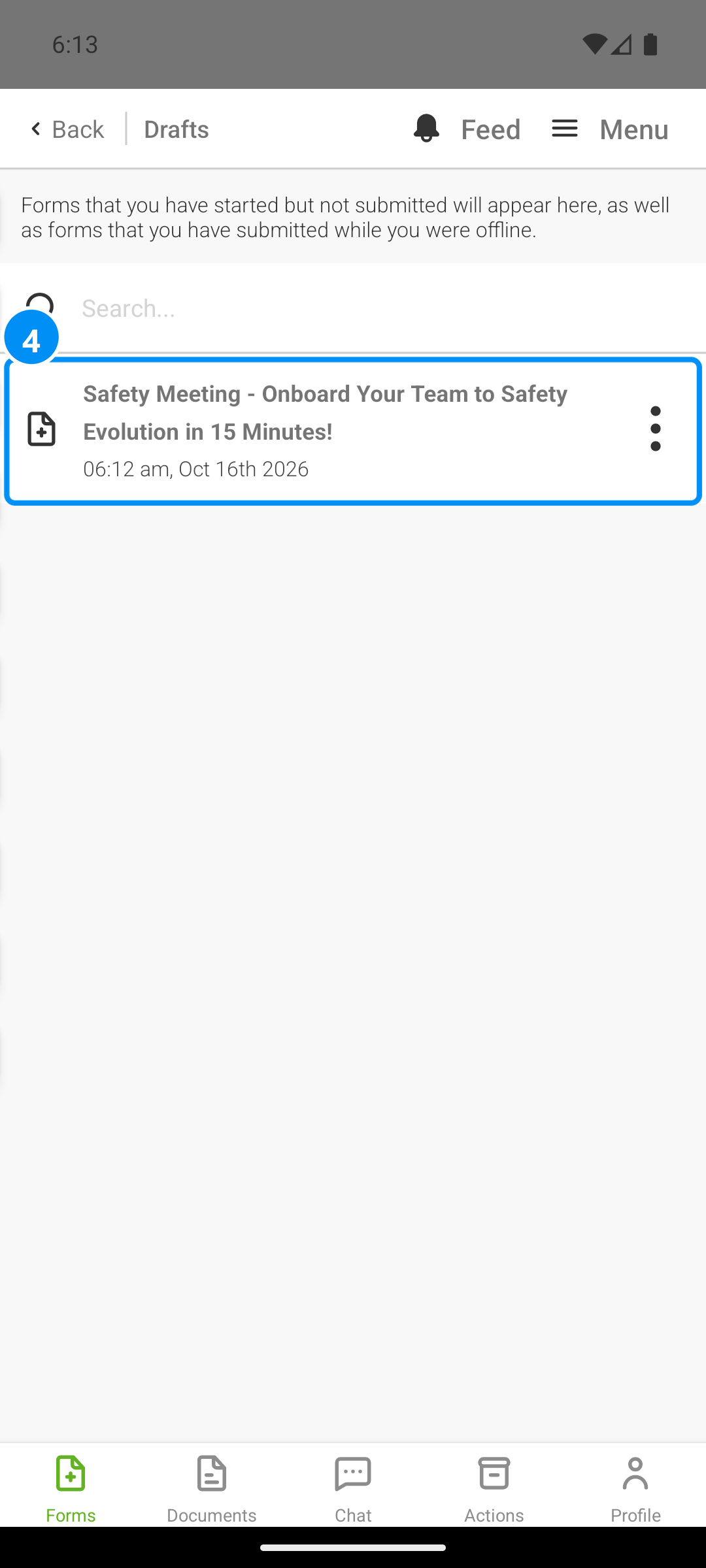
Finish and hand in each draft you still need. - Open each draft you still need, finish it and tap Hand In. See Fill in and hand in a form on the phone.
Log out
- Tap the Profile tab.
- Tap Logout. The app says Logging you out... and then shows the login screen. It does not ask you to confirm.
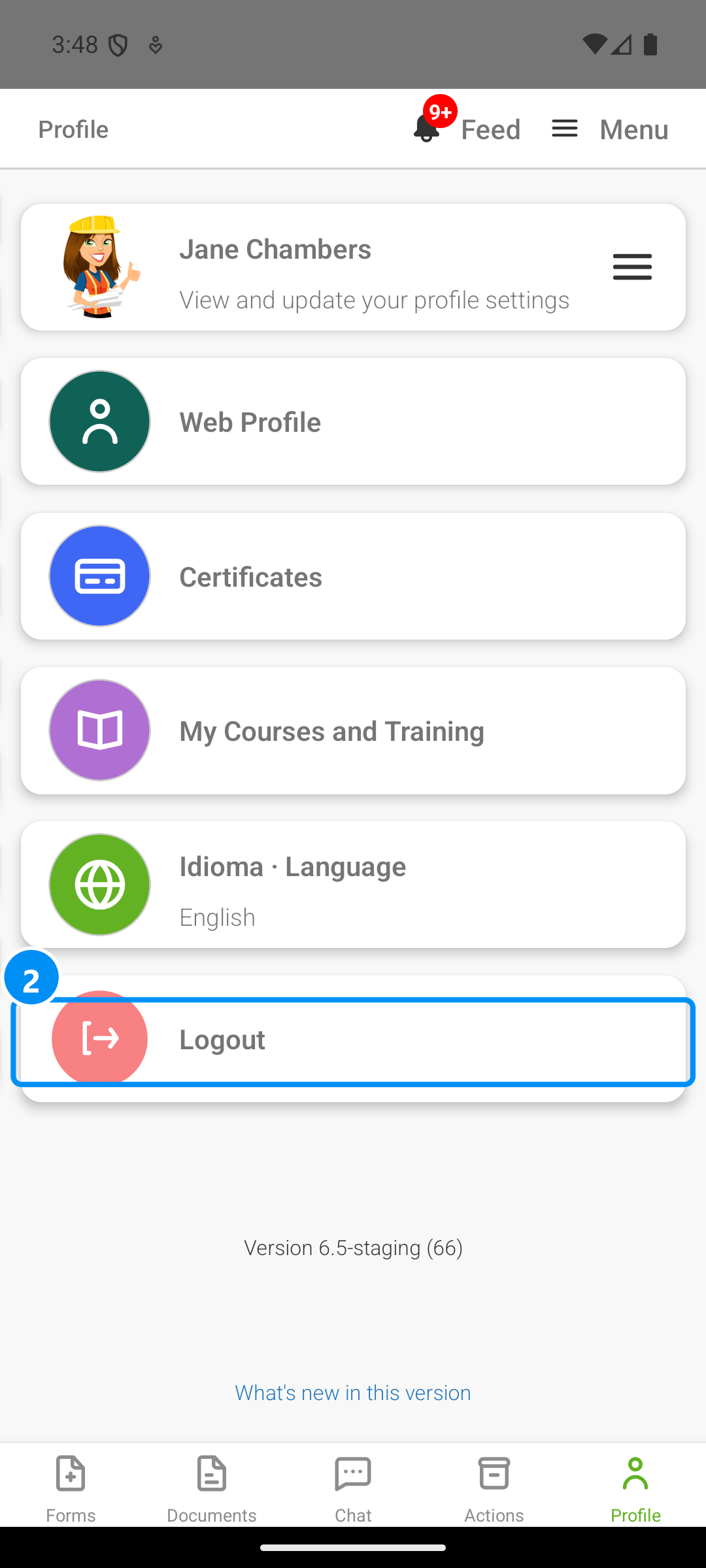
Logout is on the Profile tab.
Use another company's account
The app has no company switcher. Each login belongs to one company.
- Send everything and finish your drafts (see above).
- Log out.
- Log in with the email and password for the other company's account. The first download runs for that company. See Set up the phone app.
Move to a new phone
- On the old phone, send everything and finish your drafts (see above).
- On the new phone, install the app and log in. See Set up the phone app.
- With signal, open Form Archive. Your last 15 handed-in forms come back from the office.
- Drafts do not move to the new phone.
- Pick your language again on the new phone: Profile › Language. See Choose your language on the phone and the web.
If something goes wrong
- The Offline badge won't go away: you may have no signal, or Safety Evolution can't be reached. Move to where you have signal and pull down on the Form Archive again.
- A row says "This form was removed in the office" or "The office changed this form. Open it to check your answers and hand it in again.": that form will not send by itself. See Working with no signal and When the office reopens, edits, hands in or voids your form.
- Your old phone is lost or broken: drafts and unsent forms on it cannot be brought back from the phone. If you had picked a site and had signal while you filled in a draft, the office has a draft copy. See Find your drafts and handed-in forms, or ask your office.
- You logged out by mistake: log in again. Photos and files you had attached on this phone are gone. If a draft is still in Drafts, open it, remove the empty picture with the red X, add the picture again, and hand it in.
Updated October 24, 2026