![side_logo.png]](/theme/site/shared/images/side_logo.png)
Get help: SE Help in chat and contacting support
Ask SE Help how to do something, find answers in the Help Centre, and send a message to Safety Evolution support.
Try it free Start with Safety Evolution's Free version.
There are three ways to get help: ask SE Help, look it up in the Help Centre, or send a message to Safety Evolution support.
Ask SE Help in chat
SE Help answers how-to questions about Safety Evolution, using the Help Centre articles. It is a conversation called SE Help in your chat. Everyone in your company has one, except auditors.
- On the web, click Chat in the left menu. On the phone, tap the Chat tab.
- Open the conversation called SE Help. Its first message greets you by name and says "I'm SE Help."
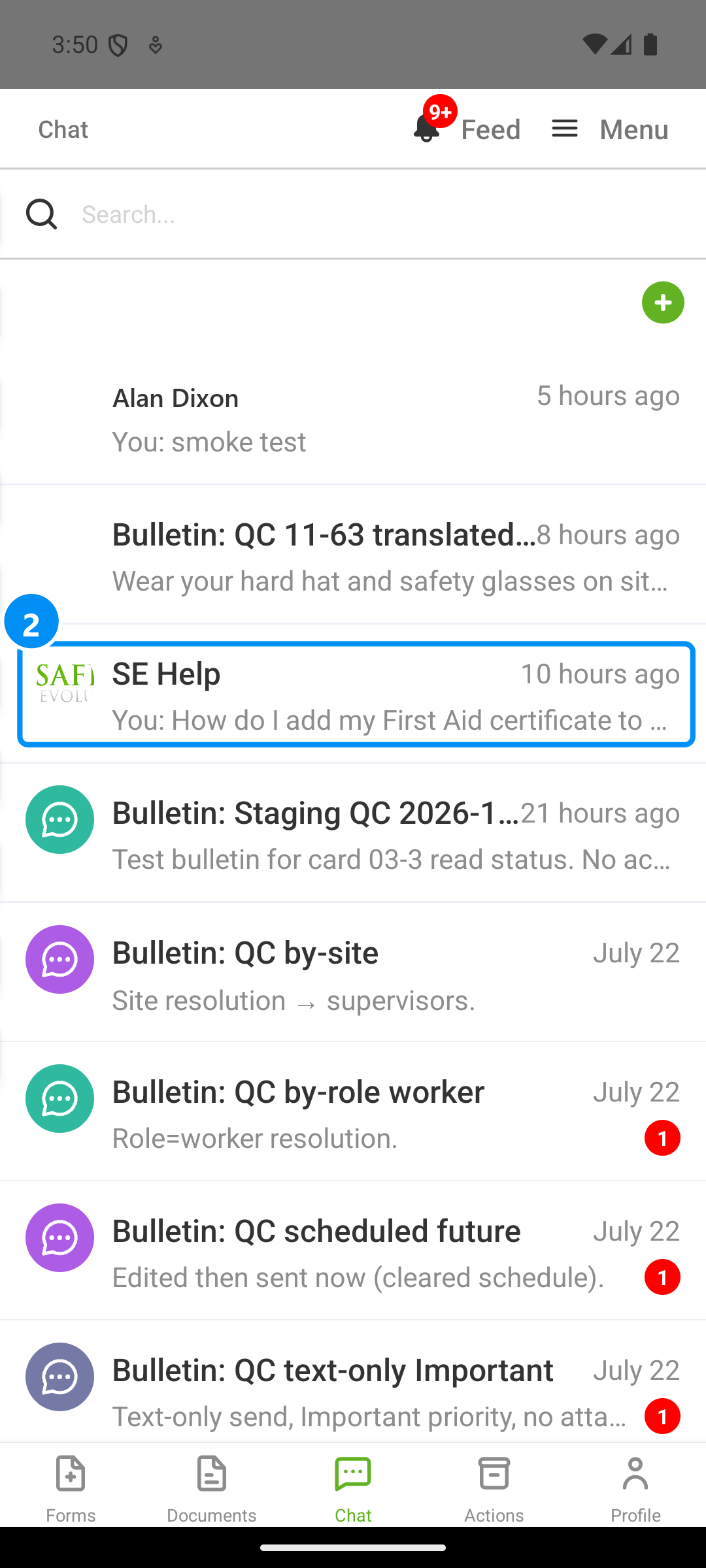
SE Help in your chat list. - Type your question the way you would ask a person. For example: "How do I hand in a form?"
- Send it. SE Help answers with the steps and a link to the help article.
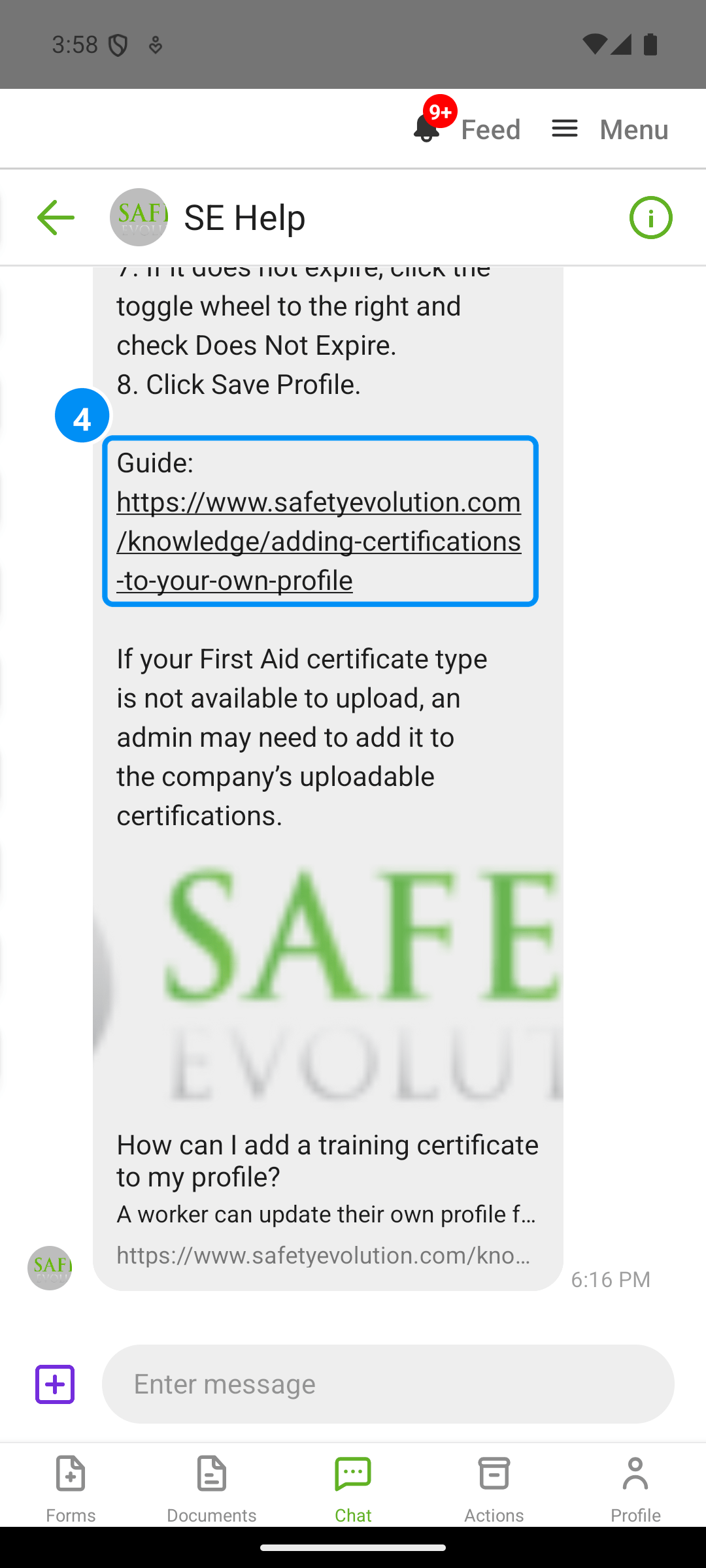
SE Help answers with steps and a link.
Good to know:
- SE Help tells you how to do things in Safety Evolution. It cannot change anything for you.
- To see your own training, certificates, tasks or forms, open them in Safety Evolution: My Tasks, your profile, Training and Forms. Questions about your company's records are for the AI Assistant (see "AI Assistant").
- If you ask a lot in a short time, SE Help answers "You've reached the SE Help limit for now. Try again in a few minutes." Wait a few minutes. In the web panel the limit message is "You have asked SE Help 20 times in the last hour. Please wait a while and try again."
- When it cannot help, it tells you who can: your company's owners or admins, or Safety Evolution support.
- If someone is hurt or in danger, call 911 and your supervisor first. Do not wait for chat.
SE Help Chat from any page on the web
- Click Help in the top bar, then SE Help Chat.
- The SE Help Chat panel opens on the right. It is the same conversation as in Chat and on your phone.
- Type your question in the box and click Ask.
- To see the conversation full size, click Open in Chat.
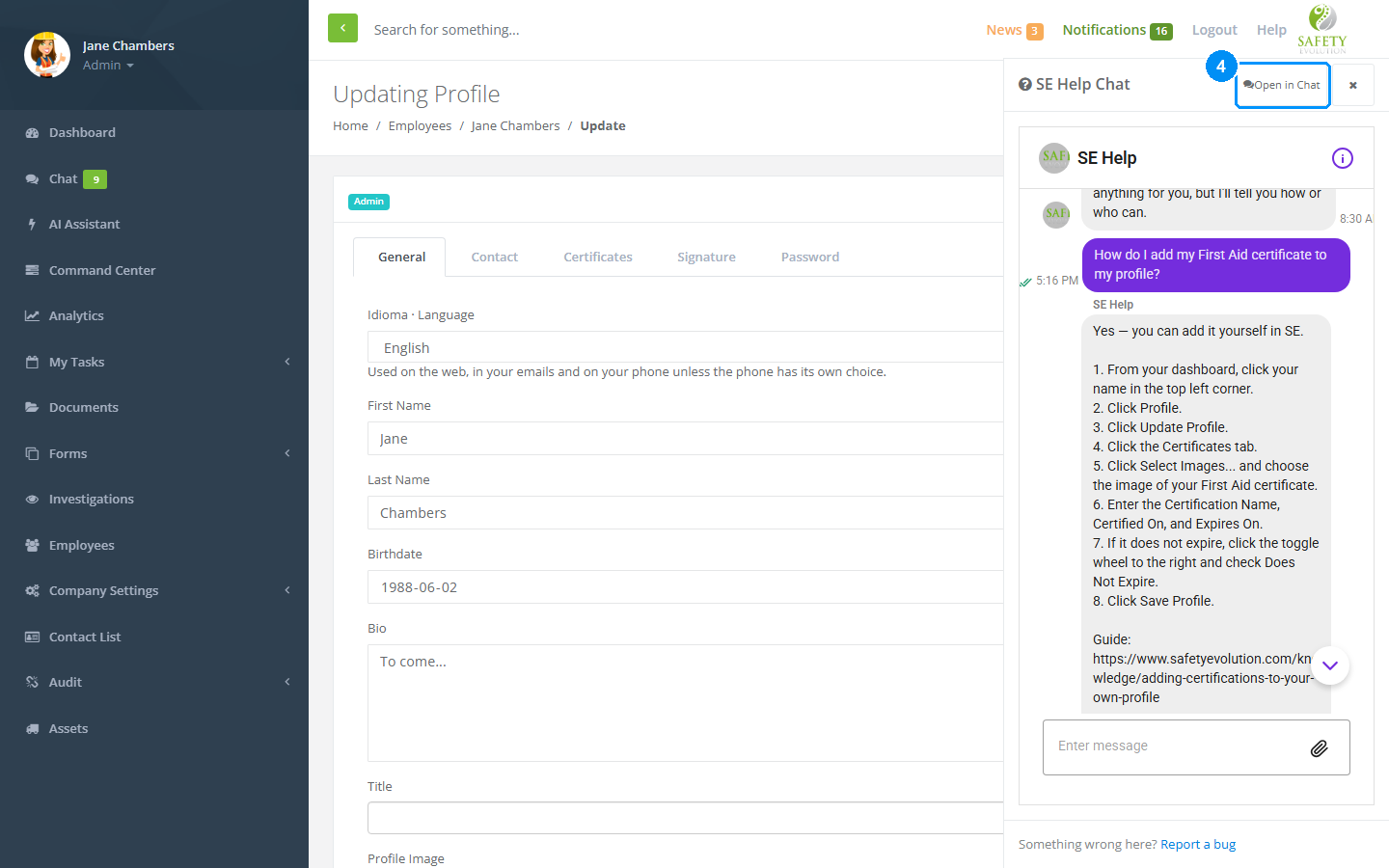
SE Help Chat in the side panel.
If you see "SE Help is getting ready. Try again in a minute.", your conversation is being set up. Try again shortly.
Look it up in the Help Centre
- Click Help in the top bar, then Help Centre.
- Type a few words in Search the help centre. Answers show as you type. Click one to open it.
- Or click a category to see its articles.
- Use Show me: to put the articles for your job first: Everyone, Worker, Supervisor, Office and management or Auditor. Nothing is hidden.
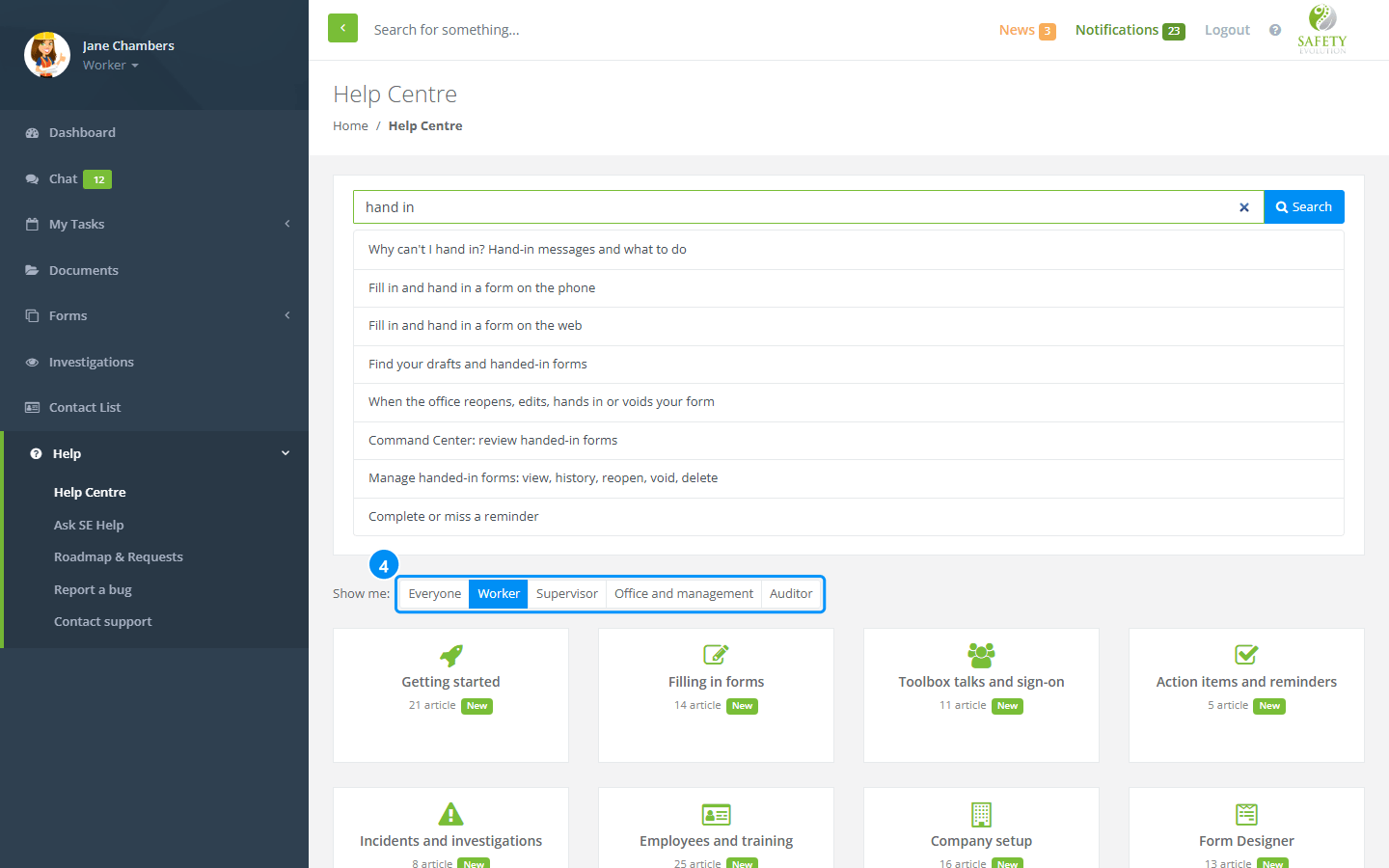
The Help Centre. - At the bottom of an article, answer Was this helpful? with Yes or No. If you click No, tell us What was missing?
- To ask about the article you are reading, type in Ask about this in SE Help Chat and click Ask.
Contact Safety Evolution support
- Click Help in the top bar, then Contact support. You can also click Contact Support at the bottom of any page.
- Your name, email, company and role are sent with your message. You do not need to type them.
- Type a Subject. Articles may show under These articles may answer it:. Check them first.
- Type your Message. Say what you were doing and what went wrong.
- To add a picture or PDF, use File (optional). It can be up to 10 MB.
- Click Send.
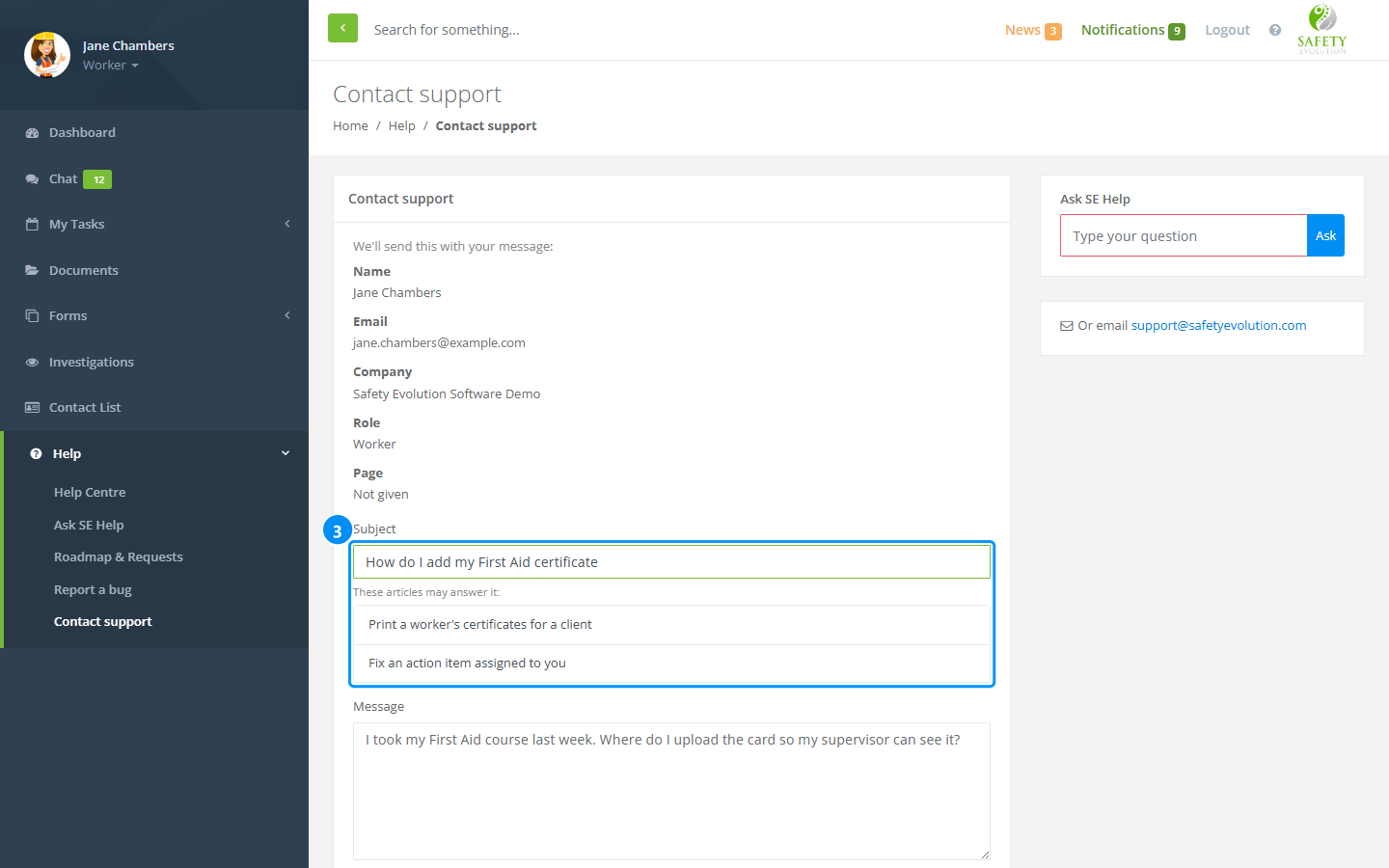
The Contact support form. - You see We got your message. You also get an email. Support replies to your email address.
You can also email support@safetyevolution.com directly.
Can't log in? Where your company's Help Centre is open without a login, Contact support works logged out too. Fill in Your name, Your email (support replies to it) and, if you like, Your company.
If you see "You have sent several messages in the last hour. Please wait a while and try again, or email support@safetyevolution.com.", wait an hour or email support.
Report a bug
If something in Safety Evolution is not working the way it should, tell us.
- Go to the page where it went wrong.
- Click Help in the top bar, then Report a bug. The page you were on is sent with your report.
- Fill in What happened? and What did you expect?
- To add a picture, choose a file under Screenshot (optional). If you see Capture this page, you can click it to add a picture of the page instead.
- Click Send.
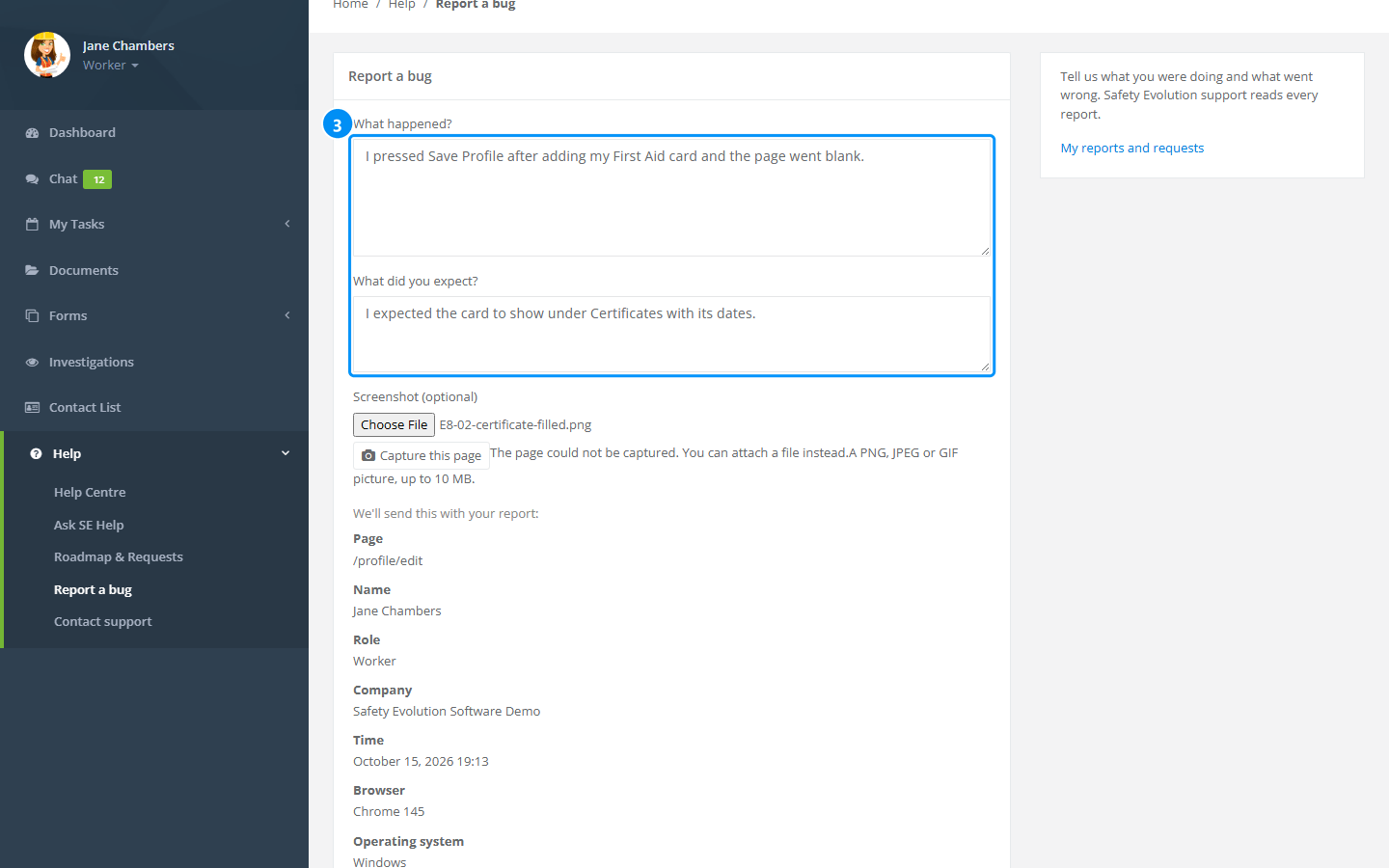
The Report a bug form.
To see what happened to your reports, open My reports and requests. For the full steps, including reporting from the phone, see "Report a bug and follow it in My reports".
Ask for a new feature
- Click Help in the top bar, then Roadmap & Requests. The Roadmap shows what Safety Evolution is working on.
- Click Request a feature.
- Type a Title. If someone already asked for something like it, you see Is it one of these? Vote instead. Vote for theirs if it is the same.
- Fill in What do you want to do, and why?
- Click Send request. Others can see the title and text of your request, never your name or company.
For voting on the roadmap and following your requests, see "Request a feature and vote on the roadmap".
If something goes wrong
- "SE Help is getting ready. Try again in a minute.": your SE Help conversation is being set up. Try again shortly.
- "You've reached the SE Help limit for now. Try again in a few minutes.": wait a few minutes, or look it up in the Help Centre.
- You don't see SE Help or SE Help Chat: SE Help isn't on for your company yet, or you are an auditor. Use the Help Centre or Contact support.
- "You have sent several messages in the last hour..." on Contact support: wait an hour, or email support@safetyevolution.com.
Updated October 24, 2026