![side_logo.png]](/theme/site/shared/images/side_logo.png)
Sign on or sign in by scanning a code
Scan a meeting or site QR code with your phone camera, then sign with your name and signature. No app or login needed.
Try it free Start with Safety Evolution's Free version.
At a meeting, or when you arrive at a site, you may be asked to scan a QR code. It opens a page on your phone where you sign. You don't need the Safety Evolution app or a login.
- A meeting code signs you on to a meeting or toolbox talk.
- A site code (a printed poster) signs you in at that site for the day.
Scan and sign
- Open your phone's camera and point it at the code.
- Tap the link that appears. A page opens with the company's logo and the form.
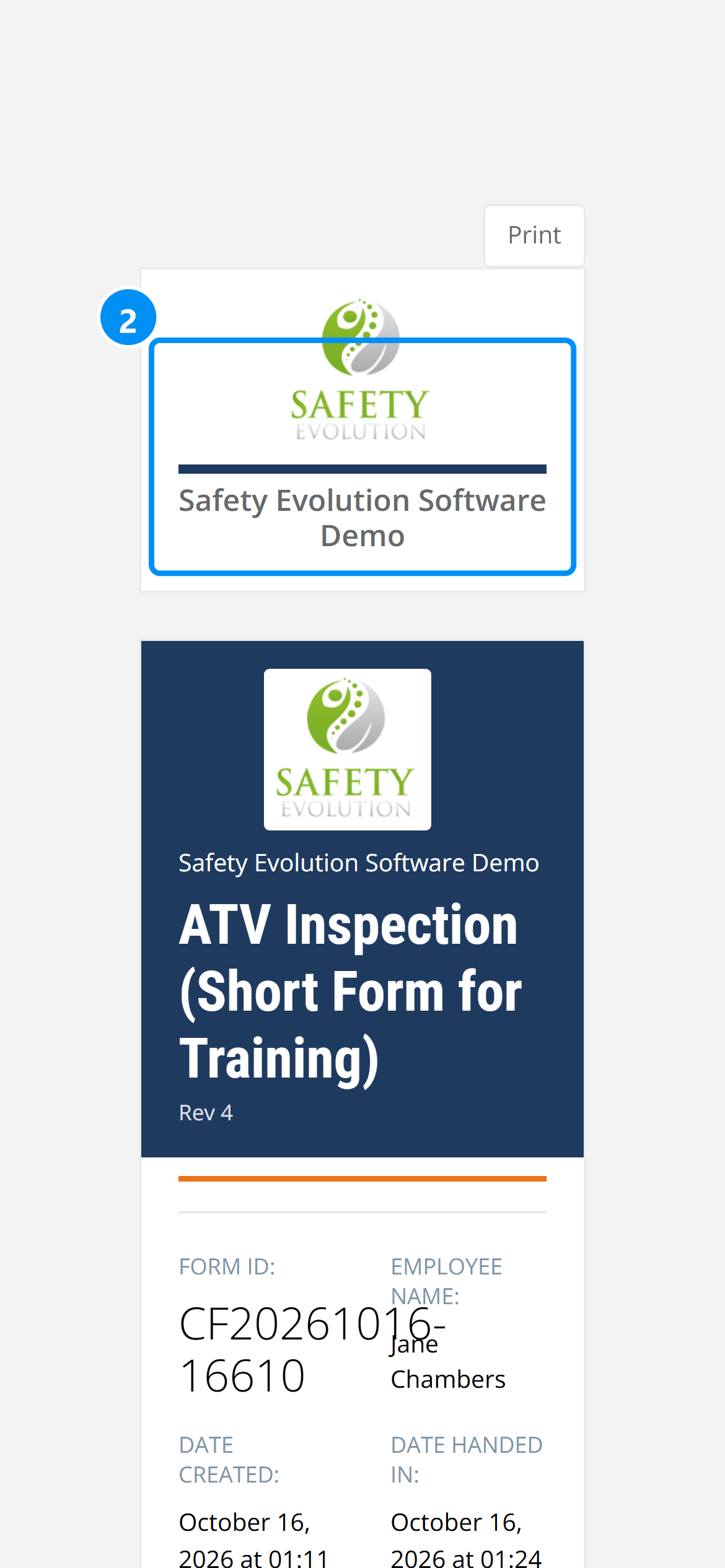
The page shows the company and the form you are signing. - Read the form. Then scroll down to the Sign on (or Sign in) box.
- Type Your name.
- Type Your company.
- If you want, add a Comment.
- Sign with your finger above Sign above. Tap Clear to start again.
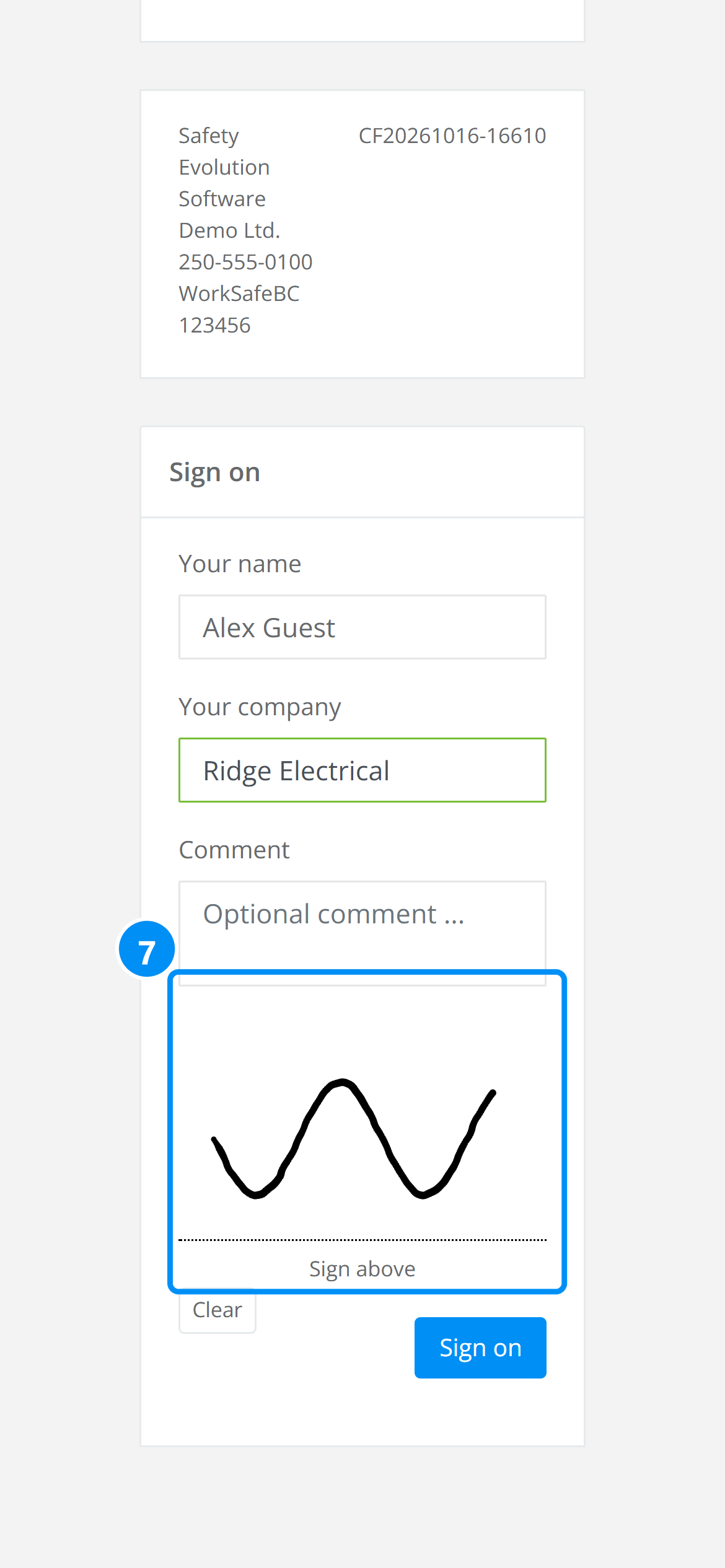
Fill in your name and company, then sign. - Tap Sign on (meeting) or Sign in (site).
- You see "Signed on. Thank you." or "Signed in. Thank you." You can close the page.
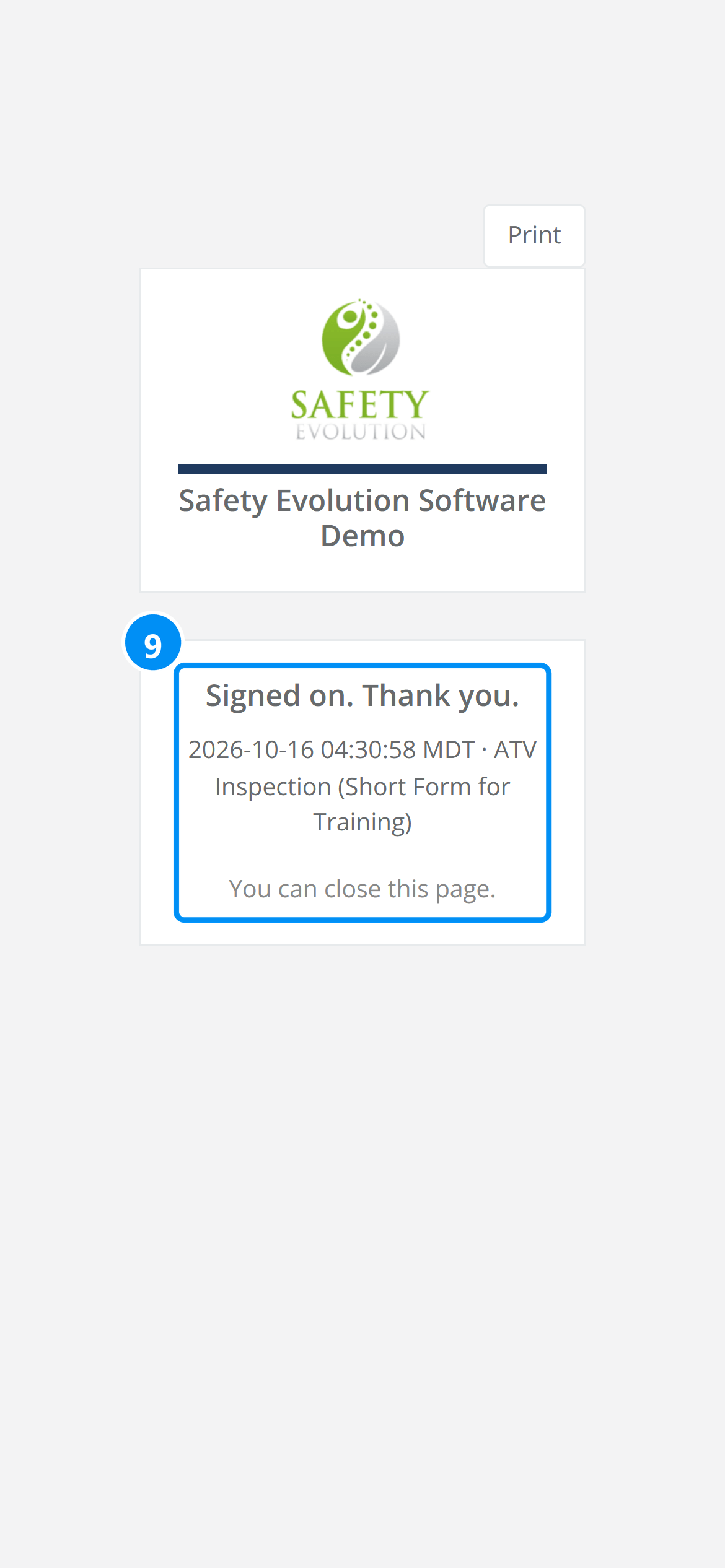
You're done when you see this.
No camera? Type the web address shown under the code into your phone's browser.
If you work for the company
- If you are already logged in to Safety Evolution in that browser, the page says Signing as your name. You don't type your name or company. Just sign and tap the button.
- On some phones, the code opens the Safety Evolution app instead of the browser. The app opens a sign window. Check your Name, sign in the Signature box and tap Sign. If you are not logged in, log in first; the sign window opens after you log in.
If something goes wrong
- "This sign-on is closed. Ask your supervisor.": the meeting code was stopped or ran out of time.
- "This sign-in is closed. Ask your supervisor.": the site code was turned off.
- "Please sign above before submitting.": draw your signature first.
- "Not signed yet:" with a list: fix what the list says and tap the button again.
- "You signed this at time.": you already signed. Nothing more to do.
- "Too many sign-ons from this phone. Wait a few minutes and try again.": wait, then try again.
- "You need signal to open this sign-on. Scan the code again when you have signal." (in the app): find signal and scan again.
Updated October 24, 2026