![side_logo.png]](/theme/site/shared/images/side_logo.png)
Manage chat channels: members, notifications, mute and leave
Turn a chat's notifications on or off, see and add members, leave a chat, and, if you run the chat, mute, ban or freeze.
Try it free Start with Safety Evolution's Free version.
Each chat has its own settings. You can turn its notifications on or off, see who is in it, add people and leave it. The person who runs a chat can also mute, ban or freeze.
Before you start
- Your company needs chat turned on. You see Chat on the phone and in the web's left menu.
- This article shows the phone. The web has the same settings in a panel on the right of the chat.
Open a chat's settings
- Tap the Chat tab and open a chat.
- Tap the button at the top right of the chat. Channel information opens with Notifications, Members and Leave channel. If you run the chat, you also see Moderation.
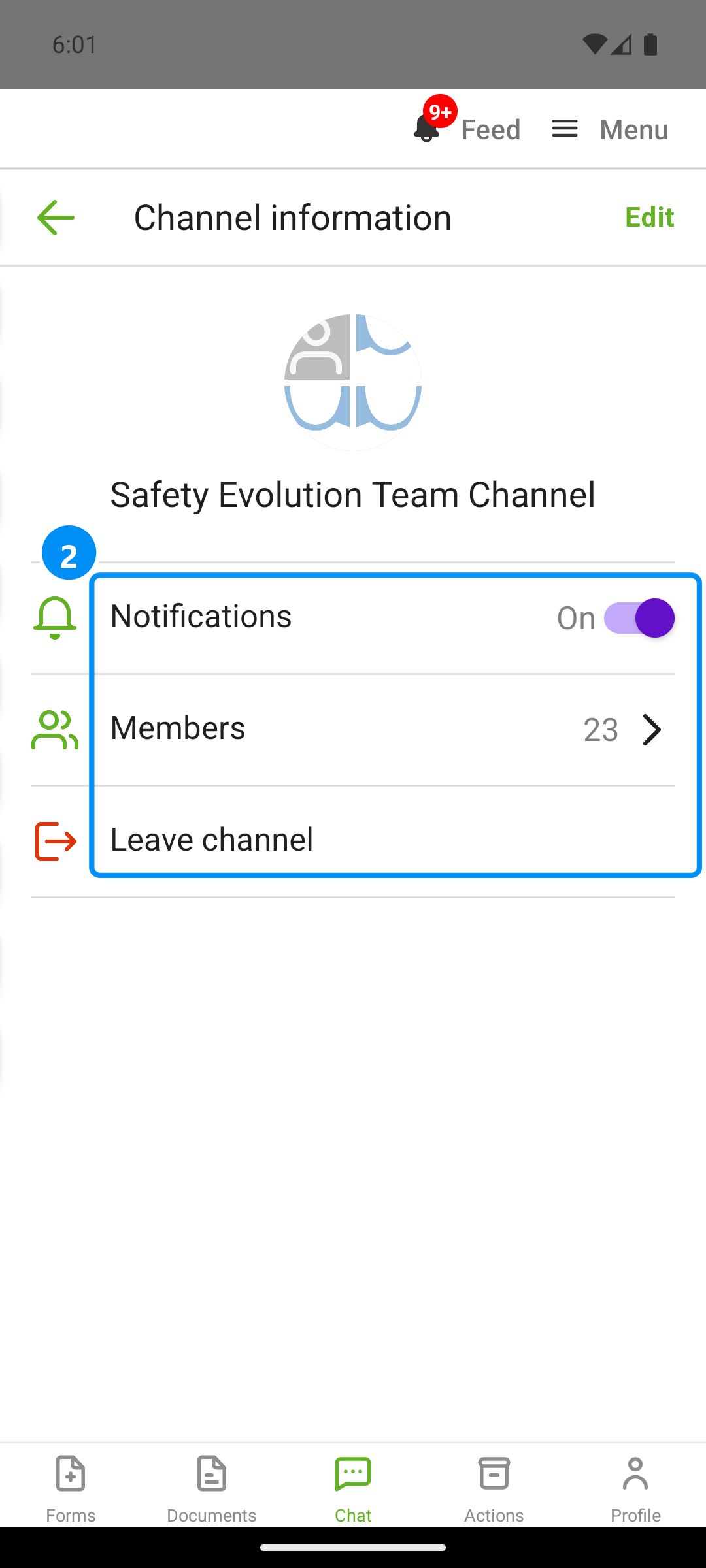
A chat's settings.
To rename the chat or change its picture, tap Edit, then Change channel name or Change channel image.
Turn a chat's notifications on or off
- In Channel information, find Notifications. It shows On or Off.
- Tap the switch. Off stops this chat from notifying you. Your other chats aren't changed.
See and add members
- In Channel information, tap Members. Everyone in the chat is listed. The people who run it are marked Operator.
- To add someone, tap the add button at the top right. Invite users opens.
- Tick the people to add and confirm. They join the chat and can read its messages.
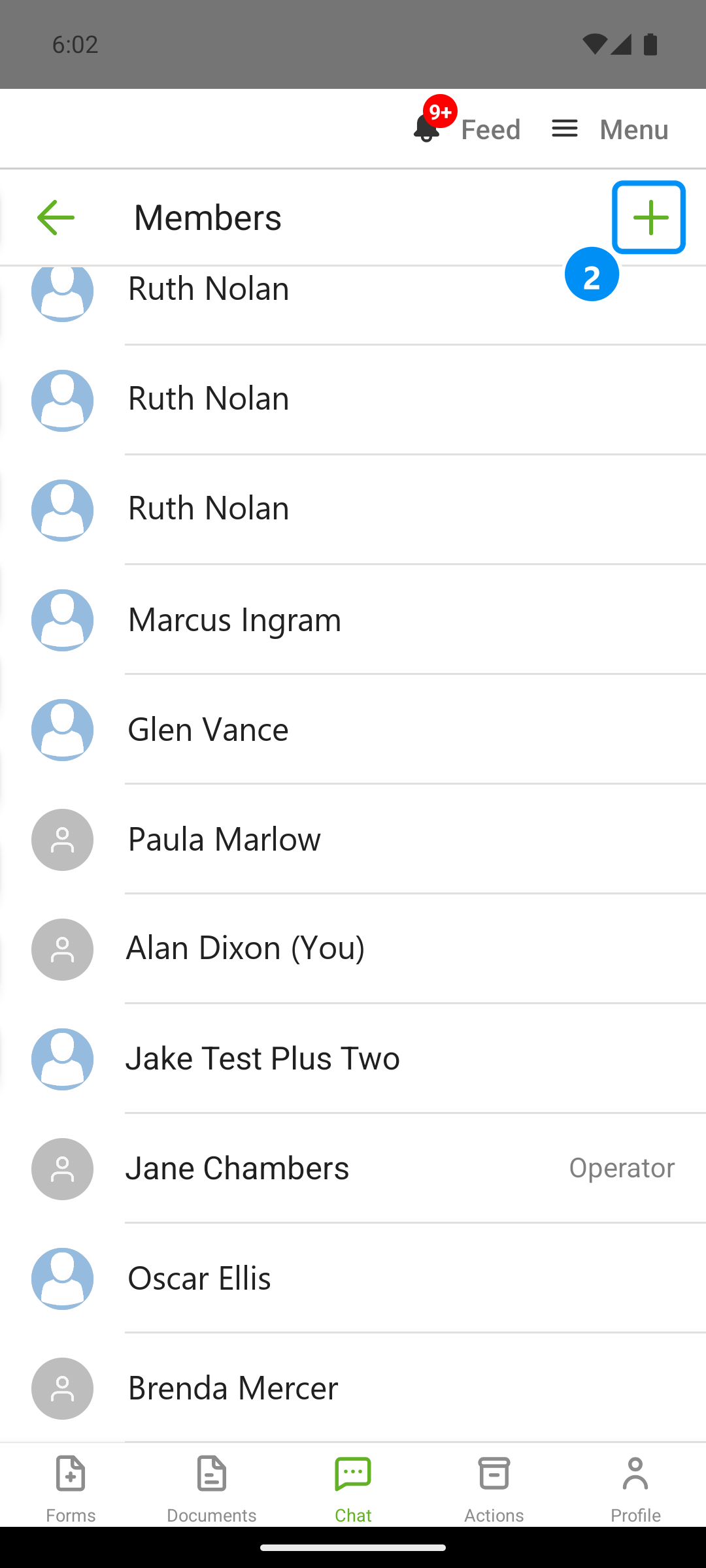
Add people from the Members list.
Reply in a thread and send voice messages
- Press and hold a message to see Reply or Reply in thread. A thread keeps the replies to one message together.
- To send a Voice message, tap the microphone beside the message box, speak, and send. Tap Cancel to throw it away.
The first time you record or attach a photo or video, the phone asks for the microphone or camera. If you said no before, you see Allow access?. Tap Go to settings and allow it for Safety Evolution.
Long videos are made smaller before they are sent, so they fit chat's upload limit.
Leave a chat
- In Channel information, tap Leave channel.
- The chat leaves your list. To join again, someone in it must add you.
Run a chat: mute, ban and freeze
Operators run a chat. You can see who they are in Members.
- In Channel information, tap Moderation. You see Operators, Muted members, Banned users and Freeze channel.
- To Mute, Ban or make someone an operator (Register as operator), go to Members, tap the menu beside their name and pick one. A muted person can read but not send. A banned person is removed and can't come back until unbanned.
- To stop everyone sending for a while, turn on Freeze channel. Everyone sees Channel is frozen. Turn it off to open the chat again.
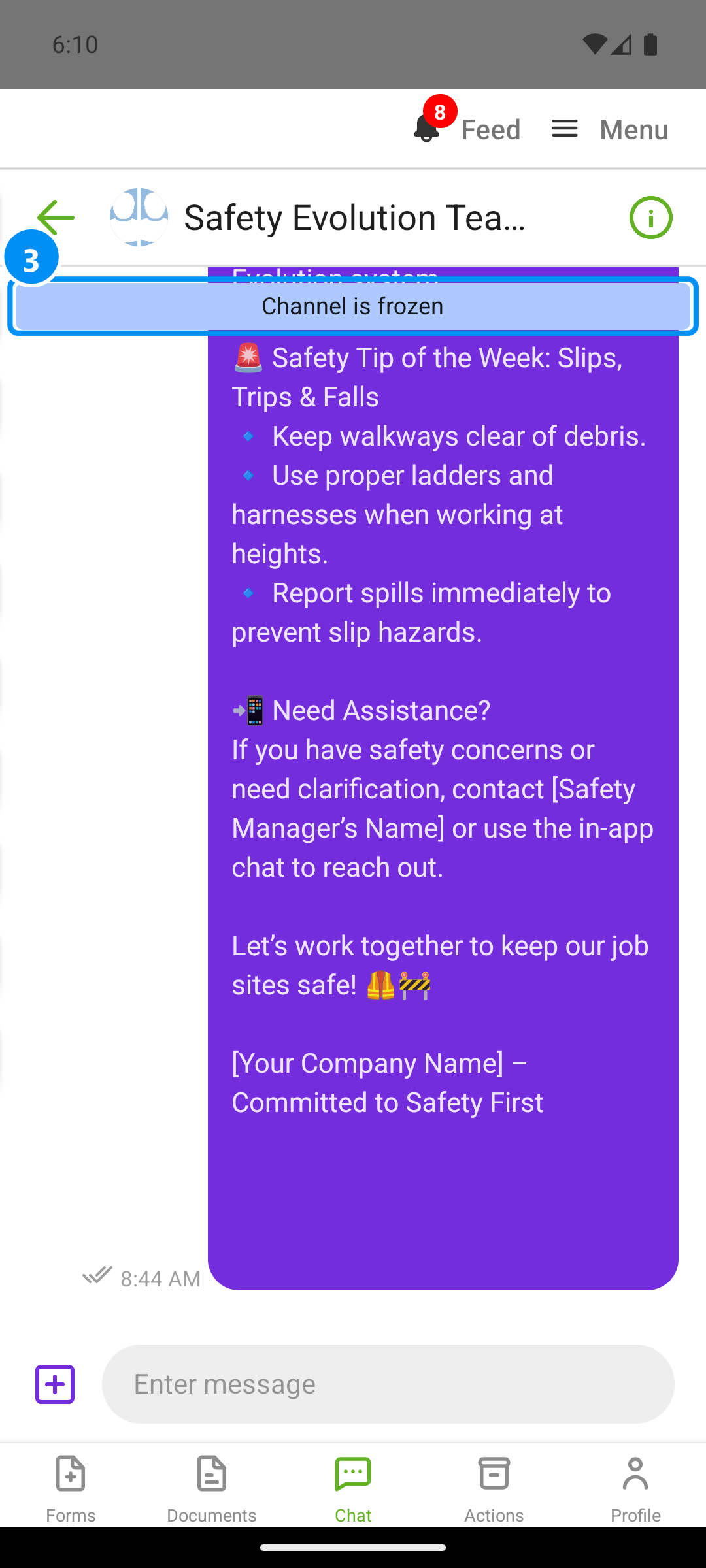
A frozen chat: no one can send until it is unfrozen. - To undo, open Muted members or Banned users and pick Unmute or Unban.
On the web
- Click Chat in the left menu and open a chat.
- Click the button at the top right of the chat. The settings open in a panel on the right, with the same choices as the phone.
If something goes wrong
- "Channel is frozen" or "Channel is frozen.": the chat's operator has frozen it. Wait, or ask them to unfreeze it.
- "Chat not available in this channel." in the message box: you can't send here, for example because you were muted. Ask the chat's operator.
- "Allow access?": tap Go to settings and allow the microphone, camera or storage for Safety Evolution.
- You don't see Moderation: you aren't an operator of this chat.
- "Something went wrong": check your signal and tap Retry.
Updated October 24, 2026