![side_logo.png]](/theme/site/shared/images/side_logo.png)
Build a form with AI
Describe the form you need and the AI Assistant drafts it, ready to check, save and publish or finish in the Form Designer.
Try it free Start with Safety Evolution's Free version.
Tell the AI Assistant what form you need, in your own words. It drafts the whole form for you: the questions, checklists, signatures and sections. You check the draft, change what you want, and save it. A form that took an afternoon to build takes a few minutes.
Before you start
- For owners, designates and admins.
- The AI Assistant comes with the Professional and Enterprise plans. Safety Evolution can also turn AI on for your company. Without either, the AI Assistant page shows Contact Us to Enable AI Agents.
- The Build with AI buttons in the Form Designer show only when Safety Evolution has turned AI on for your company. If your plan includes the AI Assistant but you don't see them, start from the AI Assistant instead.
Start building
Pick one of these ways.
From the Form Designer
- Click Company Settings, then Form Designer.
- Click Build with AI at the top of Form Designs. To start from a form you already have, open that form's Actions menu and click Build similar with AI.
- The AI Assistant opens and asks to build a new inspection form. Answer in the message box with what you need, and press Enter.
From the AI Assistant
- In the left menu, click AI Assistant.
- If your AI Assistant has a + button beside the message box, click it, then click Build a form. The box shows Building a form. Without the + button, start your message with "Build a form".
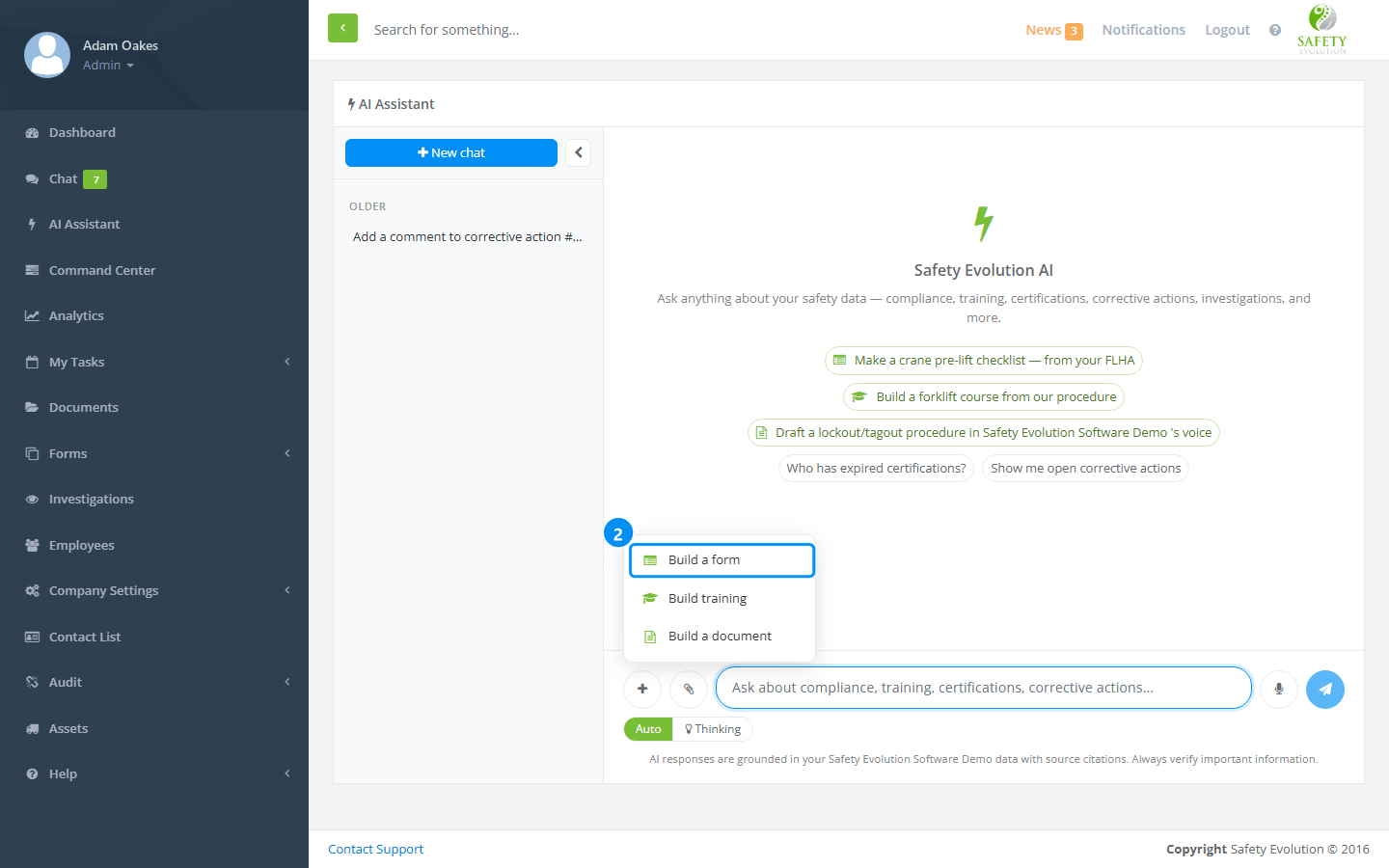
Pick Build a form. - Describe the form. Say what it is for and what it must ask. For example: "A daily pre-use inspection for scissor lifts, with a pass/fail checklist, hours reading and the operator's signature."
- Press Enter.
Check the draft and save it
How the draft shows, and what happens when you save it, depends on your AI Assistant. If it has the + button, follow "Save it as a draft". If not, follow "Save and publish it".
Save and publish it (no + button)
- The draft opens in the Build panel on the right, with a Draft tag and a list of its fields. The chat also shows Draft ready: with Open build panel to open it again. Nothing is saved yet.
- If the panel shows Grounded on:, those are the records the AI based the form on. Click one to check it.
- Read each field. Click a field's name to change the words. To change more, ask in the message box, for example "Add a section for the battery check".
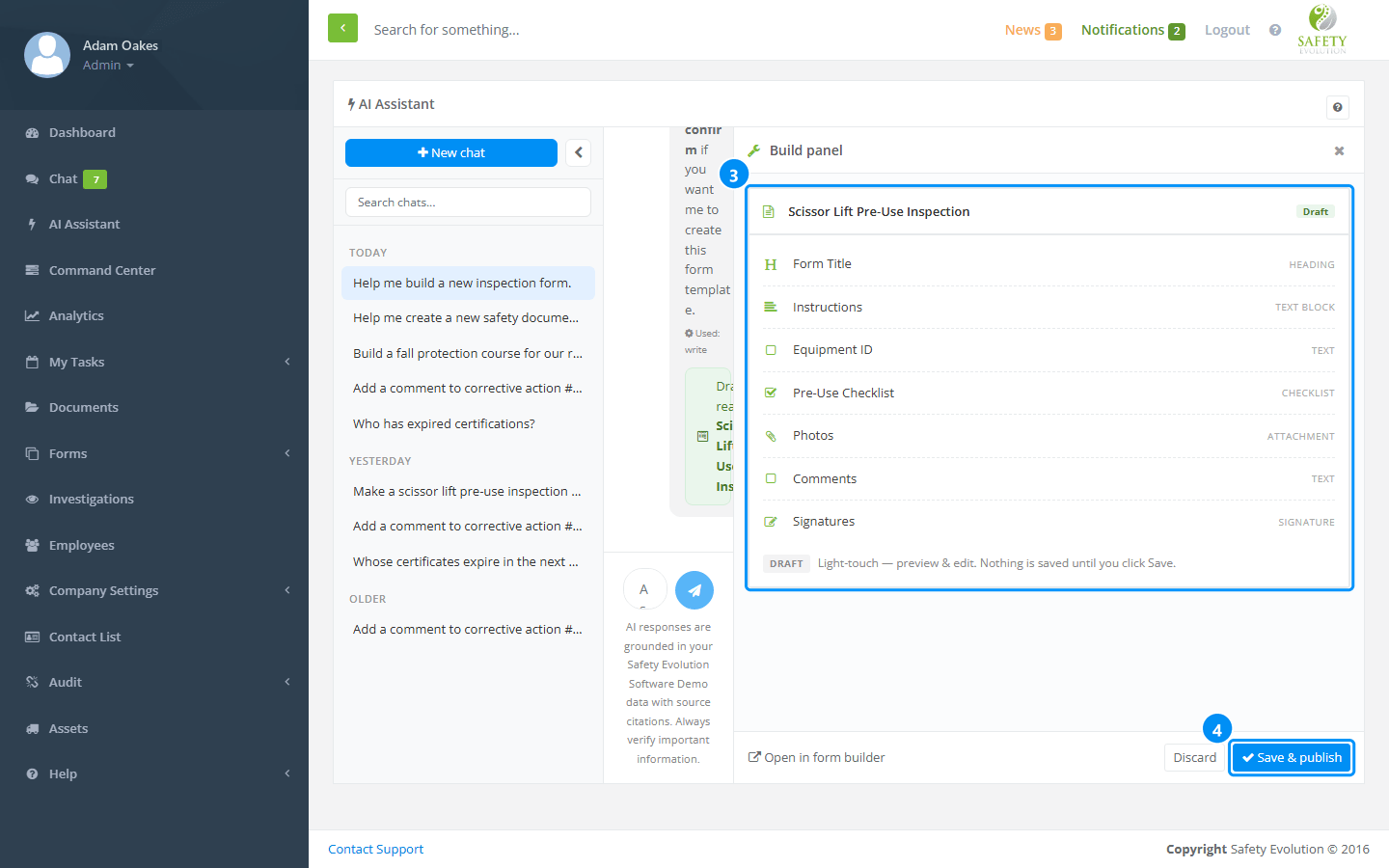
Check every field before you save. - When it looks right, click Save & publish. You see Published & ready to use, and the chat shows Form published.
Important: this publishes the form straight away. Workers can start it from Company Forms right after you click. Read every field first.
Save it as a draft (+ button)
- The draft shows as a card in the chat, with a Draft tag, a list of its fields and the line AI-built forms save as an editable draft in the Form Designer. Click Expand to see it full screen.
- Read each field. Click a field's name to change the words, or ask in the message box for bigger changes. The same card updates.
- Click Save draft. You see Saved as draft — with Open in Form Designer, and the chat shows Form saved as draft.
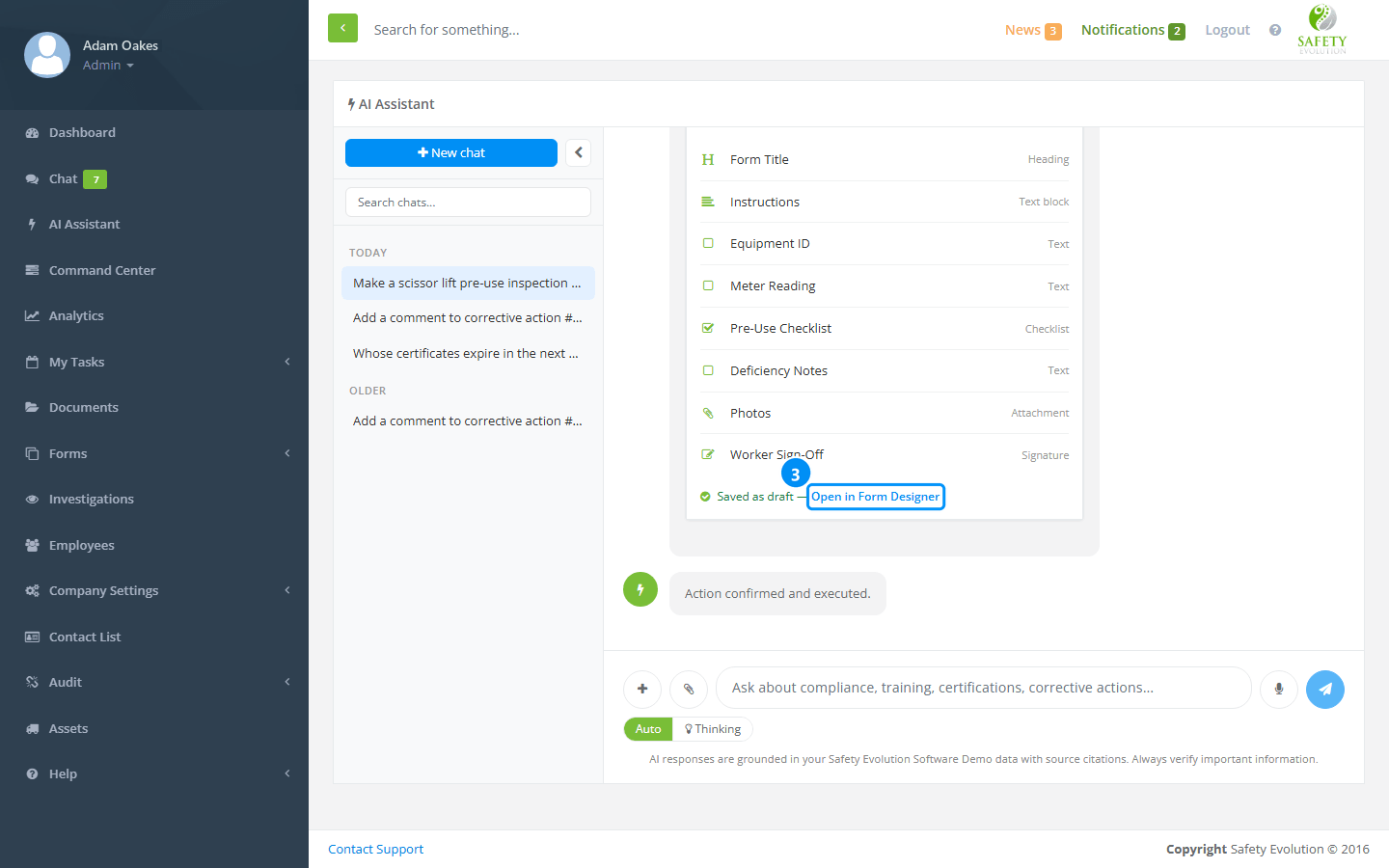
Open the draft in the Form Designer to publish it. - Click Open in Form Designer. Check the form and finish it.
- Click Publish Form. You see Published. Workers can now start it from Company Forms.
Other things you can do
- To throw the draft away, click Discard. Nothing is saved.
- To build the form by hand instead, click Open in form builder (or Open in Form Designer on the card).
- You can change an AI-built form later like any other form, in the Form Designer.
If something goes wrong
- No Build with AI button in the Form Designer: Safety Evolution hasn't turned AI on for your company. Start from the AI Assistant, or contact us to turn it on.
- "Couldn't save the form. You can finish it in the form builder.": the form wasn't saved. Click save again, or build it in the Form Designer.
- "The generated form structure is malformed and was not saved.": the AI built a form Safety Evolution couldn't read. Ask it to build the form again.
- For other AI messages, see When AI is busy, limited or unavailable.
Updated October 24, 2026