![side_logo.png]](/theme/site/shared/images/side_logo.png)
AI Assistant
Ask the AI Assistant about your company's safety data, attach a file, approve the actions it proposes, and have it build forms, training and documents.
Try it free Start with Safety Evolution's Free version.
The AI Assistant answers questions about your company's own safety data: compliance, training, certificates, corrective actions, investigations and more. It shows where each answer came from. It can also take the next step for you once you approve it, and build forms, training courses and safety documents in minutes.
Before you start
- For owners, designates and admins.
- The AI Assistant comes with the Professional and Enterprise plans. Safety Evolution can also turn AI on for your company. Without either, the page shows AI Safety Agents and a Contact Us to Enable AI Agents button.
- Some companies' AI Assistant has extra buttons beside the message box: + to build things, a paperclip to attach files, a microphone and an Auto / Thinking switch. Safety Evolution turns these on for your company. This article says when a step needs them.
Ask a question
- In the left menu, click AI Assistant.
- Type your question in the box at the bottom, for example "Whose first aid certificates expire in the next 60 days?" Or click one of the suggestions on the welcome screen.
- Press Enter to send. Most answers take a few seconds. A big question can take up to 2 minutes.
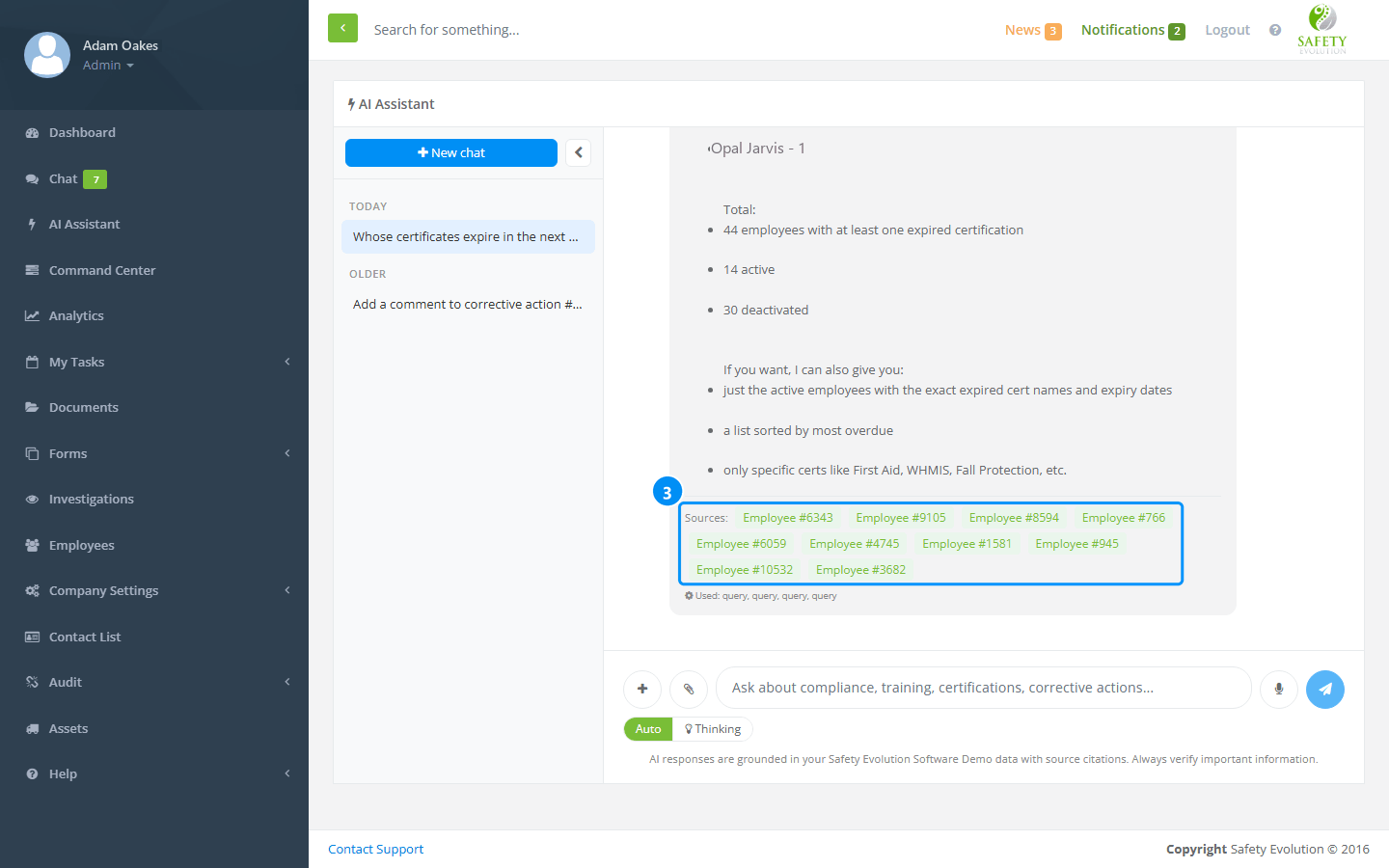
Each answer lists its sources. - Read the answer. Under Sources: it shows where the answer came from. Click a source to check it.
If your AI Assistant has the extra buttons:
- Leave Auto on for everyday questions, or pick Thinking when the question needs more careful work.
- To speak instead of typing, click the microphone (Dictate). It shows in browsers that support speech, such as Chrome.
Ask about a file
If your AI Assistant has the paperclip:
- Click the paperclip (Attach a file). You can add a PDF, a picture, a Word, Excel or PowerPoint file, or a text or CSV file, up to 25 MB.
- Wait for the tick on the file's name. Then type what you want to know about it and press Enter.
See The AI Assistant and your company's data for what happens to files you attach.
Have it take the next step
Ask the AI Assistant to do something, such as add a comment to a corrective action or enroll a worker in a course. It shows a Proposed Action card first. Nothing happens until you click Confirm. Click Cancel to drop it.
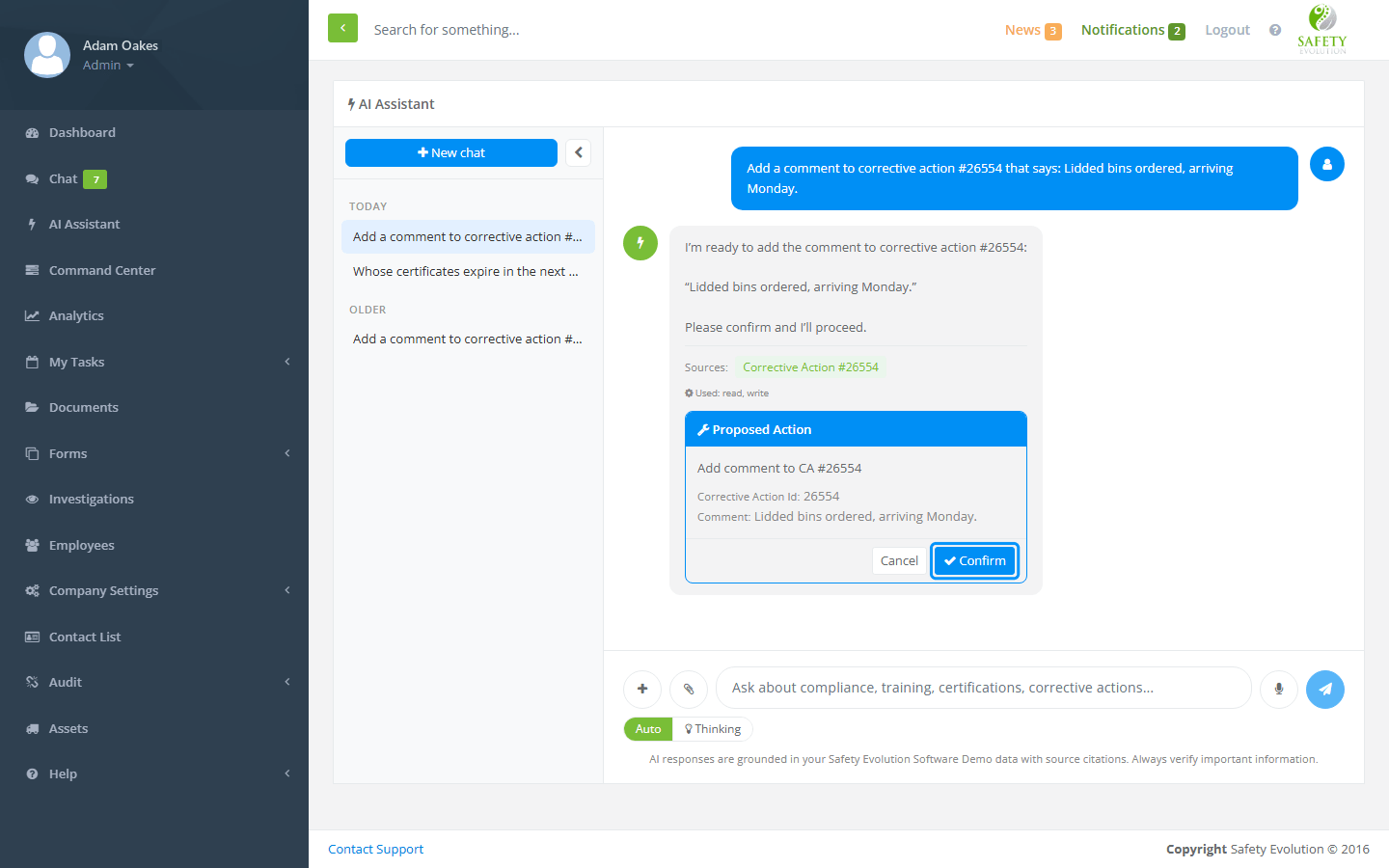
See Approve or cancel what the AI Assistant proposes.
Build a form, training or a document
Describe what you need and the AI drafts it for you to check. Nothing is saved until you click save.
- With the + button: click +, then Build a form, Build training or Build a document, and describe it.
- Without it: ask in your own words, for example "Build a form for…" or "Build a training course on…".
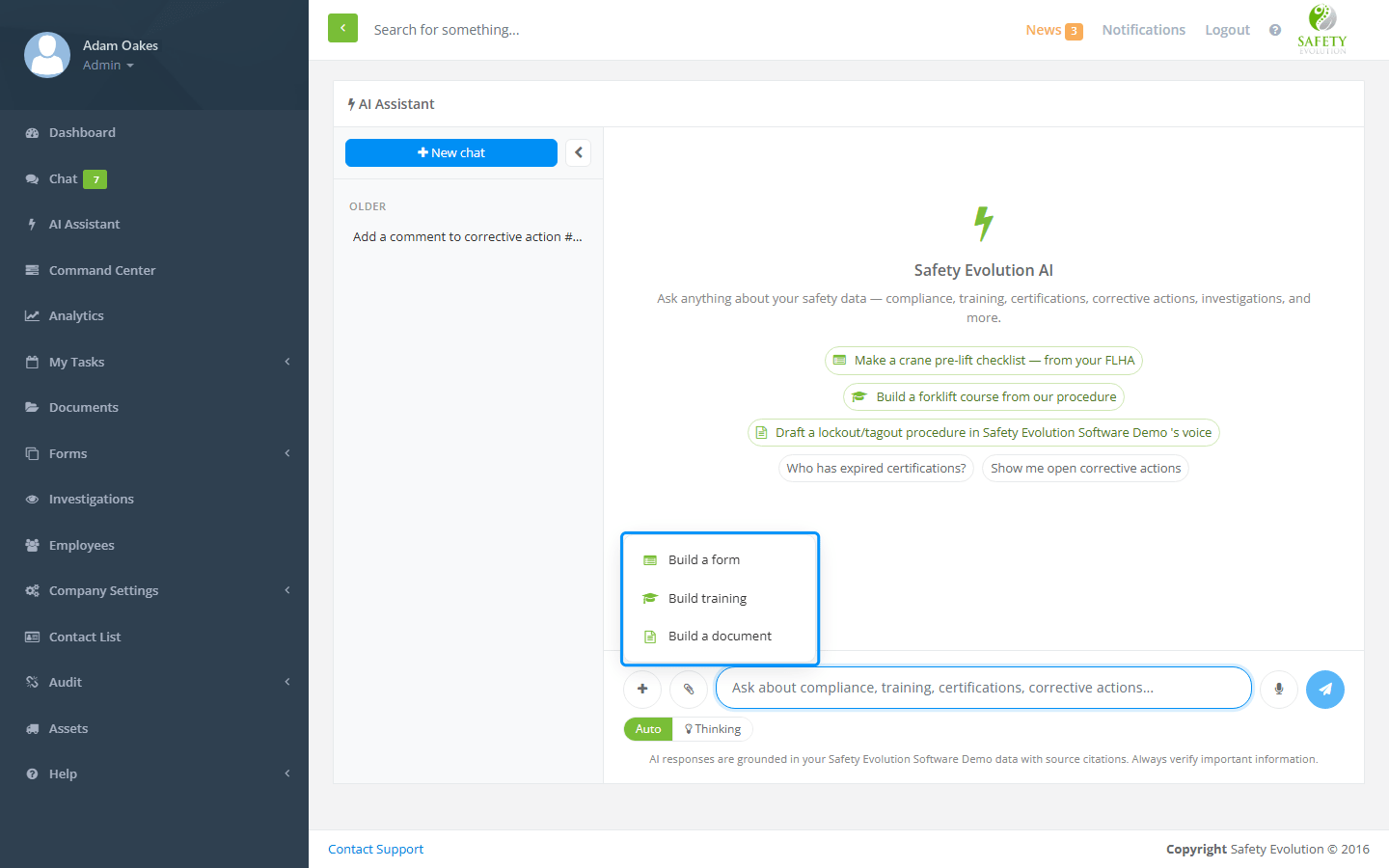
Each one has its own article:
- Build a form with AI
- Build a training course with AI
- Write a safety document with AI
Your past chats
- Your chats are listed on the left. Click one to open it. Only you see your chats.
- Click New chat to start fresh.
- Once you have more than three chats, use Search chats... to find one.
- Beside a chat, click the pencil (Rename) or the bin (Delete). A deleted chat is hidden from you but kept for compliance.
The AI Assistant and SE Help
The AI Assistant works with your company's data. For questions about how to use Safety Evolution, ask SE Help instead. See Get help: SE Help in chat and contacting support.
Get help on this screen
Click the ? at the top of the AI Assistant page to open this article in a side panel.
If something goes wrong
- The page shows Contact Us to Enable AI Agents: AI isn't on for your company. It comes with the Professional and Enterprise plans. Click the button to contact us.
- "AI Assistant is available for management users.": only owners, designates and admins can use it.
- No + button or paperclip: Safety Evolution hasn't turned these on for your company. You can still ask questions and ask it to build things in your own words.
- For busy, limit and file messages, see When AI is busy, limited or unavailable.
Updated October 24, 2026