![side_logo.png]](/theme/site/shared/images/side_logo.png)
Fix an action item assigned to you
Open an action item that was given to you, add photos, comments and costs, and mark it fixed on the phone or the web.
Try it free Start with Safety Evolution's Free version.
An action item is a problem someone found that needs fixing, such as a damaged guard or a missing sign. When it is given to you, you fix it and mark it Resolve. A site supervisor then checks it and closes it.
How an action item moves
Pending (not given to anyone yet) → Processing (given to you) → Corrected (you fixed it) → Closed (a supervisor checked it). If the fix was not right, it goes to Reverted and back to the supervisor.
Fix it on the phone
- Tap the Actions tab at the bottom of the screen.
- Tap the action item. Use Search... if the list is long.
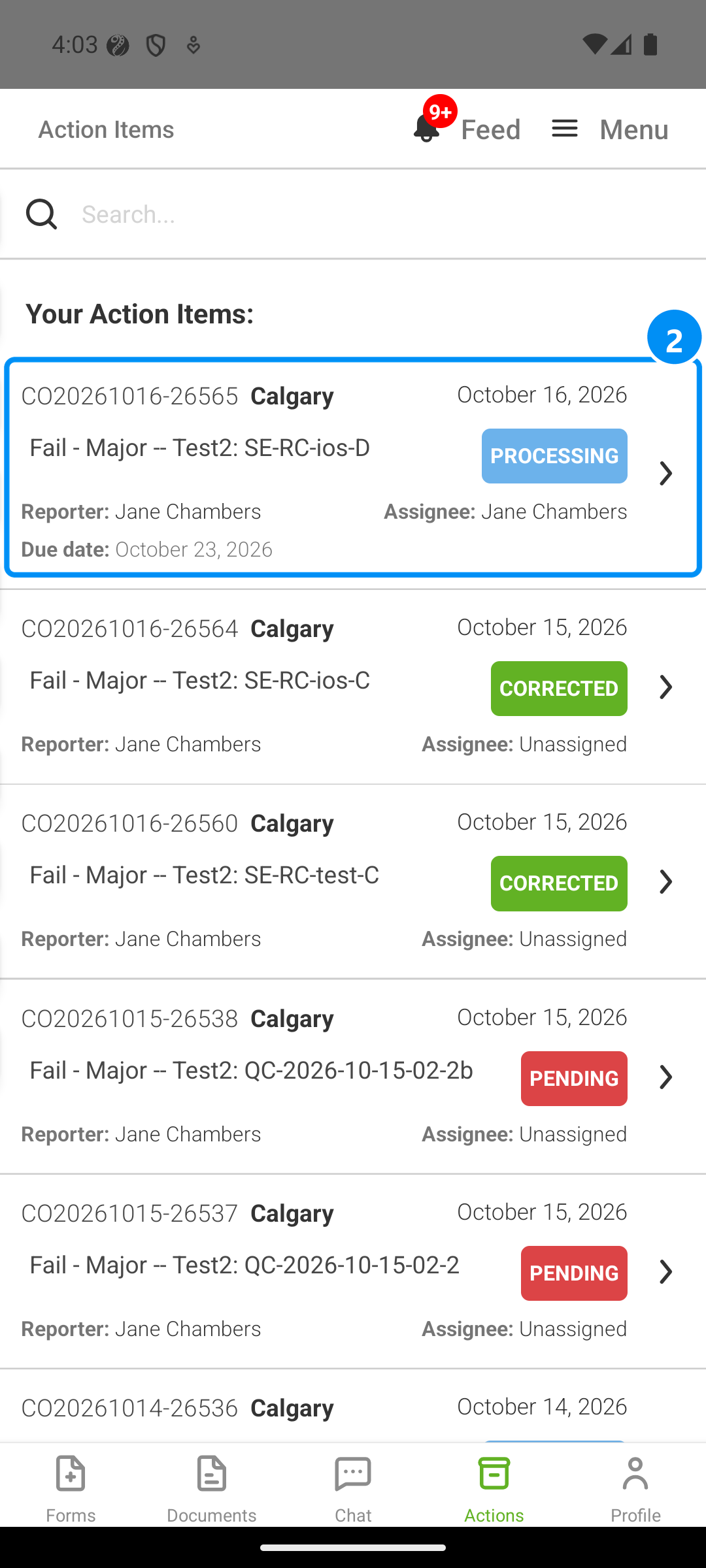
Your action items on the phone. - Read the Deficiencies. That is what needs fixing.
- Fix the problem.
- To add a photo, tap Attachments, then Add File. Tap Take Photo or Upload File.
- To say what you did, tap Comments. Type in Enter Comment Here, then tap Add Comment.
- To record what it cost, tap Costs, fill in the lines, then tap Save Costs.
- Tap Resolve. The status changes to CORRECTED.
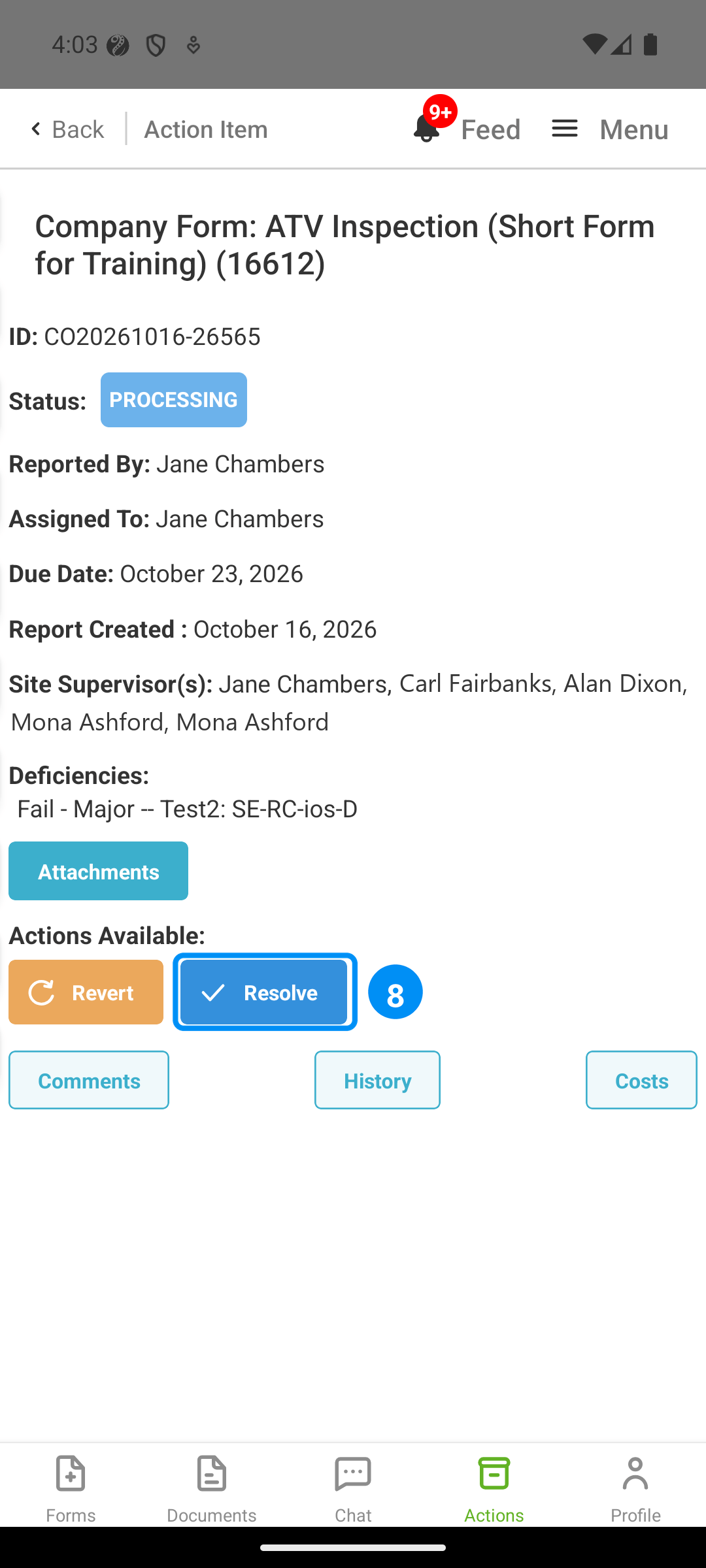
Tap Resolve when it is fixed.
Fix it on the web
- In the left menu, click My Tasks, then Action Items.
- Click the action item's ID to open it.
- Read the Deficiencies, then fix the problem.
- To add a photo or file, drag it onto the box beside Attachments, or click the box to pick a file.
- To say what you did, type in Enter comment here on the Comments tab, then click Add Comment.
- To record what it cost, open the Cost Tracker tab. Fill in Expense Title, Description, Classification and Cost. Click Save Costs.
- Under Actions Available:, click Resolve.
- Click OK when it asks "Are you sure?".
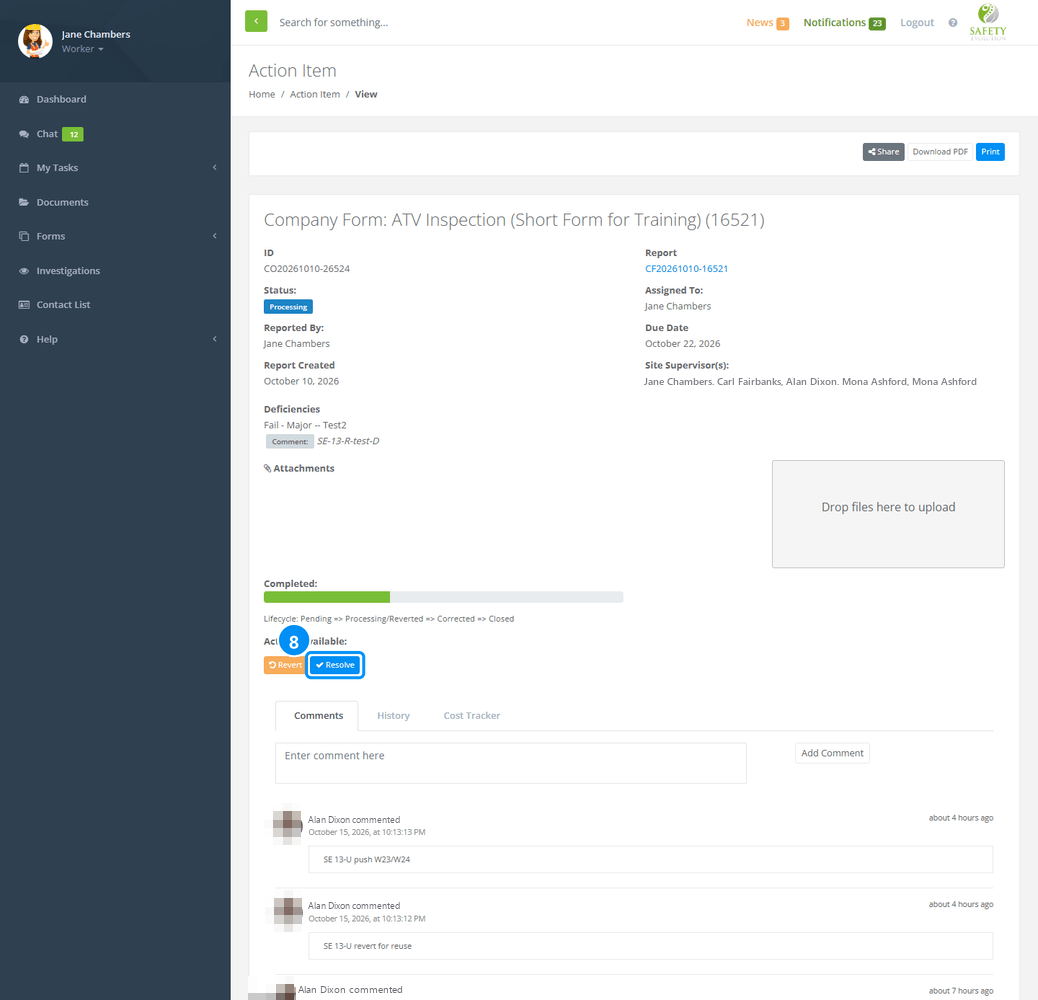
The Action Item page on the web.
Send it back with Revert
If you cannot fix it, or it was given to the wrong person, send it back to the site supervisor.
- Click or tap Revert.
- Type the reason. On the web the box says "Explain reason(s) for reverting".
- Click or tap Revert again. The site supervisors are told to look at it.
Notices you get
- When an action item is given to you, you get a notification. On the phone, tap it to open the item.
- If it is still not fixed after its due date, you and the site supervisors get "Corrective Action is past due." once.
If something goes wrong
- "No internet connection. The file was not attached. Try again when you have signal.": photos and files need signal. Try again when you have it.
- "This file is too large to attach ... The limit is 15 MB.": on the phone, a file can be up to 15 MB. Pick a smaller one.
- You do not see Resolve: only the person the item is given to can resolve it, and only while it is Processing.
- The phone shows a reason and does not save: you are not allowed to make that change. The message says why. Ask your site supervisor.
Updated October 24, 2026