![side_logo.png]](/theme/site/shared/images/side_logo.png)
When the office reopens, edits, hands in or voids your form
What you see on the phone when the office sends a form back to you, changes it, hands it in for you or voids it, and how the office reopens a form.
Try it free Start with Safety Evolution's Free version.
Sometimes the office needs to change a form you handed in, or finish one you started. This article shows what you see on your phone when that happens. It also shows the office how to send a form back to a worker.
Before you start
- You need the newest version of the Safety Evolution app.
- Your company needs this turned on. If you don't see the messages below, ask your office.
The office sends a form back to you (reopen)
- You get a phone notification that says the office person's name, reopened, and the form name. It also shows the office's comment.
- Tap the notification. The form opens so you can change it.
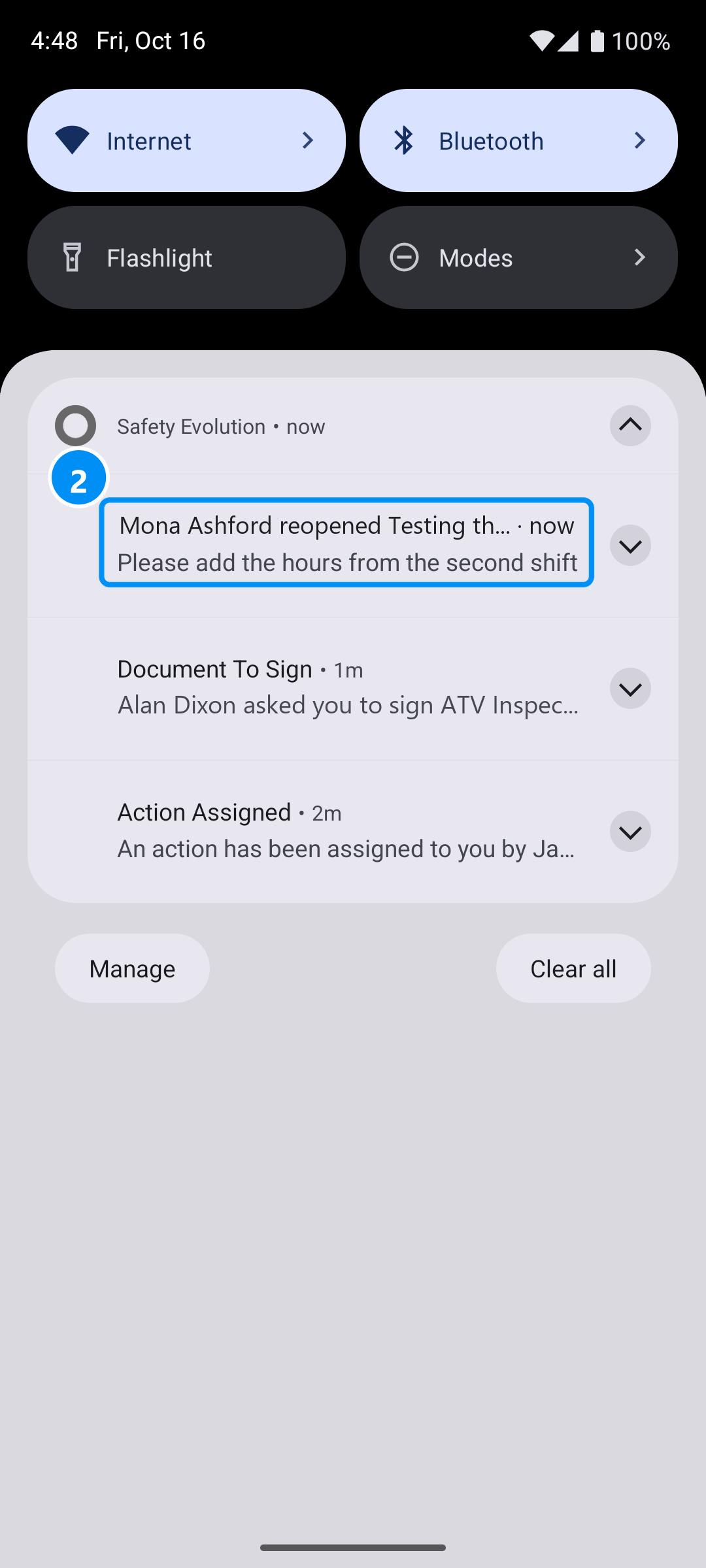
The notification shows who reopened the form and why. - No notification? Open the Forms tab and pull down. The form shows in your drafts with Reopened by, the person's name and their comment.
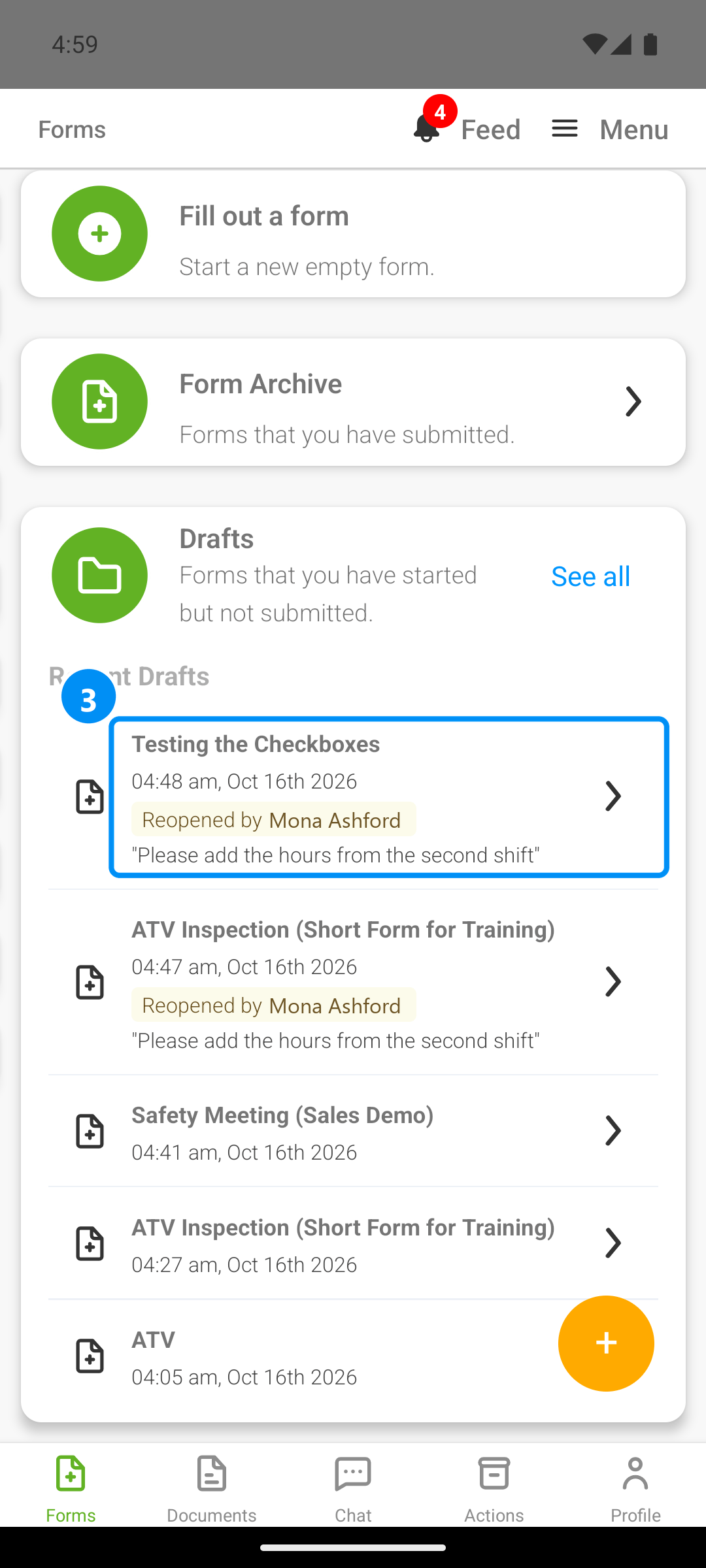
Read the comment to see what the office wants changed. - Tap the form. Make the changes the office asked for.
- Tap Hand In.
The office changes a form
- A form you handed in: open it from the Form Archive while you have signal. You see the office's answers.
- A draft you have not handed in: when you open it, the office's answers replace yours. You see a line like "Anna Lee changed this form on Oct 15 from the office."
- A draft you have open while the office changes it: the form reloads with the office's answers. You see "The office changed this form. Check your last answer."
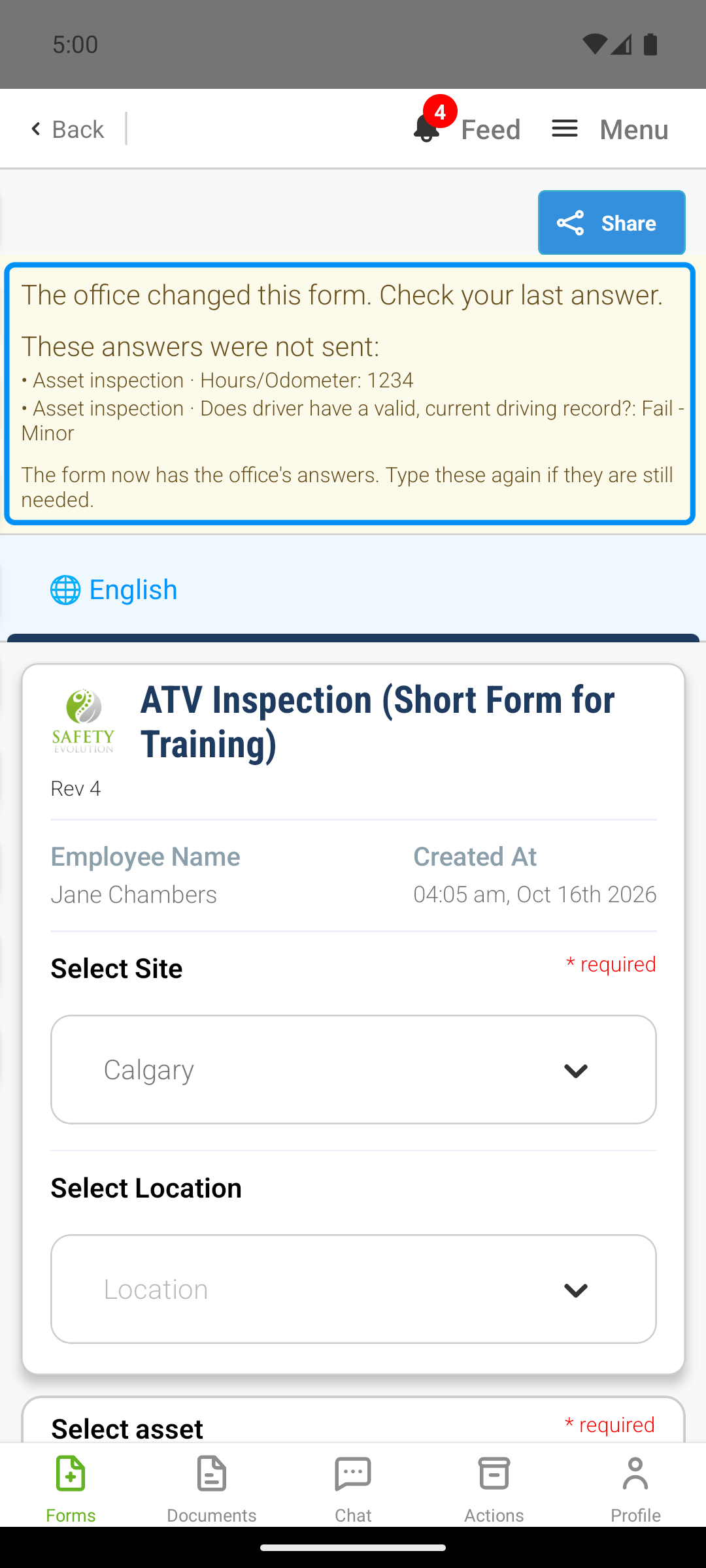
Check the answers listed under These answers were not sent.
If any of your answers were replaced, they are listed once under These answers were not sent:, with "The form now has the office's answers. Type these again if they are still needed." Type back any you still need, then hand the form in.
The office hands in your draft for you
- When you open the draft, or tap Hand In, you see a line like "Anna Lee handed in this form on Oct 15 from the office." The step Checking with the office is where Hand In finds this.
- Any answers on your phone that did not reach the office are listed under These answers were not sent:, with "Ask the office to reopen it if these are needed."
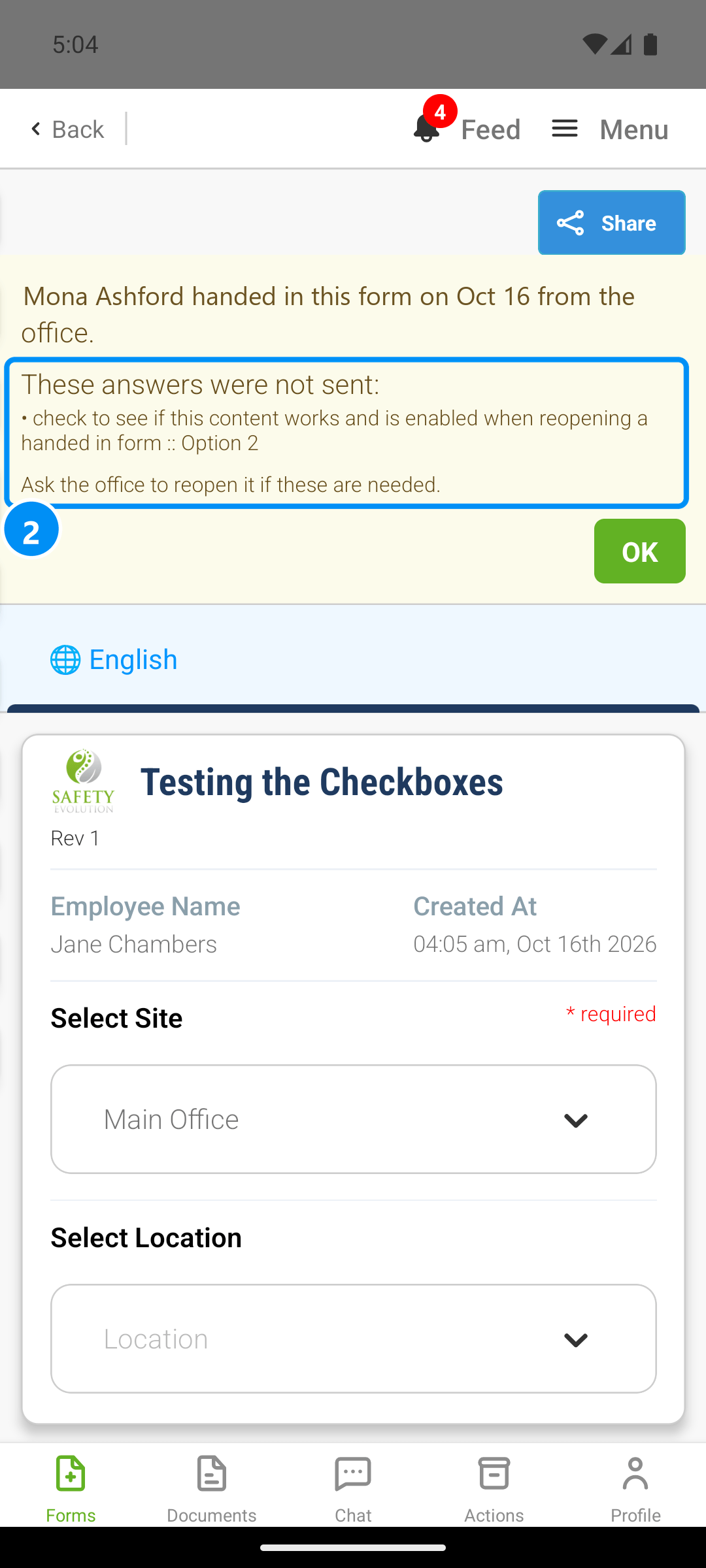
The office already handed this form in. - Tap OK. The form moves to your Form Archive.
The office voids your draft
- When you open the draft, you see a line like "Anna Lee voided this form on Oct 15: wrong site." and "It has been removed from Drafts."
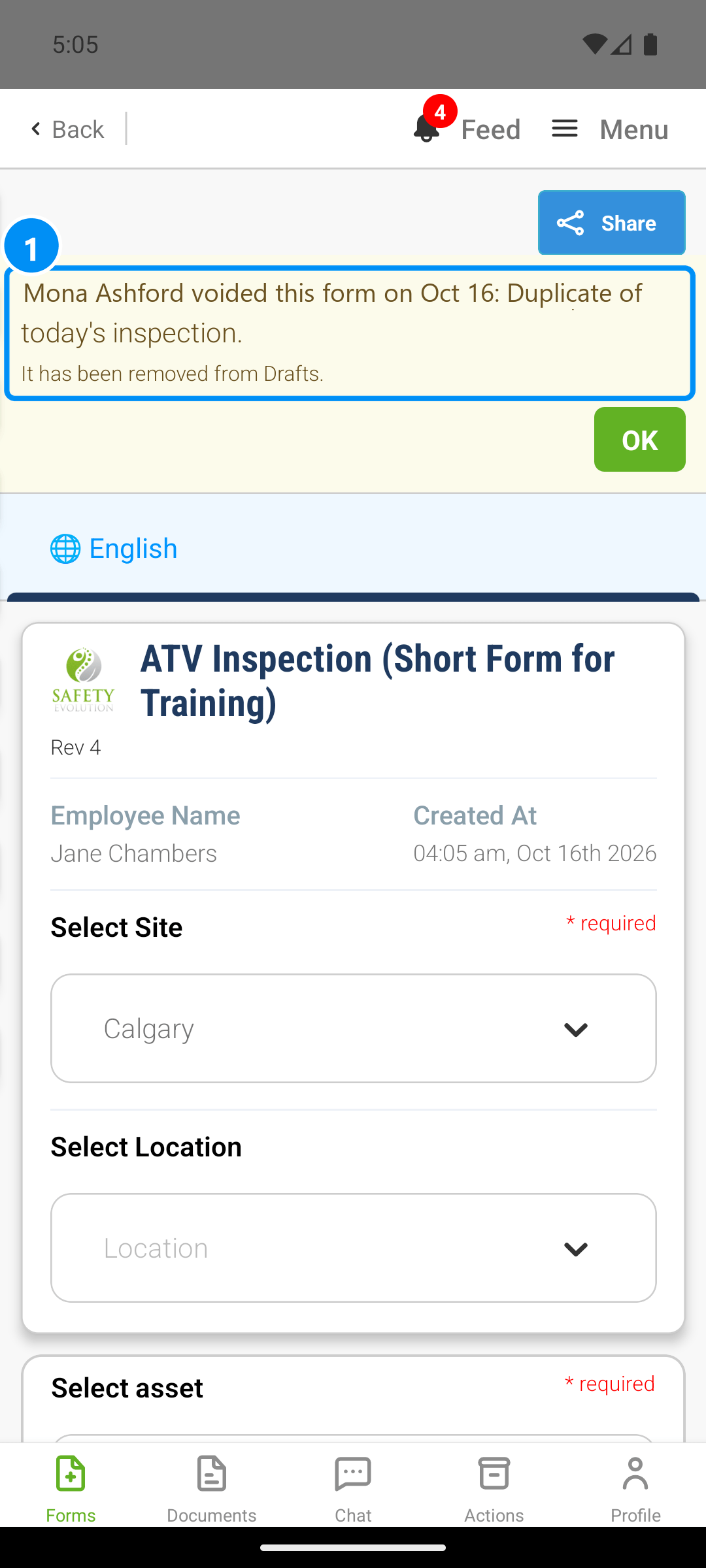
A voided form is removed from your drafts. - Tap OK.
Forms waiting to be sent (handed in with no signal)
If you handed a form in with no signal and the office handed it in first, the Form Archive row says so. Tap the row to see the answers that were not sent. If the row says "The office changed this form. Open it to check your answers and hand it in again.", tap it, check your answers and tap Hand In.
For the office: send a form back to a worker
Owners, designates and admins can reopen any handed-in form. Workers can reopen their own.
- On the web, click Forms, then Company Forms.
- Find the handed-in form. Under Actions, open the menu and click Reopen.
- The Reopen Form window opens. Type the reason in Comment. The worker sees this comment on the phone.
- Check the line "… will see this form in their Drafts on the phone." It names the worker.
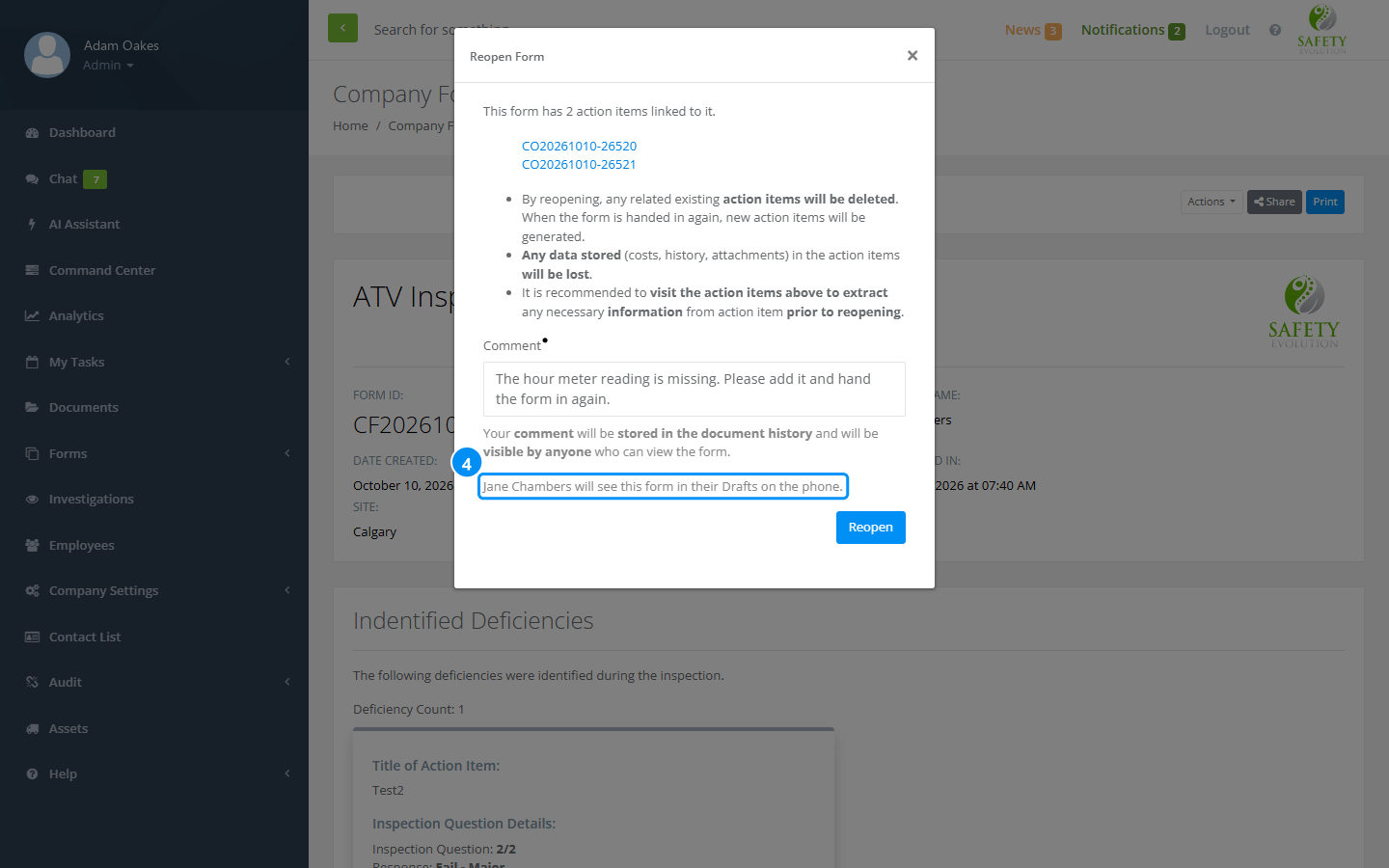
The worker gets a notification with your comment. - Click Reopen.
Before you reopen: reopening deletes the action items made from this form, with their costs, history and files. New action items are made when the form is handed in again. The window lists the action items so you can open them first.
Updated October 24, 2026