![side_logo.png]](/theme/site/shared/images/side_logo.png)
Why can't I hand in? Hand-in messages and what to do
What each message means when a form won't hand in on the phone or the web, and what to do so it reaches the office.
Try it free Start with Safety Evolution's Free version.
When a form won't hand in, the phone or the web tells you why. This article lists every message, what it means and what to do, so your form reaches the office.
Before you start
- Your answers are safe on the phone while you sort this out. Nothing you typed is lost when Hand In fails.
- To fill in a form from the start, see Fill in and hand in a form on the phone or on the web.
On the phone
- Tap Hand In at the bottom of the form. A window works through the steps: Checking internet connection, sometimes Checking with the office, then Uploading Files and Submitting form.
- If a step fails, it gets a red cross. A red bar under the steps shows the message, with a Retry button. Find the message in the table below.
- A required question is empty. The message is One or more required questions were not answered. Tap Cancel. The form scrolls to the first empty required question.
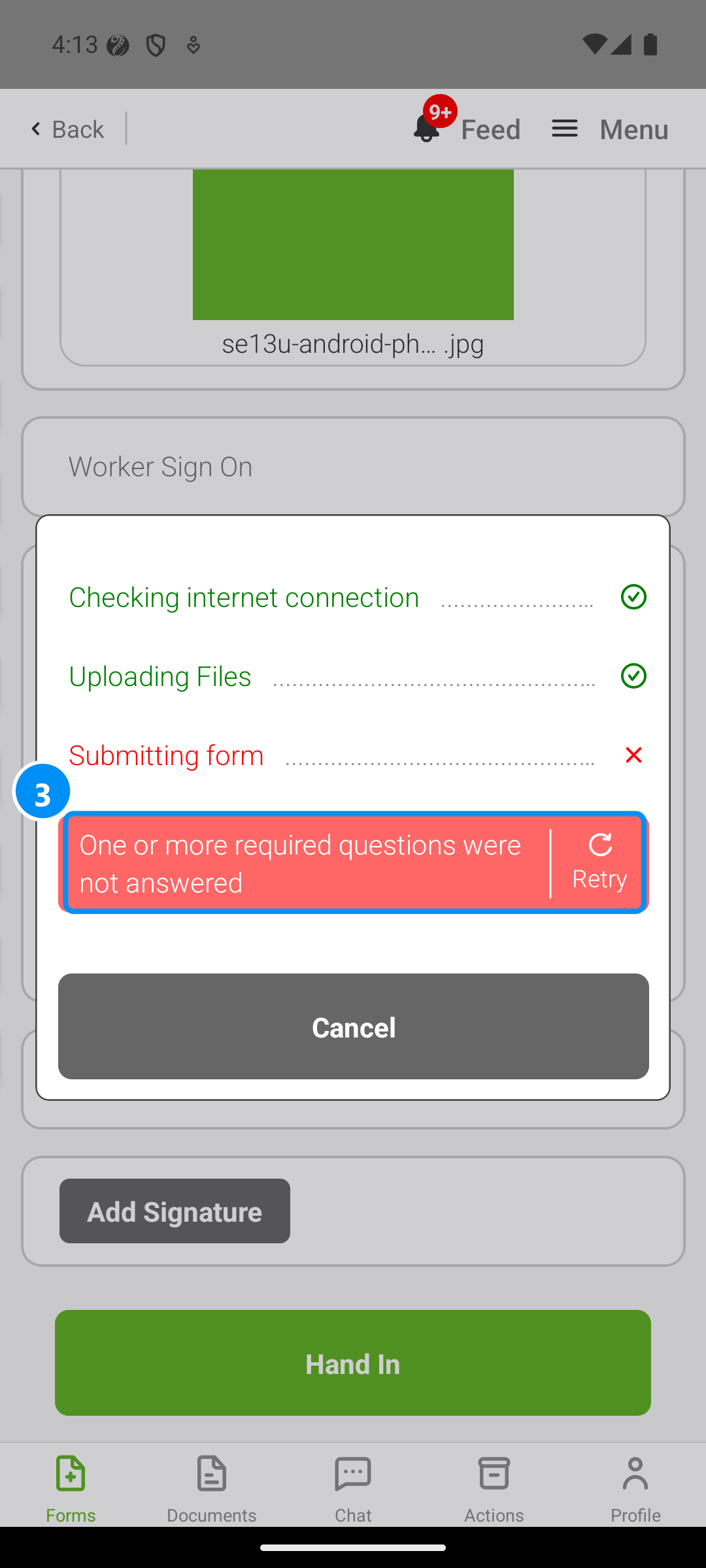
Tap Cancel to go to the empty question. - No site picked. The same message shows. When you tap Cancel, the form scrolls to the top so you can pick the site. Tap Select Site, pick it, then tap Hand In again.
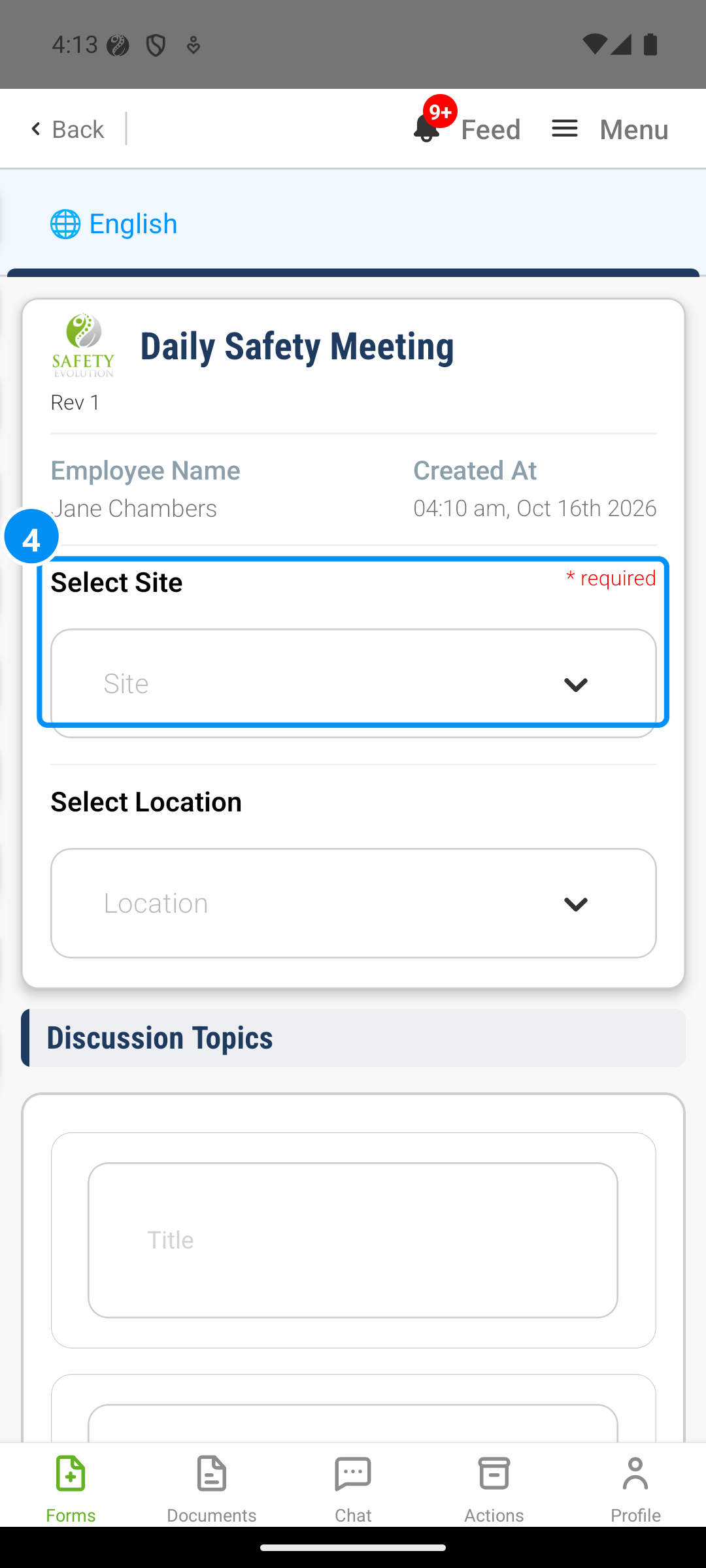
Every form needs a site. - No connection. The first step fails with You are not connected to the internet or Can't reach Safety Evolution right now. Tap Retry when you have signal. Or tap Mark as submitted: the form waits on your phone and sends the next time you open Form Archive with signal. See Working with no signal.
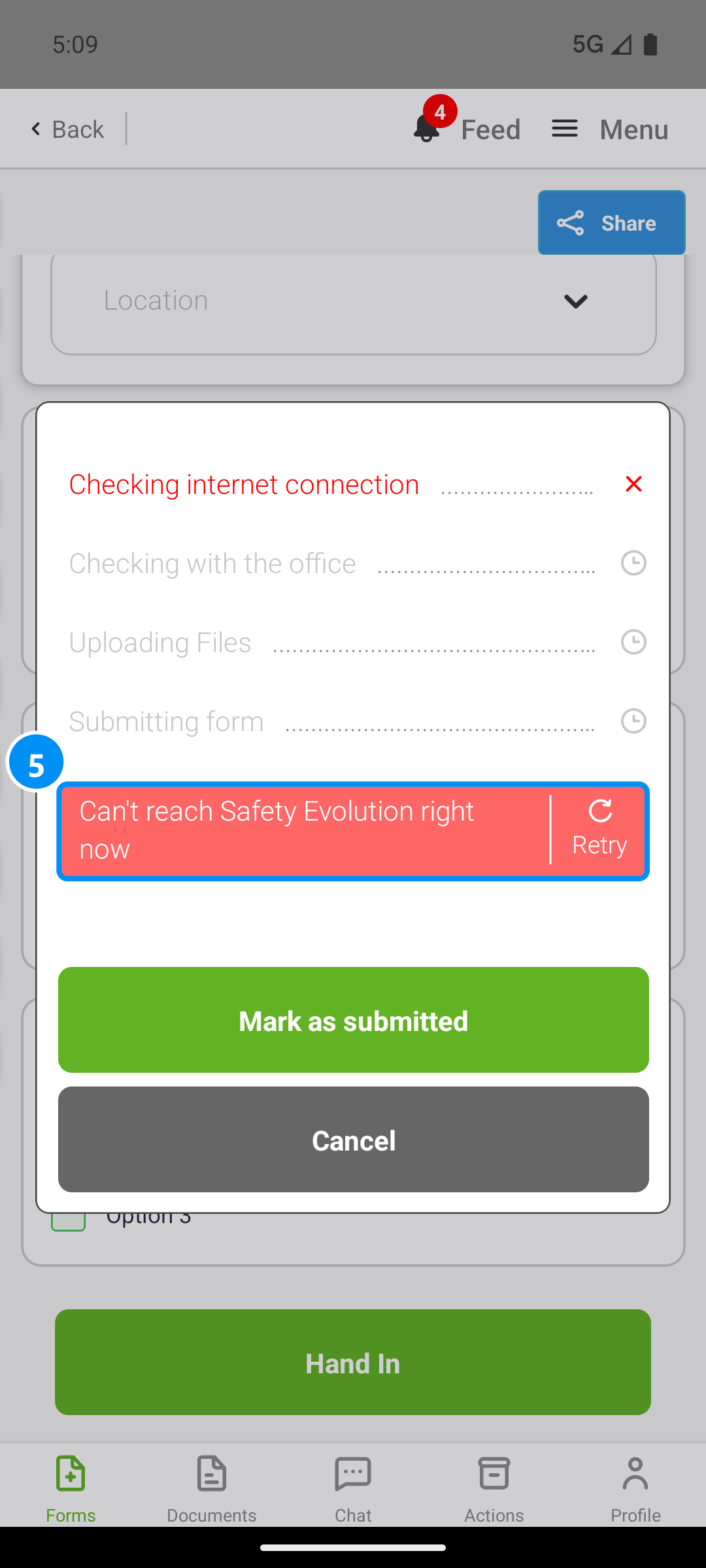
Mark as submitted only shows when the connection check fails. - The office changed the form. The window closes. The form reloads with the office's answers and a line at the top says The office changed this form. Check your last answer. Any of your answers that were not sent are listed under These answers were not sent:. Type them again if they are still needed, then tap Hand In. See When the office reopens, edits, hands in or voids your form.
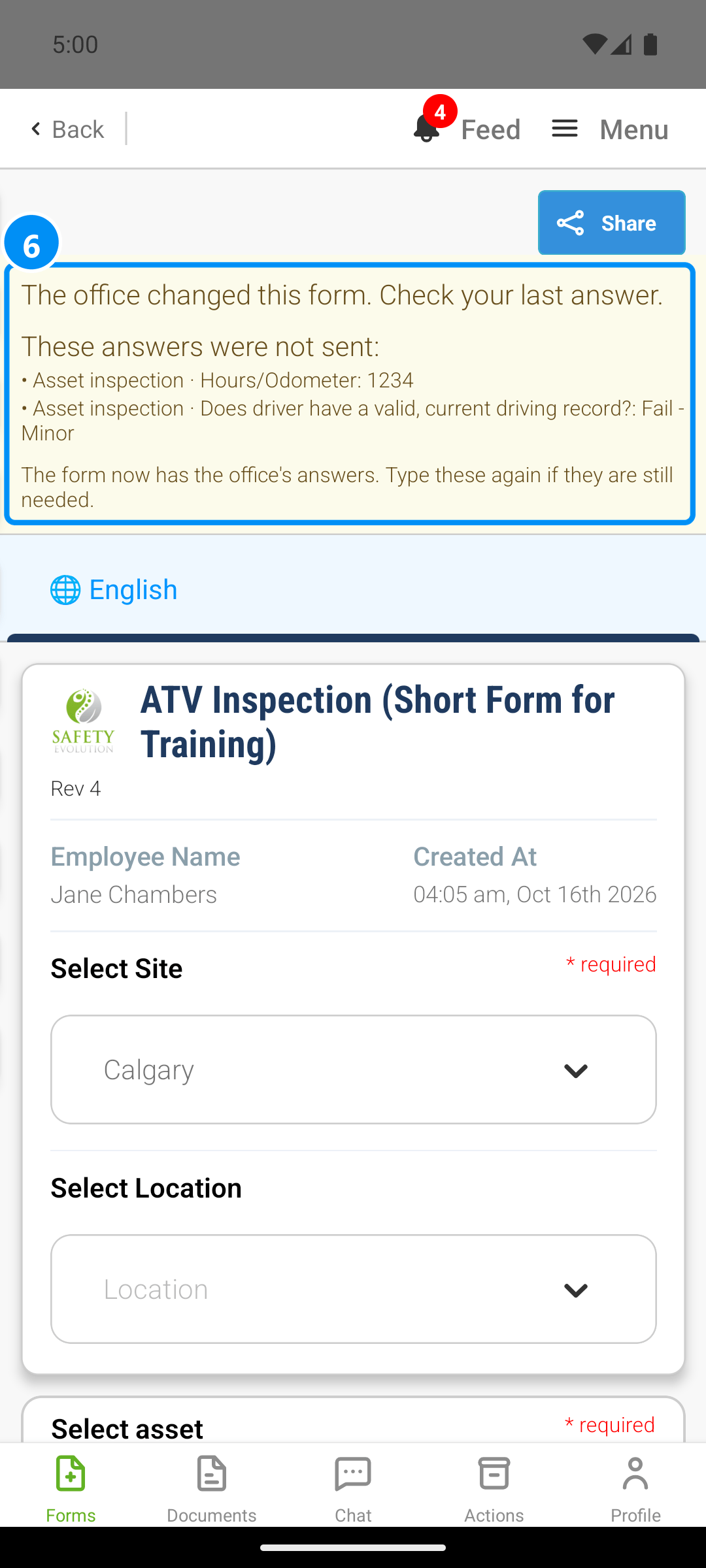
Check the office's answers, then hand in again.
Phone messages
| Message | Why | What to do |
|---|---|---|
| One or more required questions were not answered | A question marked * required is empty, or no site is picked. This includes a required toolbox talk you haven't picked, an inspection item you haven't marked, a missing Hours/Odometer on an equipment inspection, and a required file question with no file. | Tap Cancel. The form scrolls to what is missing. Answer it, then tap Hand In. |
| One or more required questions were not answered. (ends with a full stop) | Safety Evolution turned the form down when it arrived. | Tap Cancel and check your answers. Tap Hand In again with good signal. If it keeps happening, ask your office whether the form was closed on the web. |
| You are not connected to the internet | Your phone has no signal or Wi-Fi. | Tap Retry when you have signal, or Mark as submitted to send it later from Form Archive. |
| Can't reach Safety Evolution right now | Your phone has a connection, but Safety Evolution did not answer within 5 seconds. | Wait a minute and tap Retry, or tap Mark as submitted. |
| The office changed this form. Check your last answer. | Someone in the office changed the form after you opened it. | Read the office's answers and the list under These answers were not sent:. Fix what's needed, then tap Hand In. |
| A name, handed in this form on a date, from the office. | The office handed the form in for you. | Tap OK. The form is with the office. Any answers of yours that were not sent are listed once. |
| A name, voided this form on a date, sometimes with a reason, and It has been removed from Drafts. | The office cancelled the form. | Ask your office if you still need to report this. Start a new form if they say so. |
| The office may have closed or changed this form. Try again when you have signal. | Safety Evolution turned the form down, and the phone couldn't check why. | Move to where you have signal and tap Retry. |
| Failed to upload file | A photo, video or file didn't reach the office. The signal may have dropped, or the file is no longer on the phone. | Tap Retry with good signal. If it fails again, tap Cancel, remove the file with the red X and add it again. See Add photos, videos and files to a form. |
| An unhandled error occurred | Something unexpected went wrong. | Tap Retry. If it keeps happening, contact support. |
| A fatal error has occurred and we're unable to proceed with your request. Please contact customer support if the problem persists. | The phone could not find this form's saved copy. | Tap Cancel, go back to Drafts and open the form again. If it happens again, contact support. See Get help. |
Mark as submitted only shows when the first step, Checking internet connection, fails. For every other message, fix the problem and tap Retry or Hand In again.
On the web
On the web, handing in takes two clicks: Save Draft, then Hand In.
- Pick the site at the top of the form. Until you do, Save Draft is greyed out and a red line says Please select the site.
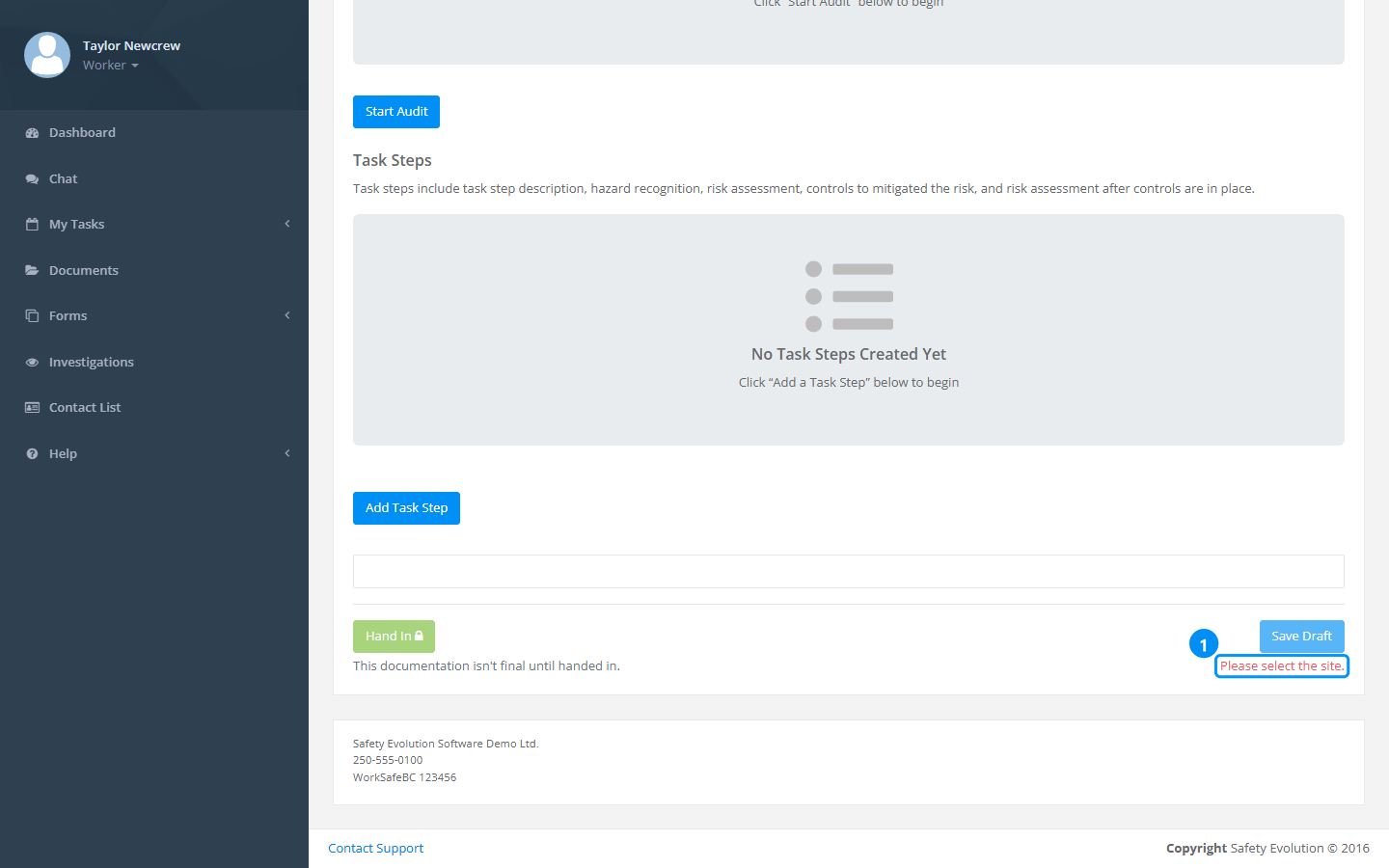
Pick the site first. - Click Save Draft. You see Saved. Hand In stays greyed out until the form has been saved once, has a site, and every required question is answered.
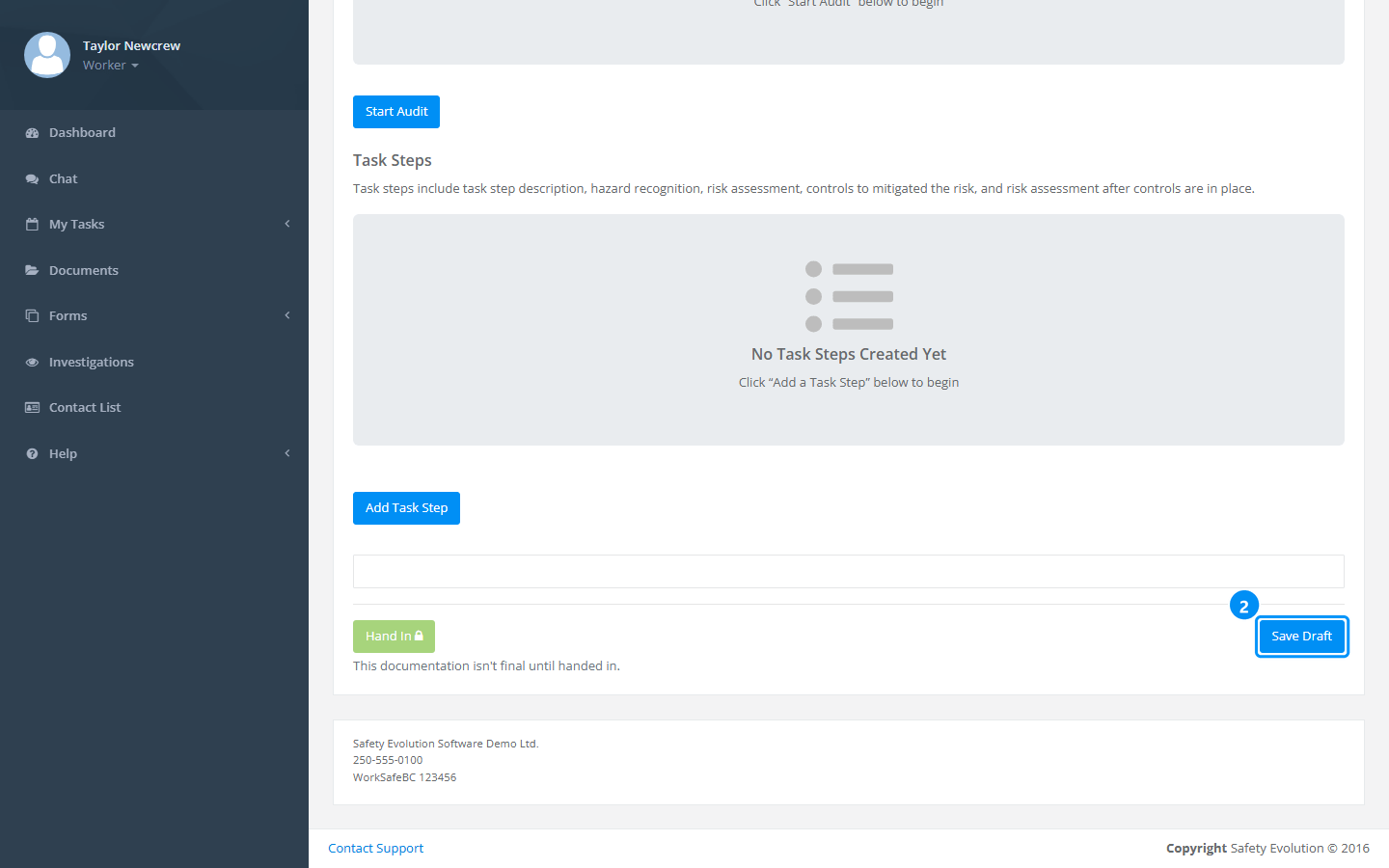
Save the draft first, then Hand In becomes available. - Click Hand In. You see Success! and the Company Forms list.
Web messages
| Message | Why | What to do |
|---|---|---|
| Please select the site. | No site is picked. | Pick the site at the top of the form. |
| Hand In is greyed out | The form hasn't been saved yet, or a required question is empty. | Click Save Draft. Then answer every question that shows a red message. |
| Save Failed: and a reason | Safety Evolution turned the save down. The reason says why. | Fix what the reason says and click Save Draft again. |
| This documentation isn't final until handed in. | A reminder under Hand In, not an error. A saved draft is not handed in. | Click Hand In when the form is done. |
If something goes wrong
- On the phone, Hand In keeps failing at the same step: note the message and your app version (bottom of the Profile tab), then contact support. Don't log out: logging out deletes the photos and files waiting on your phone. See Log out or change phones without losing work.
- On the web, nothing happens when you click Save Draft or Hand In: the office may have handed in or voided the form while you had it open. Reload the page and look for the form in Company Forms. See Find your drafts and handed-in forms.
Updated October 24, 2026