![side_logo.png]](/theme/site/shared/images/side_logo.png)
Ask employees to sign a form
Send a form to people in your company so each one reads it and signs it with their name, signature and a comment.
Try it free Start with Safety Evolution's Free version.
You can ask people in your company to sign a form. Each person gets a notice, reads the form and signs it with their name, signature and a comment. You can do this on the web or in the phone app.
Before you start
- You can ask for signatures on any form you can open.
- On the phone, the form must be handed in, or be a draft that has already reached the office. You need signal.
- Only people with a login in your company can be asked. For visitors and people without a login, use a sign-on QR code instead (see "Sign people on at a meeting with a QR code").
Do it on the web
- In the left menu, click Forms, then Company Forms.
- Open the form you want signed.
- At the top of the form, click Share. The Share Document window opens.
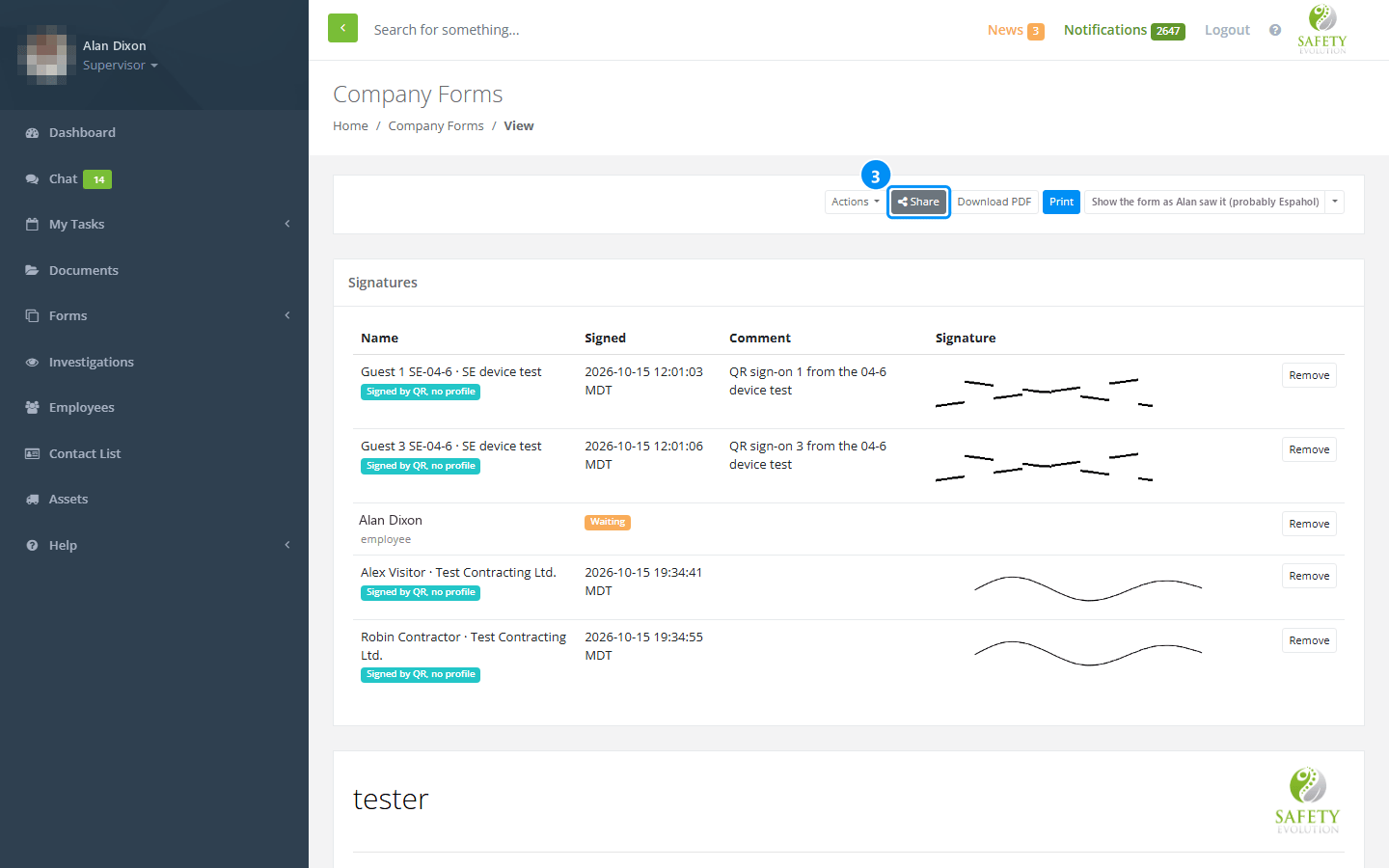
Click Share at the top of the form. - Under Employees to sign:, click each person you want to sign. Hold Ctrl (Cmd on a Mac) to pick more than one.
- If you want, type a note in Comment. Each person sees it with the request.
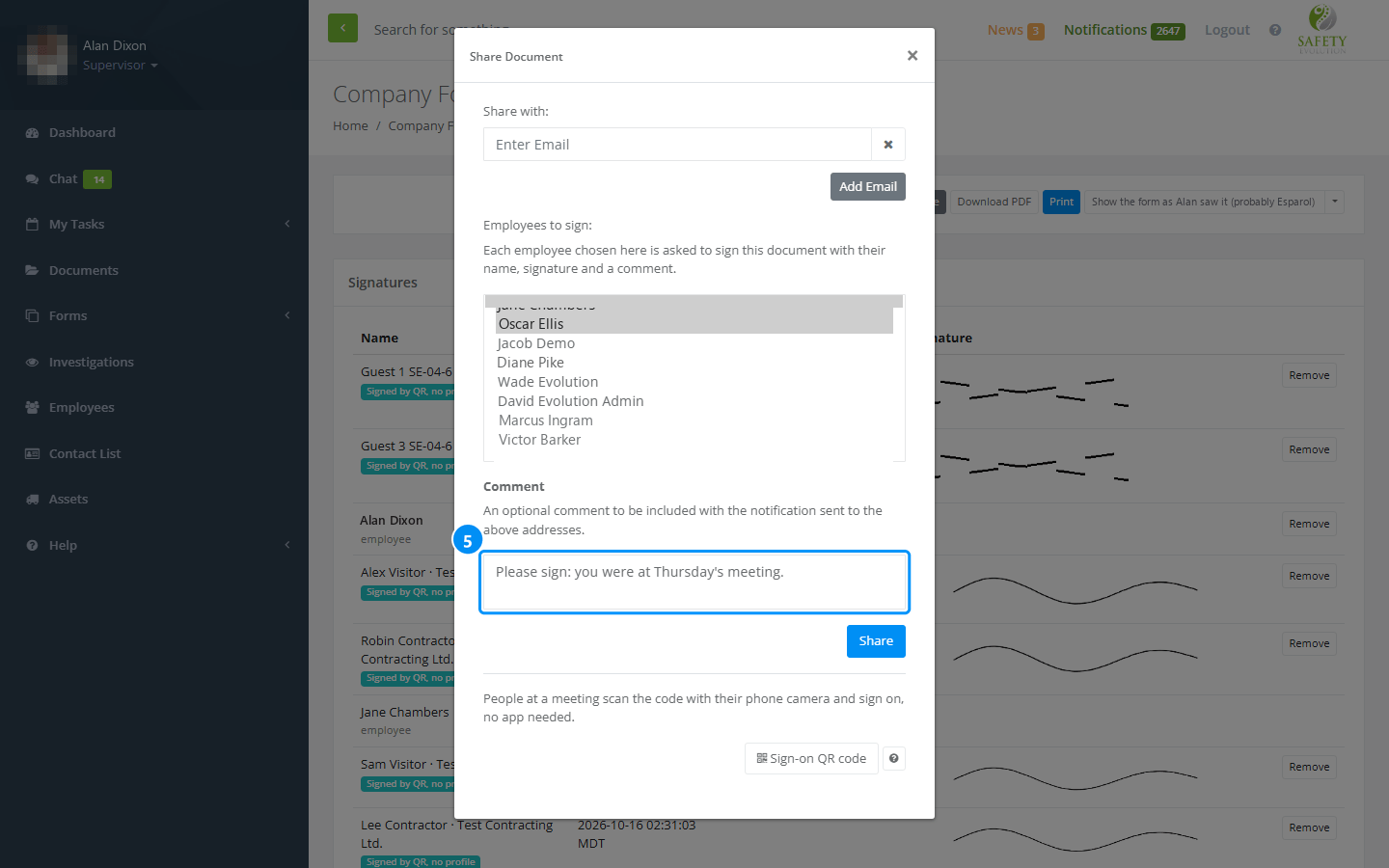
Pick the people under "Employees to sign:" and add a comment if you want. - Click Share. You see "Form Shared."
You can also start from the list: on Company Forms, open the row's menu and click Share.
Do it on the phone
- Open the form. You can open a handed-in form from Form Archive: tap the row's menu, then Share to Email. Or open a draft and tap Share at the top.
- The Send this form window opens. Under Send to, tap Employees.
- Tap Choose employees.
- Tap each person you want to sign. Then close the list.
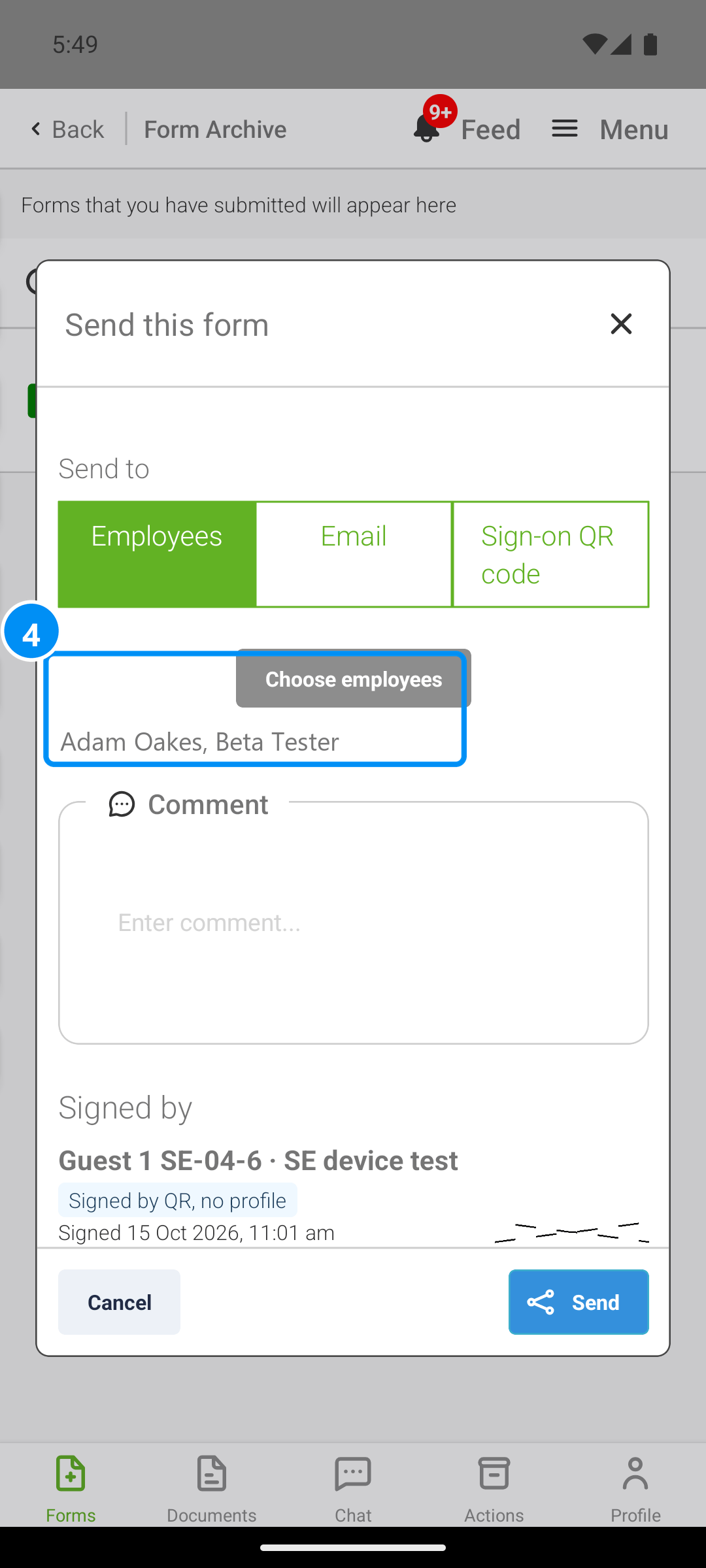
Tap Employees, then Choose employees. - If you want, type a note in Comment.
- Tap Send. You see, for example, "Sent to 2 employees to sign."
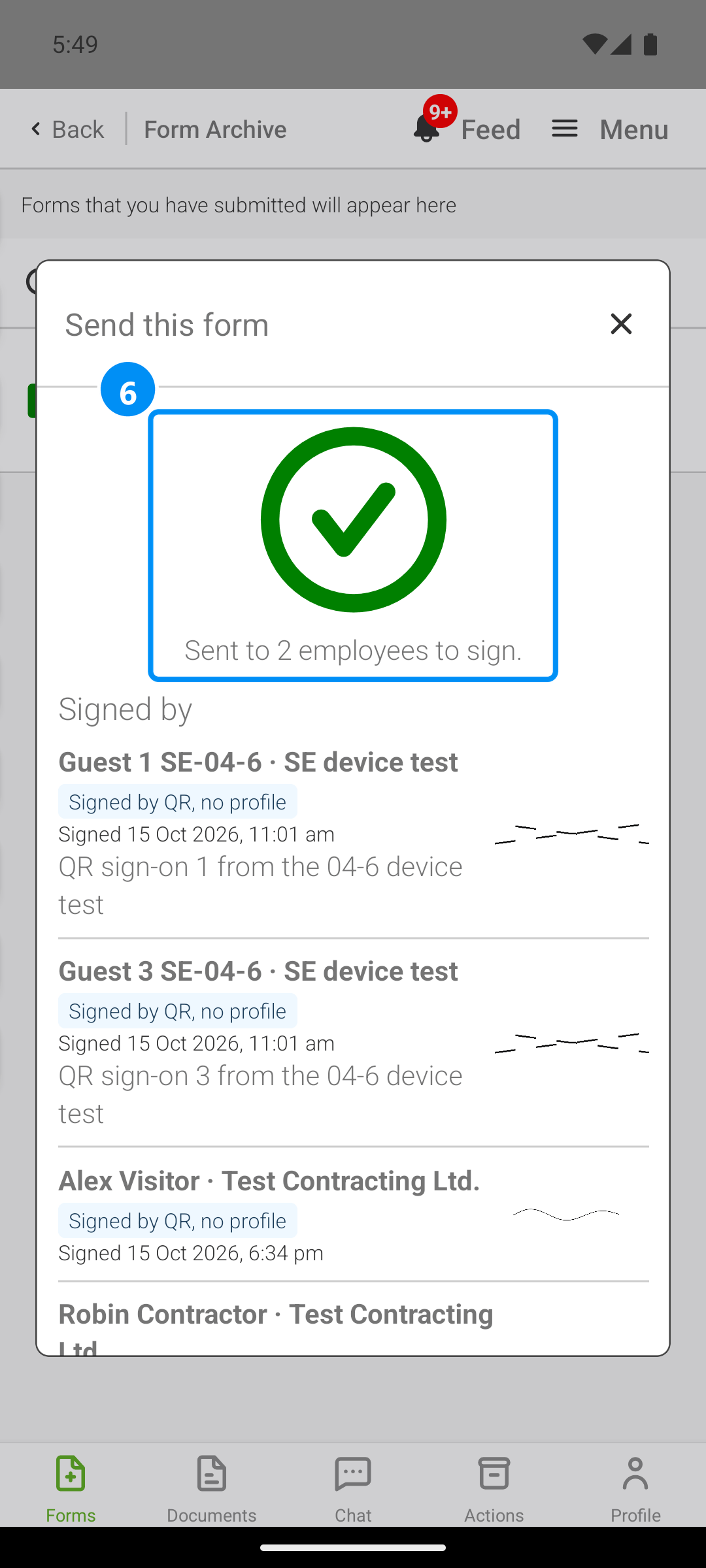
The phone tells you how many people were asked.
What each person gets
- A notice in Safety Evolution: "your name asked you to sign form name".
- A push on their phone titled Document To Sign, if they use the phone app.
- An email, if they have email turned on for Documents To Sign in their notification settings.
Asking the same person again for the same form does nothing. They already have the request.
Good to know
- Emailing a form is not a sign request. The person you email can view the form only. To get signatures, use Employees to sign: (web) or Employees (phone).
- The list of who signed and who is still waiting shows below the form. See "See who signed and remove a wrong sign-on".
If something goes wrong
- "Form not shared. Add a valid email address or choose an employee." (web): pick at least one person, or type an email.
- "Failed to send. Please ensure you are connected to the internet and try again" (phone): you have no signal. Try again when you do.
- You don't see Share on a phone draft: the draft has not reached the office yet. Hand it in, or try again when you have signal.
Updated October 24, 2026