![side_logo.png]](/theme/site/shared/images/side_logo.png)
Write a safety document with AI
Describe a procedure or policy and the AI Assistant writes it as a PDF with your logo, saved as a draft in Documents and Folders for you to check and publish.
Try it free Start with Safety Evolution's Free version.
Describe the safety document you need: a safe work procedure, a policy, a plan. The AI Assistant writes it for you, using your company's records and any file you give it. You check the draft and save it. It is filed as an unpublished PDF with your logo in Documents and Folders, and your workers see it only when you publish it.
Before you start
- For owners, designates and admins.
- The AI Assistant comes with the Professional and Enterprise plans. Safety Evolution can also turn AI on for your company. Without either, the AI Assistant page shows Contact Us to Enable AI Agents.
- The Build with AI button in Documents and Folders shows only when Safety Evolution has turned AI on for your company. If your plan includes the AI Assistant but you don't see the button, start from the AI Assistant.
- Have at least one folder in Documents and Folders. The document is saved into a folder. See Documents and folders (set up).
Start the document
Pick one of these ways.
From Documents and Folders
- Click Company Settings, then Documents and Folders.
- Click Build with AI. The AI Assistant opens and asks for help creating a new safety document.
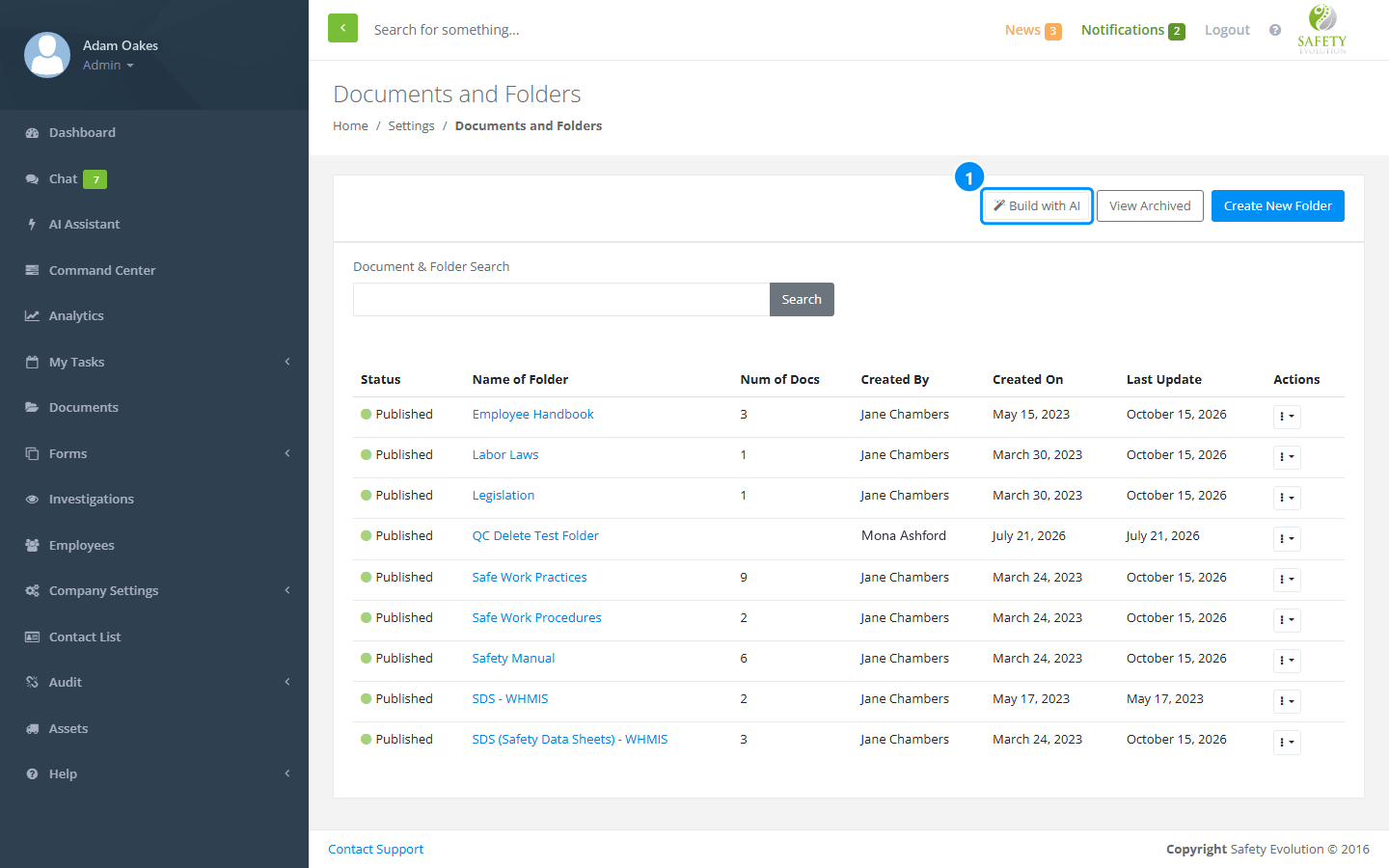
Build with AI opens the AI Assistant ready to write a document. - Answer in the message box: say what the document is, who it is for and what it must cover. Press Enter.
From the AI Assistant
- In the left menu, click AI Assistant.
- If your AI Assistant has a + button beside the message box, click it, then click Build a document. The box shows Building a document. Without the + button, just ask for the document in your own words.
- To base it on a file, click the paperclip (Attach a file) and pick it. You can use a PDF, a picture, a Word, Excel or PowerPoint file, or a text or CSV file, up to 25 MB. Wait for the tick on the file's name.
- Describe the document. For example: "Write a lockout/tagout procedure for our shop, based on the attached manufacturer's manual. Include a step-by-step isolation list and a sign-off section."
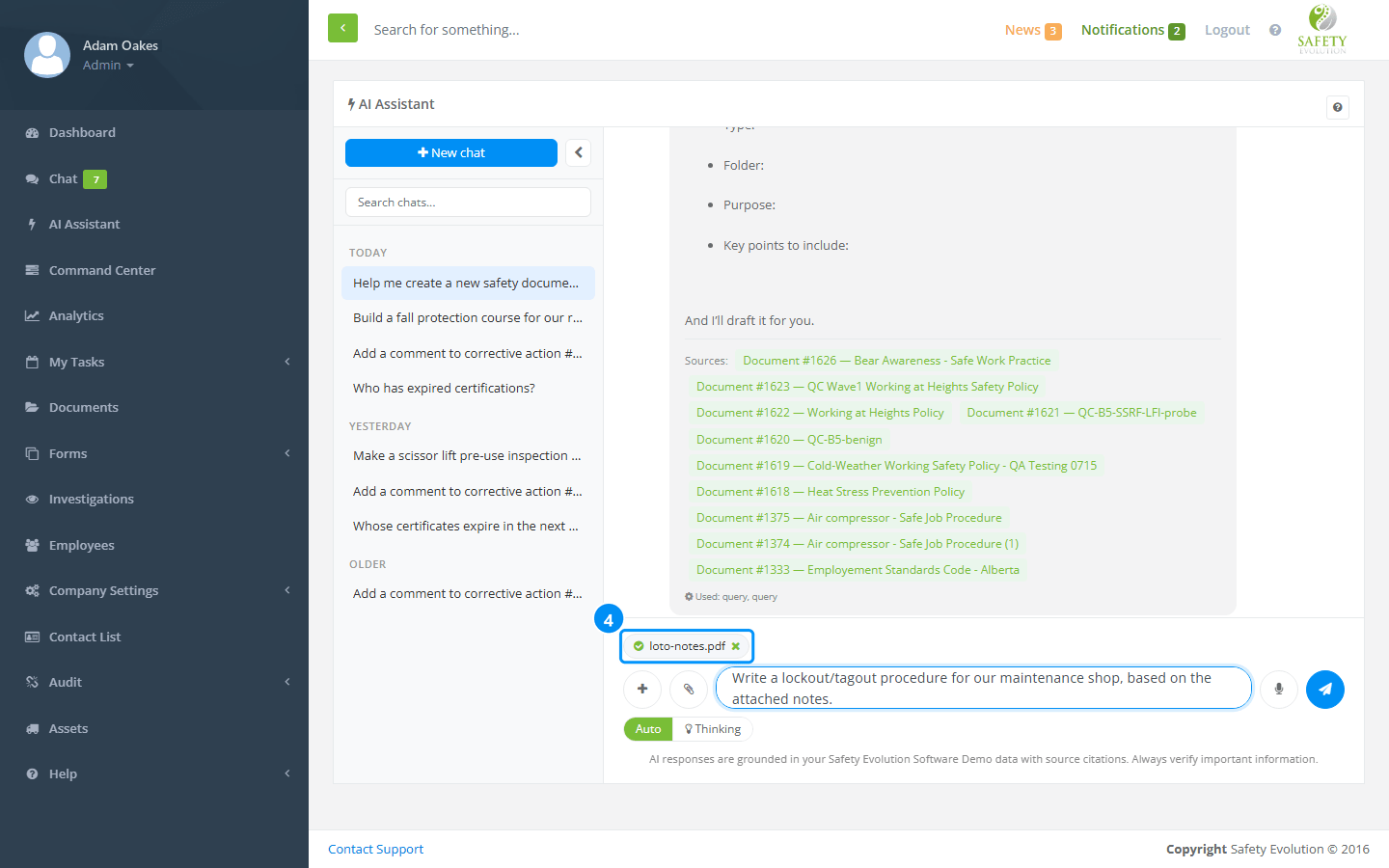
Attach a file for the AI to work from, then describe the document. - Press Enter.
The attached file is used for that one message. Attach it again if you send a new request.
Check the draft
The draft opens in the Build panel on the right. The chat also shows Draft ready: and the name, with Open build panel to open it again. If your AI Assistant has the + button, the draft shows as a card in the chat instead. Click Expand to see it full screen.
- Read the Preview. Click Expand to make it bigger.
- Check what it was based on. In the Build panel, Grounded on: lists the records and files the AI used. Click one to open it.
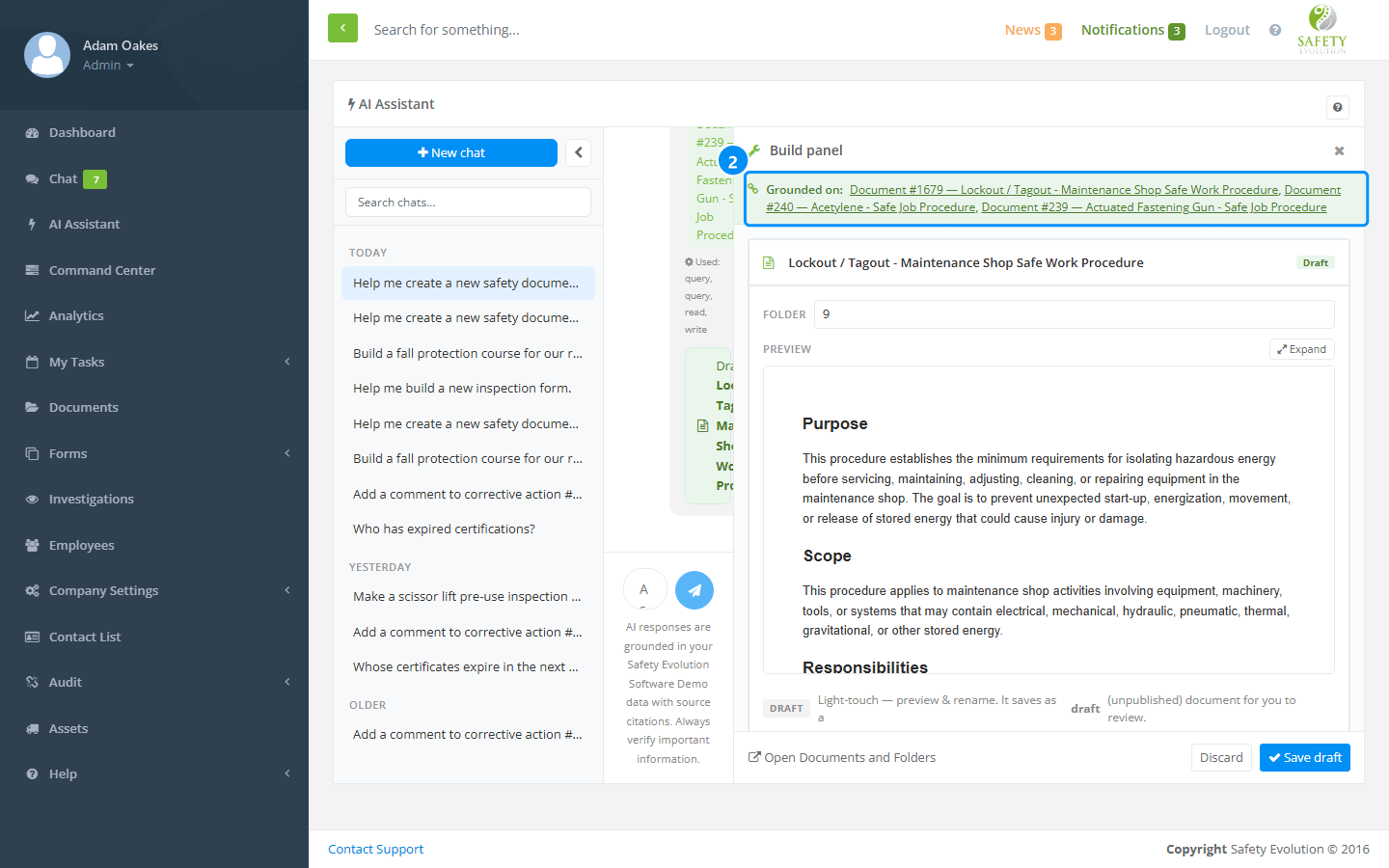
"Grounded on" shows what the AI used to write the draft. - Change the title in the box at the top if you need to.
- Check Folder. It holds the number of the folder the document will be saved in. To use a different folder, ask in the chat, for example "Put it in the Procedures folder".
- To change the wording, ask in the chat, for example "Add a section on testing for zero energy". The draft updates.
- Click Save draft. You see Saved as draft — review in Documents and Folders, and the chat shows Document saved as draft.
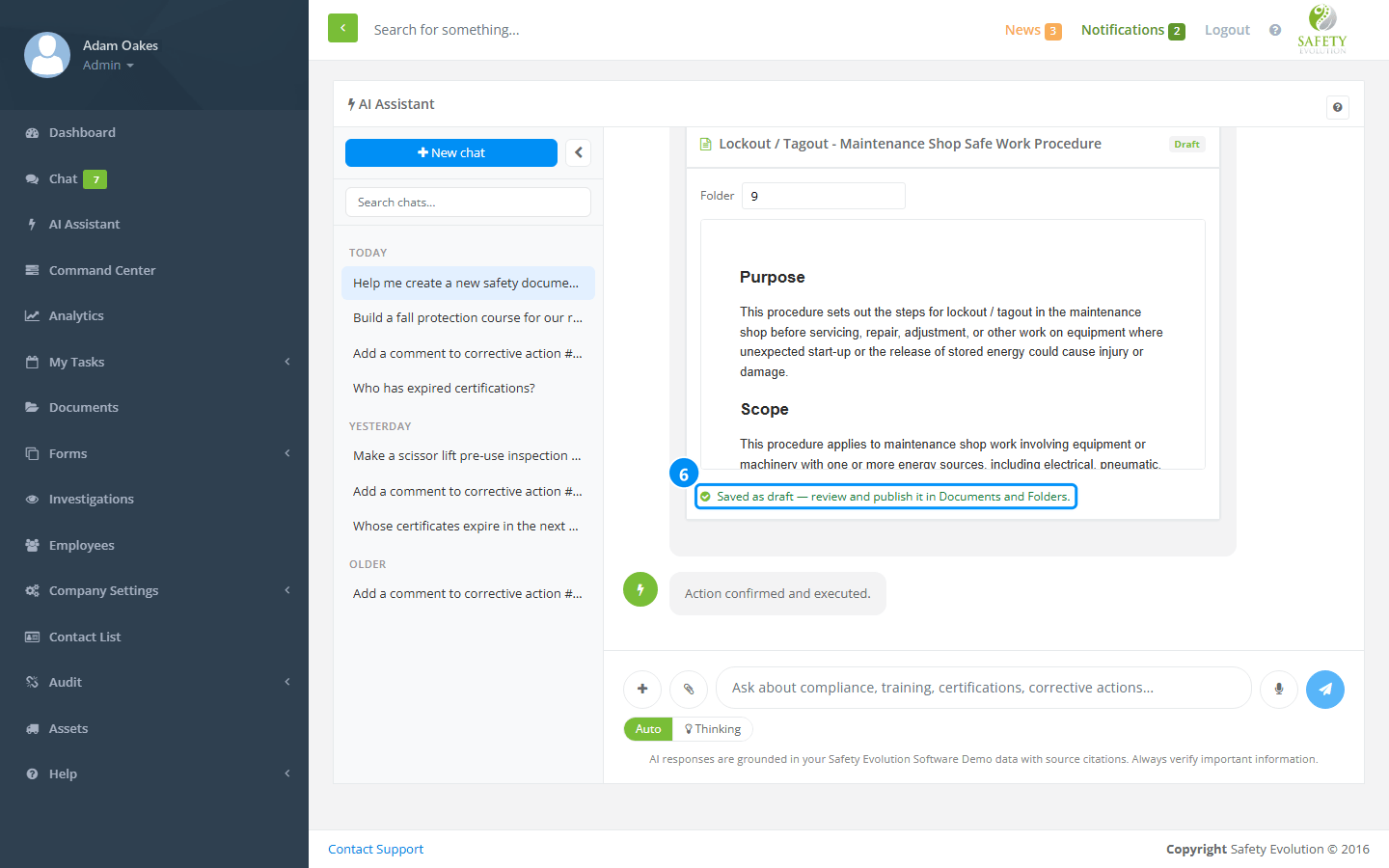
The document is saved, unpublished.
To throw the draft away, click Discard. Nothing is saved.
The saved document is a PDF with your company logo and the document's title at the top.
Publish it for your workers
- Click Open Documents and Folders, or go to Company Settings > Documents and Folders.
- Open the folder it was saved in, and click the document's name.
- Read the PDF once more.
- On the Properties tab, turn on Publish this document? and click Save Changes.
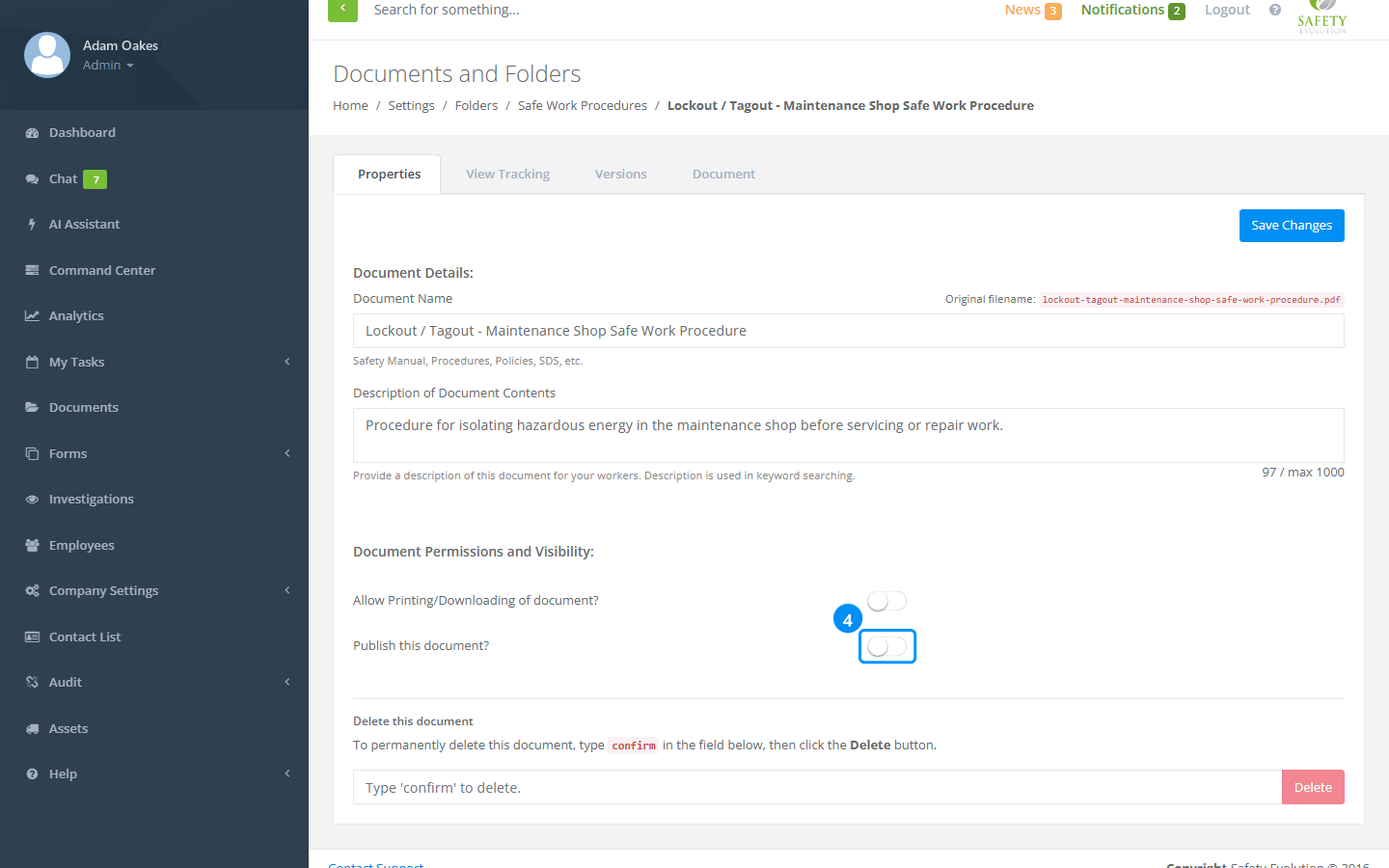
Workers see the document only after you publish it.
Workers can read it once both the document and its folder are published. See Documents and folders (set up).
If something goes wrong
- "We couldn't read that file — you can still describe it.": the file uploaded but its text couldn't be read, for example a blurry scan. Describe what you need in the message instead.
- "The file could not be processed.": the file is over 25 MB, empty, or a type the AI can't read. Use a PDF, picture, Word, Excel, PowerPoint, text or CSV file under 25 MB.
- "Upload failed. Please try again." or "File upload is temporarily unavailable.": the file didn't reach us. Try again in a few minutes.
- "Couldn't save the document. You can finish it in Documents and Folders." or "Couldn't reach the service. You can finish this document in Documents and Folders.": the draft wasn't saved. Check that Folder isn't empty and click Save draft again, or upload the document yourself in Documents and Folders.
- No Build with AI button in Documents and Folders: Safety Evolution hasn't turned AI on for your company. Start from the AI Assistant, or contact us to turn it on.
- For other AI messages, see When AI is busy, limited or unavailable.
Updated October 24, 2026