![side_logo.png]](/theme/site/shared/images/side_logo.png)
Log in on the web and the phone app
Log in to Safety Evolution on a computer and in the phone app, and what to do if it does not let you in.
Try it free Start with Safety Evolution's Free version.
You use the same email and password on the web and in the phone app. If you are new, set up your account from your invitation email first.
Log in on the web
- Go to dashboard.safetyevolution.com/clients/sign_in. The page says Client Access.
- Type your email in Email.
- Type your password in Password.
- Tick Remember me if this is your own computer. You will stay logged in longer.
- Click Log in.
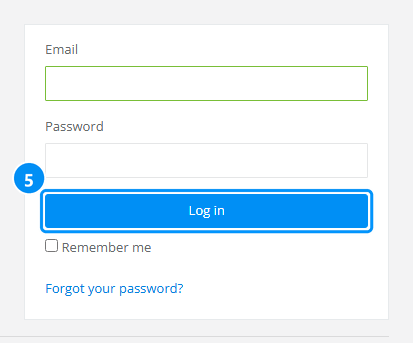
The web login page.
Log in on the phone app
- Open the Safety Evolution app.
- Type your email in Email.
- Type your password in Password. Tap the eye to see what you typed.
- Tap Login.
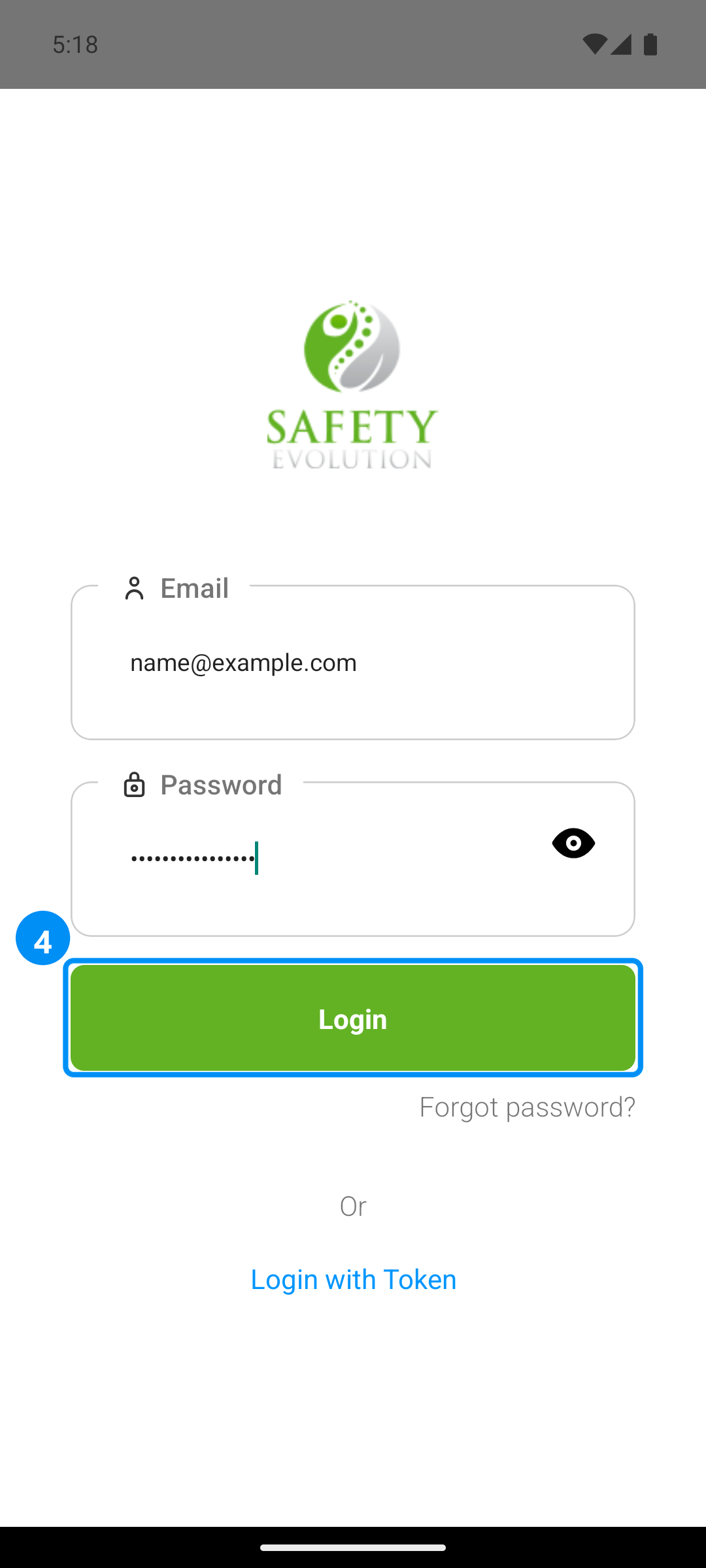
The phone login screen. - The first time you log in on a phone, a window downloads your company's forms, people and sites. Wait for every step to get a tick, then tap Finish. See Set up the phone app.
- The app opens on the Forms screen.
Log in with a token from Safety Evolution support
Safety Evolution support can give you a one-time token when you cannot log in with your password. It works once, and only for a short time.
- On the phone login screen, tap Login with Token.
- Type the token in Enter user token, then tap Login.
- Or tap Scan QR Code and point the camera at the QR code support sent you.
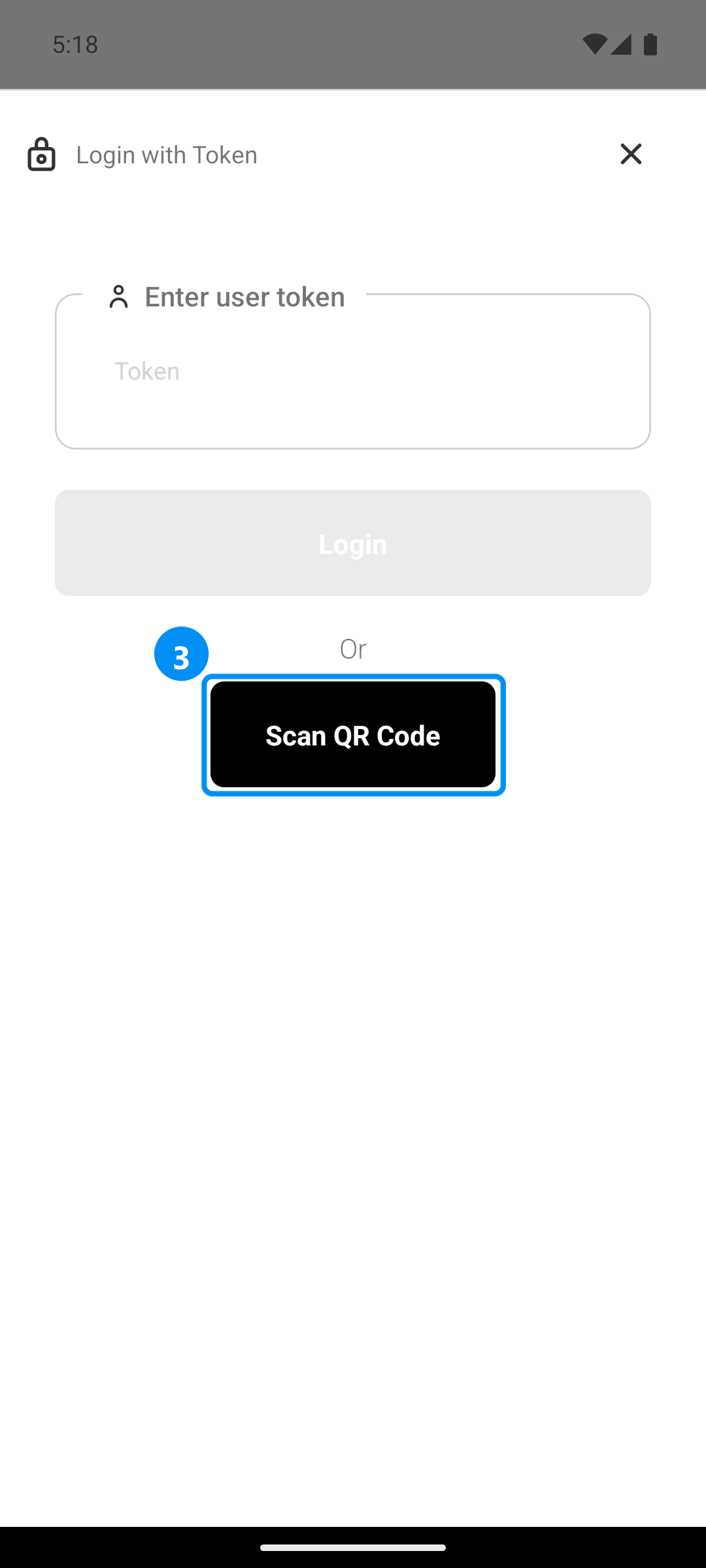
Log in with a one-time token.
The first time you tap Scan QR Code, the phone asks to use the camera. Tap Allow.
This QR code is only for logging in. It is not the code you scan to sign on at a meeting or a site.
When the app needs updating
- If a newer app is in the store, a red Update Latest Version Now button shows at the top of the Forms screen.
- Tap it. The App Store or Google Play opens.
- Tap Update in the store.
Log out
- On the web: click Logout in the top bar. Or click your name at the top of the left menu, then Logout.
- On the phone: tap the Profile tab, then Logout.
Important: logging out of the phone app deletes the photos and files saved on that phone, with no warning. Send your forms first. See Log out or change phones without losing work.
Change your password
You can't change your password in the phone app. Change it on the web, then use the new password on the phone. See Change your password.
If something goes wrong
- "Invalid Email or password." (web) or Invalid Credentials (phone): check your email for spaces or typing mistakes, and try your password again.
- You forgot your password: click Forgot your password? on the web. On the phone, tap Forgot password?: the reset page opens in your phone's browser. See Reset a forgotten password.
- "Please check your token": the token is wrong or has run out. Ask Safety Evolution support for a new one.
Updated October 24, 2026