![side_logo.png]](/theme/site/shared/images/side_logo.png)
Use the Help Centre: search, your getting-started list and What's new
Find any how-to in the Help Centre, follow your getting-started checklist, get help on the screen you are on, and see what's new.
Try it free Start with Safety Evolution's Free version.
The Help Centre has a how-to for everything in Safety Evolution. It also keeps your getting-started checklist and the list of what's new.
Before you start
- Open the Help Centre on the web. On the phone, the Menu opens it in your browser.
- Everyone can use it. Auditors don't get a checklist or SE Help Chat.
Open the Help Centre
- On the web, click Help in the top bar. It opens to Help Centre, SE Help Chat, Roadmap & Requests, Report a bug and Contact support.
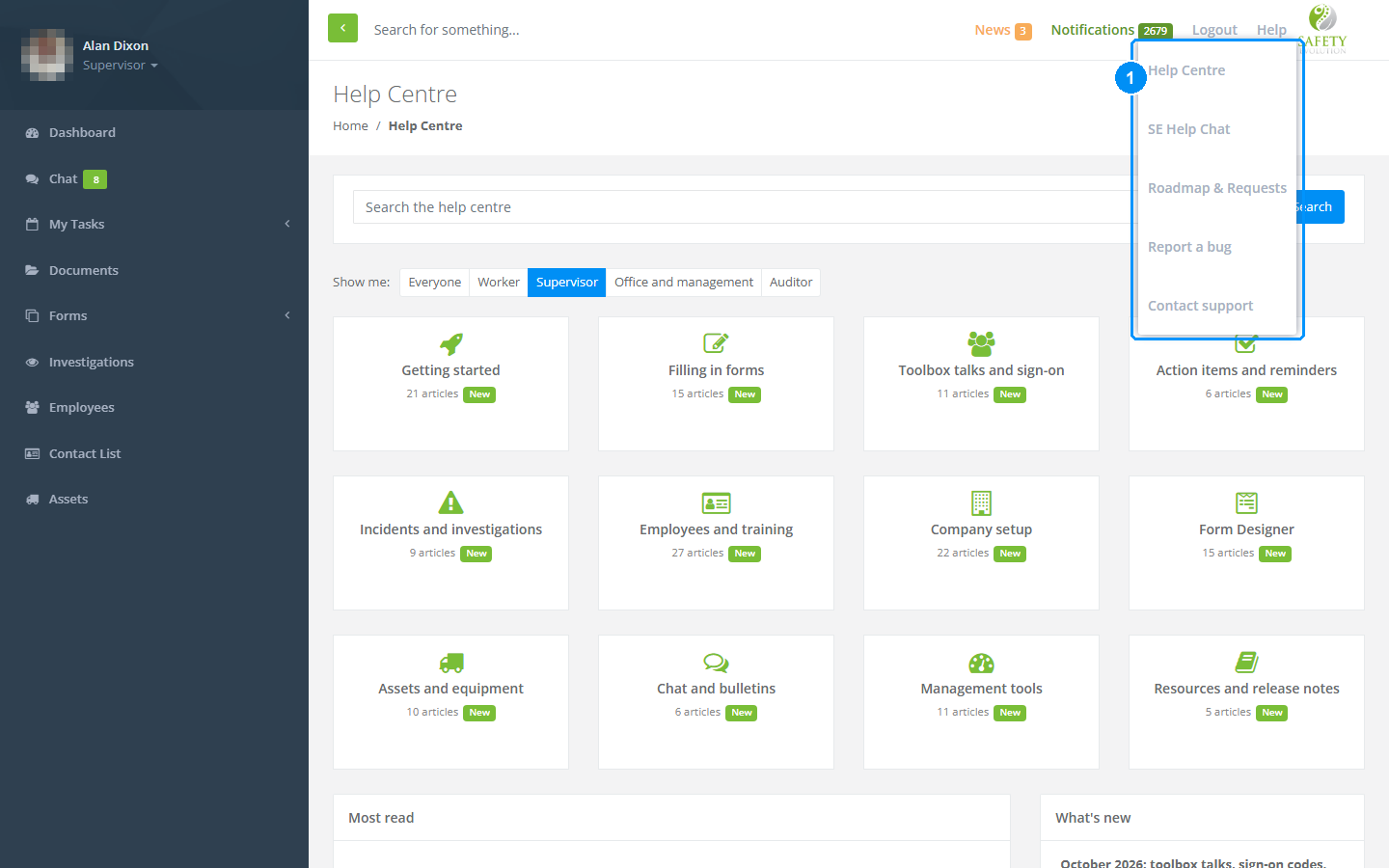
Everything about help is under Help. - Click Help Centre.
Find a how-to
- Type a few words in Search the help centre, for example "sign on". Answers show as you type.
- Click an answer to open it. Or press Enter, or click Search, to see every match.
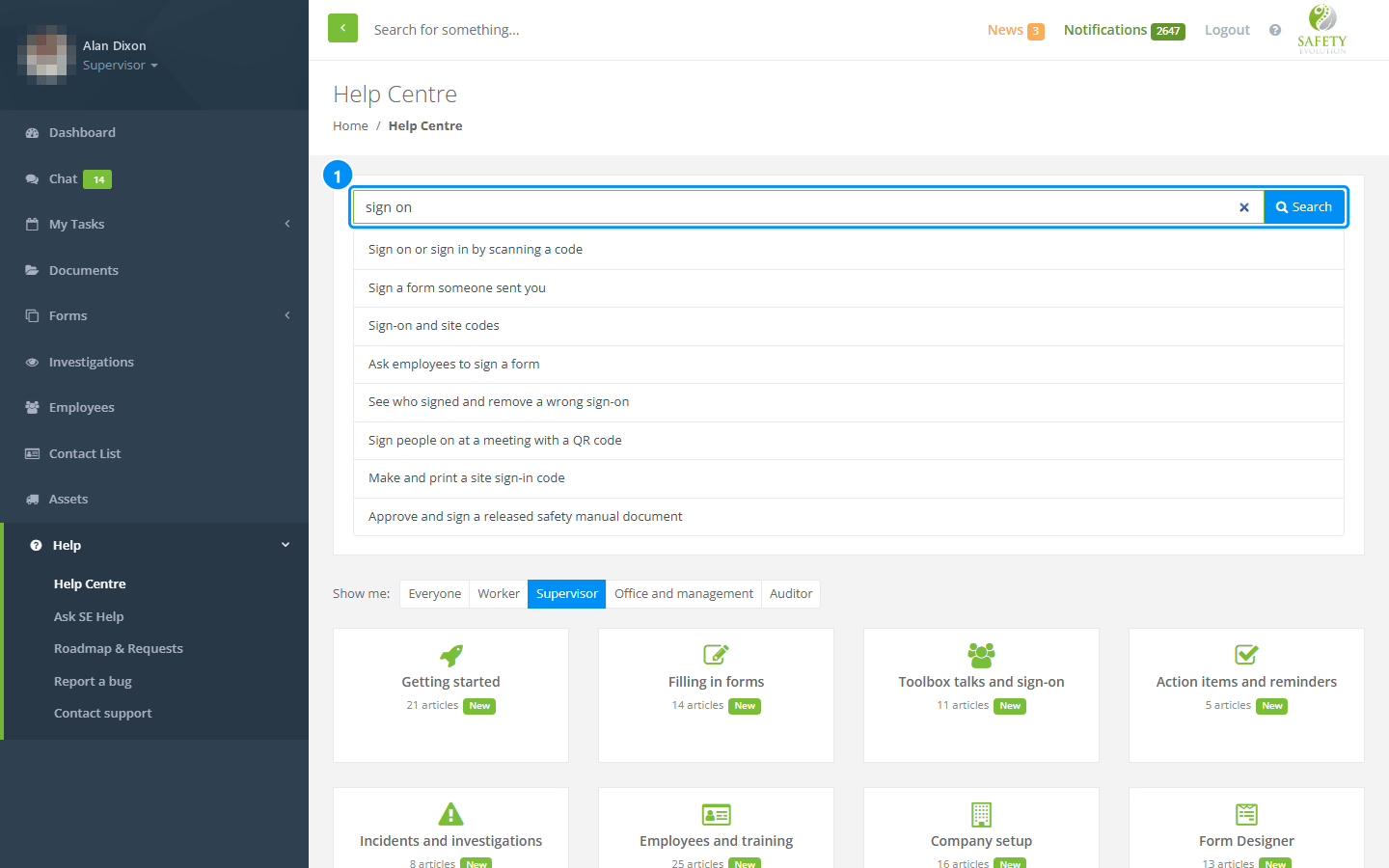
Answers show as you type. - To browse instead, click a category tile. Most read lists the articles people open most.
Put the articles for your job first
- Use Show me: and pick Everyone, Worker, Supervisor, Office and management or Auditor.
- Lists put the articles for that job first. Nothing is hidden. It starts on your own role.
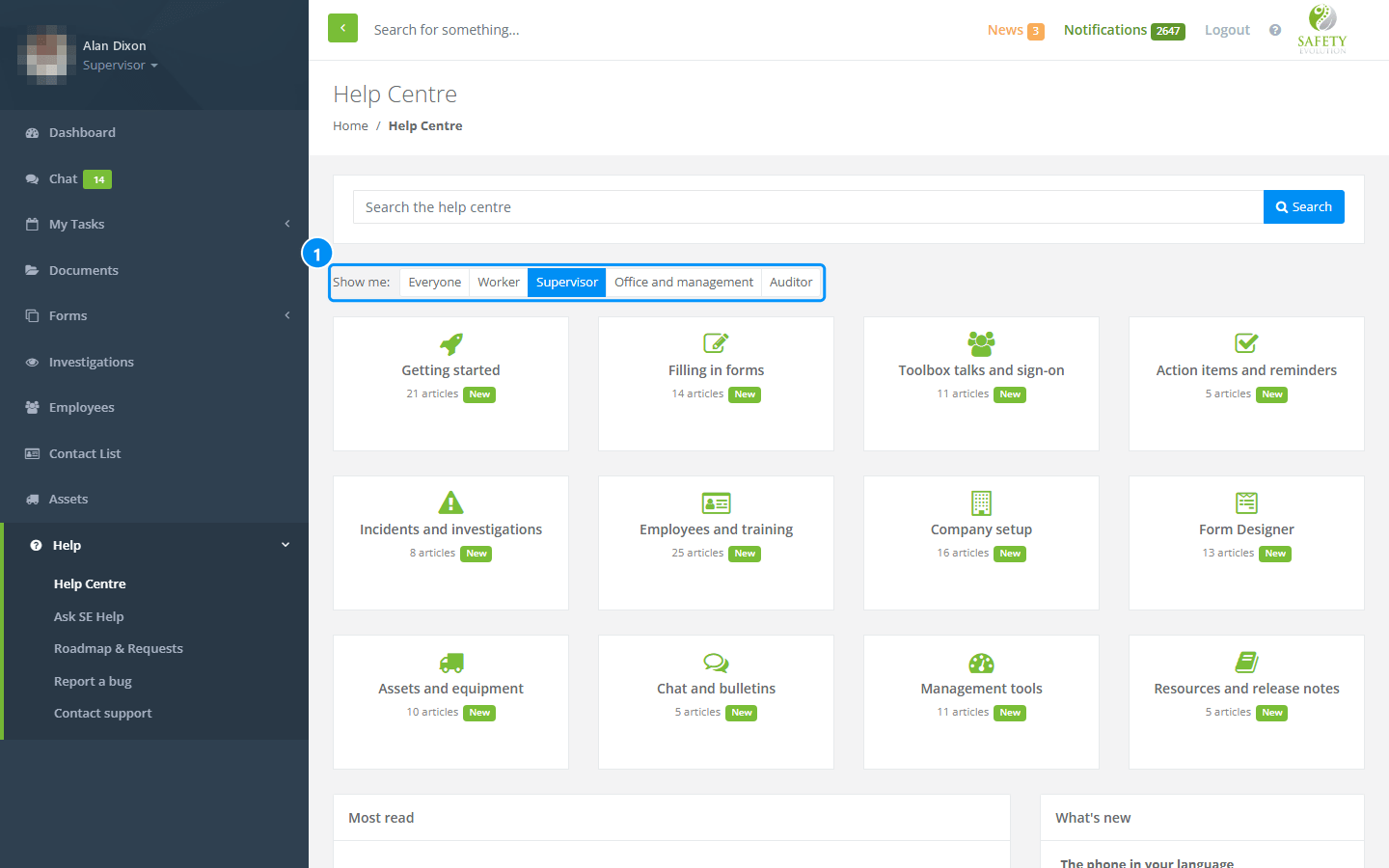
Show me: changes the order, never what you can see.
Follow your getting-started checklist
On the Help Centre home you see Getting started · your checklist. Each item links to its how-to and ticks itself when you've done it.
| Your role | Checklist |
|---|---|
| Owner, designate, admin | Invite your team, Publish your first form, Set up sites and supervisors, and Try a toolbox talk when your company has toolbox talks |
| Supervisor | Run a toolbox talk and Make a site sign-in code when your company has them, and Hand in your first form |
| Worker | Log in on the phone app, Fill in and hand in your first form |
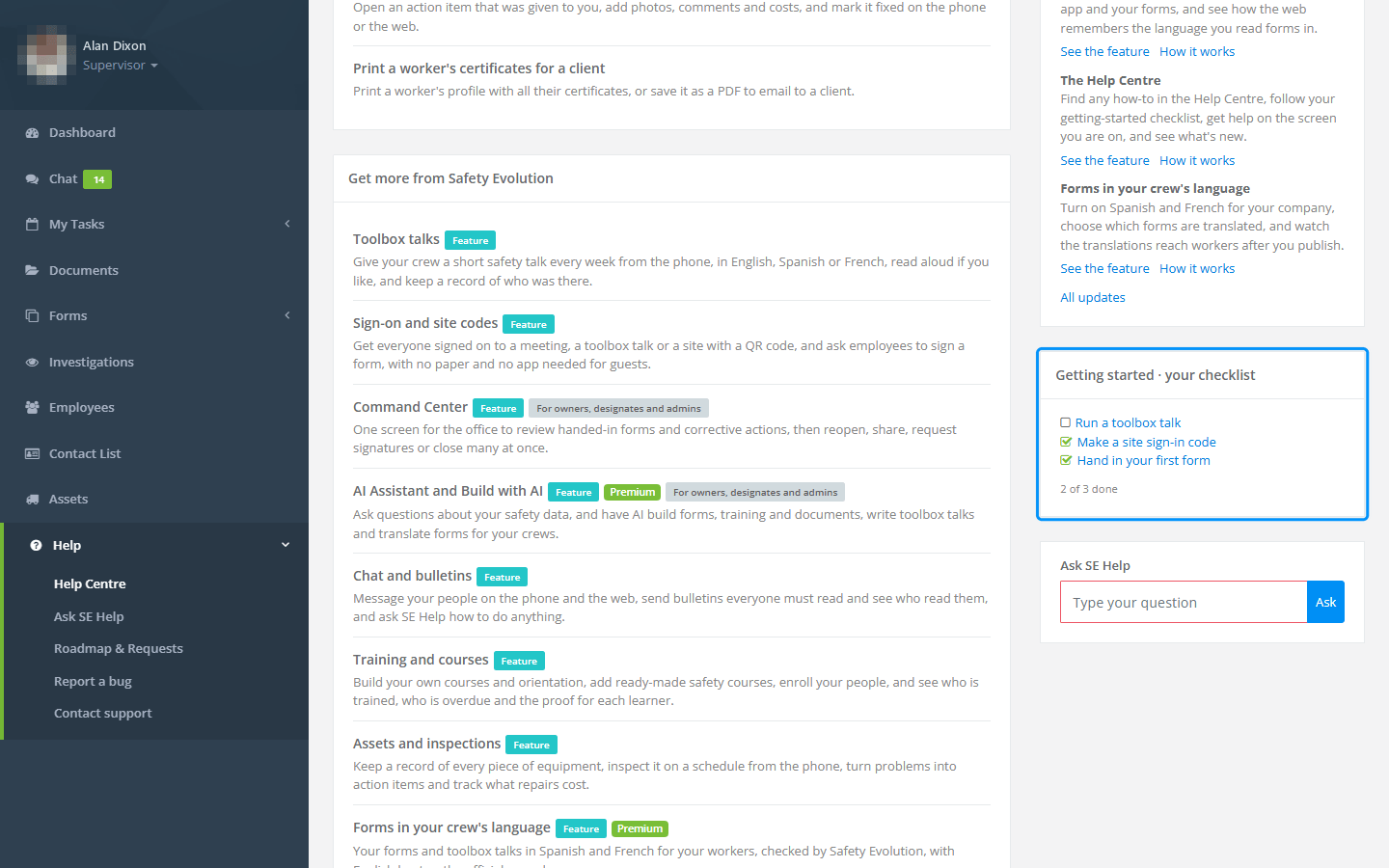
The checklist shows how many items are done. It goes away when every item is done. It can't be hidden before then.
Get help on the screen you are on
- On some screens, such as the Form Designer, there is a ? button titled Help for this screen. Click it.
- A Help panel opens on the right with the how-to for that screen.
- Click Open full article to read it in a new tab. Where you see Take the tour of this screen, click it for a guided tour.
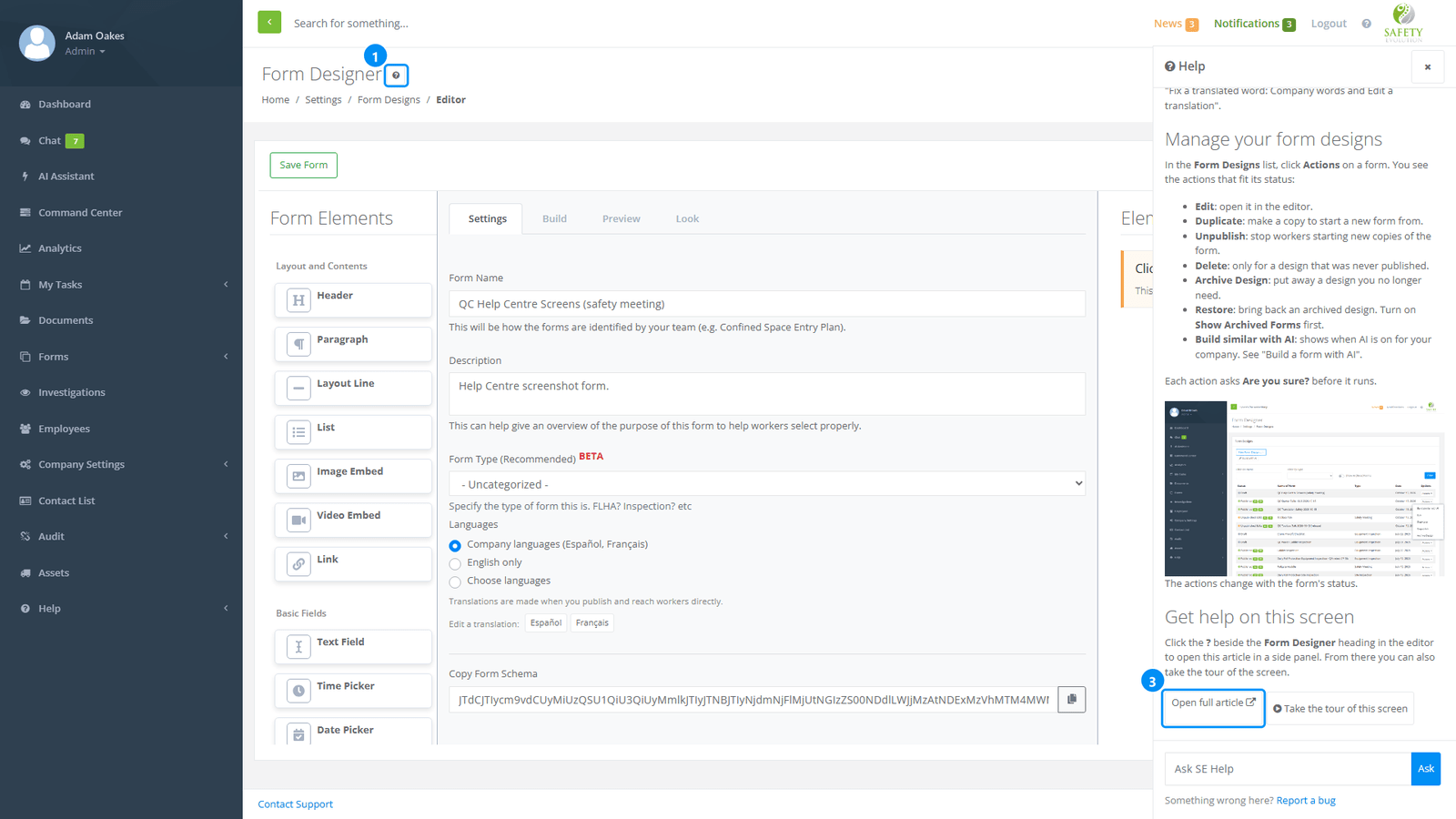
The how-to for this screen, without leaving it. - If something on the screen is wrong, click Report a bug under Something wrong here?. See "Report a bug and follow it in My reports".
See what's new
- On the Help Centre home, look at What's new. Each entry has See the feature and How it works.
- Click All updates to see every update on the Safety Evolution Updates page.
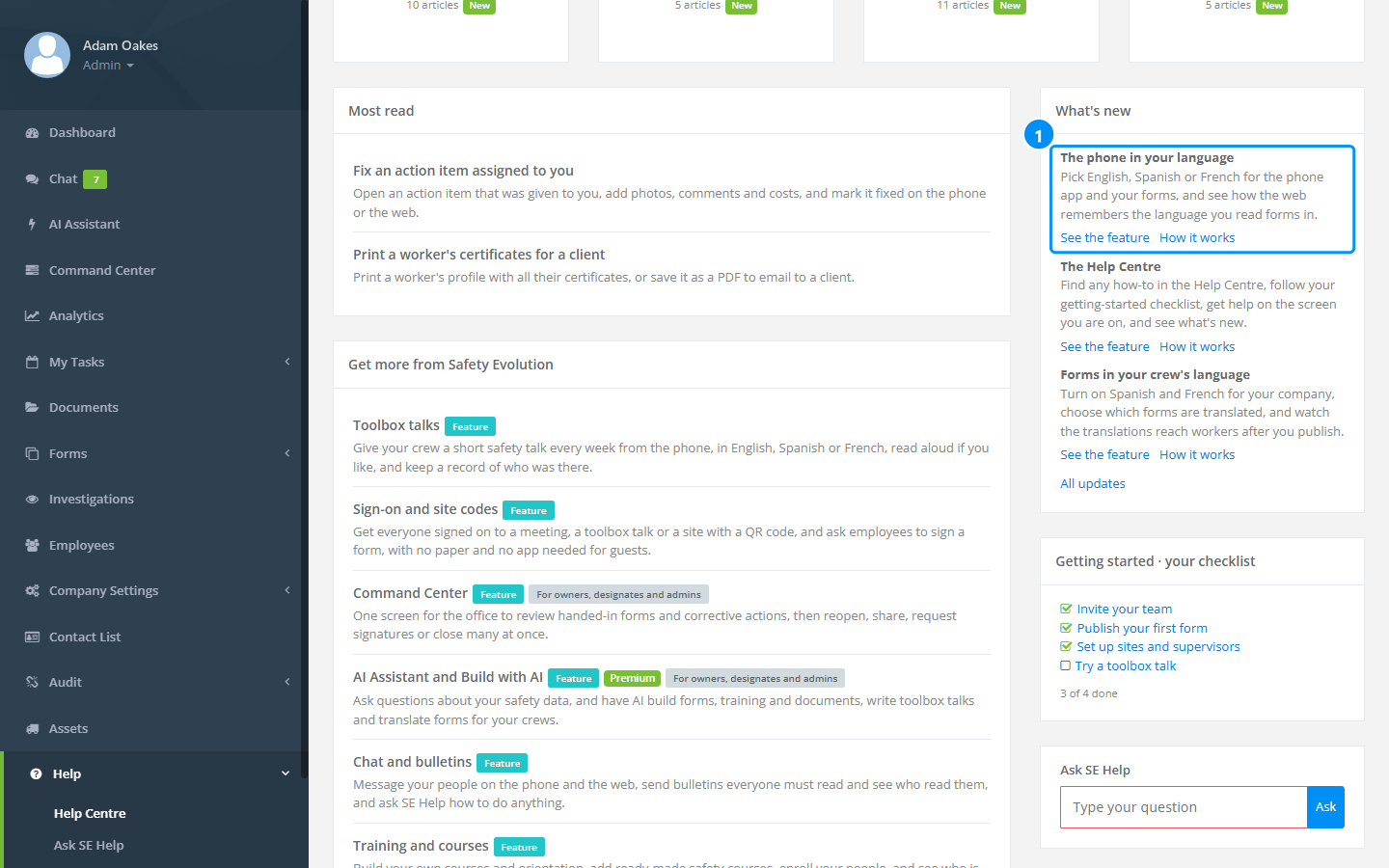
The newest changes and how to use them.
You can also click News in the top bar. It lists unread updates, with View All and What's new in the Help Centre.
Feature pages
Under Get more from Safety Evolution are pages about each feature, such as toolbox talks or chat. A feature page shows the plan it is Included in, its how-tos, and one button:
- Start or You have this: Start: your company has it. Click to go there.
- Upgrade to Professional or Contact sales: your company's plan doesn't include it. Owners, designates and admins see the button. Others see who can upgrade.
- Ask us to turn it on: Safety Evolution turns this feature on for you. The button starts an email to the sales team.
- Log in to start: you are not logged in.
Tell us if an article helped
- At the bottom of an article, answer Was this helpful? with Yes or No.
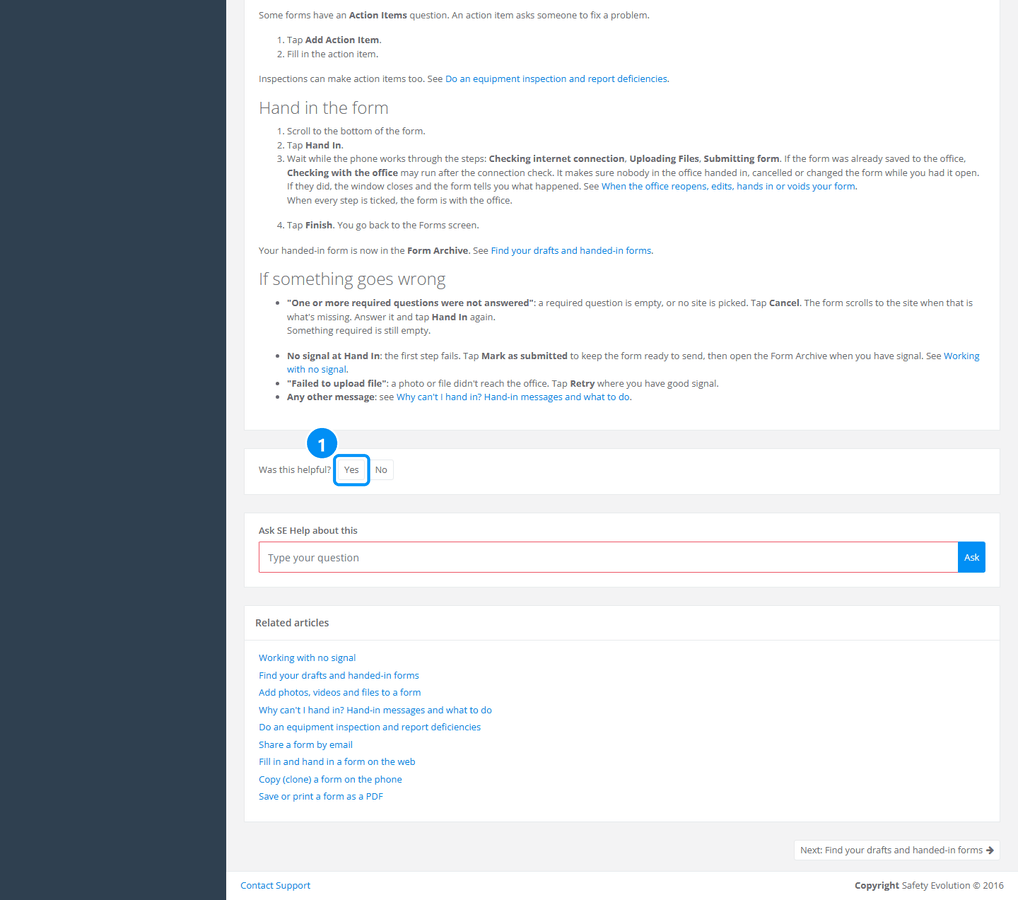
One click tells us if it worked for you. - If you click No, type what you needed under What was missing? and click Send. You see Thanks for your feedback.
Print an article
Use your browser's print (Ctrl+P on Windows, Cmd+P on a Mac). The menus, feedback and Ask box are left out of the printout.
Open the Help Centre from the phone
- Tap Menu. Near the bottom are Help Centre, Report a bug and Request a feature.
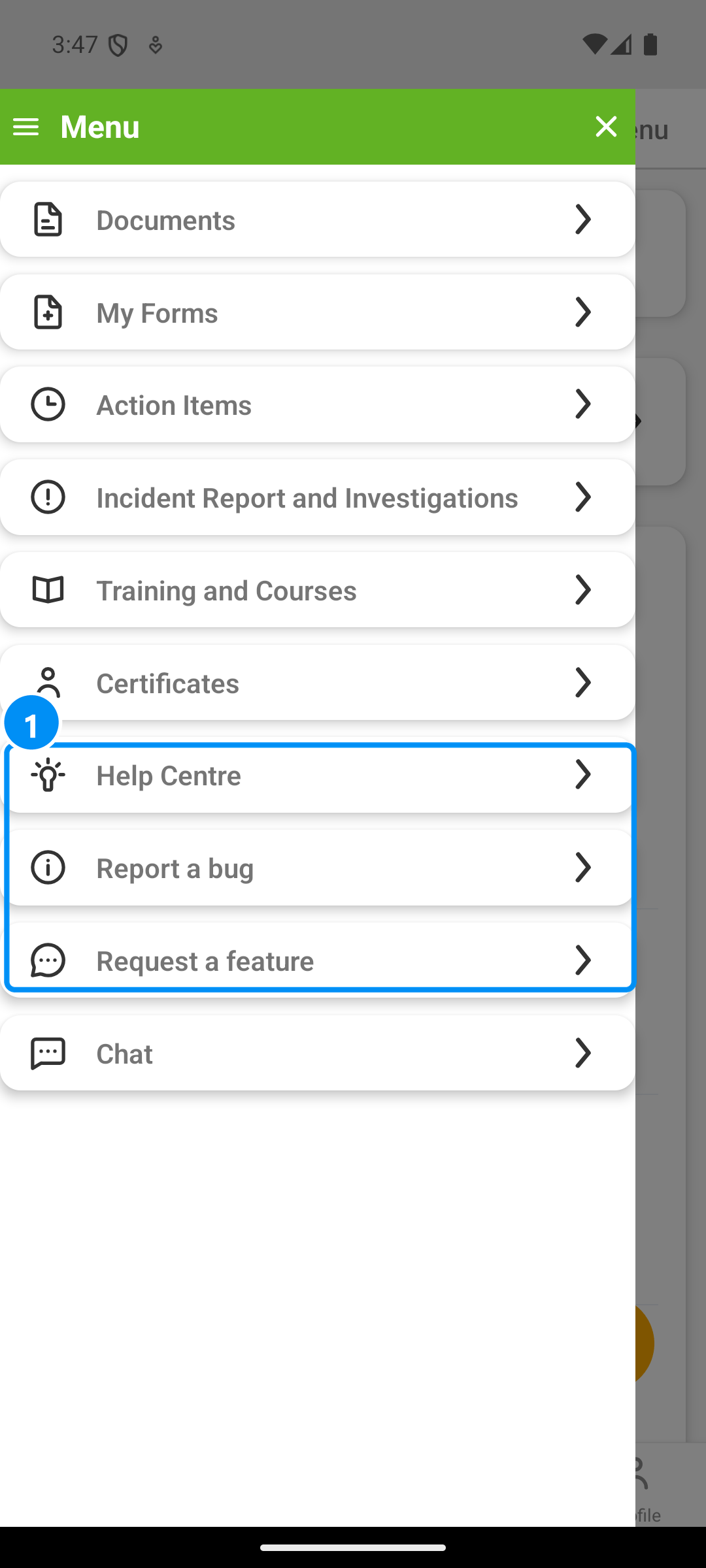
Help from the phone opens in your browser. - Tap Help Centre. It opens in your phone's browser. If the browser asks you to log in, use the same email and password as the app.
If something goes wrong
- "No articles match ...": try other words. Or click Request a how-to, or Contact support.
- "This help is not available right now." in the Help panel: open Help › Help Centre and search for the screen's name instead.
- "You have sent several notes today. Please try again tomorrow.": you sent several notes without being logged in. Log in, or try tomorrow.
- Help in the top bar shows only Contact Support: the Help Centre isn't on for your company yet. Email support@safetyevolution.com.
- You don't see a checklist: you finished every item, or you are an auditor or not logged in.
Updated October 24, 2026