![side_logo.png]](/theme/site/shared/images/side_logo.png)
Report a bug and follow it in My reports
Tell Safety Evolution when something isn't working, from the web or the phone, and follow what happens to your report.
Try it free Start with Safety Evolution's Free version.
If something in Safety Evolution isn't working the way it should, report it. Safety Evolution support reads every report, and you can see what happens to yours.
This is for things that are broken. To ask how to do something, use SE Help Chat (on the web), SE Help in chat or Contact support. See "Get help: SE Help in chat and contacting support".
Before you start
- You need to be logged in on the web. From the phone, the report opens in your browser.
- If you can, go to the page where it went wrong first. The report records the page you came from.
Report a bug on the web
- Click Help in the top bar, then Report a bug. Or, in a screen's Help panel, click Report a bug under Something wrong here?.
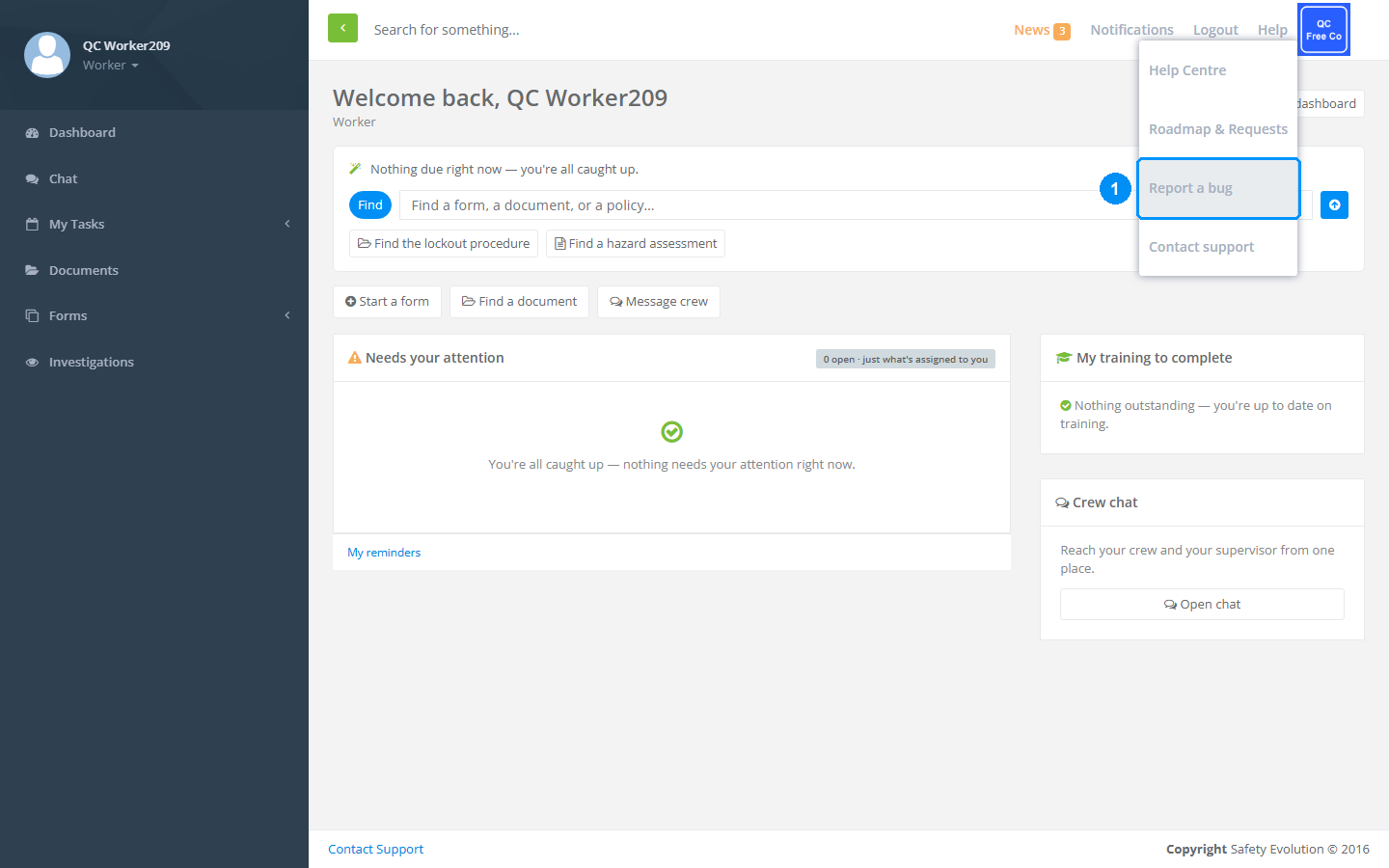
Report a bug from the Help menu. - Under What happened?, say what you did and what went wrong.
- Under What did you expect?, say what should have happened. This is optional.
- Check We'll send this with your report:. It lists the page, your name, role and company, the time, your browser and operating system. You don't need to type these.
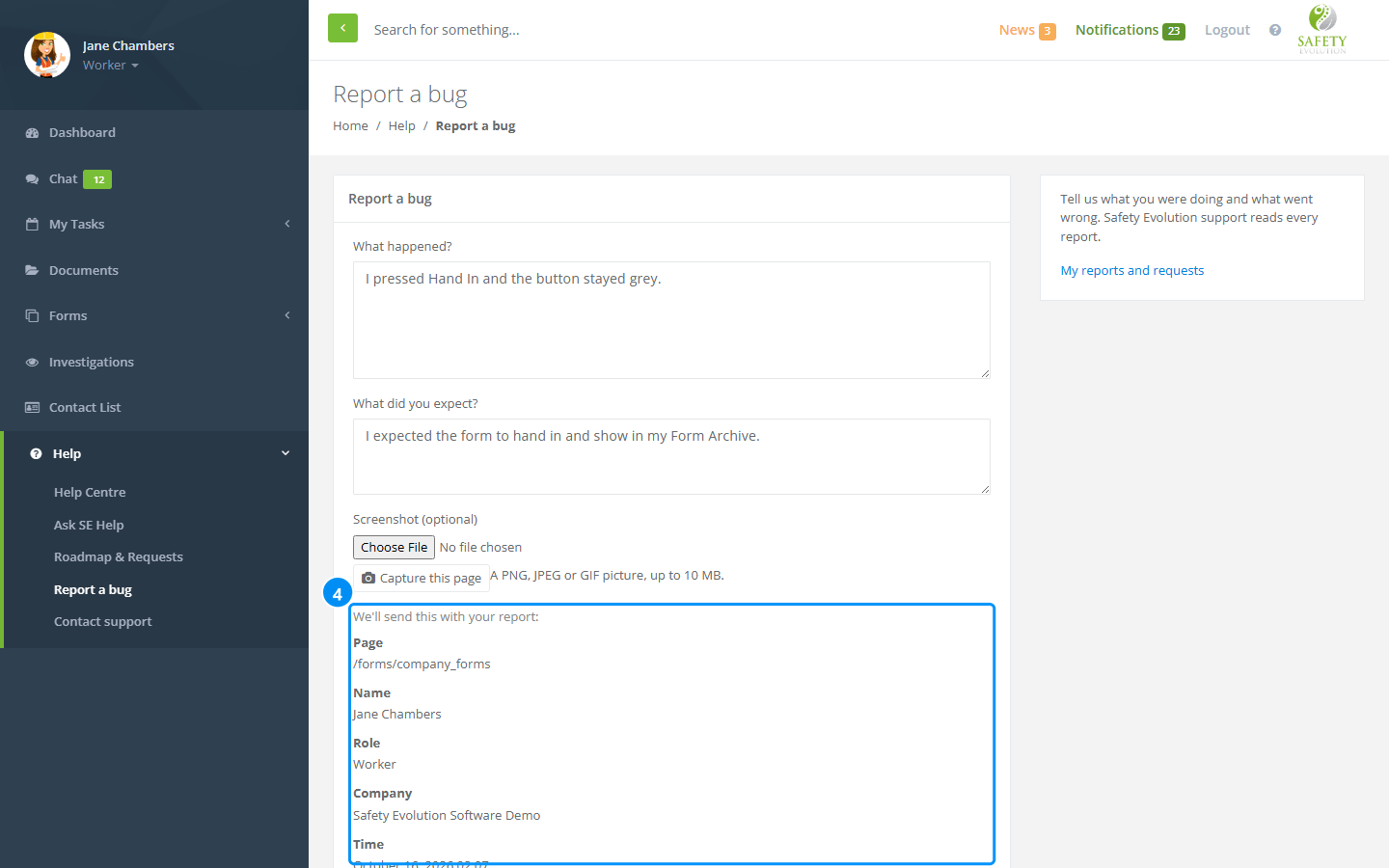
The details under "We'll send this with your report:" are added for you. - To add a picture, choose a file under Screenshot (optional). It can be a PNG, JPEG or GIF up to 10 MB.
- Or click Capture this page, if you see it. Pick the tab or window to capture. You see Captured. The picture is attached.
- Click Send. You see Thanks. Your report is sent to Safety Evolution support. and your report.
Report a bug from the phone
- Tap Menu, then Report a bug.
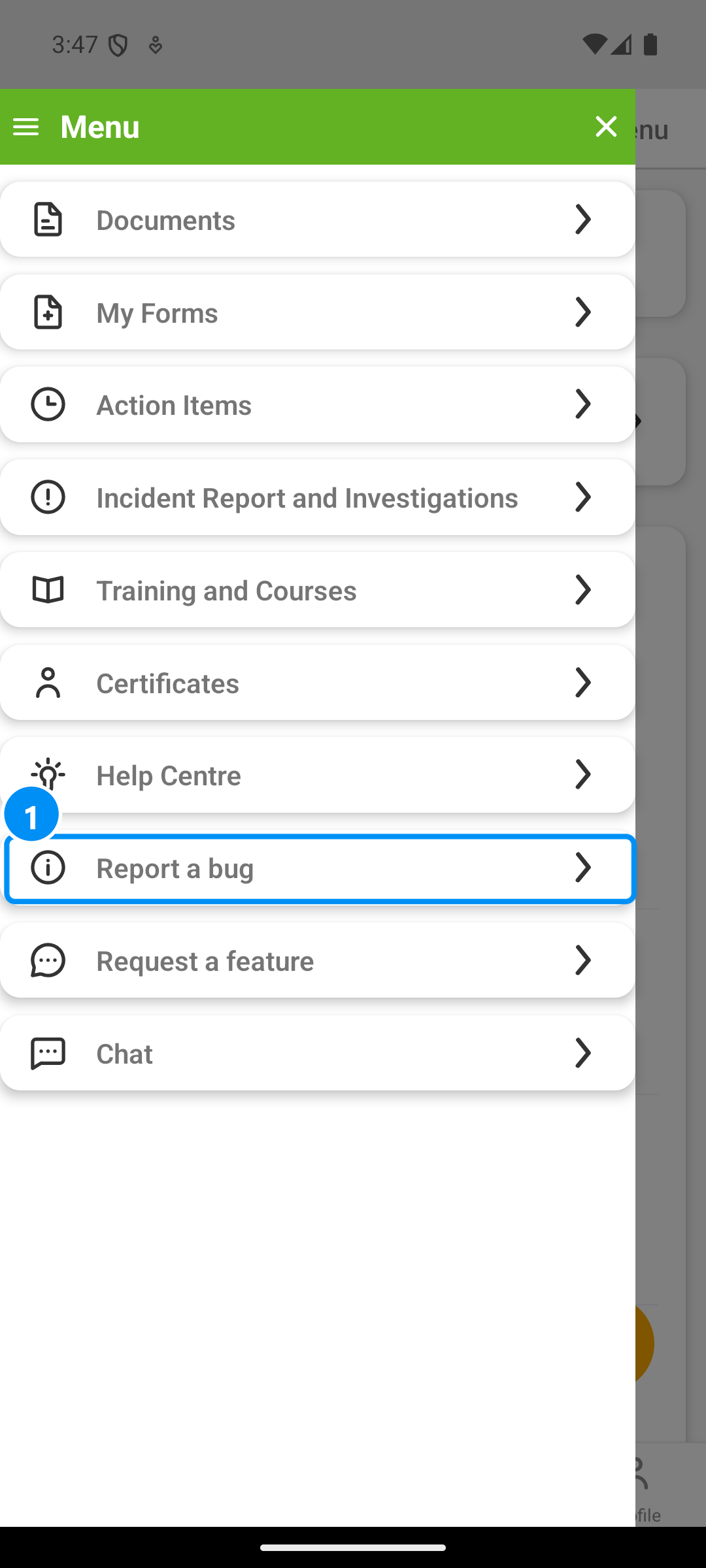
Report a bug from the phone's Menu. - The report form opens in your phone's browser. If it asks you to log in, use the same email and password as the app. You then come back to the form.
- The app version, your phone model and its system are filled in for you, under We'll send this with your report:.
- Fill in What happened? and, if you like, What did you expect? and a Screenshot (optional). Tap Send.
Follow your reports
- On the report form, click My reports and requests. Or go to Help › Roadmap & Requests and open the My requests and reports tab.
- Under My bug reports, each report shows its Status.
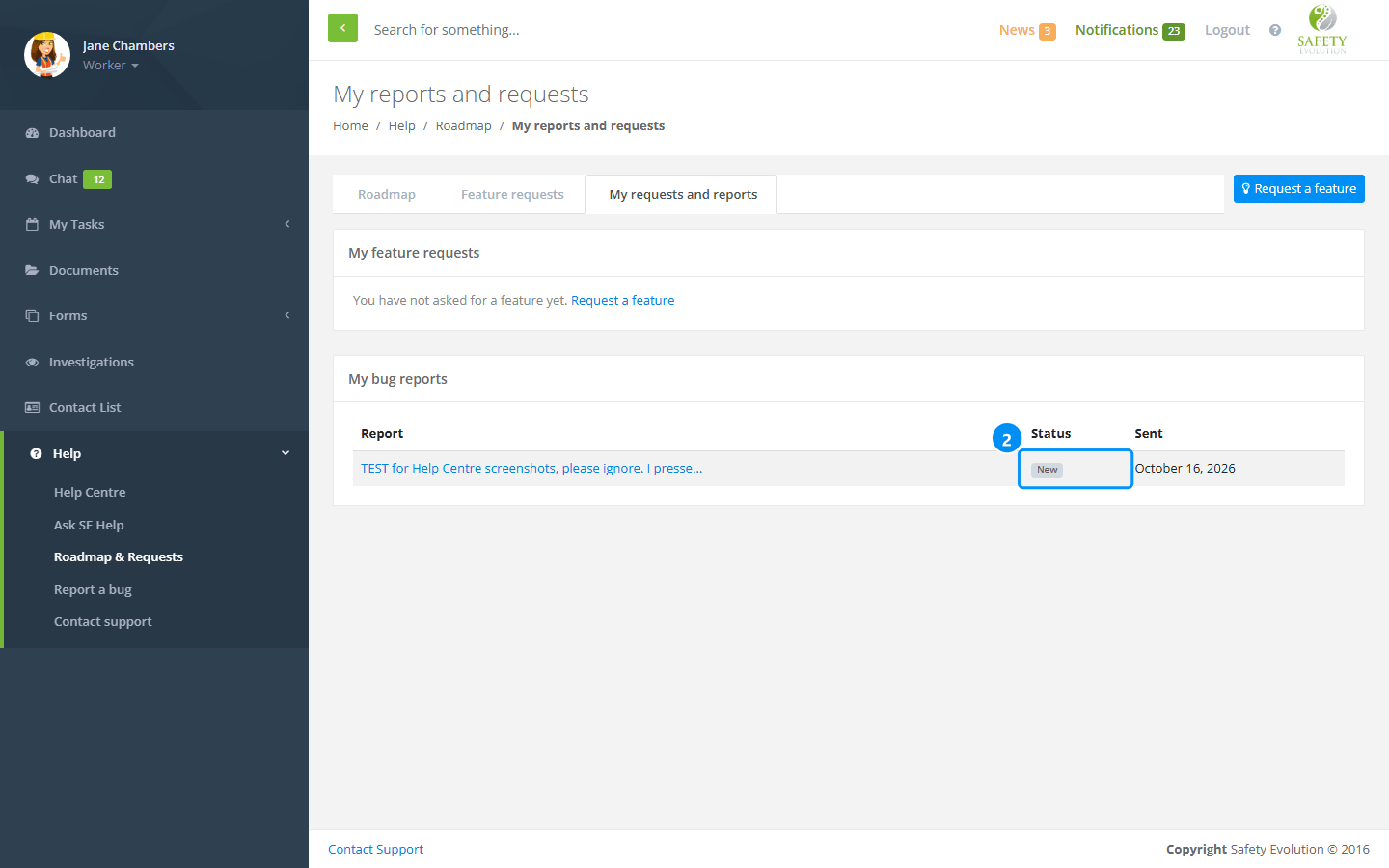
Follow each report's status.
| Status | What it means |
|---|---|
| New | Support has your report. |
| Confirmed | Support found the problem. |
| Fixed | It's fixed. You get a notification: "Your bug report is fixed". |
| Can't reproduce | Support couldn't make it happen. If it happens again, send a new report with more detail. |
To choose how you hear about fixed bugs, set Bug Reports in your notification preferences. See "Choose which notifications you get".
If something goes wrong
- "You have sent 10 bug reports in the last hour. Please wait a while and try again, or email support@safetyevolution.com.": wait an hour, or email support.
- "The page could not be captured. You can attach a file instead." or "Capture cancelled. You can attach a file instead.": take a screenshot yourself and choose it under Screenshot (optional).
- You don't see Capture this page: your browser can't capture pages. Attach a screenshot file instead.
- The screenshot isn't accepted: use a PNG, JPEG or GIF of 10 MB or less.
- "You have not reported a bug.": you haven't sent a report from this login yet.
Updated October 24, 2026