![side_logo.png]](/theme/site/shared/images/side_logo.png)
Run a toolbox talk on the phone
Open your talk form, read this week's talk to the crew (or have the phone read it aloud), then get signatures and hand it in.
Try it free Start with Safety Evolution's Free version.
A toolbox talk form shows the talk right inside the form on the phone. You pick the talk, read it to your crew, and hand the form in like any other form. The form keeps the talk you gave, word for word.
Before you start
- Your office must have built a form with a toolbox talk in it. If you do not see one, ask your office.
- You do not need signal to read the talk. Pictures are saved on the phone ahead of time.
Open the talk
- Tap Forms at the bottom of the screen.
- Tap Fill out a form.
- In Pick your form, tap your toolbox talk form.
- Pick your site in Site.
- Scroll to the talk. This week's talk is already picked. It shows as Wk and the week number, then the talk's name.
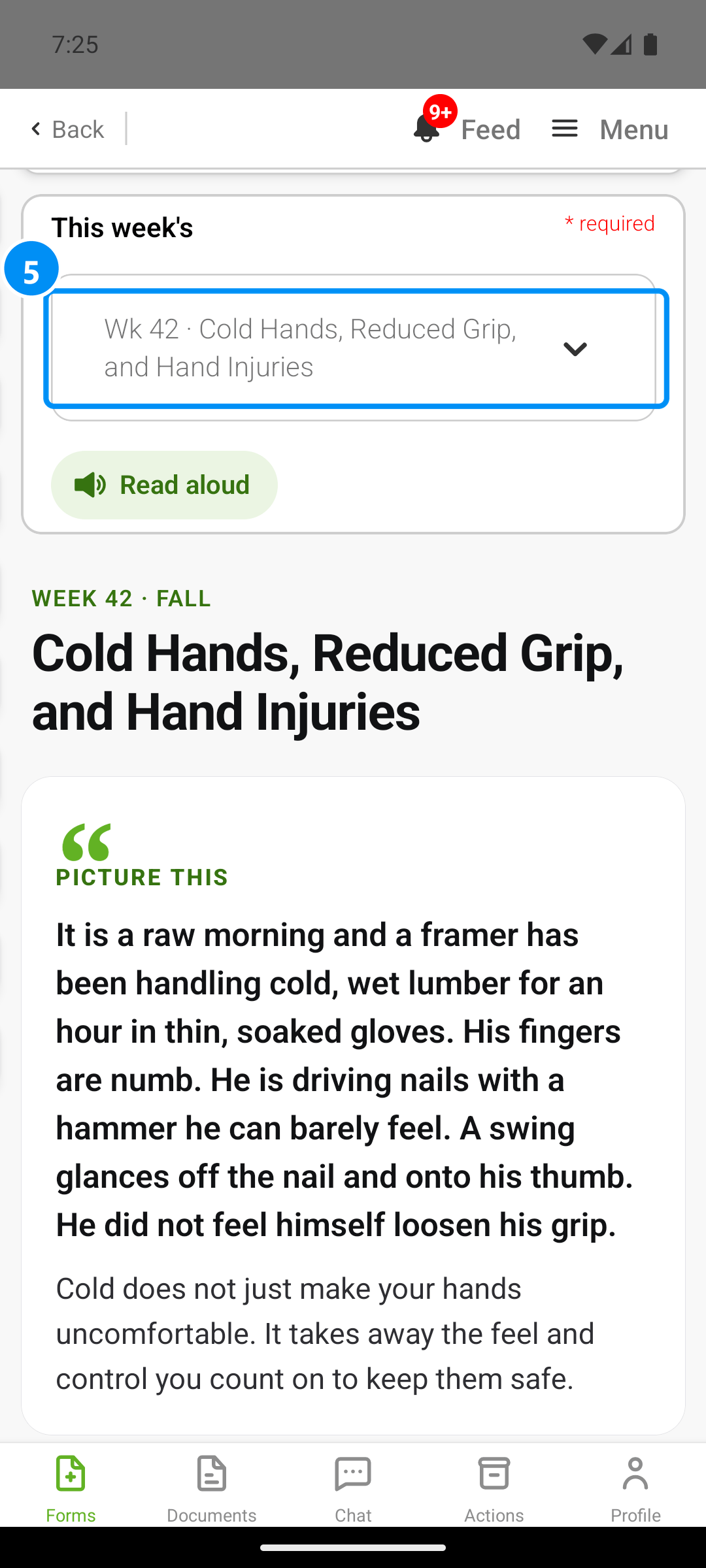
This week's talk is picked for you. The whole talk shows below it.
Give the talk
- Read the talk to your crew. All of it shows on the screen. Nothing is folded away.
- The talk starts with the week and season, for example Week 18 · Spring. A talk your company wrote with no week says Your company's talk.
- The talk is split into cards. Look for the labelled ones: Warning, Good to know, Ask the crew and Remember. Ask the crew the questions in Ask the crew, and finish with Remember.
- To give a different talk, tap the talk's name and pick another one from the list. Talks with a week come first, from Wk 1 to Wk 52. Your company's own talks, with no week, come after them. Type in the search box at the top to find a talk quickly.
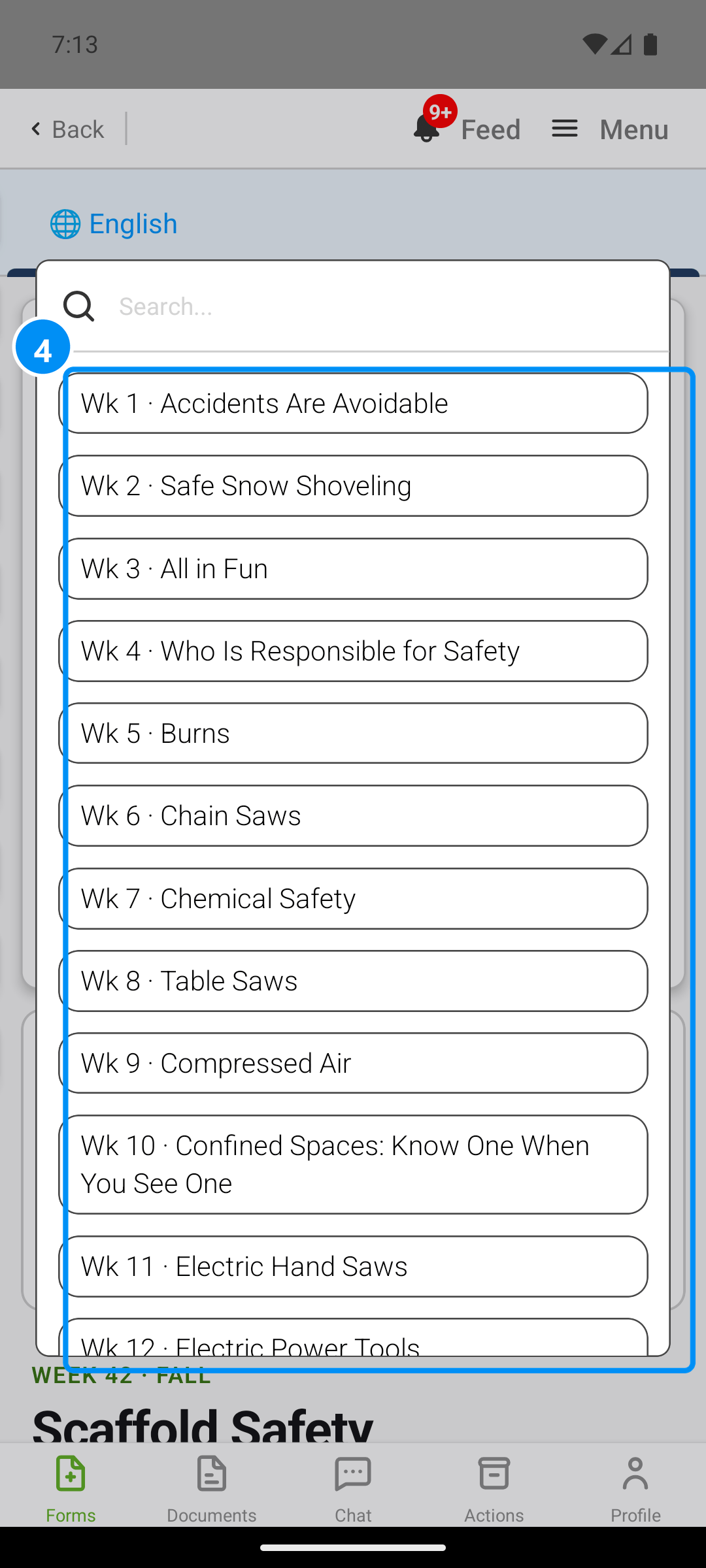
Week 1 to 52 first, then your company's own talks. - To show the talk in another language, tap EN, ES or FR. You only see the languages the talk is written in.
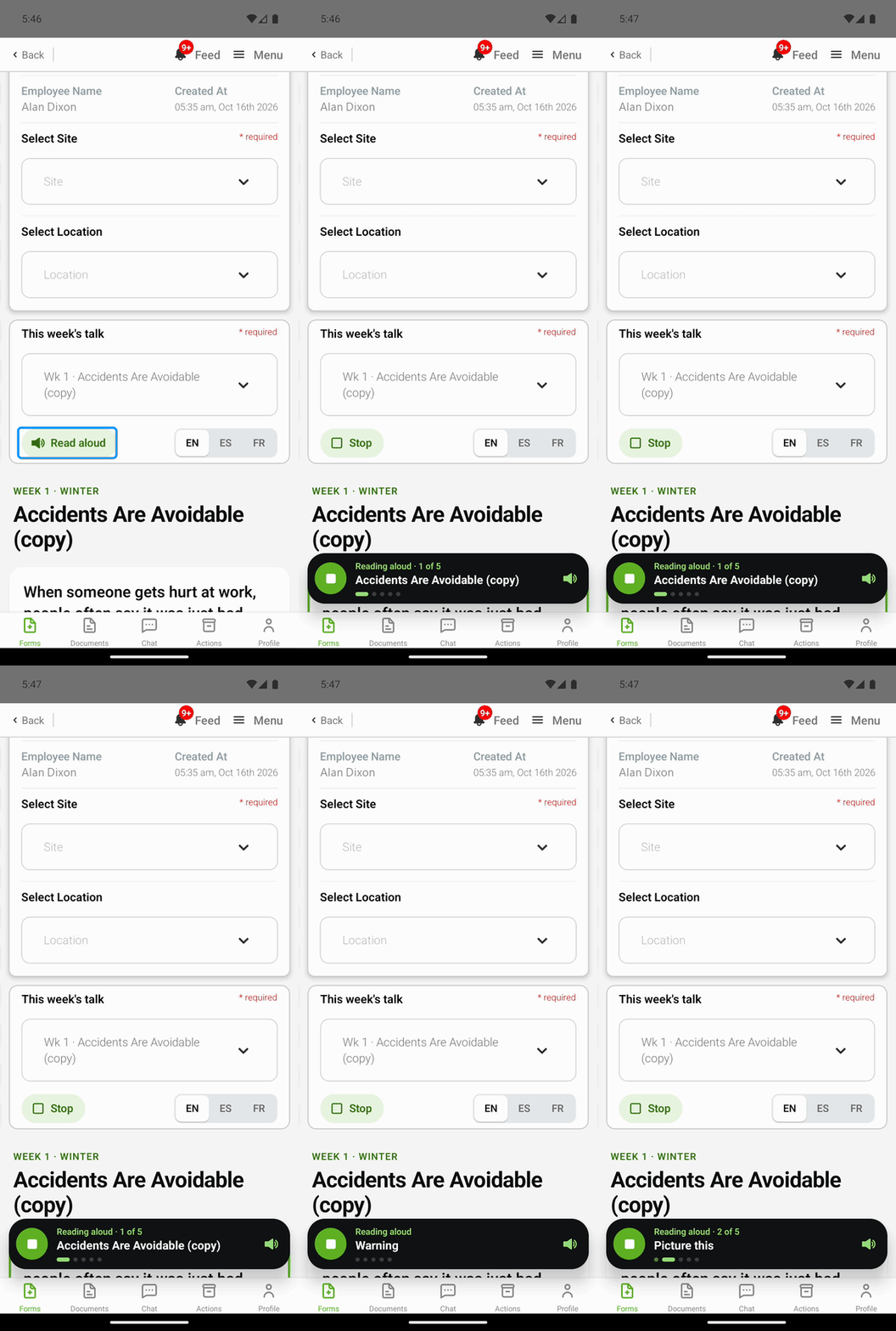
- To have the phone read the talk out loud, tap the green Read aloud button.
- While it reads, the part being read has a green ring and says Now reading. A dark bar at the bottom of the screen shows Reading aloud and which part it is on, for example 3 of 6.
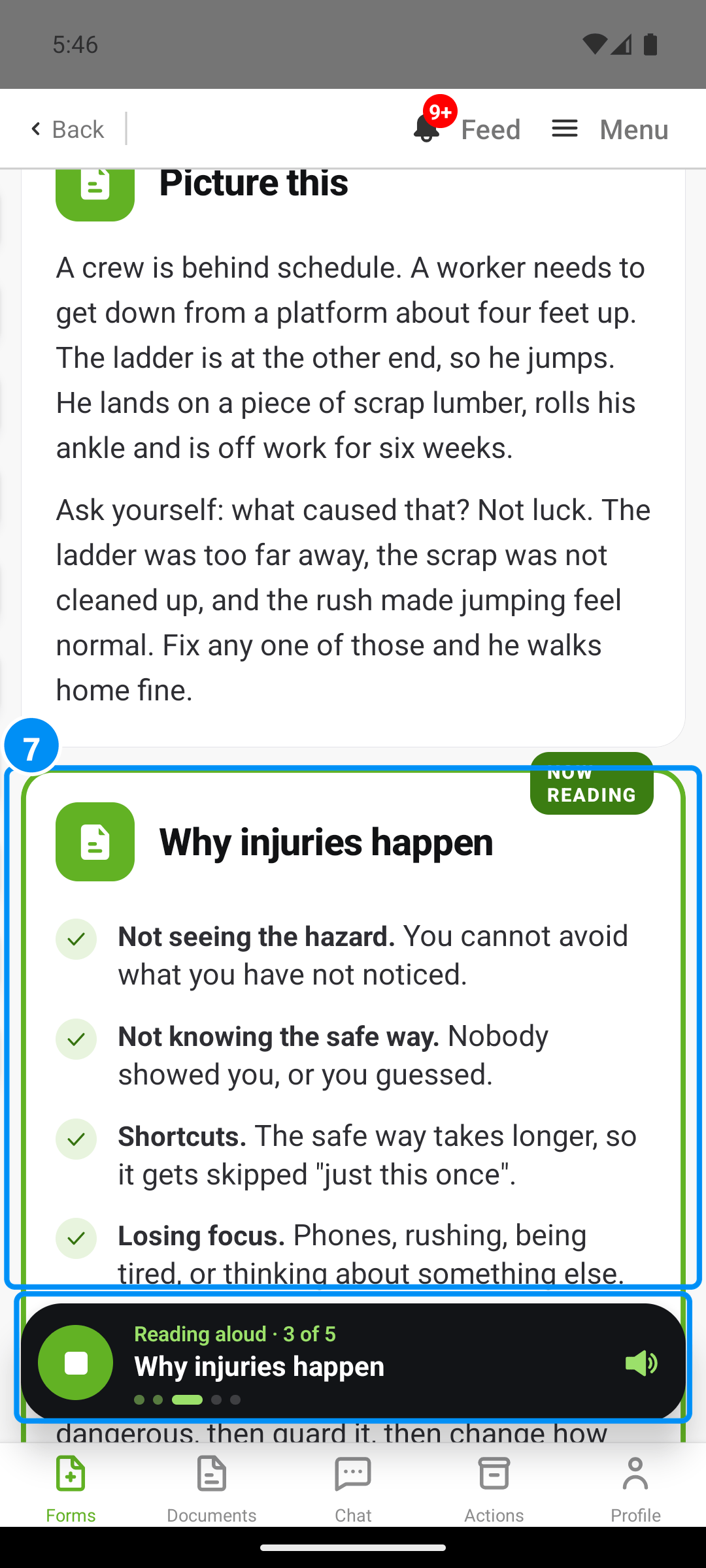
The part being read is marked. The bar at the bottom shows where you are. - To stop the voice, tap Stop, or the round Stop button in the bar. The voice also stops when you pick another talk or language, or leave the form.
Get signatures and hand it in
- If your form has a signature box, tap Add Signature for each person on the crew.
- Answer the rest of the form.
- Tap Hand In.
The handed-in form keeps the talk exactly as it was given, in the language you showed. If the office changes the talk later, your handed-in form does not change.
If something goes wrong
- No talk is picked: your office has turned off automatic picking, or no talk has a week set. Tap Select a talk and pick one.
- "Pictures downloading": the phone is still saving the talk's pictures. Stay on signal for a minute if you can.
- "Picture shows when you're online": that picture was not saved yet. The words of the talk still show. The picture appears once you have signal.
- "No Spanish voice on this phone" (or English, or French): the phone has no voice for that language. Tap Open speech settings to add one, or read the talk yourself.
- "This talk can't be shown. Pull down to refresh.": pull the screen down to refresh. The rest of the form still works.
- "One or more required questions were not answered" when you tap Hand In: the talk is required. Pick a talk, then tap Hand In again.
Updated October 24, 2026