![side_logo.png]](/theme/site/shared/images/side_logo.png)
Sign people on at a meeting with a QR code
Show a QR code at a meeting or toolbox talk so everyone, with or without a login, signs on from their own phone.
Try it free Start with Safety Evolution's Free version.
At a meeting or a toolbox talk, you can show a QR code on your phone or computer. Each person scans it with their own phone camera and signs on. They don't need the app or a login. Their names show up on your screen as they sign.
Before you start
- Sign-on codes must be turned on for your company.
- You need a form for the meeting, such as a toolbox talk or safety meeting form. Start it first. It can be a draft that has reached the office, or a handed-in form.
- Anyone who can open the form can start a code, except auditors. Workers can start one on their own forms.
- You need signal (phone) or internet (web) to show a code.
Show the code on the phone
- Open the form and tap Share at the top.
- In the Send this form window, under Send to, tap Sign-on QR code. The Sign-on QR code window opens straight away with the code.
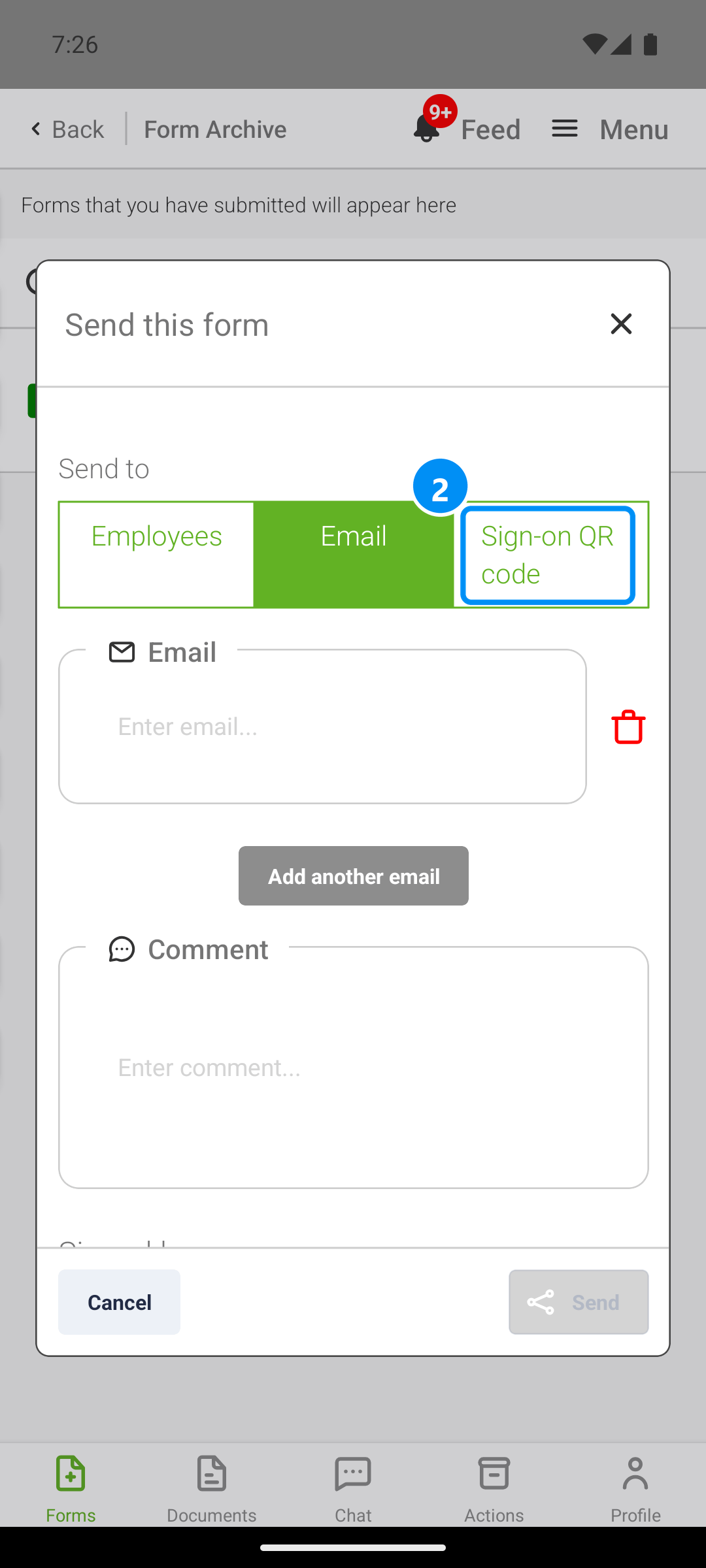
Tap Sign-on QR code. The code opens straight away. - Hold up your phone so people can scan the code. If you close the window by mistake, tap Show the sign-on QR code to open it again.
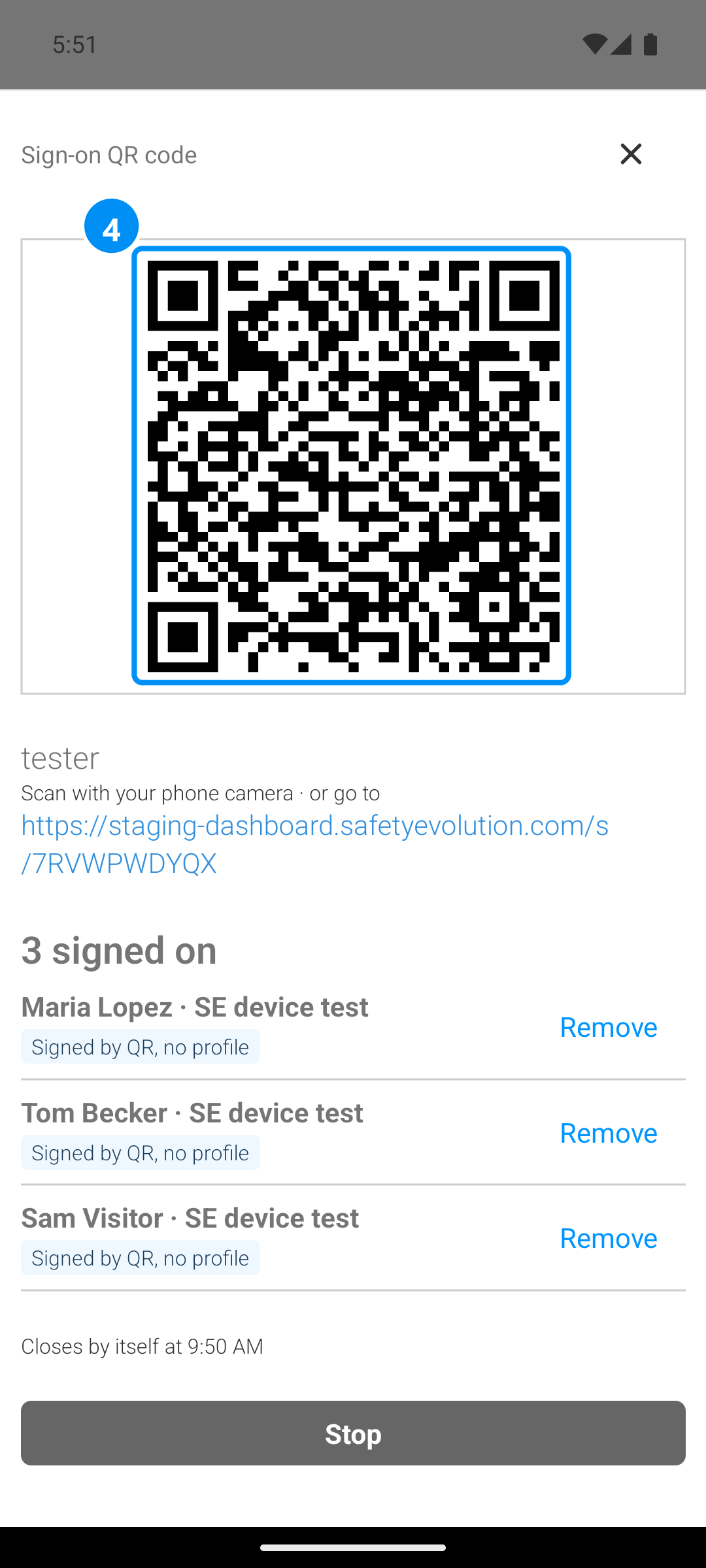
Names appear under "signed on" as people sign.
Show the code on the web
- In the left menu, click Forms, then Company Forms.
- Open the meeting form and click Share.
- At the bottom of the Share Document window, click Sign-on QR code.
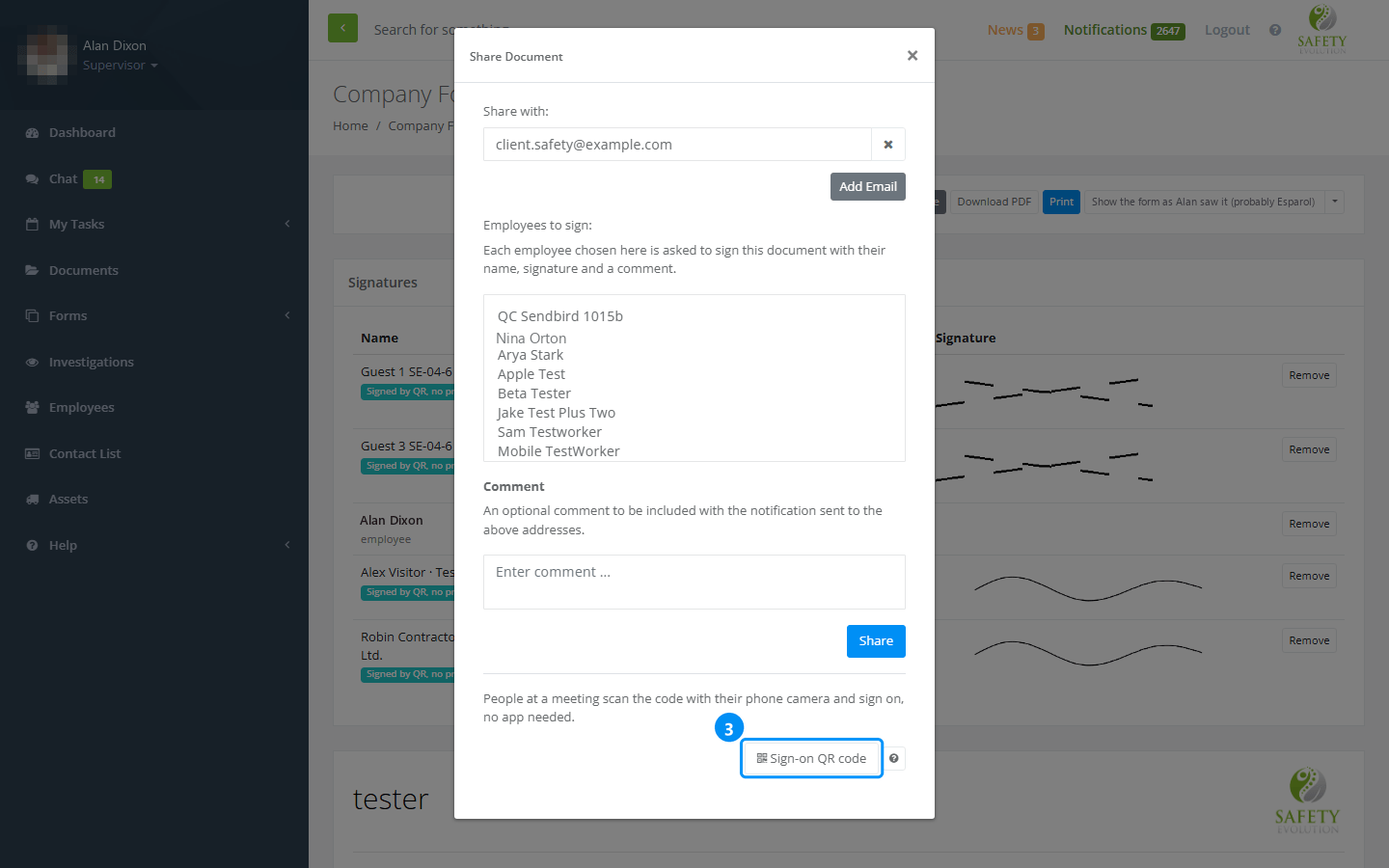
The Sign-on QR code button is at the bottom of the Share window. - The Sign-on QR code page opens with a large code and its web address. Put it on a screen people can see.
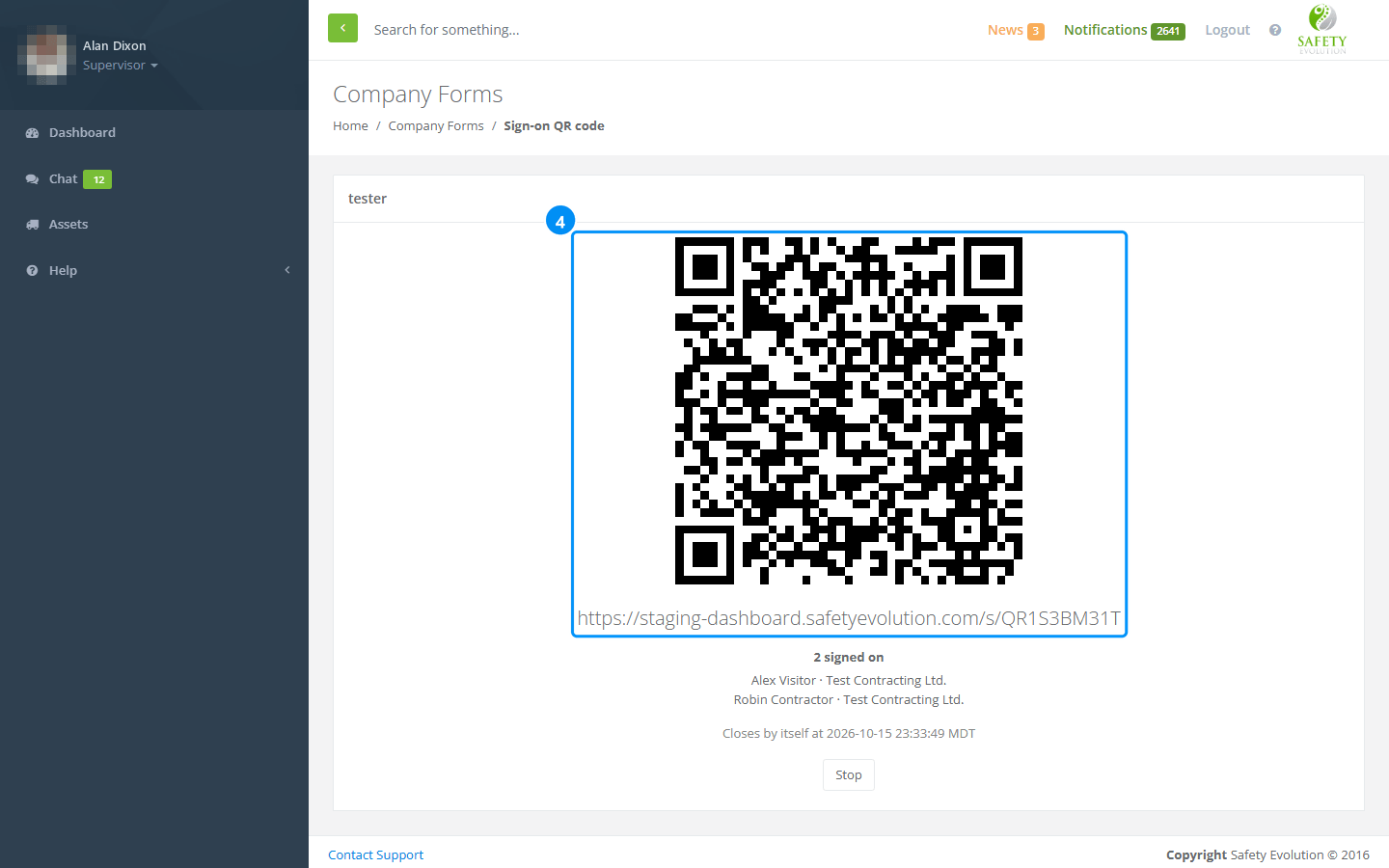
The page updates every few seconds as people sign on.
While the code is open
- The count, for example 3 signed on, and the names update by themselves.
- People without a phone can type the address shown under the code into any browser.
- The code closes by itself 4 hours after you start it. The screen shows Closes by itself at time.
- A form has one open code at a time. Starting it again shows the same code.
Stop the code
- When everyone has signed, tap or click Stop.
- On the web, confirm: "Stop this sign-on code? People can no longer sign on with it."
Stopping is final. The page then says "This sign-on code is closed." To sign more people on later, click Start a new sign-on code on the web page. The code's maker, supervisors and the office can stop a code.
Remove a wrong sign-on (phone)
In the phone window, a sign-on from someone without a login has Remove beside it. Tap Remove, then Remove again to confirm. The form's history keeps who removed it. If you see "You can only remove sign-ons on codes you started.", ask the person who started the code.
On the web, the ? beside the Share window's Sign-on QR code button, and beside the heading of the Sign-on QR code page, opens this help article.
If something goes wrong
- "You need signal to show a sign-on code. Use the Signatures element in the form for now.": you have no signal. Collect signatures in the form instead.
- "Not available for your company yet.": sign-on codes are not turned on for your company.
- "You can't start a sign-on code for this form.": you can't open this form, or you are an auditor.
- "The sign-on code could not be started. Try again.": try again in a moment.
- You don't see Sign-on QR code in the web Share window: sign-on codes are off for your company, or you are an auditor.
Updated October 24, 2026