![side_logo.png]](/theme/site/shared/images/side_logo.png)
See and save your certificates on the phone
Find your certificates in the phone app, check when they expire, and save a copy to your phone's photos to show on site.
Try it free Start with Safety Evolution's Free version.
Your certificates are in the phone app, so you can show them on site. You can see when each one expires and save a copy to your phone's photos.
Before you start
- You need signal. The app loads your certificates from Safety Evolution each time.
- Your certificates come from the courses you finish and the cards you or your office add on the web. To add one, see Add a certificate to your own profile.
See your certificates
- Tap the Profile tab, then Certificates. Or tap Menu at the top right, then Certificates.
- The list shows Your Certificates:. Each one shows Expires On: and its date, or Does Not Expire. A certificate past its date has a red icon and an Expired tag.
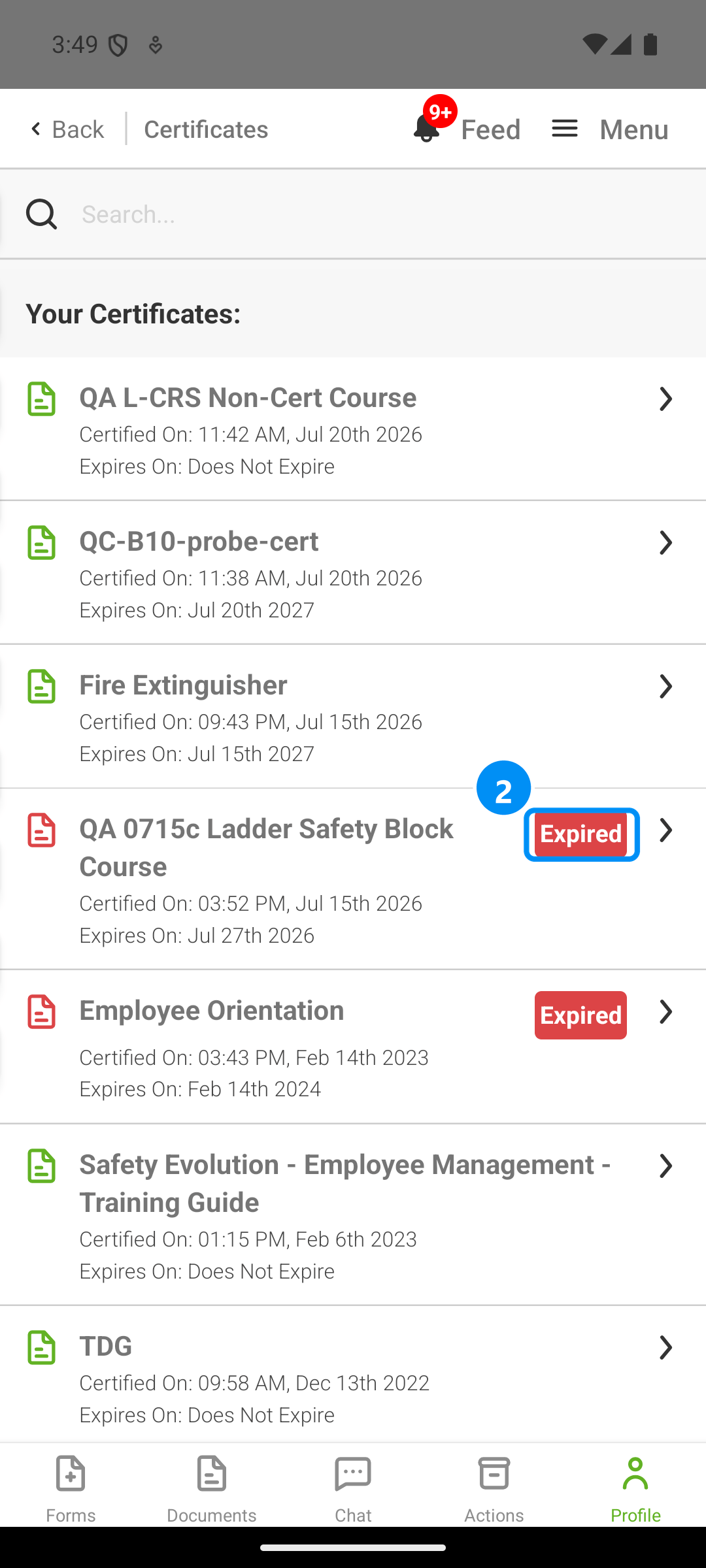
Expired certificates are marked in red. - To find one, type part of its name in Search... at the top.
Open a certificate
- Tap a certificate. It opens full screen.
- A certificate you earned from a course shows the company logo, Manager:, Issued To:, when it expires (Expires On) and the Certification Number:.
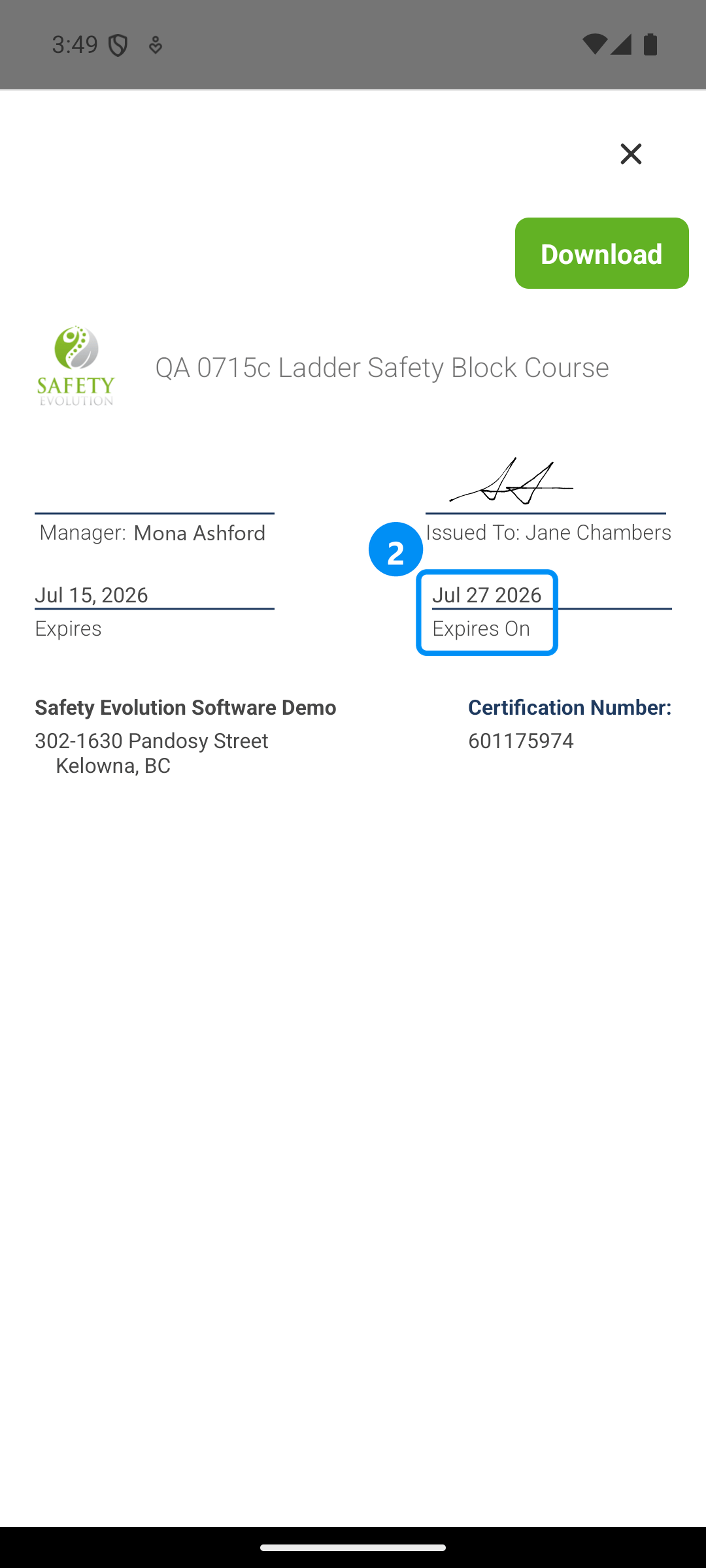
A certificate from a course. - A certificate that was uploaded as a picture, such as a photo of a ticket or card, shows that picture. Pinch to zoom in.
- To close it, tap the close button, or press Back on Android.
Save a copy to your phone
- Open the certificate.
- Tap Download at the top right.
- You see Certificate Downloaded Successfully.
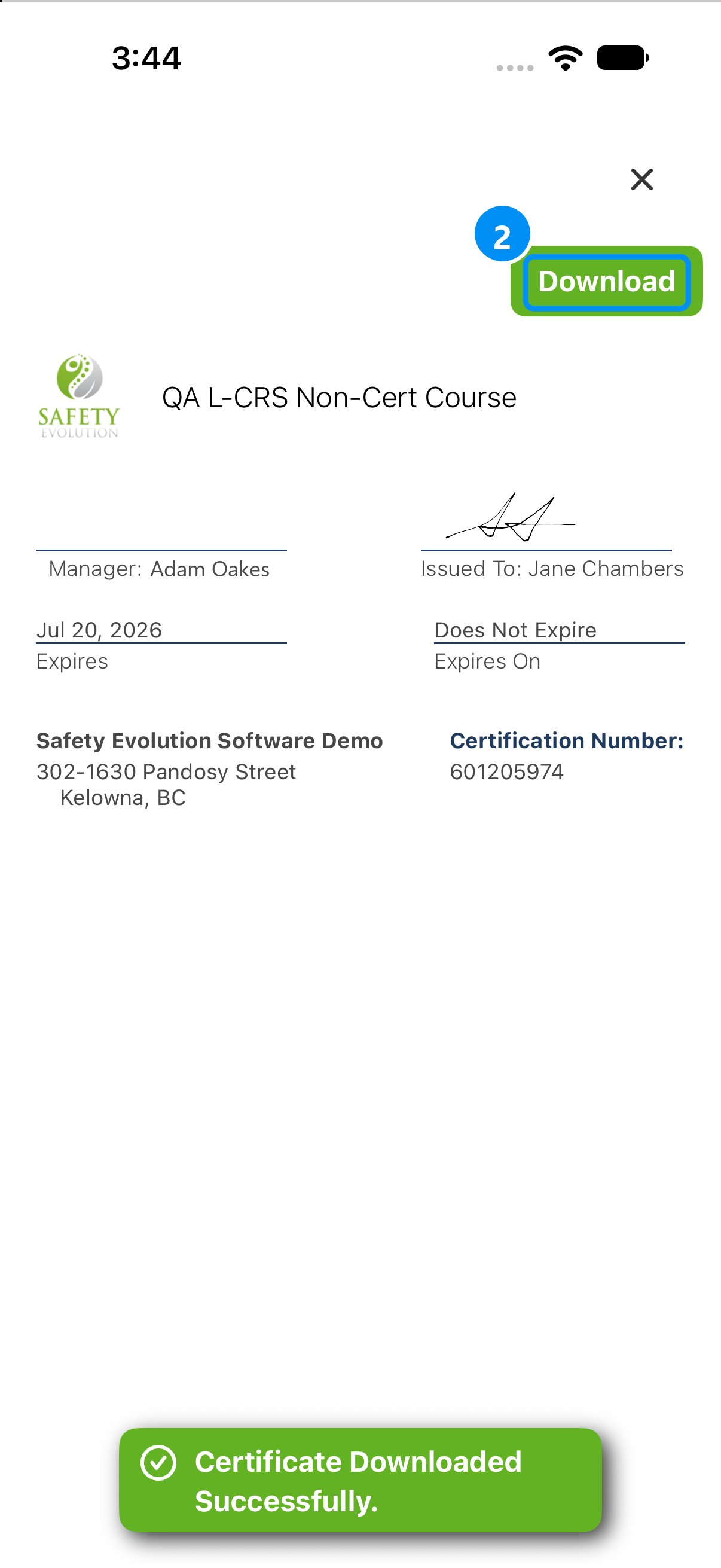
The copy is in your phone's photos. - Find the copy:
- iPhone: in the Photos app.
- Android: a certificate from a course goes to your photos. An uploaded picture goes to the Pictures folder, and your phone shows a download notification.
If something goes wrong
- "No certificates found.": you have no certificates yet, your search matches none, or you have no signal. Clear the search and check your signal. To add a certificate, see Add a certificate to your own profile.
- "Could not save the certificate to Photos. Allow Photos access in Settings and try again.": the app isn't allowed to save to your photos. Turn on Photos for Safety Evolution in your phone's Settings, then tap Download again. See Set up the phone app.
- A certificate is missing or its date is wrong: certificates are added and changed on the web. Ask your office, or see Add a certificate to your own profile.
Updated October 24, 2026