![side_logo.png]](/theme/site/shared/images/side_logo.png)
Find your way around the web app (menu by role)
What is in the left menu and the top bar of the web app, and which items each role sees.
Try it free Start with Safety Evolution's Free version.
The web app has a menu down the left side and a bar across the top. What you see in the menu depends on your role and on what your company has turned on. If you cannot find something in this article, your role or your company may not have it.
The top bar
- The green arrow button on the far left makes the left menu narrow or wide again.
- Search for something... searches the system.
- News shows what Safety Evolution changed lately. A number means there is news you have not read.
- Notifications shows your unread notices. The gear opens Notification Preferences.
- Logout logs you out.
- Help opens the help menu: Help Centre, SE Help Chat, Roadmap & Requests, Report a bug and Contact support. SE Help Chat shows only when your company has SE Help. Auditors do not see it.
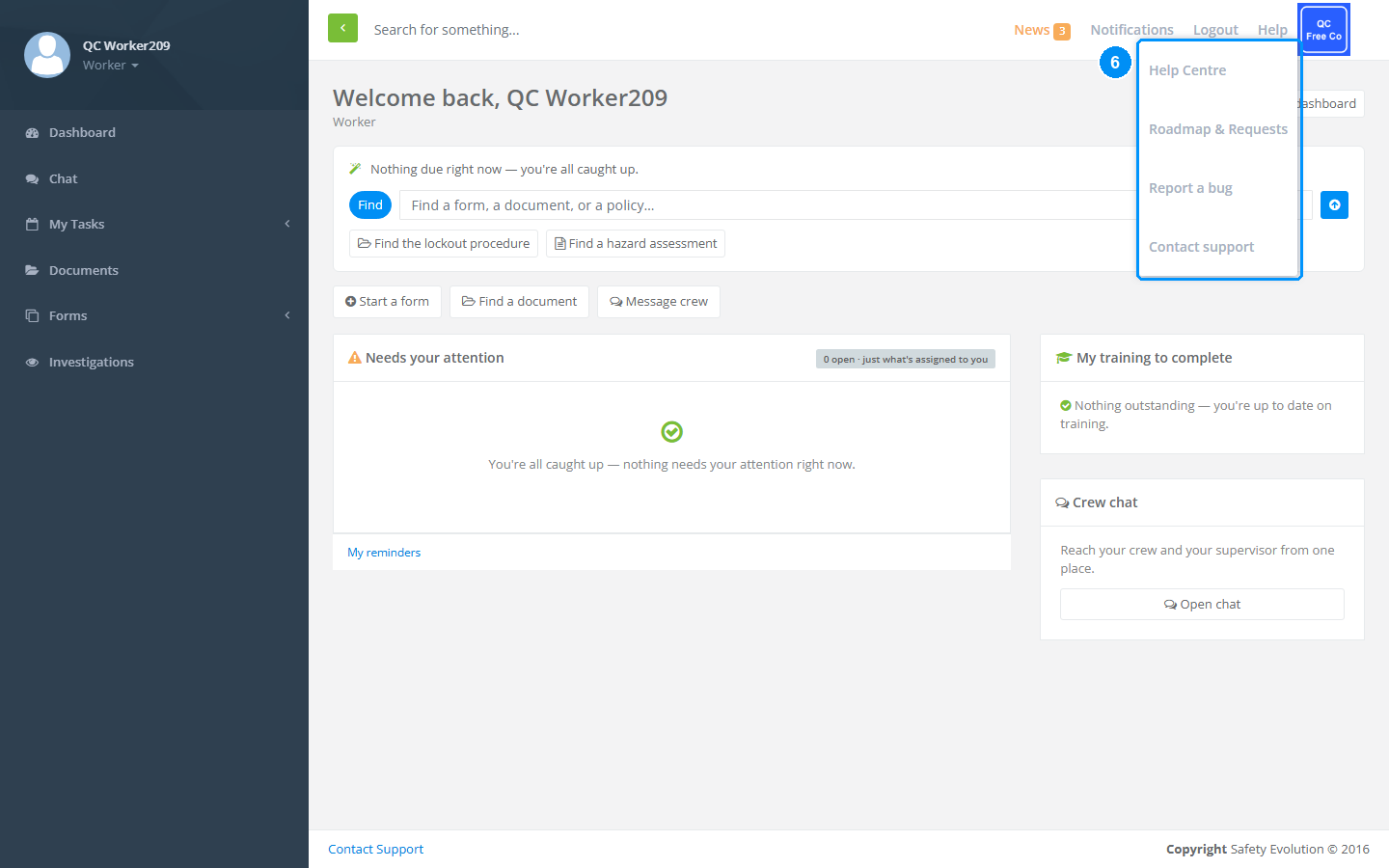
The top bar.
The left menu: what everyone sees
- Your name at the top. Click it for Profile and Logout.
- Dashboard: your home page.
- Chat: team chat, when your company uses chat.
- My Tasks: Reminders and Action Items.
- Documents: your company's documents.
- Forms: Company Forms, where you start and find forms. Some companies also see older form types here, such as JHA, FLHA and BBO/HID.
- Investigations: incident reports and investigations.
Your company may also add Safety Manual, Practices, Procedures or Print Forms.
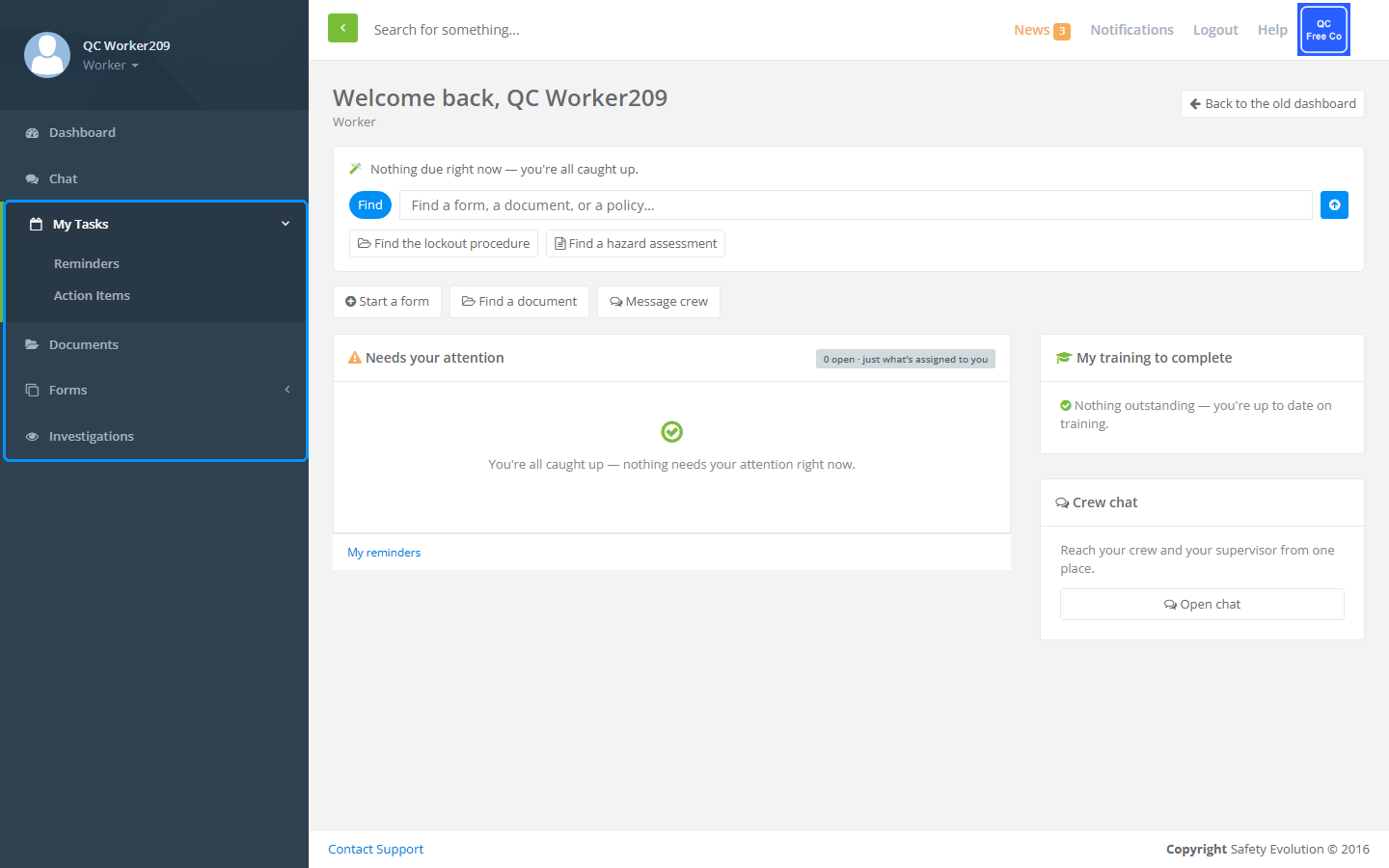
Extra items by role
| Menu item | Who sees it |
|---|---|
| AI Assistant | Owners, designates and admins |
| Command Center | Owners, designates and admins |
| Analytics | Owners, designates, admins and auditors, when Safety Evolution has set up reports for your company |
| Employees | Owners, designates, admins, supervisors and auditors |
| Company Settings | Owners, designates and admins |
| Contact List | Everyone except workers. Workers see it only if the company allows it. |
| Audit > Auditors | Owners, designates and admins |
| Assets | Everyone except workers, when the company has set up asset types |
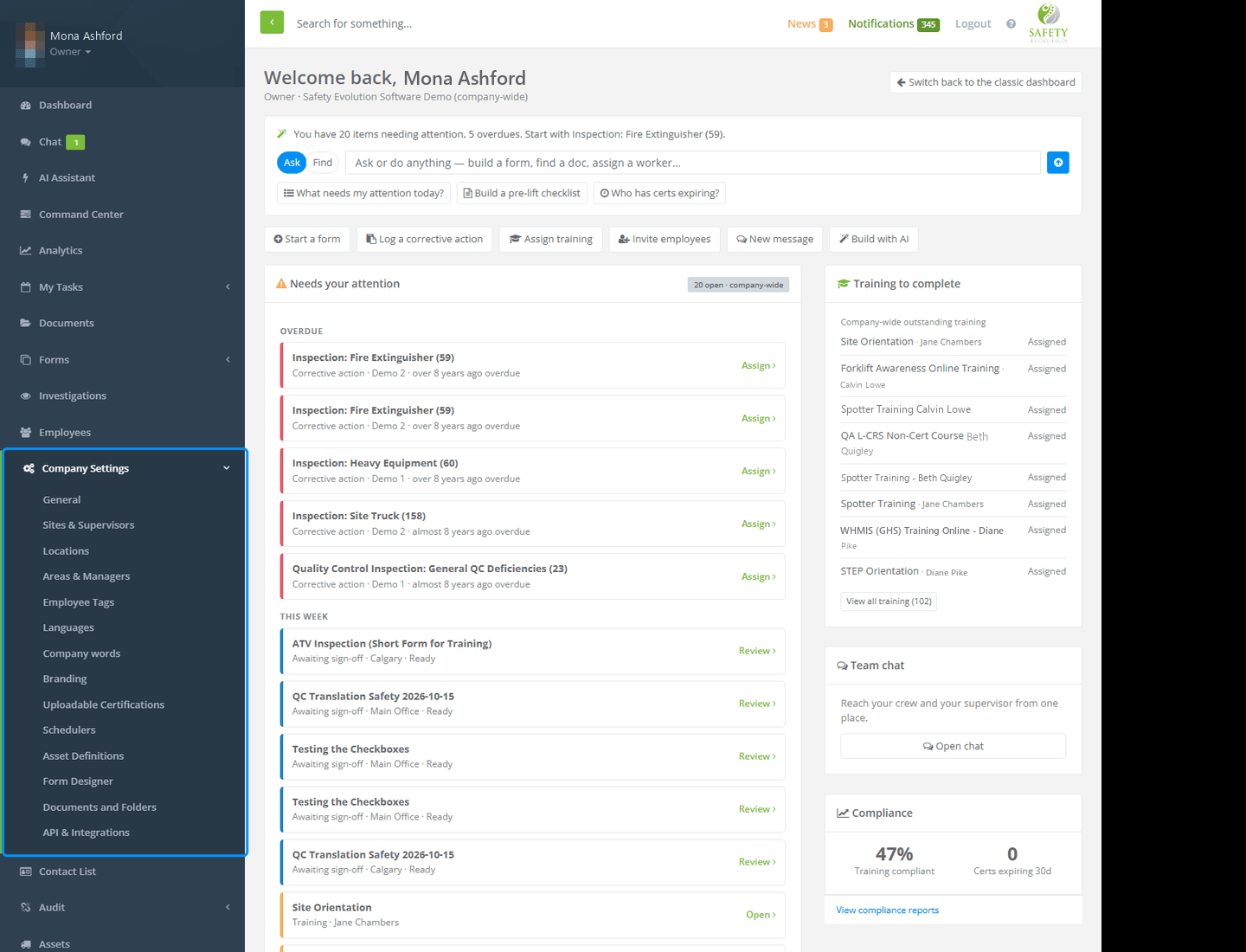
Company Settings, for owners, designates and admins
Company Settings opens a list: General, Sites & Supervisors, Locations, Areas & Managers, Employee Tags, Languages and Company words (when your company has translation), Uploadable Certifications, Schedulers, Asset Definitions, Form Designer, Documents and Folders and API & Integrations. You also see Manage Billing if your company pays by card, or Upgrade on the Free plan.
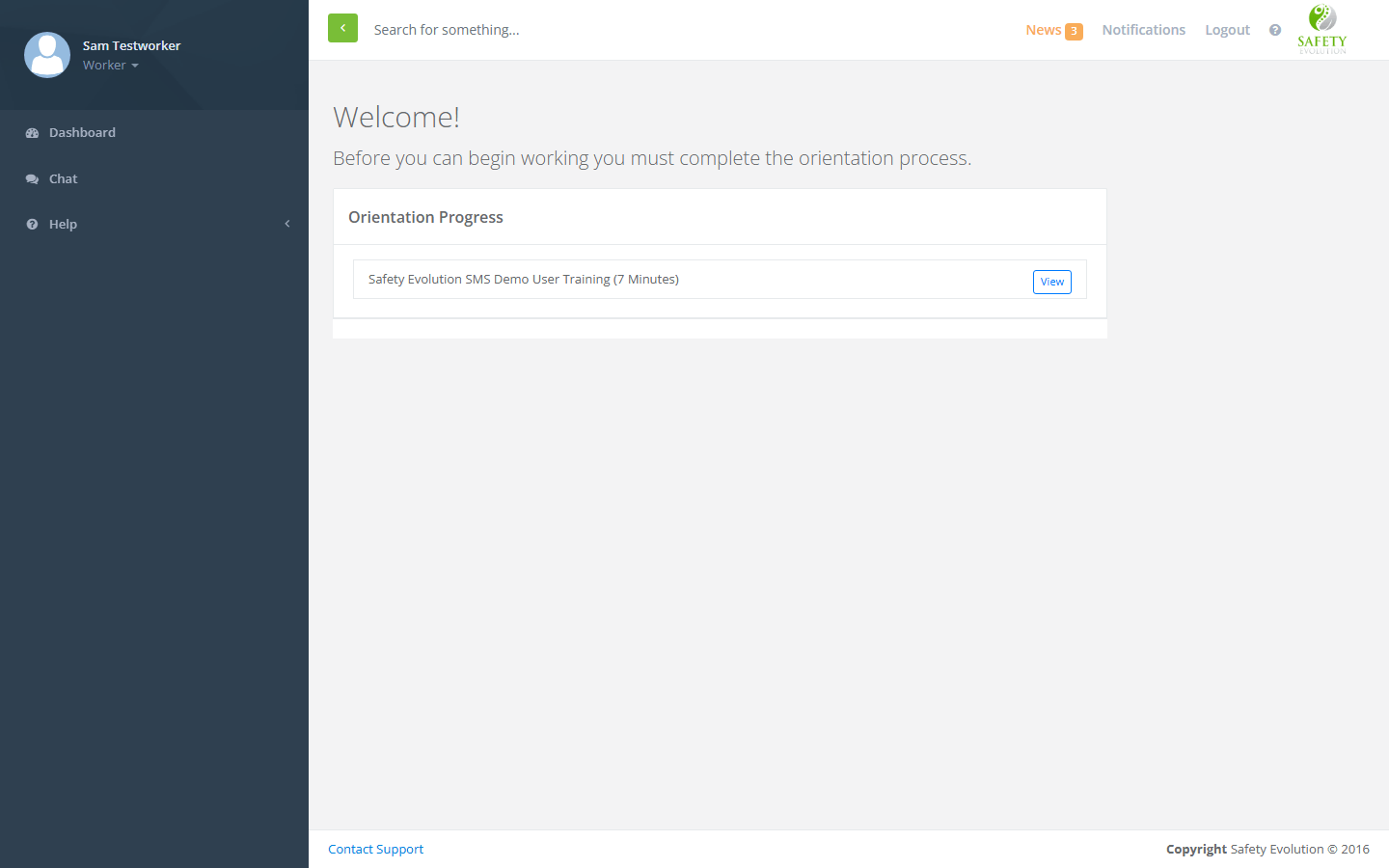
Before you finish orientation
If your company has orientation courses, most of the menu stays hidden until you finish them. Your Dashboard says "Before you can begin working you must complete the orientation process." and lists the courses. Click View beside each one to take it. Help is always in the menu, even before orientation.
Updated October 24, 2026