![side_logo.png]](/theme/site/shared/images/side_logo.png)
Approve or cancel what the AI Assistant proposes
Ask the AI Assistant to do the next step for you, such as add a comment or enroll a worker, then confirm it or cancel it. Nothing changes until you confirm.
Try it free Start with Safety Evolution's Free version.
The AI Assistant can do the next step for you, not just answer. Ask it to add a comment to a corrective action, enroll a worker in a course or log hours, and it prepares the change and shows it to you. Nothing is saved until you click Confirm.
Before you start
- For owners, designates and admins.
- The AI Assistant comes with the Professional and Enterprise plans. Safety Evolution can also turn AI on for your company. Without either, the AI Assistant page shows Contact Us to Enable AI Agents.
What you can ask it to do
Say what you need in plain words. Some of the steps it can prepare:
- Add a corrective action, or comment on one, assign it, or move it on, for example mark it corrected or close it.
- Enroll a worker in a course, or cancel an enrollment.
- Log hours worked, or add a certificate to a worker's profile.
- Add an employee or a location, or change an employee's details.
- Start a form, or share one.
- Do the same thing for many at once, for example close all the corrective actions you list, or enroll a whole crew.
Ask, check and confirm
- In the left menu, click AI Assistant.
- Ask for the change. Be specific about which record and which person. For example: "Add a comment to the open corrective action for the missing guardrail at the North Yard: guardrail installed today."
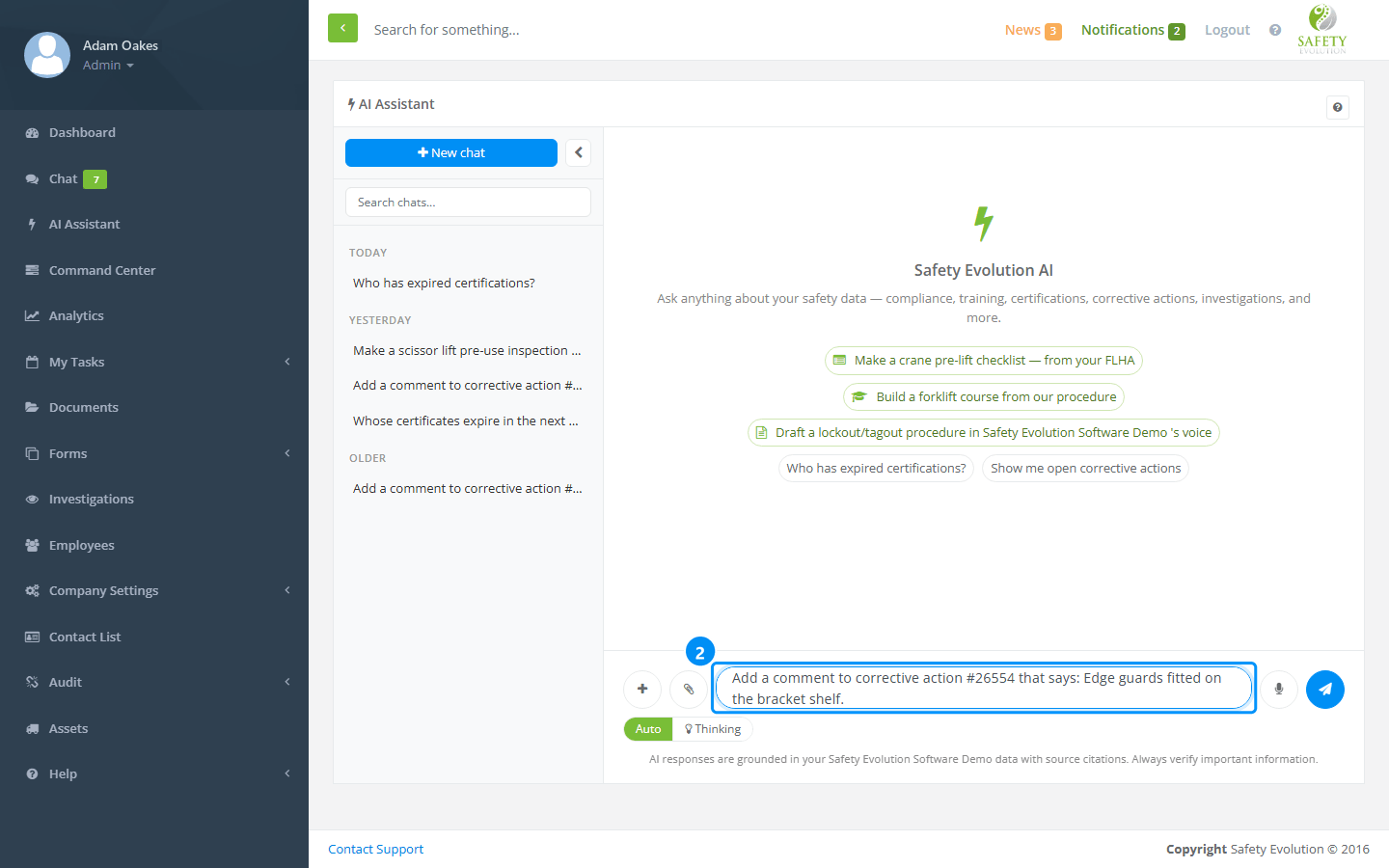
Say exactly which record and what to change. - Press Enter. The assistant answers with a Proposed Action card. It says what it will do and lists the details it will use.
- Read the card. Check the record, the person and the words are right.
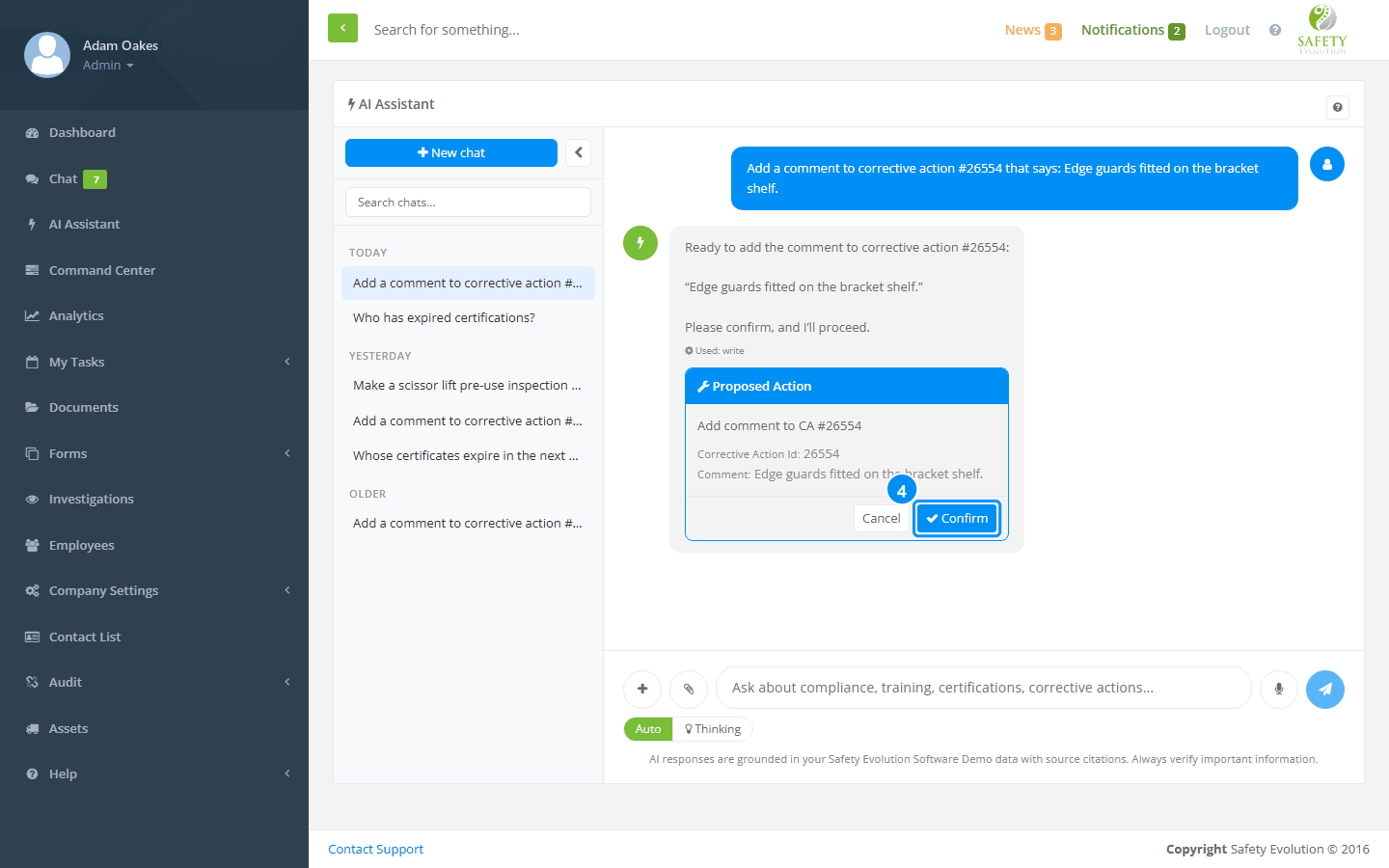
Nothing happens until you click Confirm. - Click Confirm to do it. The card changes to Action confirmed and executed.
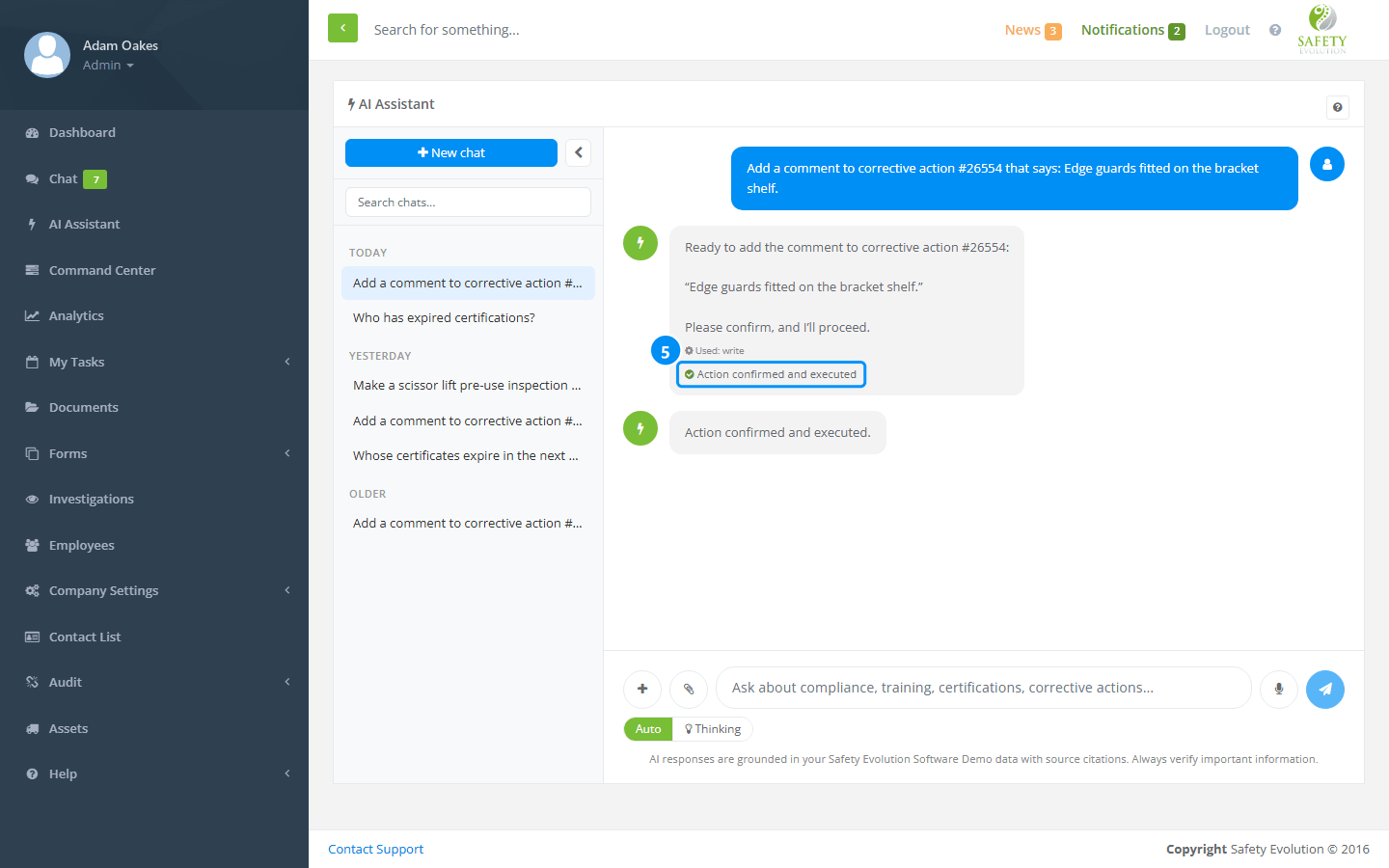
The change is saved under your name.
Not right? Click Cancel instead. The card shows Action cancelled and nothing changes. Then ask again with the correct details.
Where the change shows
A confirmed change is saved in the normal place, under your name. A comment shows on the corrective action, an enrollment on the course, hours on the employee's hours.
It can only do what you can do
- Every change is made as you, with your own permissions, in your own company. If your role can't do something on screen, the AI Assistant can't do it for you either.
- It never changes anything by itself. Each step waits for your Confirm.
- Forms, documents and training courses it builds work a little differently: you check the draft and click save. See Build a form with AI, Write a safety document with AI and Build a training course with AI.
If something goes wrong
- "That didn't go through: …": the change was refused, and the message says why. For example, the record doesn't exist or your role isn't allowed to make that change. Nothing was saved. Fix what it says and ask again.
- "That action could not be completed." or "That action could not be confirmed (network error).": the change didn't reach us. Nothing was saved. Check your connection and ask again.
- For other AI messages, see When AI is busy, limited or unavailable.
Updated October 24, 2026