![side_logo.png]](/theme/site/shared/images/side_logo.png)
Other form elements: risk assessment, observations, audit, dropdown
What the Task Risk Assessment, Safe/At Risk Observation, Audit, Dropdown, Signatures and Employee, Assets and Site elements do, and how to set each one up.
Try it free Start with Safety Evolution's Free version.
Besides text questions, checkboxes and dates, the Form Designer has elements for the safety work your teams do every day. This article explains each one and the settings you choose.
To add any element, open your form, click the Build tab, and click the element on the left. Click it in the middle of the screen to see its settings on the right.
Task Risk Assessment
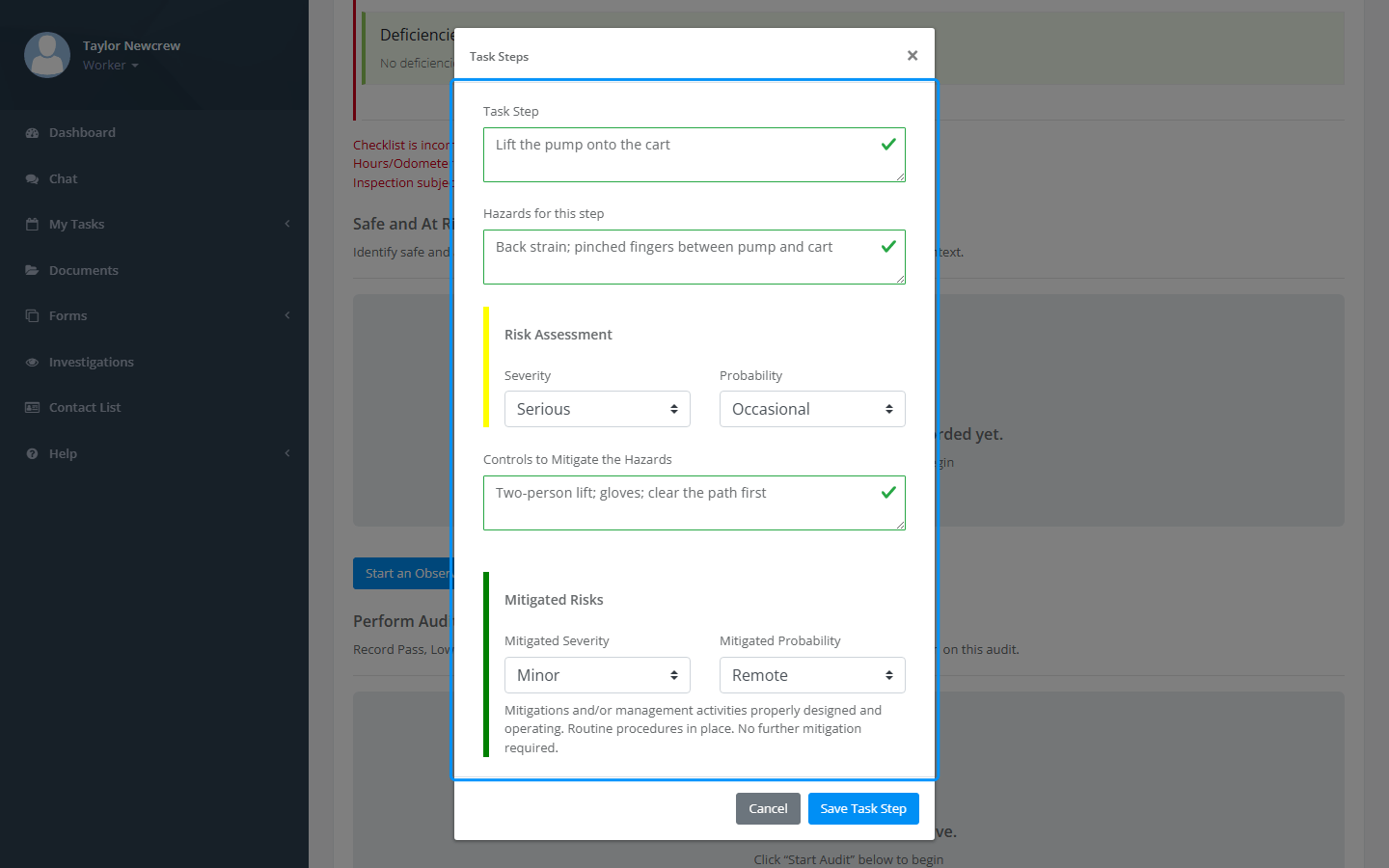
Workers break a job into steps, list the hazards of each step, rank the risk, and write the controls. Good for hazard assessment forms such as an FLHA or JHA.
- Setting: Required Field? Turn it on if at least one task step must be filled in.
- On the form, workers click Add Task Step. For each step they fill in Task Step, Hazards for this step, the Severity and Probability, and Controls to Mitigate the Hazards. Then they rank the risk again after the controls, under Mitigated Severity and Mitigated Probability.
- Severity goes from Minor to Catastrophic. Probability goes from Improbable to Frequent.
Safe/At Risk Observation
Workers note safe and at-risk behaviours or conditions they see during the day. For each one they can add comments and photos, and say whether follow-up is needed.
- On the form, workers click Start an Observation, pick from the Safe and At Risk Checklist, add a Description, and answer Was any Action taken?
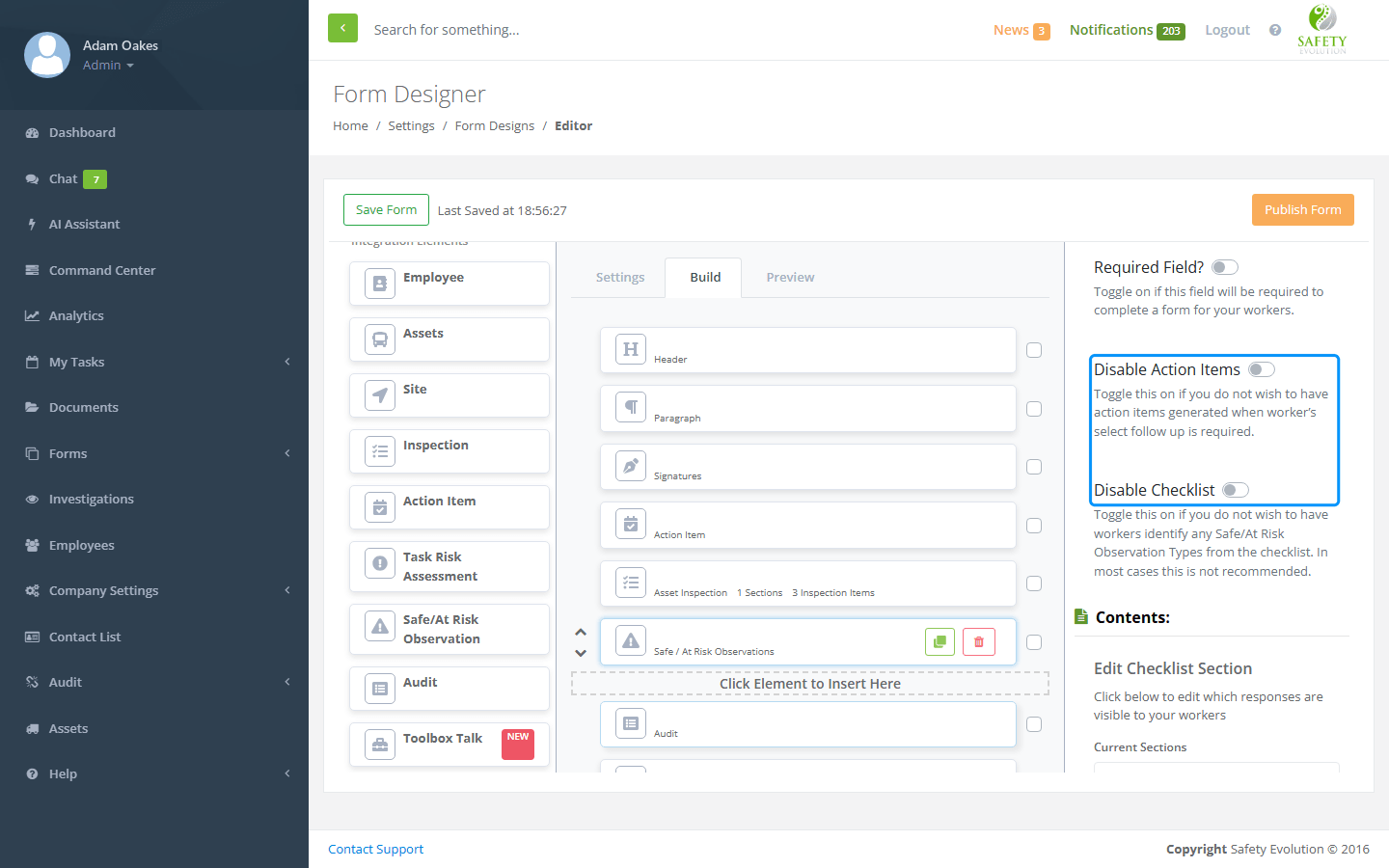
- Setting: Disable Action Items. Turn it on if follow-up answers should not make action items.
- Setting: Disable Checklist. Turn it on to hide the checklist of observation types. This is not recommended for most forms.
Audit
A scored audit. You set the answers and their weights, then build sections of items to audit.
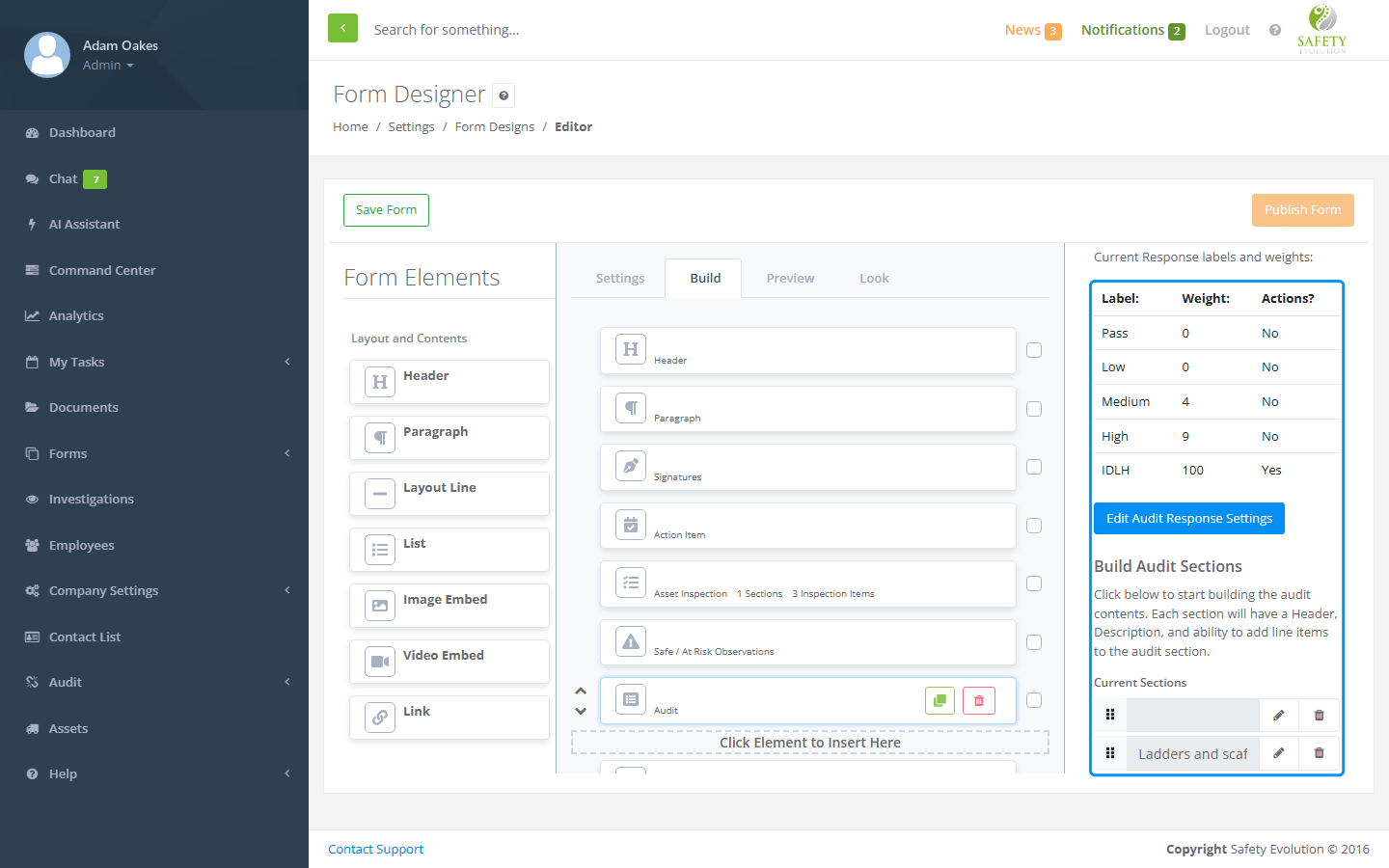
- Under Manage Audit Ranking Response Settings:, check each answer's Label: and Weight:, and tick Actions? for answers that should start an action item. The starting answers are Pass, Low, Medium, High and IDLH.
- Under Build Audit Sections, click Add Audit Section.
- In the window, type the Section Header (Required) and, if you want, the Section Description (Optional).
- Under Audit Inspection Items, add each item. Click Add Audit Item for more.
On the form, workers click Start Audit and rank each item.
Dropdown
A list workers pick one answer from.
- Type the Selector Label. Workers see it above the list.
- Under Manage Items in Selector List, type the first choice. Click Add Another Item for each one after that. Drag to change the order.
- Turn on Required Field? if an answer is needed.
Signatures
- Who can sign: pick Employees, Thirdparty (people without a login, such as a client), or both.
- Collect multiple signatures. Turn it on to let more than one person sign, for example a whole crew at a meeting.
- Allow comments? Turn it on to let each signer add a comment.
To have people sign from their own phones, see "Ask employees to sign a form" and "Sign people on at a meeting with a QR code".
Employee, Assets and Site pickers
These let workers pick a person, a piece of equipment or a site from your company's own lists.
- Type the question under Employee Selector Statement/Question:, Asset Selector Statement/Question: or Site Selector Statement/Question:.
- Add Helper Text to explain what to pick.
- Turn on Required Field? if an answer is needed.
Updated October 24, 2026