![side_logo.png]](/theme/site/shared/images/side_logo.png)
Share training with a customer
Send a customer your workers' certificates as one link and PDF from the Command Center, so your crew gets on site without a pile of photocopies.
Try it free Start with Safety Evolution's Free version.
Customers and general contractors often want proof your crew is trained before they let them on site. From the Command Center, pick the workers and the certificates, and send your customer one link. They see each certificate's picture, number, dates and status, and can download the whole package as a PDF in your brand. You can turn the link off at any time.
Before you start
- For owners, designates and admins.
- The Command Center must be turned on for your company. The Training tab shows once Safety Evolution has turned branding on for your company.
- On Professional and Enterprise, the customer's page, PDF and email use your colours and theme. On Free they use the Standard look with your logo and footer.
- Up to 40 certificates and 20 email addresses in one share.
Pick the workers
- In the left menu, click Command Center.
- Click the Training tab. The Workers list opens.
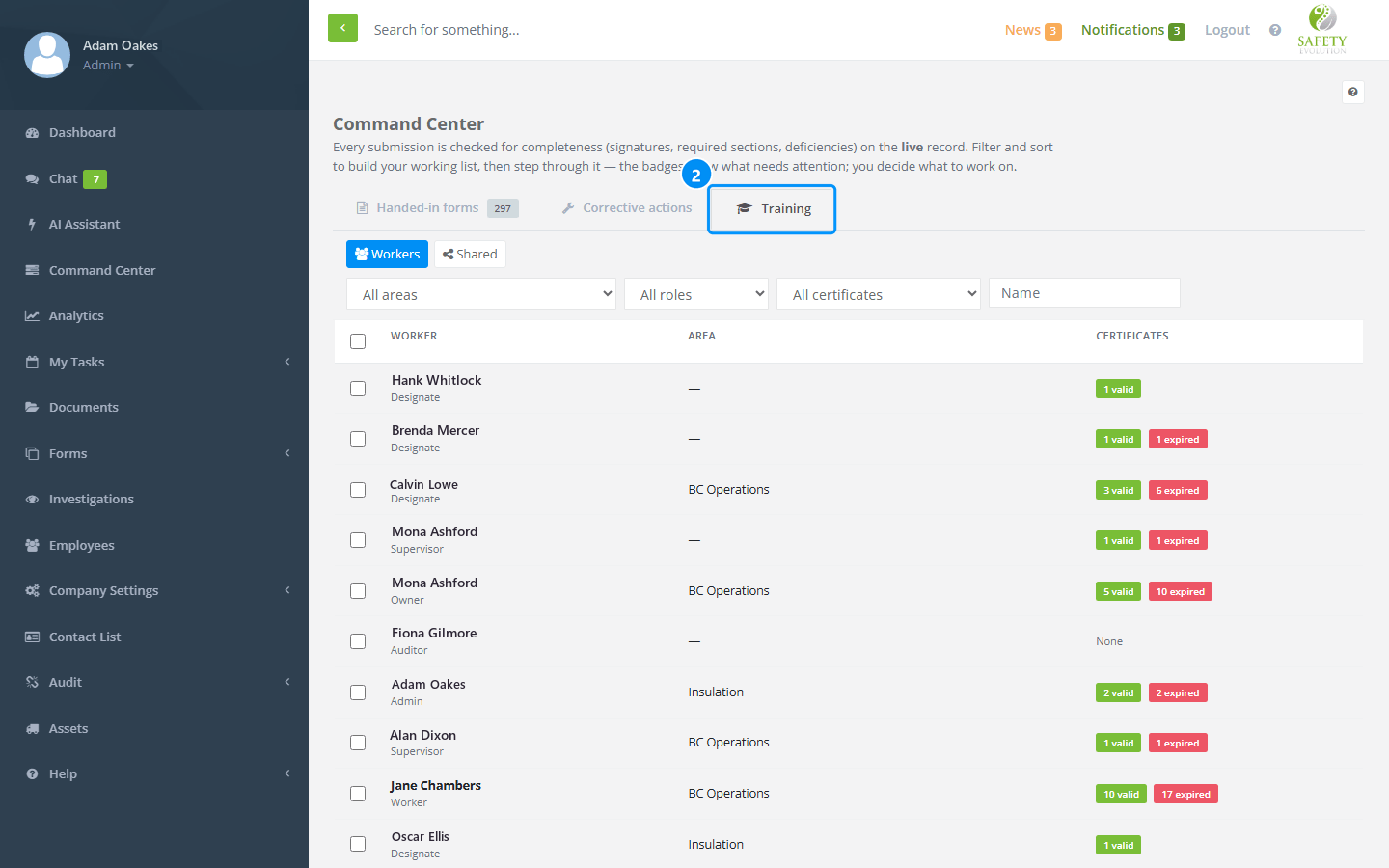
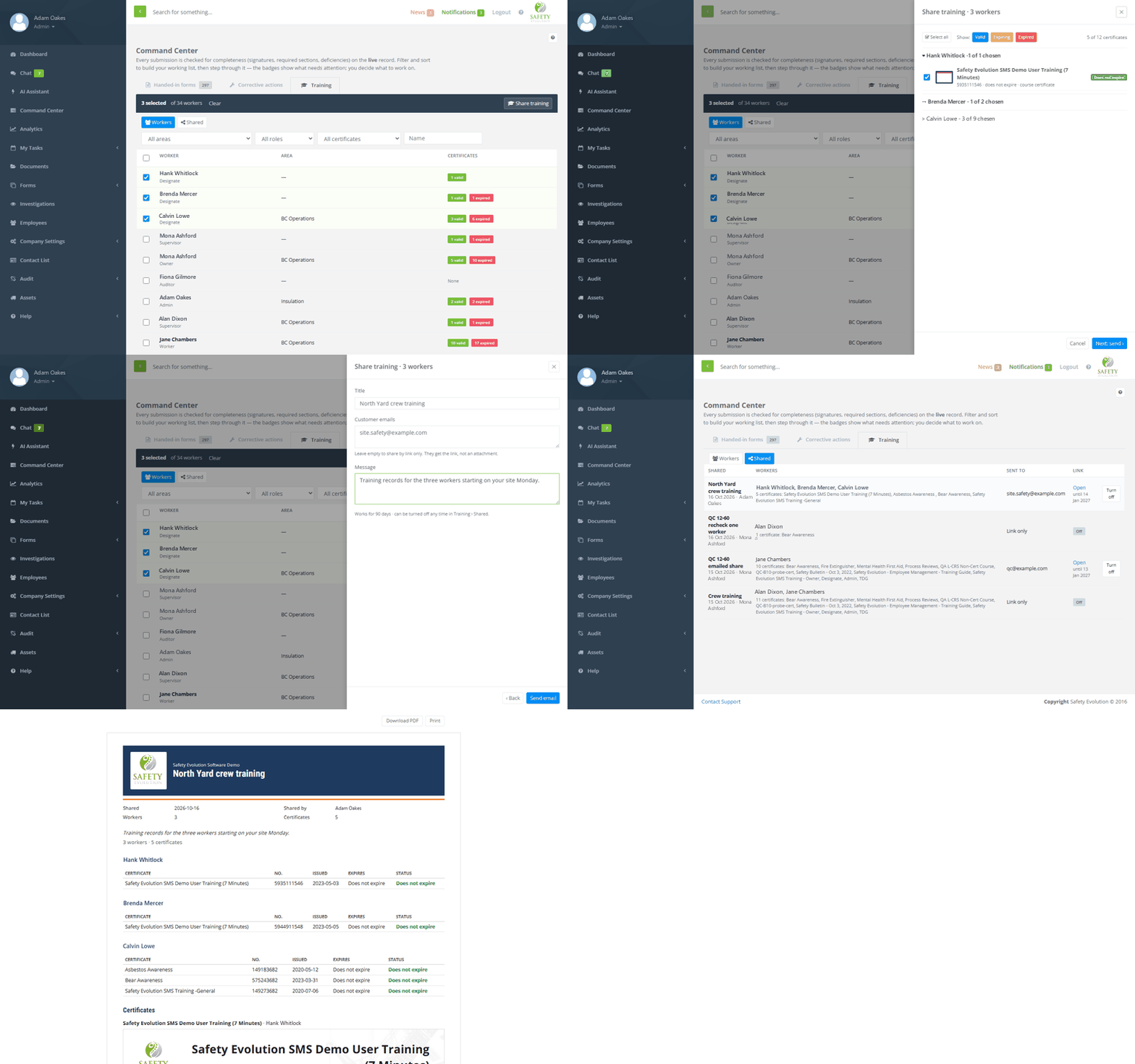
The Training tab lists your workers and their certificates. - Narrow the list if you need to: pick an area, a role, or With valid certificates, With certificates expiring or With expired certificates. Or type a name in the search box and press Enter.
- Tick each worker going to the site. To pick everyone in the list, tick the box in the header.
- The bar above the list shows how many you picked, for example 3 selected. Click Share training.
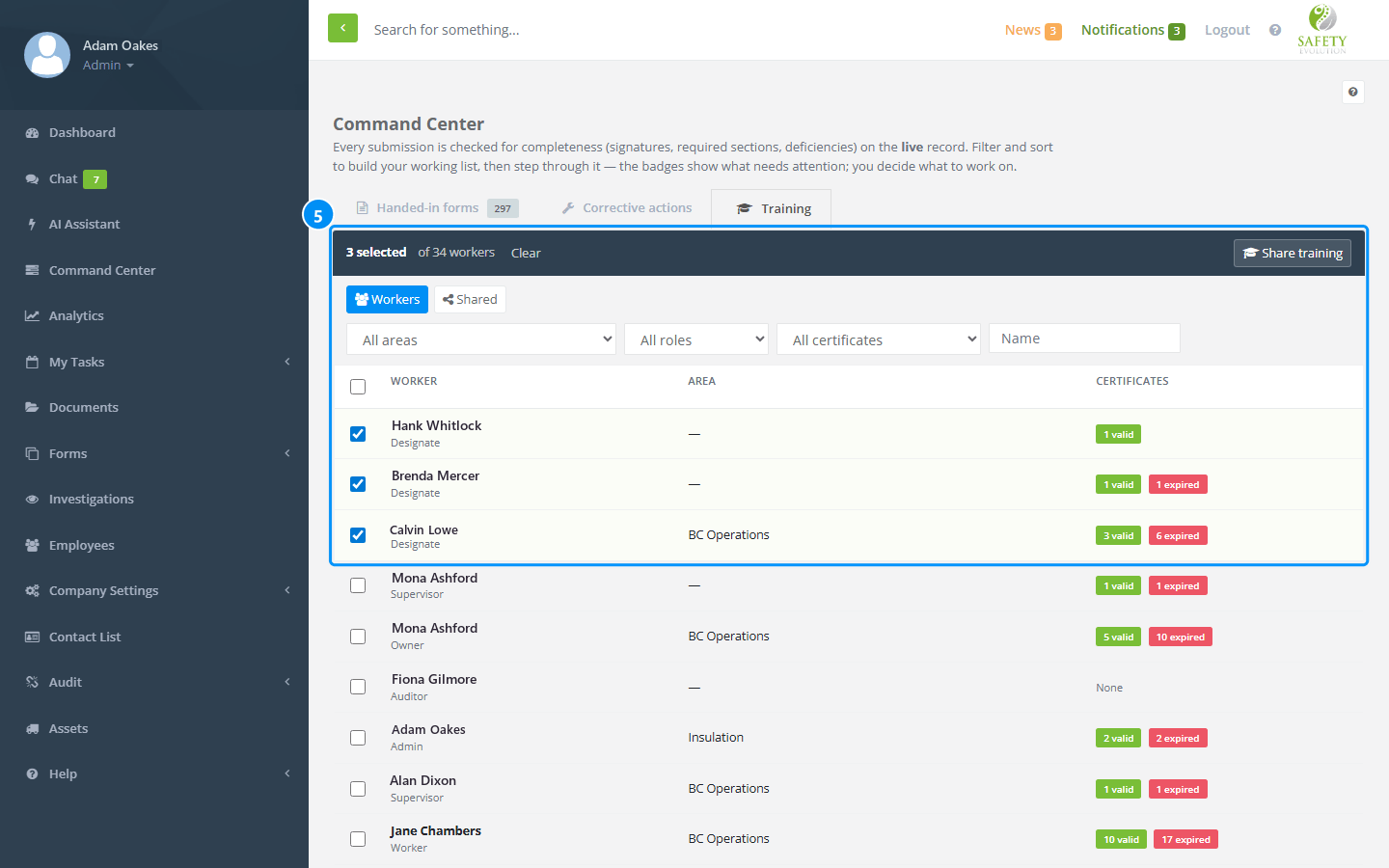
Tick the workers, then click Share training.
Pick the certificates
A panel opens: Share training · 3 workers. Each worker has a section listing their certificates. Every certificate starts ticked, except expired ones.
- Under Show:, use Valid, Expiring and Expired to show or hide certificates by status. Expiring means it runs out within 30 days.
- Open each worker's section and untick anything the customer doesn't need. Select all ticks every certificate shown, and clicking it again unticks them.
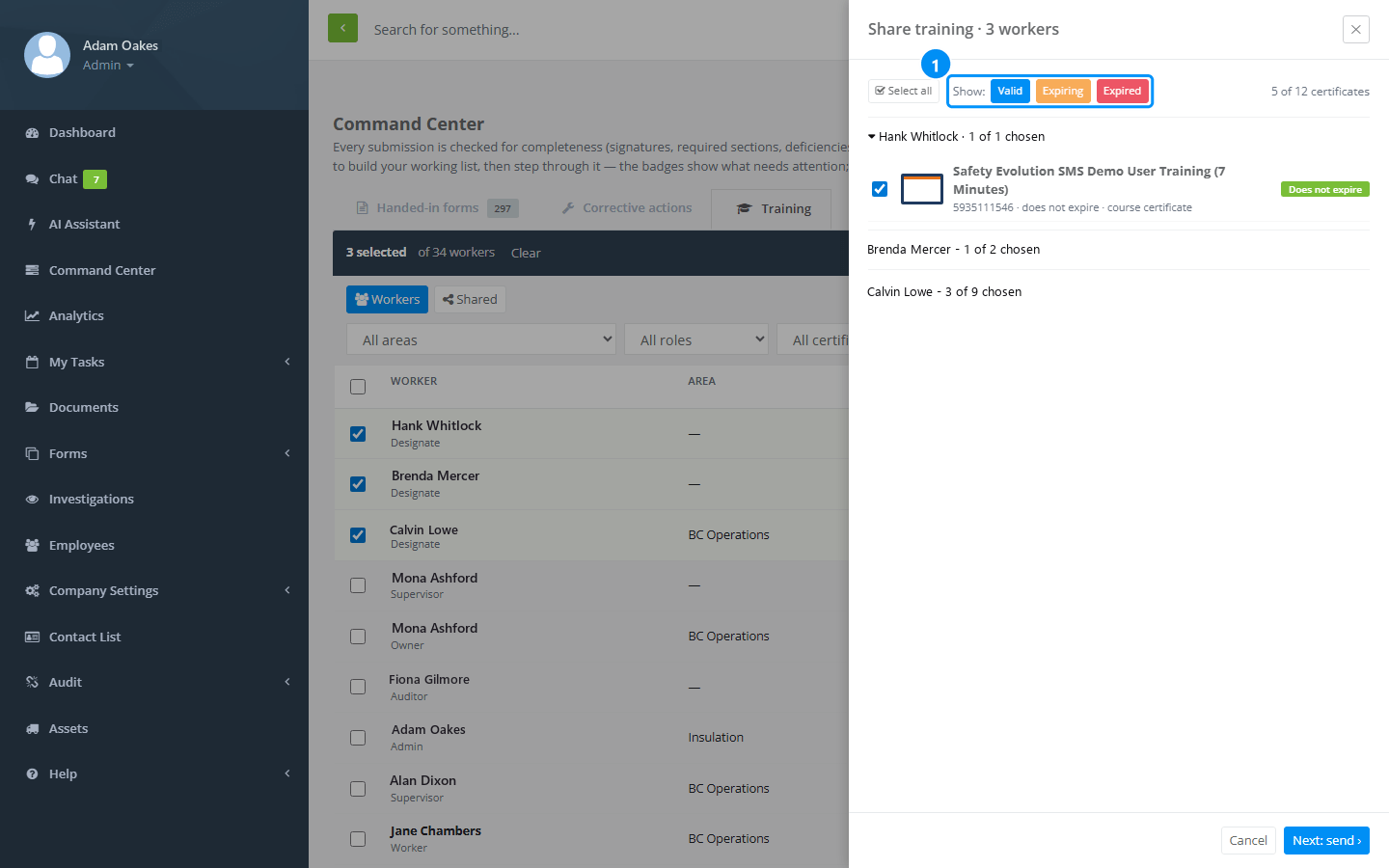
Choose exactly which certificates go. - Check the count, for example 7 of 9 certificates, then click Next: send ›.
Send it
- In Title, name the package, for example "Crew training for the North Tower job".
- In Customer emails, type the customer's addresses, separated by commas. Leave it empty to share by link only. The customer gets a link, not an attachment.
- If you want, add a Message.
- Click Send email. If you left the emails empty, the button says Create link.
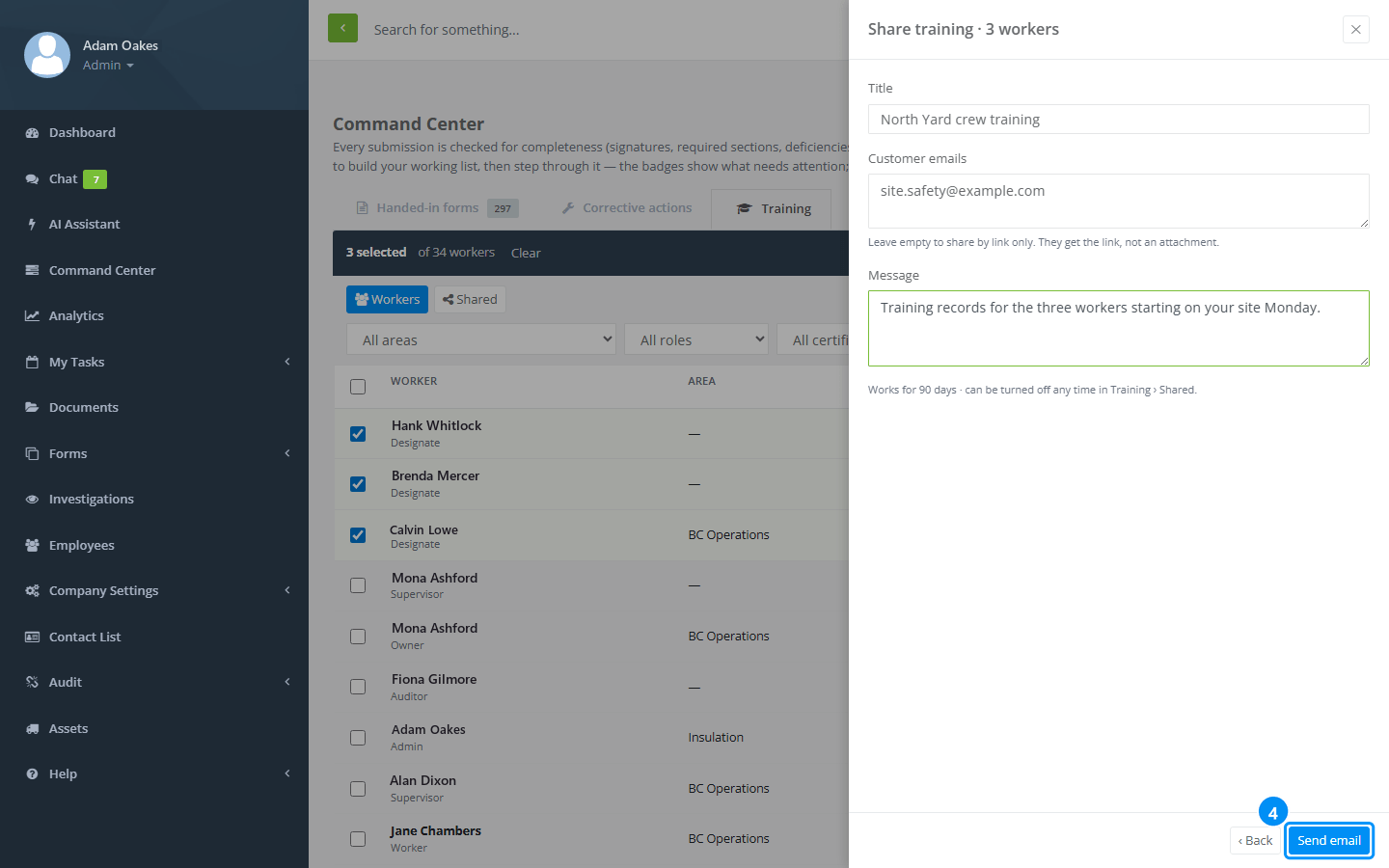
The link works for 90 days unless you turn it off. - You see, for example, Shared 7 certificates of 3 workers, emailed to 1 address. and the Link. Click Copy to paste it into your own email or text. Then click Done.
A link is always made, even when you email it. The customer's email comes from [your company] via Safety Evolution, with your email address as the reply-to, so their answer comes to you. Its subject is your company name and "training records", and it has an Open the document button.
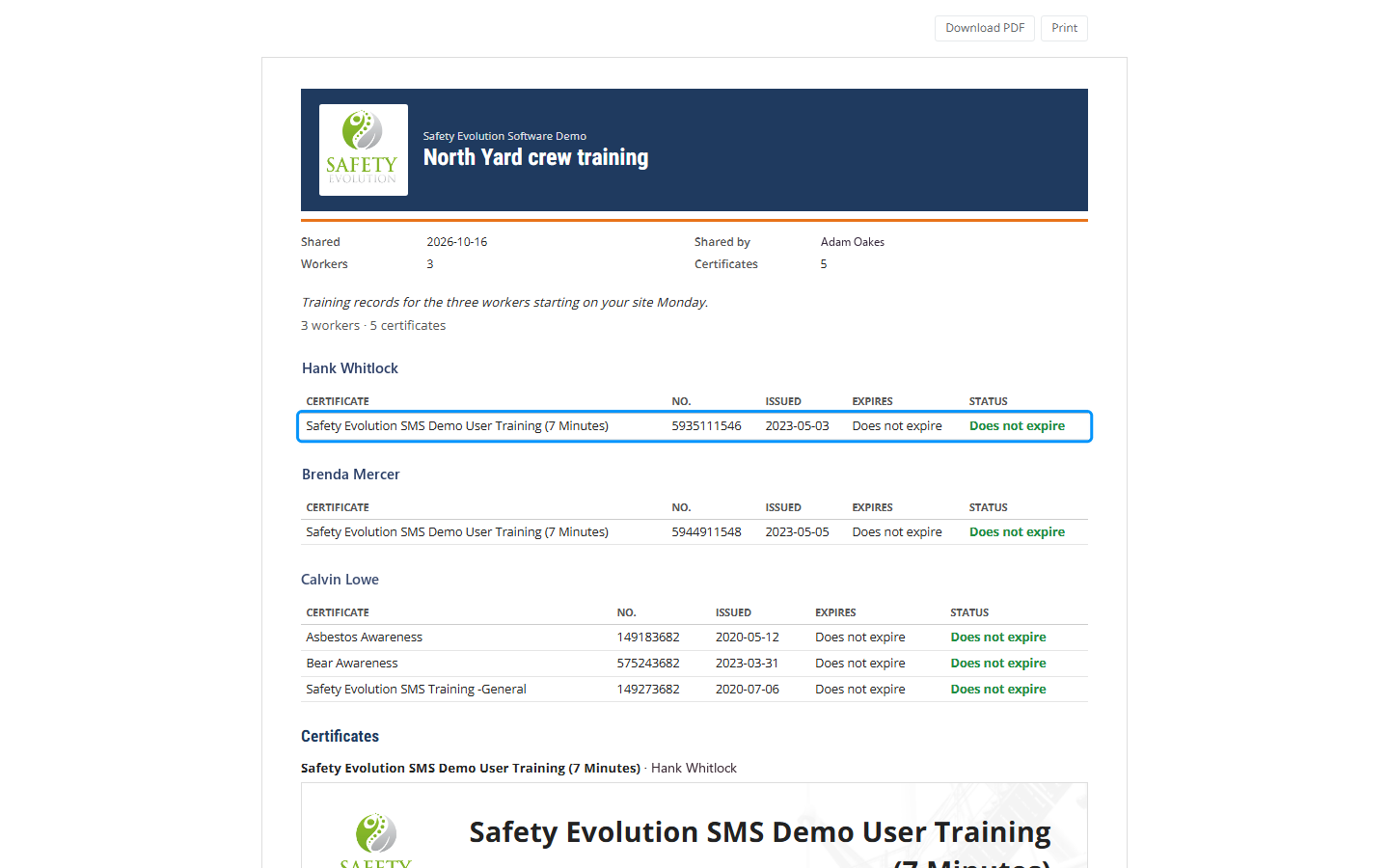
What your customer sees
The link opens a page in your brand. They don't need to sign in, and they see nothing else of your company.
- The title, when it was shared and by whom, and how many workers and certificates.
- For each worker: their name and a table of their certificates with Certificate, No., Issued, Expires and Status: Valid, Expiring, Expired or Does not expire.
- A picture of each certificate: the uploaded photo, or the course certificate, front and back with both signatures. Certificates keep their own design; your brand is only on the page around them.
- Download PDF and Print at the top, for the whole package.
Workers' email, phone, address, employee number and photo are never shown. The page shows certificates as they are when the customer opens it: if a worker renews a certificate, the customer sees the new dates, and a deleted certificate drops off.
See what you shared, and turn a link off
- In the Command Center, on the Training tab, click Shared.
- The list shows each share: its title, date and who shared it, the workers and certificates, who it was Sent to (or Link only), and the Link with the date it works until.
- To stop a customer seeing it, click Turn off on its row. The link changes to Off straight away. There is no confirm step.
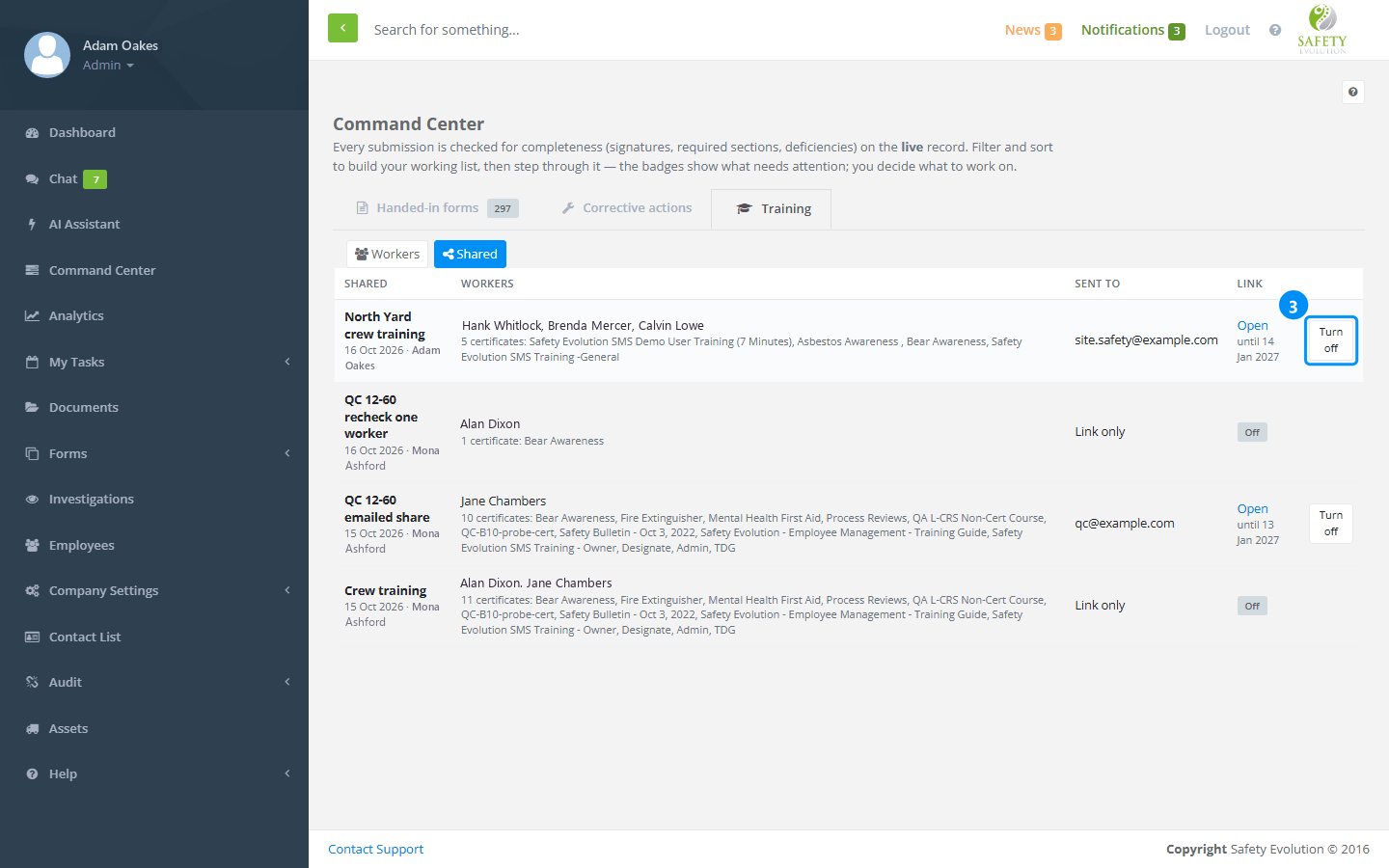
Turn a link off at any time.
Once a link is off or 90 days have passed, the customer sees This link has been turned off or has expired and Ask the person who sent it for a new link. The email only carried the link, so they lose access too.
If something goes wrong
- No Training tab in the Command Center: Safety Evolution hasn't turned branding on for your company yet.
- "Choose at least one certificate.": tick at least one certificate.
- "Up to 40 certificates in one share.": untick some, or send two shares.
- "Check these addresses: …": fix the email addresses listed.
- "Up to 20 email addresses at a time.": send to fewer people, or share the link yourself.
- "Could not share the training." or "Could not turn the link off.": try again. If it keeps happening, contact support.
- A worker isn't in the list: only active workers can be shared.
Updated October 24, 2026