![side_logo.png]](/theme/site/shared/images/side_logo.png)
Command Center: bulk reopen, share and request signatures
In Command Center, tick several handed-in forms and reopen them, email them to a client, or ask employees to sign them, all at once.
Try it free Start with Safety Evolution's Free version.
Command Center lets the office work on many handed-in forms at once. Tick the forms you want, then pick one action for all of them: Reopen, Share to client or Request signatures.
Before you start
- For owners, designates and admins only.
- Command Center must be turned on for your company. If it is off, the page shows Contact us to enable the Command Center.
Pick the forms
- In the left menu, click Command Center.
- Stay on the Handed-in forms tab. Use the filters (site, form type, worker, date) to narrow the list.
- Tick the box at the start of each form you want. To pick every form in the list, tick the box in the header.
- A dark bar appears above the list, for example 3 selected, with the actions.
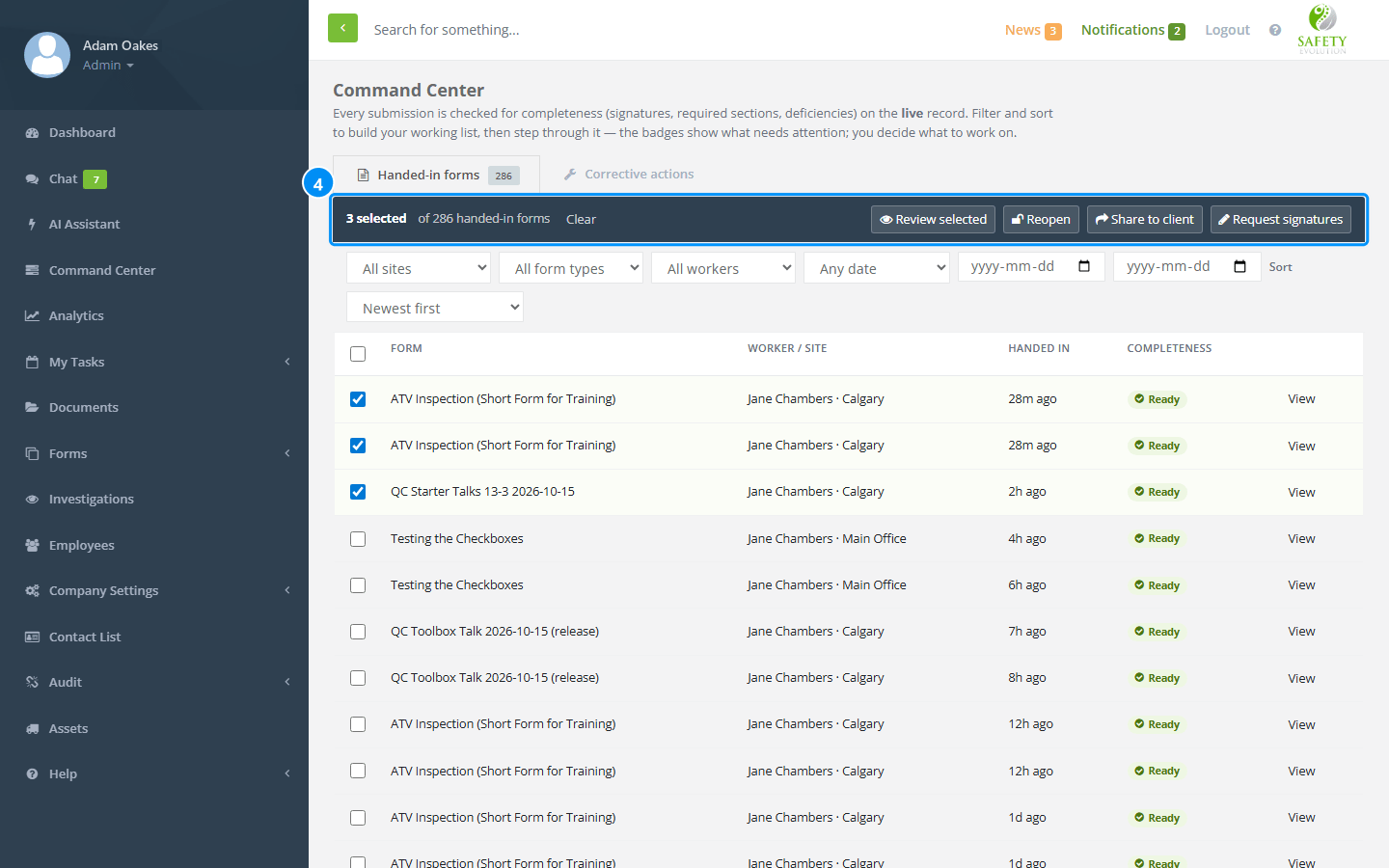
The bar shows how many forms you picked and what you can do.
Click Clear in the bar to untick everything.
Ask employees to sign the forms
- In the bar, click Request signatures.
- In the list of employees, click each person who should sign. Hold Ctrl (Cmd on a Mac) to pick more than one.
- If you want, type a note in the comment box.
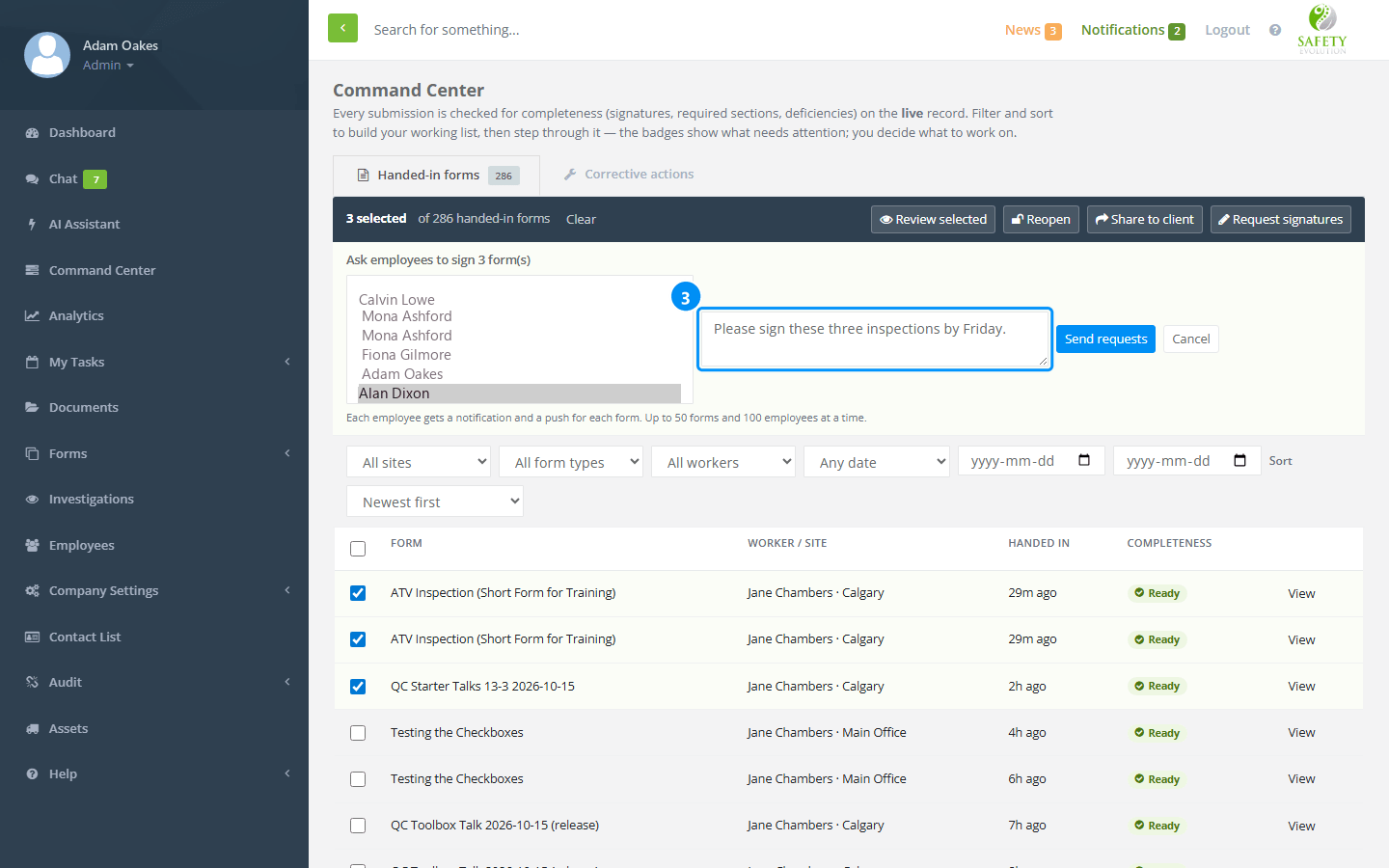
Pick the employees, then click Send requests. - Click Send requests.
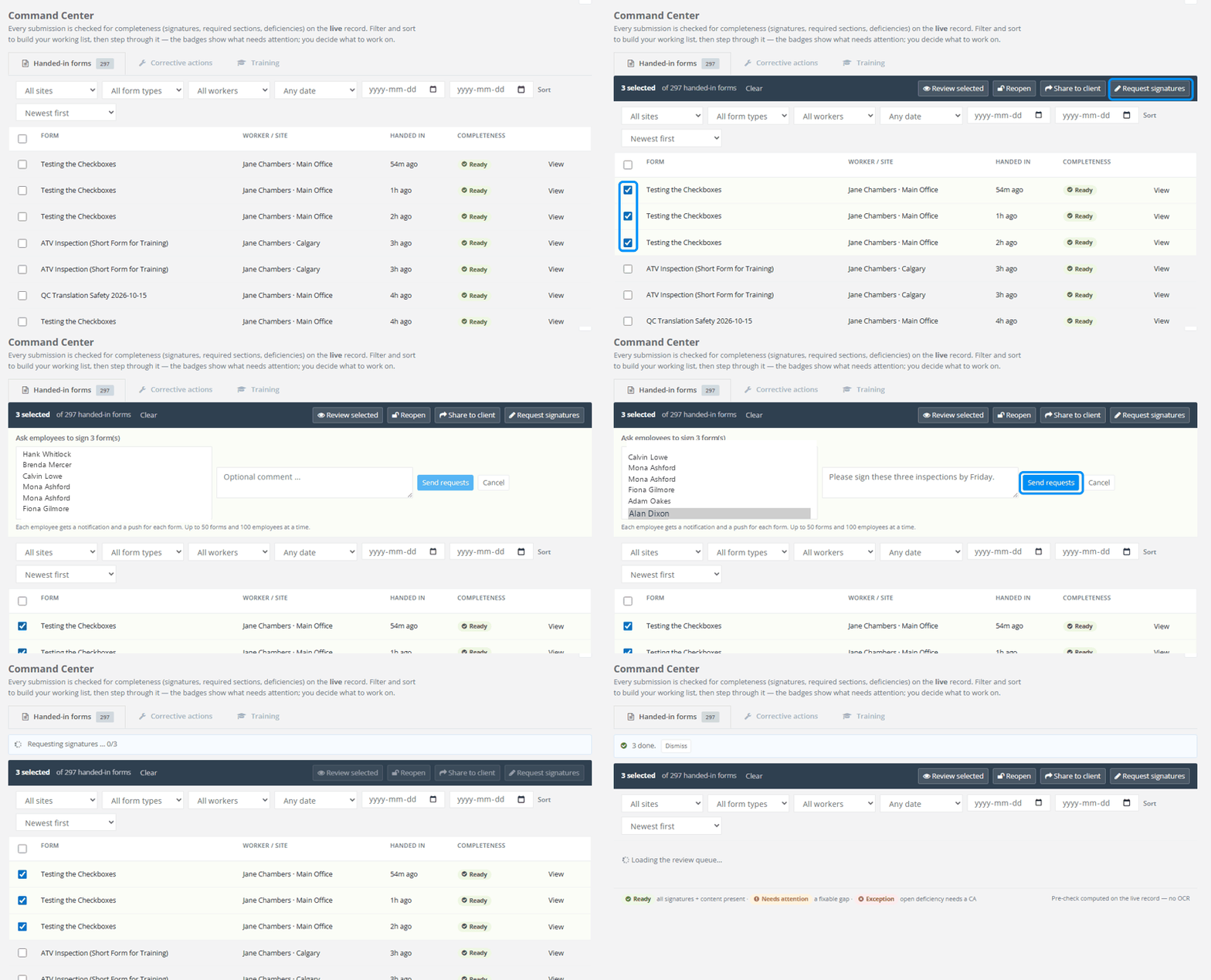
Each employee gets a notice and a push for each form, and signs as in "Sign a form someone sent you". The form's history records who was asked. You can send up to 50 forms and 100 employees at a time, and 1,000 requests in all. If you pick more, you see "Too many at once" and Send requests stays grey.
Email the forms to a client
- In the bar, click Share to client.
- Type the email addresses. Put a comma between addresses.
- Click Share.
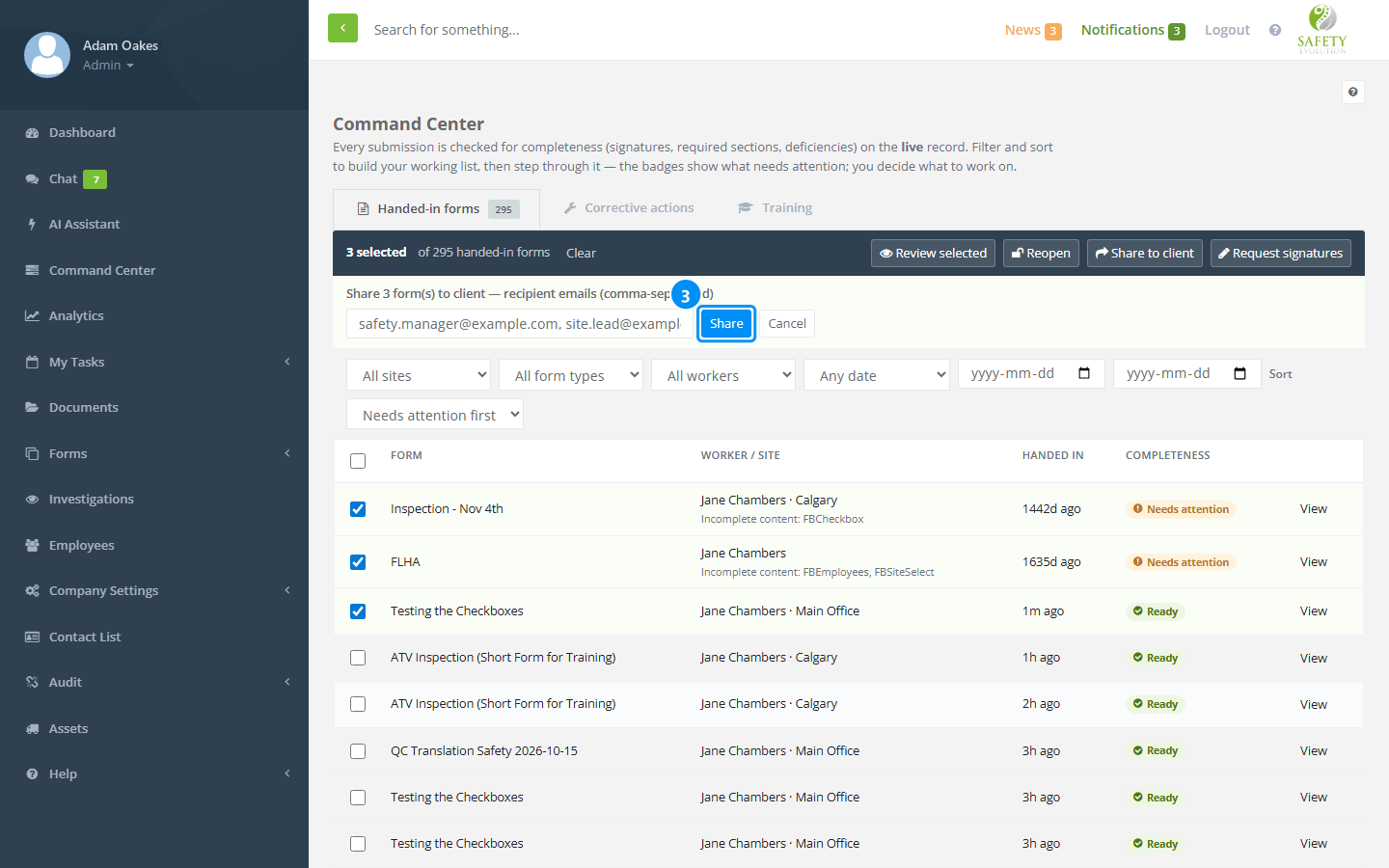
Separate addresses with commas.
Each address gets an email for each form, with a link to view it. This is not a sign request.
Reopen the forms
- In the bar, click Reopen.
- Type the reason: what needs to be fixed before the form is handed in again. A reason is required.
- Read the red warning. Reopening deletes the form's corrective actions and unlocks the form so the worker can fix it and hand it in again.
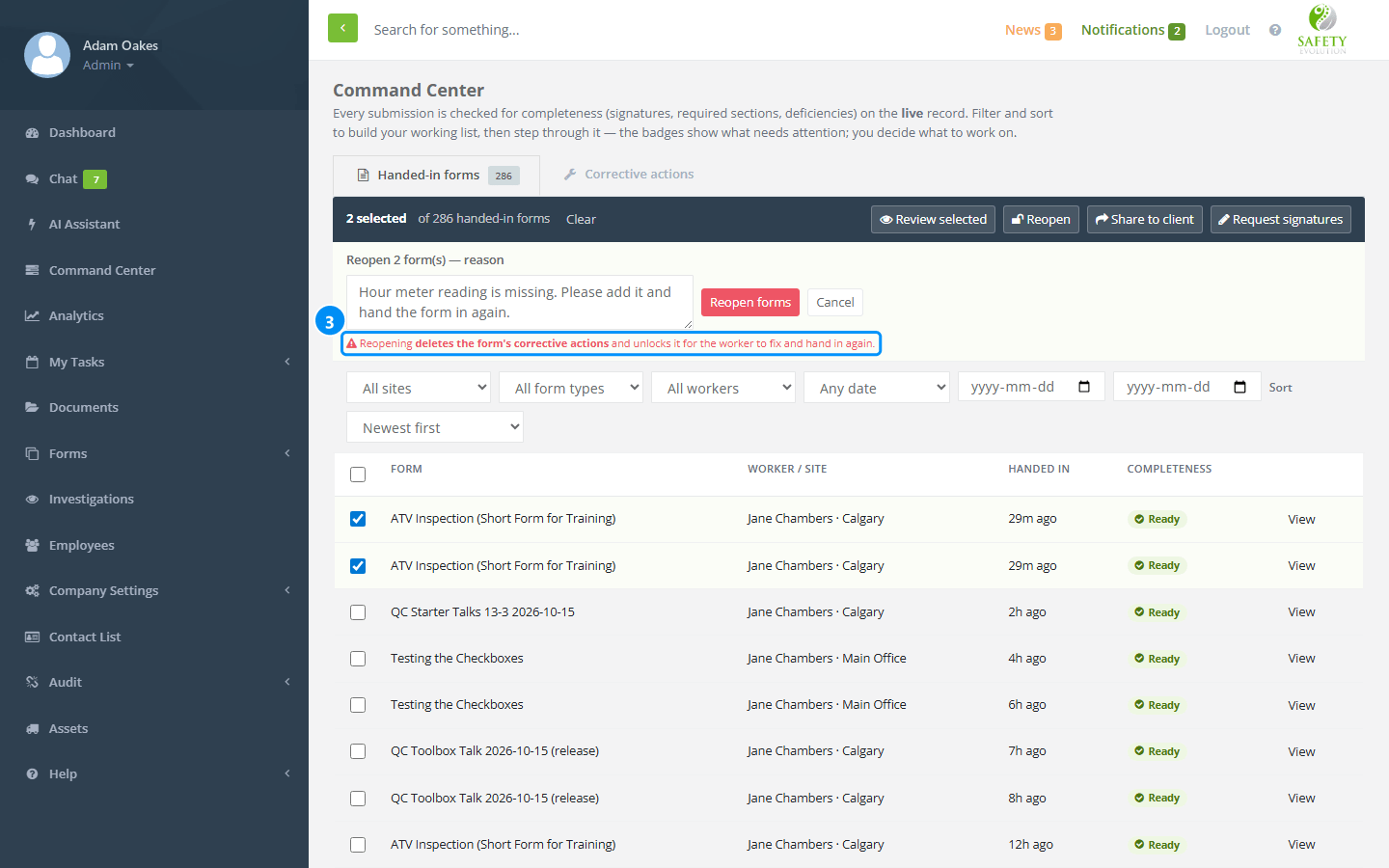
Reopening deletes the forms' corrective actions. - Click Reopen forms.
Only handed-in forms can be reopened.
Check the result
- While it works, a line shows progress, for example Reopening … 1/3.
- When it is done, it shows how many worked, for example 3 done., or 2 done, 1 failed.
- If some failed, click Retry failed to try those again.
- Click Dismiss to hide the line.
Download a form, or share training
Once Safety Evolution has turned branding on for your company:
- The review panel for a handed-in form has Download PDF and Share. See Print or download a branded PDF of a form.
- A Training tab lets you send workers' certificates to a customer with Share training. See Share training with a customer.
The ? at the top right of the Command Center opens help for this screen.
If something goes wrong
- "The Command Center is available for management users.": only owners, designates and admins can open it.
- Contact us to enable the Command Center: Command Center is not turned on for your company. Click it to email Safety Evolution.
- A form fails to reopen: only handed-in forms can be reopened. Open the form on its own to check its status, then click Retry failed if needed.
Updated October 24, 2026