![side_logo.png]](/theme/site/shared/images/side_logo.png)
Print or download a branded PDF of a form
Download or print any form as a PDF in your company's brand, with page numbers and a record line, from the form, its share page or the Command Center.
Try it free Start with Safety Evolution's Free version.
Every form can be downloaded or printed as a PDF in your company's brand: your logo, colours and footer, page numbers on every page, and a line at the end saying who handed it in and when. Print and PDF are the same pages, so what you print is exactly what you send.
Before you start
- Anyone who can open the form can download or print it. Workers can do this for their own forms.
- This works on the web once Safety Evolution has turned branding on for your company.
- The PDF is on every plan, in the Standard look with your logo and footer. Page size, margins, the cover page and the watermark switch come with the Professional and Enterprise plans.
Download or print a form
- On the web, click Forms, then Company Forms, and open the form.
- Click Download PDF to save the file. Or click Print to open the same PDF in a new tab and print it from there.
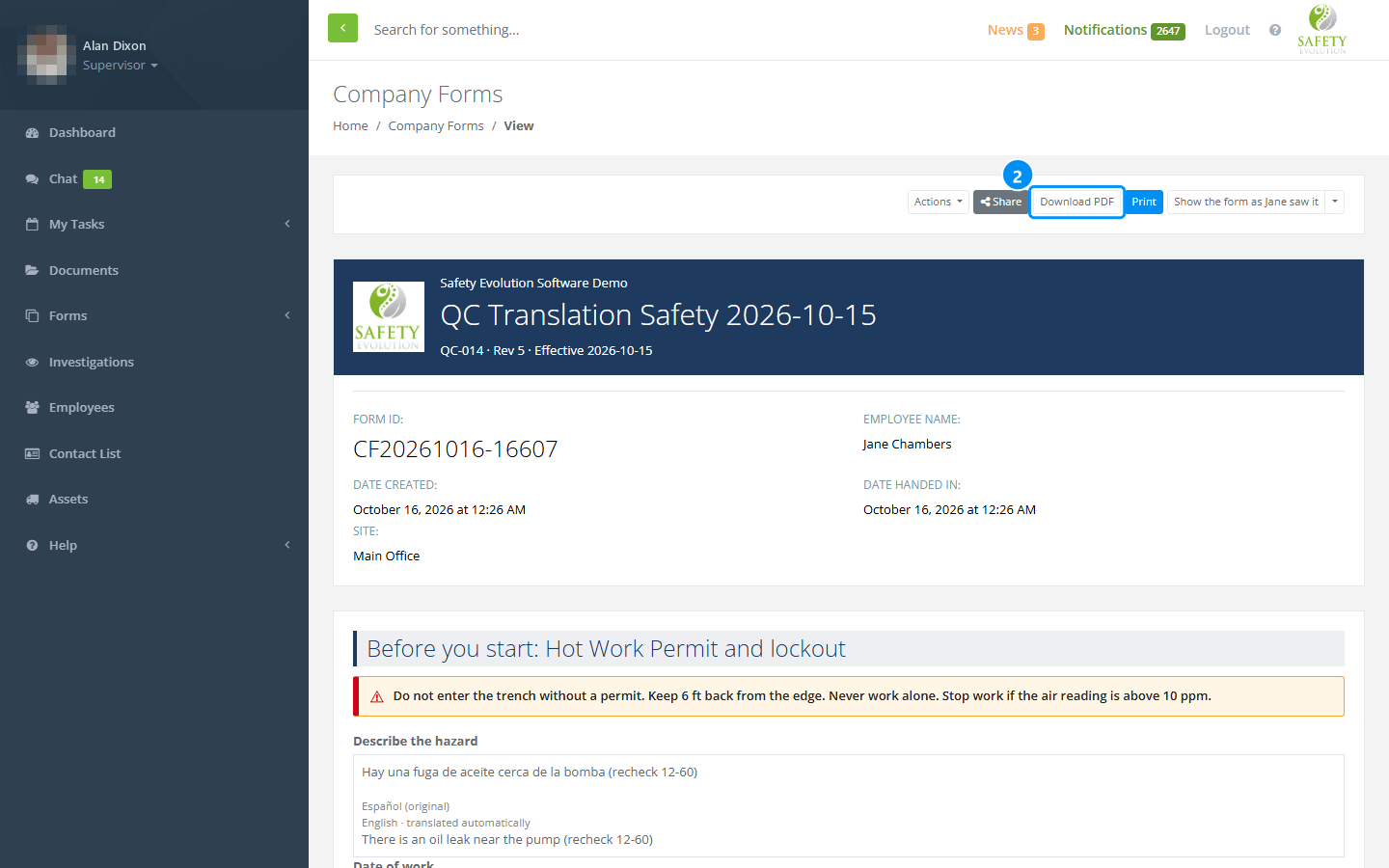
Download PDF saves the file; Print opens it to print.
The file is named with the form's document number, title and record number, so it files neatly.
What's on the PDF
- Page 1: your full header in the form's theme, then the details: Form ID, Employee, Created, Handed in, Site and Location, as the theme shows them.
- Later pages: a short header with the title and, if set, the document number and revision.
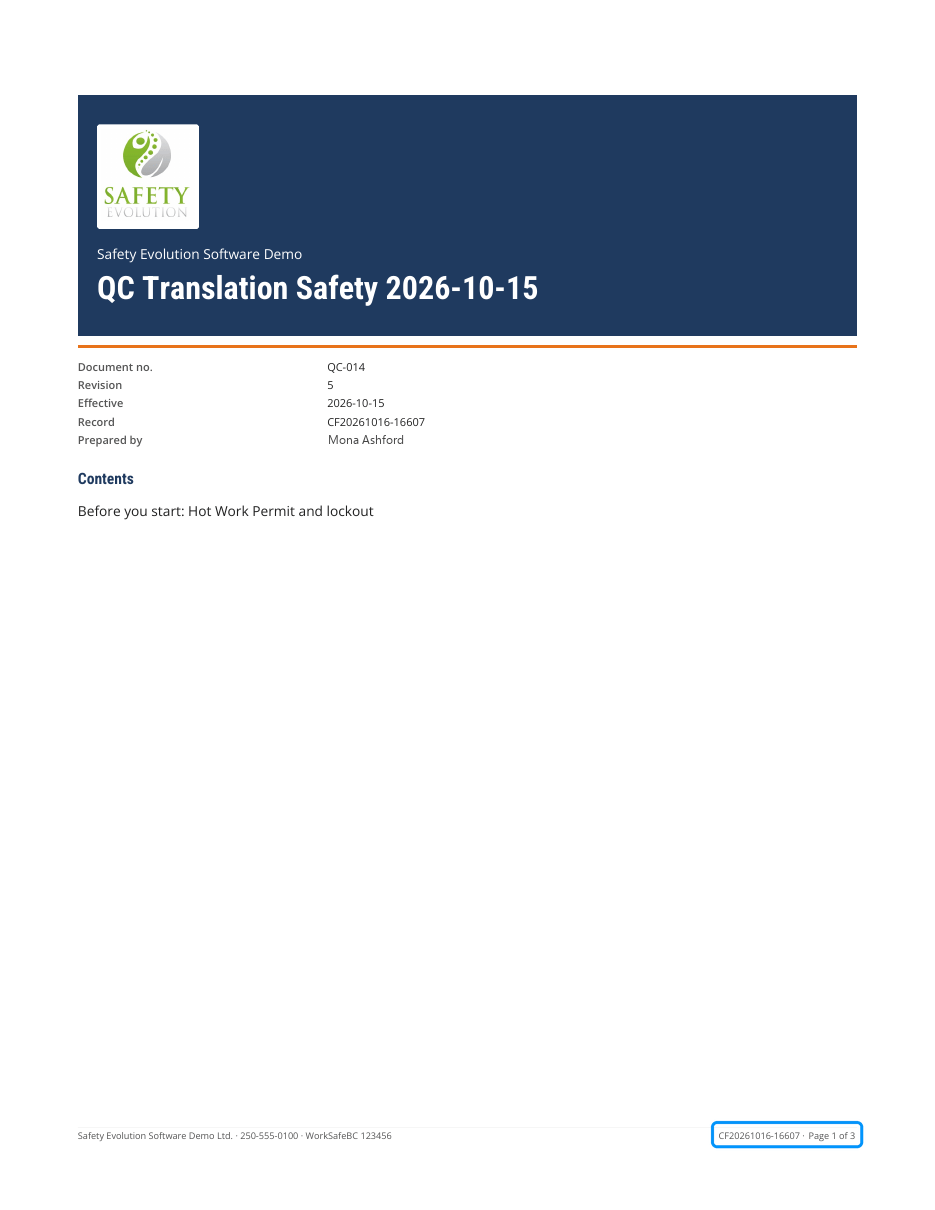
- Every page: your company footer on the left, and the record number with Page 1 of 3 on the right.
- The end: a record line, for example Handed in 2026-10-14 08:12 by Sam Lee · record 4821 · form version 3 · brand kit version 2.
- Safety styles, such as Safe and At risk, ratings, deficiencies and signatures, always keep Safety Evolution's colours.
Forms that aren't handed in yet
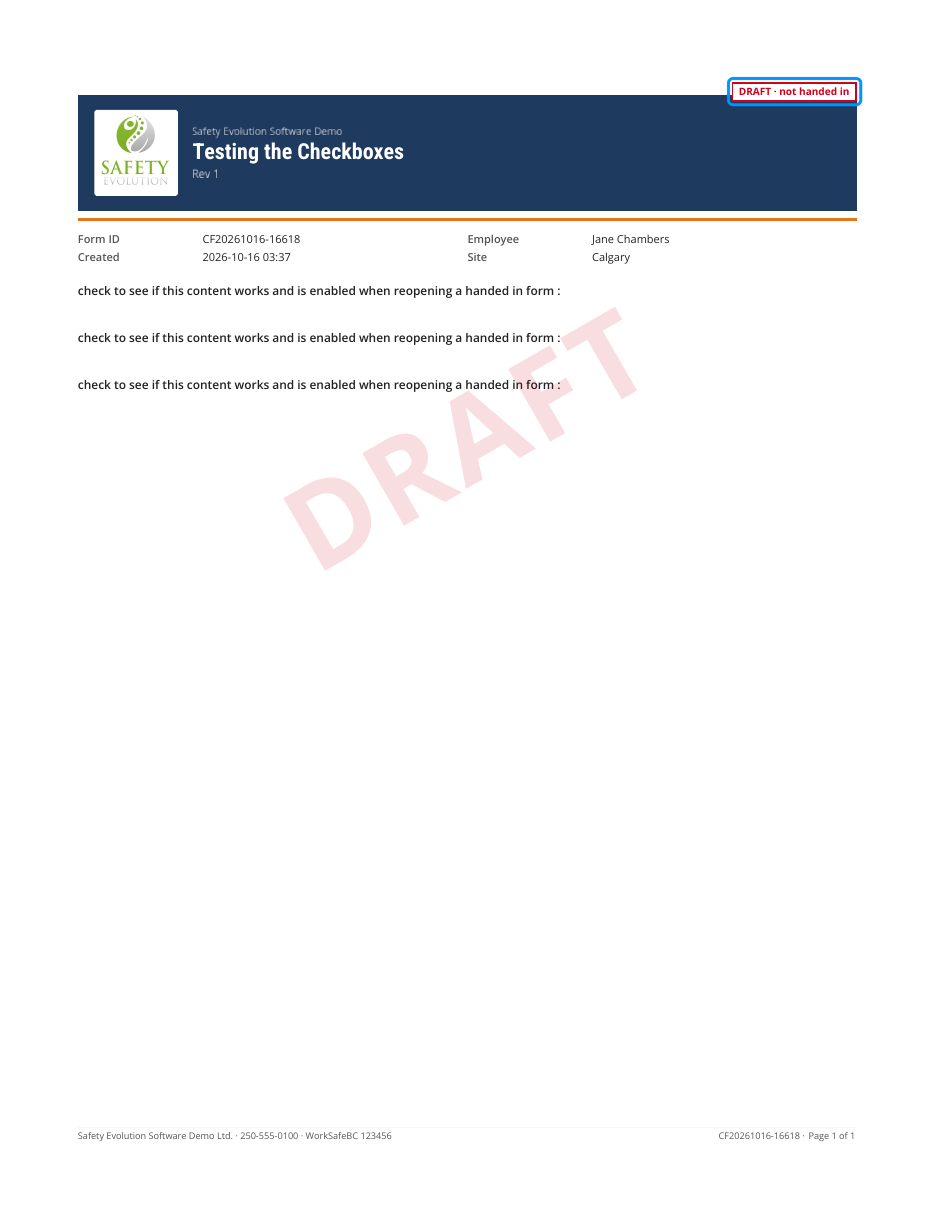
A form that hasn't been handed in prints with a large DRAFT on every page and the stamp DRAFT · not handed in, so nobody mistakes it for a finished record. A handed-in form never has it.
Set a form's page settings (Professional)
- Open the form in the Form Designer and click the Look tab.
- Under Print and PDF, pick Letter or A4, and Normal or Narrow margins.
- For a long form, tick Cover page. It adds a first page with your logo, the title, the document number, revision, effective date, record and who prepared the form, and a Contents list of its sections. The tick box suggests it when a form runs long.
- Leave DRAFT watermark on forms not handed in ticked, or untick it.
- Click Save look.
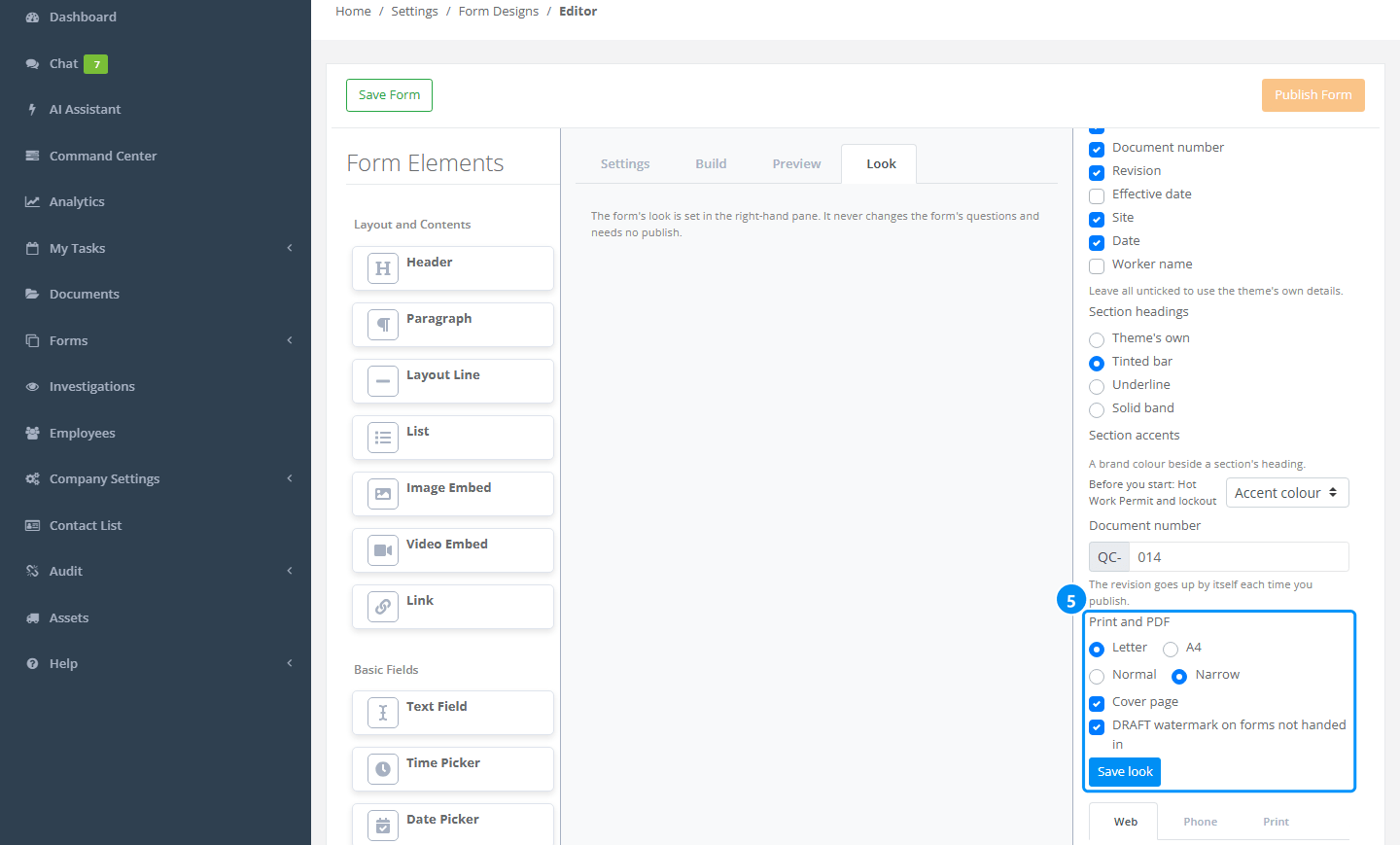
Page size, margins, cover page and watermark.
On the Free plan, PDFs use Letter, normal margins, no cover page, and the DRAFT watermark.
Download from the Command Center
- In the Command Center, open a handed-in form in the review panel.
- Click Download PDF.
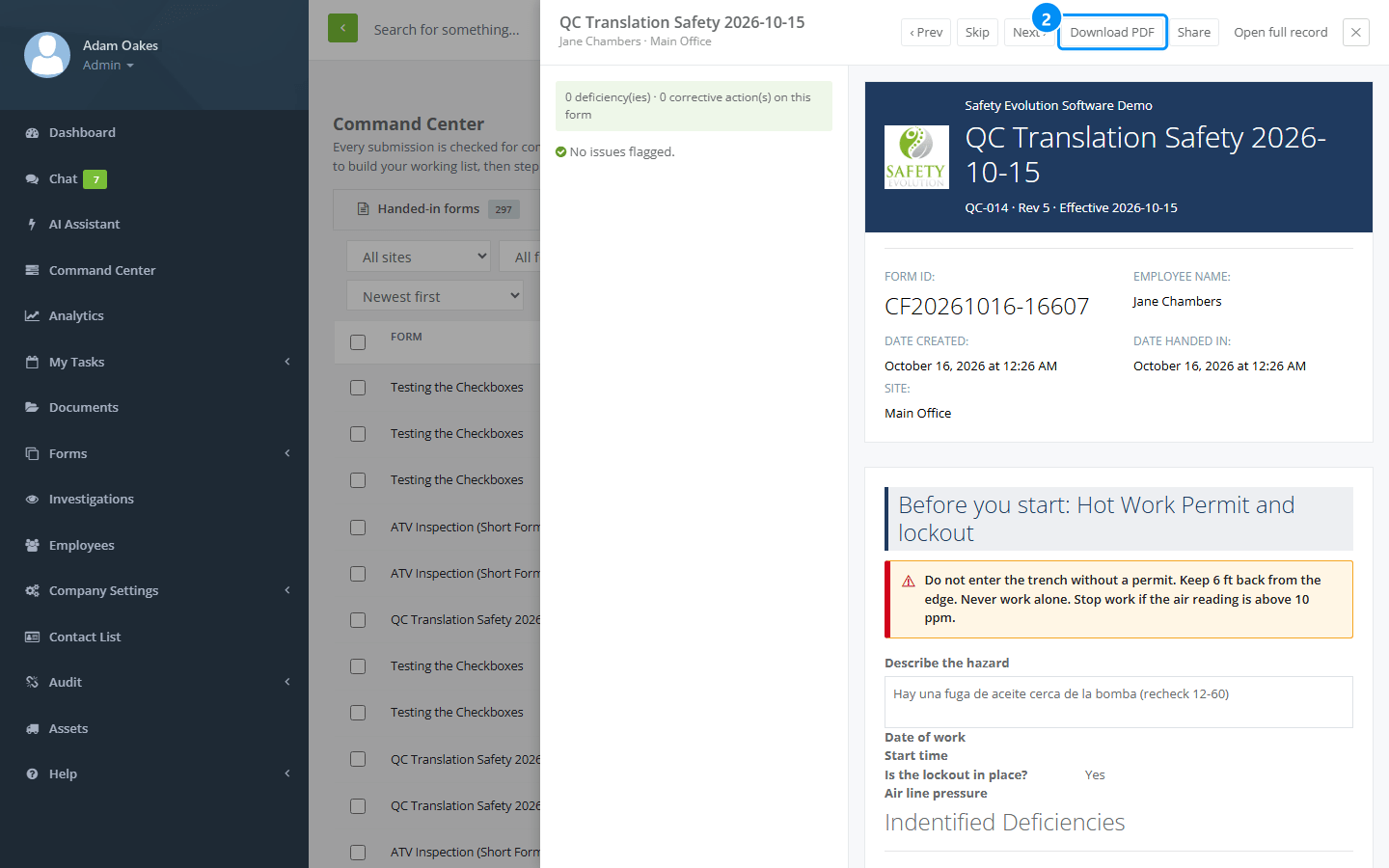
Download a form without leaving the Command Center.
Share it by email
- On the form, click Share.
- Under Share with:, type an address and click Add Email. Add a Comment if you want.
- Click Share. You see Form Shared.
The email comes from [your company] via Safety Evolution, with your email as the reply-to. It has the form's title, site and date as its subject, an Open the document button for the branded share page, and the PDF attached (when it is 10 MB or less). The share page has its own Download PDF and Print buttons. See also Share a form by email.
Old records
- A handed-in form always prints with the look it was handed in with, even after you change your logo or colours.
- Forms handed in before your company had a brand kit print in the Standard look with your current logo.
On the phone
The phone app doesn't make PDFs. Share the form by email from the phone, or open the form in the web app.
If something goes wrong
- "Too many PDFs at once, try again in a minute": your company made a lot of PDFs in the last few minutes. Wait a minute and try again.
- "This PDF took too long to make. Try again, or print a shorter part.": try again. For a very long form, try at a quieter time.
- "Form not shared. Add a valid email address or choose an employee.": check the address and click Add Email before Share.
- The customer sees "This link has been turned off or has expired": the share link was turned off. Share the form again.
- No Download PDF button: Safety Evolution hasn't turned branding on for your company yet. Use Print and your browser's Save as PDF. See Save or print a form as a PDF.
Updated October 24, 2026