![side_logo.png]](/theme/site/shared/images/side_logo.png)
Finish your orientation before you start work
Why most of the menu is hidden when you are new, and how to finish your orientation courses so the rest of Safety Evolution opens up.
Try it free Start with Safety Evolution's Free version.
When you join a company that uses orientation, you must finish its orientation courses before you start work. Until you do, most of the menu on the web is hidden. This article shows you how to finish.
Who has to do orientation
- Workers, supervisors and auditors, when the company has picked orientation courses under Company Settings › General › Orientation Courses.
- Owners, designates and admins don't. Neither does anyone the office has marked Skip Orientation on their employee page.
Finish your orientation on the web
- Log in on the web. Instead of the Dashboard you see Welcome! and Before you can begin working you must complete the orientation process. The left menu shows only a few items, such as Dashboard. Help stays in the top bar.
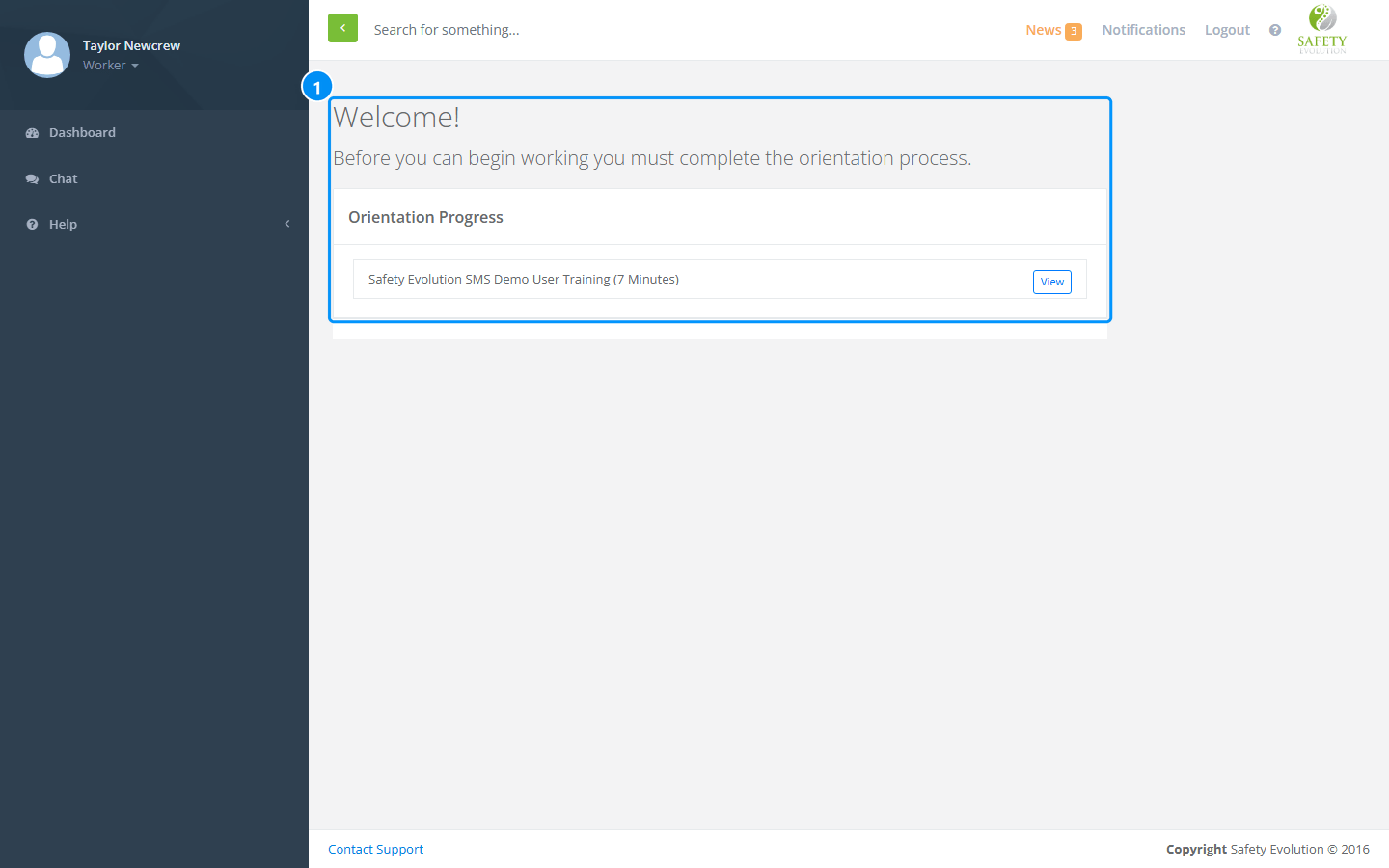
Your orientation courses are listed under Orientation Progress. - Under Orientation Progress, click View beside a course. The course page opens with its Course Outline.
- Click Start on the first unit.
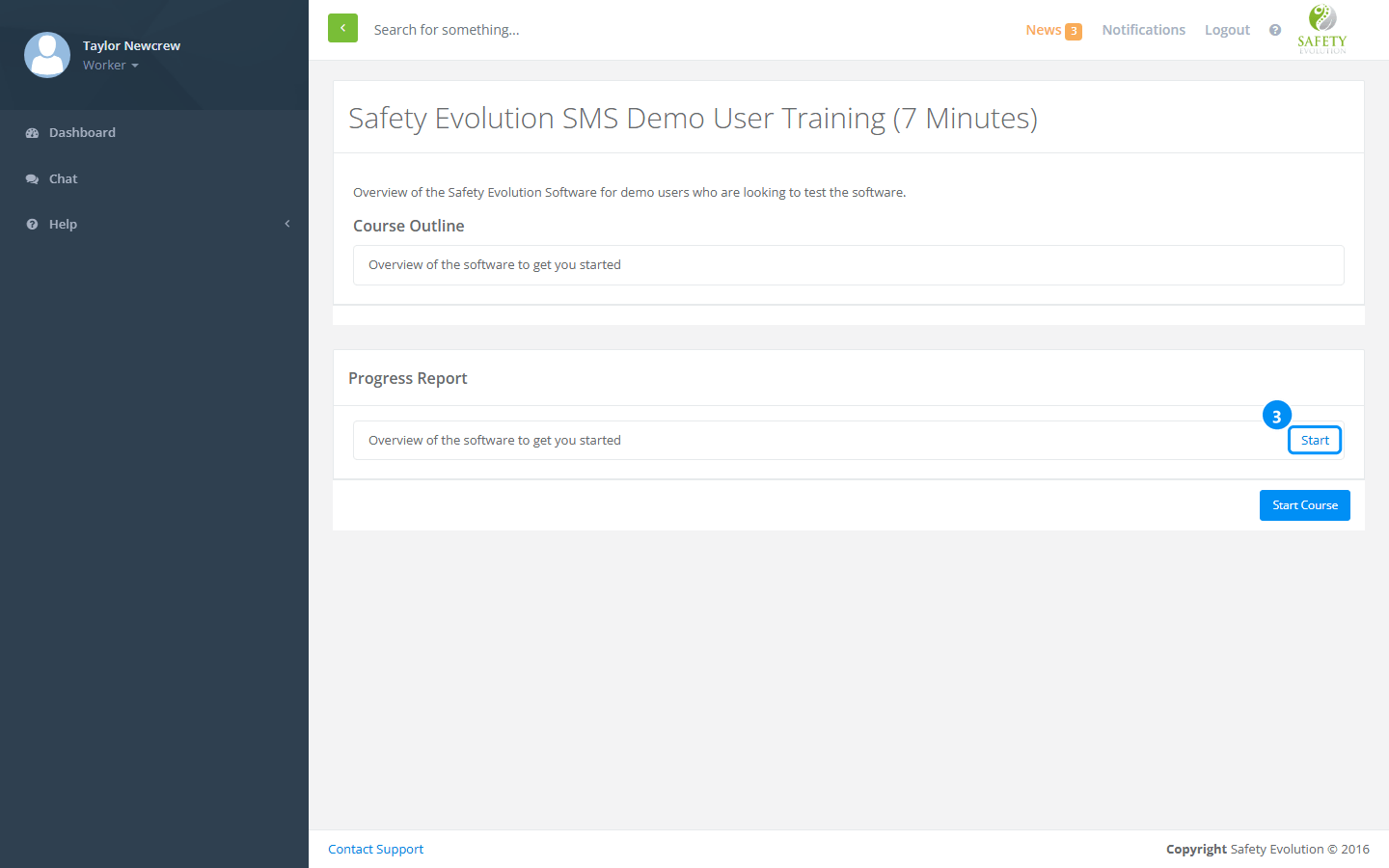
Start with the first unit. - Read the unit. At the bottom, click Continue to Unit Test, or Continue to Next Unit if the unit has no test.
- Answer the test questions and click Complete. You see PASSED or FAILED and You got your score, for example You got 5 / 5 correct.
- If you passed, click Next Unit. If you failed, click Redo Unit, read it again and retake the test.
- Repeat for each unit. On the last one, click Finish Course. Your certificate shows under Course Certification Card.
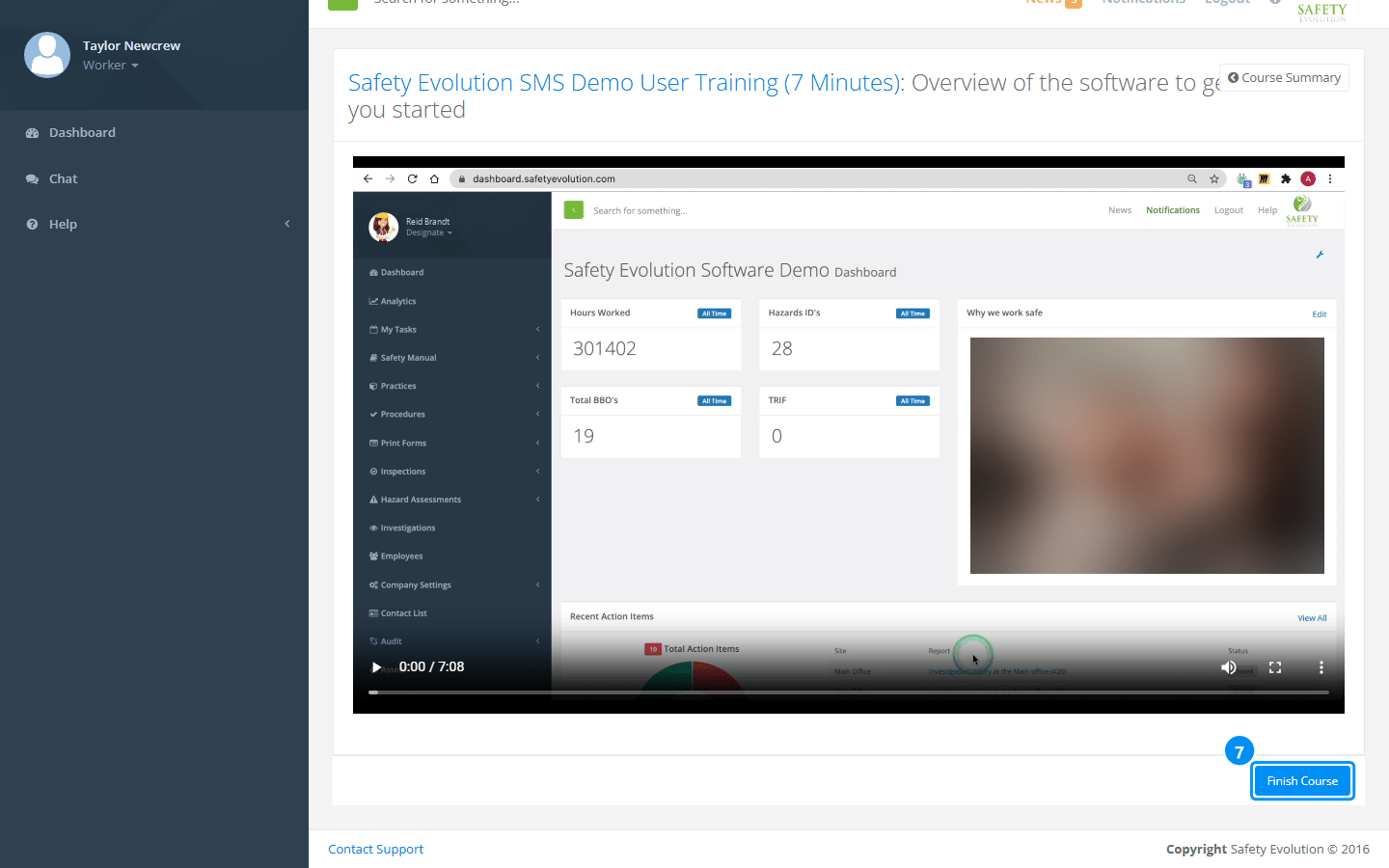
Finish the course to get its certificate. - Do the same for every course under Orientation Progress.
- When every orientation course is finished, the full menu appears, with My Tasks, Documents, Forms and the rest.
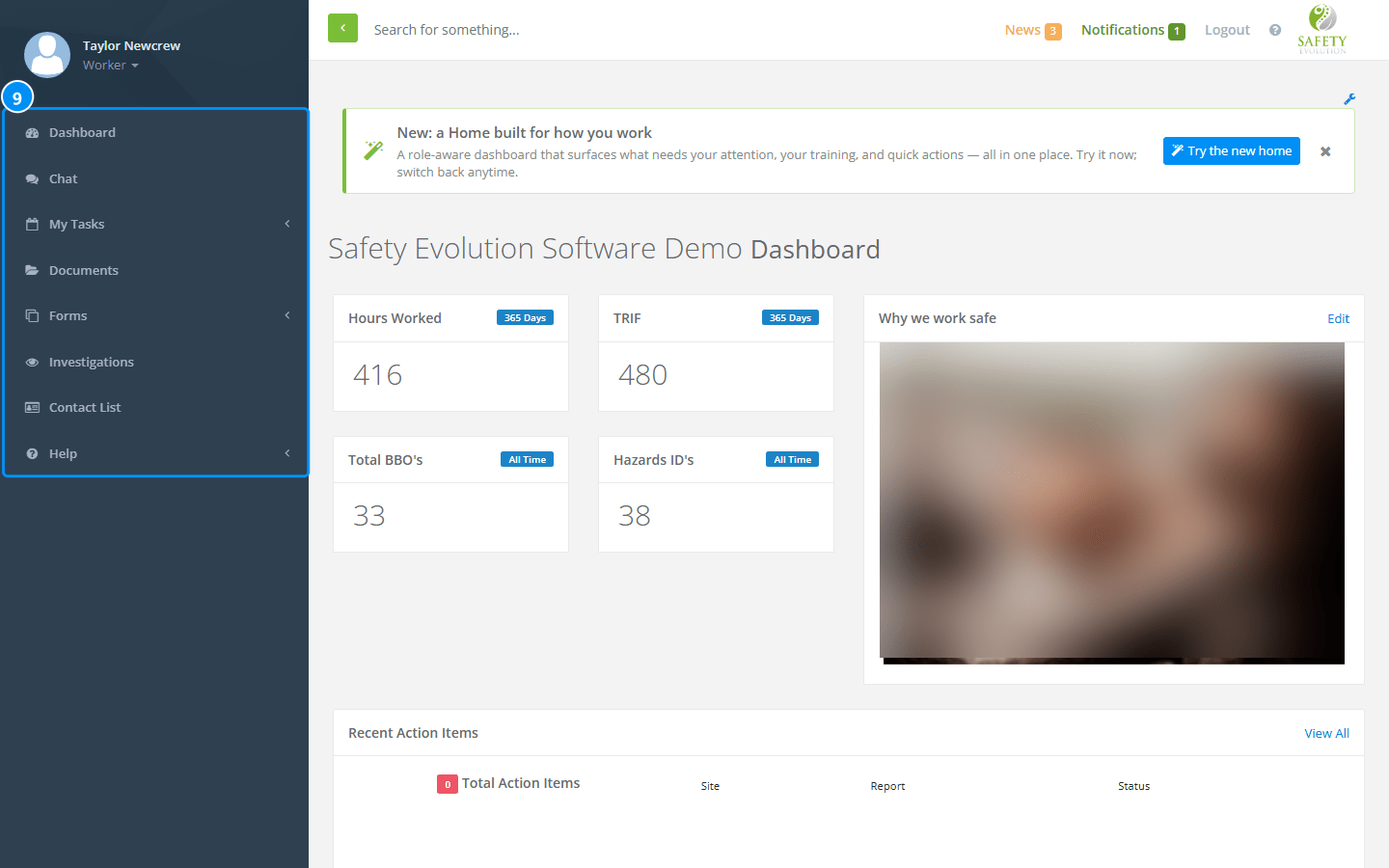
Orientation done: the whole menu is open.
A course from the course library may show Launch beside each part instead of units. Click Launch, work through it, then click Finish Course and confirm.
Take your courses on the phone
The phone app opens your courses in the phone's web browser.
- Tap Menu, then Training and Courses. The Your Courses screen says Tap the course below to be directed to the course portal.
- Tap the course. It opens in your browser. If the browser asks you to log in, use the same email and password as the app.
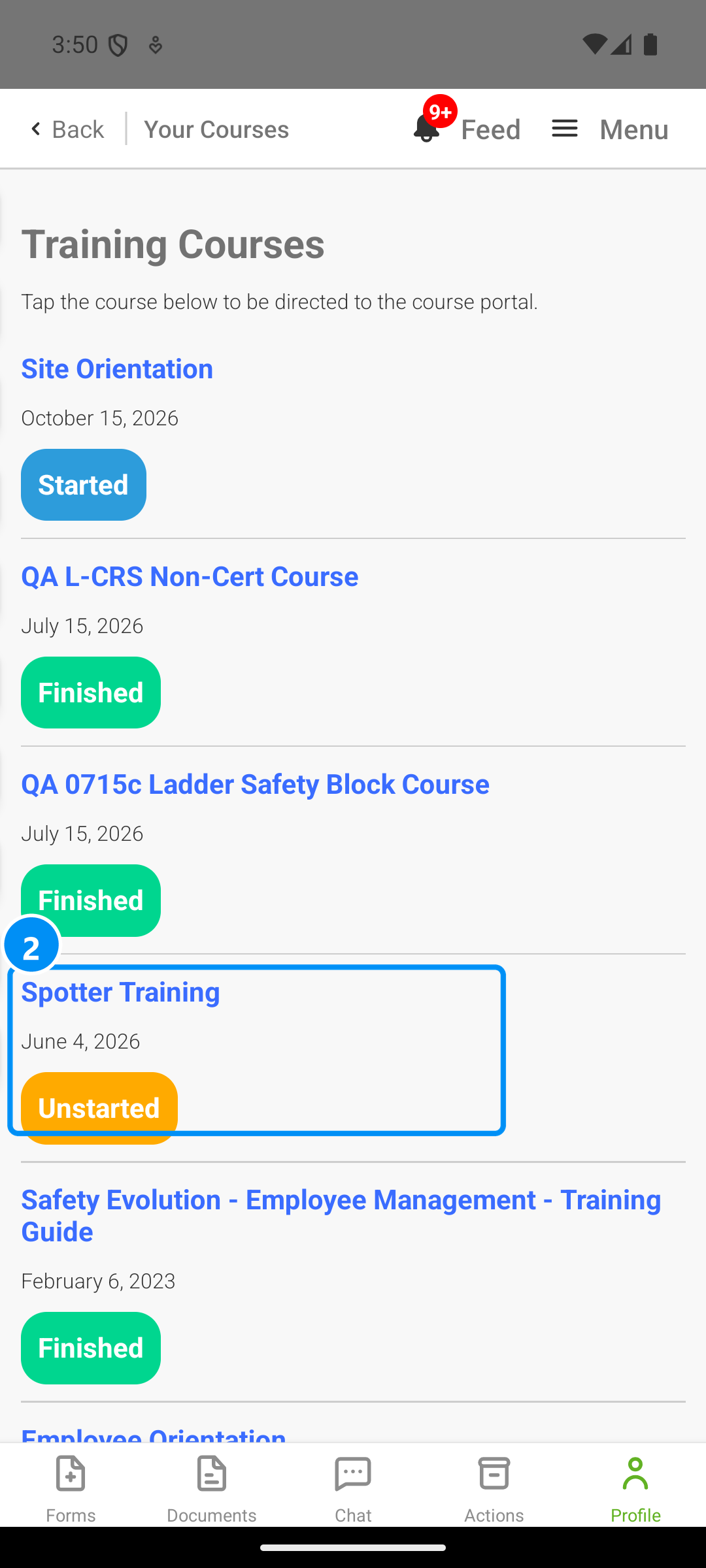
Tap a course to take it in your browser. - Follow the web steps above.
When a certificate expires
Orientation needs a current certificate for every orientation course. If one expires, you go back to the orientation page until you take that course again. On the course page, click Re Certify.
If something goes wrong
- The menu is still short after you finished: check Orientation Progress. Every course listed there still needs finishing. If none are listed and the menu is still short, ask your owner or admin to check your certificates.
- FAILED on a test: click Redo Unit, read the unit again and retake the test.
- "Failed to launch.": the library course didn't open. Refresh the page and click Launch again. If it keeps happening, report it with Help › Report a bug.
- "No courses found." on the phone: you aren't enrolled in a course yet. Log in on the web to see your orientation courses, or ask your supervisor.
- You think you shouldn't need orientation: ask your owner or admin. They can tick Skip Orientation on your employee page.
Updated October 24, 2026