![side_logo.png]](/theme/site/shared/images/side_logo.png)
Fill in and hand in a form on the web
Start a company form on the web, save it as a draft, and hand it in when it is finished.
Try it free Start with Safety Evolution's Free version.
On the web you start a form from Company Forms. You save it as a draft first, then hand it in. A form is not final until you hand it in.
Start a form
- In the left menu, click Forms.
- Click Company Forms.
- Click the blue Start Form button.
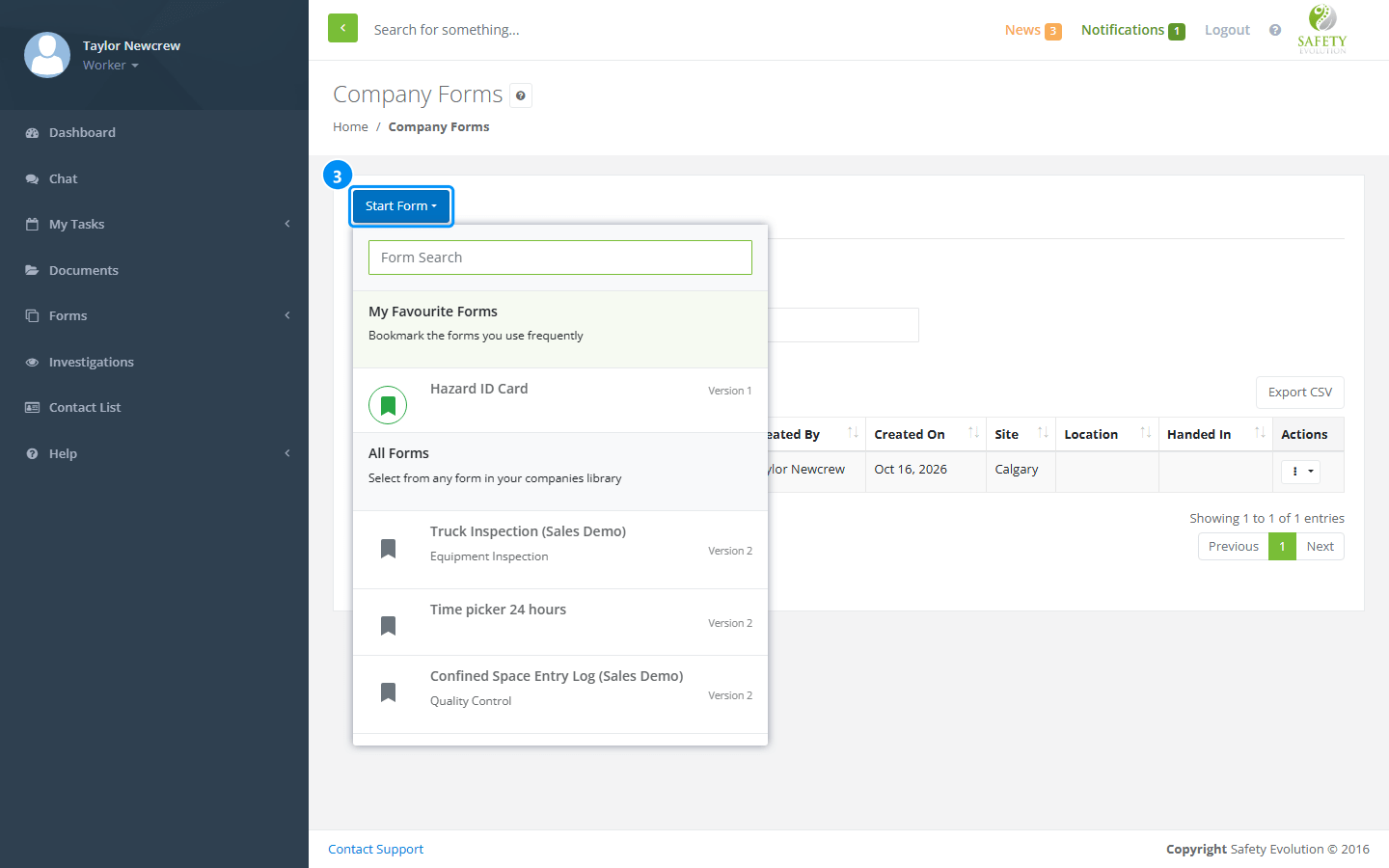
The Start Form list. - Find your form. Type part of its name in Form Search, or look under All Forms.
- Click the form's name. The form opens.
Tip: click the bookmark beside a form you use often. It moves up to My Favourite Forms. Your favourites are kept in this browser only. On another computer or browser, or after you clear your browser's data, you bookmark them again.
Fill it in
- Under Select your site:, pick the site this form is for. You cannot save until you pick a site.
- If your company uses locations, pick one under Select your location:.
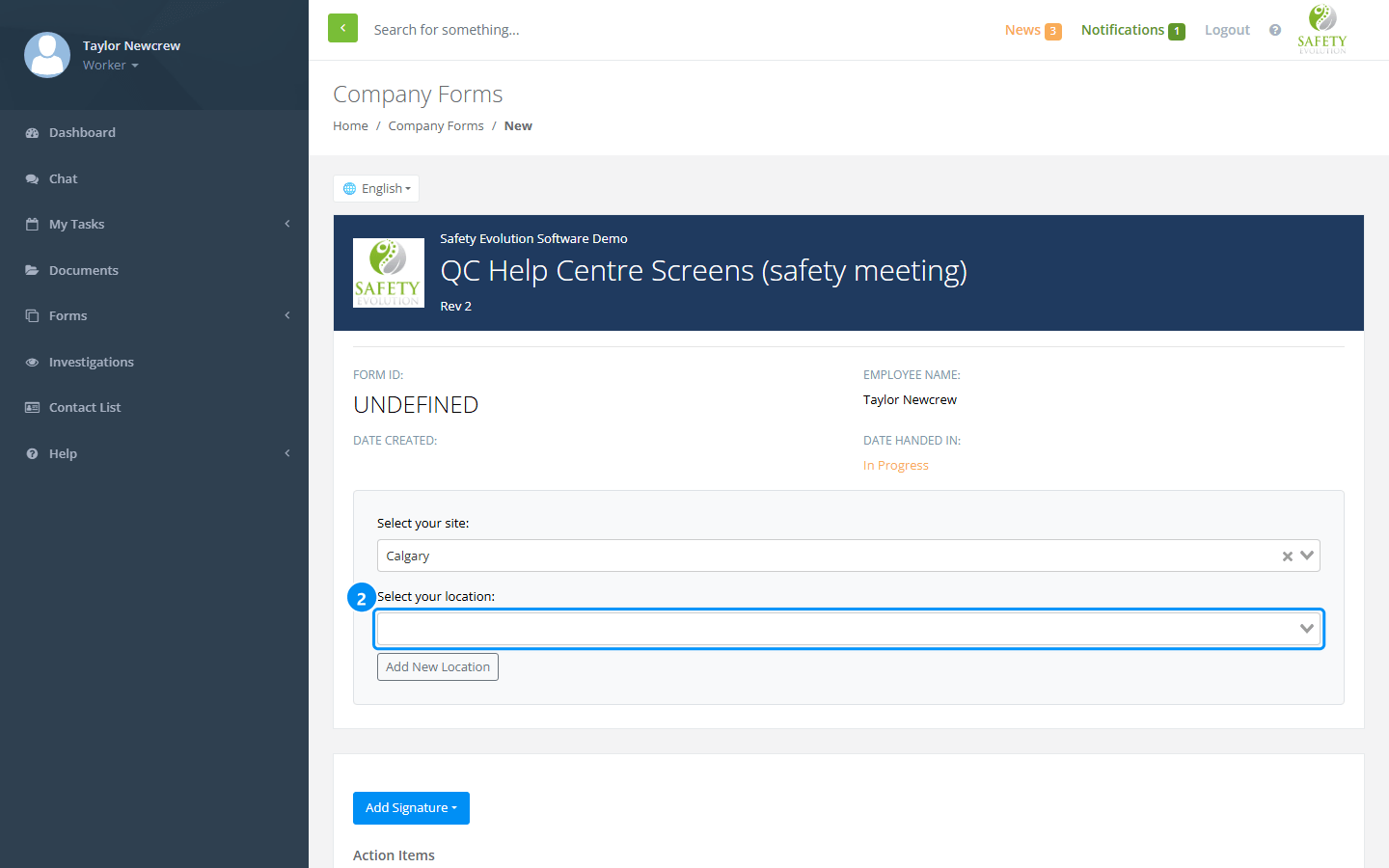
Pick the site first. - Answer the questions from top to bottom.
See the form in your language
If your company translates its forms, a language button shows at the top of the form. It has a globe and the name of the language, for example 🌐 English. Click it and pick your language. This sets your own language, the same setting as Idioma · Language in your profile: every form and toolbox talk opens in it from then on, and the page's buttons switch too (in Spanish, Save Draft reads Guardar borrador and Hand In reads Entregar). See "Read and fill in a form in your language".
Save a draft
- Click Save Draft at the bottom of the form.
- You see Saved. at the top of the screen. Your draft is now in the Company Forms list.
- To keep working later, open it from Company Forms.
Hand it in
- Check every answer. After you hand in, you can no longer change the form yourself.
- Click Save Draft once more if you changed anything.
- Click the green Hand In button.
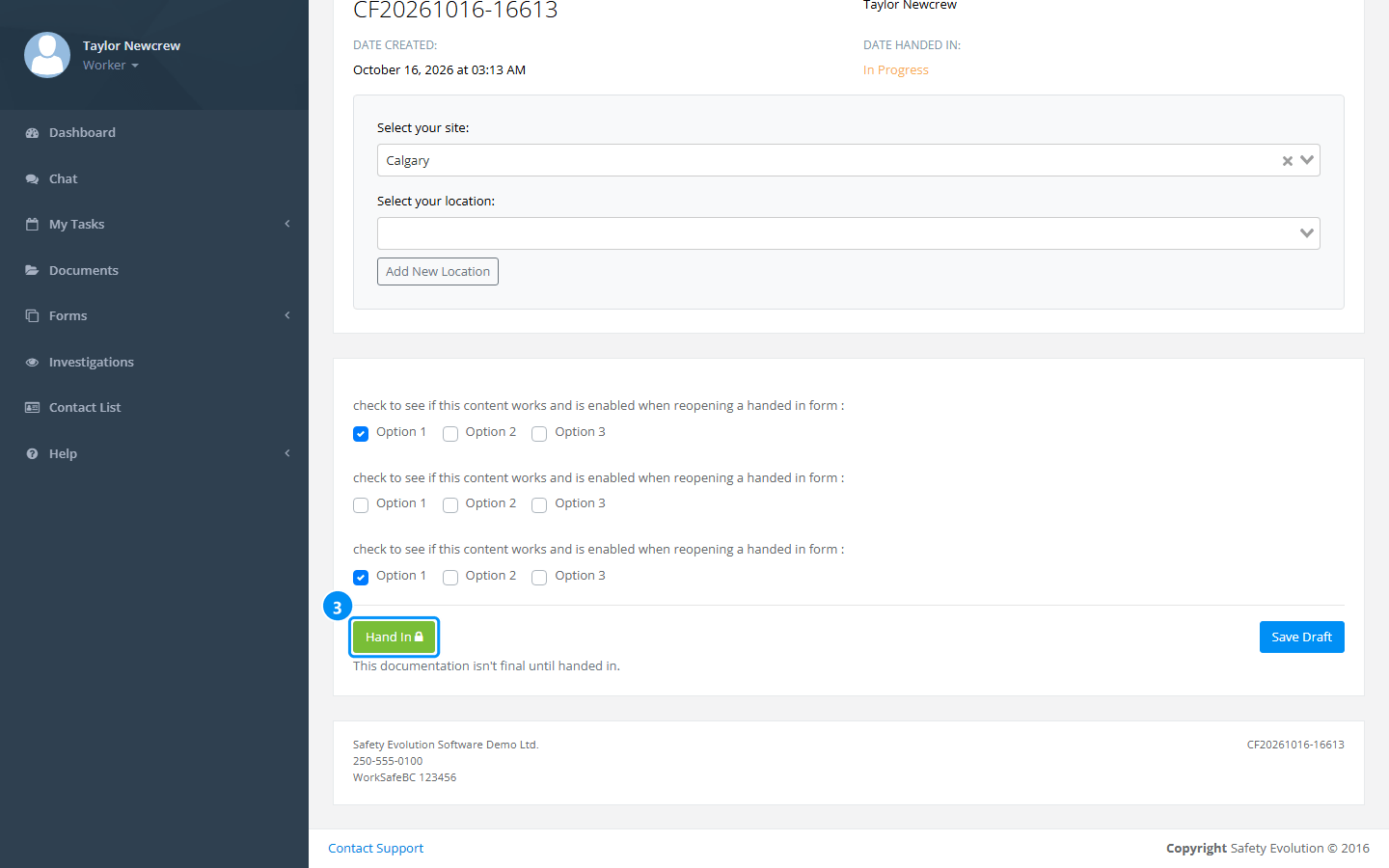
Hand In and Save Draft. - You see Success! and the handed-in form opens. The Handed In column in Company Forms now shows the date.
If something goes wrong
- "Please select the site.": pick a site under Select your site:.
- Hand In is grey: pick a site, click Save Draft, and answer every required question. Hand In works only after you click Save Draft at least once. For other hand-in messages, see "Why can't I hand in? Hand-in messages and what to do".
- "Save Failed: ...": the message says what is wrong. Fix it and save again.
- You do not see Company Forms: your company has no published forms yet. Ask your owner or admin.
- "No Forms Available": there are no forms you can start. Ask your owner or admin.
Updated October 24, 2026