![side_logo.png]](/theme/site/shared/images/side_logo.png)
Add photos, videos and files to a form
Attach photos, videos, recordings and PDFs to a form on the phone or the web, and add photos to an action item.
Try it free Start with Safety Evolution's Free version.
Some forms have a question that asks for a photo, a video, a recording or a PDF, for example a picture of a hazard or a damaged part. You can add them on the phone or on the web.
Before you start
- On the phone, allow the camera and photos when the phone asks. See Set up the phone app.
- You can add files with no signal. They go to the office when you hand in.
- Each question decides which kinds of file it takes: images, video, audio, PDF, or a mix.
Add a photo, video or file on the phone
- Open your form and scroll to the question with the Add File button. If it shows * required, you must add at least one file before you can hand in.
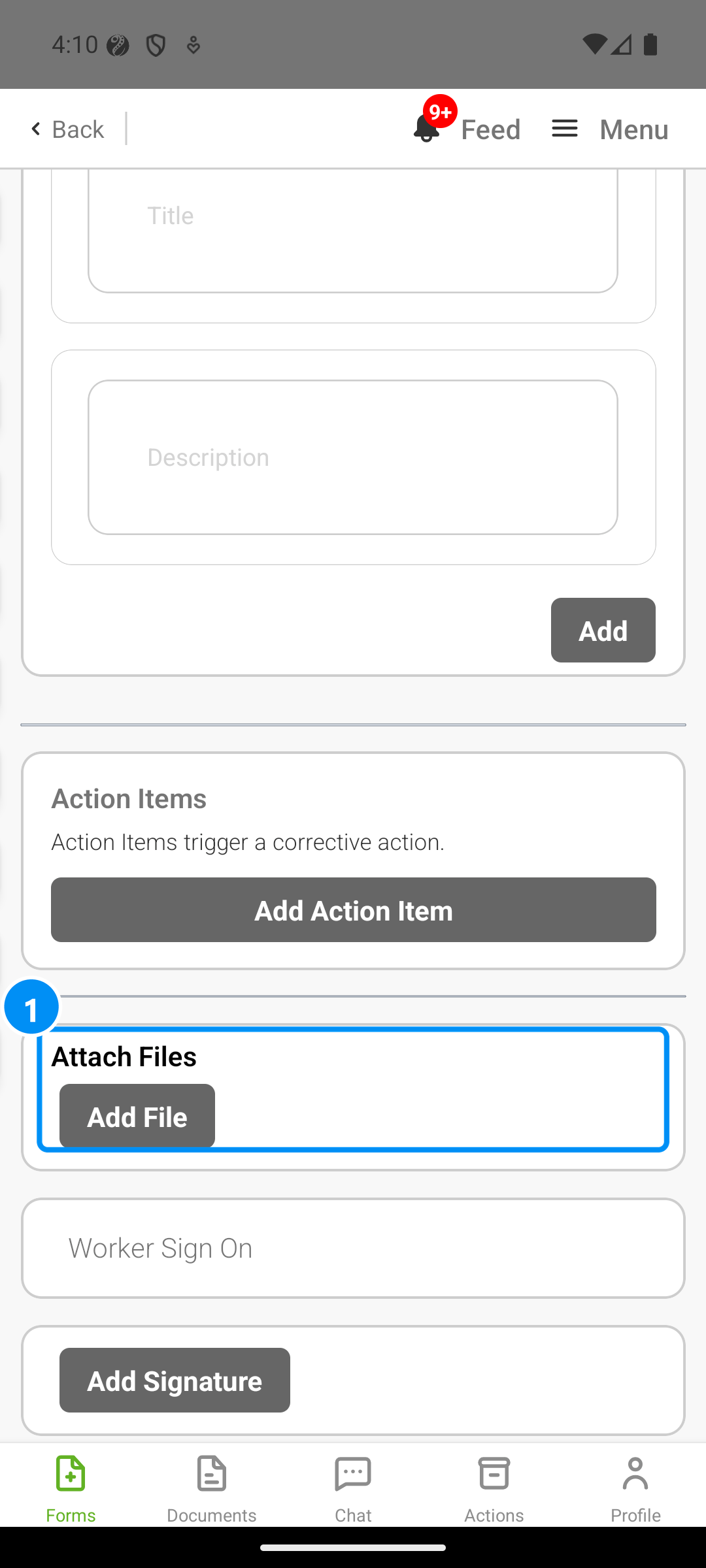
A question that takes photos and files. - Tap Add File. A window opens with Upload File and Take Photo. A question that only takes video shows Take Video. A question that only takes PDFs or recordings shows only Upload File.
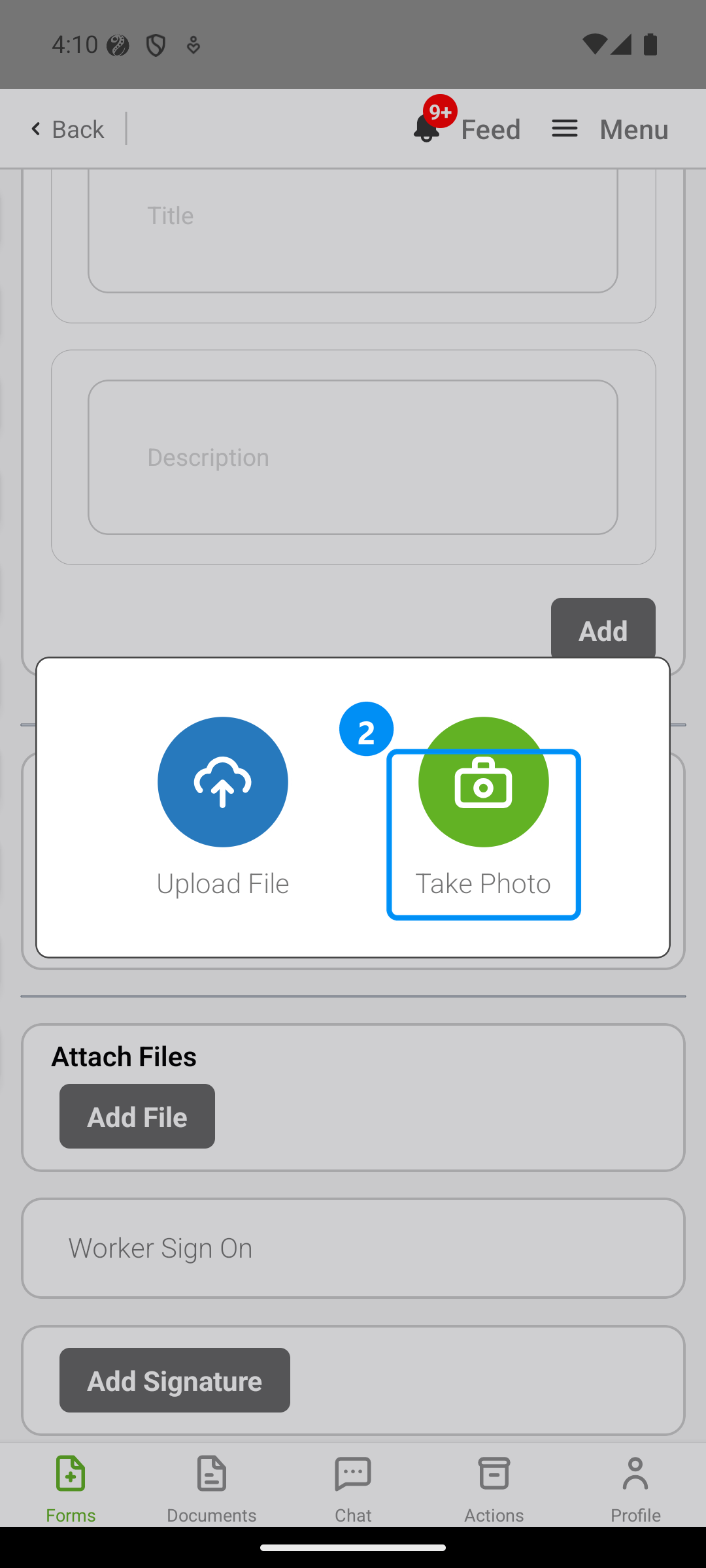
Choose where the file comes from. - Choose one:
- Take Photo: the phone asks Select a Photo. Tap Take Photo to use the camera, or Choose from Library to pick up to 20 photos you already took. A photo you take is also saved to your phone's photos.
- Upload File: your phone's file list opens. Pick a photo, video, recording or PDF.
- The file shows under the question with a preview and its name.
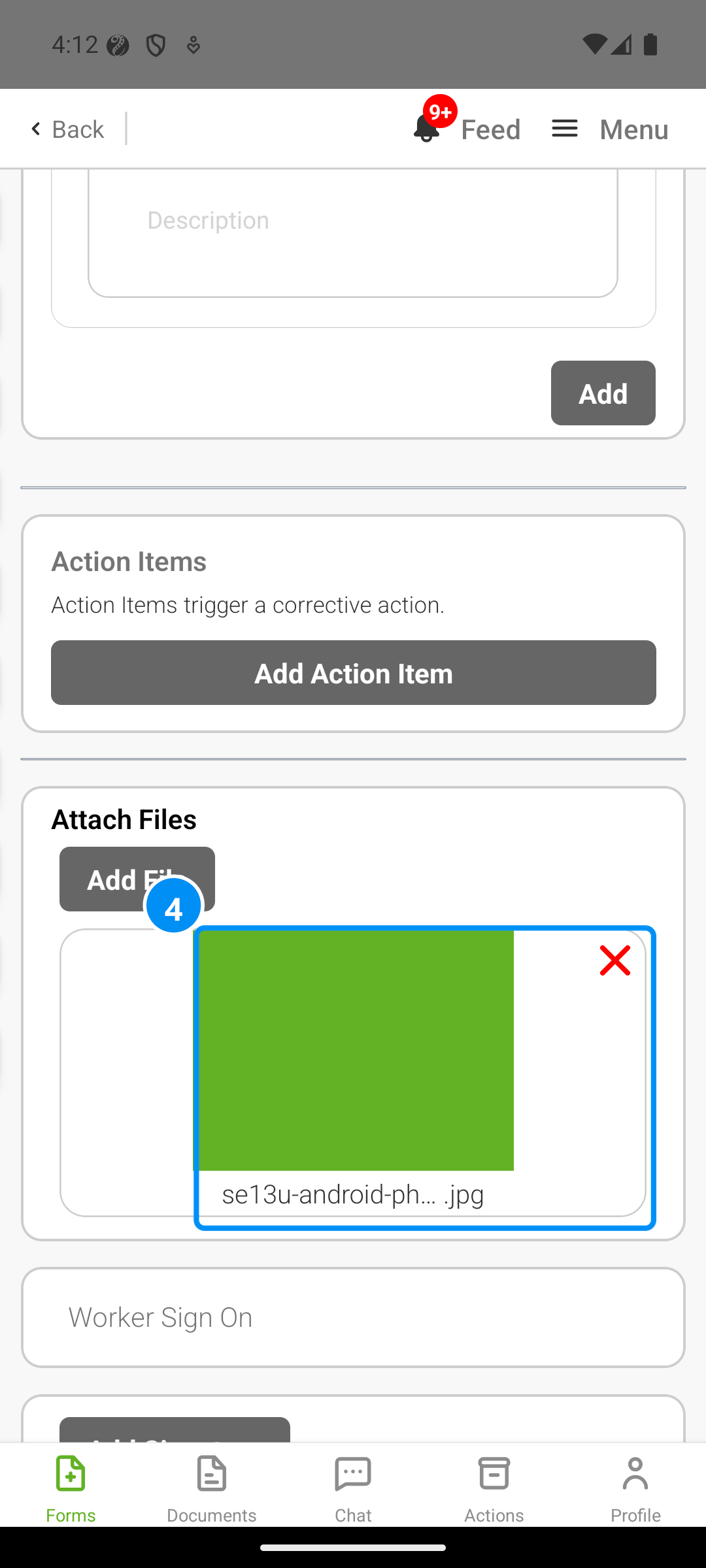
Tap the red X to remove a file. - To remove a file, tap the red X on it. You can do this until you hand in.
- To add more, tap Add File again.
Photos are made smaller when you add them, and videos over 49 MB are made smaller when they upload, so they send faster.
When the files go to the office
- Once you have picked a site and you have signal, files upload each time the form saves.
- Anything not sent yet goes at Hand In, in the step Uploading Files.
With no signal, the files wait on your phone with the rest of the form. See Working with no signal. Don't log out while they are waiting: logging out deletes them. See Log out or change phones without losing work.
Add a photo to an action item on the phone
- Open the action item and tap Attachments.
- Tap Add File, then choose a source as above.
- The file uploads straight away. You need signal.
Each action item file can be up to 15 MB. Videos are made smaller first. See Fix an action item assigned to you.
Add a file on the web
- Open the form. See Fill in and hand in a form on the web.
- At the question, click Add File(s).
- Pick one or more files from your computer. They upload straight away and show under the question.
- To remove one, click the bin button next to it.
- Click Save Draft to keep the files with the form, then Hand In when the form is done.
The web takes PNG, JPEG, GIF, WebP and AVIF pictures, MP4, MPEG and WebM videos, MP3, AAC, MP4 and WebM recordings, and PDFs, as far as the question allows.
If something goes wrong
- "Cannot access camera/photos": the camera or photos permission is off. Turn it on in your phone's Settings. See Set up the phone app.
- "Failed to select file": the phone could not add the file to the form. Try again, or pick a different file.
- "An error occurred. Please ensure you're connected to the internet and try again": the phone could not open or read the file you picked. Try again, or take a new photo.
- "Failed to upload file" at Hand In: a file did not reach the office. Move to where you have signal and tap Retry. See Why can't I hand in?
- "This file is too large to attach (… MB). The limit is 15 MB." on an action item: pick a smaller file, or take a shorter video.
- "No internet connection. The file was not attached. Try again when you have signal." on an action item: action item files need signal. Try again when you have it.
- On the web, the file doesn't show after you pick it: the upload did not finish. Check your connection and that the question takes that kind of file, then pick it again.
Updated October 24, 2026