![side_logo.png]](/theme/site/shared/images/side_logo.png)
Review, close, reopen or cancel an investigation
Review a finished investigation and close it or send it back, reopen a closed one, cancel or restore one, and print or share the summary.
Try it free Start with Safety Evolution's Free version.
When an investigator asks for a review, the investigation waits for the reviewer they picked. The reviewer closes it or sends it back. Later you can reopen a closed investigation, or cancel one that is not needed.
Who can do what
| Action | Who |
|---|---|
| Review (close or send back) | The reviewer picked, owners, designates, admins, and HSE supervisors of the site |
| Reopen, cancel, restore | The investigator, owners, designates, admins, and HSE supervisors of the site |
| See every investigation (View All) | Owners, designates, admins and auditors |
Review an investigation
- In the left menu, click Investigations.
- Under Active Investigations, find the one marked Pending Review. It shows who it is waiting for.
- Click Review on its row.
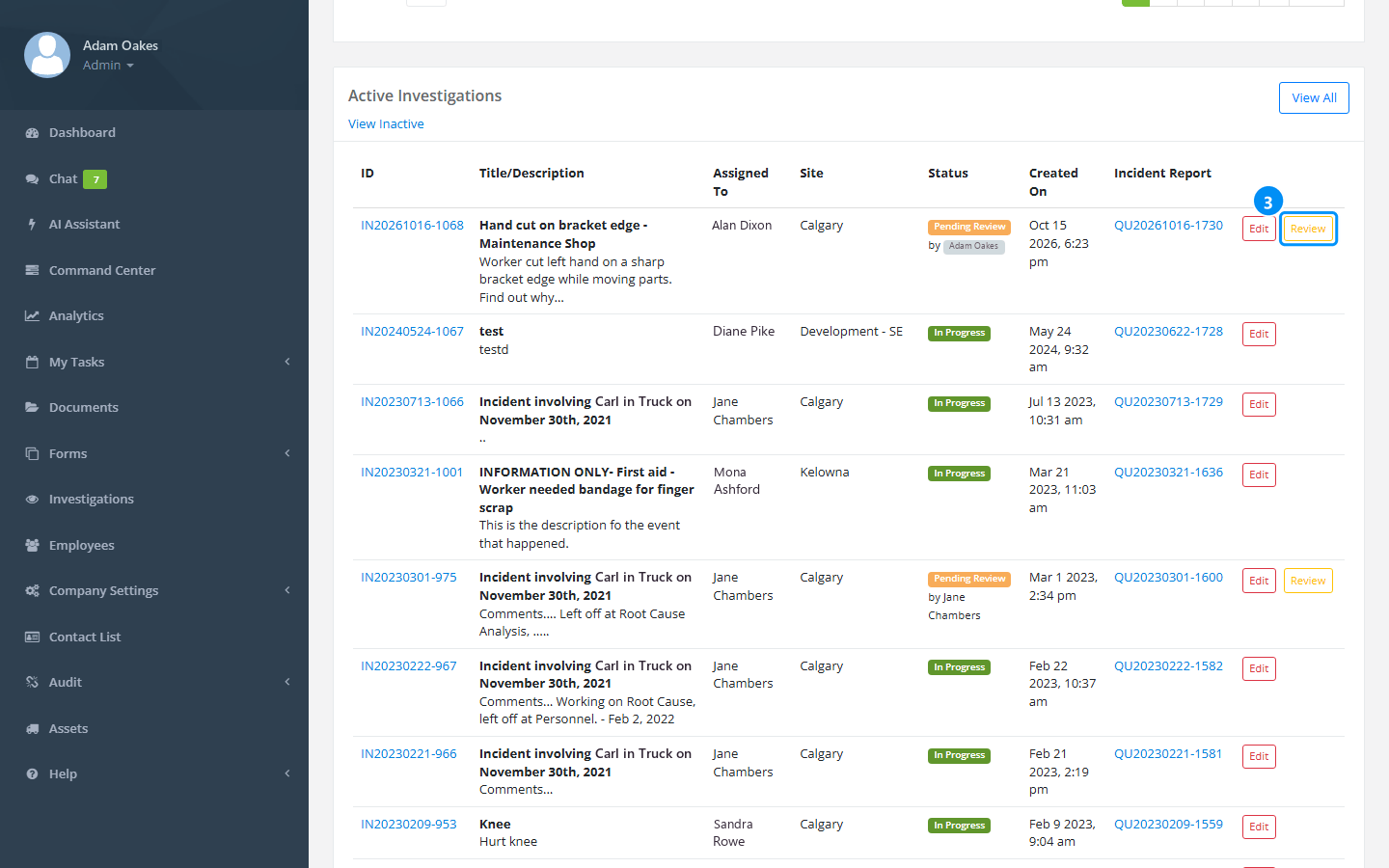
Click Review on an investigation waiting for you. - Read the summary below. Read any earlier comments under Comment History.
- Type your comment in Review Comment.
- Click one button:
- Close: the investigation is complete. Its status becomes Completed.
- Revert: send it back to the investigator to fix. A comment is required. Its status goes back to In Progress.
- Click OK when it asks "Are you sure?". You see "Investigation status updated".
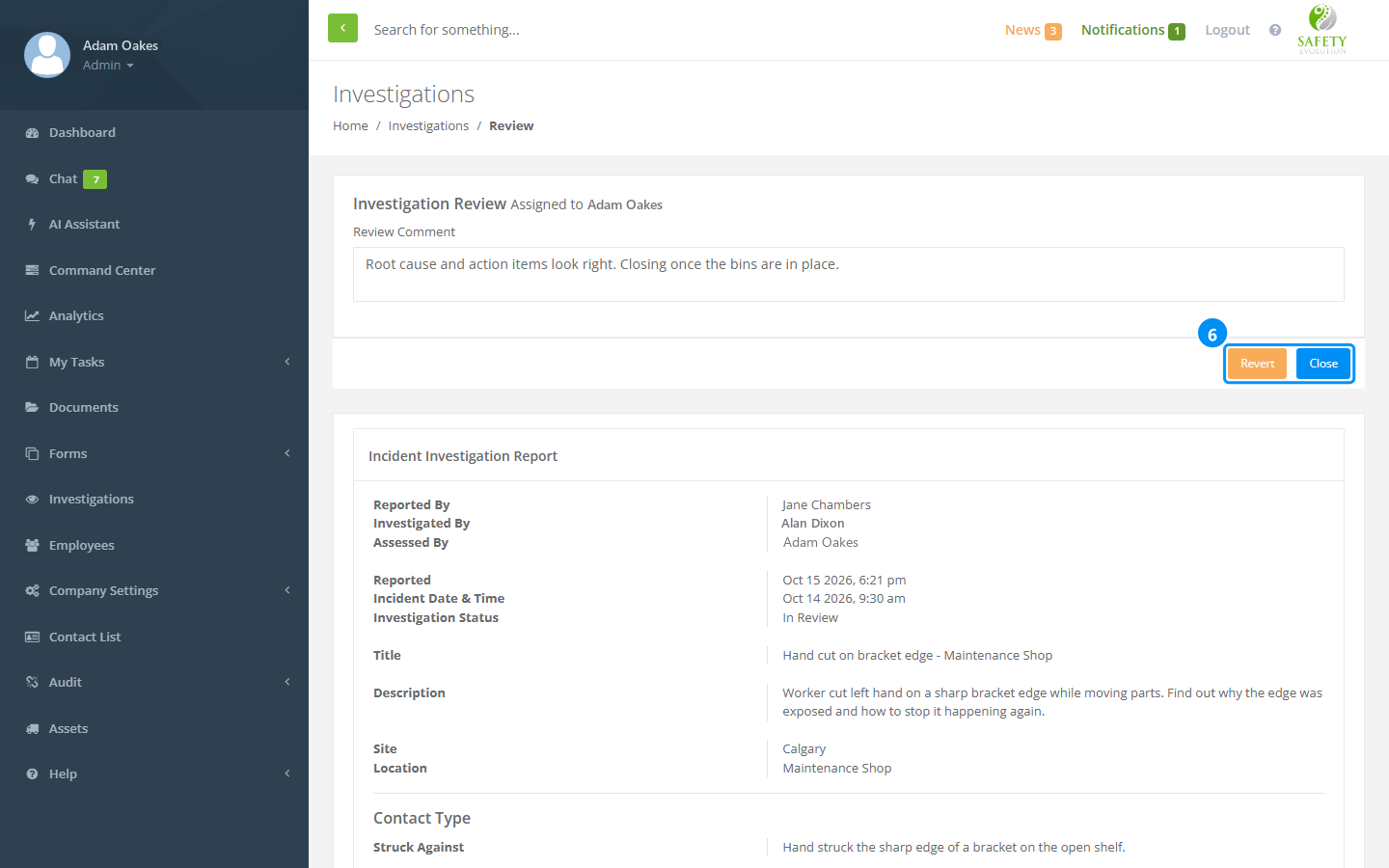
Close it, or Revert it with a comment.
The investigator gets "Investigation Closed" or "Investigation Reverted".
Reopen a closed investigation
- On the Investigations page, click View Inactive beside Active Investigations.
- Click the investigation's ID to open it.
- Click Reopen Investigation.
- Type why it is being reopened.
- Click Confirm. You see "Investigation Reopened" and it is In Progress again.
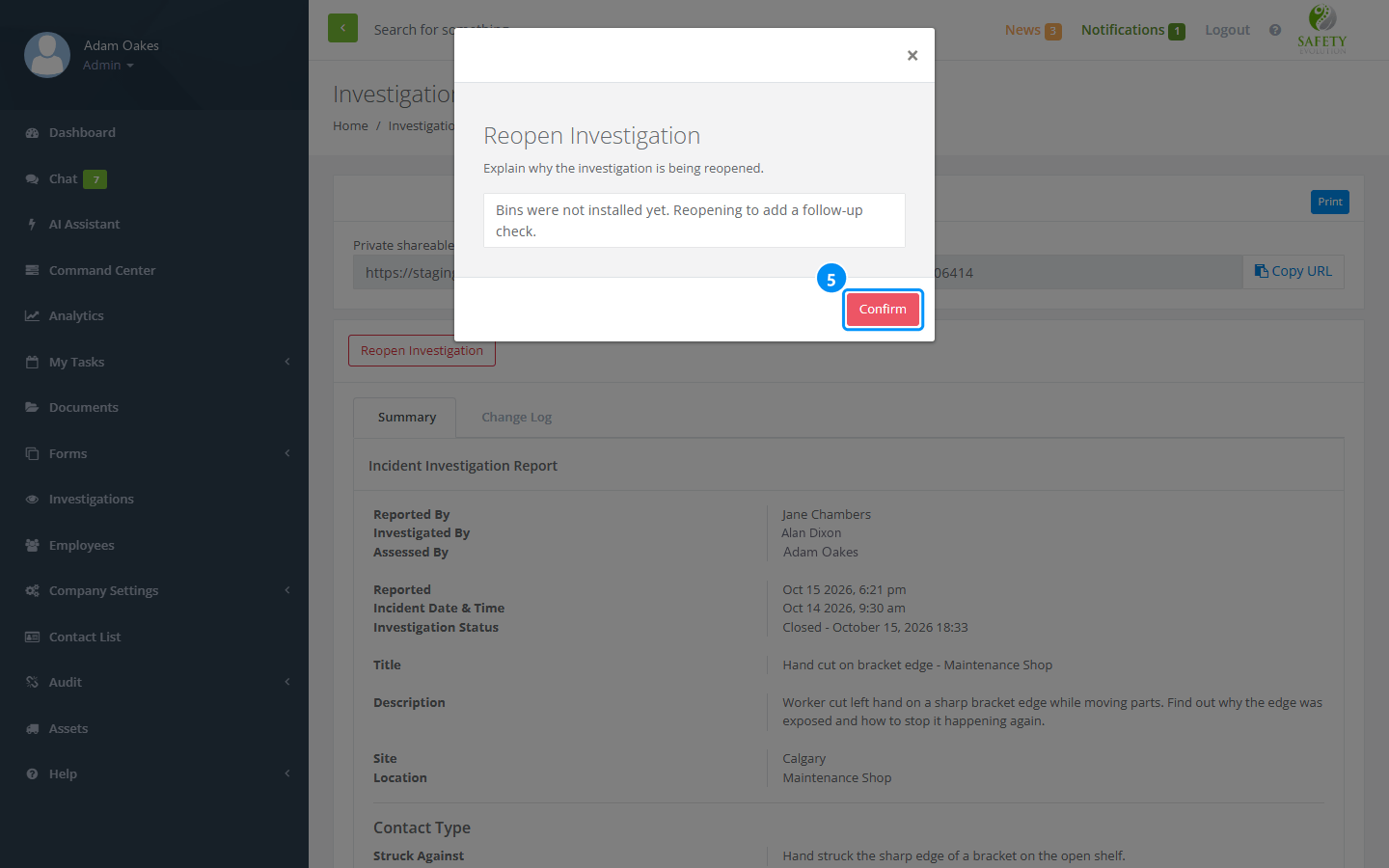
Say why you are reopening it.
Cancel an investigation
Cancel an investigation that should not go ahead, for example one opened twice.
- Under Active Investigations, click Edit on the investigation.
- In the Status box on the General tab, click Cancel Investigation.
- Type the reason.
- Click Confirm. You see "Investigation Cancelled.".
Restore a cancelled investigation
- Click View Inactive beside Active Investigations, then open the cancelled investigation. It shows Cancelled Investigation with the reason.
- Click Restore Investigation.
- Type why, then click Confirm. You see "Investigation Restored." and it is In Progress again.
Print or share the summary
- Open the investigation by clicking its ID.
- To print or save a PDF, click Print. Use your browser's print window, and pick "Save as PDF" if you want a file.
- To share it, use the Private shareable link. box. Click Copy URL and paste the link into an email. Anyone with the link can see the summary, so share it only with people who should.
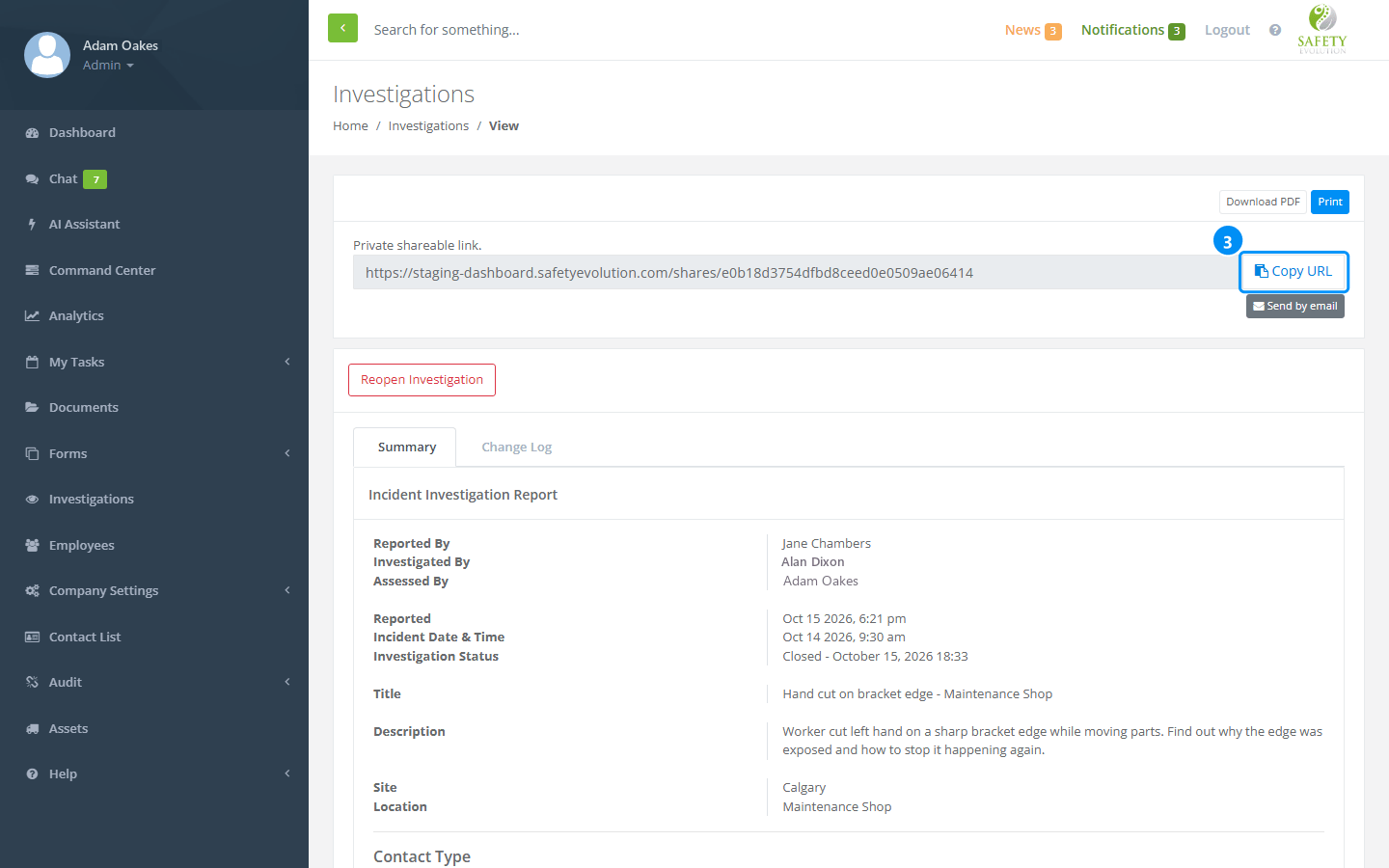
Print the summary or copy its link.
Once Safety Evolution has turned branding on for your company, the page also has Download PDF and Send by email, and Print opens a branded PDF instead of the print window. See Share an investigation report.
The Change Log tab beside Summary shows every change and who made it.
If something goes wrong
- Revert does nothing: type a comment first. Revert needs one.
- No Review button: the investigation is not Pending Review, or you are not allowed to review it.
Updated October 24, 2026