![side_logo.png]](/theme/site/shared/images/side_logo.png)
Add toolbox talks to a form and manage your talk library
Put a Toolbox Talk in a form design, then plan the year's talks, edit them, and choose how crews see them on the phone.
Try it free Start with Safety Evolution's Free version.
A Toolbox Talk is a part you add to a form design. It holds your company's library of talks. Crews pick a talk on the phone, read it, sign and hand the form in. This article is for owners, designates and admins, who build forms.
Before you start
- You need to be an owner, designate or admin.
- Toolbox talks are being turned on company by company. If you do not see the Toolbox Talk tile, ask Safety Evolution to turn it on for you.
Add a Toolbox Talk to a form
- In the menu, click Company Settings, then Form Designer.
- Click New Form Design ..., then Blank Design. Or click Edit on a form you already have.
- Give the form a name on the Settings tab.
- Under Integration Elements, click the Toolbox Talk tile. It has a NEW badge.
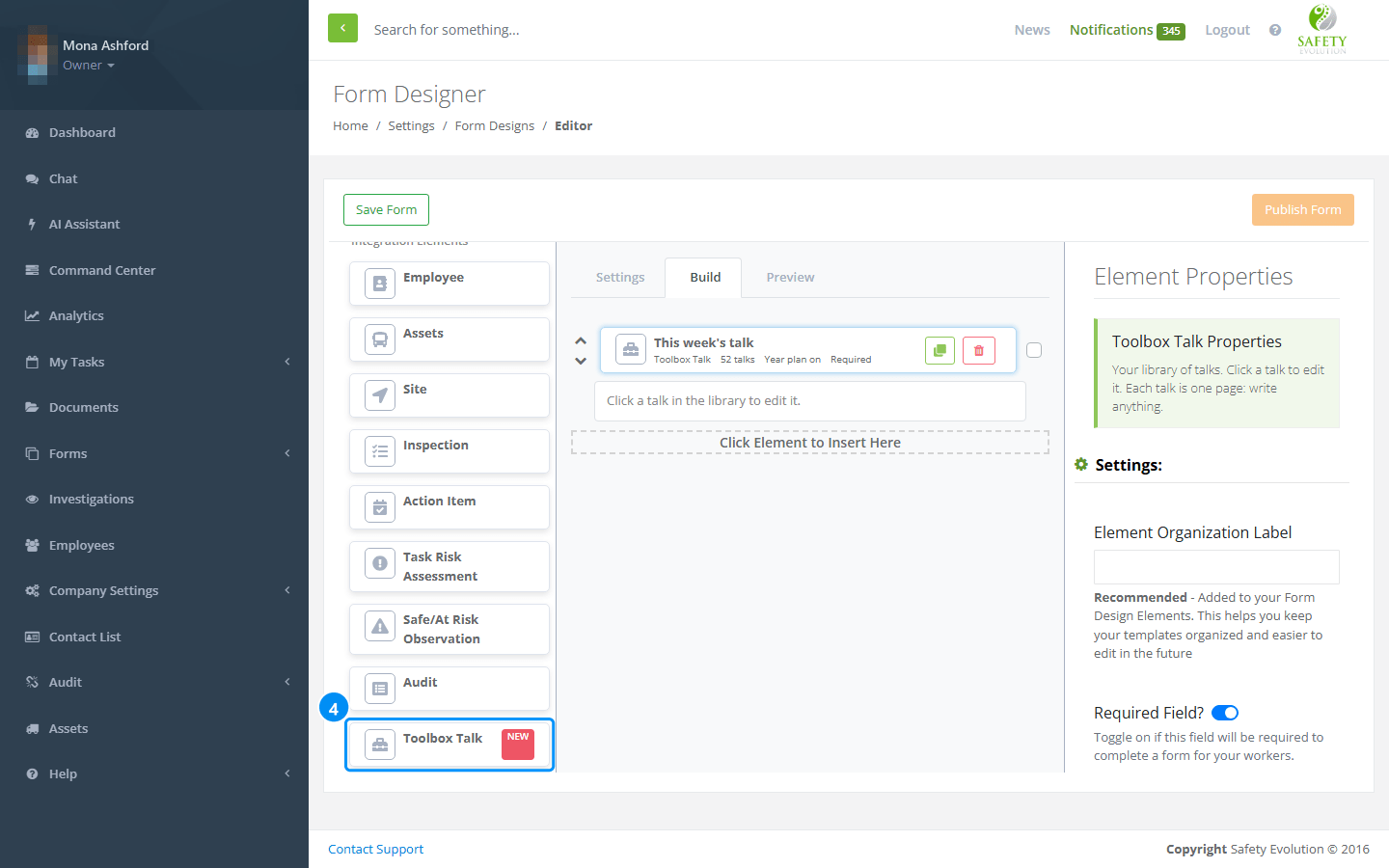
The Toolbox Talk tile is under Integration Elements. - Wait while it says Loading the starter talks…. Your form gets 52 ready-made talks, one for each week. Each starter talk is written in English, Spanish and French, on every plan.
- Add the other parts the crew needs around the talk. For example Signatures for the crew to sign, File Attachment for a photo, and Action Item for anything that needs fixing.
- Click Save Form.
- When it is ready, click Publish Form. Crews see it on the phone after that.
A form can have only one Toolbox Talk.
Plan your talks for the year
- Click the Toolbox Talk in your form. The Toolbox Talk Properties pane opens on the right, with your list of Talks.
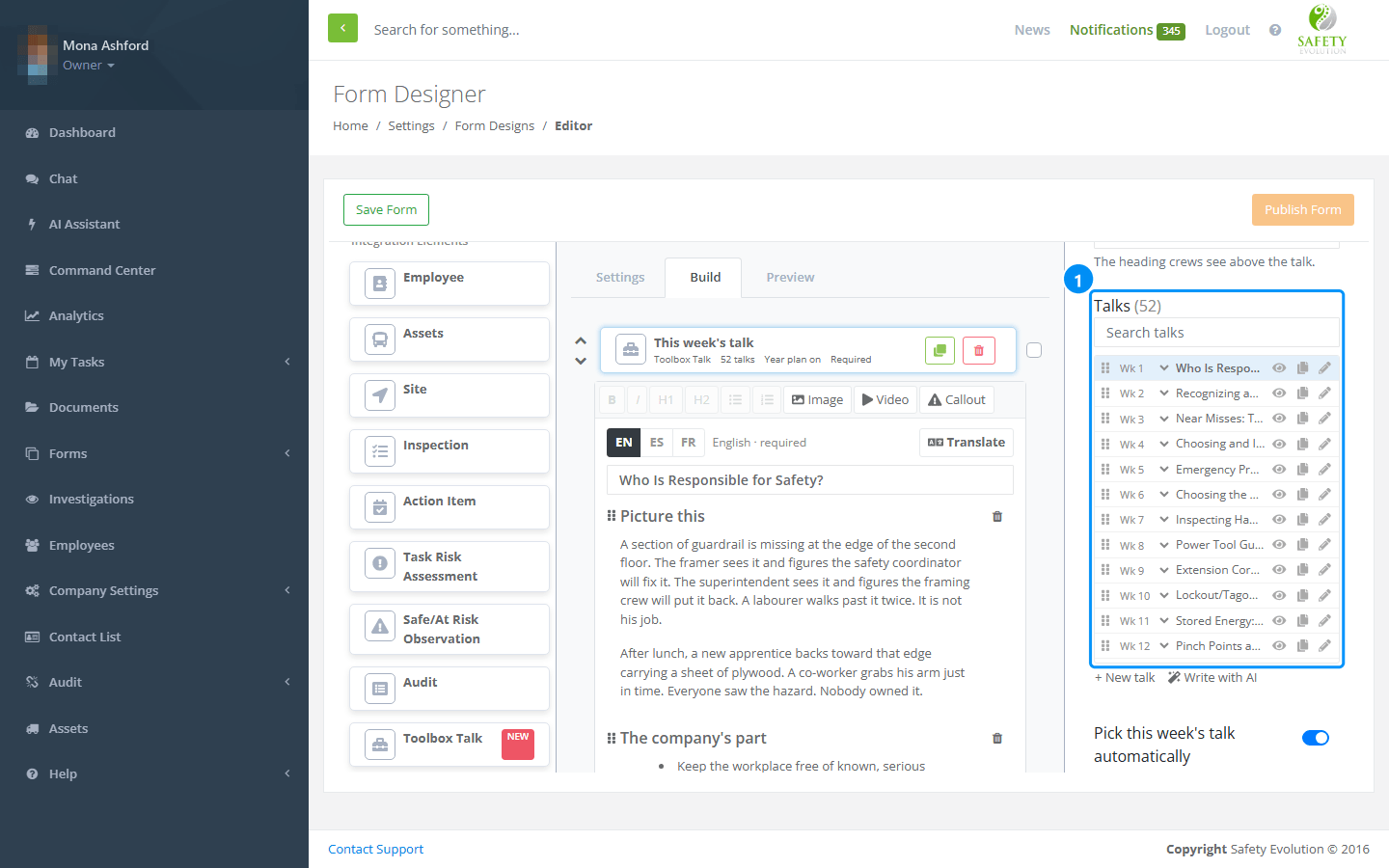
Your talk library. Each row has a week, a title and buttons. - The ? beside Talks opens this help article in a panel, without leaving the form.
- To find a talk, type in Search talks.
- To set the week a talk is given, pick a week in its week box (Wk 1 to Wk 53). Pick No wk for a talk with no set week.
- To change the order, drag a talk by its handle (Drag to reorder). Clear the search first.
- To stop crews seeing a talk, click the eye button (Hide talk). Click it again to show it (Show talk).
- To start a new talk from an old one, click Copy talk.
- To write a talk from scratch, click + New talk.
- Click Save Form, then Publish Form, so crews get the changes.
If two shown talks have the same week, the higher one in the list is used.
Write or change a talk
- In the library, click the talk's title or Edit talk. The talk opens under the Toolbox Talk on the Build tab.
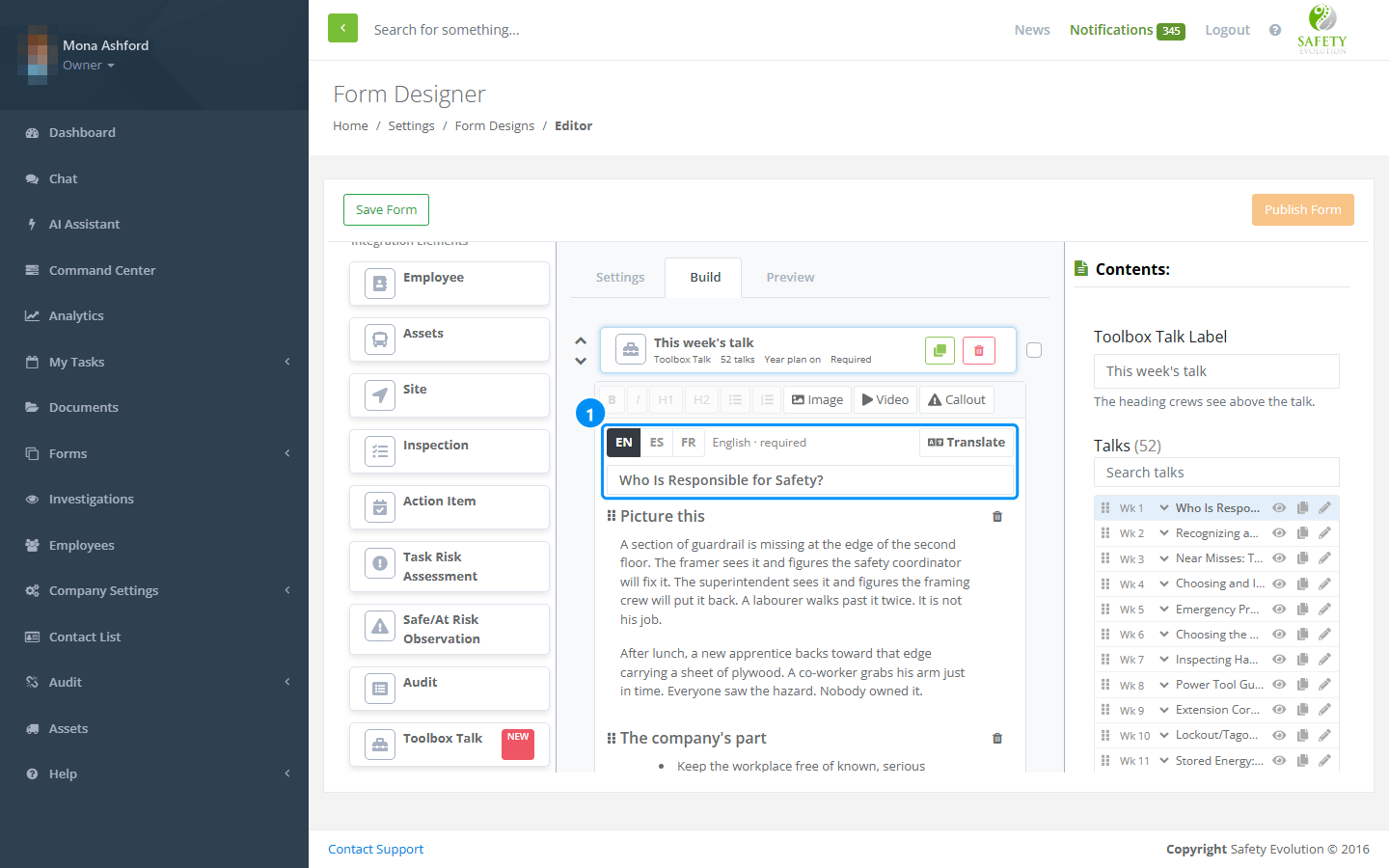
Each talk is one page. Use the toolbar to add headings, lists, pictures and callouts. - Type the Talk title.
- Type the talk. Use H1 and H2 for headings, and the list buttons for bulleted or numbered lists.
- To add a picture, click Image. Use a PNG or JPEG under 2 MB.
- To add a video, click Video and paste a YouTube or Vimeo link.
- To add a warning box, click Callout.
- To write the talk in Spanish or French, click ES or FR and write that page. English is required. Spanish and French are optional.
- Click Save Form.
On Professional, Write with AI and Translate can write or translate a talk for you. See "Write and translate talks with AI". On the Free plan these show as Write talks with AI on Professional and Translate your own talks on Professional.
Choose how crews see the talks
These settings are in the Toolbox Talk Properties pane, under the talk list. All are on to start.
- Pick this week's talk automatically: when on, the phone opens on this week's talk. When no talk has this week, it opens on the next one.
- Read aloud: when on, crews get a button to have the phone read the talk out loud.
- Languages: tick the languages crews can switch to. English is always on. Crews can switch to a language only when the talk is written in it. The starter talks are written in all three. A talk opens in the language the worker picked for the app, when the talk has it. See "Choose your language on the phone and the web".
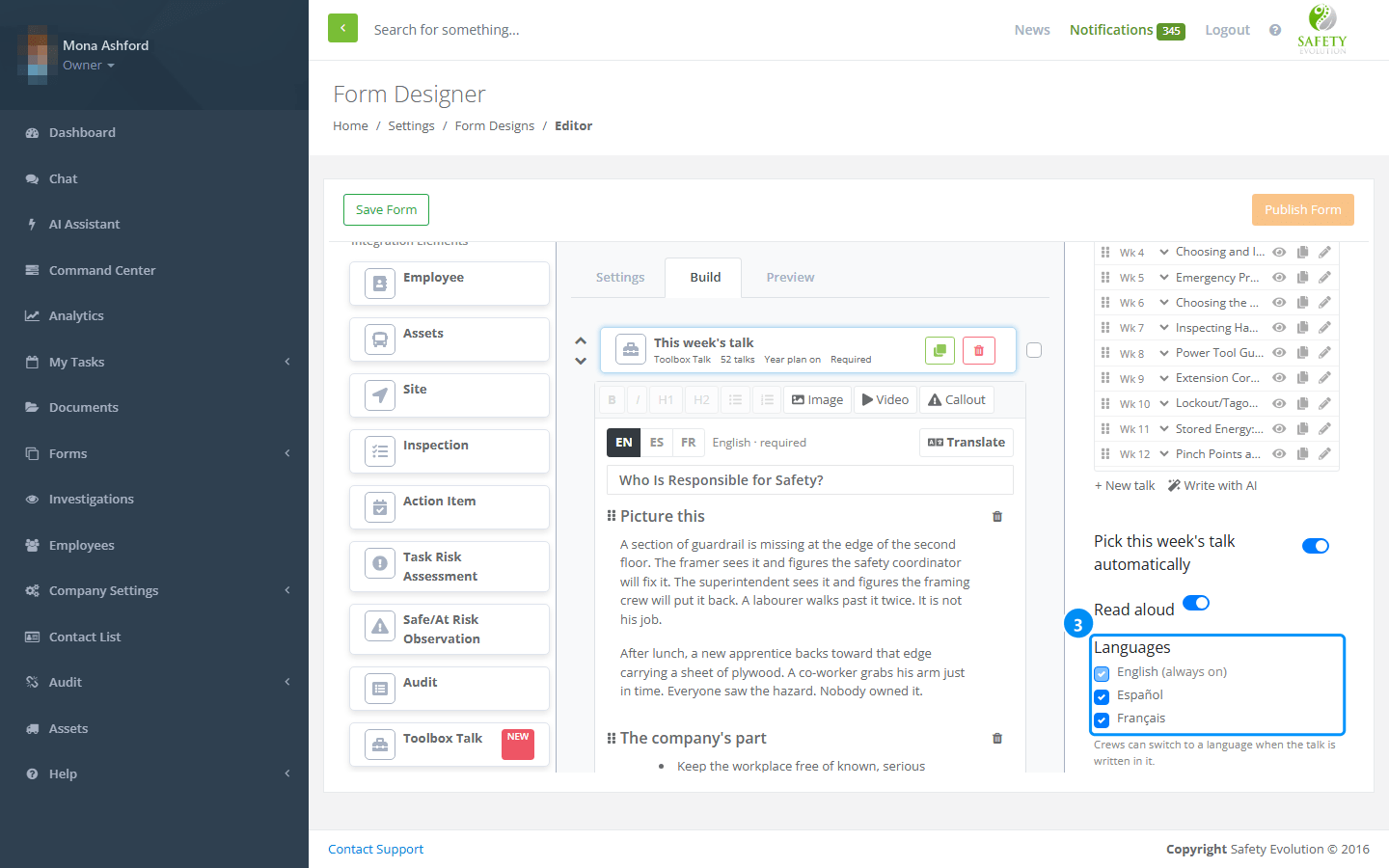
The settings apply to every talk in this form.
Filling in the talk on the web
Crews can also fill in a toolbox talk form on the web. The talk shows inside the form. Pick it in Select a talk, and use the language buttons to switch language. It looks the same as on the phone: the week and season at the top, then cards labelled Warning, Good to know, Ask the crew and Remember.
What a handed-in talk keeps
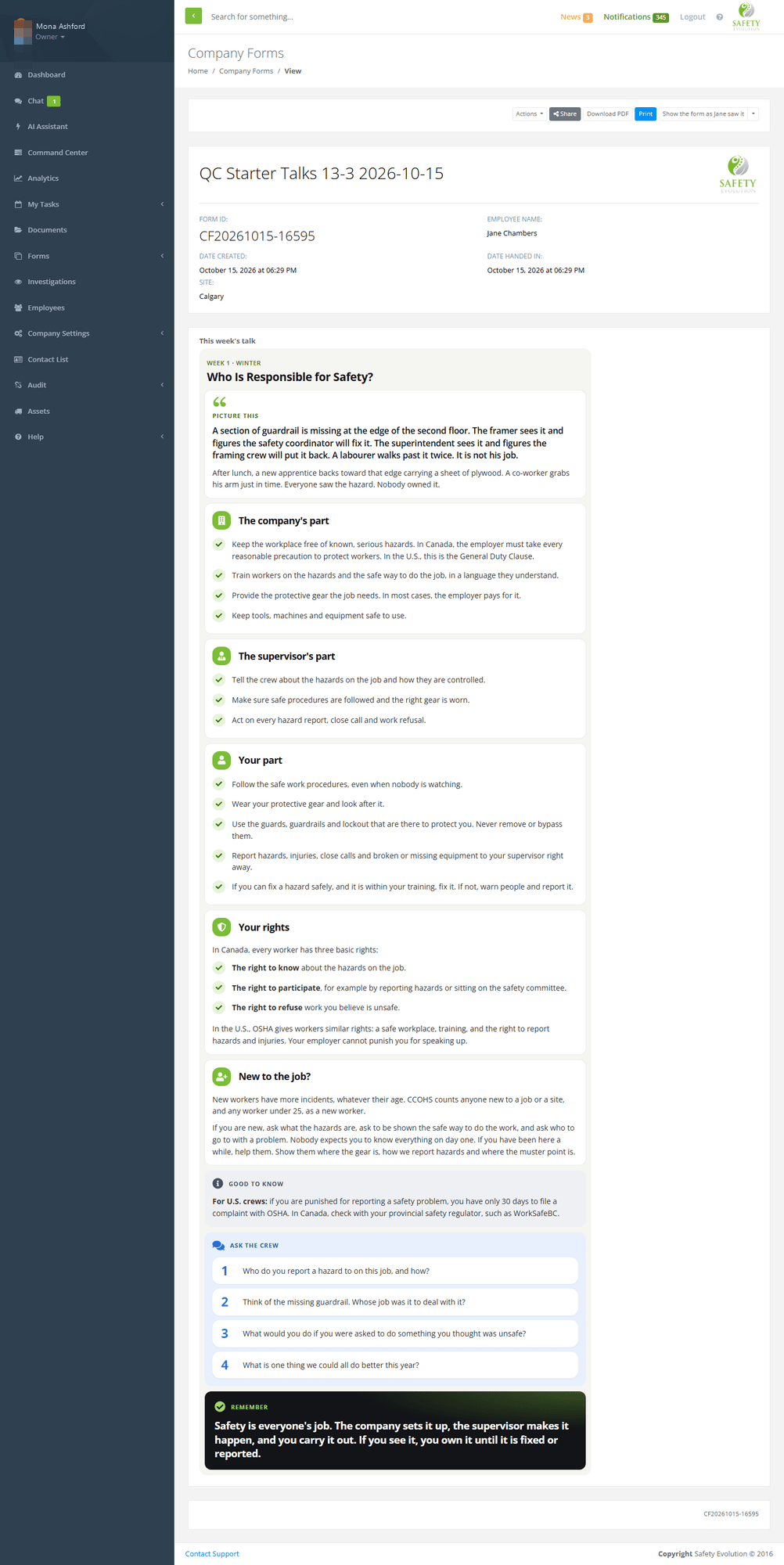
Each handed-in form keeps the talk from the version of the form it was handed in on. If you change or republish a talk later, old handed-in forms still show the talk the crew was given. When you open a handed-in form, the talk shows in the same cards. If no talk was picked, it says No talk given.
If something goes wrong
- "A form can have one Toolbox Talk, and this form already has one.": use the Toolbox Talk already in the form.
- "Couldn't load the starter talks": click Retry.
- "Give every talk an English title to save the form." or "This talk needs an English title before the form can be saved.": open the talk named after Needs English:, click EN and type a title.
- "Not written yet": that language page is empty. Crews see the talk in English instead.
Updated October 24, 2026