![side_logo.png]](/theme/site/shared/images/side_logo.png)
Build a training course with AI
Tell the AI Assistant what your crew needs to learn and it drafts a full course, with units and test questions, for you to check and save.
Try it free Start with Safety Evolution's Free version.
Tell the AI Assistant what your crew needs to learn. It drafts the course outline, then writes each unit and its test questions. You check every step, and nothing is saved until you say so. The finished draft lands in your Custom Courses, ready for you to review and assign.
Before you start
- For owners, designates and admins.
- The AI Assistant comes with the Professional and Enterprise plans. Safety Evolution can also turn AI on for your company. Without either, the AI Assistant page shows Contact Us to Enable AI Agents.
- The Build with AI button on the Courses list shows only when Safety Evolution has turned AI on for your company. If your plan includes the AI Assistant but you don't see the button, start from the AI Assistant instead.
- Building a course takes a few minutes. Drafting the outline can take up to 3 minutes, and writing the course up to 4 minutes. Stay on the page while it works.
Start the course
Pick one of these three ways.
From the Courses list
- Open the Courses list. From any course page, click Courses in the breadcrumbs at the top.
- Click Build with AI. The AI Assistant opens and starts drafting a course outline straight away.
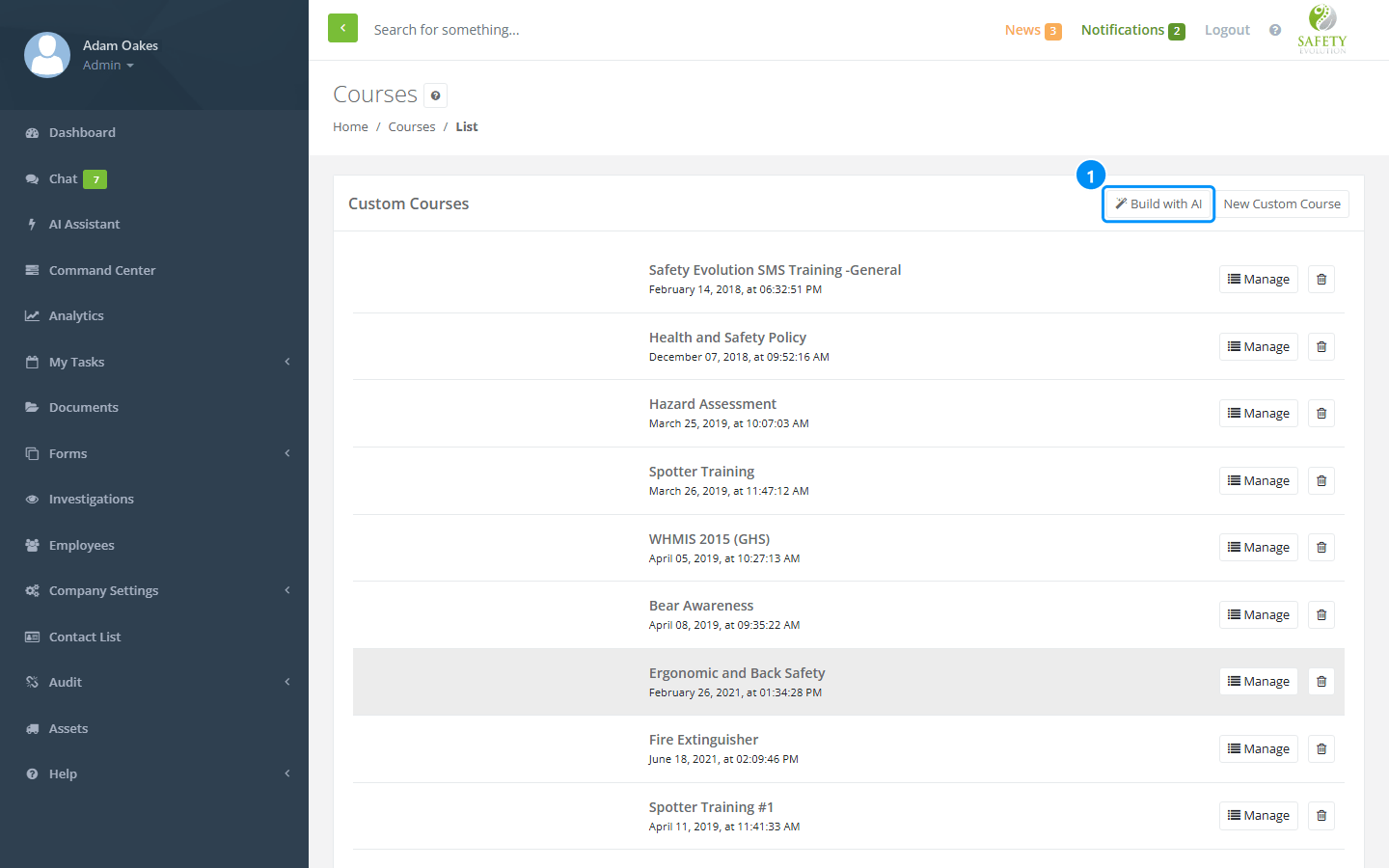
Build with AI opens the AI Assistant and starts a course.
By asking in the AI Assistant (best for your own documents)
- In the left menu, click AI Assistant.
- Type what the course is about. Say who it is for and which of your documents in Documents and Folders it should use. If it gives a certificate that has to be renewed, say how often. For example: "Build a fall protection course for our field crews from our Fall Protection procedure. Workers must renew it every 12 months."
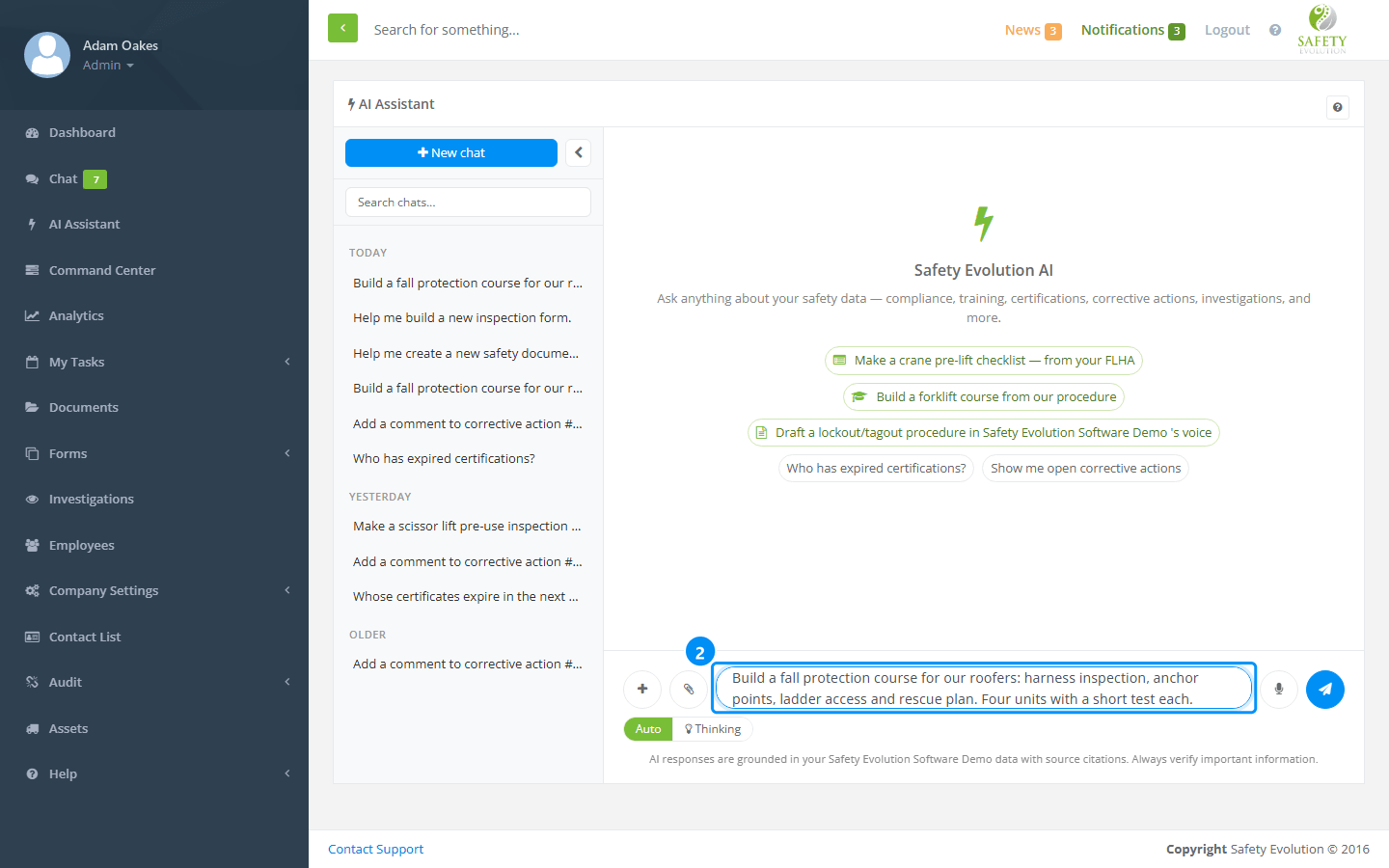
Name the audience, your source documents and how often the certificate is renewed. - Press Enter. The assistant replies that it will open the course builder, and starts drafting the outline.
With the + button
If your AI Assistant has a + button beside the message box:
- Click + (Build with AI), then Build training. The box shows Building training.
- Type the course topic and press Enter.
Tip: this way uses only the topic you type. Files you attach with the paperclip are not used for a course. To build from your own documents, ask in the AI Assistant as shown above.
Check the outline
The outline opens in a panel on the right, called Course outline. While it works you see Drafting a grounded outline…. Nothing is saved yet.
- Check the Course title. Change it if you need to.
- Read each section. Change its title, or what it covers in the box below the title. The course is written from these words.
- Click Remove under a section you don't want. Click Add section to add one.
- When the outline is right, click Generate course. The AI now writes each unit and its test questions.
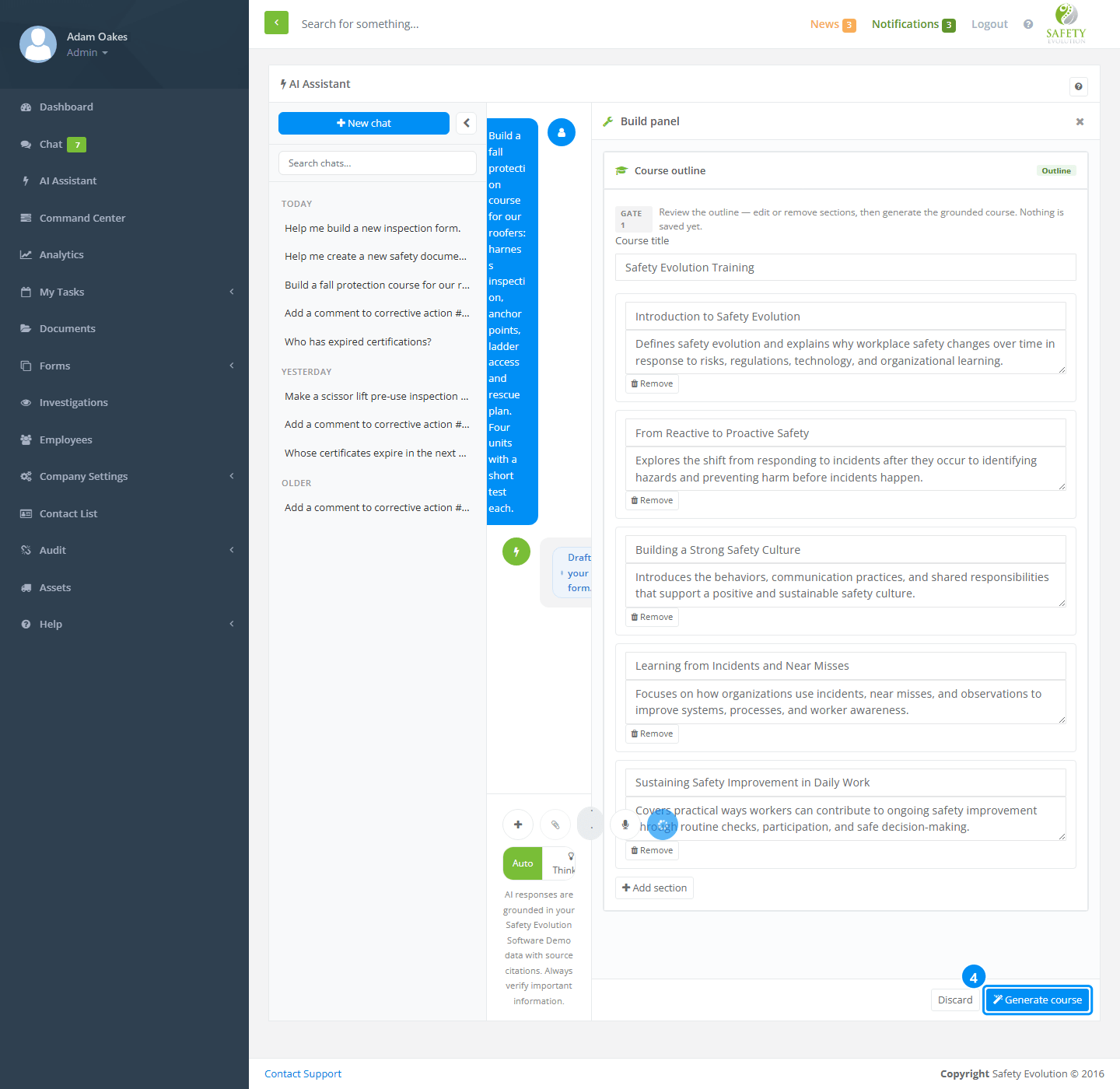
Edit the outline, then generate the course.
To stop, click Discard. Nothing is kept.
Check the draft course
The draft shows in the panel on the right. If your AI Assistant has the + button, it shows as a card in the chat instead. Click Expand on the card to see it full screen, and Close to go back.
- Read each unit. Under Outline it shows how many units there are, and under each unit how many test questions it has.
- Look at the label beside each unit's name. It tells you how much of the unit comes from your own documents:
- sourced: all of it.
- partial: some of it.
- unsourced: none of it. The AI wrote it without a source, so check it closely.
- no content: the unit has no lesson yet.
- To rename units, click Edit outline, change the names, then click Done editing outline. You can also change the course name at the top.
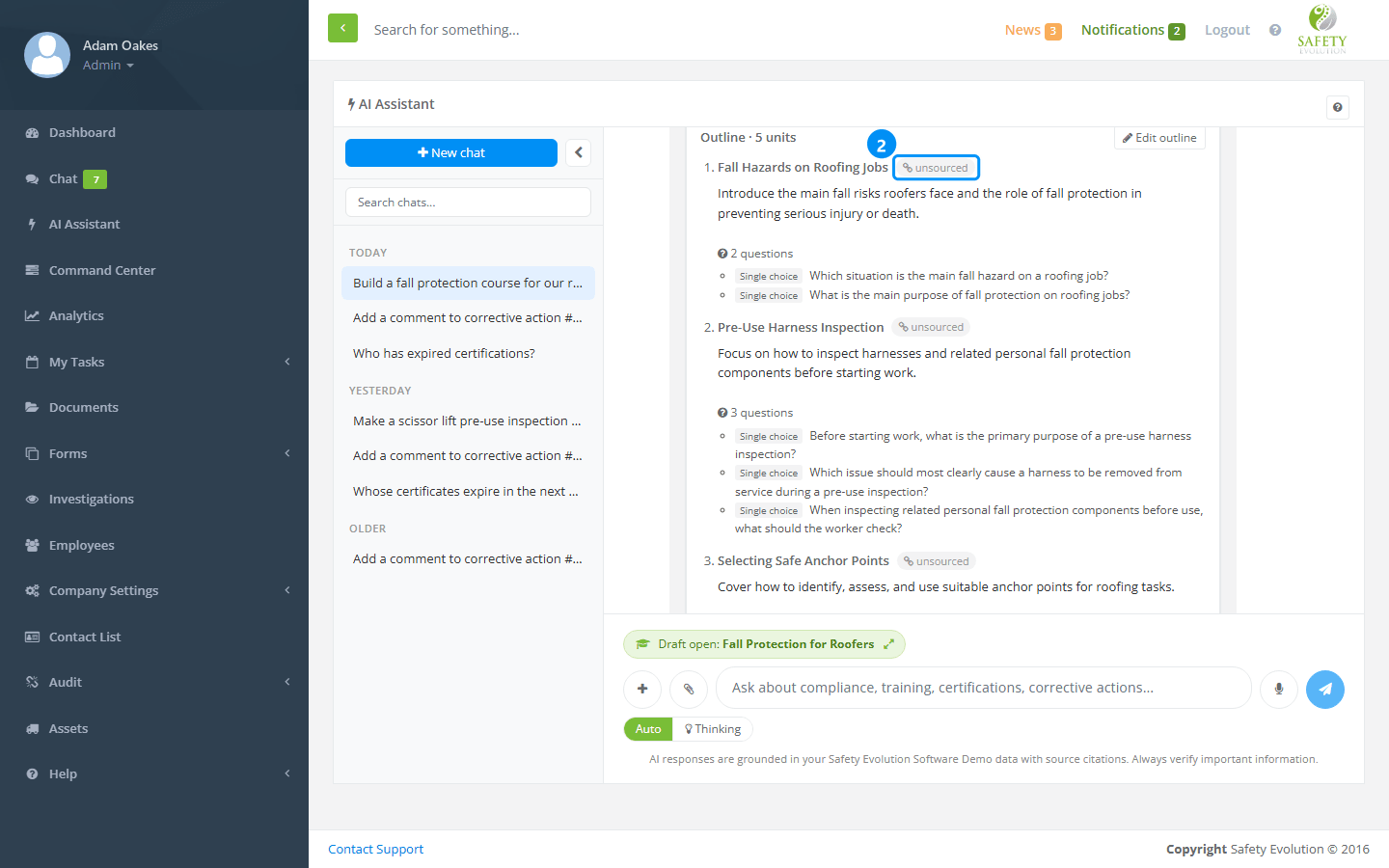
The label beside each unit shows how much of it comes from your documents. - Click Save draft course. You see Saved as draft — review & publish in Courses, and the chat shows Course saved as draft.
Review it in Courses and assign it
- Click Open in Courses, or open the Courses list. Your course is listed under Custom Courses.
- Click Manage on its row. The course page shows the Units List.
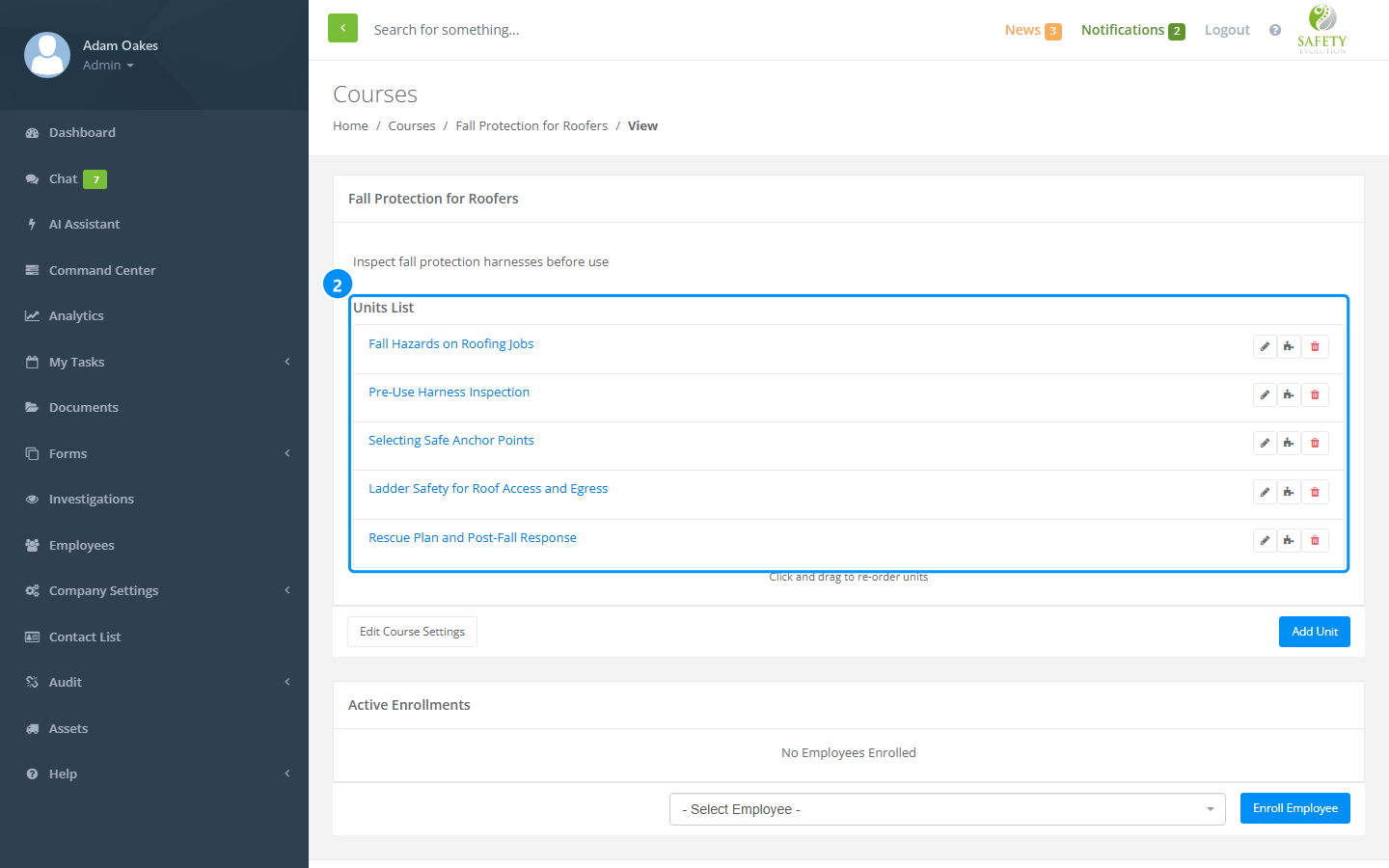
Check each unit and its test before you assign the course. - Open each unit and its test. Change anything that isn't right for your sites. Each test is set to pass at 80%. See Build a custom training course or orientation for how to edit units, tests and course settings.
- When you are happy, assign it. See Assign training courses.
No one takes the course until you assign it.
Courses that give a certificate that expires
If the course gives a certificate that has to be renewed, it needs a second person to approve it before it can be published. That person must be a different owner, designate or admin, not the person who built it. They approve the exact content, so any change after approval needs a new approval.
If something goes wrong
- "Could not draft the course outline.": the outline couldn't be made. Try again, or describe the course a little differently.
- "Could not generate the course.": the course couldn't be written from the outline. Click Generate course again, or remove a section and try again.
- "The course builder is temporarily unavailable.": the AI service didn't answer. Wait a few minutes and try again. The panel also gives you Open in Courses so you can build the course by hand.
- "Couldn't save the course. You can finish it in Courses." or "Couldn't reach the service. You can finish this course in Courses.": the draft wasn't saved. Click Save draft course again, or build the course in Courses.
- No Build with AI button on the Courses list: Safety Evolution hasn't turned AI on for your company. Start from the AI Assistant, or contact us to turn it on.
- For other AI messages, see When AI is busy, limited or unavailable.
Updated October 24, 2026