![side_logo.png]](/theme/site/shared/images/side_logo.png)
Manage handed-in forms: view, history, reopen, void, delete
Find any form your team filled in, see its history, reopen it for changes, void a handed-in form or delete a draft, and who can do each.
Try it free Start with Safety Evolution's Free version.
Every form your team fills in from the Form Designer is kept under Company Forms. From there you can open a form, see everything that happened to it, and fix mistakes by reopening, voiding or deleting.
Who can do what
| Action | Who can do it |
|---|---|
| View and View History | Owners, designates, admins, supervisors and auditors; workers for their own forms |
| Edit (forms not yet handed in) | Owners, designates, admins, supervisors; workers for their own forms |
| Reopen (handed-in forms) | Owners, designates and admins; workers for their own forms. Supervisors cannot reopen. |
| Void Form (handed-in forms) | Owners and designates |
| Delete Draft (forms not handed in) | Owners and designates; workers for their own drafts |
Find a form
- In the left menu, click Forms, then Company Forms.
- Pick a date range at the top. Use the search box above the table to find a form by name, worker, site or ID.
- The Handed In column shows the date a form was handed in. It is empty for forms still in progress.
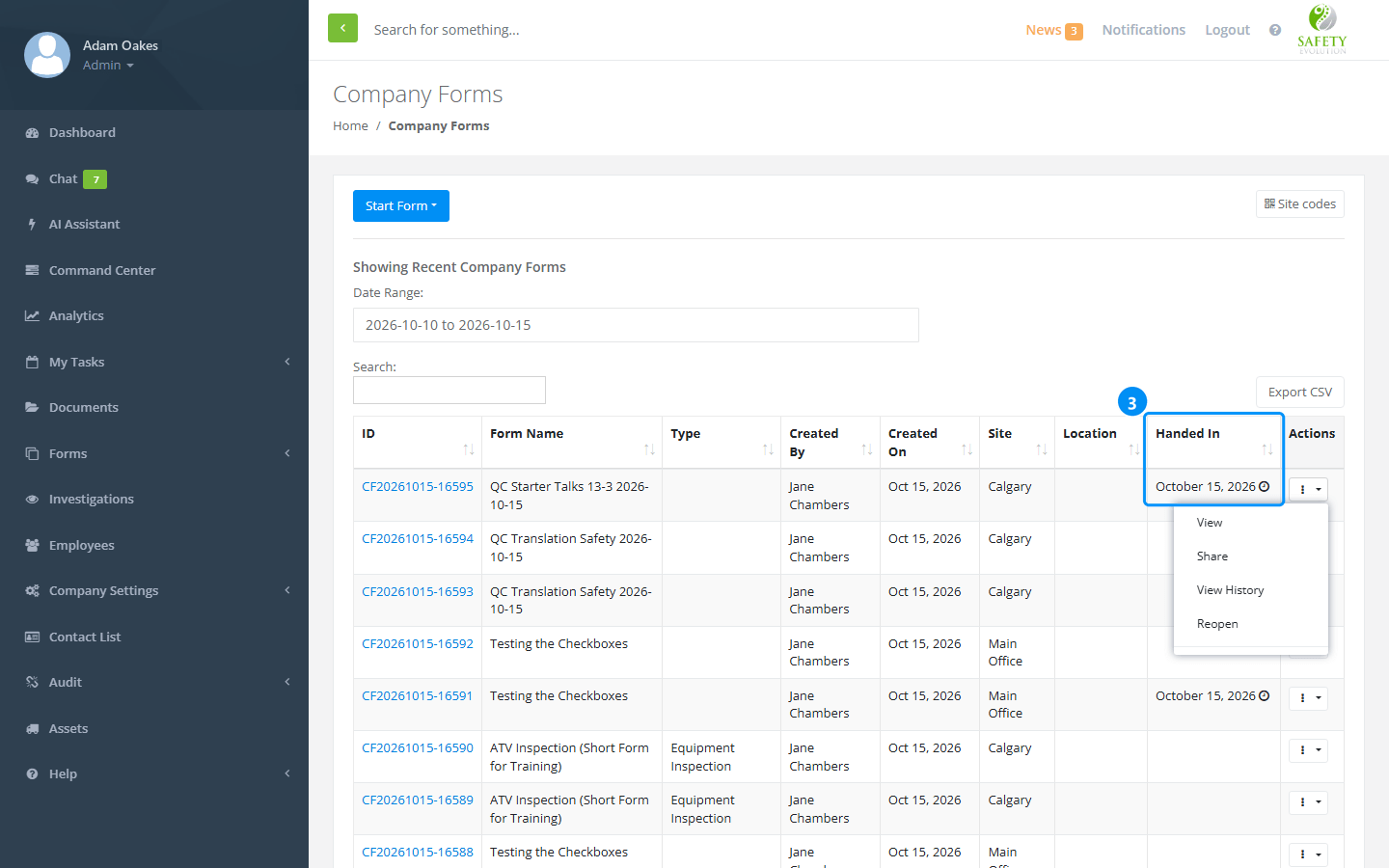
Click the menu at the end of a row for that form's actions. - Click the menu at the end of a row (⋮) to see what you can do with that form.
View a form and its history
- Click View, or click the form's ID. The form opens with Actions, Share and Print at the top.
- To see what happened to the form, click View History. The Form History window lists each step with the Date, Employee, Action and Comment, for example Handed In, Reopened or Signatures Requested.
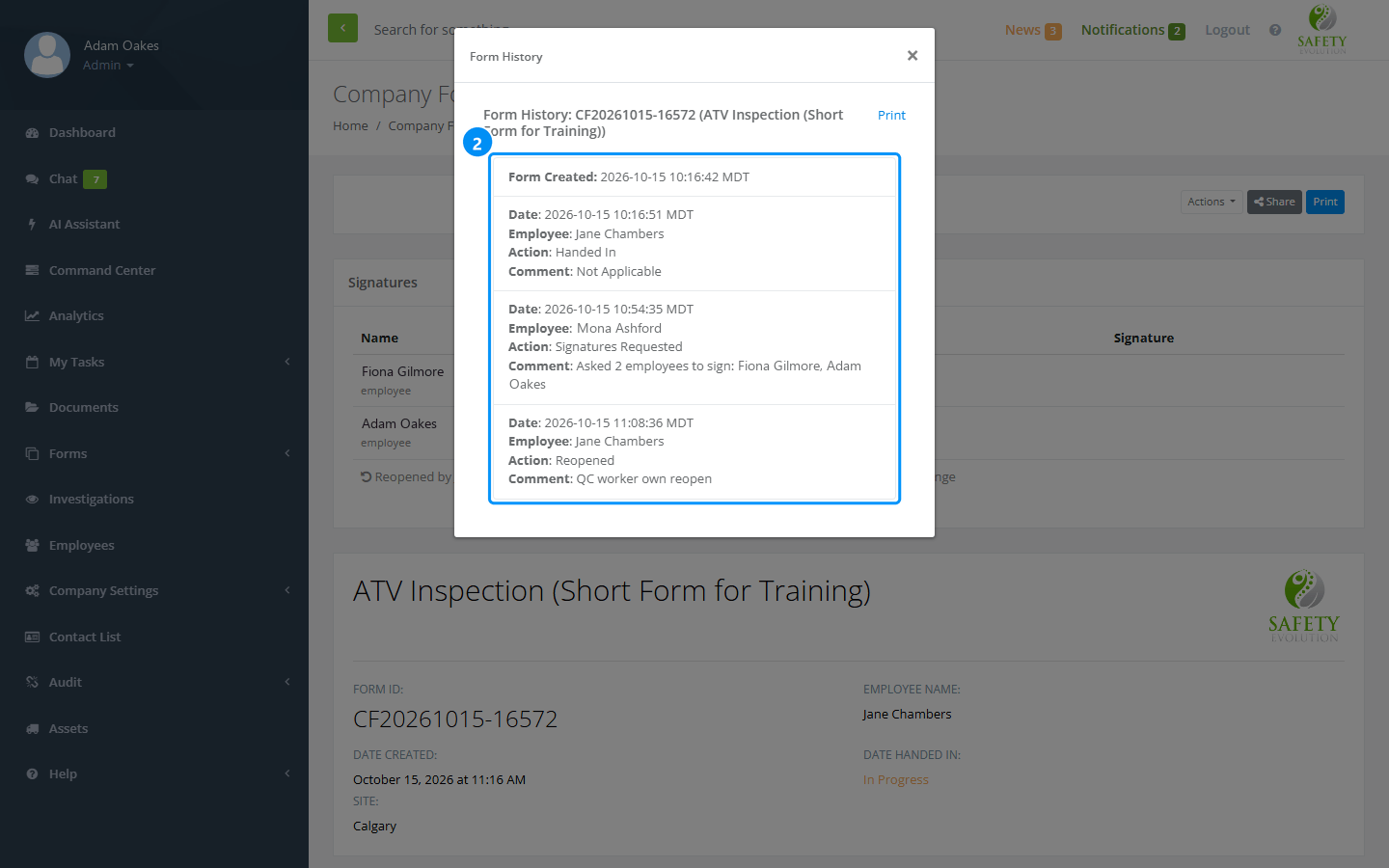
Every step, who did it, and why.
To email a form or save it as a PDF, see "Share a form by email" and "Save or print a form as a PDF".
Reopen a handed-in form
Reopen a form when it needs to be fixed and handed in again.
- On the form's menu, click Reopen. The Reopen Form window opens.
- Read the warning. If the form has action items, they are listed. Reopening deletes those action items and everything in them (costs, history, attachments). New ones are made when the form is handed in again. Open each action item first if you need to keep any of its information.
- Type a Comment saying why you are reopening it. Anyone who can view the form can read this comment in its history.
- Click Reopen.
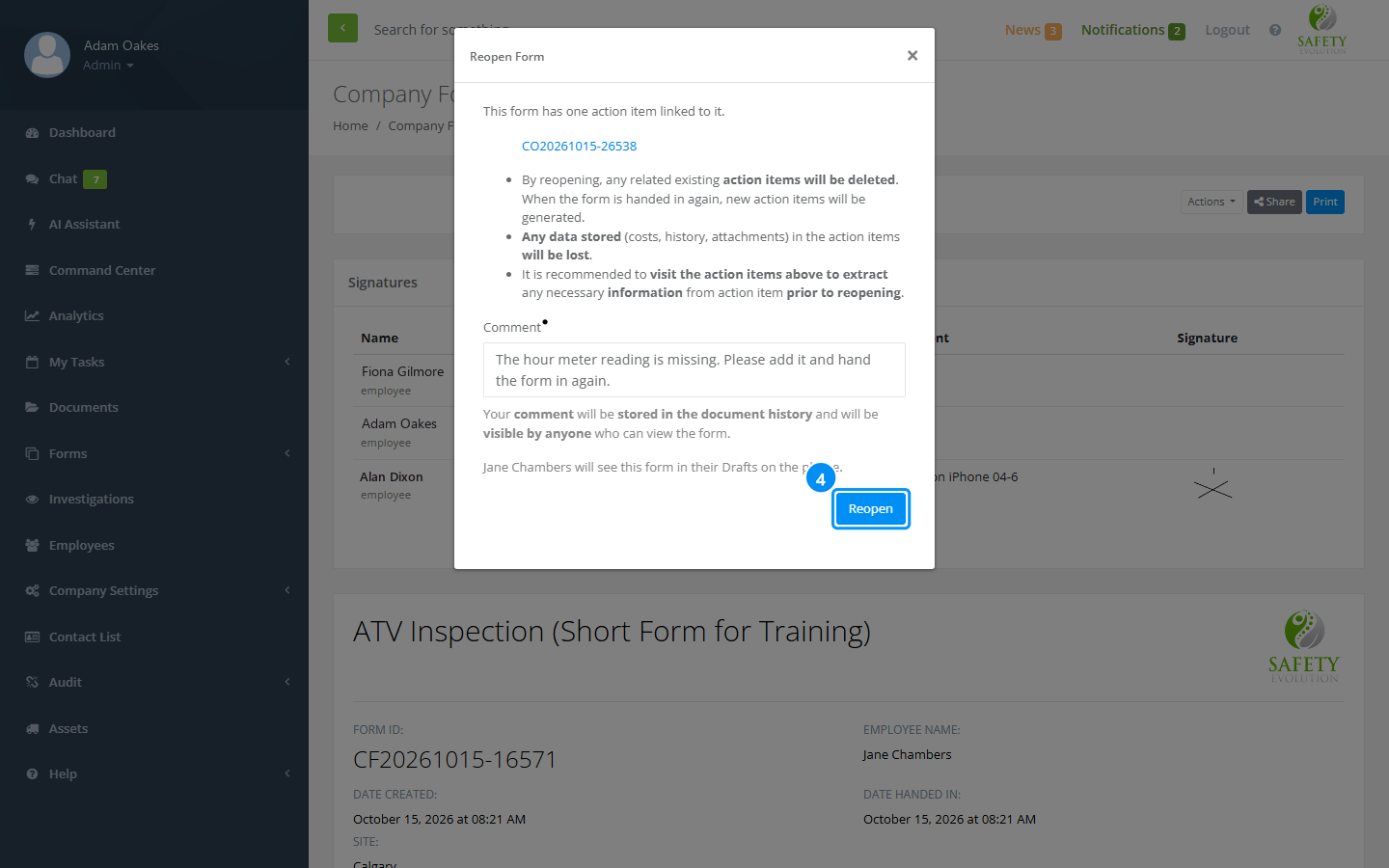
Your comment is kept in the form's history.
Where office changes reach the phone, the window also says the worker will see the form in their Drafts on the phone. See "When the office reopens, edits, hands in or voids your form". To reopen many forms at once, see "Command Center: bulk reopen, share and request signatures".
Void a handed-in form
Void a form that should not count, for example one filled in by mistake. Only owners and designates can void.
- On the form's menu, click Void Form. The Confirm Void window opens.
- Read the warning. Voiding deletes all the form's action items and everything in them.
- Type a Comment saying why.
- Type void in the last box. The Confirm Void button turns on.
- Click Confirm Void.
Delete a draft
- On the draft's menu, click Delete Draft. The Confirm Delete window opens.
- Type a Comment saying why.
- Type delete in the last box, then click the red button.
Daily site sign-in sheets
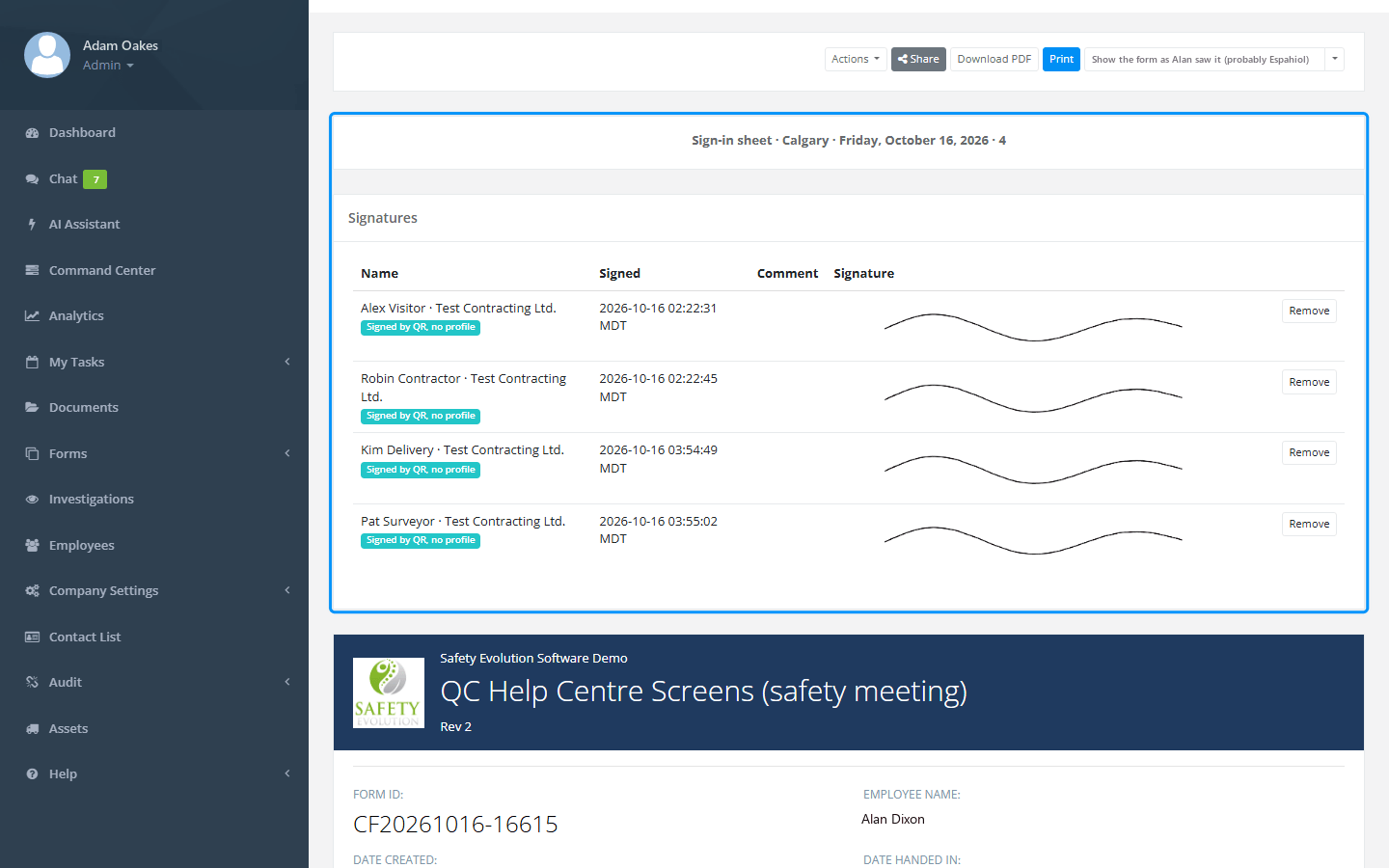
If your company uses site codes, each site's sign-ins for a day are kept as one form in Company Forms. Open it to see the heading Sign-in sheet with the site, the date and how many people signed in. Use the arrows beside the heading to go to the day before or after. See "Make and print a site sign-in code".
Updated October 24, 2026