![side_logo.png]](/theme/site/shared/images/side_logo.png)
Use chat on the phone and the web
Send messages, photos and files to people in your company from the phone app or the web, and schedule a reminder message on the web.
Try it free Start with Safety Evolution's Free version.
Chat lets you message people in your company: one person or a group. You can use it on the phone app and on the web. It is the same chat in both places, so your messages show on both.
Before you start
- Your company must have chat turned on. If you do not see Chat in the web menu, your company has it turned off. Ask your owner or admin.
- You only see people from your own company.
- Chat needs signal or Wi-Fi.
Chat on the phone
Open a chat
- Tap Chat at the bottom of the screen. You can also open Menu and tap Chat.
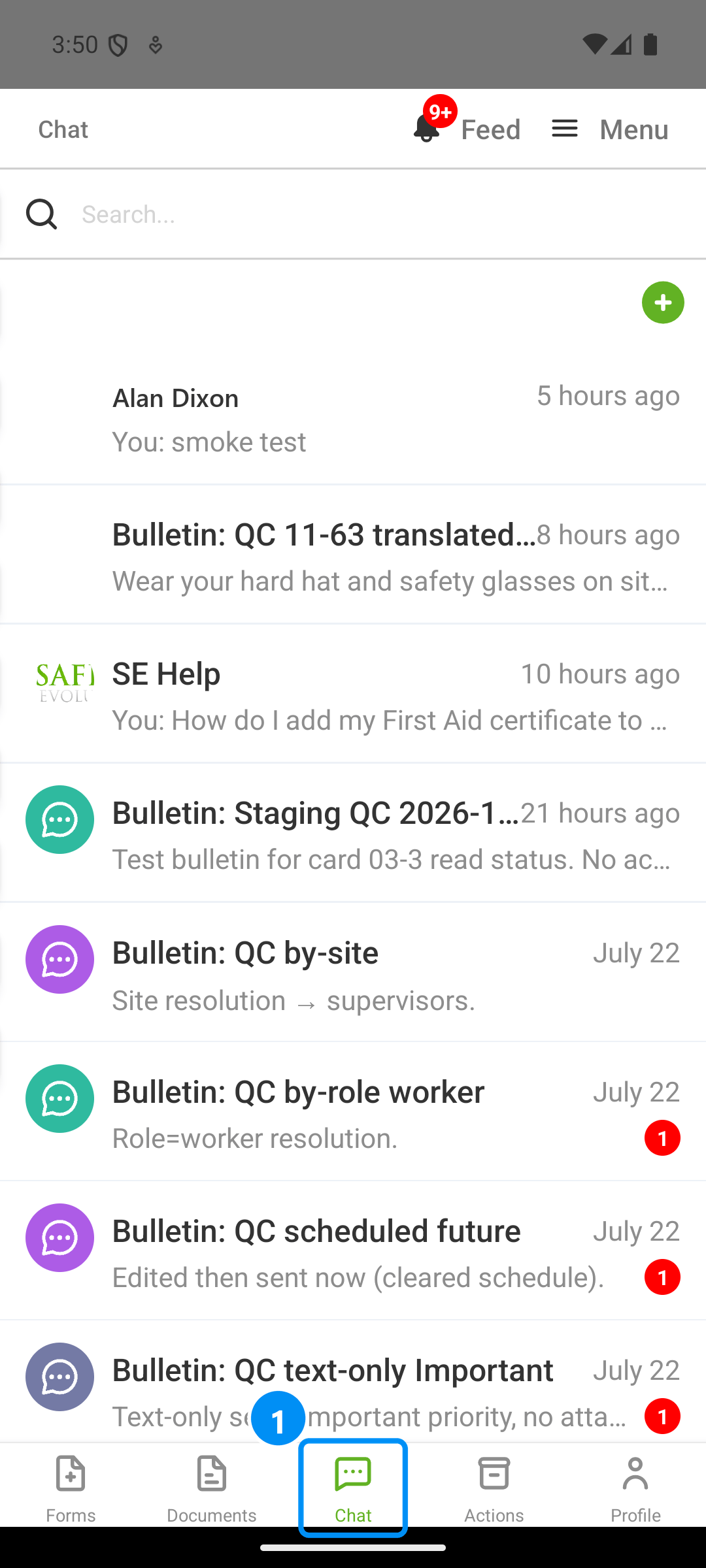
Your chats, newest message first. - To find a chat, type a name in Search.... You can type the chat's name or a person's name.
- Tap a chat to open it.
- Type your message in the box at the bottom.
- Tap the send button.
Send a photo, video or file
- Open the chat.
- Tap the add button beside the message box.
- Pick a photo, take one, or pick a file.
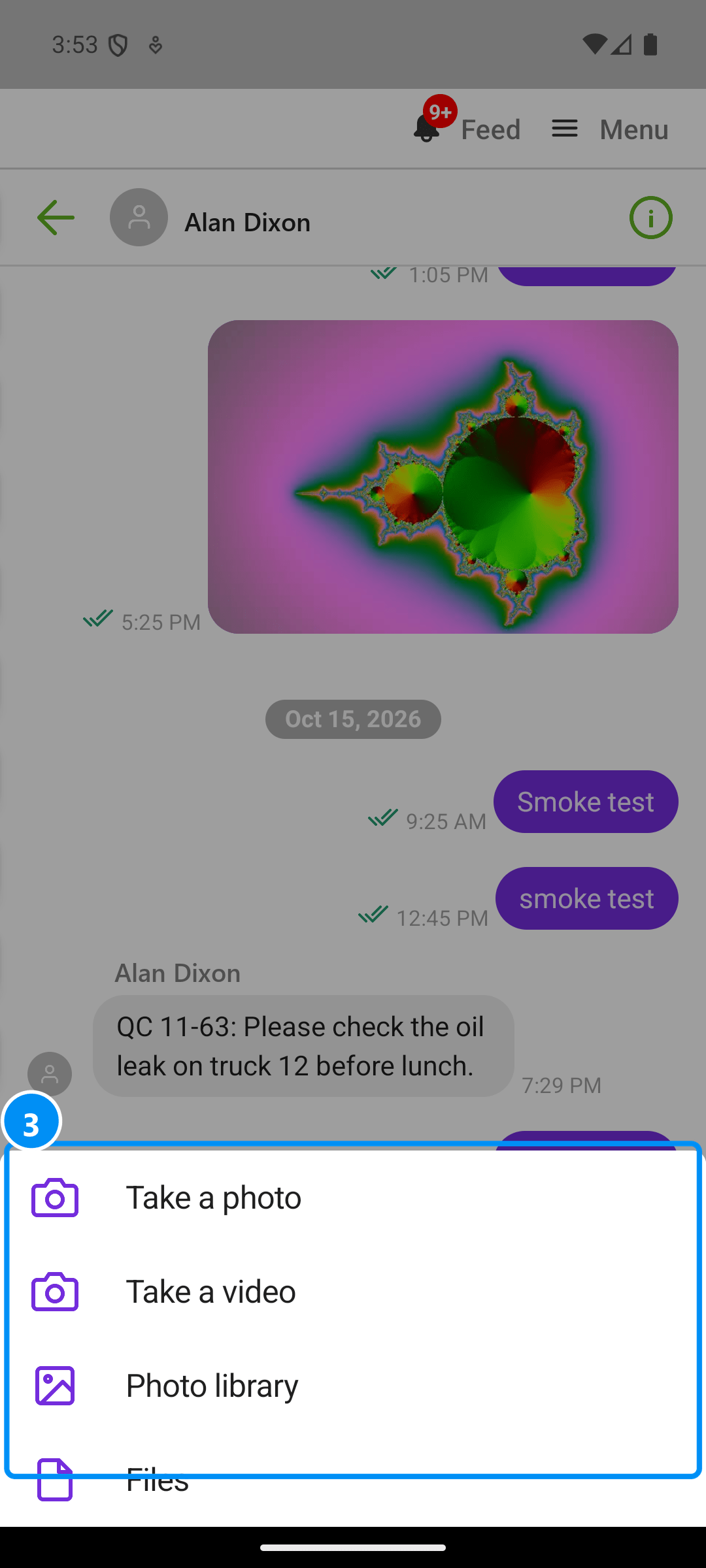
Add a photo, video or file to your message.
Big videos are made smaller before they send. This can take a moment.
Start a new chat
- On the chat list, tap the + button at the top right.
- The Create Chat screen opens. Type a name in Search... to find someone.
- Tick each person you want in the chat.
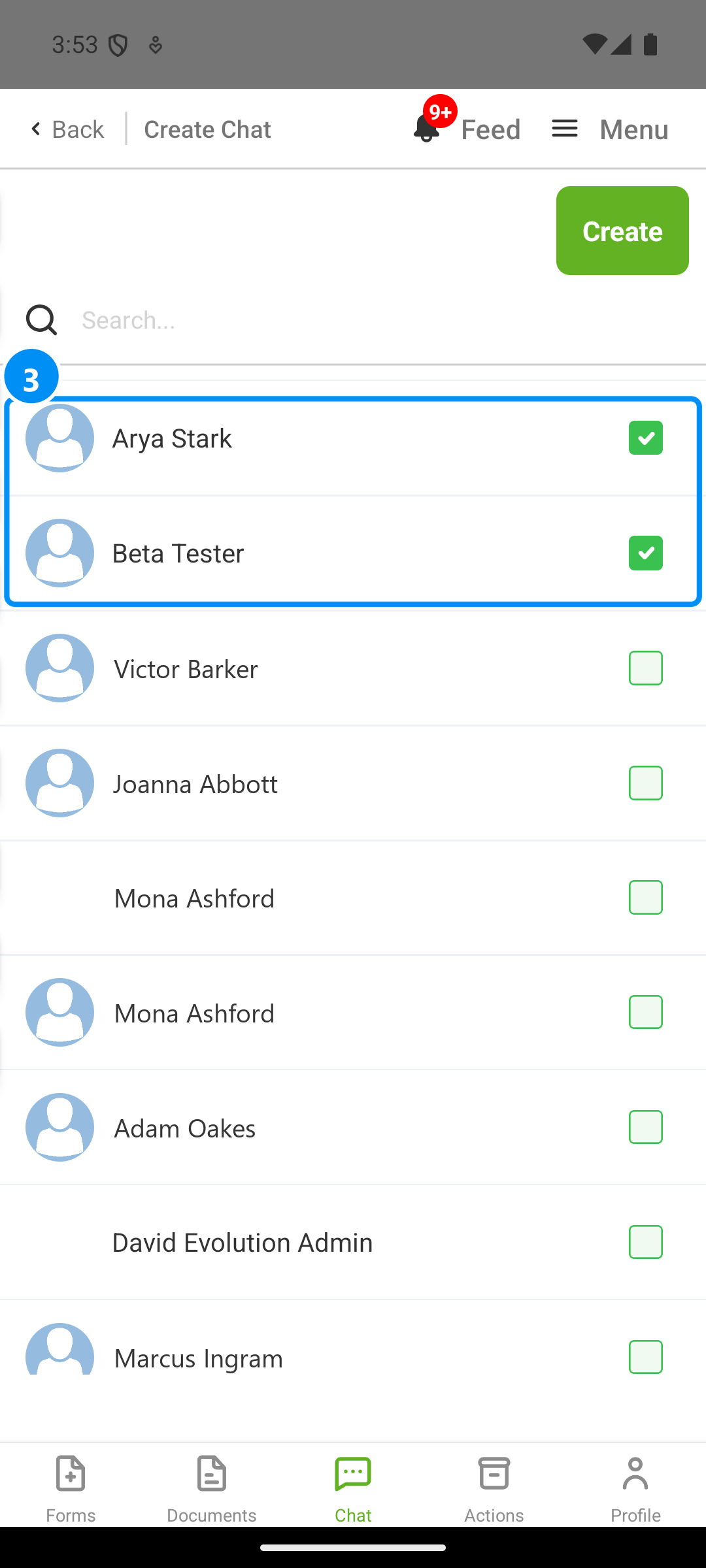
Tick one or more people, then tap Create. - Tap Create. The new chat opens.
Chat notifications
When someone messages you, your phone shows a notification. Tap it to open Chat.
Chat on the web
Open a chat
- Click Chat in the menu on the left. On the new Home page you can also click Open chat.
- Your chats are listed on the left, under Channel List. Click a chat to open it.
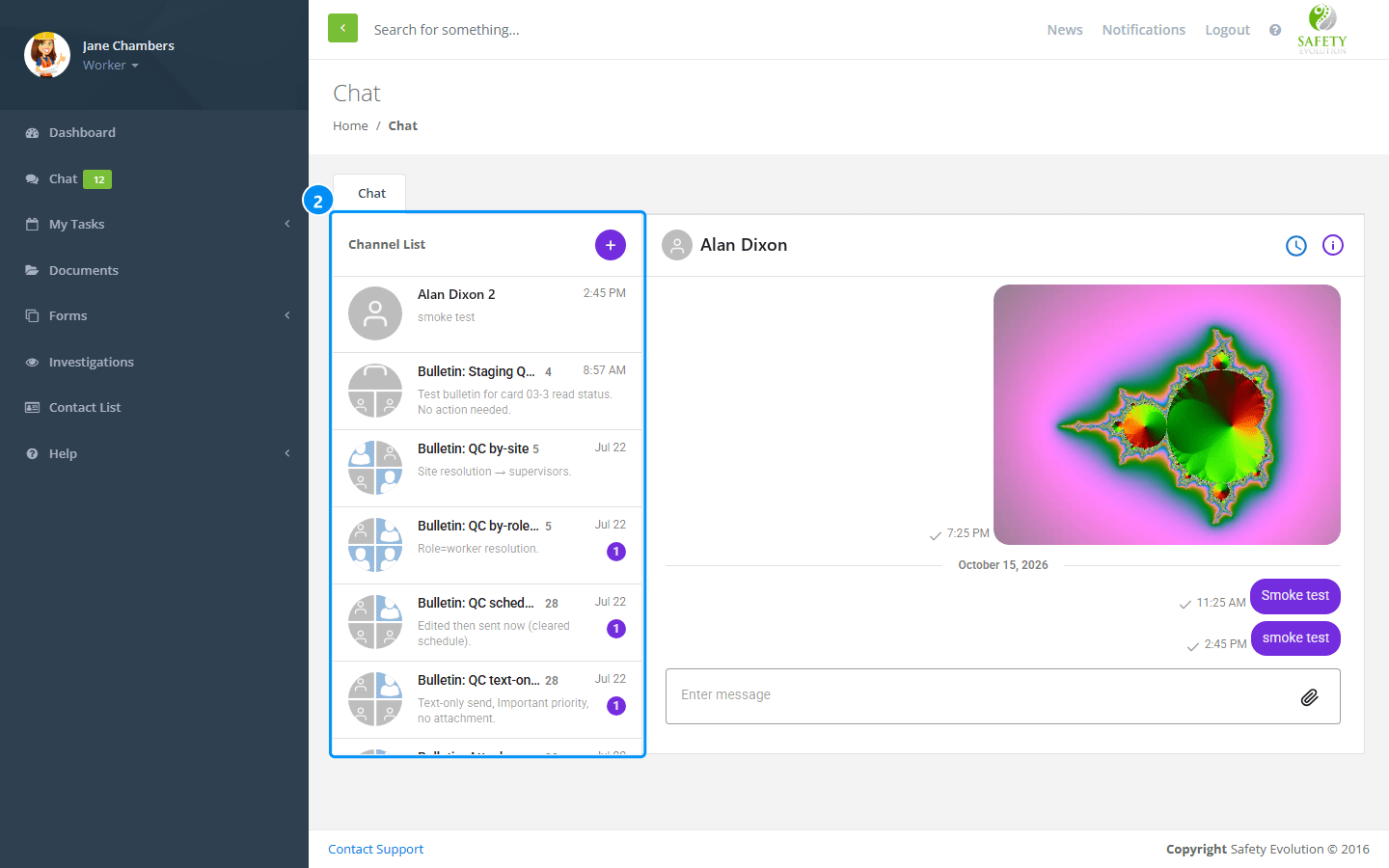
Chats on the left, the open chat on the right. - Type your message in the box at the bottom and press Enter.
- To add a file or picture, click the add button beside the message box and pick the file.
Start a new chat
- Click the round + button beside Channel List.
- The New channel window opens. Type a name in Search users....
- Tick each person you want. To add everyone, tick Select All Users.
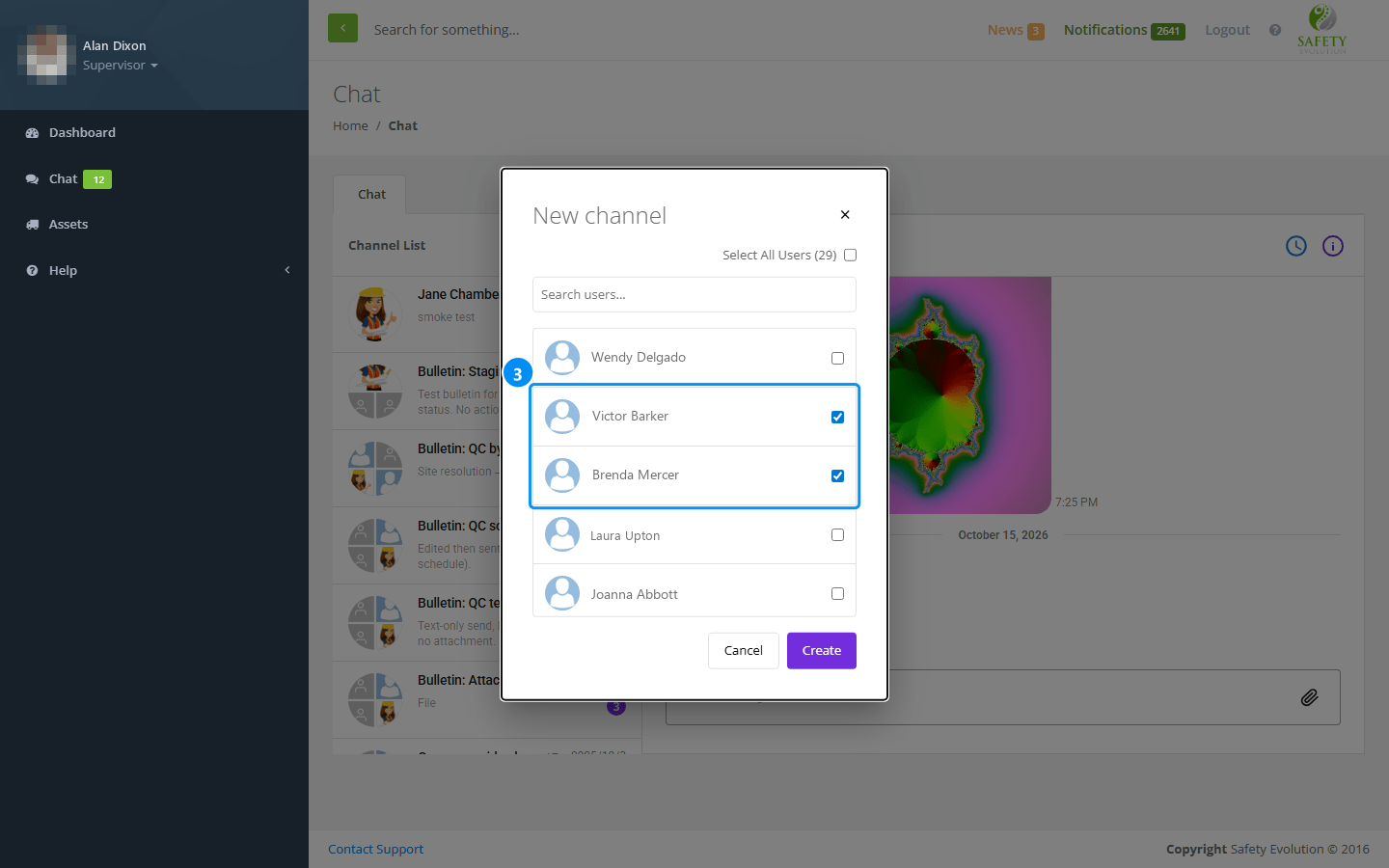
Pick the people for your new chat. - Click Create. The new chat opens.
Schedule a reminder message (web only)
You can write a message now and have it sent to a chat later.
- Open the chat.
- Click the clock button at the top right of the chat.
- The Scheduled Messages panel opens. Click New Schedule.
- In Reminder Message, type your message.
- In Schedule for, pick the date and time.
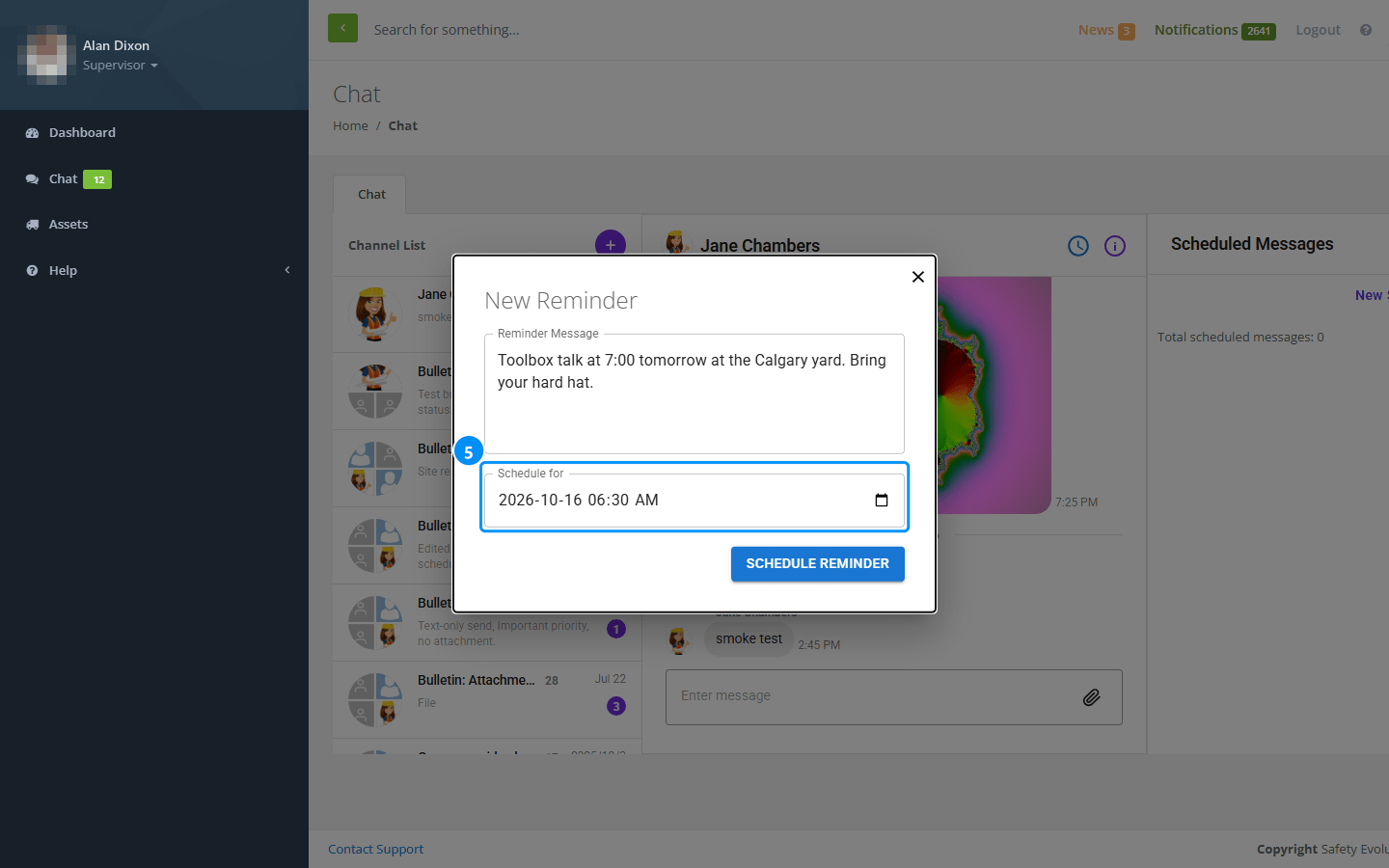
Pick a time at least 5 minutes from now and no more than 30 days away. - Click Schedule Reminder.
Your scheduled messages are listed in the Scheduled Messages panel. Click Update to change one or Cancel to stop it.
To change a chat's notifications, see its members, search it, leave it or run it, see "Manage chat channels: members, notifications, mute and leave".
If something goes wrong
- "Chat couldn't connect. Pull down to try again" (phone): check your signal. Then pull the chat list down to try again.
- "Chat couldn't connect. Go back and pull down to try again" (phone, inside a chat): go back to the chat list and pull it down.
- "Scheduled time must be between 5 minutes and 30 days from now" (web): pick a later time, or one within 30 days.
- You can't find a person: they must be an active employee of your company.
Updated October 24, 2026