![side_logo.png]](/theme/site/shared/images/side_logo.png)
Print, download or share an Action Item report
Turn any Action Item into a branded report you can print, download as a PDF or send by email, with what needed fixing, what was done and its history.
Try it free Start with Safety Evolution's Free version.
An Action Item can now be printed, downloaded or sent as a report in your company's brand. It shows what needed fixing, what was done, the history and the comments. Use it to show a customer or an inspector that a hazard was dealt with.
Before you start
- Anyone who can see the Action Item can do this, except that workers can only do it for Action Items assigned to them.
- This works on the web once Safety Evolution has turned branding on for your company. It is on every plan.
Print or download the report
- Open the Action Item.
- Click Download PDF to save the report, or Print to open it in a new tab and print it.
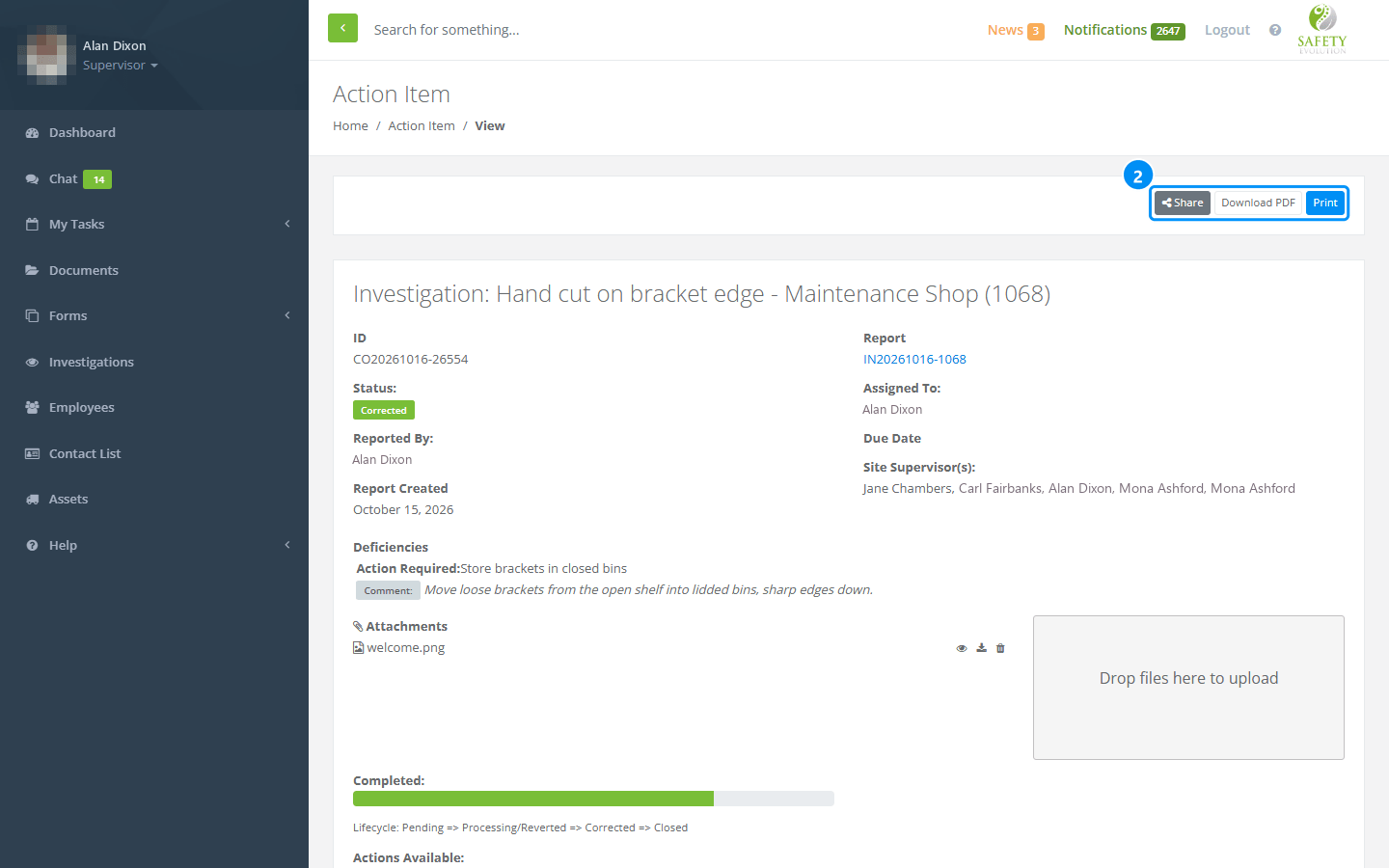
Share, download or print the Action Item.
What's in the report
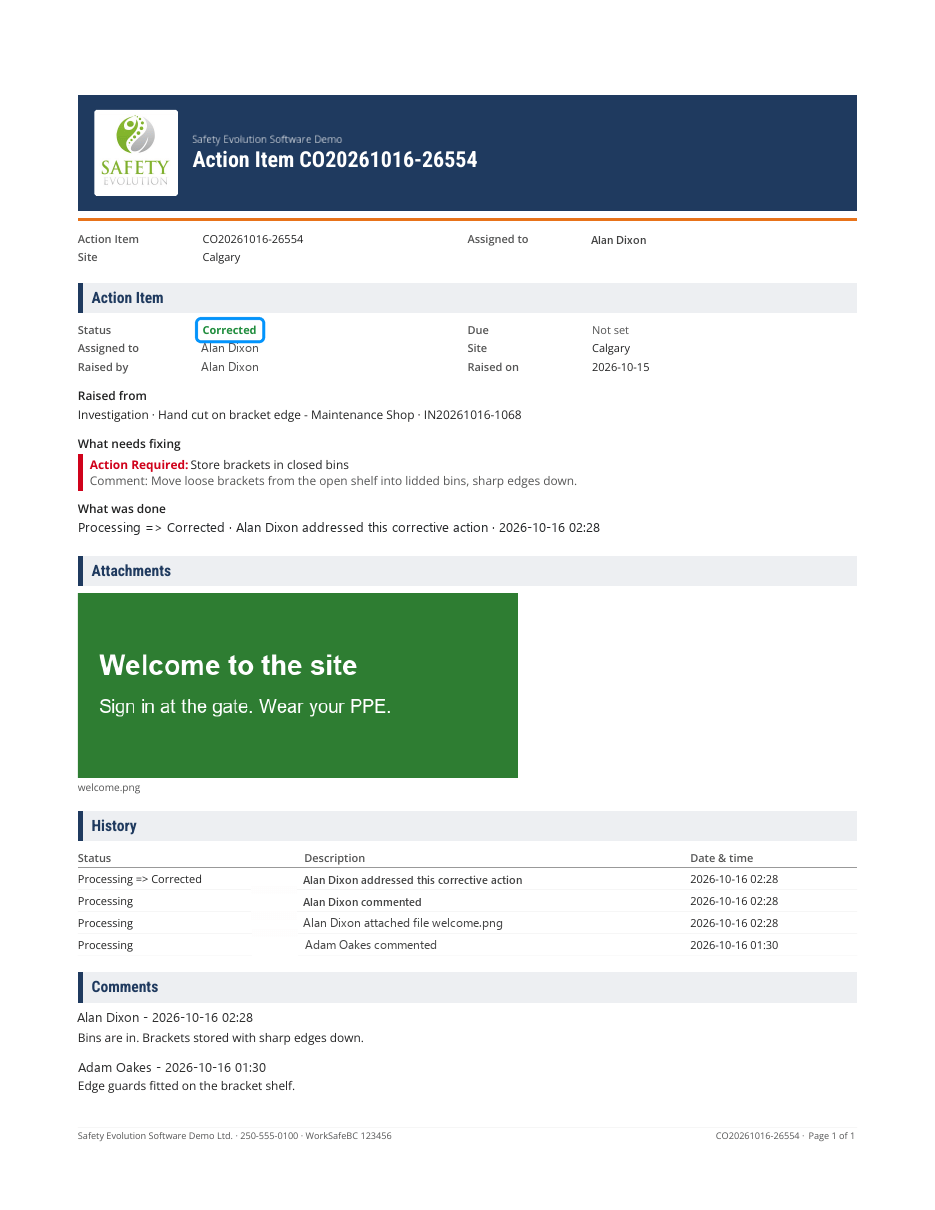
- The title Action Item and its number, with Status, Due, Assigned to, Site, Raised by and Raised on.
- Raised from: the title and record number of the form that raised it. None of that form's other answers are shown.
- What needs fixing and What was done.
- Attachments, the history and the comments.
- Your logo, footer and page numbers. The status and an overdue date keep Safety Evolution's colours: green once corrected or closed, red otherwise.
Send it by email
- On the Action Item, click Share. The Share Action Item window opens.
- Type the email address and click Add Email. Add a comment if you want.
- Click Share. You see Action Item shared.
The person gets an email from [your company] via Safety Evolution, with your email as the reply-to, a link to the branded report and the PDF. Each share makes a new link.
If something goes wrong
- "Action Item not shared. Add a valid email address.": check the address and add it before clicking Share.
- No Download PDF, Print or Share: Safety Evolution hasn't turned branding on for your company yet, or you're a worker and the Action Item isn't assigned to you.
- For assigning and closing Action Items, see Review, assign and close action items.
Updated October 24, 2026