![side_logo.png]](/theme/site/shared/images/side_logo.png)
Make and print a site sign-in code
Make a printed QR code for a site so anyone arriving can scan it and sign in on that day's sign-in sheet, with no app needed.
Try it free Start with Safety Evolution's Free version.
A site code is a QR code you print and put up at a site, for example at the gate or in the site trailer. Anyone arriving scans it with their phone camera and signs in. No app or login is needed. Each day's sign-ins go on one sign-in sheet for that site.
Who can do what
- Supervisors make site codes.
- Supervisors and the office (owners, designates, admins) see the list, print codes and turn them off.
- Sign-on codes must be turned on for your company.
Before you start
- The form people sign in on must be published in Form Designer, for example a site sign-in or orientation form.
- The site must be set up under Company Settings.
Make a code on the web
- In the left menu, click Forms, then Company Forms.
- Click Site codes at the top right.
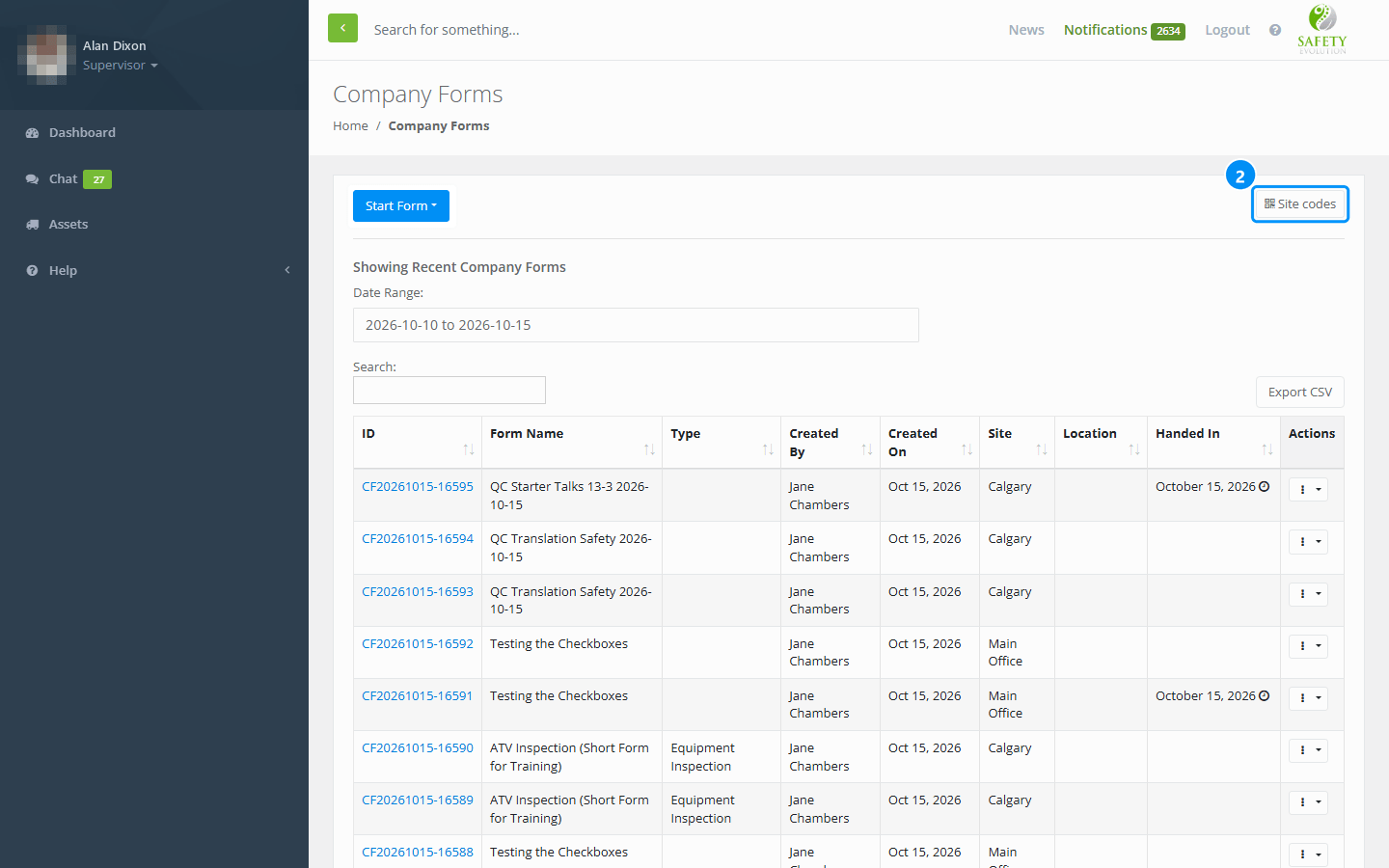
Site codes is at the top of Company Forms. - Under Make a printable site code, pick the Form.
- Pick the Site.
- Click Make. You see "Site code made: form · site."
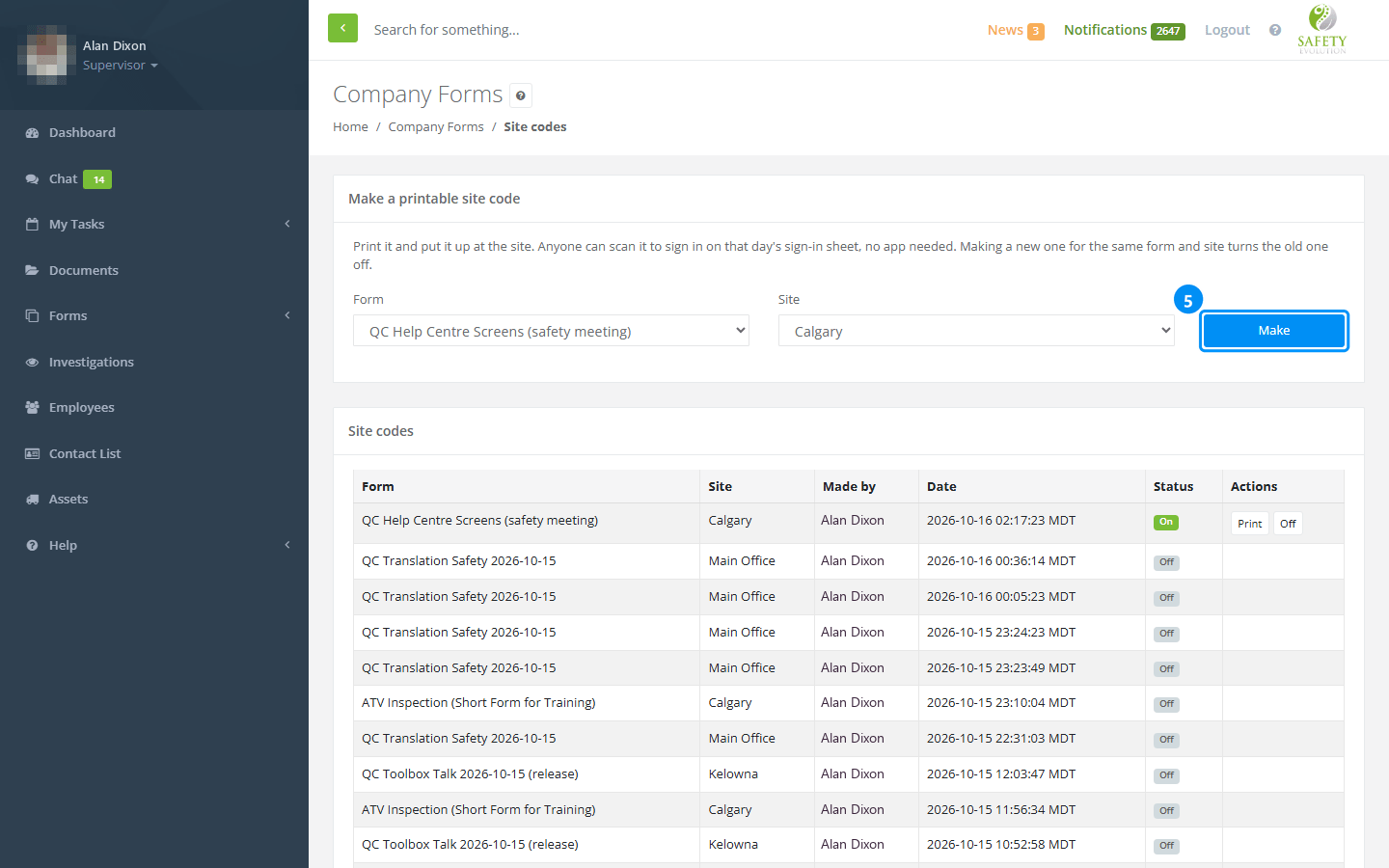
Pick the form and site, then click Make.
Make a code on the phone
- Tap the Forms tab.
- Scroll down and tap Site codes.
- Under Make a site code, tap Form and pick the form.
- Tap Site and pick the site.
- Tap Make a printable site code. You see "Site code made for site."
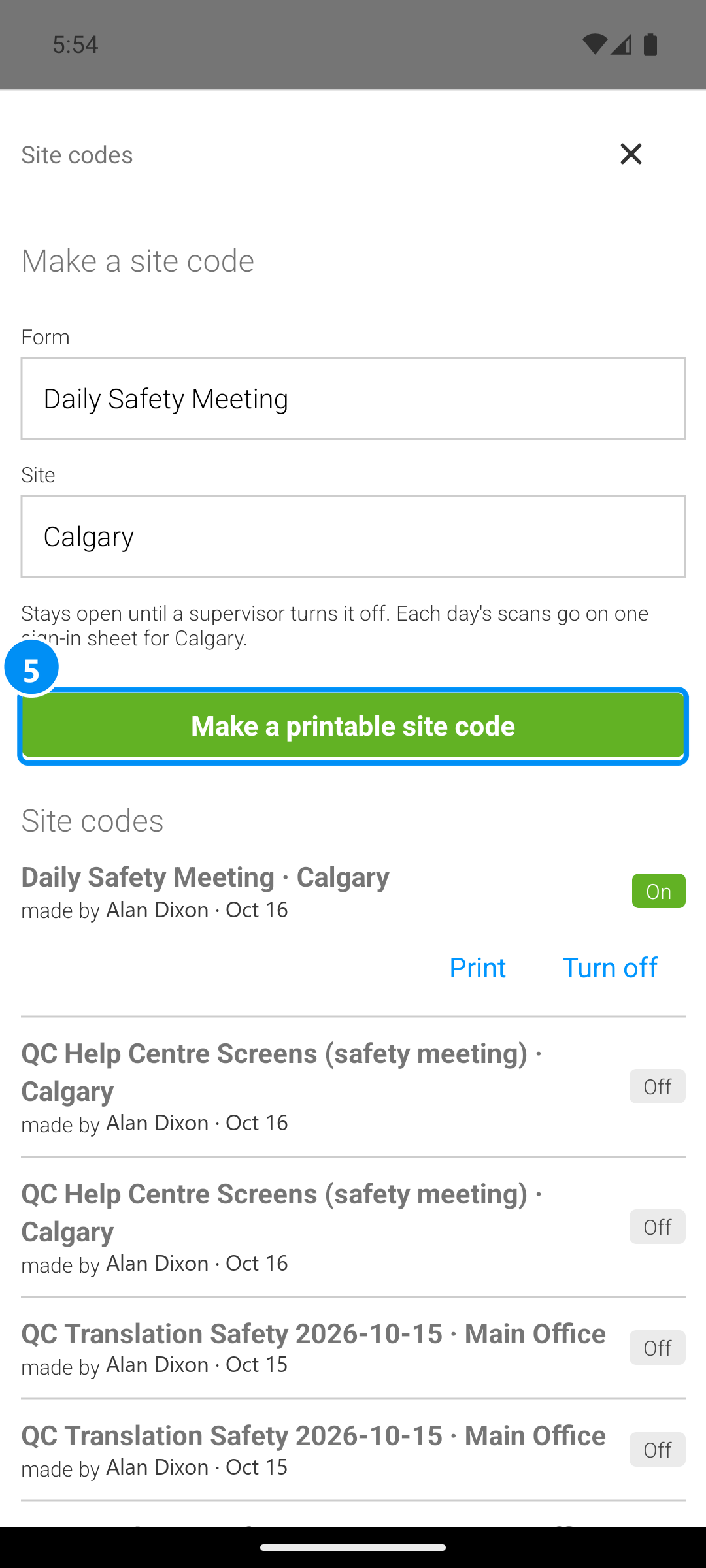
The phone's Site codes window.
Making a new code for the same form and site turns the old one off. Old printed copies then stop working.
Print the code
- In the list, find the code. Its status is On.
- Click or tap Print. The poster opens in your browser. It shows your company, the form, the site, the code and "Scan to sign in. No app needed."
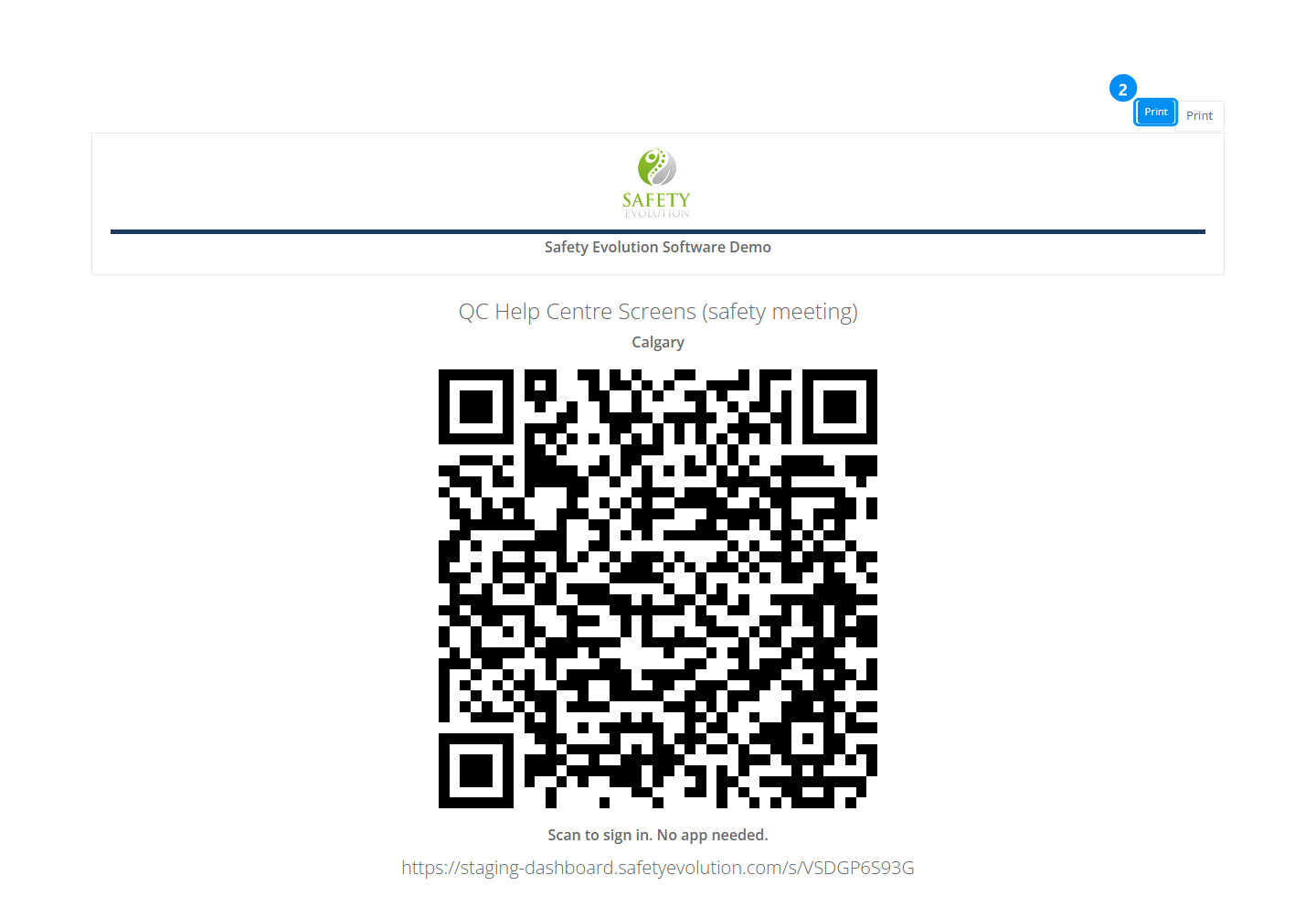
The poster fits on one letter or A4 page. - Print it from your browser (on a computer, press Ctrl+P, or Cmd+P on a Mac). On a phone, use the browser's share or print option.
- Put it up where people arrive.
See who signed in
Each day's sign-ins make one form in Company Forms. Open it to see the heading Sign-in sheet · site · date · number signed, with the names below. Use the arrows beside the heading to go to the day before or after.
Turn a code off
- In the list, click Off (web) or tap Turn off (phone).
- Confirm. On the web: "Turn this site code off? Printed copies stop working. This cannot be undone."
You see "Site code turned off." Anyone who scans it now sees that sign-in is closed. A code can't be turned back on. Make a new one instead.
On the web, the ? beside the Site codes page heading opens this help article.
If something goes wrong
- You don't see Make a printable site code: only supervisors can make codes. On the phone: "Only supervisors can make site codes."
- You don't see Site codes at all: you are not a supervisor or office user, or sign-on codes are not on for your company.
- Your form is not in the Form list: it is not published. Publish it in Form Designer first.
- "You need signal to show or make site codes." (phone): try again when you have signal.
Updated October 24, 2026