![side_logo.png]](/theme/site/shared/images/side_logo.png)
Send a bulletin and see who read it
Send a message that everyone, chosen people, a role or a site's supervisors must read, then see who has read it and who has not.
Try it free Start with Safety Evolution's Free version.
A bulletin is a message your people must read, like a hazard alert or a policy change. It arrives in their chat. You can then see who has read it and who has not.
Before you start
- Only owners, designates and admins can send bulletins and see read receipts.
- Your company must have chat turned on. Bulletins are part of chat.
- Bulletins are sent from the web.
Send a bulletin
- Click Chat in the menu on the left.
- Click the Bulletins tab at the top.
- Under Compose bulletin, type a Title.
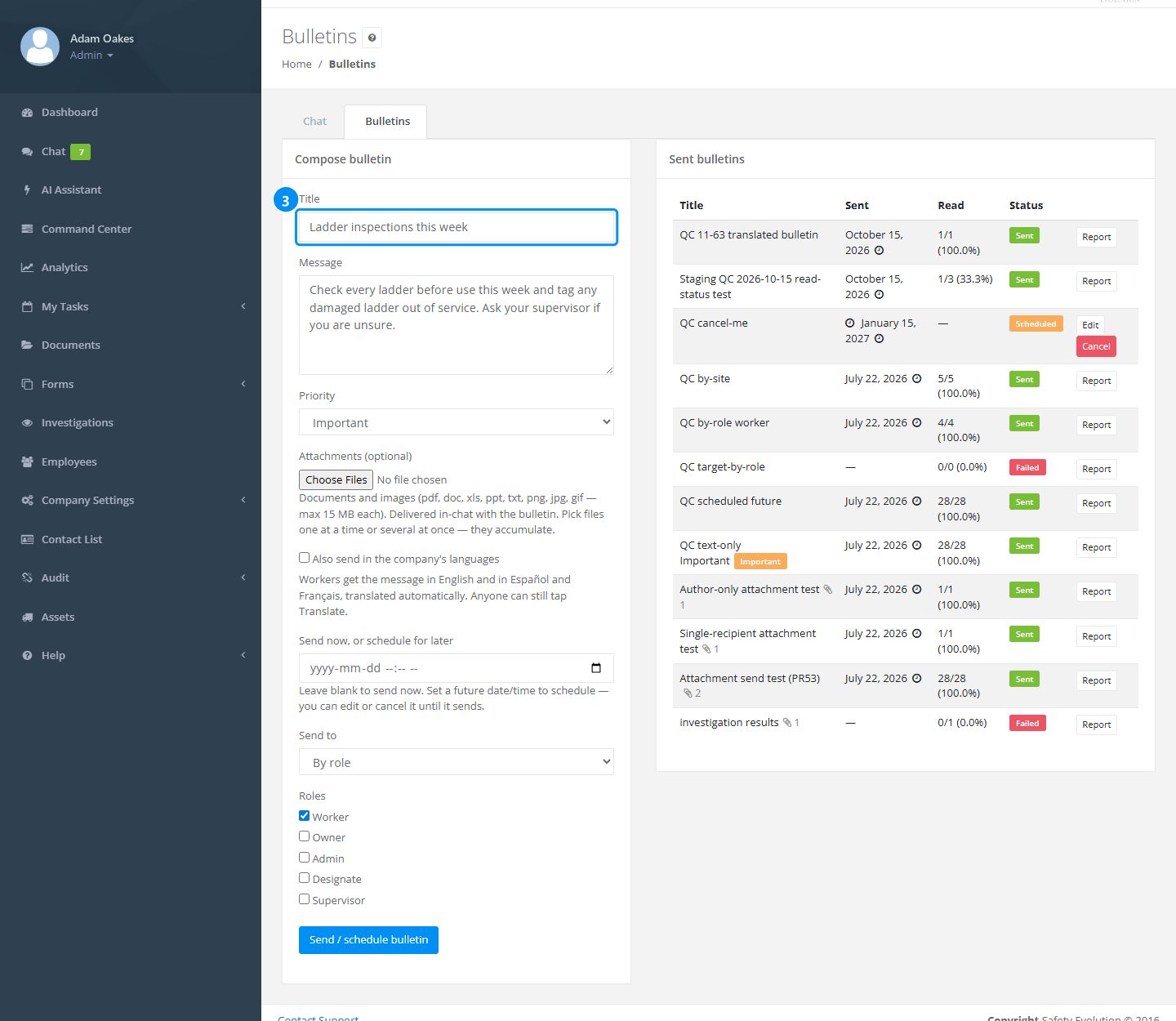
Write the bulletin on the left. Sent bulletins are listed on the right. - Type the Message.
- Pick a Priority: Normal or Important. Important bulletins are marked Important in your list.
- To add files, click Attachments (optional) and pick documents or pictures. Each file can be up to 15 MB. You can add files one at a time.
- If your company translates, you also see Also send in the company's languages. Tick it to send the bulletin in English and, in the same message, in each of your company's languages, for example Español and Français. It is off to start. Without it, workers can still tap Translate under the bulletin. See "Translate a chat message or a bulletin".
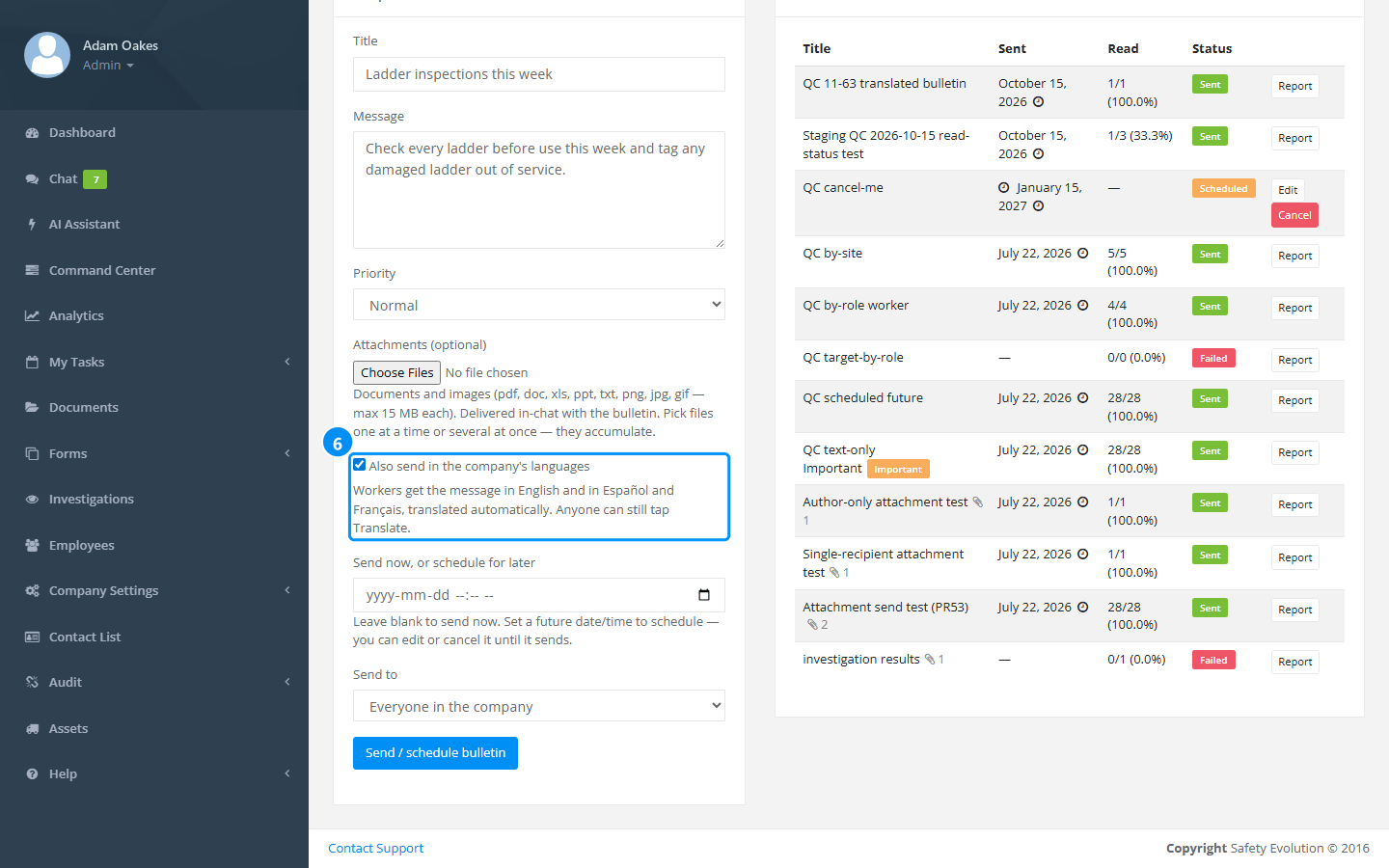
Send the bulletin already translated. - In Send to, pick who gets it:
- Everyone in the company
- Specific people: then pick them under People. Hold Ctrl (Cmd on a Mac) to pick more than one.
- By role: then tick the Roles.
- By site: then pick the Sites. This sends to the supervisors and HSE supervisors of those sites only.
- To send it now, leave Send now, or schedule for later empty. To send it later, pick a date and time.
- Click Send / schedule bulletin.
- Click OK to confirm. You see "Bulletin sent." or "Bulletin scheduled for …".
The bulletin goes to each person's chat, in its own chat named "Bulletin:" and the title. Any files follow the message. Only active employees get it. The list of people is fixed when it sends.
Change or cancel a scheduled bulletin
You can change a bulletin until it sends. A scheduled bulletin goes out within about 5 minutes of its time.
- On the Bulletins tab, find it under Sent bulletins. Its status is Scheduled.
- To change it, click Edit. Make your changes and click Save changes.
- To stop it, click Cancel, then OK. You see "Scheduled bulletin cancelled."
See who read it
- On the Bulletins tab, look at the Read column under Sent bulletins. It shows how many people have read it.
- Click Report beside the bulletin.
- The Read report opens. Under Read receipts you see two lists:
- Read: each person and the time they read it (Read at).
- Not yet read: each person who has not read it yet.
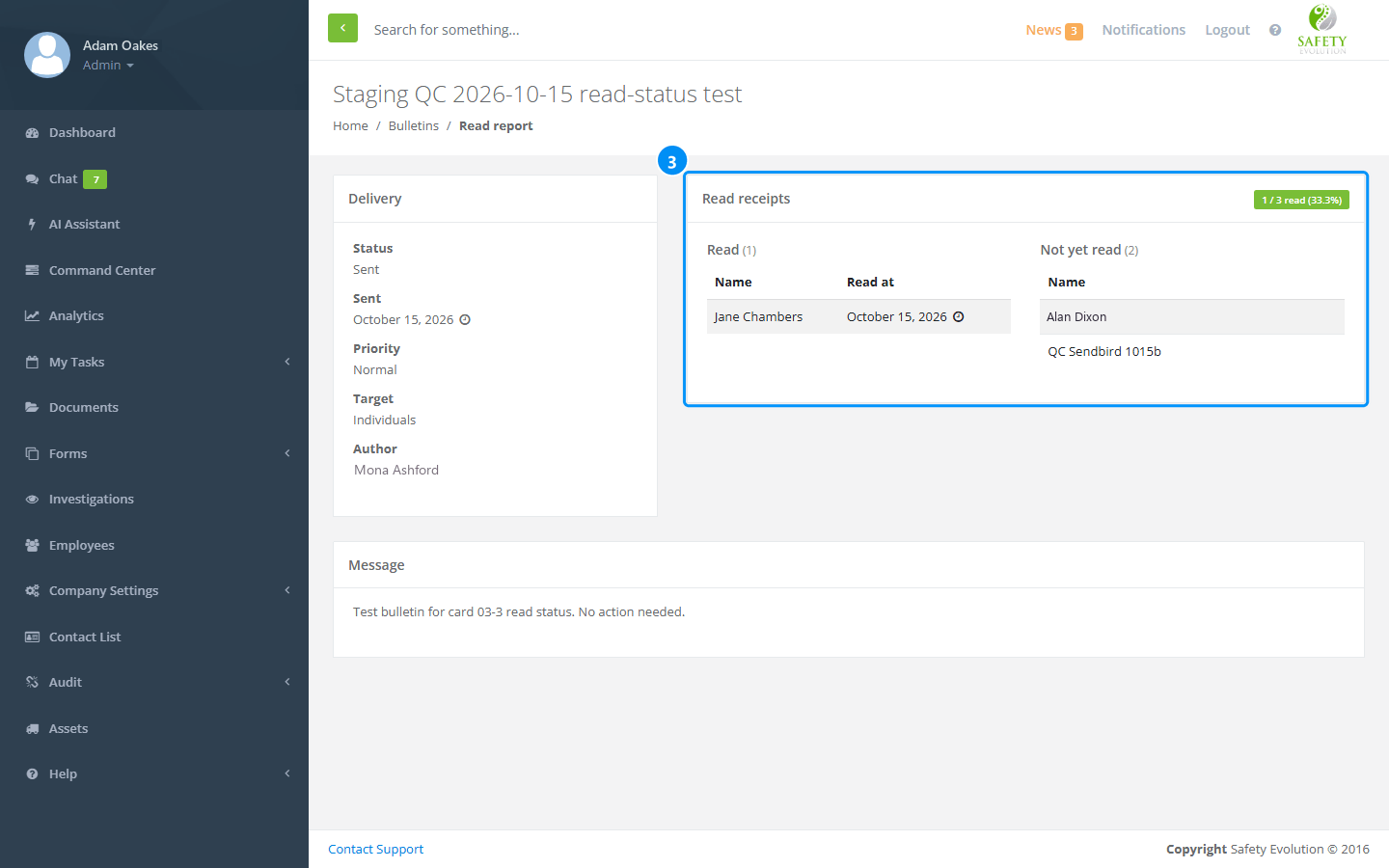
Who has read the bulletin, and who has not.
A person counts as read only when they open the bulletin in chat and see the message. Getting it is not enough. The report updates within about 15 minutes. You, the sender, are never counted.
The Delivery box shows the status, when it was sent, the priority, who it went to and who sent it.
If your company translates, the bulletin on this page has a button for each language, such as Translate · Español. Click one to see the bulletin in that language under the English, with Translated automatically · Show original.
If something goes wrong
- You don't see the Bulletins tab: only owners, designates and admins see it.
- The status shows Failed: the bulletin did not send. Check that Send to reaches at least one active employee, then send it again. If it fails again, contact Safety Evolution support.
- You sent it with Also send in the company's languages but a language is missing: if a translation fails, the bulletin goes out in English and the languages that worked. Workers can still tap Translate.
- "Only scheduled bulletins can be edited.": a bulletin that has already gone out can't be changed. Send a new one.
- Someone is missing from the report: By site reaches only that site's supervisors and HSE supervisors. Use Specific people or Everyone in the company to reach others.
Updated October 24, 2026