![side_logo.png]](/theme/site/shared/images/side_logo.png)
Take a training course
Open a course you were enrolled in, go through its units and tests, and finish it to get your certificate.
Try it free Start with Safety Evolution's Free version.
Your company enrolls you in courses. You take them in a web browser, on a computer or on your phone. When you finish a course, you get a certificate.
Find your course on a computer
- Log in on the web and go to your Dashboard.
- Find the Course Work box. It lists your courses with their Status.
- Click the course name.
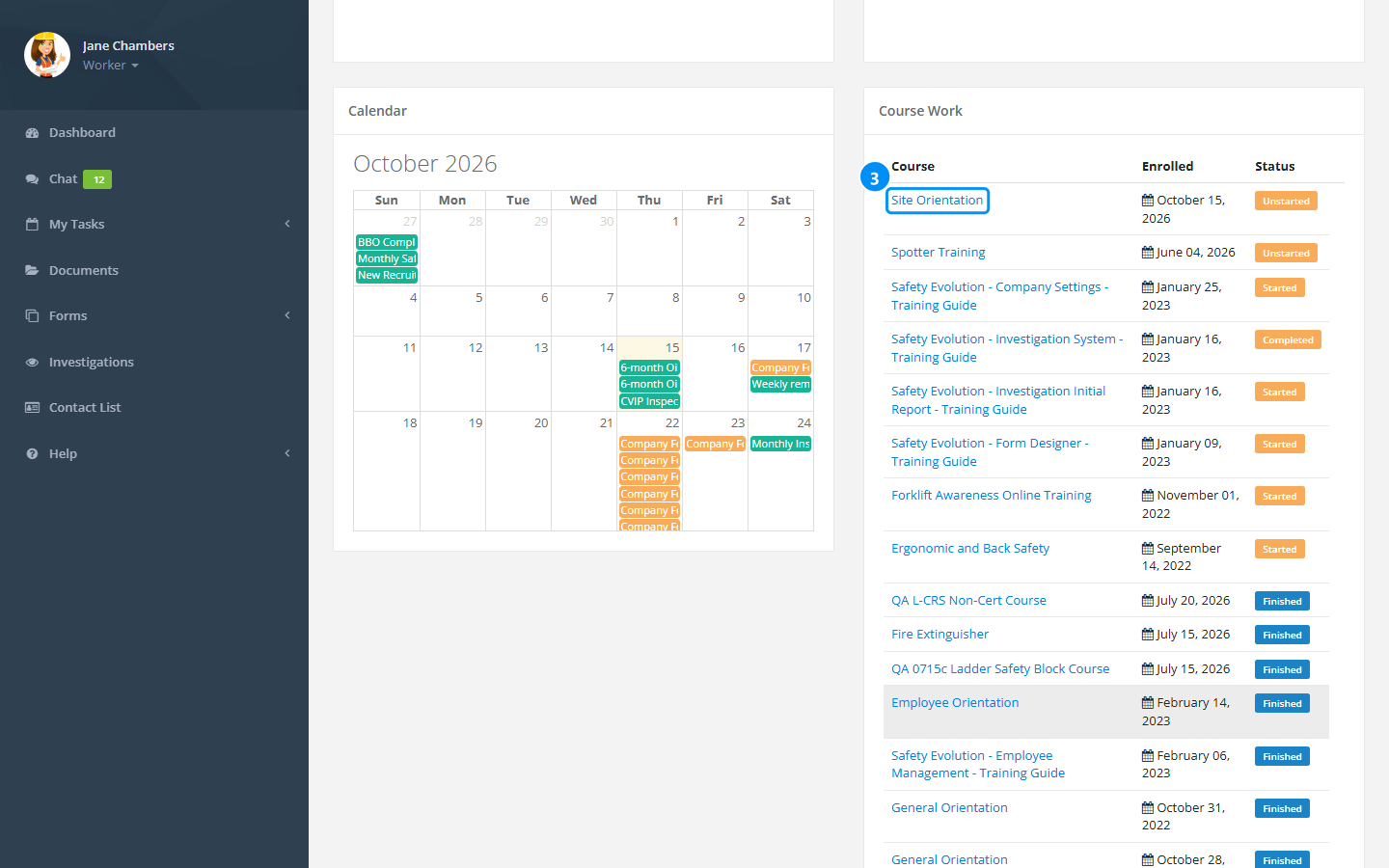
Your courses on the Dashboard.
If you use the new Home, your courses are listed under My training to complete. Click a course there to open it.
Orientation comes first
New employee? If your company uses orientation, you see Welcome! and Before you can begin working you must complete the orientation process. instead of your Dashboard. Most of the menu stays hidden until you finish every course under Orientation Progress. Click View beside each one. See "Finish your orientation before you start work".
Find your course on the phone
The phone shows your courses, but you take them in the phone's web browser. Tapping a course opens the course page there.
- Tap the Profile tab, then My Courses and Training. Or tap Menu, then Training and Courses.
- Tap the course name. It opens in your phone's web browser.
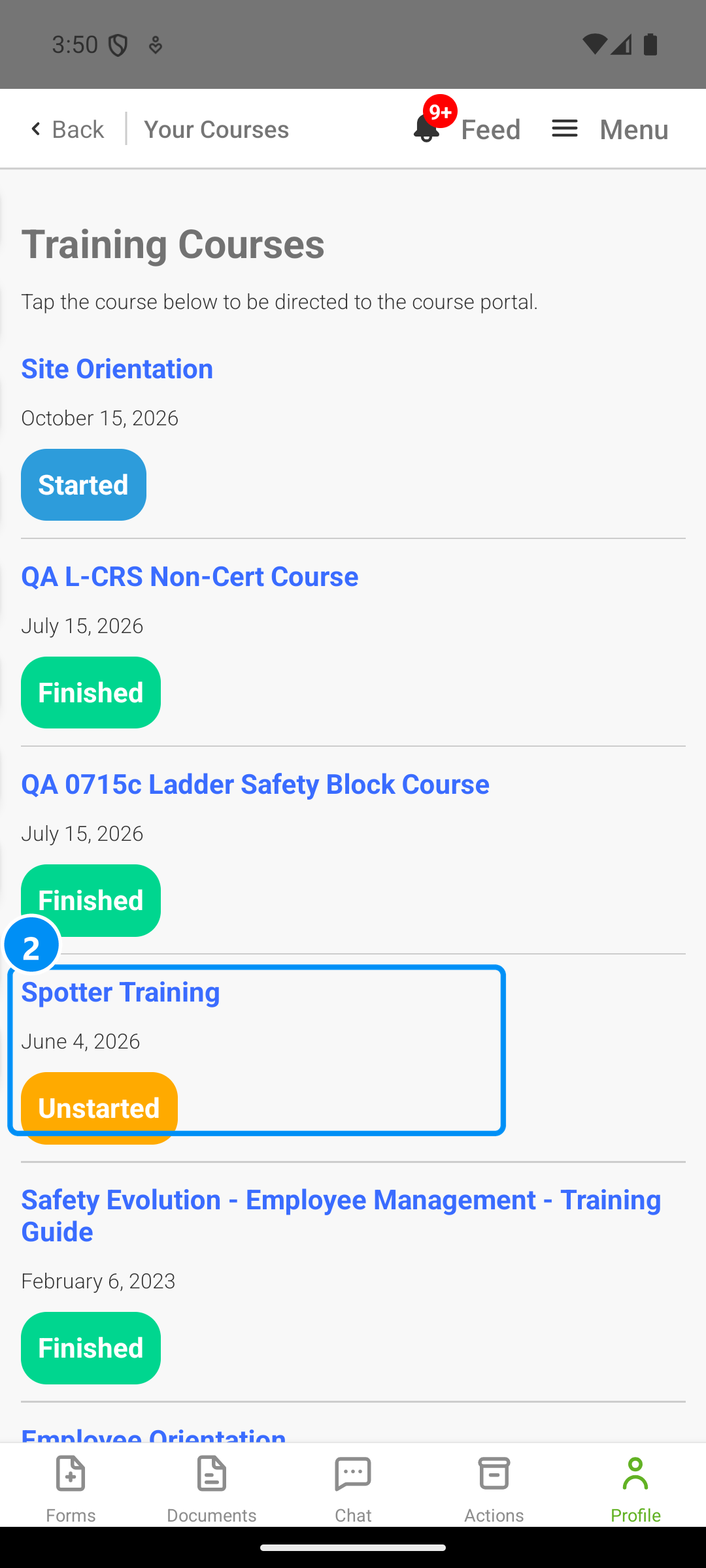
Your courses on the phone. - If the browser asks you to log in, use the same email and password as the app.
Take the course
- On the course page, click Start Course. If you started before, click Continue Course.
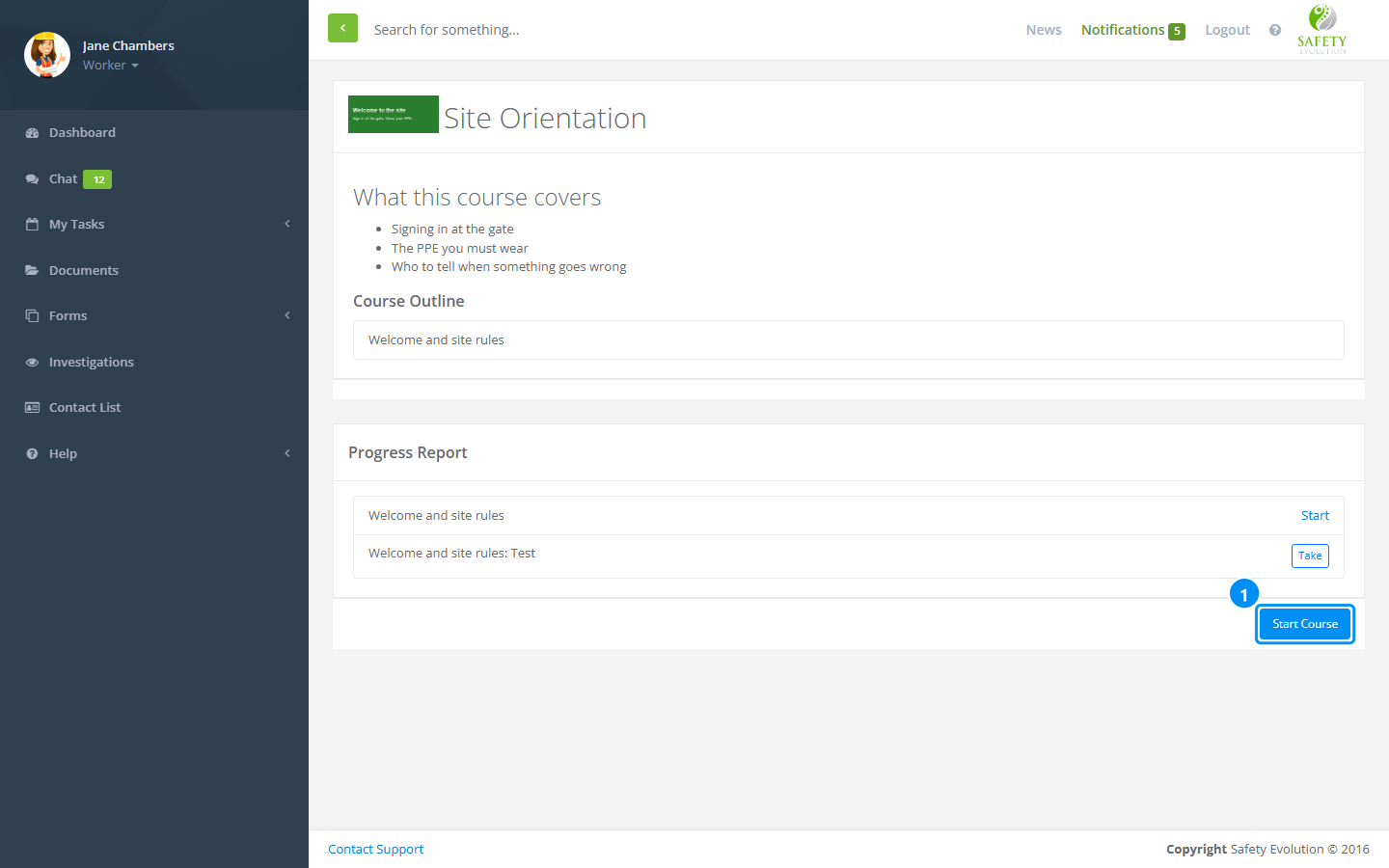
The course page. - Read the unit from top to bottom.
- At the bottom, click Continue to Next Unit. If the unit has a test, the button says Continue to Unit Test.
- Answer every test question.
- Click Complete.
- You see PASSED or FAILED and your score, for example "You got 4 / 5 correct".
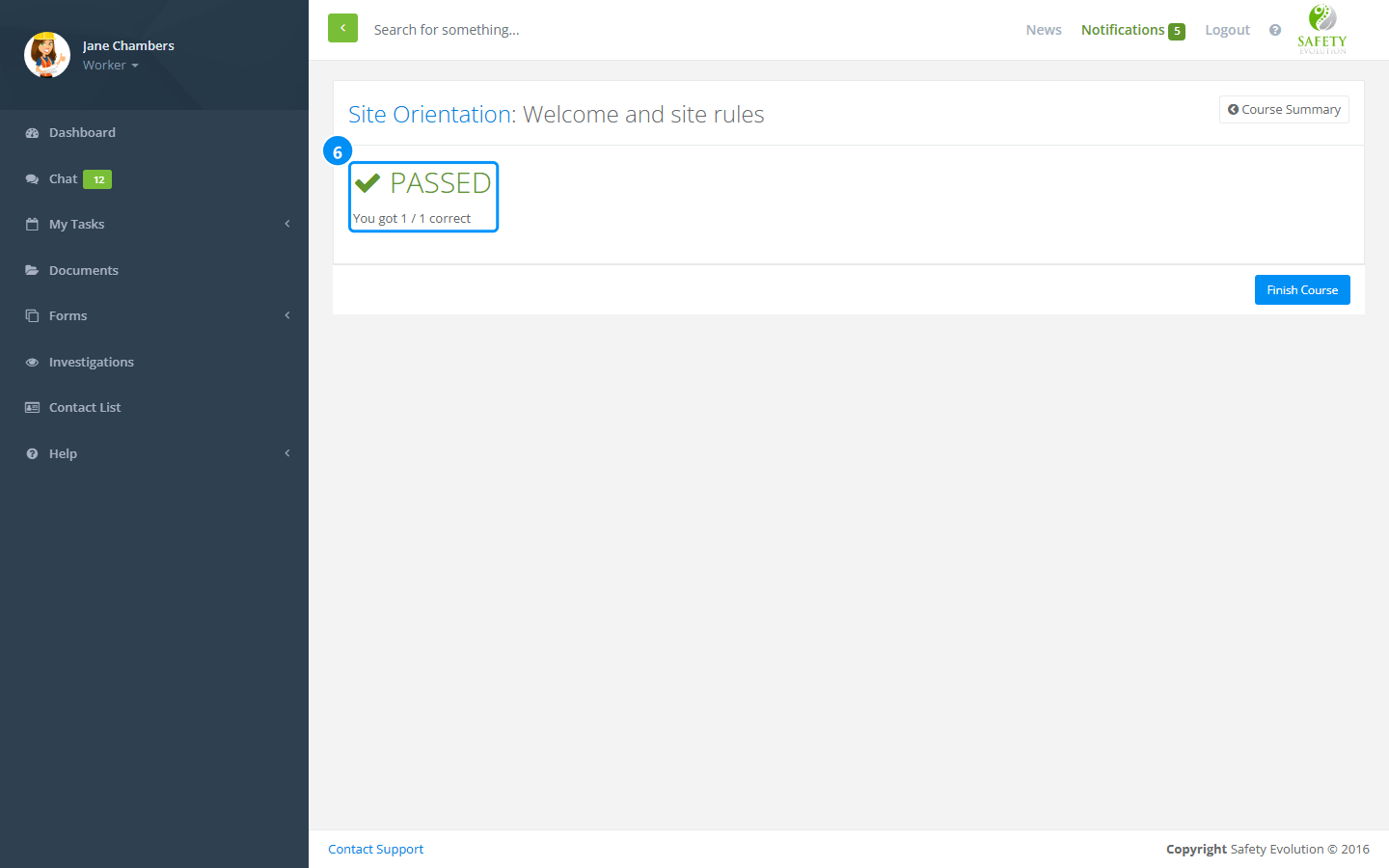
Your test result. - If you passed, click Next Unit. If you failed, click Redo Unit, read it again, and retake the test.
- After the last unit, click Finish Course.
Your certificate
- After you finish, the course page shows your Course Certification Card.
- Click Print to print it or save it as a PDF.
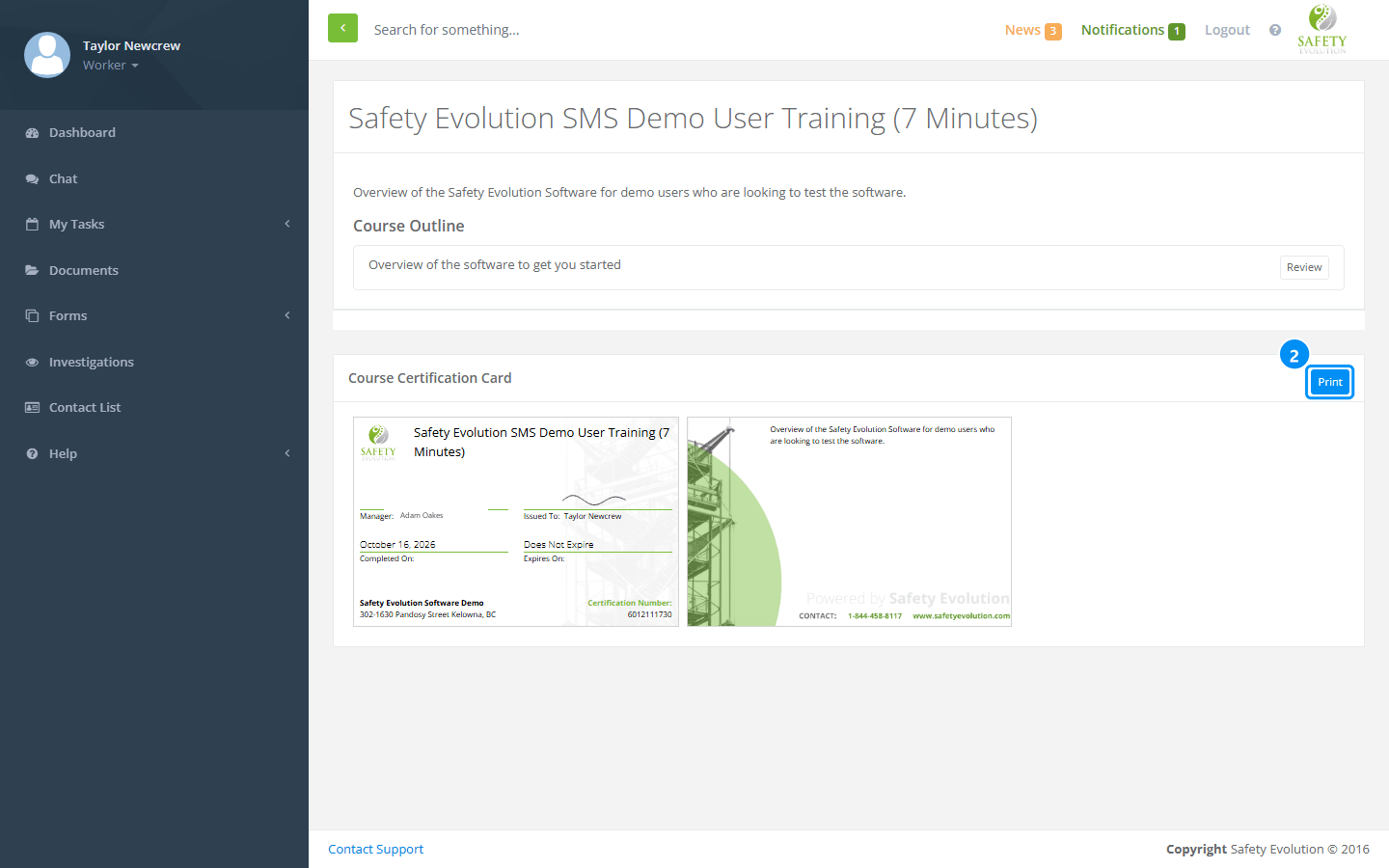
Your certificate.
Courses from the course library
Some courses come from Safety Evolution's course library. These open a different page.
- Click Launch to start the course.
- Follow the course's own screens to the end.
- Click Finish Course.
If something goes wrong
- You failed a test: on the course page, click Retake beside that test.
- "No courses found." on the phone: you are not enrolled in a course yet. Ask your supervisor or admin.
- You do not see Finish Course: a unit or test is not done yet. Check the Progress Report on the course page. Each done item has a green check.
Updated October 24, 2026