![side_logo.png]](/theme/site/shared/images/side_logo.png)
Read and fill in a form in your language
Open a company form in Spanish or French on the phone or the web, check the English under any line, and hand it in so the office reads it the same way.
Try it free Start with Safety Evolution's Free version.
When your office translates its forms, you can read and fill them in in Spanish or French. The English stays the official record, so the office reads your form the same way whatever language you used.
Before you start
- Your office turns translation on. It needs the Professional or Enterprise plan. If you never see a 🌐 button on a form, your company does not translate its forms.
- Pick your language once on the Profile tab. See "Choose your language on the phone and the web". You can also pick it on the form itself, as below.
- On the phone, you need the newest Safety Evolution app.
Fill in a form in your language on the phone
- Open the form as usual from the Forms tab. Form names show in your language in the form list.
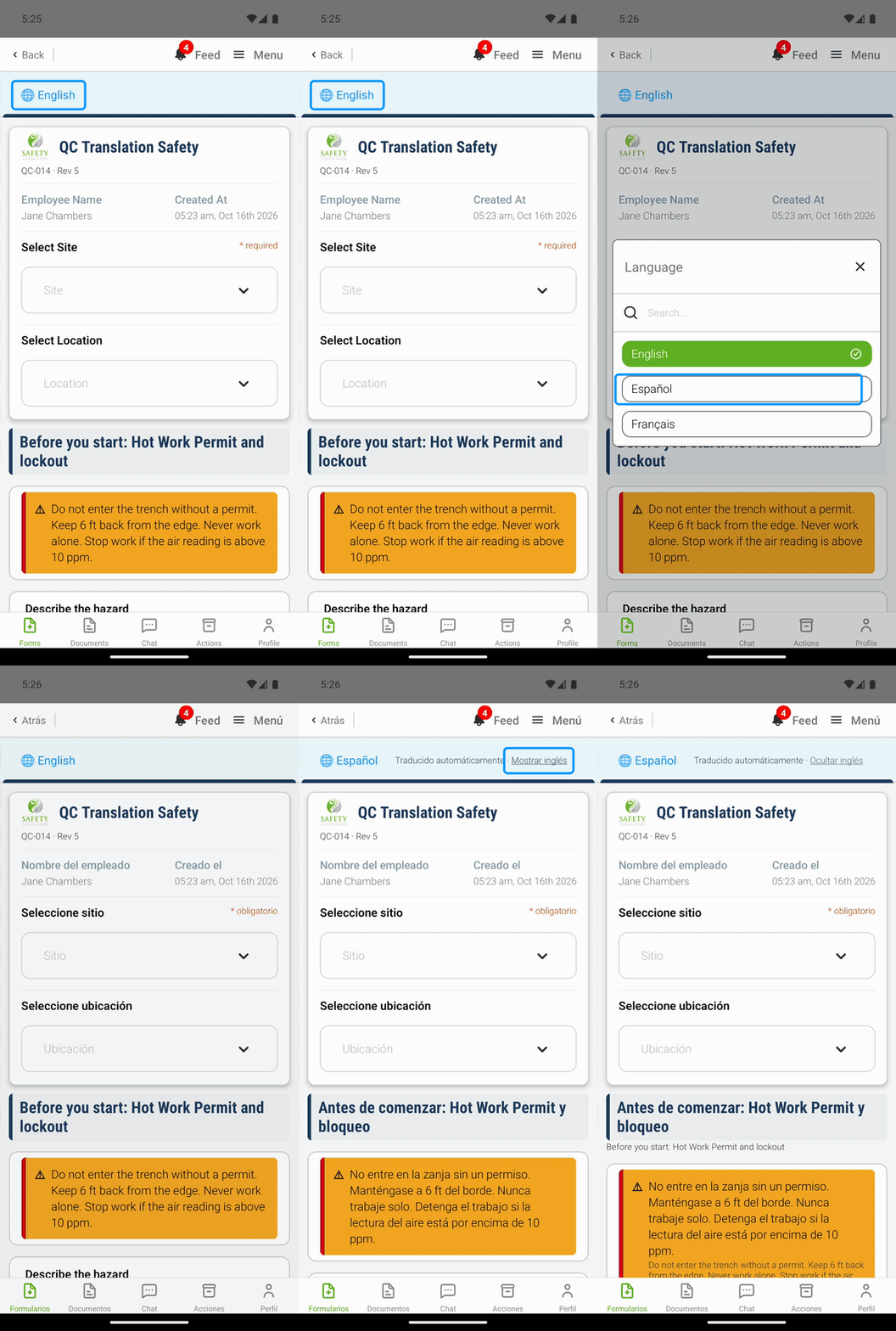
- The form opens in your language. A blue bar at the top shows the 🌐 button and Translated automatically · Show English. In Spanish the bar reads Traducido automáticamente · Mostrar inglés.
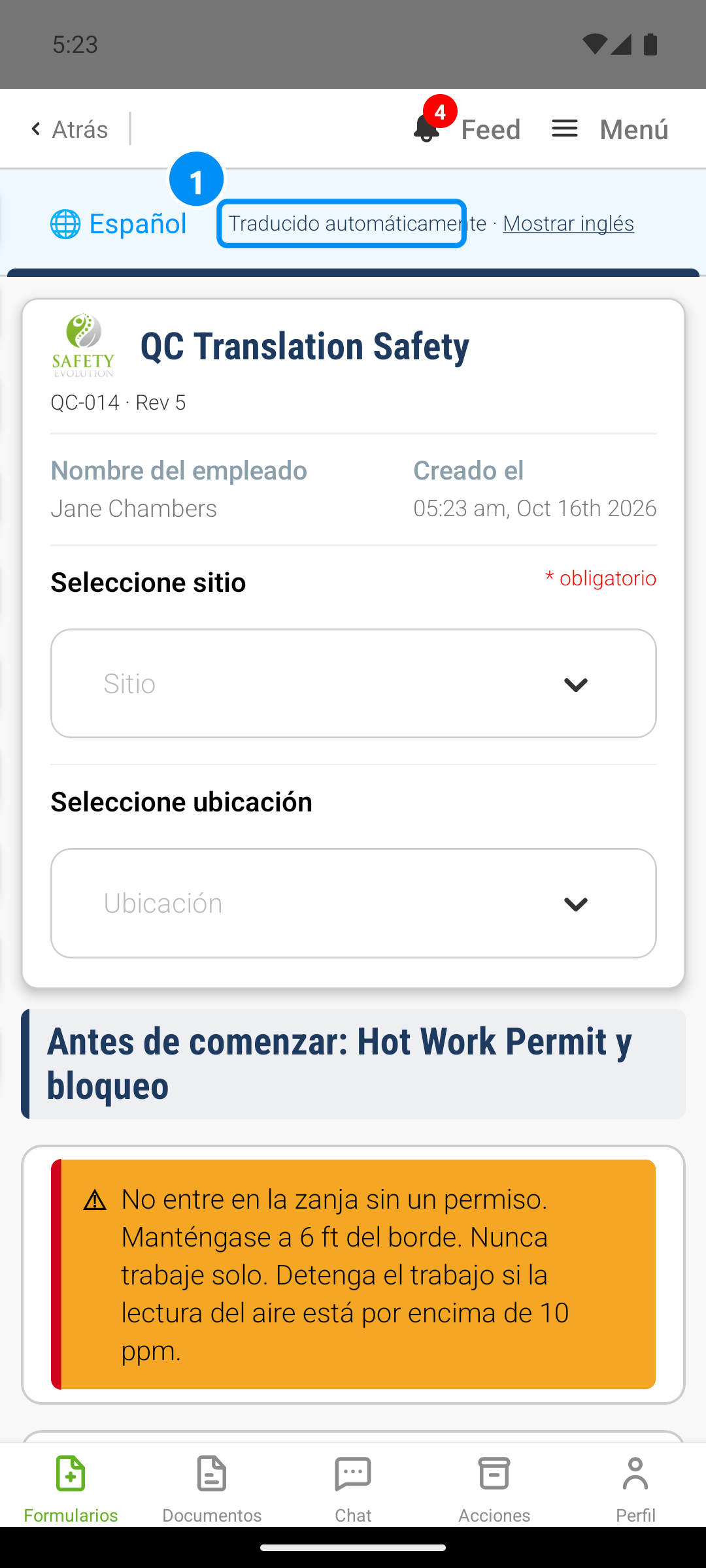
The bar at the top says the form was translated automatically. - To change the form's language, tap the 🌐 button and pick a language. The list shows English and only the languages this form has. Your pick is kept for every form and talk, and the app's own words follow it too.
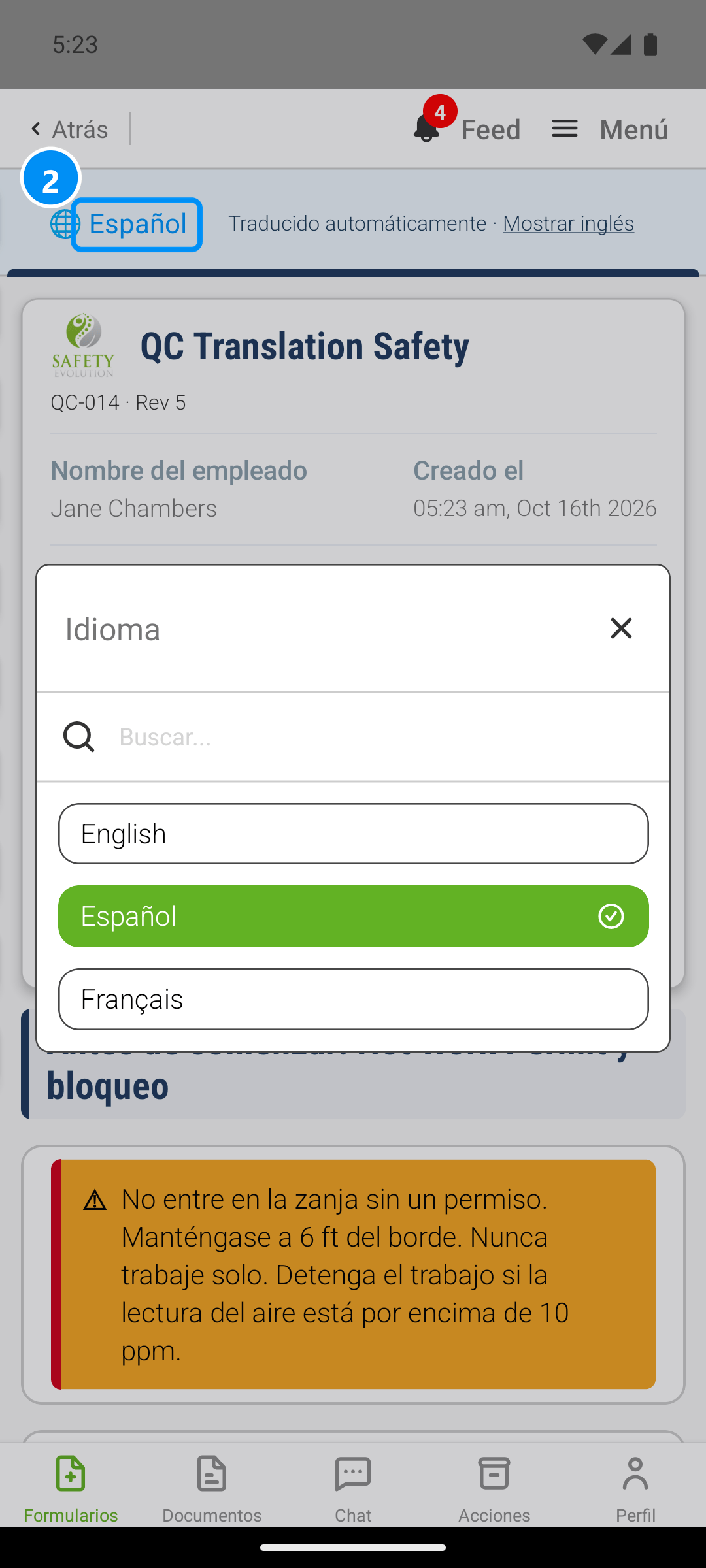
Only the languages this form has are listed. - To check the official English, tap Show English (Mostrar inglés). The English shows under each translated line. Tap it again to hide it.
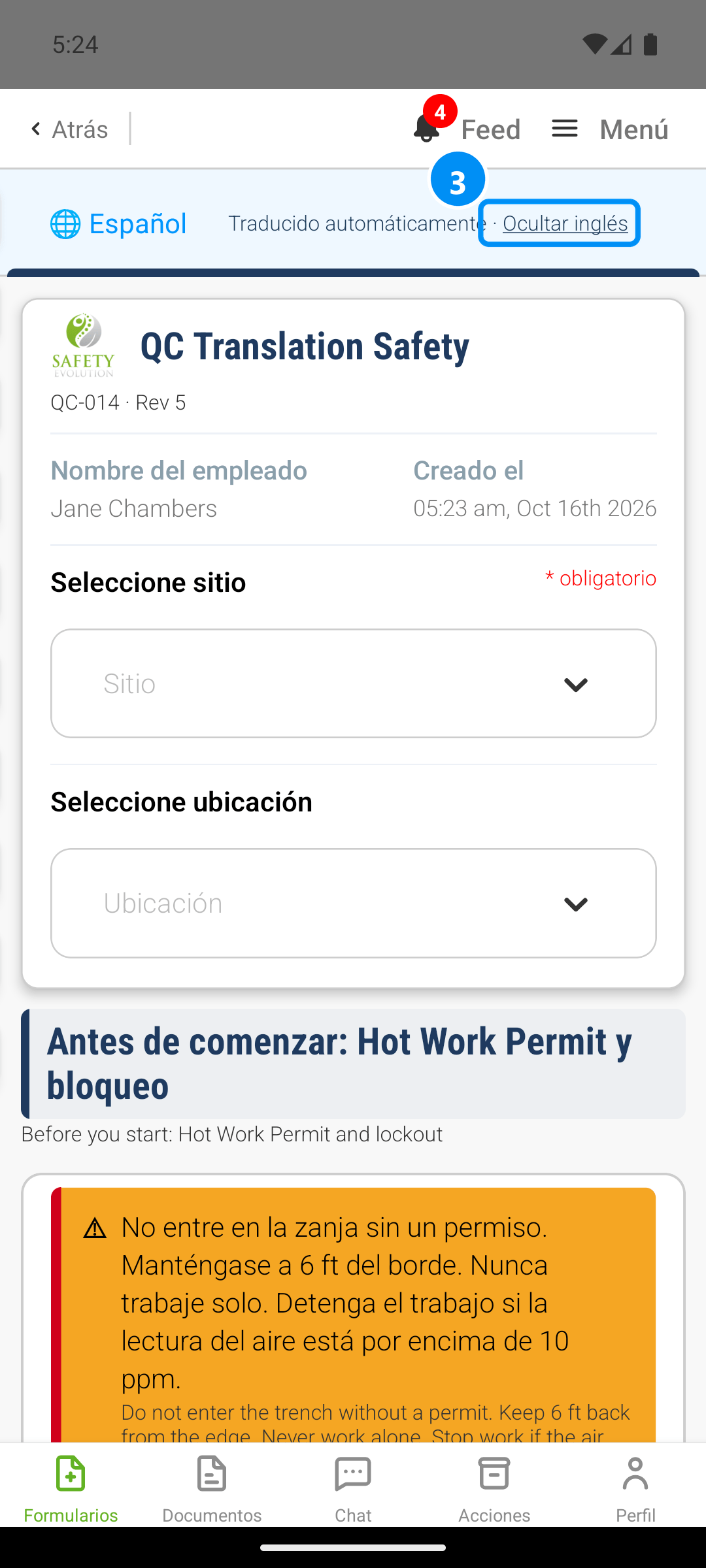
The English under each line is the official wording. - Answer the questions. When you pick a choice, it is saved in English. For example, ticking Sí saves Yes.
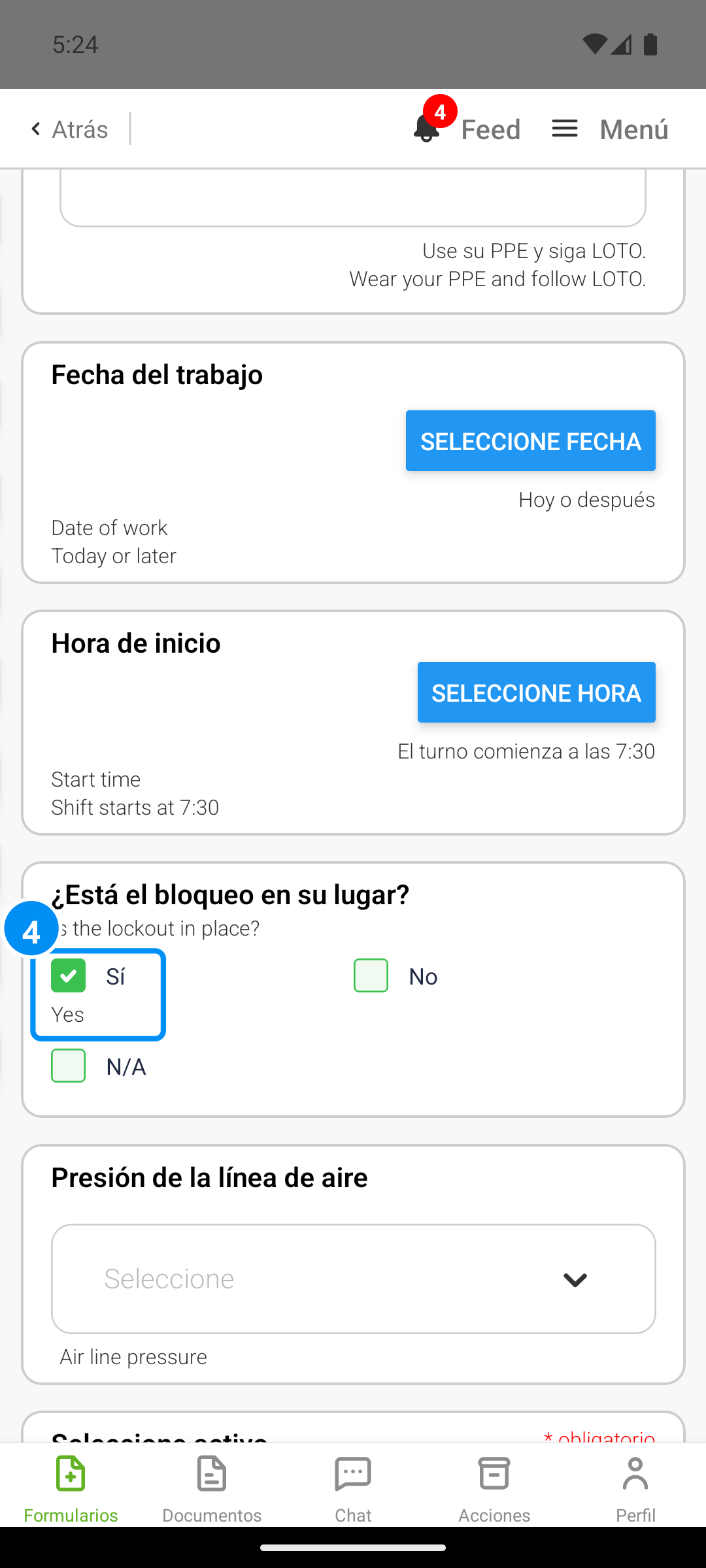
You pick "Sí". The office sees "Yes". - What you type is saved exactly as you wrote it, in any language.
- Hand in the form as usual. See "Fill in and hand in a form on the phone".
With no signal
Translations come down to the phone when you log in (the step Downloading translations) and each time you pull down on the Forms tab to refresh it. Every language a form has comes down, so you can open the form and switch language with no signal.
- If a form's translation has not reached your phone yet, the bar shows "This form is not in Español on this phone yet. It will download when you have signal." (in Spanish: "Este formulario aún no está en Español en este teléfono. Se descargará cuando tenga señal.").
- You can fill in the form in English and hand it in as usual.
- When you have signal again, pull down on the Forms tab. Next time you open the form, it is in your language.
Fill in a form in your language on the web
- Start the form from Company Forms. See "Fill in and hand in a form on the web".
- At the top of the form, click the 🌐 button and pick your language. This sets your own language, the same setting as Idioma · Language in your web profile, so every form and toolbox talk opens in it from then on. The page's own buttons and labels switch at once too: in Spanish, Save Draft becomes Guardar borrador and Hand In becomes Entregar.
- The form shows Translated automatically · Show English in your language (in Spanish, Traducido automáticamente · Mostrar inglés). Click Show English to see the English under each line. Click it again (Hide English) to hide it.
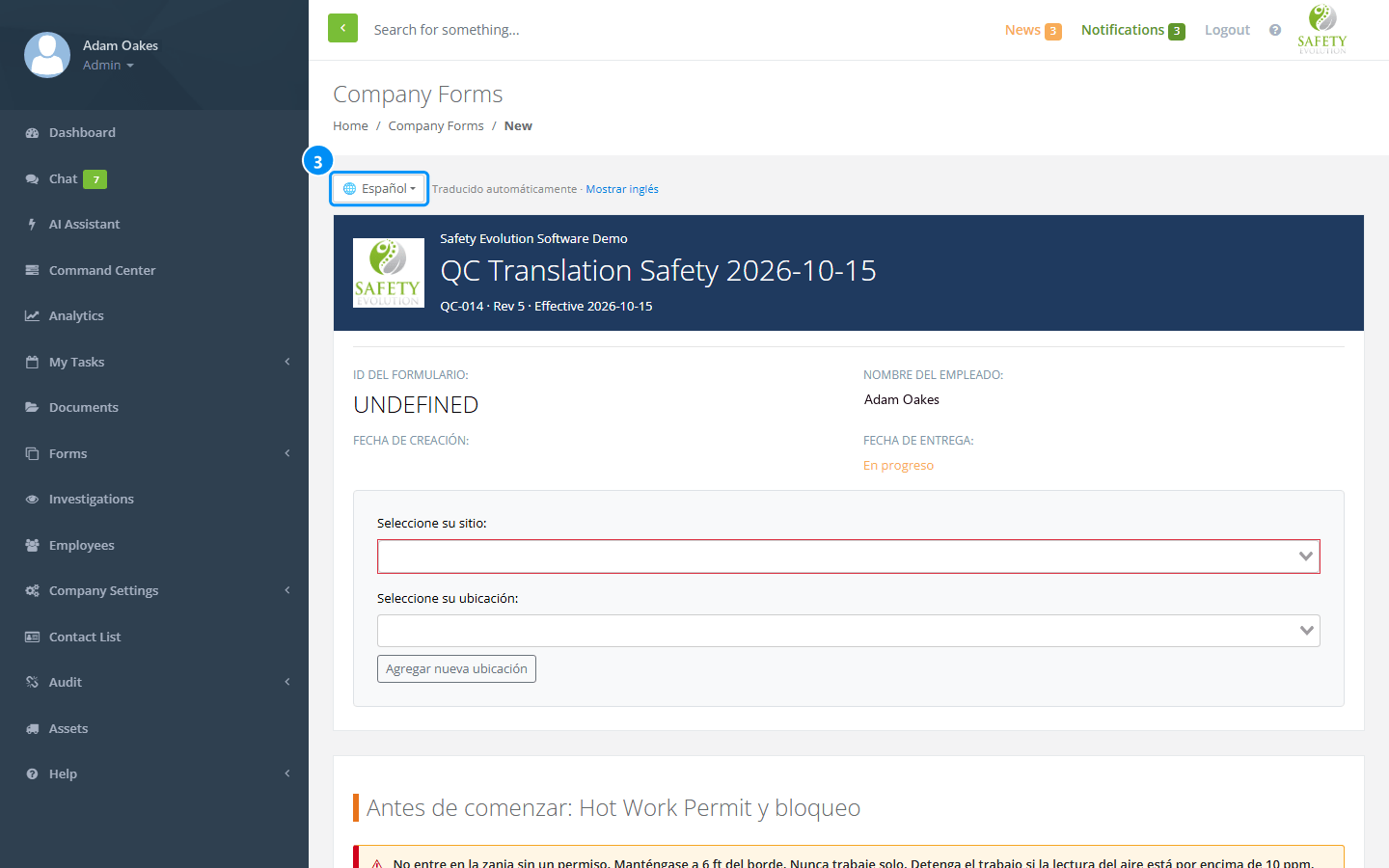
The same button and Show English on the web. - Fill it in, then click Save Draft (Guardar borrador) and Hand In (Entregar) as usual. Choices save in English here too.
What the office sees
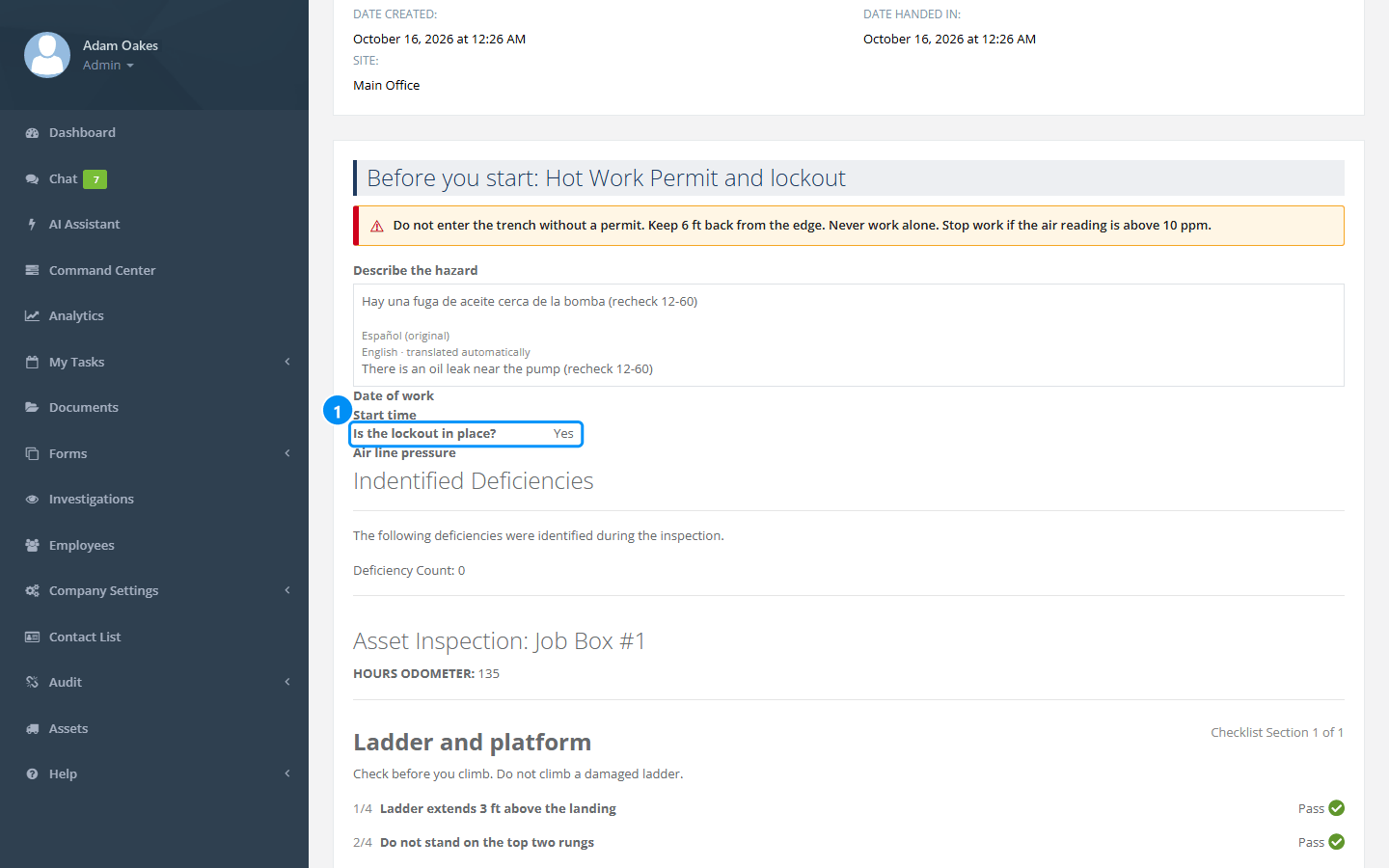
The office reads the handed-in form in English. Your choices show as the English choices, and your typed words show as you wrote them.
Toolbox talks
A toolbox talk opens in your language too, when the talk is written in it. You can still switch the talk's language on the talk itself. See "Run a toolbox talk on the phone".
If something goes wrong
- One line is in English inside a translated form: Safety Evolution checks every translated line. When the check is not sure a line is right, it shows you the English instead. Nothing is wrong with your form.
- "This form is not in … on this phone yet. It will download when you have signal.": the form shows in English for now. Pull down on the Forms tab when you have signal.
- "This form is not available in …yet." (on the web): the office has not finished translating this form into your language. It shows in English for now.
- No 🌐 button: this form has no translation. Your office may have set it to English only.
- My language is not in the list: the form is translated only into the languages your company has turned on. Ask your office.
Updated October 24, 2026