![side_logo.png]](/theme/site/shared/images/side_logo.png)
Fix a translated word: Company words and Edit a translation
Keep your own words in English or translate them a set way every time, and change one line of a form's translation if you want to.
Try it free Start with Safety Evolution's Free version.
You never have to check or approve a translation. Safety Evolution checks every line. This article is only for when you want a word translated your way, such as a permit name or a word your crews use.
Before you start
- You need to be an owner, designate or admin.
- Translation must be on for your company. See "Translate your forms for workers".
Add a company word
Company words are used every time Safety Evolution translates for your company. Use them for words that must stay in English, like "Hot Work Permit", or words you want translated one set way.
- In the left menu, click Company Settings, then Company words. You can also click Company words on the Languages page.
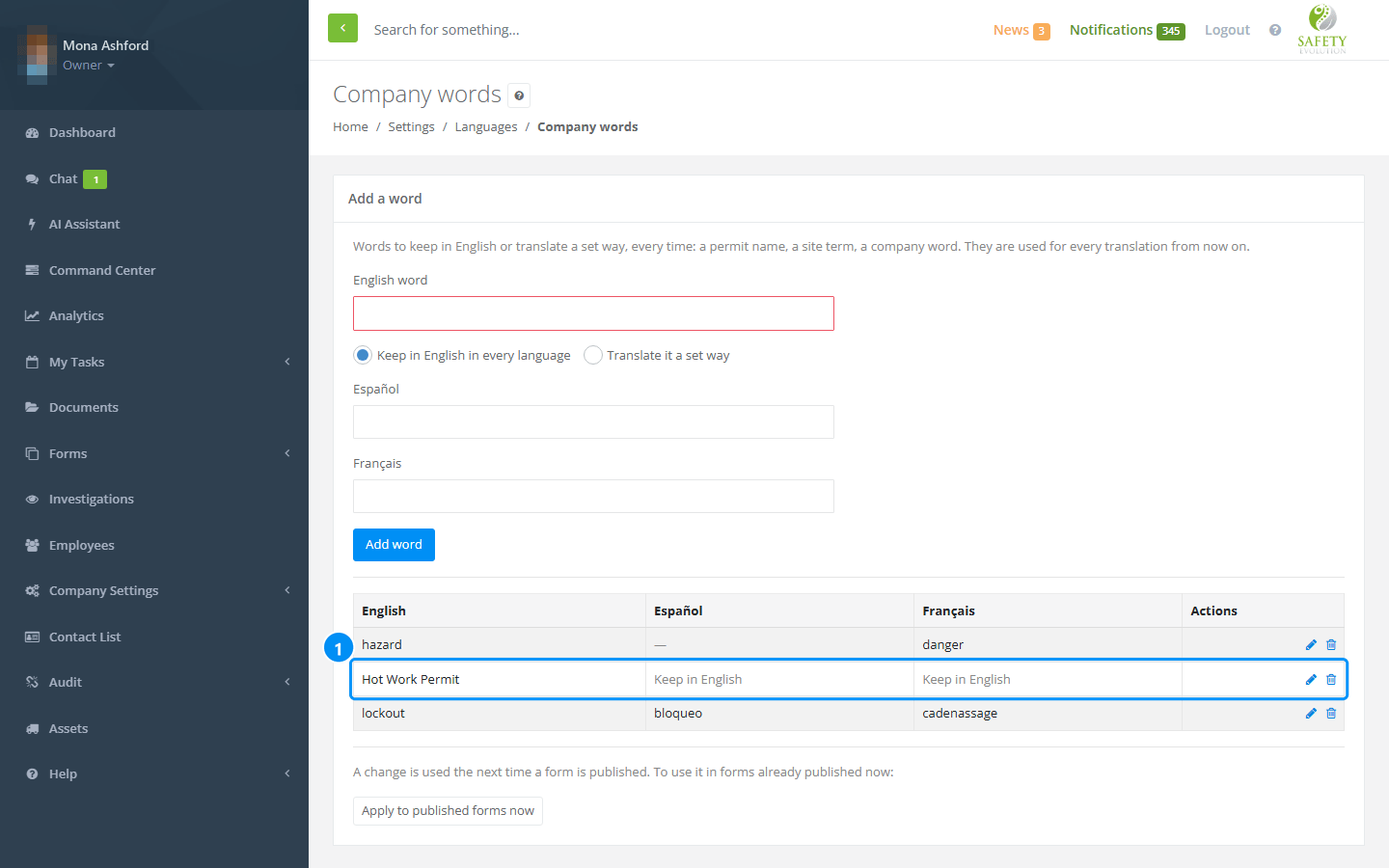
Each word shows how it is translated in each language. - Under Add a word, type the word in English word.
- Pick one:
- Keep in English in every language: the word is never translated.
- Translate it a set way: type how to say it in each language, for example lockout as bloqueo under Español and cadenassage under Français.
- Click Add word. You see Word saved.
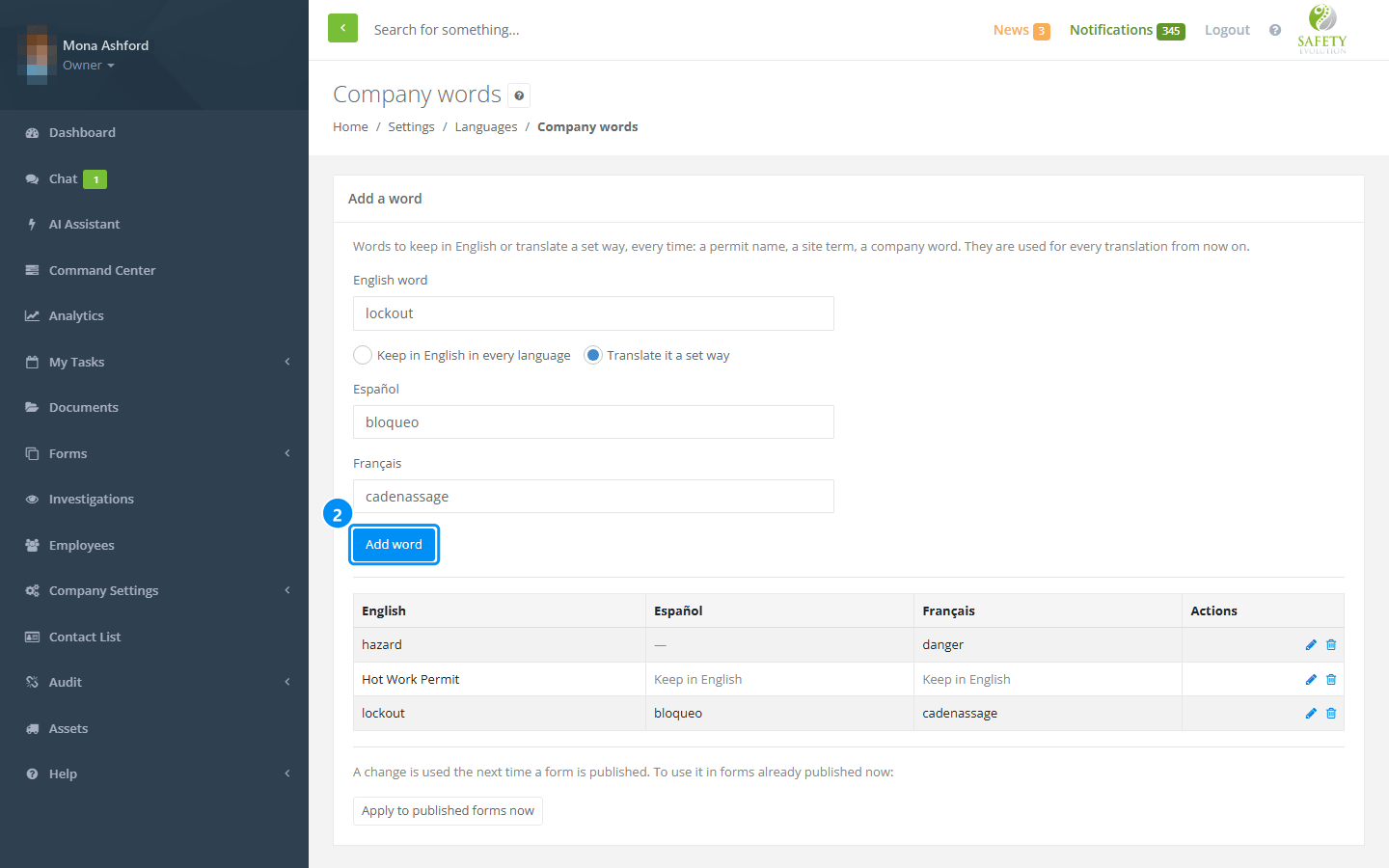
Give the word in each language, or keep it in English.
To change a word, click the pencil (Edit word), change it and click Save word. To remove it, click the bin (Remove word) and confirm Remove this word?.
Use your words in forms already published
A new or changed word is used the next time a form is published. To use it in your published forms now:
- At the bottom of the Company words page, click Apply to published forms now.
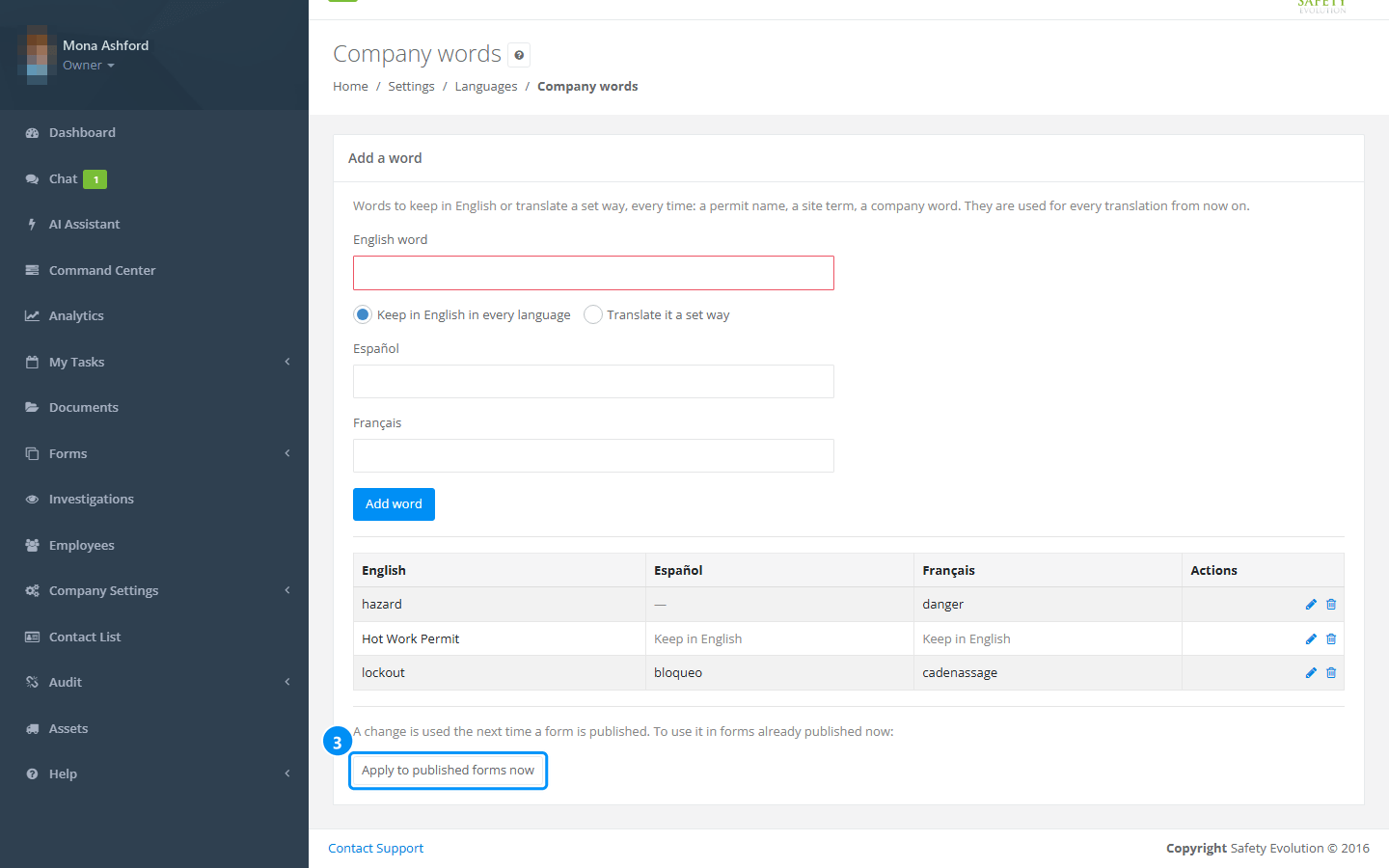
Only the lines that use a changed word are translated again. - You see Updating and the number of translations, for example "Updating 3 published translations with your words." If no form uses the word, you see "No published form uses a changed word."
Change one line of a form's translation
- Open the language you want to change. You can start from any of these:
- The Form Designs list: click a form's language badge, such as ES or FR.
- The form's Settings tab in the Form Designer: under Languages, beside Edit a translation:, click Español or Français.
- The box that opens after Publish Form: click Edit a translation on that language's line.
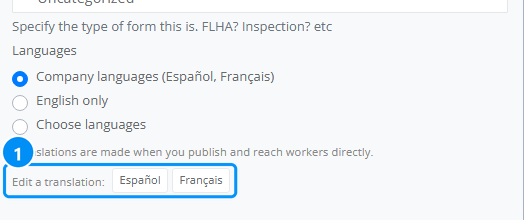
Each of the form's languages has its own Edit a translation button. - The Edit a translation page lists each line in English (official) beside the translation. To find a line, type a word in Find a line and click Find.
- Click Edit on the line. Change the words in the box under it.
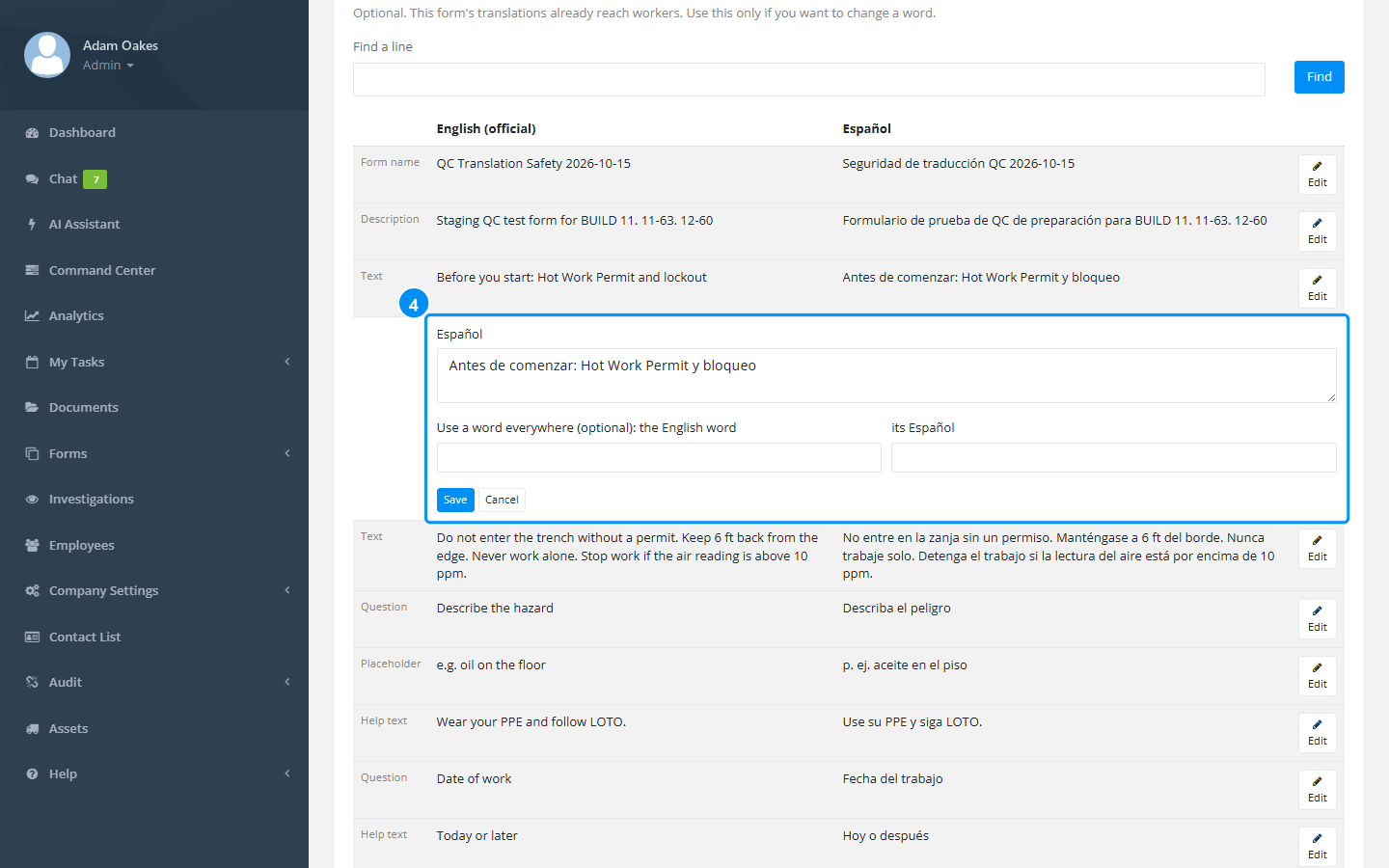
The English is on the left, the translation on the right. - If you want the same word fixed in every form, fill in Use a word everywhere (optional): the English word and the box beside it with the word in that language. It is added to your Company words.
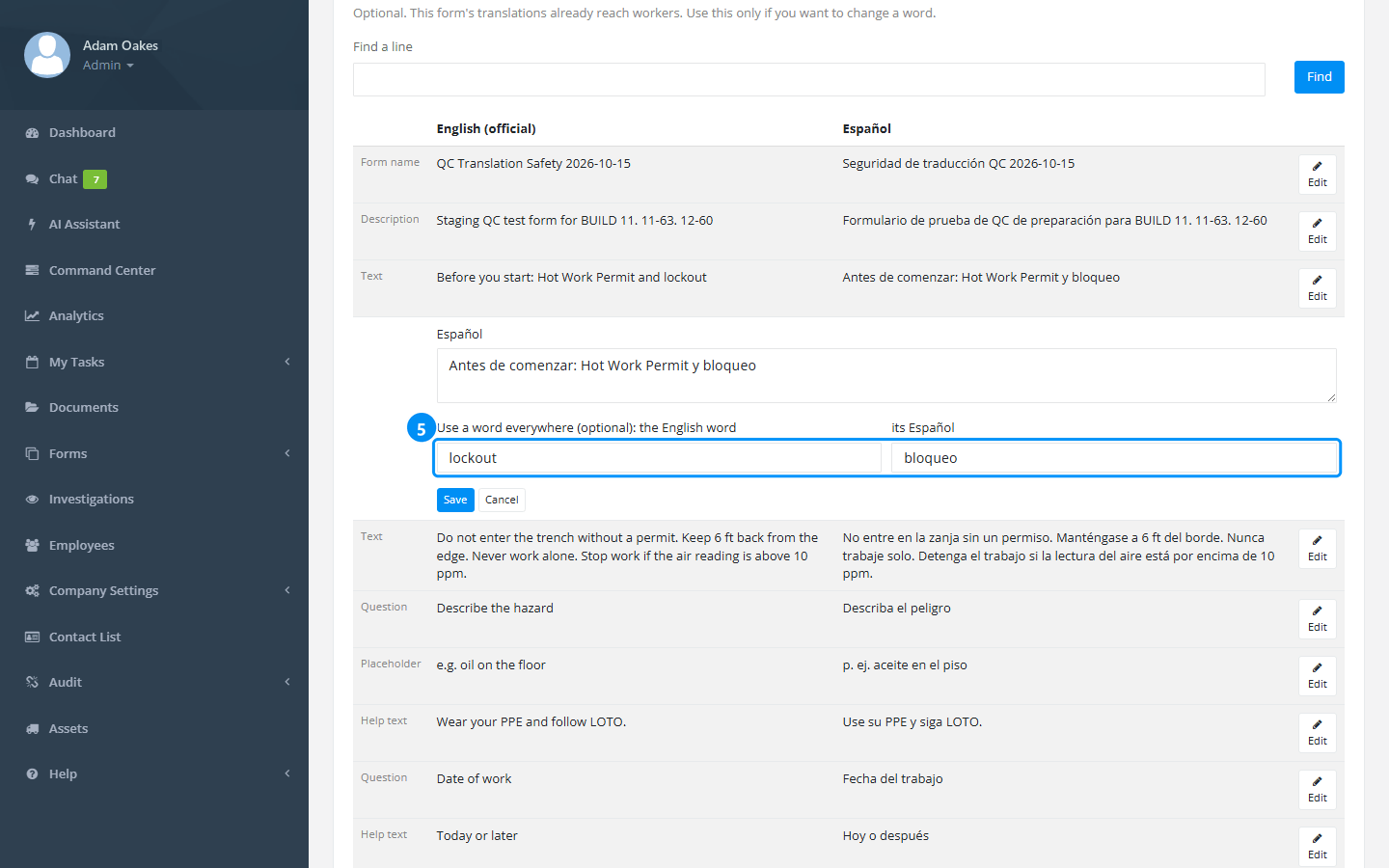
Optional: add the word to Company words at the same time. - Click Save. You see "Translation saved. Phones get it on their next sync." The line now shows Edited, with your name and the date.
You don't need to publish the form again to make a change. Workers already have the translation, so this page is optional.
Your edit is kept each time you publish the form again, unless the English of that line changes. Then the line is translated again, and your old wording shows under it as Your earlier edit:. Click Use it again to put it back.
A line marked Shown to workers in English: Safety Evolution's check could not confirm the translation. is one the check held back. You can type a translation for it here.
If something goes wrong
- "… is already in your company words. Edit it to change how it is translated.": the word is already in the list. Click its pencil to change it.
- "Give the word in at least one language, or keep it in English.": type the word in a language, or pick Keep in English in every language.
- Your edit is refused with a message such as "The English has 6 ft; the translation must too." or "Keep the units as in the English. Do not convert or add units.": numbers, units and codes must stay exactly as in the English. The line keeps its old translation. Fix the number, unit or code and save again.
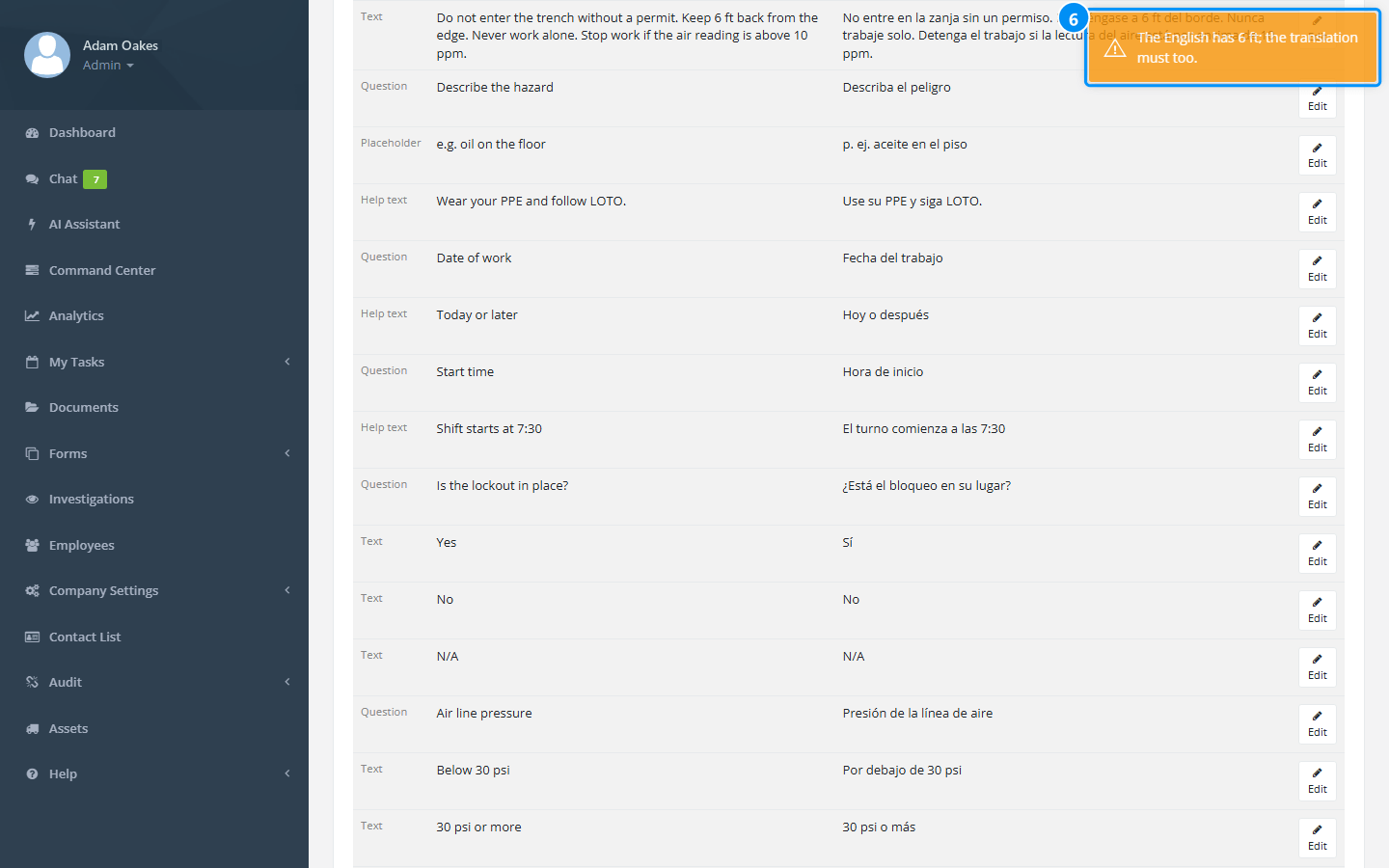
An edit that changes a number, unit or code is not saved. - "The translation cannot be empty.": type a translation, or click Cancel.
- "Keep the site name … exactly as in the English.": site names are never translated. Put the site name back as it is in English.
- "The word was not added: …": your line was saved, but the word was not added to Company words. The message says why. Add it on the Company words page instead.
- "No lines found.": no line has that word. Clear Find a line and click Find.
Updated October 24, 2026