![side_logo.png]](/theme/site/shared/images/side_logo.png)
Training compliance reports
See who is assigned which course, what is overdue and how well each learning objective is passed, and open an evidence record for any learner.
Try it free Start with Safety Evolution's Free version.
Training compliance shows who has been assigned each course, who is overdue, and how many people pass each part of a course. For any learner you can open an evidence record to keep or give to an auditor.
Before you start
- Only owners, designates and admins can open compliance reports.
- The link is on the new Home page. If you went back to the old dashboard, click Try the new dashboard first.
Open the reports
- Go to your Home page.
- In the Compliance box, check Training compliant and Certs expiring 30d.
- Click View compliance reports.
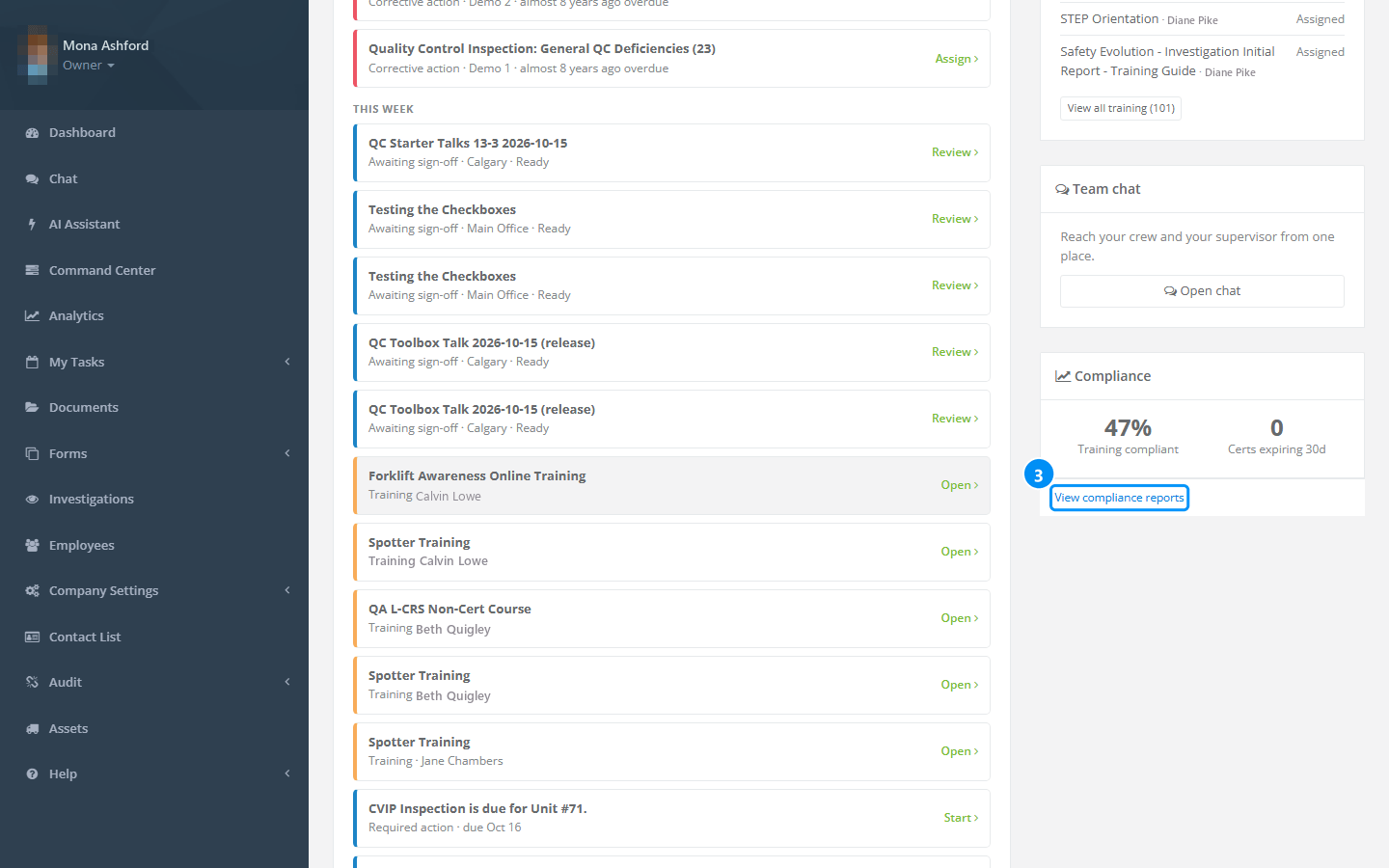
The Compliance box on Home links to the reports.
See who is assigned what
- Click the Assigned tab. Each row shows the Learner, Course, Status, when it was Assigned and when it was Completed.
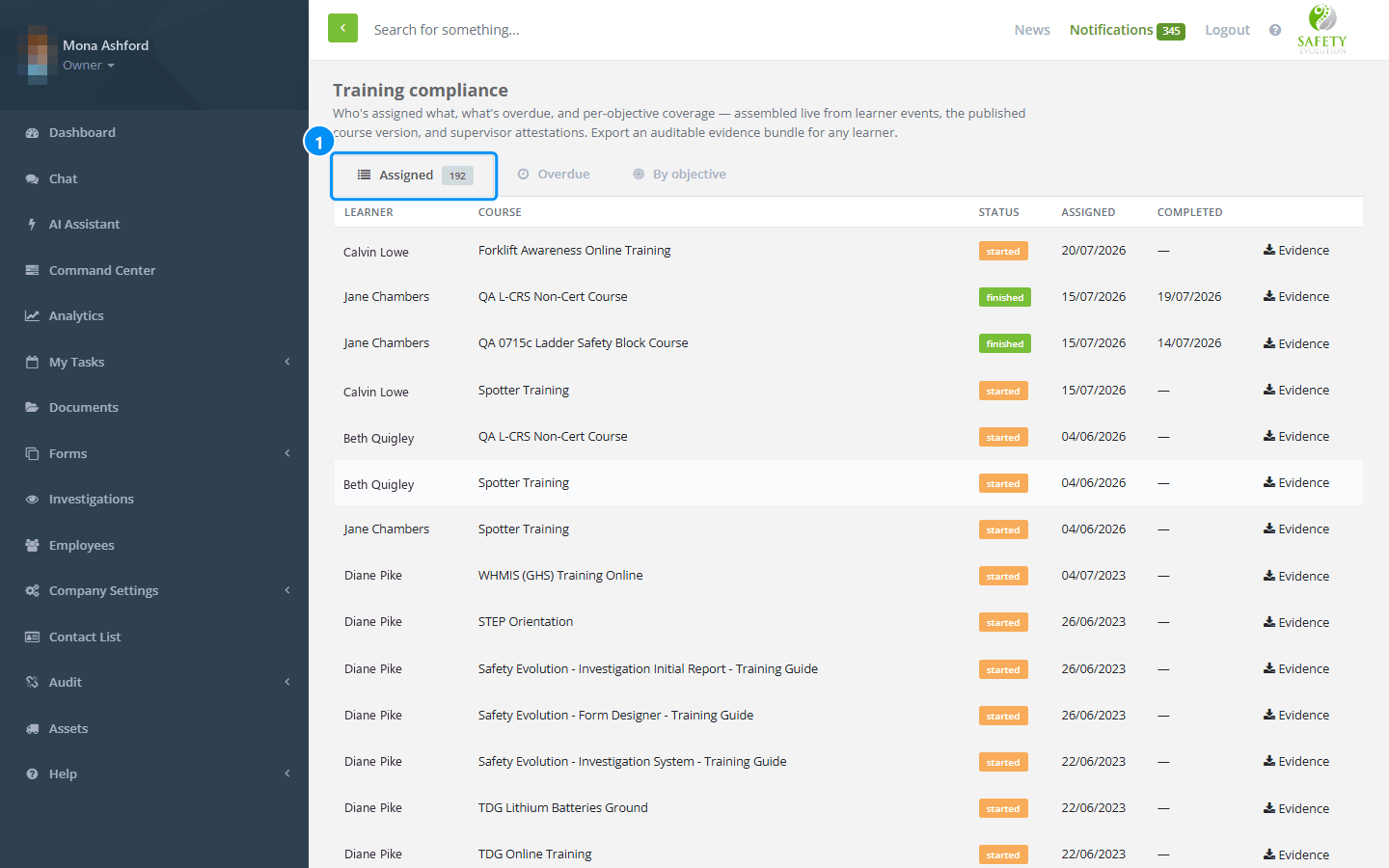
The Assigned tab shows every enrollment. - To get the record for one person, click Evidence on their row. It opens Training Completion Evidence in a new tab. Print it or save it from your browser.
See what is overdue
- Click the Overdue tab. It lists people whose training is overdue.
- Recert in the Recert due column means the certificate needs renewing. Cert expires shows the date.
"Nothing overdue. Everyone's current." means nobody is behind.
See results by objective
- Click the By objective tab.
- Pick a Course.
- For each Objective, see how many were Assigned, how many Passed and the Pass rate.
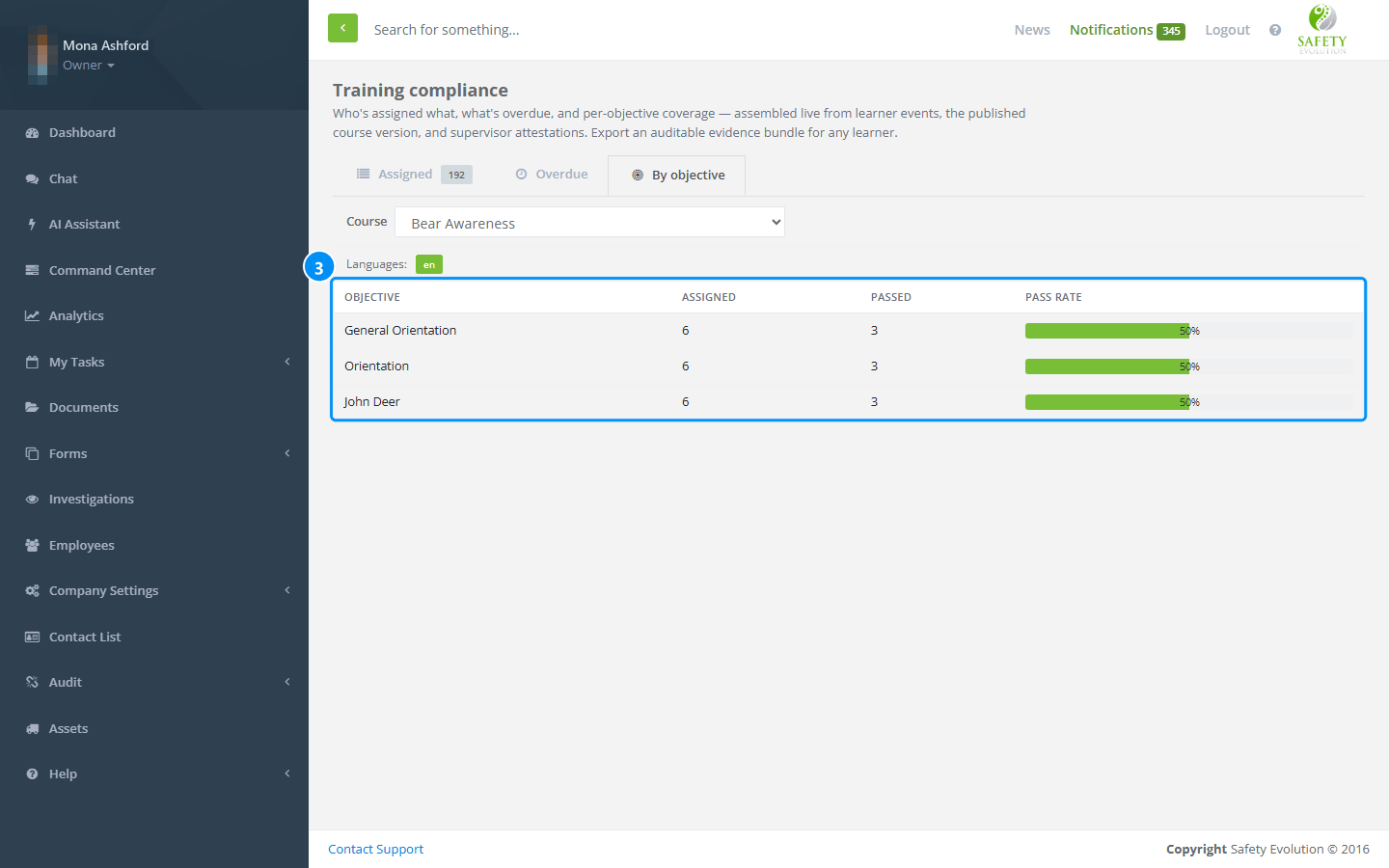
Low pass rates show which part of a course needs work.
"No objectives for this course yet." means the course has no objectives set up.
If something goes wrong
- If a tab shows an error, click Retry.
Updated October 24, 2026