![side_logo.png]](/theme/site/shared/images/side_logo.png)
Review, assign and close action items
As a site supervisor, assign new action items, check the fix when it comes back, and close it or send it back, on the web or the phone.
Try it free Start with Safety Evolution's Free version.
An action item starts when a form or an investigation finds a problem. If no one is named to fix it, it waits for the site's supervisors. As a site supervisor you assign it, check the fix, and close it.
Before you start
- Only a supervisor of the item's site can assign it and close it. Being an owner or admin is not enough on its own. If you can't, see Why can't I assign or close an action item?.
- The person it is assigned to, or a site supervisor, can send it back with Revert.
How an action item moves
| Status | What it means | Who acts next |
|---|---|---|
| Pending | New, no one assigned (shows Unassigned) | Site supervisor: Assign |
| Processing | Assigned and being fixed | The assignee: Resolve |
| Corrected | The assignee says it is fixed | Site supervisor: Close or Revert |
| Reverted | Sent back; not fixed or assigned wrongly | Site supervisor: Assign again |
| Closed | Done | No one |
Find the action items you look after
- In the left menu, click My Tasks, then Action Items.
- The list shows items assigned to you and unassigned items on the sites you supervise. Closed items are not shown.
- Owners, designates, admins and auditors can click View All Action Items to see every item in the company.
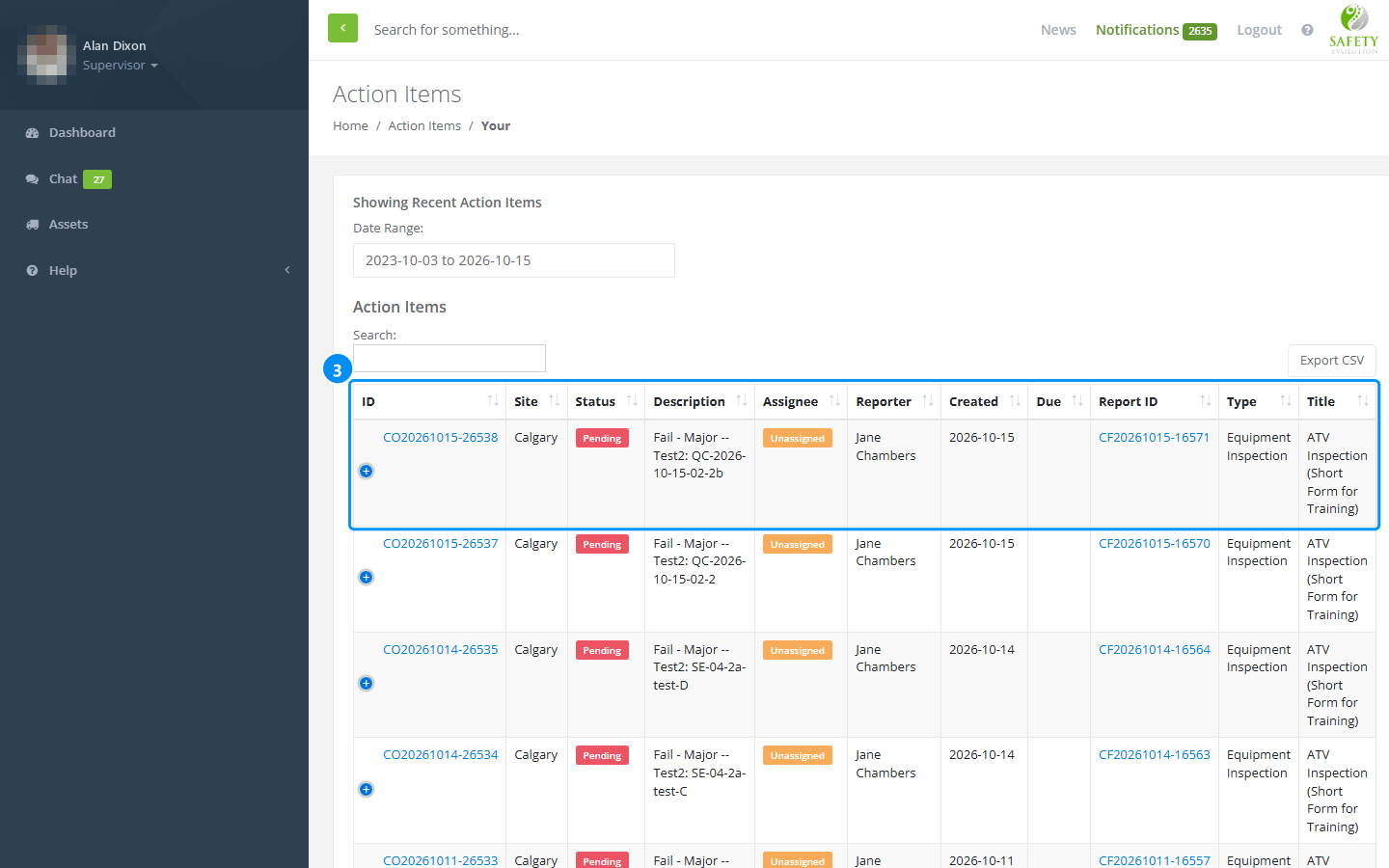
Your action items, with the unassigned ones for your sites.
Assign an action item
On the web
- Click the item's ID to open it.
- Under Actions Available:, click Assign.
- In Action Item Assignment, pick the person under Assign To.
- Pick a due date.
- Type what they should do in Enter instructions here.
- Click Assign. You see "Corrective action assigned".
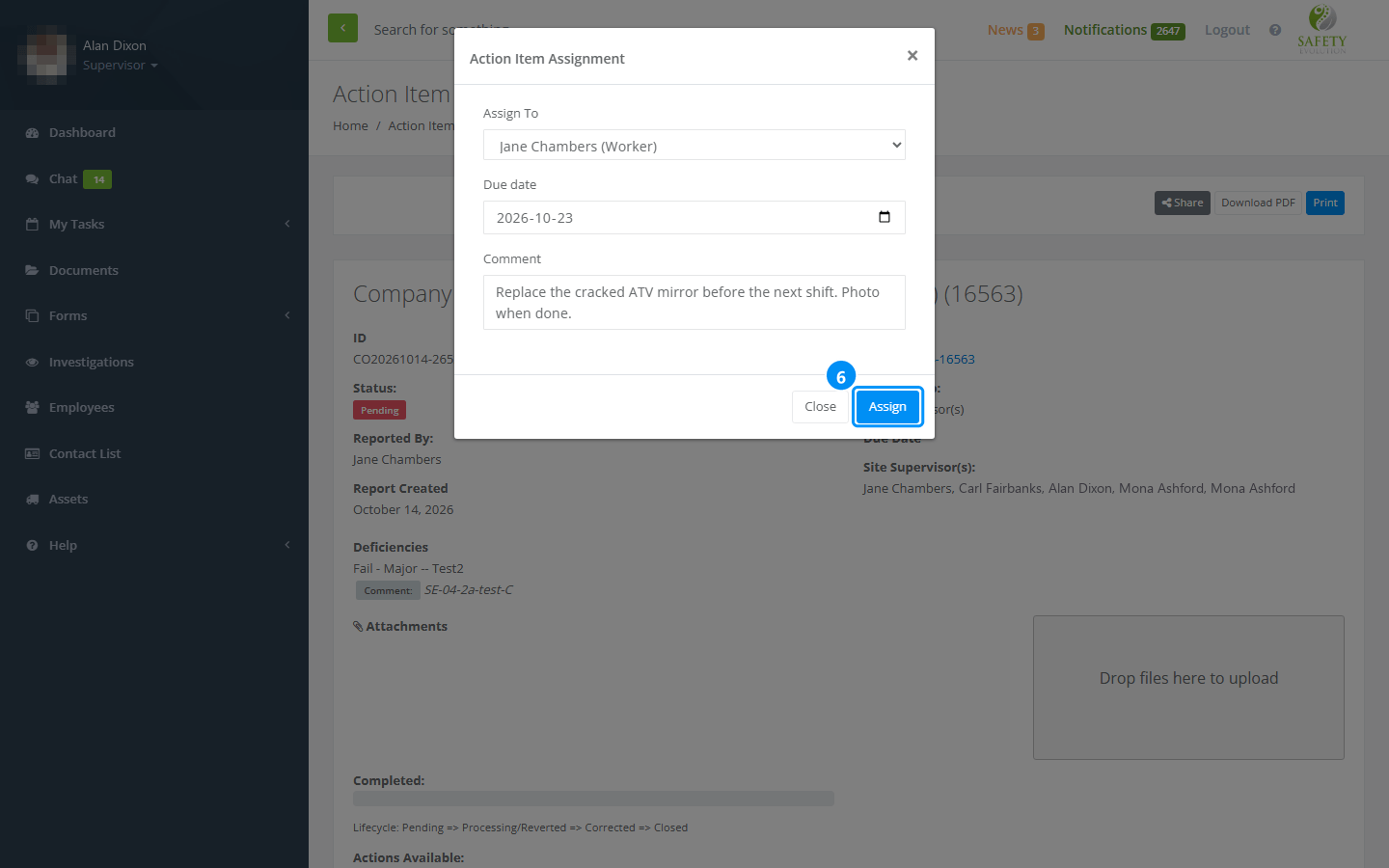
Pick who fixes it, by when, and what to do.
On the phone
- Tap the Actions tab, then tap the item.
- Tap Assign.
- Fill in Assign To:, Due date: and Comment:.
- Tap Assign.
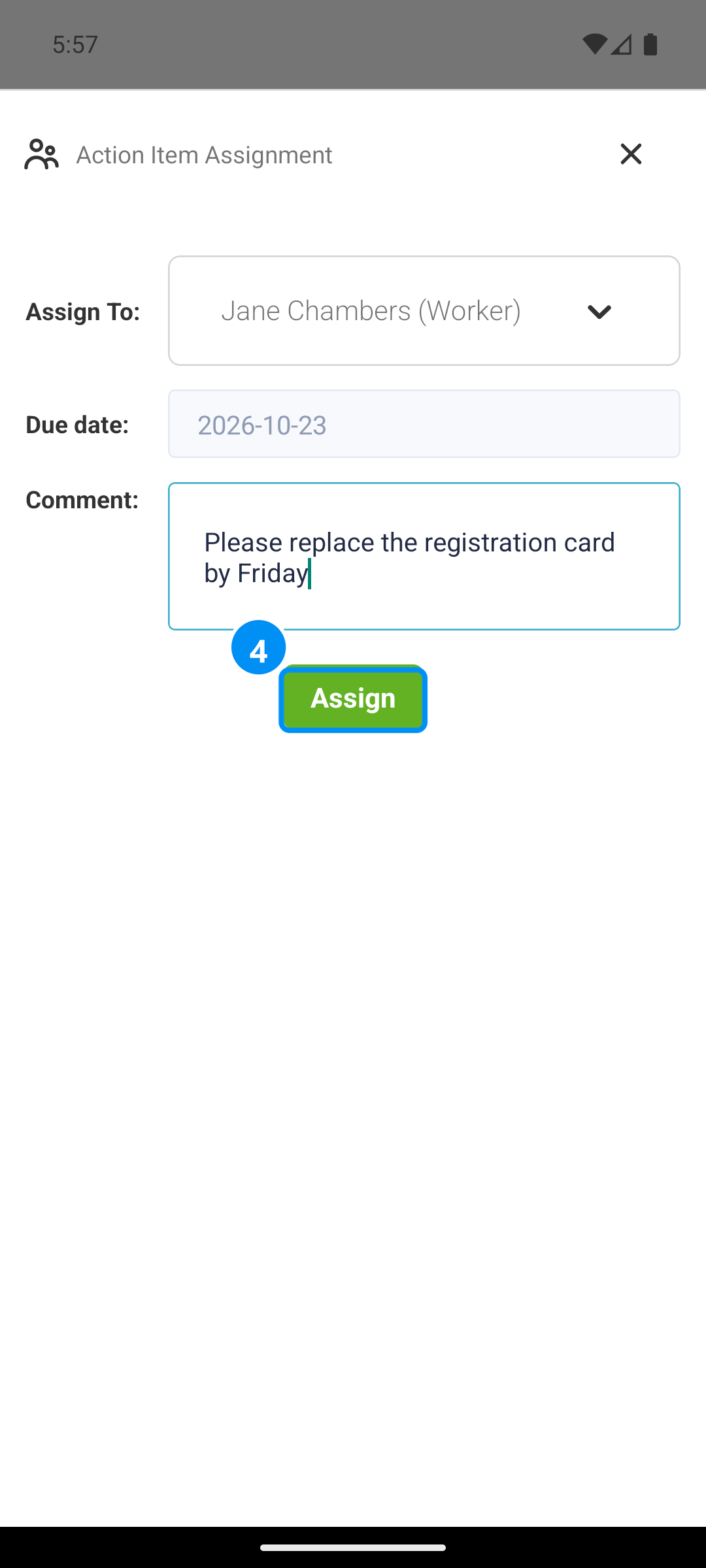
Assigning on the phone.
The person gets a notice, "Action item has been assigned to you", and a phone push, "Action Assigned".
Check the fix and close it
When the assignee taps Resolve, the item becomes Corrected and comes back to the site supervisors.
- Open the item. Read the Comments and look at the Attachments.
- If the fix is good, click or tap Close, then OK on the web. You see "Corrective action closed". The person who reported it gets "Corrective action taken".
- If it is not fixed, click or tap Revert. Say why and send it. It becomes Reverted so you can assign it again.
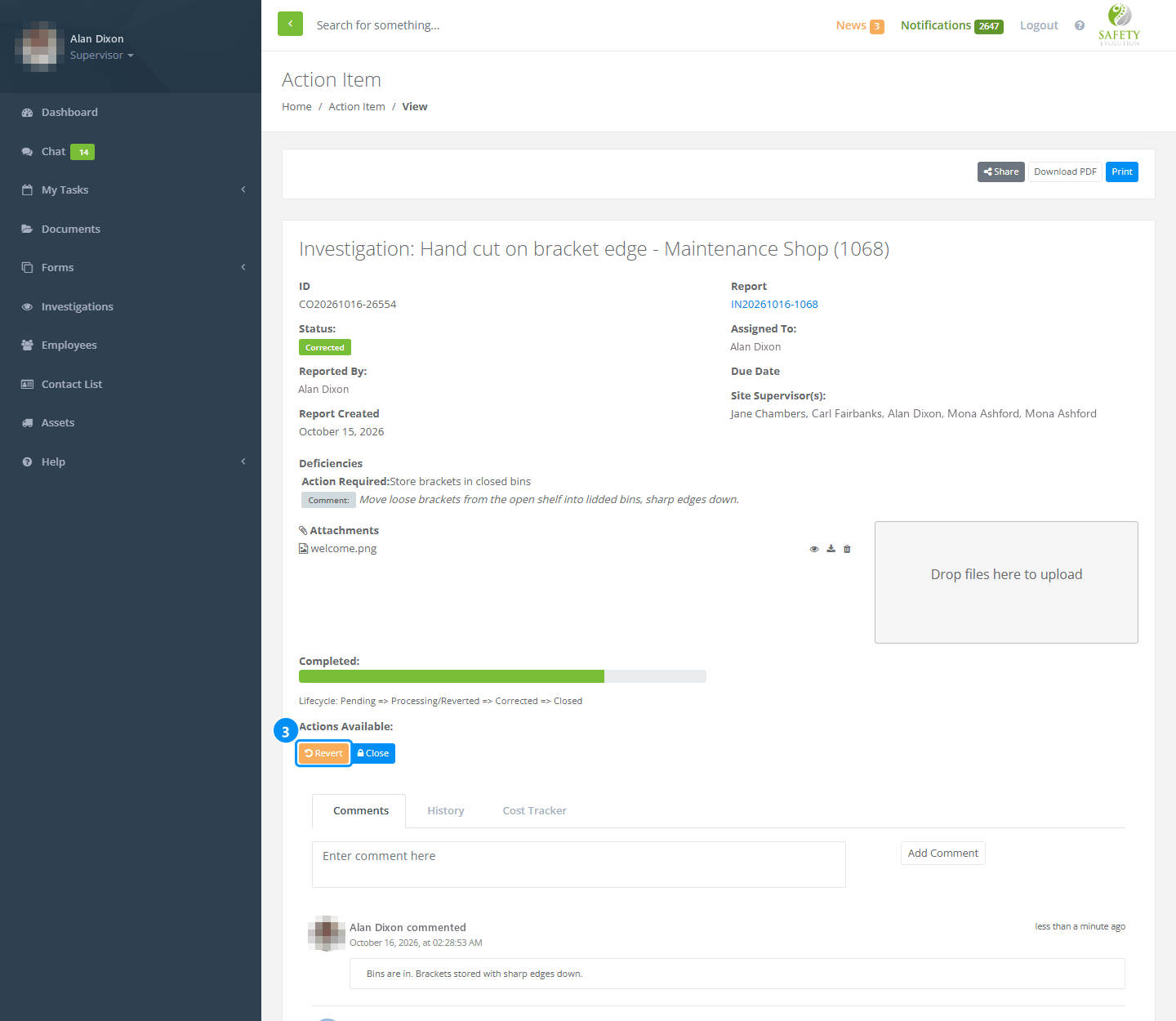
Close it when the fix is good, or Revert it.
Keep track
- The History tab shows every step and who took it.
- The Cost Tracker tab shows what the fix cost.
- If an item passes its due date, the assignee and the site supervisors get "Corrective Action is past due." once.
- Once Safety Evolution has turned branding on for your company, an item has Download PDF, Print and Share for a branded report. See Print, download or share an Action Item report.
- With Command Center turned on, owners, designates and admins can work on many action items at once. See Command Center: corrective actions in bulk.
If something goes wrong
- No Assign or Close button: you are not a supervisor of that item's site. See Why can't I assign or close an action item?.
- The phone says "Only a site supervisor can assign this." or "Only a site supervisor can close this.": same reason.
Updated October 24, 2026