![side_logo.png]](/theme/site/shared/images/side_logo.png)
Do an equipment inspection and report deficiencies
Inspect a piece of equipment on the phone, note what is wrong with comments and photos, and turn the problems into action items when you hand in.
Try it free Start with Safety Evolution's Free version.
Some forms have an inspection. You pick the equipment, answer each check, and note anything that is wrong. Each problem you find is a deficiency. When you hand in the form, the deficiencies become action items, so someone fixes them.
Before you start
- Your office builds the inspection forms. Ask them which form to use for your equipment.
- Start the form as usual. See Fill in and hand in a form on the phone.
- Pick the site first, before you answer any check. If you answer a problem before picking the site, the same problem can make two action items.
Do the inspection
- Open the inspection form on the phone and tap Select Site. Pick your site.
- In the inspection, tap Select asset and pick the piece of equipment. (Some inspections are about a person. They show Select employee.)
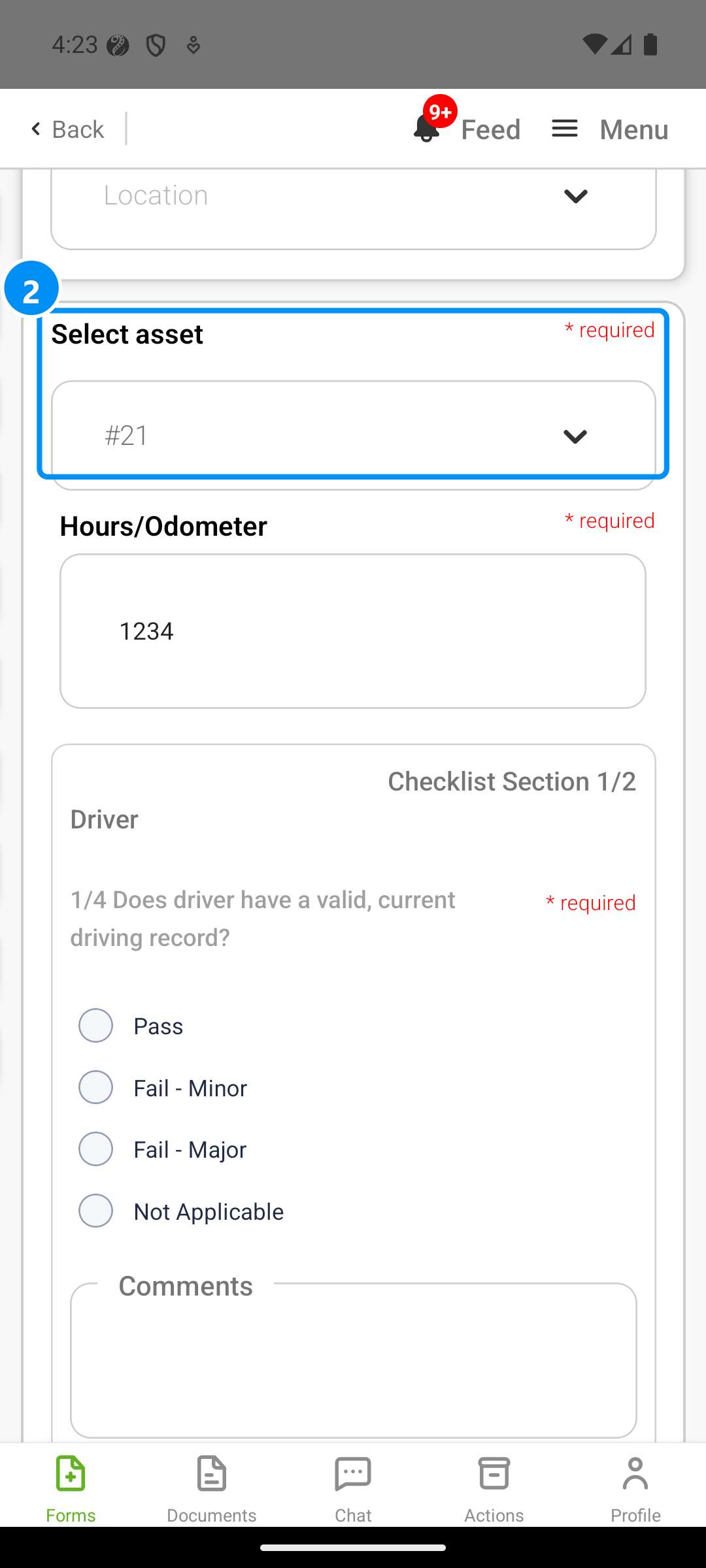
Pick the equipment and type its hours or odometer. - Type the reading in Hours/Odometer. It must be filled in.
- Go through each Checklist Section. For each check, tap the answer that fits. Every check needs an answer.
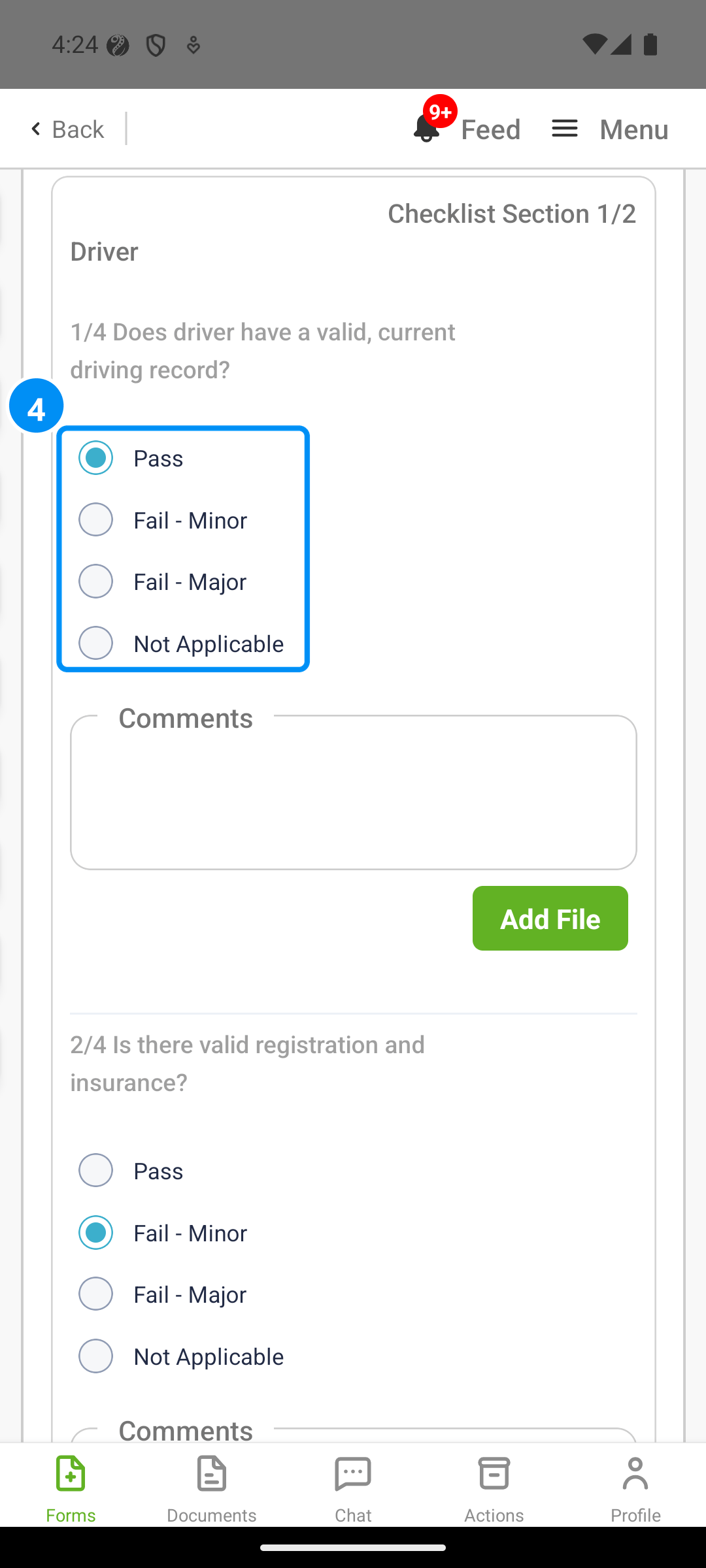
Tap one answer for each check.
Report a problem (deficiency)
- When something is wrong, tap the answer for a problem. Your office decides which answers count as a problem.
- Type what is wrong in Comments. Always write a comment for a problem, so the person who fixes it knows what to do. Some answers must have a comment: the box shows Required field. until you type one.
- To add a photo of the problem, tap Add File under the check, then Take Photo.
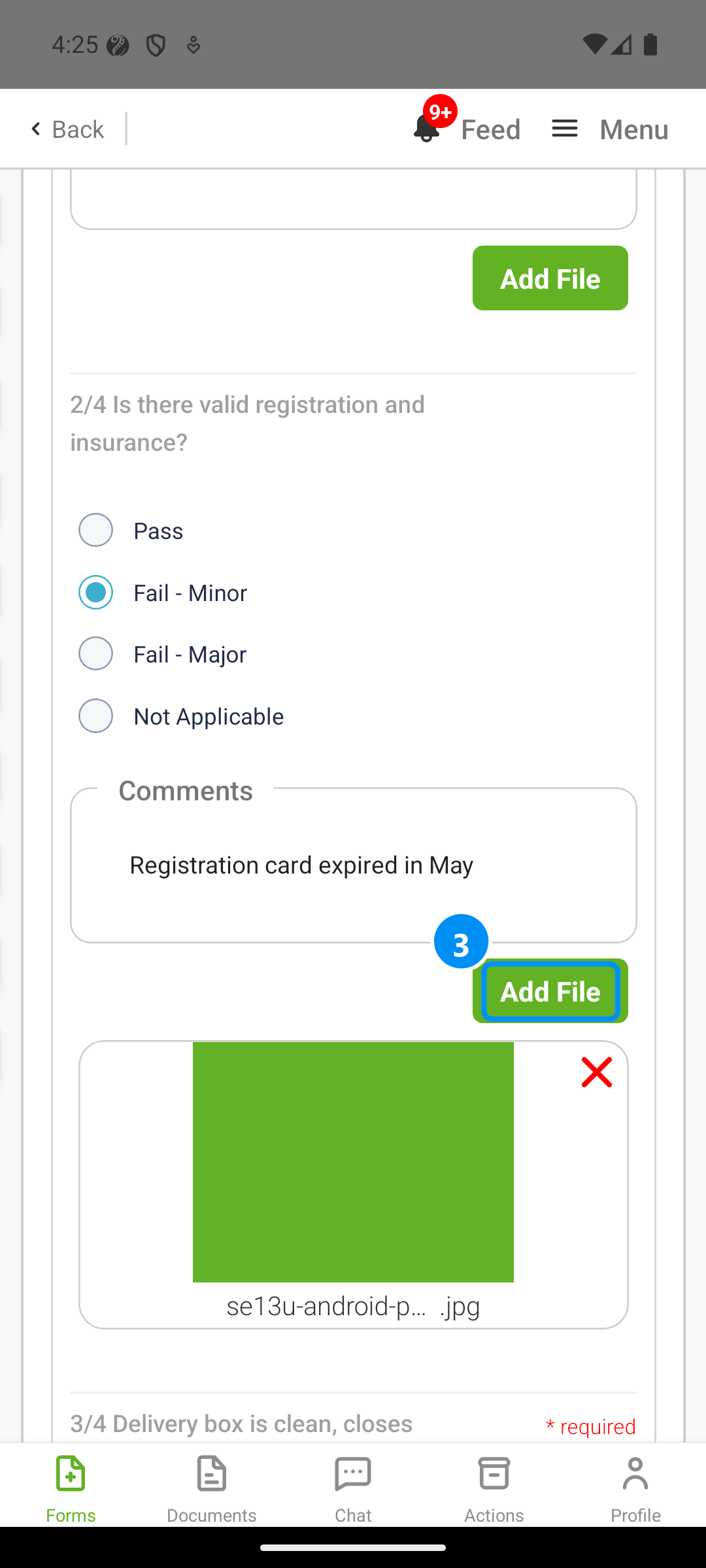
Say what is wrong and add a photo.
Check the Identified Deficiencies list
- Scroll to the end of the inspection. The Identified Deficiencies box lists every problem you found. When there are none it says No deficiencies have been identified yet.
- Choose how the action items are made:
- Leave Create Separate Action Items off to put all the problems in one action item.
- Turn Create Separate Action Items on to make one action item for each problem.
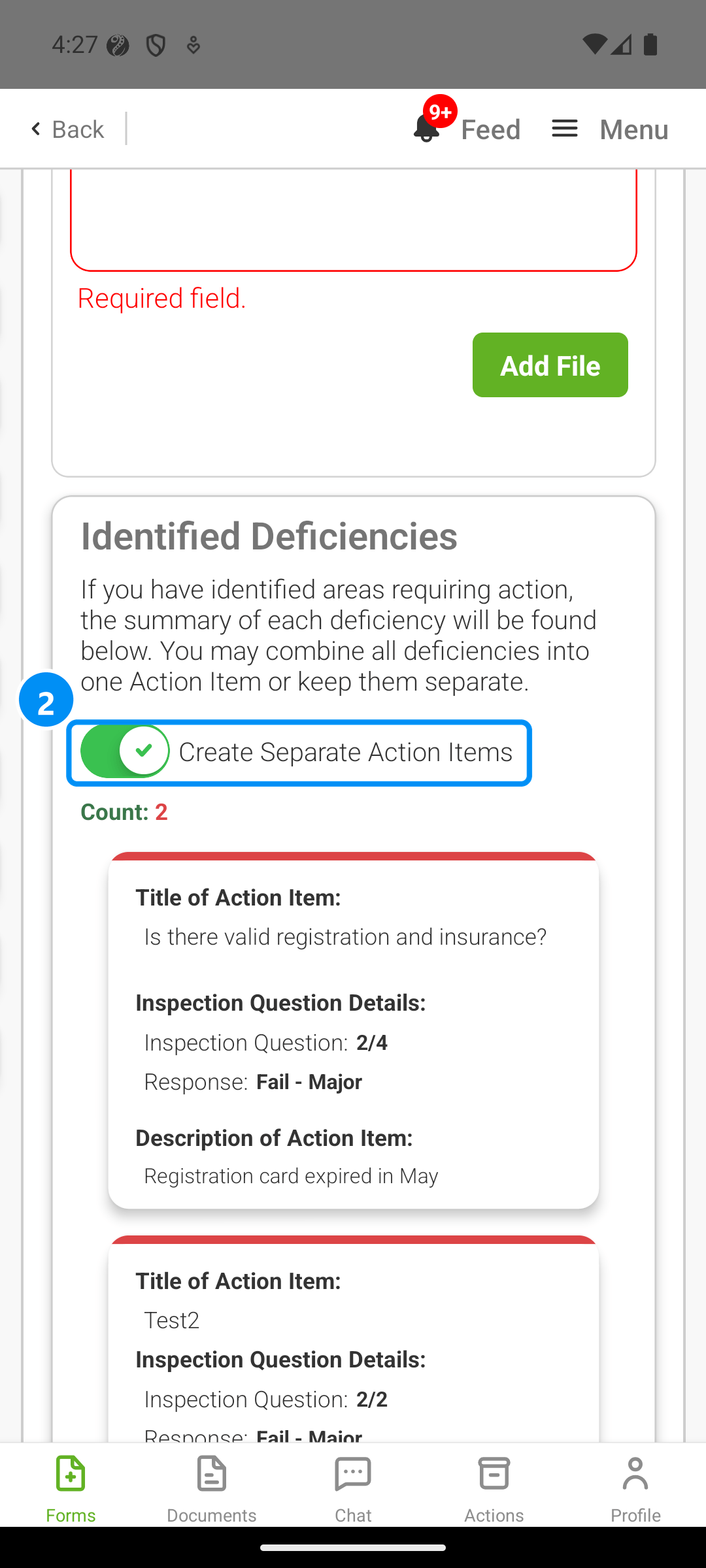
Count shows how many action items you will make.
Hand in
- Tap Hand In at the bottom of the form.
- Tap Finish when every step is ticked.
The action items are made for the site you picked. That site's supervisors see them and assign them to someone to fix. If an action item is assigned to you, see Fix an action item assigned to you.
If something goes wrong
- "One or more required questions were not answered": a check with no answer, a missing Hours/Odometer, or no site. Tap Cancel, fill it in and tap Hand In again.
Updated October 24, 2026