Toolbox Talks
Office Safety Toolbox Talk
Run an office safety toolbox talk that covers real hazards. Ergonomics, slips and trips, fire safety, electrical, and mental health for office...
A practical office ergonomics checklist for contractors. Set up safe workstations for your admin staff, estimators, and PMs in site offices and trailers.
Last updated: March 2026
You spend thousands on PPE for your crew. Hard hats, harnesses, steel toes. But your estimator has been hunched over a laptop in the site trailer for three years with a kitchen chair and a folding table. Your office admin complains about neck pain every week. Your PM squints at a monitor that sits six inches too low.
Here is the uncomfortable truth: you need an office ergonomics checklist as badly as you need your FLHA process. Musculoskeletal injuries (MSIs) do not just happen on the job site. They happen at desks, too. And they account for roughly 30% of all time-loss claims with WorkSafeBC, costing over $2 billion in claims between 2019 and 2023 in B.C. alone. Your office staff are not exempt from those numbers.
We help contractors build safety programs every week, and the office is almost always the blind spot. This office ergonomics checklist gives you a practical, item-by-item guide to setting up safe workstations for the people who keep your business running from behind a desk.
Office ergonomics is the practice of setting up workstations so employees can work comfortably without developing neck pain, back strain, eye fatigue, or repetitive strain injuries. Even in safety-focused industries like construction and oil and gas, your office staff, project managers, and estimators spend hours at desks, and poor workstation setup is one of the most common sources of preventable injury claims.
This checklist covers everything you need to evaluate and fix in an office workstation, from chair height to monitor placement to keyboard positioning.
Office ergonomics is the practice of setting up a workstation so the desk, chair, monitor, keyboard, and lighting match the worker's body and tasks, reducing strain and preventing musculoskeletal injuries.
Most contractors think ergonomics is a field problem. They picture heavy lifting, awkward postures on scaffolding, repetitive tool use. They are wrong.
Your admin team, estimators, and project managers sit for 6 to 10 hours a day. They type, click, and stare at screens. They crane their necks to read drawings. They balance phones on their shoulders while writing emails. These are all ergonomic hazards, and provincial regulators treat them the same as any other workplace hazard.
Under Alberta's OHS Code (Part 14) and WorkSafeBC's Occupational Health and Safety Regulation (Part 4), employers must identify MSI risk factors, assess the risk, and implement controls for every work environment. That includes the front office, the site trailer, and the estimating room.
A 15-person electrical contractor we worked with in Edmonton discovered this the hard way. Their office coordinator filed a WCB claim for chronic wrist pain after two years of working on a laptop at a table with no external keyboard or mouse. The claim was accepted. The company's premiums went up. The fix would have cost $150.
If your team includes people who work at desks, SE-AI can check your safety records for ergonomics gaps and flag where your program needs work.
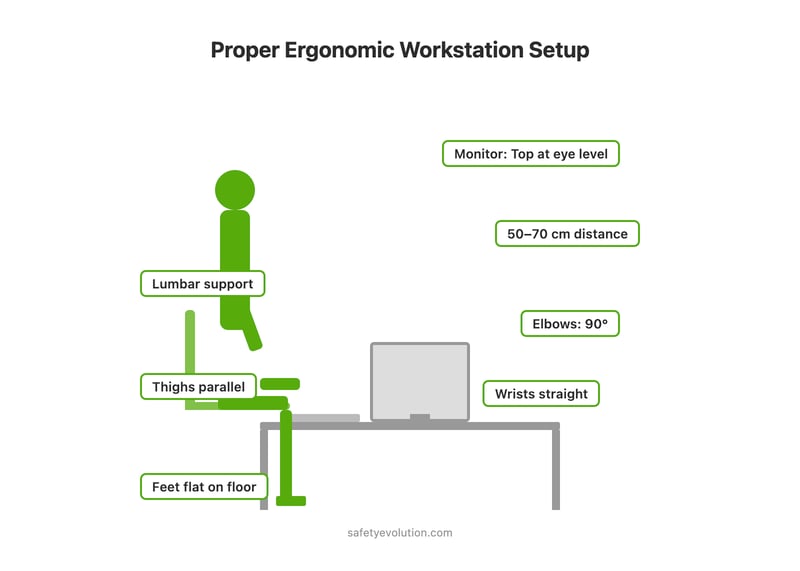
The chair is the foundation of an ergonomics desk setup. Get this wrong and nothing else matters. Here is what to check:
If you are furnishing a site trailer or small office, skip the $50 task chairs from the big box store. A decent adjustable office chair costs $200 to $400 and lasts years. Compare that to a single WCB claim.
Ergonomics Claims From Office Workers Are Rising
SE-AI checks your safety records for office ergonomics gaps, missing workstation assessments, and MSD patterns among desk-based staff.
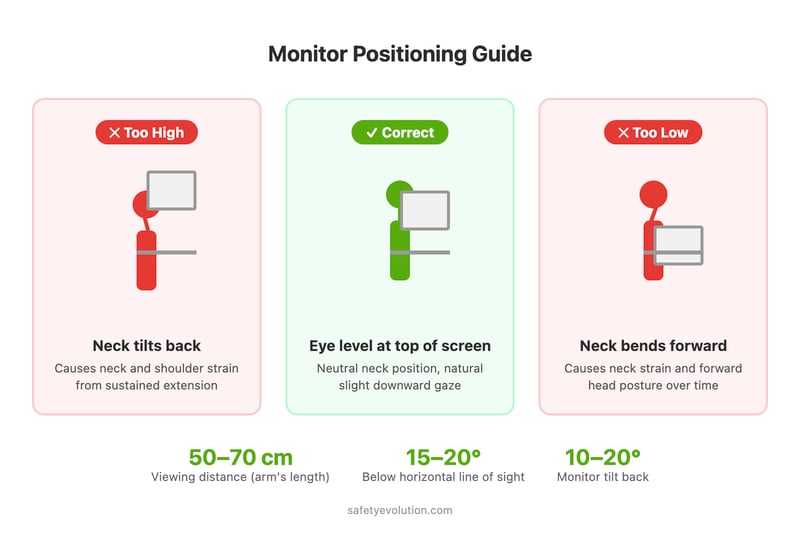
Get Early Access →A monitor that is too low, too high, or too close causes neck pain, eye strain, and headaches. This is one of the most common problems we see in contractor offices, especially in site trailers where people work on laptops with no external monitor.
According to CCOHS, the top of the screen should be at or slightly below eye level, with the center of the screen about 15 to 20 degrees below your horizontal line of sight. Placing a monitor too high (above eye level) causes significantly more neck and shoulder strain than placing it slightly too low.
Here is the ergonomics screen height and ergonomics monitor checklist:
Workers who wear bifocals or progressive lenses are a special case. They tend to tilt their heads back to use the reading portion of their lenses, which strains the neck. For these workers, the monitor should sit lower than the standard guideline, and they may benefit from dedicated computer glasses.
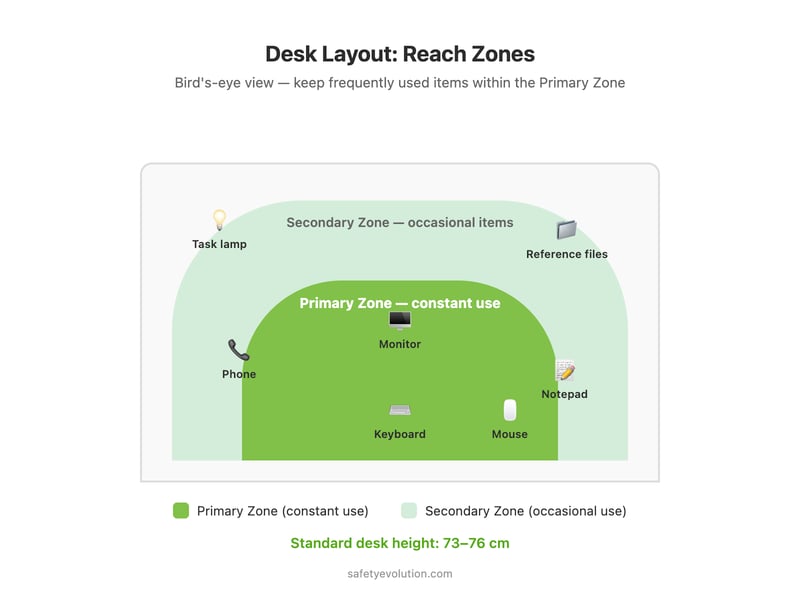
The ergonomics keyboard position setup is where most site trailers and small offices fall apart completely. We have seen estimators working with keyboards on top of stacked binders. We have seen PMs using trackpads for eight hours straight. These setups create wrist, forearm, and shoulder problems that build slowly and then hit all at once.
For anyone spending more than four hours a day typing, an external keyboard and mouse are not luxuries. They are basic ergonomic controls, the same way hearing protection is a basic control on a noisy site.
The desk ties everything together. If the surface height is wrong, every other adjustment becomes a workaround.
Sit-stand desks are worth considering if the budget allows ($300 to $700 for a decent converter). Research shows that alternating between sitting and standing every 30 to 60 minutes reduces back discomfort. But a sit-stand desk is not a substitute for a properly adjusted regular desk. Fix the basics first.
Lighting gets overlooked in office ergonomics, but it drives some of the worst posture habits. A worker who cannot see their screen clearly will lean forward. A worker dealing with overhead glare will hunch. Both lead to strain.
Even a perfectly set up workstation will cause problems if the worker sits in the same position for eight hours straight. The Canadian Centre for Occupational Health and Safety (CCOHS) recommends building movement into the workday.
These are not nice-to-haves. For your admin staff sitting in a small company office or site trailer, breaks and movement are controls, the same way ventilation is a control for chemical exposure. Build them into the expectation, not just the suggestion.
If you are building or updating your safety program and want to make sure your office staff are covered, Safety Evolution can help. We build done-for-you safety programs that cover every worker, not just the ones on the tools.
Print this out, walk through each workstation, and check every item. This is your office ergonomics checklist in one place.
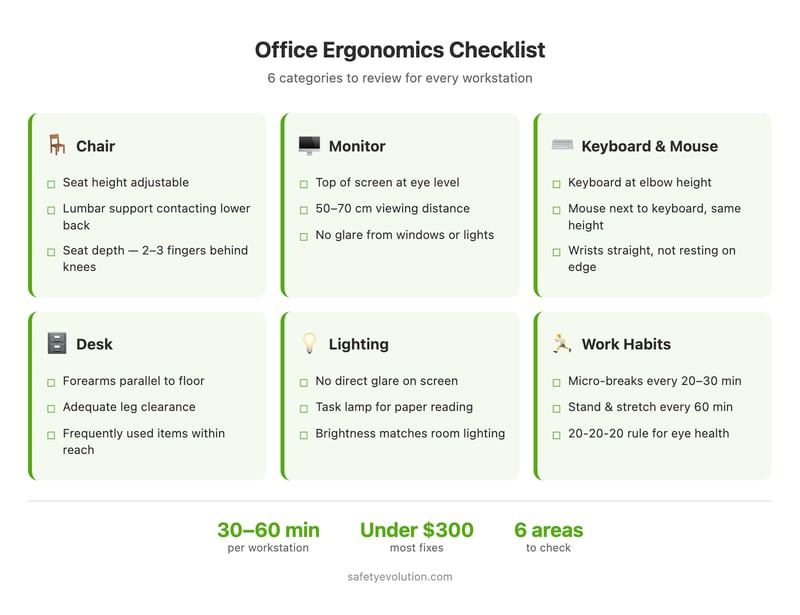
Use this checklist during workplace ergonomics assessments and annual workstation reviews. It takes 30 to 60 minutes per workstation and most fixes cost under $300.
Running through this checklist once is good. Making it part of your system is better. Here is how contractors actually make office ergonomics stick:
The blunt truth: most contractors have a 50-page safety manual that covers everything from confined space entry to fall protection, and exactly zero pages about the person who sits at the front desk for eight hours a day. That gap is a liability. It shows up in WCB claims, and it shows up in audits.
If you want expert help building a complete safety program that covers your whole team, Safety Evolution is your done-for-you safety department. We do not just hand you templates. We build the program, train your people, and keep it current.
Is Your Office Ergonomics Program Documented in Your SMS?
SE-AI analyses your safety program documentation for office ergonomics gaps. It flags missing workstation assessments, undocumented DSE evaluations, and MSD incident patterns among desk-based workers that signal your ergonomics program needs updating.
Get Early Access to SE-AI →Yes. Canadian employers are legally required to identify and control musculoskeletal injury (MSI) hazards in all work environments, including offices. In Alberta, this falls under the OHS Code Part 14. In B.C., WorkSafeBC's Regulation Part 4 covers MSI prevention requirements. Employers must assess risks, implement controls, and provide training.
Most workstation fixes cost under $300. A quality adjustable office chair runs $200 to $400. A monitor stand or arm costs $30 to $80. An external keyboard and mouse cost $50 to $100. A sit-stand desk converter adds $300 to $700 if needed. Compare these costs to the average WCB time-loss claim, which typically runs thousands of dollars in direct and indirect costs.
At minimum, assess each workstation when a new worker starts and once per year after that. Also reassess whenever a worker reports discomfort, changes roles, or moves to a different desk. Some companies include ergonomic assessments as part of their annual safety program review. The ergonomic assessment process can be done in 30 to 60 minutes per workstation.
The most common office ergonomic hazards include: monitors positioned too low or too high, chairs without proper lumbar support or height adjustment, keyboards placed at the wrong height causing wrist strain, reaching for a mouse that is too far from the keyboard, prolonged sitting without breaks, and poor lighting causing glare on screens.
Absolutely. Site trailers are workplaces under provincial OHS legislation, and your employer obligations apply there the same as any permanent office. Workers in site trailers often face worse ergonomic conditions: folding chairs, makeshift desks, laptops without external monitors. These environments need the same checklist applied, even if the fixes look different. A laptop stand, external keyboard, and proper chair are practical minimum requirements for any site trailer workstation.
Get Weekly Safety Insights
Regulation updates, toolbox talk ideas, and compliance tips. One email per week.
Run an office safety toolbox talk that covers real hazards. Ergonomics, slips and trips, fire safety, electrical, and mental health for office...
Ergonomics training helps prevent MSIs and meet Canadian OHS requirements. Learn what it covers, who needs it, and how to build a program.
An ergonomics assessment identifies injury risks in your workplace. Learn when one is required, what the process involves, and what you get at the...